How to Download a File from a Website Link
Learn how to save files, images, PDFs, and web pages from links in Chrome, Firefox, Safari, cURL, Python, and Node.js.
Quick answer: Open the page containing the link, click the link, and choose a save location if your browser asks. If the file opens in the browser instead, right-click the link and choose Save link as, or use the viewer’s download button.
1. Download a file from a link
- Open the page that contains the file link.
- Click the link once. Most browsers start the download immediately.
- If a location dialog appears, choose a folder and filename, then select Save.
- Open the browser’s Downloads panel to see progress and open the completed file.
In Chrome, the documented sequence is to open the site, click the download link (or use Save as), choose a location when prompted, and open the completed file from the download tray. See Google Chrome’s download instructions.
2. Save different types of files
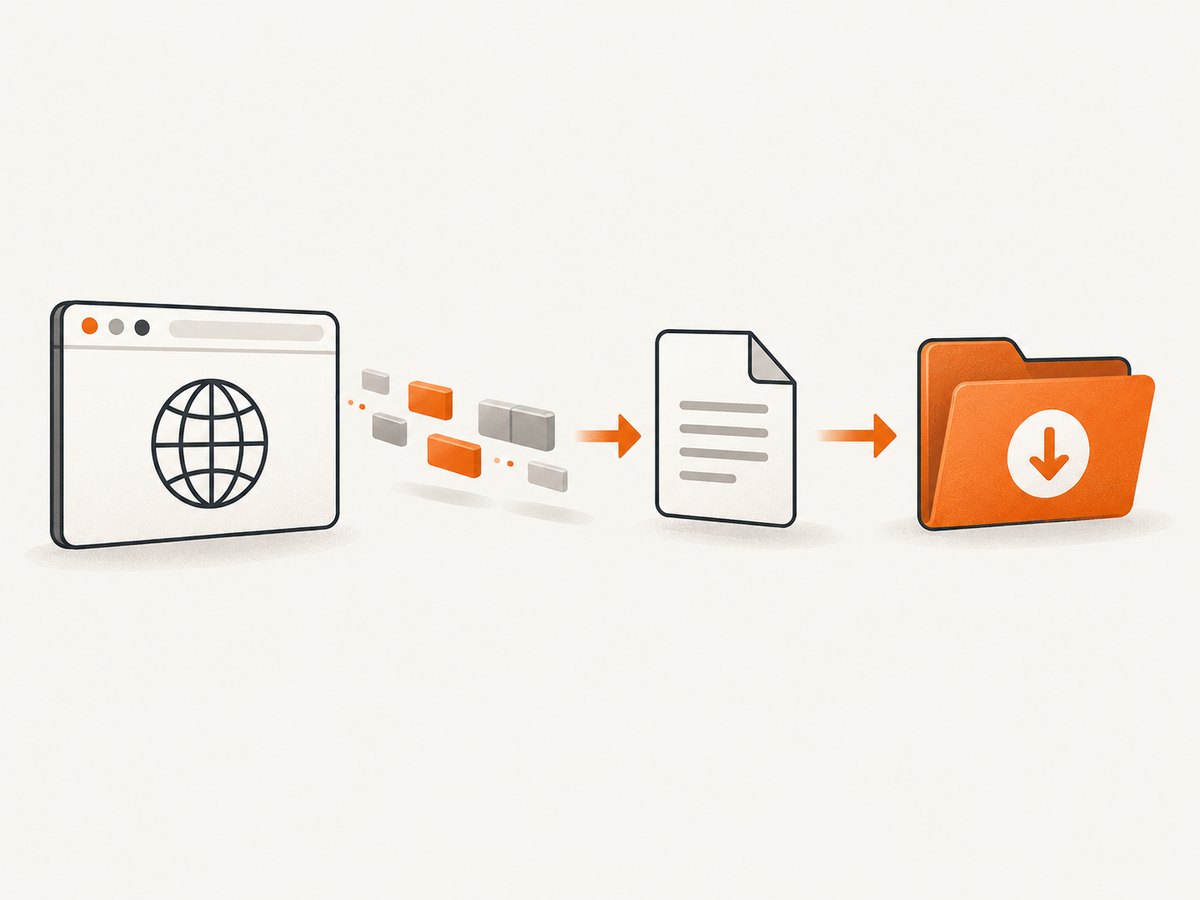
Ordinary documents, archives, and installers
Click the download link. If it opens in a tab or you need another filename or folder, right-click the link and choose Save link as (the wording may be Save as).
Images
Right-click the image itself and choose Save image as. Select the destination and confirm the filename. Saving the image element preserves the image file; saving the page saves the surrounding HTML instead.
PDF files
Right-click the PDF link and choose Save link as. If the PDF is already open in a browser viewer, use its download button. Chrome also provides a setting that controls whether PDFs open in Chrome or download automatically; see Chrome’s PDF and download guidance.
A complete web page
To save the page rather than a linked file in Chrome, use More → More tools → Save page as. This creates a local HTML copy and may also create a folder for page resources.
3. Browser instructions
Chrome
- Click a download link, or right-click it and choose Save link as.
- Open the Downloads menu to open the file or show it in its folder.
- Go to Settings → Downloads to change the default folder or enable Ask where to save each file before downloading.
Chrome documents default Downloads locations for Windows, macOS, and Linux in its official help page.
Firefox
- Click the link, or right-click and choose Save Link As….
- Use the Downloads panel to open the file, show it in its folder, return to the source page, copy its link, delete the file, or remove only the download-history entry.
Firefox’s handling depends partly on the server’s MIME or content type. Its documentation explains this behavior and the Downloads panel in Where to find and manage downloaded files and file-type download settings.
Safari on Mac
Click a download link. For an image or other object, Control-click it and choose Download Linked File. Apple documents this command in Safari’s download instructions.
4. Find a file after it downloads
Browsers normally use a Downloads folder in your user account. If you cannot find the file:
- Open the browser’s Downloads panel and select Show in folder (or the equivalent command).
- Search your computer for the filename or extension, such as
.pdf,.zip, or.jpg. - Check the browser’s configured download directory.
- Look for a second extension such as
.crdownloador.part; that usually means the transfer is still incomplete.
5. When clicking opens the file instead
A browser may display a file inline when its type is supported, such as PDF, image, text, or audio. This does not mean the file cannot be saved. Use one of these methods:
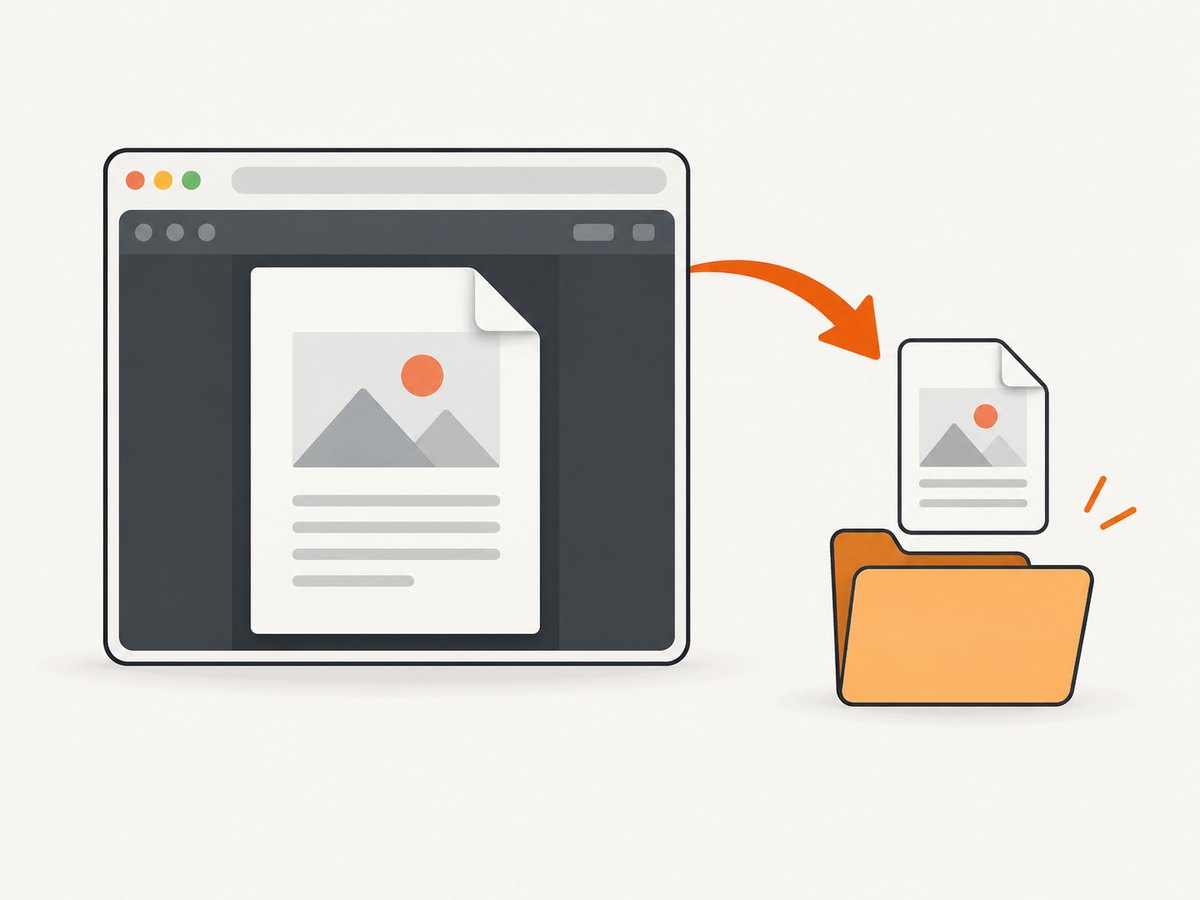
- Right-click the original link and choose Save link as.
- Use the viewer’s download button.
- Press Ctrl+S on Windows/Linux or Command+S on macOS when the viewer offers a save command.
The server’s Content-Type and Content-Disposition headers influence whether a browser displays a response or suggests a download. A wrong MIME type can make a file appear as text or otherwise behave unexpectedly. Firefox explains this relationship in its file-type documentation.
6. Download with code
Use these examples when the link is stable and you need an automated copy. Replace the example URL with the direct file URL. A page URL that only renders a download button may require an authenticated session, cookies, or a separate API endpoint.
cURL
curl -L "https://example.com/files/report.pdf" -o report.pdf-L follows redirects. Add -f to fail on HTTP errors and -C - to attempt resume support when the server supports byte ranges:
curl -fL -C - "https://example.com/files/report.pdf" -o report.pdfPython
import requests

url = "https://example.com/files/report.pdf"
with requests.get(url, stream=True, timeout=90) as response:
    response.raise_for_status()
    with open("report.pdf", "wb") as output:
        for chunk in response.iter_content(chunk_size=1024 * 1024):
            if chunk:
                output.write(chunk)
Streaming avoids holding a large file in memory. For a protected link, pass the required cookies or authorization header only when the site gives you permission to do so.
Node.js
import { createWriteStream } from 'node:fs';
import { pipeline } from 'node:stream/promises';

const url = 'https://example.com/files/report.pdf';
const response = await fetch(url, { redirect: 'follow' });
if (!response.ok || !response.body) {
  throw new Error(`Download failed: ${response.status} ${response.statusText}`);
}
await pipeline(response.body, createWriteStream('report.pdf'));
7. HTML links and suggested filenames
If you control the page, the HTML anchor can suggest downloading a resource with the download attribute:
<a href="/files/report.pdf" download="quarterly-report.pdf">
  Download the report
</a>
The attribute is a hint. The response headers, origin rules, authentication, and browser security policies still affect the result. For reliable server-controlled behavior, configure an appropriate Content-Type and, when a download is intended, a Content-Disposition: attachment header.
8. Troubleshooting
| Symptom | Likely cause | Fix |
|---|---|---|
| The link opens a PDF or image | The browser handles that MIME type inline. | Right-click the link and choose Save link as, or use the viewer’s download button. |
| The downloaded file is HTML instead of the expected file | The URL redirected to a login page, error page, or bot check. | Open the URL in a browser, sign in if required, and confirm you have the direct file URL. Inspect the response status and Content-Type. |
| The browser says the download failed | Insufficient disk space, an unwritable destination, a network interruption, or a site restriction. | Check free space and folder permissions, choose another destination, retry, and verify that the site does not require login. |
| Nothing happens when you click | The control is JavaScript-driven, blocked by an extension, or not a real link. | Try right-clicking, disabling the affected extension for the site, or use the browser’s developer tools to identify the request. |
| The filename is wrong or missing | The server omitted a filename or supplied one through headers. | Use Save as and enter a name. If you own the server, set Content-Disposition. |
| The file is incomplete | The connection ended early or the browser is still downloading. | Wait for completion, retry, or use a client that supports resume such as cURL with -C - when the server supports ranges. |
| The site requires a login | The file is protected by a session or authorization token. | Sign in through the site and use its download control. Do not share or hard-code someone else’s credentials. |
| A warning appears for an executable | Browsers protect against potentially harmful downloads. | Only keep or run an executable from a source you trust. Chrome and Firefox provide download protection warnings. |
9. Reliability, performance, and cost
- Reliability: Prefer HTTPS, verify the final HTTP status, and check that the response type matches the file you expect. Redirects and login pages are common causes of “successful” downloads containing the wrong content.
- Performance: Stream large responses instead of buffering them in memory. Choose a nearby, stable connection and avoid repeatedly downloading an unchanged file.
- Storage: Confirm available disk space before large downloads. A partial file can consume space even when the transfer fails.
- Cost: Ordinary browser downloads have no browser service fee, but the website, cloud-storage provider, or network plan may impose its own limits or charges.
10. Or skip the browser setup
If what you need is a clean image or PDF of a webpage behind the link, ScreenshotNeo returns it from one API request. Its capture removes cookie and consent banners, newsletter popups, and chat widgets before the shot. Bot checks, blank pages, timeouts, failed loads, and cache hits are not billed, and response headers identify the page verdict and billing status. An MCP server lets Claude, Cursor, and other MCP clients call screenshot and PDF tools.
See the ScreenshotNeo API documentation for all options.
cURL
curl -G "https://api.screenshotneo.com/v1/shot" -d access_key=YOUR_API_KEY --data-urlencode url=https://stripe.com -o shot.webpPython
import requests
r = requests.get("https://api.screenshotneo.com/v1/shot", params={"access_key": "YOUR_API_KEY", "url": "https://stripe.com"}, timeout=90)
open("shot.webp", "wb").write(r.content)
Node.js
const q = new URLSearchParams({ access_key: 'YOUR_API_KEY', url: 'https://stripe.com' });
const res = await fetch(`https://api.screenshotneo.com/v1/shot?${q}`);
There are 1,000 screenshots per month free with no card. Paid plans start at $5 for 3,000 shots. Create a free ScreenshotNeo account.
11. FAQ
How do I download a file without opening it?
Right-click the link and choose Save link as. This saves the linked response directly when the site permits it.
Where is my downloaded file?
Check the browser’s Downloads panel and use Show in folder. The default location is usually a Downloads folder, but each browser lets you change it.
Can I download a file from a link on an iPhone or iPad?
Tap the link, then use the share or download control offered by the viewer. The exact commands depend on the app and file type.
Why did I download a web page instead of the file?
The URL probably returned a login page, an error page, or a JavaScript application rather than the file itself. Check the response status, final URL, and content type.
Is “Save page as” the same as downloading a linked file?
No. “Save page as” saves the current HTML page and related resources. “Save link as” saves the resource addressed by the link.


