How to Download a File with Puppeteer
Configure Chrome downloads, wait for completion, verify files, and troubleshoot PDFs, authentication, timeouts, and browser-version differences in Puppeteer.
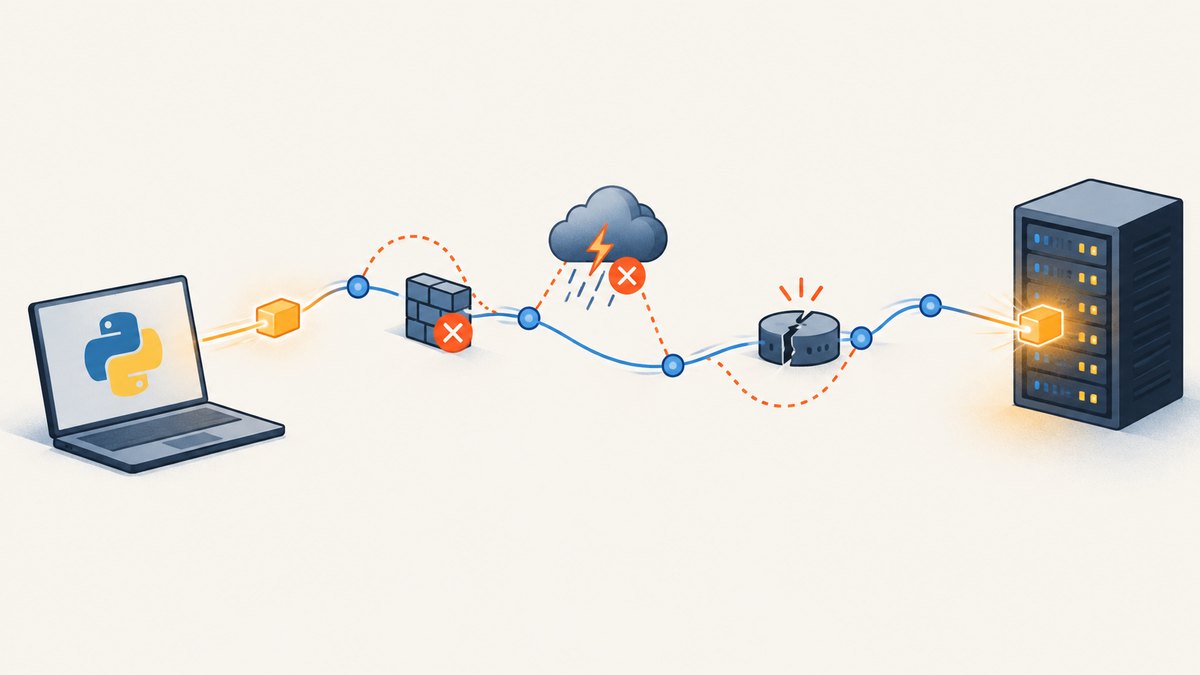
To download a file with Puppeteer, create a writable directory, configure Chrome’s download behavior before clicking the page control, listen for download lifecycle events, wait for a terminal completion state, and verify the resulting file. The exact protocol integration varies with your Puppeteer and browser versions, so check the API documentation that matches your installation.
This guide covers browser-triggered downloads such as clicking an export button or an <a download> link. It also explains when a direct HTTP request is better, why a PDF viewer is different from an attachment download, and how to make the workflow reliable in production.
1. Install Puppeteer and check the browser
The puppeteer package installs Puppeteer and downloads a compatible Chrome during installation. puppeteer-core installs the library without downloading a browser, so you must provide an executable path or connect to an existing browser. The official installation guide also documents manually installing browsers when package-manager install scripts are blocked: Puppeteer installation documentation.
mkdir puppeteer-download
cd puppeteer-download
npm init -y
npm install puppeteer
For a quick setup check, run:
node -e "const p=require('puppeteer'); p.launch({headless:true}).then(async b => { console.log(await b.version()); await b.close(); })"
If this fails, install the browser with the command recommended for your Puppeteer release, or switch to puppeteer instead of puppeteer-core when you do not need to manage Chrome yourself.
2. Prepare a download directory
Use an absolute path that the process can write to. Create a unique directory for each job when several downloads may run concurrently. Do not rely on Chrome’s default Downloads folder: it differs between machines, containers, users, and CI runners.
import fs from 'node:fs/promises';
import path from 'node:path';

const downloadDir = path.resolve('downloads', `job-${Date.now()}`);
await fs.mkdir(downloadDir, { recursive: true });
On Linux containers, also check directory ownership and available disk space. A path can exist while the browser user still lacks permission to write into it.
3. Configure Chrome’s download behavior
Chrome exposes download controls through the Chrome DevTools Protocol (CDP). The Browser domain method is described as “Set the behavior when downloading a file.” Its documented behavior values include deny, allow, allowAndName, and default; allow and allowAndName require a downloadPath. See the Chrome DevTools Protocol Browser domain.
Puppeteer exposes CDP sessions through its Page API. A browser-level session is useful for Browser-domain events, while some Puppeteer versions or launch modes require a page-target session. Check the API for your installed version before shipping protocol-specific code; the protocol reference is a continuously updated (“tot”) reference.
4. Complete Puppeteer example
The following script creates a directory, enables downloads, starts listening before the click, waits for the download to finish, and verifies the file. Replace the URL and selector with the controls on your site.
import puppeteer from 'puppeteer';
import fs from 'node:fs/promises';
import path from 'node:path';

const pageUrl = 'https://example.com/export';
const downloadDir = path.resolve('downloads', `job-${Date.now()}`);
const selector = 'a.export, button.export';
const deadlineMs = 90_000;

await fs.mkdir(downloadDir, { recursive: true });

const browser = await puppeteer.launch({ headless: true });
const page = await browser.newPage();

// Browser.setDownloadBehavior is a CDP operation. Depending on your
// Puppeteer/browser version, use a browser-target or page-target session.
const cdp = await browser.target().createCDPSession();
await cdp.send('Browser.setDownloadBehavior', {
  behavior: 'allow',
  downloadPath: downloadDir
});

let downloadGuid;
let completedPath;
let failedReason;

const started = new Promise((resolve) => {
  cdp.on('Browser.downloadWillBegin', (event) => {
    downloadGuid = event.guid;
    resolve(event);
  });
});

const finished = new Promise((resolve, reject) => {
  const timer = setTimeout(() => {
    reject(new Error(`Download did not finish within ${deadlineMs} ms`));
  }, deadlineMs);

  cdp.on('Browser.downloadProgress', (event) => {
    if (event.guid !== downloadGuid) return;

    if (event.state === 'completed') {
      clearTimeout(timer);
      completedPath = event.filePath;
      resolve(event);
    }

    if (event.state === 'canceled') {
      clearTimeout(timer);
      failedReason = event.error || 'canceled';
      reject(new Error(`Download canceled: ${failedReason}`));
    }
  });
});

try {
  await page.goto(pageUrl, { waitUntil: 'domcontentloaded', timeout: 30_000 });
  await page.waitForSelector(selector, { visible: true, timeout: 30_000 });

  // Start all listeners before this action. Fast downloads can otherwise be missed.
  await page.click(selector);
  const beginEvent = await started;
  console.log('Download started:', beginEvent.suggestedFilename);

  await finished;

  // allowAndName may report a protocol path; otherwise find the file in the directory.
  let filePath = completedPath;
  if (!filePath) {
    const names = await fs.readdir(downloadDir);
    if (names.length !== 1) {
      throw new Error(`Expected one downloaded file, found ${names.length}`);
    }
    filePath = path.join(downloadDir, names[0]);
  }

  const stat = await fs.stat(filePath);
  if (!stat.isFile() || stat.size === 0) {
    throw new Error(`Downloaded file is missing or empty: ${filePath}`);
  }

  console.log(`Saved ${filePath} (${stat.size} bytes)`);
} finally {
  await browser.close();
}
The Puppeteer Page API documents createCDPSession(). If your browser does not expose Browser-domain events on the session you created, attach the session to the browser target or use the version-specific download API documented for your release. Keep the ordering—listeners first, click second—even when the event API changes.
5. Understand the download lifecycle
A successful workflow has four distinct stages:
- Begin: Chrome accepts the response as a download and emits
downloadWillBegin. - Transfer: bytes are written while
downloadProgressreports progress. - Complete: the terminal state is
completed, and the file can be inspected. - Failure: the terminal state is
canceledor the deadline expires.
Do not treat the click returning as proof that the file is ready. A click only starts page behavior. Do not close the browser until the terminal event arrives, because the browser owns the download connection.
Some Chrome versions write a temporary partial file while a transfer is active. Avoid consuming files that are still changing. Prefer the protocol’s completion state, then check size and—when the format permits—parse the file.
6. Browser download versus direct URL retrieval
| Question | Browser-managed download | Direct Node request |
|---|---|---|
| Is a page action required? | Yes. Use this for buttons, generated exports, or JavaScript handlers. | No. Use a known file URL and an HTTP client. |
| Are browser cookies or session state needed? | Cookies, local storage, headers, and user-agent state are naturally available. | You must copy the required cookies, authorization, and headers yourself. |
| How is completion known? | CDP lifecycle events plus filesystem verification. | HTTP response completion plus status, content type, length, and file checks. |
| What can go wrong? | Popup blockers, selectors, navigation, browser permissions, and download cancellation. | Authentication, redirects, expiring URLs, and server response handling. |
If the page exposes a stable authenticated endpoint, a direct request can be simpler and faster. If the URL is created only after a click or depends on browser state, keep the browser workflow and preserve the same page context.
7. PDFs and Chrome’s PDF viewer
A PDF response can mean two different things:
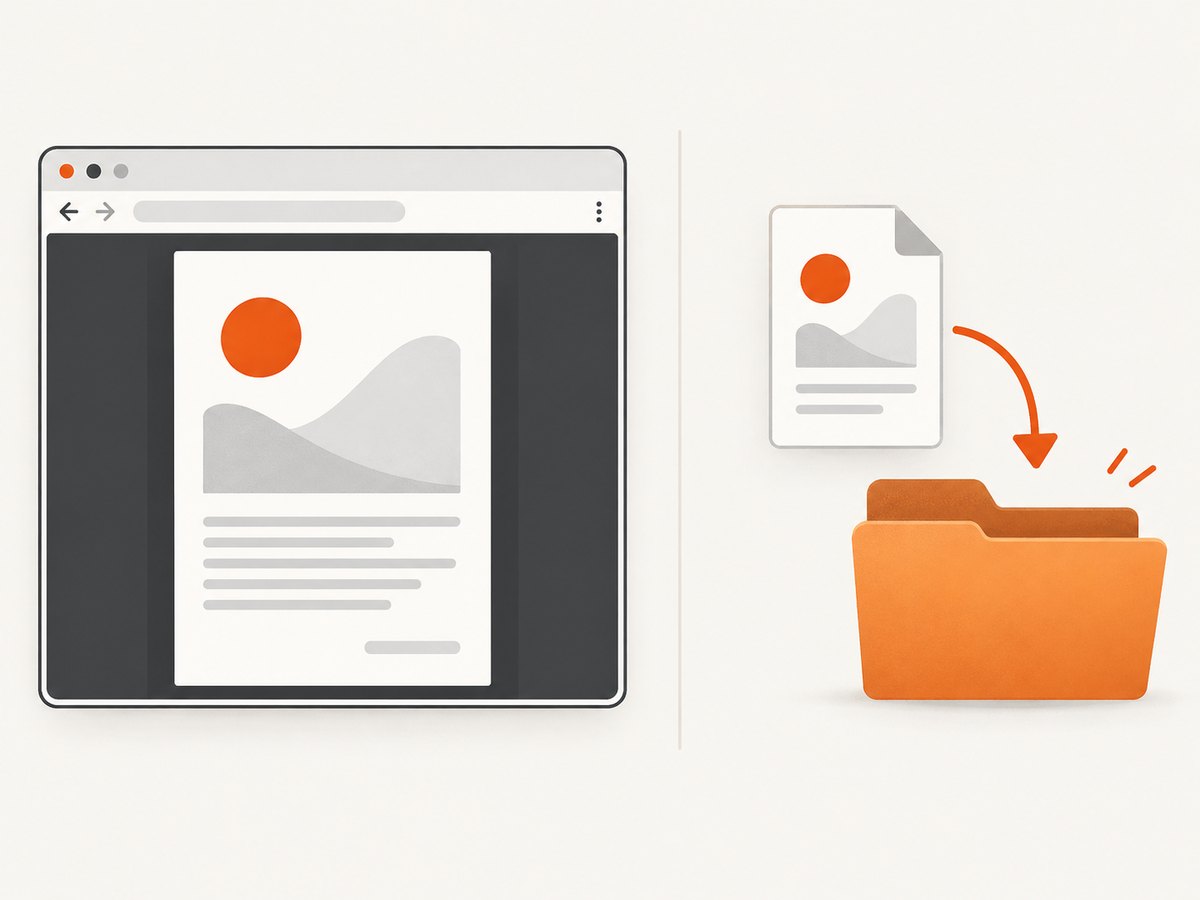
- The server sends an attachment, such as
Content-Disposition: attachment. Chrome treats it as a download, so configure download behavior and wait for completion. - The server serves a PDF for navigation, and Chrome opens its PDF viewer. That is document navigation, not necessarily a file download.
The Page API notes that headless shell does not support navigation to a PDF document, and goto may not throw for valid HTTP error statuses in headless shell. Check the response status where applicable and diagnose the server’s response headers before choosing a method. See the Page API documentation.
For a known PDF URL, use a Node HTTP client and write the response stream, or ask the site for an attachment download. For a PDF generated by a page button, keep the browser session so cookies and form state are preserved.
8. Authentication, headers, and generated exports
Set authentication before triggering the action:
await page.setExtraHTTPHeaders({
  Authorization: `Bearer ${process.env.EXPORT_TOKEN}`
});
await page.setCookie({
  name: 'session',
  value: process.env.SESSION_COOKIE,
  domain: 'example.com',
  path: '/'
});
Some sites generate a one-time URL after an asynchronous job. In that case, wait for the status element or network response before clicking the final download control. A fixed delay alone is fragile; combine a selector or response condition with a maximum deadline.
await page.waitForSelector('[data-export-status="ready"]', {
  timeout: 60_000
});
await page.click('[data-action="download"]');
9. Reliability checklist
- Use a fresh, writable absolute directory per job.
- Configure download behavior before navigation or clicking.
- Register lifecycle listeners before the action that starts the download.
- Set a deadline and cancel or close the browser after timeout.
- Check HTTP response status for navigations where it matters.
- Reject zero-byte files and unexpected filenames or counts.
- Validate the file format when possible: parse JSON, inspect PDF structure, or decode an image.
- Clean up temporary directories after successful processing and retain failed artifacts for diagnosis when policy allows.
- Limit concurrent browser jobs to the CPU, memory, and disk capacity of the runner.
- Record URL, selector, browser version, download GUID, duration, byte count, and failure state.
10. Common errors and fixes
| Error or symptom | Likely cause | Fix |
|---|---|---|
Browser.setDownloadBehavior is unknown |
Browser or protocol version mismatch, or the command was sent to the wrong target. | Check the Chrome version and Puppeteer release. Create the session on the browser target or use the version-specific API. |
| No download event arrives | Listeners were attached after the click, the control opened a new page, or the response was a normal navigation. | Attach listeners first; watch for new targets; inspect response headers and network activity. |
| Directory is empty | Path is not writable, the download was denied, or the action did not start a download. | Use an absolute path, test permissions, set behavior: 'allow', and verify the selector and response. |
| File remains partial | The script inspected the directory before the terminal event. | Wait for completed, then check size and format. |
| Timeout after clicking export | The export job is still processing, a bot check blocked it, or the site failed. | Wait for a ready-state selector, inspect the page for an error, increase the deadline only when justified, and capture logs. |
| PDF opens in a viewer | The server returned an inline PDF rather than an attachment. | Use a direct authenticated request for the PDF URL, request an attachment endpoint, or trigger the site’s explicit download control. |
| Browser will not launch | puppeteer-core has no browser, installation scripts were blocked, or the executable path is invalid. |
Install a compatible browser manually, use puppeteer, or provide a valid executable path. |
goto appears successful for an error page |
Valid HTTP error statuses do not always cause a navigation exception. | Inspect the returned response status and body before proceeding. |
| Works locally but fails in CI | Different permissions, sandbox settings, browser versions, or insufficient disk. | Log versions and paths, make the directory writable, reserve disk space, and pin compatible dependencies. |
11. Performance, cost, and resource planning
Launching a browser for every file is expensive in CPU and startup time. Reuse a browser process when jobs share a trusted environment, but isolate pages and download directories so files cannot collide. For untrusted destinations, separate browser contexts or processes reduce state leakage.
Use domcontentloaded when the download control does not depend on every image, and wait for a specific export-ready signal instead of an arbitrary long sleep. Keep download deadlines bounded. Large files consume memory, disk, and network bandwidth even when your Node process only writes them to disk, so enforce size limits and clean up promptly.
There is no universal timeout or concurrency number: page complexity, server speed, file size, and runner resources determine them. Measure your own workload and keep protocol details aligned with the browser version you deploy.
12. Or skip the browser setup
If your goal is a clean image or PDF of a URL rather than a site-specific attachment download, ScreenshotNeo provides a single GET request. Its API can capture PNG, JPEG, WebP, or PDF and supports full-page captures, lazy-loaded images, CSS selectors, custom JavaScript and CSS, waits, headers, cookies, authorization, device presets, and PDF options. Read the ScreenshotNeo API documentation for the complete option list.
curl -G "https://api.screenshotneo.com/v1/shot" \
  -d access_key=YOUR_API_KEY \
  --data-urlencode url=https://stripe.com \
  -o shot.webp
import requests

r = requests.get(
    "https://api.screenshotneo.com/v1/shot",
    params={"access_key": "YOUR_API_KEY", "url": "https://stripe.com"},
    timeout=90,
)
r.raise_for_status()
open("shot.webp", "wb").write(r.content)
const q = new URLSearchParams({
  access_key: 'YOUR_API_KEY',
  url: 'https://stripe.com'
});
const res = await fetch(`https://api.screenshotneo.com/v1/shot?${q}`);
if (!res.ok) throw new Error(`HTTP ${res.status}`);
const bytes = Buffer.from(await res.arrayBuffer());
await import('node:fs/promises').then(fs => fs.writeFile('shot.webp', bytes));
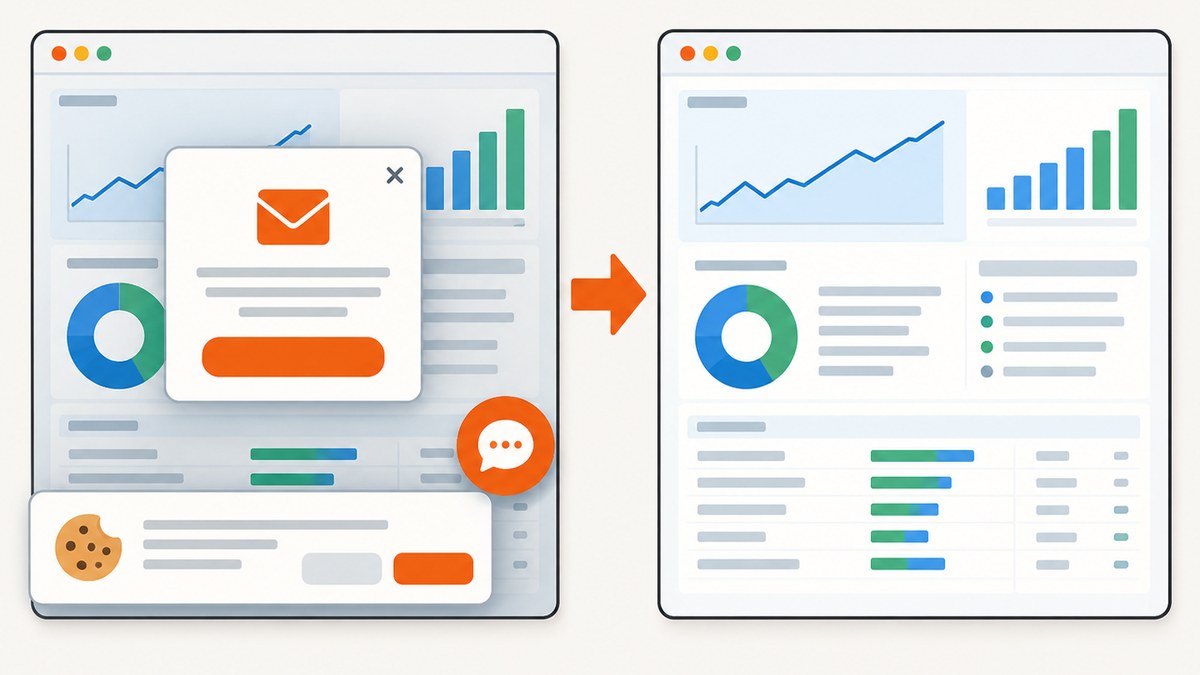
Cookie banners, newsletter popups, and chat widgets are removed before the shot. Bot checks, blank pages, failed loads, timeouts, and cache hits are never billed, and response headers identify the page verdict and whether the request was billed. An MCP server lets Claude, Cursor, and other MCP clients use take_screenshot, get_page_info, and capture_pdf. The free plan includes 1,000 screenshots a month with no card; paid plans start at $5 for 3,000 shots. Create a free ScreenshotNeo account.
13. FAQ
Can Puppeteer download without opening a visible browser?
Yes. Puppeteer runs headless by default, but headless mode still needs an allowed download behavior and a writable path.
Should I use page.waitForTimeout()?
Use a selector, response, or lifecycle event whenever possible. A short delay can help with a known animation, but it cannot prove that a variable-length download has finished.
How do I preserve the original filename?
Read suggestedFilename from downloadWillBegin when available, then sanitize it before using it in your own storage system. Treat server-provided names as untrusted input.
Why does a direct request return HTML instead of the file?
The URL may require cookies, authorization, a referer, or a short-lived token created by the page. Reuse the browser session or copy the required request state deliberately.
Can one directory handle parallel downloads?
It can, but each job must be matched to its own download GUID and expected file. Separate directories make cleanup, auditing, and collision avoidance easier.
14. Source notes
This workflow follows the official Chrome DevTools Protocol Browser documentation, the Puppeteer Page API, and the Puppeteer project documentation. Protocol and package behavior can change, so match the examples to the versions deployed by your application.


