Downloading and Retrieving Files from Cloud Browsers
Learn how to capture completed downloads from remote browsers with Playwright, Browserless CDP, or REST, including reliable waiting, storage, errors, and limits.
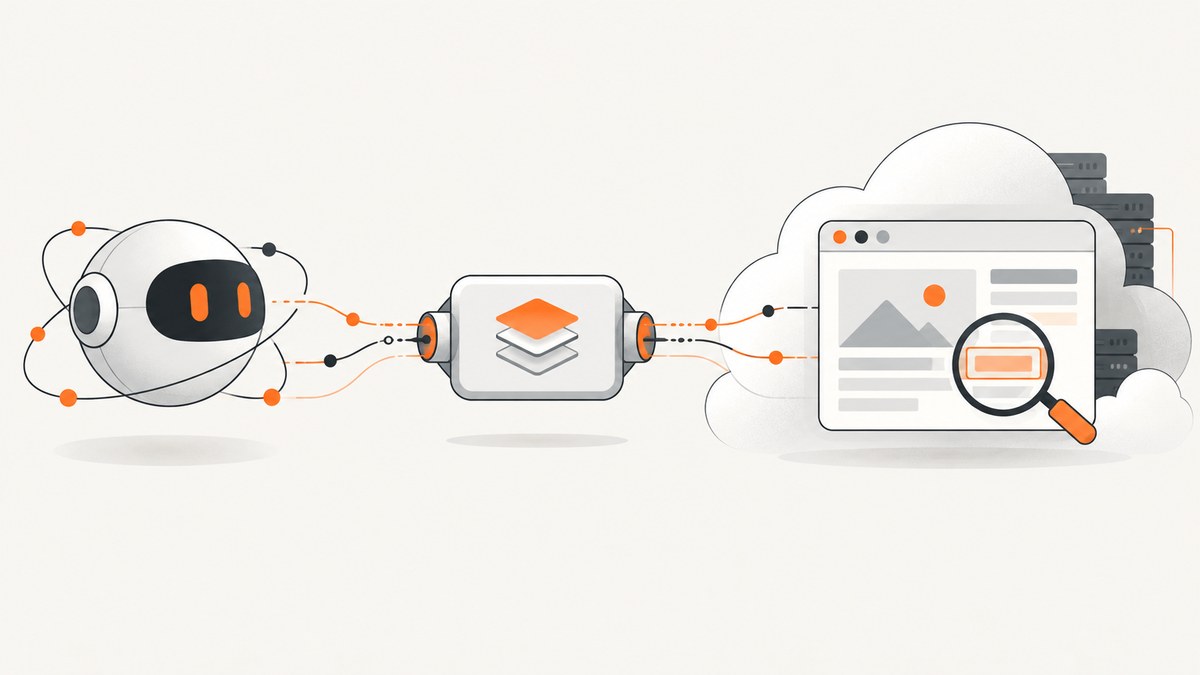
A cloud browser runs on another machine. When a page downloads a file, the bytes first arrive in that remote browser’s context or container; they do not automatically appear on the computer running your automation script. To retrieve the file, start listening before the click that triggers it, wait for the download to finish, then explicitly transfer or save the bytes on the machine that controls the browser.
With Playwright, the usual flow is page.waitForEvent('download') followed by download.saveAs(). With Browserless, you can either consume its vendor-specific CDP download event or call its REST download endpoint. The right choice depends on whether you need a portable framework API, a streamed event, or a one-shot HTTP response.
1. The remote-filesystem model
Think of a cloud browser as a separate server. Your Node.js, Python, or CI process controls that server over a connection, but the two machines still have different filesystems.
- Remote browser storage: Chrome writes the temporary download inside the browser session or container.
- Controlling process: Your script receives a download object, event payload, or HTTP response and writes the final file locally.
- Session lifetime: Temporary files can disappear when a context or browser session closes.
This separation explains the most common failure: a script clicks “Export,” the browser reports success, and the developer searches the local working directory without finding anything. A completed browser download is not the same as a transferred file.
2. Playwright: save a remote download locally
Use Playwright’s download event when your remote connection supports the framework’s download API. Register the waiter before clicking. This ordering matters because a fast response can complete before a listener added afterward is ready.
Node.js example
import { chromium } from 'playwright';

const browser = await chromium.connectOverCDP(process.env.BROWSER_CDP_URL);
const context = browser.contexts()[0];
const page = await context.newPage();

await page.goto('https://example.com/reports');

// Start waiting before the action that creates the download.
const downloadPromise = page.waitForEvent('download');
await page.getByRole('button', { name: 'Download report' }).click();

const download = await downloadPromise;
console.log('Suggested name:', download.suggestedFilename());

// This path is on the machine running this Node.js process.
await download.saveAs('./artifacts/report.pdf');

await context.close();
await browser.close();
The same event pattern works for links, menu items, form submissions, and JavaScript controls. If preserving the server-provided name is useful, pass download.suggestedFilename() into your path-building code. Sanitize that value before using it in a multi-tenant or user-controlled directory.
Python example
from pathlib import Path
from playwright.sync_api import sync_playwright

with sync_playwright() as p:
    browser = p.chromium.connect_over_cdp("https://your-cloud-browser.example/cdp")
    context = browser.contexts[0]
    page = context.new_page()
    page.goto("https://example.com/reports")

    with page.expect_download() as download_info:
        page.get_by_role("button", name="Download report").click()

    download = download_info.value
    destination = Path("artifacts") / download.suggested_filename()
    destination.parent.mkdir(parents=True, exist_ok=True)
    download.save_as(destination)

    context.close()
    browser.close()
In asynchronous Python, use async with page.expect_download() and await download.save_as(...). The destination still belongs to the process that calls save_as.
Waiting for completion and failures
A download event means the browser created a download, not necessarily that it completed successfully. After saving, inspect the download error where your Playwright version exposes it. A canceled navigation, a server error, or a disconnected session can leave a failed download.
const download = await downloadPromise;
const failure = await download.failure();
if (failure) {
  throw new Error(`Download failed: ${failure}`);
}
await download.saveAs(outputPath);
Save required files before closing the browser context. Playwright documents downloaded files as temporary; they are deleted when the context that produced them closes. Treat saveAs as part of the critical section, and only tear down the context after the write has completed.
3. Browserless CDP file events
Browserless provides a vendor-specific CDP flow for applications that need the file bytes as an event. Download transfer is disabled by default in the documented flow because file bytes count against data transfer. Enable it for the session, register the event handler before the click, decode the base64 payload, and write it in your client process. See the Browserless file-transfer documentation for the current method names and connection details.
import { chromium } from 'playwright';
import { writeFile } from 'node:fs/promises';

const browser = await chromium.connectOverCDP(process.env.BROWSERLESS_CDP_URL);
const session = await browser.newBrowserCDPSession();

await session.send('Browserless.setDownloadEnabled', { enabled: true });

let received;
session.on('Browserless.fileDownloaded', (event) => {
  received = event;
});

const page = browser.contexts()[0].pages()[0];
await page.goto('https://example.com/export');
await page.getByText('Export CSV').click();

const deadline = Date.now() + 60_000;
while (!received && Date.now() < deadline) {
  await new Promise(resolve => setTimeout(resolve, 100));
}
if (!received) throw new Error('Timed out waiting for Browserless.fileDownloaded');

const bytes = Buffer.from(received.data, 'base64');
await writeFile(`./artifacts/${received.filename}`, bytes);
console.log(received.mimeType, received.size);

await browser.close();
The event includes a filename, MIME type, size, and base64-encoded data. Base64 increases the amount of data moved and held in memory, so use a streaming or bounded queue design when your workload can produce large files. Browserless documents a 50 MB combined decoded cap for one upload call; that is an upload limit and must not be treated as a download limit.
4. Browserless REST /download
Choose the REST endpoint when one request can perform the browser task and return the resulting file as an HTTP response. Browserless launches a browser, runs your custom Puppeteer code, returns files Chrome downloads during execution, and closes the session. The response includes content type and content disposition headers suitable for saving the file. Consult the REST download documentation for authentication and request syntax.
curl -X POST "https://production-sfo.browserless.io/download?token=YOUR_TOKEN" \
  -H "Content-Type: application/json" \
  --data '{
    "code": "module.exports = async ({ page }) => { await page.goto(\"https://example.com/export\"); await page.click(\"text=Export CSV\"); }"
  }' \
  -o export.csv
In production, check the HTTP status and content type before treating the response as a file. Preserve the content-disposition filename when safe, or choose a deterministic name from your job ID. The one-shot model is convenient for queues and serverless jobs, while a persistent CDP session is better when many actions share login state.
5. Choosing an approach
| Approach | Best fit | Transfer shape | Important setup |
|---|---|---|---|
| Playwright download API | Portable Playwright automation | Download object saved by the controlling process |
Wait before click; save before context close |
| Browserless CDP event | Persistent Browserless sessions | Vendor event with base64 bytes and metadata | Enable downloads; register listener first |
| Browserless REST download | One task per HTTP request | HTTP response containing the file | Custom Puppeteer code and response handling |
Use the framework API when portability matters. Use the CDP event when you already maintain a Browserless session and need event-driven control. Use REST when a self-contained request is easier to retry and store.
6. Reliable download pipelines
Use a deterministic destination
Create a per-job directory or object-storage key. Never let an untrusted suggested filename escape that directory. Remove path separators, normalize Unicode, and reject empty names.
Make retries safe
Assign an idempotency key to each business job, record whether the file was persisted, and avoid overwriting a verified artifact with a later partial response. Retry browser navigation and transfer separately so a successful download is not repeated unnecessarily.
Validate the result
- Check the HTTP status or download failure value.
- Compare the received byte count with the event’s reported size when available.
- Verify an expected MIME type and file signature, such as PDF bytes beginning with
%PDF-. - Compute a checksum before publishing the artifact to another service.
Control memory
Playwright’s saveAs writes to a path managed by the framework. CDP base64 events expose the payload in memory, so limit concurrent downloads, reject unexpectedly large files, and move bytes to durable storage promptly.
7. Common errors and fixes
| Error | Likely cause | Fix |
|---|---|---|
| No download event | Listener registered after the click, or the control opens a new tab | Create the waiter first; also listen for a popup or inspect the resulting response. |
| File missing after shutdown | Temporary browser-context file was deleted | Call saveAs and await it before closing the context. |
| Zero-byte or truncated file | Session closed during transfer or process exited early | Await completion, validate size, and keep the job alive until the write finishes. |
| Browserless event never arrives | Downloads remain disabled or the listener was late | Send Browserless.setDownloadEnabled first and attach the event handler before navigation or click. |
| REST response is HTML or JSON | The task failed, authentication is invalid, or the endpoint returned an error | Inspect status, content type, and response body before writing the file. |
| Wrong filename | Server supplied an unexpected name or multiple downloads occurred | Use sanitized suggested metadata and associate each event with a job ID. |
| Download starts but login page is saved | Cookies or authentication were not present in the remote context | Establish authentication in that same context and verify the page identity before clicking. |
8. Performance, reliability, and cost notes
Download time includes page navigation, server generation, browser transfer, and the final write. Reuse an authenticated browser session when policy permits, but isolate users and jobs so cookies do not leak across tenants. For high throughput, cap concurrency according to provider quotas and your own disk or object-storage bandwidth.
Prefer direct HTTP download endpoints when the application already has a signed export URL; it avoids rendering a page. Use a browser when the file is created only after JavaScript, a click, authentication, or a user gesture. Keep browser timeouts distinct from transfer timeouts so you can identify whether generation or retrieval failed.
Cloud-browser billing, data-transfer charges, session limits, and API behavior vary by provider and can change. Check the provider’s current documentation and plan limits before setting queue capacity. The Browserless documentation’s 50 MB figure applies to combined decoded uploads, not downloads.
9. Or skip the browser setup
If your real goal is a visual record of a page rather than downloading the page’s export artifact, ScreenshotNeo provides a single screenshot request. It returns PNG, JPEG, WebP, or PDF from a URL and has an MCP server for AI clients.

See the ScreenshotNeo API docs for all options. A minimal call is:
curl -G "https://api.screenshotneo.com/v1/shot" -d access_key=YOUR_API_KEY --data-urlencode url=https://stripe.com -o shot.webpimport requests
r = requests.get("https://api.screenshotneo.com/v1/shot", params={"access_key": "YOUR_API_KEY", "url": "https://stripe.com"}, timeout=90)
open("shot.webp", "wb").write(r.content)const q = new URLSearchParams({ access_key: 'YOUR_API_KEY', url: 'https://stripe.com' });
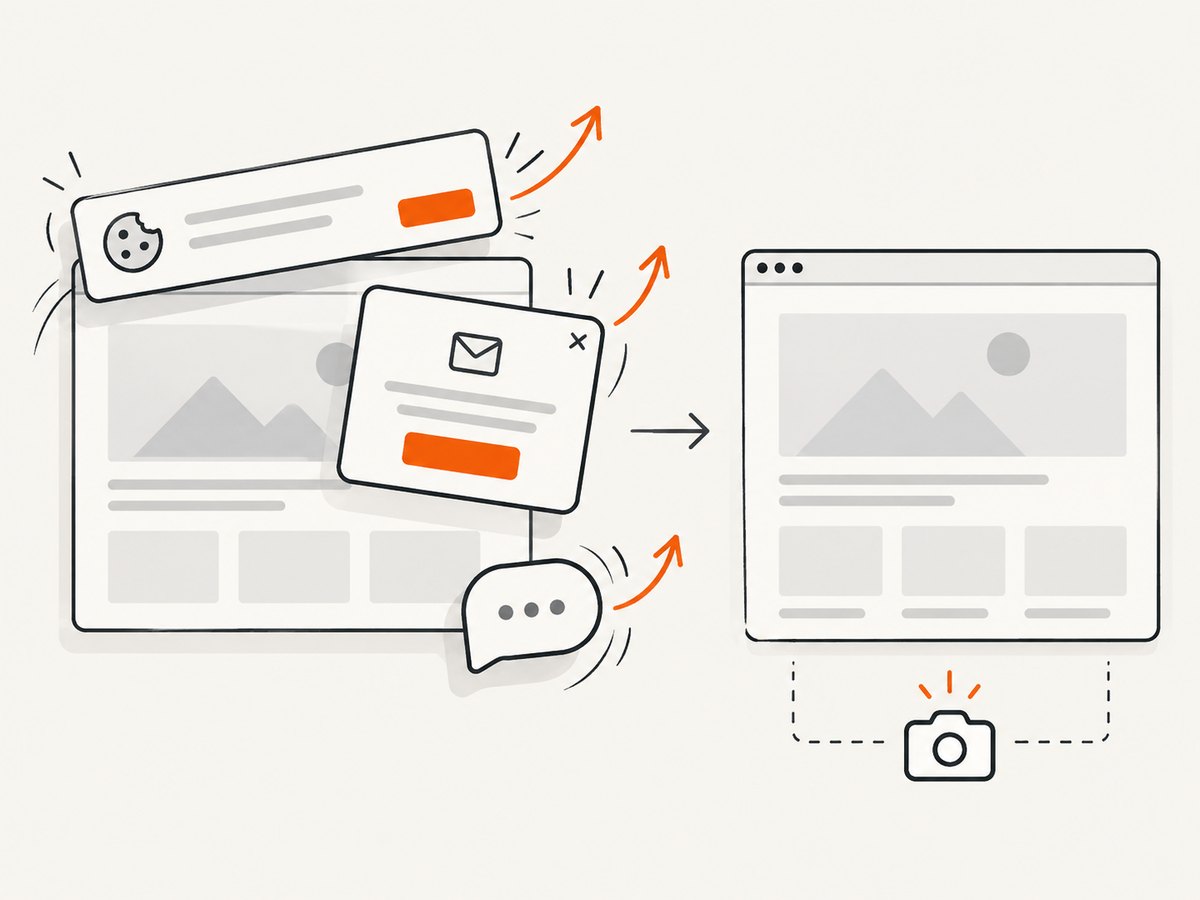
const res = await fetch(`https://api.screenshotneo.com/v1/shot?${q}`);ScreenshotNeo removes cookie banners, newsletter popups, and chat widgets before capture. Bot checks, blank pages, failed loads, timeouts, and cache hits are not billed, and response headers identify the page verdict and billing result. Its MCP server lets Claude, Cursor, and other MCP clients call take_screenshot, get_page_info, and capture_pdf. The Free plan includes 1,000 screenshots a month with no card; paid plans start at $5 for 3,000. Create a free ScreenshotNeo account.
10. FAQ
Does a remote browser download directly to my laptop?
No. The browser writes remotely. Your automation process must save or receive the completed bytes.
Should I wait before or after clicking?
Before. Register the event waiter first, then perform the click or other trigger.
Can I close the context immediately after the click?
No. Await the download and persist it first; temporary files may be deleted during context teardown.
When is REST preferable to CDP?
REST is simpler for one task that returns one file. CDP is more flexible for a long-lived session and multiple events.
Does ScreenshotNeo download arbitrary files?
ScreenshotNeo is a screenshot and PDF API. Use it when you need a rendered visual capture; use Playwright or a cloud-browser transfer API when you need the original downloaded bytes.


