How to Download Files with Headless ChromeDriver in CentOS Using Ruby
Configure headless Chrome downloads in Ruby on CentOS, wait for completion, handle cookies, and choose a reliable HTTP-client workflow.
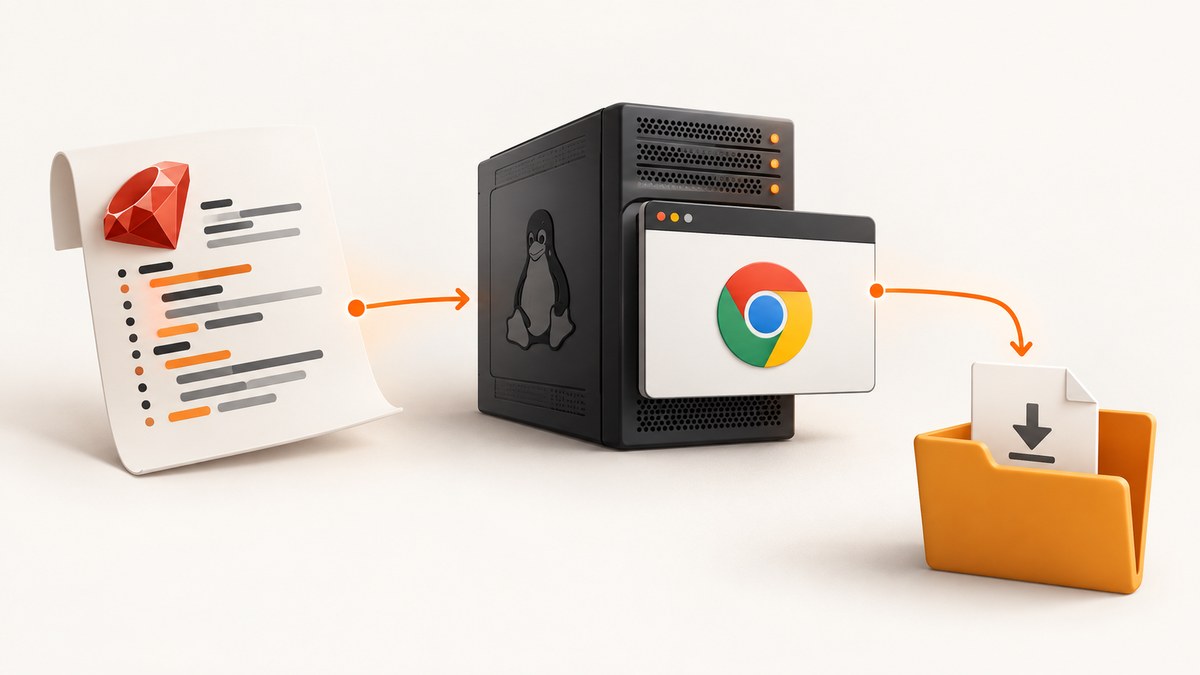
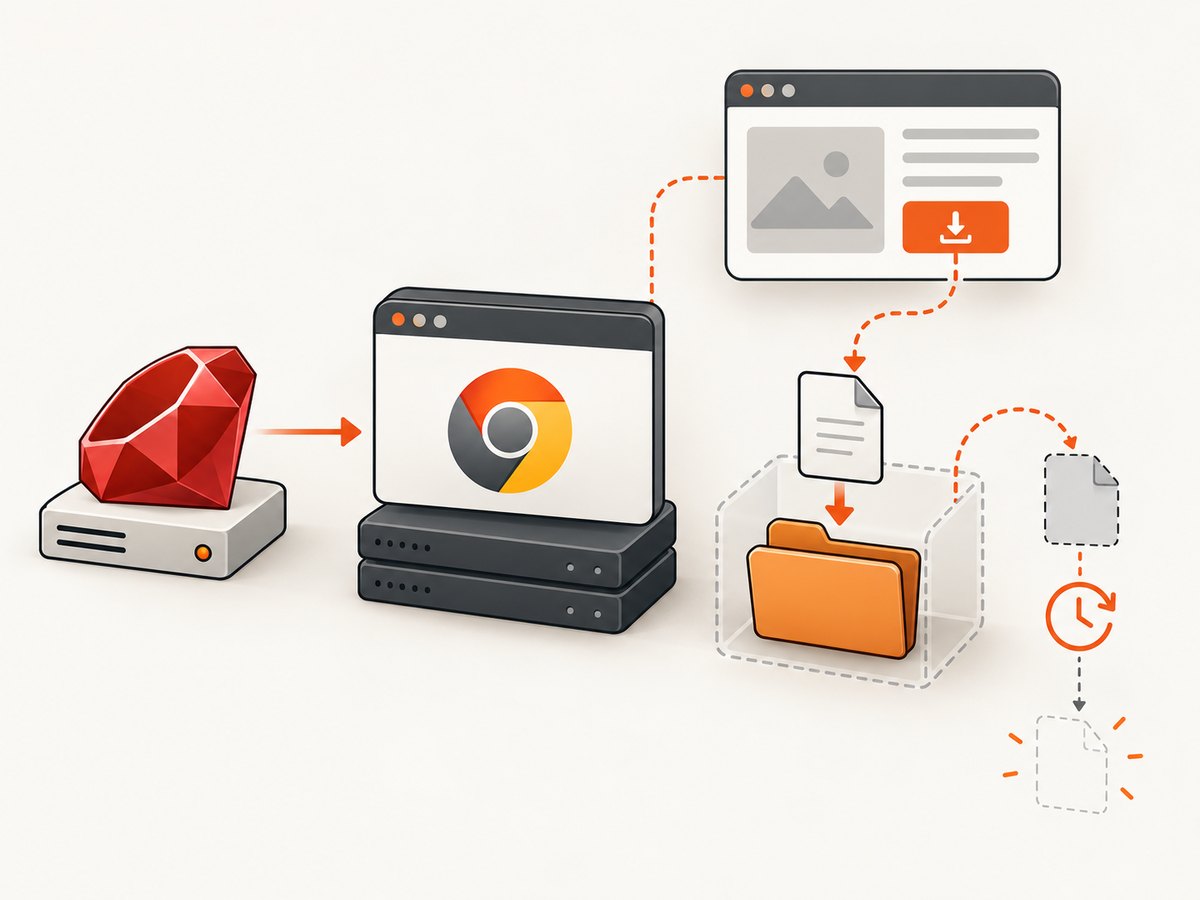
To download a file with headless ChromeDriver in CentOS using Ruby, create a writable absolute directory, set Chrome’s download preferences, start Chrome with --headless=new, trigger the download, and wait until the temporary download file disappears before quitting the browser. ChromeDriver does not wait for downloads to finish, so calling quit immediately can leave a partial file.
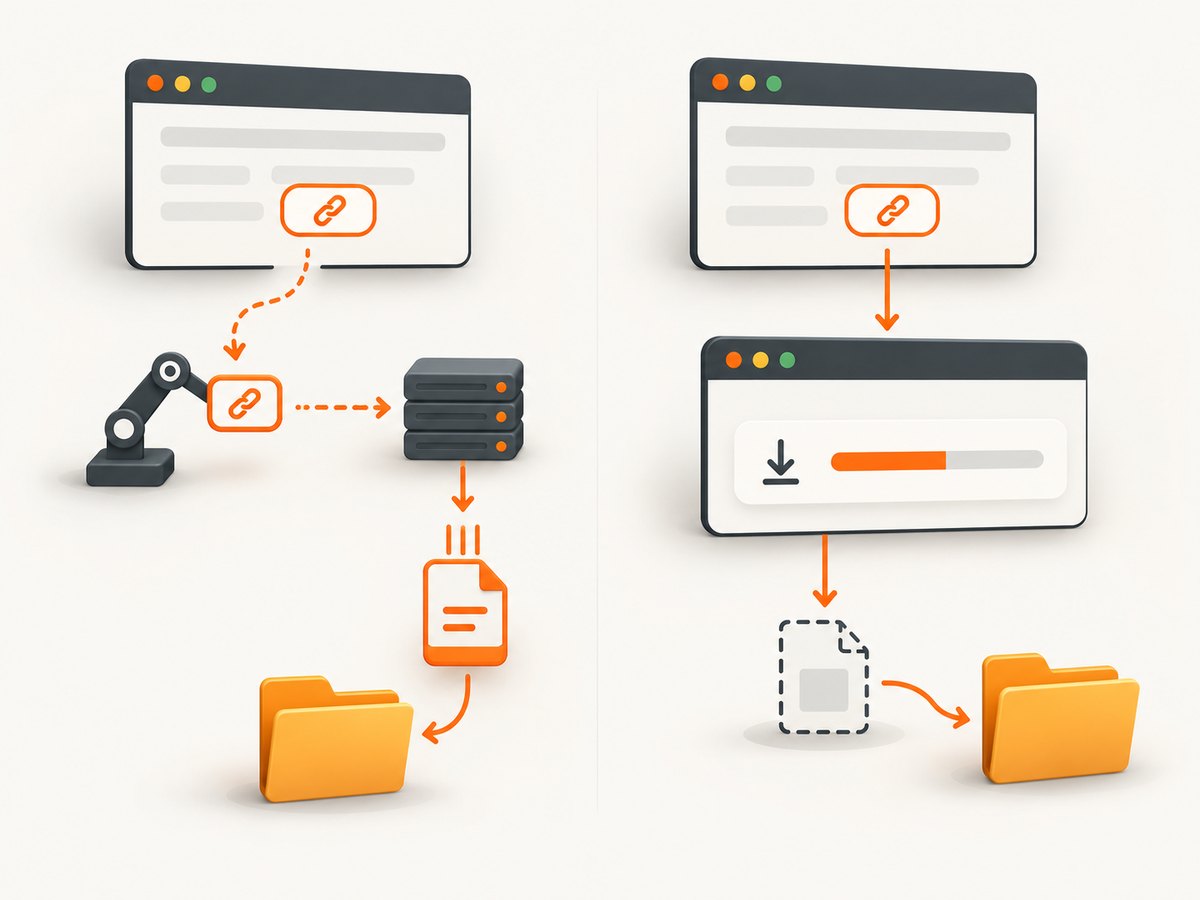
For tests that inspect file bytes, Selenium recommends a more deterministic pattern: use Selenium to find the link and collect authentication cookies, then download the resource with an HTTP client. WebDriver does not expose download progress. The sections below show both approaches and explain when each is appropriate.
1. Prerequisites and version checks
The examples assume a CentOS or compatible Linux host with Ruby, Google Chrome, Selenium’s Ruby gem, and a writable temporary directory. The dossier does not establish a CentOS-version-specific package recipe, so confirm the supported Chrome build and system libraries for your exact CentOS release before installing packages.
Install the Ruby binding
gem install selenium-webdriverSelenium Manager has shipped with Selenium since version 4.6. When no driver is supplied, it is the default fallback for obtaining one. A manually installed ChromeDriver on PATH, or an explicitly configured service, is still useful in locked-down CI environments.
Match Chrome and ChromeDriver
Keep the browser and driver on the same major version. For Chrome 115 and later, Chrome and ChromeDriver releases are distributed together through the Chrome for Testing dashboard and its JSON endpoints. Check the installed versions before debugging Ruby code:
google-chrome --version
chromedriver --version
The first number in each version should match. Selenium’s Chrome documentation covers supported versions and common options: Chrome-specific functionality. ChromeDriver’s capability reference documents download preferences and Linux path restrictions: ChromeOptions and capabilities.
2. Configure a headless download directory
Chrome accepts download preferences through the download profile preference. Use a unique, ordinary directory with an absolute path. ChromeDriver documentation warns that Linux home and other disallowed directories can fail, and relative paths are unreliable. Create the directory before launching Chrome and verify that the account running Ruby can write to it.
require 'fileutils'
require 'tmpdir'
require 'selenium-webdriver'

download_dir = File.join(Dir.tmpdir, "chrome-download-#{Process.pid}")
FileUtils.mkdir_p(download_dir)

options = Selenium::WebDriver::Chrome::Options.new
options.add_argument('--headless=new')
options.add_argument('--no-sandbox')
options.add_argument('--disable-dev-shm-usage')
options.add_preference(:download,
  prompt_for_download: false,
  default_directory: download_dir,
  directory_upgrade: true
)

 driver = Selenium::WebDriver.for(:chrome, options: options)
begin
  driver.get('https://example.com')
  # Trigger the download here.
ensure
  driver.quit
  FileUtils.remove_entry(download_dir) if Dir.exist?(download_dir)
end
--headless=new selects the current headless implementation. Chrome now shares the regular implementation between headless and headful modes; since Chrome 132, the old implementation is available separately as the chrome-headless-shell binary. The Chrome headless documentation explains that transition.
--no-sandbox is commonly required when Chrome runs as an unprivileged container user or in a restricted CI environment. Use it only when your runtime requires it, because the sandbox provides a security boundary. --disable-dev-shm-usage can help in containers with a small /dev/shm; it trades shared-memory performance for a disk-backed location.
3. Trigger the download and wait for completion
Chrome commonly writes a partial download with a .crdownload suffix. A robust wait checks both conditions: the expected file exists and no temporary download remains. Also enforce a deadline so a failed navigation cannot hang the job forever.
require 'fileutils'
require 'selenium-webdriver'

def wait_for_download(directory, filename, timeout: 120, poll: 0.25)
  path = File.join(directory, filename)
  deadline = Process.clock_gettime(Process::CLOCK_MONOTONIC) + timeout

  loop do
    partials = Dir.glob(File.join(directory, '*.crdownload'))
    return path if File.file?(path) && partials.empty?

    if Process.clock_gettime(Process::CLOCK_MONOTONIC) >= deadline
      present = Dir.children(directory)
      raise "Download did not finish within #{timeout}s; files: #{present.inspect}"
    end

    sleep poll
  end
end

download_dir = File.expand_path('/tmp/my-app-downloads')
FileUtils.mkdir_p(download_dir)

options = Selenium::WebDriver::Chrome::Options.new
options.add_argument('--headless=new')
options.add_preference(:download,
  prompt_for_download: false,
  default_directory: download_dir,
  directory_upgrade: true
)

driver = Selenium::WebDriver.for(:chrome, options: options)
begin
  driver.get('https://files.example.test/report')
  driver.find_element(css: 'a[data-download="report"]').click

  report = wait_for_download(download_dir, 'report.pdf', timeout: 90)
  raise 'Empty download' if File.size(report).zero?
  puts "Downloaded #{report} (#{File.size(report)} bytes)"
ensure
  driver.quit
end
Do not assume the filename from the link text. The server can provide a Content-Disposition filename, append an extension, or return a generated name. If the name is unknown, snapshot the directory before clicking, then identify the new file after the temporary suffix disappears:
before = Dir.children(download_dir)
driver.find_element(css: 'a.download').click

loop do
  candidates = Dir.children(download_dir).reject { |name| name.end_with?('.crdownload') }
  new_files = candidates - before
  break new_files.first unless new_files.empty?
  sleep 0.25
end
For parallel jobs, never share a download directory. A unique directory per process prevents one test from accepting another test’s file. Clean it in an ensure block, but retain it on failure when diagnostics are more valuable than automatic cleanup.
4. The HTTP-client method Selenium recommends for file tests
Browser-managed downloads are appropriate when the browser interaction itself is under test. If the goal is to verify the response body, HTTP is usually easier to observe and retry. Selenium’s file-download guidance states that WebDriver has no download-progress API and recommends using the browser to locate the resource and obtain cookies, then transferring the file with an HTTP client.
Extract the destination and cookies
require 'selenium-webdriver'
require 'net/http'
require 'uri'

options = Selenium::WebDriver::Chrome::Options.new
options.add_argument('--headless=new')
driver = Selenium::WebDriver.for(:chrome, options: options)

begin
  driver.get('https://files.example.test/reports')
  link = driver.find_element(css: 'a[data-download="report"]')
  file_url = link.attribute('href')

  cookie_header = driver.manage.all_cookies.map do |cookie|
    "#{cookie[:name]}=#{cookie[:value]}"
  end.join('; ')
ensure
  driver.quit
end

uri = URI(file_url)
request = Net::HTTP::Get.new(uri)
request['Cookie'] = cookie_header unless cookie_header.empty?
request['User-Agent'] = 'download-worker/1.0'

Net::HTTP.start(uri.host, uri.port, use_ssl: uri.scheme == 'https') do |http|
  response = http.request(request)
  unless response.is_a?(Net::HTTPSuccess)
    raise "Download failed: #{response.code} #{response.message}"
  end
  File.binwrite('/tmp/report.pdf', response.body)
end
Use this method when you need status codes, headers, retries, checksums, streaming to disk, or a clear distinction between an HTML error page and the expected file. Forward only the cookies and headers required by the application. Some downloads require a short-lived URL generated by a click; capture that URL after the click or use browser-managed mode.
5. Options and configuration checklist
| Setting | Use | Common mistake |
|---|---|---|
--headless=new |
Run Chrome without a visible display | Using obsolete headless assumptions with a current Chrome |
prompt_for_download: false |
Prevent a save prompt from blocking automation | Expecting a prompt to be handled interactively |
default_directory |
Select the download destination | Relative path, home directory, or a non-writable directory |
directory_upgrade: true |
Allow Chrome to use the configured directory | Reusing a directory containing stale files |
--disable-dev-shm-usage |
Work around small container shared memory | Using it everywhere without measuring the trade-off |
| Unique directory | Isolate parallel runs | Accepting another job’s completed file |
Other useful Chrome preferences include disabling automatic PDF viewing when a PDF must be downloaded, but behavior can vary by Chrome version and server headers. Prefer validating the resulting file rather than relying on a preference alone. If the server returns Content-Disposition: inline, Chrome may open a viewer instead of writing the expected filename; the HTTP-client method avoids that ambiguity.
6. Troubleshooting common failures
“Chrome failed to start” or a session immediately exits
Check that Chrome is installed, executable by the service account, and compatible with ChromeDriver. In containers, try --no-sandbox only when required and inspect Chrome’s stderr. A small /dev/shm can cause crashes; test --disable-dev-shm-usage.
“Unable to obtain driver”
Upgrade Selenium so Selenium Manager is available, or install a matching ChromeDriver and put it on PATH. Verify the browser and driver major versions. For Chrome 115+, use the Chrome for Testing release channels rather than an unrelated driver archive.
The file is saved somewhere else
Print the exact expanded path and inspect it from the same account that runs Ruby. Use an absolute directory, create it before launching Chrome, and avoid Linux locations Chrome rejects. Do not rely on the current working directory.
The script quits with a partial file
ChromeDriver does not wait for downloads. Wait for the expected file and ensure no .crdownload remains. Increase the deadline for large files or slow servers. Never use a fixed sleep as the only completion test.
The expected filename never appears
The server may generate a different name, redirect to another host, or return an HTML login page. List the directory after timeout, inspect response headers with the HTTP-client method, and validate the file signature (for example, PDF files normally begin with %PDF-).
Authentication works in the page but not in the download
Use the browser to collect cookies after login and send them with an HTTP request. Also copy a required CSRF token or Referer header when the application demands it. If the URL is signed and expires quickly, request it immediately before transfer.
SELinux or filesystem permissions block writes
Confirm ownership and mode on the download directory and review the host’s SELinux policy with your administrator. Do not assume a package command or policy change applies to every CentOS release; the correct fix depends on the image and security profile.
7. Reliability, performance, and cost considerations
- Reliability: Use per-run directories, explicit deadlines, file-size or checksum validation, and cleanup in
ensure. Preserve failed artifacts when diagnosing production issues. - Performance: Reusing one browser session for related downloads avoids startup cost, but isolate directories and state between jobs. HTTP streaming is generally easier to retry than restarting a full browser.
- Large files: Prefer an HTTP client that streams chunks to disk instead of holding the complete body in memory. Browser-managed downloads still need sufficient disk space.
- Retries: Retry transient HTTP failures with backoff. Do not blindly repeat non-idempotent actions that generate one-time download URLs.
- Cost: Local Chrome and Selenium have no per-screenshot service charge, but they consume CPU, memory, disk, and maintenance time. Account for browser image size, driver updates, and CI minutes.
8. Or skip the browser setup
If your actual requirement is a clean image or PDF of a URL rather than a browser download workflow, ScreenshotNeo provides a single GET request. It handles the hosted browser and returns PNG, JPEG, WebP, or PDF. See the ScreenshotNeo API documentation for the complete parameter list.
cURL
curl -G "https://api.screenshotneo.com/v1/shot" \
  -d access_key=YOUR_API_KEY \
  --data-urlencode url=https://stripe.com \
  -o shot.webp
Ruby
require 'net/http'
require 'uri'

uri = URI('https://api.screenshotneo.com/v1/shot')
uri.query = URI.encode_www_form(access_key: 'YOUR_API_KEY', url: 'https://stripe.com')
response = Net::HTTP.get_response(uri)
raise "Screenshot failed: #{response.code}" unless response.is_a?(Net::HTTPSuccess)
File.binwrite('shot.webp', response.body)
Python
import requests
r = requests.get("https://api.screenshotneo.com/v1/shot", params={"access_key": "YOUR_API_KEY", "url": "https://stripe.com"}, timeout=90)
open("shot.webp", "wb").write(r.content)
Node.js
const q = new URLSearchParams({ access_key: 'YOUR_API_KEY', url: 'https://stripe.com' });
const res = await fetch(`https://api.screenshotneo.com/v1/shot?${q}`);
ScreenshotNeo removes cookie and consent banners, newsletter popups, and chat widgets before capture; each step can be disabled. Bot checks, blank pages, timeouts, failed loads, and cache hits are not billed, and response headers identify the page verdict and billing status. Its MCP server provides take_screenshot, get_page_info, and capture_pdf tools for Claude, Cursor, and other MCP clients. The Free plan includes 1,000 screenshots per month without a card; paid plans start at $5 for 3,000.
Create a free ScreenshotNeo account and start with 1,000 screenshots per month at no charge.
9. FAQ
Can headless Chrome download to /home/user/Downloads?
Do not depend on home or desktop paths. ChromeDriver documents Linux-specific disallowed locations. Use a dedicated absolute directory such as a job-specific path under /tmp.
Does Selenium provide a download-complete event?
No. WebDriver does not expose download progress. Poll the directory for the final file and absence of .crdownload, or transfer the file with an HTTP client.
Should I use the old headless mode?
Use --headless=new with current Chrome. Since Chrome 132, the old headless implementation is distributed as chrome-headless-shell.
When is browser-managed downloading the right choice?
Use it when clicking the link, rendering the page, or exercising browser authentication is part of the behavior under test. Use HTTP when the file contents and transfer semantics are the primary subject.
Can I run several downloads at once?
Yes, but give each browser process its own directory and unique expected filename. This prevents stale or cross-job files from being mistaken for a successful result.


