How to Download Multiple Files in Parallel with Puppeteer
Configure Chrome downloads in Puppeteer, trigger independent downloads together, and verify each file safely before processing it.
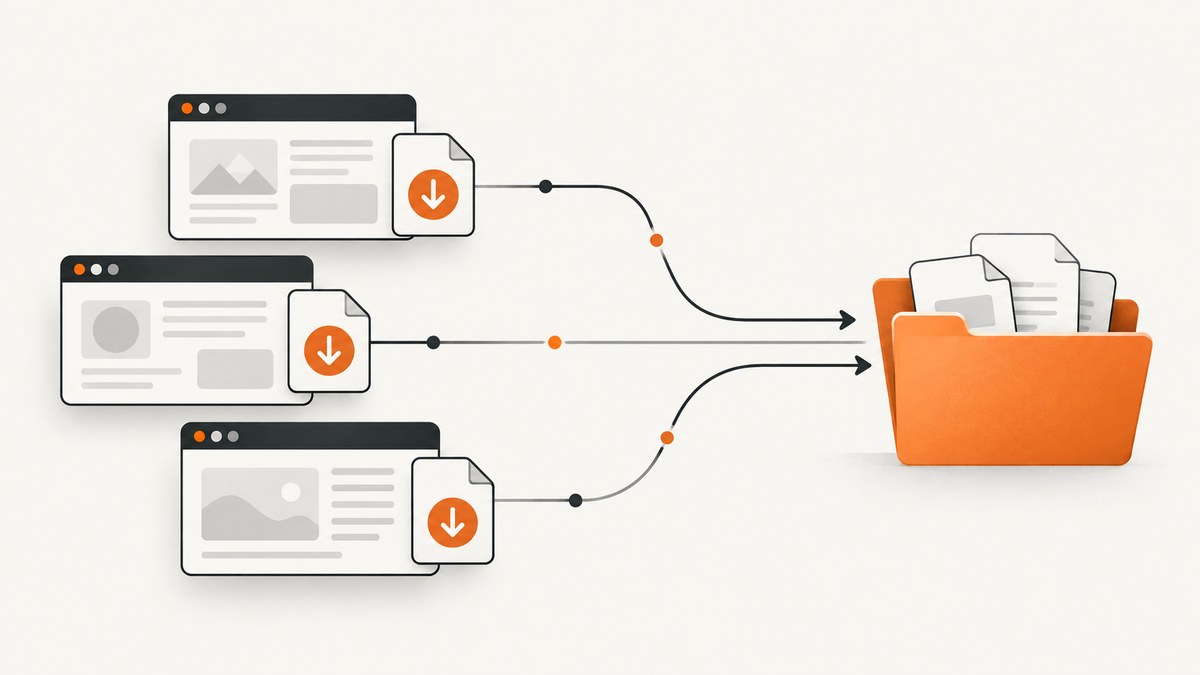
To download multiple files in parallel with Puppeteer, configure Chrome to save downloads to a dedicated directory, trigger independent download actions without awaiting them one by one, and then verify that every expected file has finished writing. These are separate steps: Promise.all() over clicks waits for the click operations, not necessarily for Chrome to finish each download.
Puppeteer’s v25.12.0 Files guide says it does not provide programmatic download handling. Its DownloadBehavior API documents Chrome’s download policy and path, but does not define a per-file completion event. That means the output-validation step must be designed for your installed Puppeteer and Chrome versions. See the Puppeteer Files guide and DownloadBehavior reference.
1. Define the files you expect
Before starting the browser, decide what counts as success. If the page has three export buttons, record the three expected filenames or define a matching rule for each one. A unique directory per run helps distinguish new files from stale output left by a previous attempt.
- Prefer stable, known output names when the site provides them.
- If names are generated dynamically, identify the expected files from the page or from a manifest before triggering downloads.
- Decide how to handle duplicate names, redirects, authentication, and site throttling.
- Set a timeout and treat missing or temporary files as incomplete.
A browser can accept a click even when a server later rejects the request, asks for authentication, redirects to an error page, or interrupts the transfer. Validate actual files before passing them to another process.
2. Configure Chrome’s download path
The Puppeteer v25.12.0 DownloadBehavior reference describes the policies allow, allowAndName, deny, and default. A downloadPath is required for allow and allowAndName. With allowAndName, Chrome uses download GUIDs as filenames, so do not expect the server’s original names unless you map them yourself.
Use the API shape supported by your installed release. The documented interface describes policy and path; it is not a general download-completion API.
import puppeteer from 'puppeteer';
import fs from 'node:fs/promises';
import path from 'node:path';

const downloadDir = path.resolve('downloads/run-2026-09-30-001');
await fs.mkdir(downloadDir, { recursive: true });

const browser = await puppeteer.launch({ headless: true });
const page = await browser.newPage();

// Chrome DevTools Protocol configuration. Confirm this command and policy
// against the Puppeteer and Chrome versions deployed in your environment.
const client = await page.createCDPSession();
await client.send('Page.setDownloadBehavior', {
  behavior: 'allow',
  downloadPath: downloadDir,
});

await page.goto('https://example.com/reports', {
  waitUntil: 'domcontentloaded',
});

// Trigger and verify downloads as shown in the next section.
The CDP command is Chrome-specific runtime guidance, not a stable cross-browser Puppeteer download lifecycle contract. Check the command’s availability with the Chrome version you deploy. Puppeteer’s DownloadBehavior API reference documents the policy semantics. The BrowserContextOptions page also shows a downloadBehavior option, but that page is marked Next/preview; do not assume it exists in an installed stable release without checking.
3. Trigger independent downloads concurrently
When each button starts an independent request and the site permits concurrent transfers, issue the clicks together. The example below uses accessible button names; adapt the selectors to the page. If a button opens a popup or changes the page, handle that navigation or popup as part of the action.
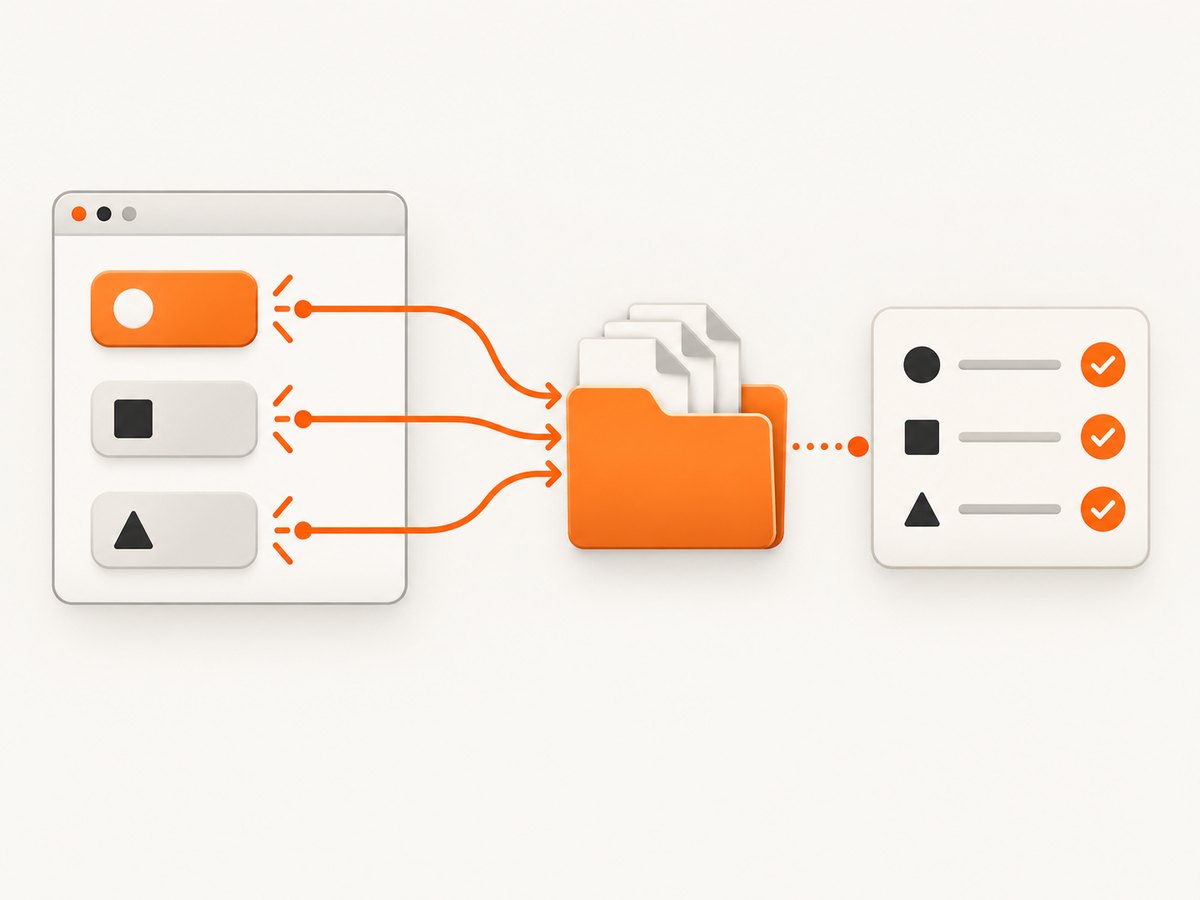
const expected = ['sales.csv', 'inventory.csv', 'customers.csv'];

await Promise.all([
  page.getByRole('button', { name: 'Export sales' }).click(),
  page.getByRole('button', { name: 'Export inventory' }).click(),
  page.getByRole('button', { name: 'Export customers' }).click(),
]);

// This means the click calls resolved. It does not prove that all
// three files have finished downloading.
Concurrent triggering is useful only when the actions are genuinely independent. Some applications allow one export job at a time, require a confirmation dialog for each file, or disable controls while an export is running. In those cases, queue the actions as the site requires. Do not open multiple browser contexts just to increase download concurrency: Puppeteer documents contexts as storage-isolation boundaries, not as a download-tracking mechanism.
4. Wait for expected outputs and validate them
Because the reviewed Puppeteer guide does not define a built-in download-completion handler, a practical approach is to poll the dedicated directory for expected files and require stable, nonzero sizes. This is implementation-specific filesystem guidance. Temporary suffixes and behavior vary by browser and operating system, so validate the conditions against the runtime you actually use.
import fs from 'node:fs/promises';
import path from 'node:path';

async function waitForFiles(directory, expectedNames, timeoutMs = 120_000) {
  const deadline = Date.now() + timeoutMs;
  let lastSizes = new Map();
  let stablePasses = new Map();

  while (Date.now() < deadline) {
    let entries;
    try {
      entries = await fs.readdir(directory, { withFileTypes: true });
    } catch (error) {
      if (error.code === 'ENOENT') {
        await new Promise(resolve => setTimeout(resolve, 250));
        continue;
      }
      throw error;
    }

    const names = new Set(entries.filter(e => e.isFile()).map(e => e.name));
    const ready = [];
    for (const name of expectedNames) {
      if (!names.has(name)) continue;
      const fullPath = path.join(directory, name);
      const stat = await fs.stat(fullPath);
      const prior = lastSizes.get(name);
      if (stat.size > 0 && prior === stat.size) {
        stablePasses.set(name, (stablePasses.get(name) ?? 0) + 1);
      } else {
        stablePasses.set(name, 0);
      }
      lastSizes.set(name, stat.size);
      if (stablePasses.get(name) >= 2) ready.push(name);
    }

    if (ready.length === expectedNames.length) return ready;
    await new Promise(resolve => setTimeout(resolve, 300));
  }

  const found = await fs.readdir(directory).catch(() => []);
  const missing = expectedNames.filter(name => !found.includes(name));
  throw new Error(`Timed out waiting for downloads. Missing: ${missing.join(', ') || 'files still changing'}`);
}

const files = await waitForFiles(downloadDir, expected, 120_000);
console.log('Ready to process:', files);
await browser.close();
Stable size is a useful heuristic, not proof that a file is valid or complete in every environment. For stronger validation, inspect the file format, parse the expected content, or compare against a checksum or known manifest when the source provides one. If Chrome saves opaque GUID names under allowAndName, correlate outputs using an application-level manifest or a version-specific browser protocol strategy rather than assuming the names.
5. Handle authentication, popups, and duplicate names
Authenticated downloads
Navigate and authenticate in the same page or browser context that triggers the download so the page’s cookies and local storage are available to the application flow. Puppeteer documents that browser contexts isolate storage such as cookies and local storage, and that a popup belongs to the context of its opener. See the BrowserContext reference. Still verify the target site’s download behavior; authentication may be implemented through a one-time URL, a form submission, or a separate endpoint.
Popup or navigation-triggered files
If clicking an export opens a new page, register for the popup around the click and inspect that page’s behavior. Do not assume that a resolved click means the popup’s download completed. Keep the expected output and timeout checks in place.
Duplicate names
Browsers or servers may rename collisions, and the exact suffix convention can vary. The safest fix is a fresh directory for each run, or a controlled mapping from each export action to its output. Do not let files from parallel jobs overwrite each other.
6. Troubleshooting
| Symptom | Likely cause | Fix |
|---|---|---|
| No file appears | Chrome’s policy denies downloads, the configured path is missing, or the click did not start an export. | Use an absolute existing directory, configure an allow policy, and confirm the page action and server response. |
| Script finishes but a file is incomplete | The script awaited clicks rather than download completion. | Wait for each expected output with a deadline; check temporary files and require stable size before processing. |
| Expected filename never appears | The server chose a different name, redirected, or Chrome used GUID naming. | Inspect directory contents and response/page behavior; with allowAndName, account for GUID filenames. |
| Download works locally but not in deployment | Chrome/Puppeteer versions, filesystem permissions, sandbox/container paths, or CDP behavior differ. | Pin and record deployed versions, make the directory writable, and verify the configuration against that runtime. |
| Only one export succeeds | The site serializes exports or throttles parallel requests. | Respect the application’s queueing behavior and trigger sequentially where needed; parallelism is not guaranteed by Puppeteer. |
| Login page downloaded instead of the file | The session expired or the export endpoint has different authentication requirements. | Check the saved content and authentication flow; renew the session and use the same context for the triggering action. |
| Wait loop never ends | Wrong expected names, interrupted transfers, or a file that keeps changing. | Log observed names and sizes, set a finite timeout, and report missing and unstable files separately. |
7. Reliability, performance, and cost
There is no documented universal concurrency limit or performance multiplier for Puppeteer downloads in the reviewed sources. Actual throughput depends on the target site, network, browser resources, and server-side throttling. Start with the smallest concurrency that meets the workload, then observe failures and response times in your own environment. Do not infer completion from a fixed sleep; it can be too short for slow transfers and unnecessarily long for quick ones.
Use a bounded timeout, per-file validation, and cleanup of the run directory after downstream processing succeeds. Preserve failed runs long enough to inspect partial files and logs. If a job must survive process restarts, persist a manifest of expected files and completed validation state outside the browser process.
Each browser instance and active page consumes resources, but multiple files initiated by one page do not require multiple contexts by definition. Contexts are useful when separate jobs need isolated cookies or local storage; they do not supply completion tracking. Avoid launching more simultaneous jobs than the destination site and host can handle.
For files that are already available through a documented API, an HTTP client may be simpler than browser automation, provided you correctly reproduce the required authentication and request flow. Use Puppeteer when the site requires browser interaction to initiate or authorize the export.
8. When an extension API is a better fit
Chrome’s extension API is a distinct option when the workflow can run inside a Chrome extension. The Chrome downloads API can initiate downloads and report states including in_progress, interrupted, and complete. It requires extension context and permissions, so it is not a drop-in Node.js Puppeteer API. Its lifecycle visibility may suit extension code, while Puppeteer automation should use a version-appropriate configuration and explicit output validation.
9. Or skip the browser setup
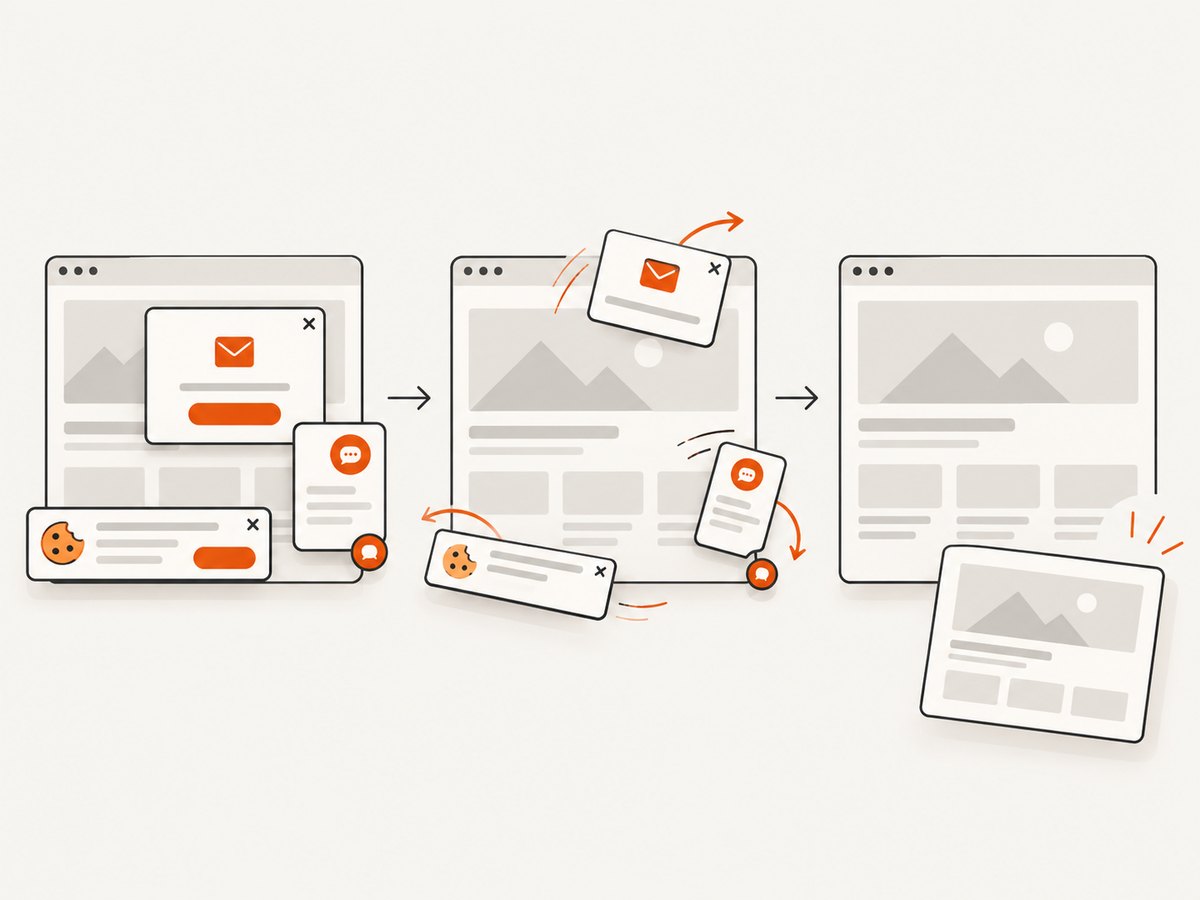
If the task is to capture web pages as screenshots rather than download files from an application, ScreenshotNeo provides a one-request screenshot API and MCP server. Its browser workflow accepts cookie banners and removes more than 60 known consent platforms, newsletter popups, and chat widgets before capture. Bot checks, blank pages, failed loads, timeouts, and cache hits are not billed, and response headers identify the page verdict and billing status. AI agents can use its MCP tools to take screenshots, get page information, and capture PDFs.
Use the ScreenshotNeo API documentation for the full request options. cURL example:
curl -G "https://api.screenshotneo.com/v1/shot" -d access_key=YOUR_API_KEY --data-urlencode url=https://stripe.com -o shot.webpPython:
import requests
r = requests.get("https://api.screenshotneo.com/v1/shot", params={"access_key": "YOUR_API_KEY", "url": "https://stripe.com"}, timeout=90)
open("shot.webp", "wb").write(r.content)
Node.js:
const q = new URLSearchParams({ access_key: 'YOUR_API_KEY', url: 'https://stripe.com' });
const res = await fetch(`https://api.screenshotneo.com/v1/shot?${q}`);
Cookie banners, popups, and chat widgets are removed before the shot; bot checks, blank pages, and failed loads are never billed; an MCP server lets AI agents take screenshots; and 1,000 screenshots a month are free with no card. Paid plans start at $5 for 3,000 shots. Sign up free and get 1,000 screenshots a month with no card.
10. FAQ
Does Puppeteer expose a stable download-finished event?
The reviewed v25.12.0 Files guide says programmatic download handling is not offered. The DownloadBehavior reference covers policy and path. Check the exact version and APIs in your deployment before relying on a lifecycle event.
Does Promise.all() make downloads parallel?
It can start independent page actions together. It does not itself track the browser’s file writes, and the website may still serialize or reject concurrent exports.
Should every download use a separate browser context?
No. Contexts isolate browser storage. Use them when jobs need distinct sessions; they are not a requirement for parallel transfers or a download-completion mechanism.
Can I use Chrome’s extension download status from Node Puppeteer?
Not directly as a Puppeteer API. The chrome.downloads interface is for extension code with the required permissions.


