How to Download Files With Puppeteer in Chrome
Configure Puppeteer downloads in Chrome with a destination path, handle filenames and completion, and troubleshoot headless browser issues.

To download a file with Puppeteer, configure the browser context with a download policy that permits downloads and provide a destination directory. Puppeteer exposes this through DownloadBehavior. The two useful policies are allow and allowAndName; both require downloadPath. The difference is filename handling: allowAndName stores files using download GUIDs, so it is unsuitable when later code expects the server-provided filename.
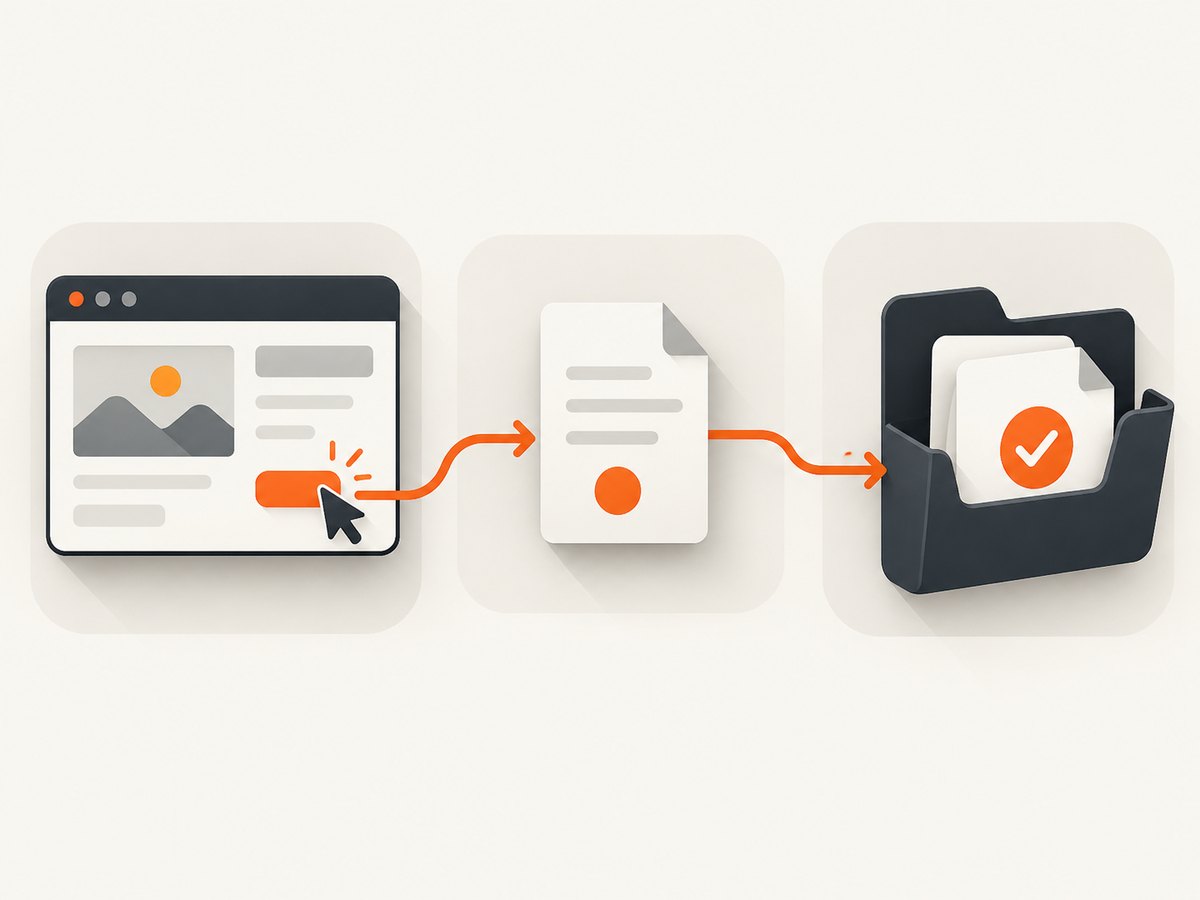
The configuration is only one part of a download workflow. You still need to trigger the target site’s download action, authenticate if required, wait for the site-specific completion signal, and verify that the expected file exists. Puppeteer’s documentation does not define one universal click or completion sequence because websites implement downloads differently.
What you need before writing code
Use a Puppeteer version whose bundled browser is available in your environment. Puppeteer’s support guarantee applies to its bundled browser; using an arbitrary executablePath is your responsibility. Since Puppeteer v20, the package downloads and works with Chrome for Testing. Package managers can disable install scripts, which may leave you without a browser binary.
- Install Puppeteer in the project.
- Confirm that the browser installation step ran.
- Choose regular headless Chrome or headed Chrome deliberately.
- Create a writable, isolated download directory.
- Configure
downloadBehaviorbefore triggering the download.
npm install puppeteer
If your package manager skipped installation scripts, follow Puppeteer’s installation instructions to install the supported browser manually or enable the required script. Keep the Puppeteer and Chrome versions aligned with the versions used in deployment.
Basic download with Puppeteer
The following example launches Puppeteer, sets an allowing policy and path, opens a page, and clicks a download control. Replace the selector and URL with the target site’s actual flow.
const puppeteer = require('puppeteer');
const fs = require('node:fs/promises');
const path = require('node:path');

(async () => {
  const downloadPath = path.resolve(__dirname, 'downloads');
  await fs.mkdir(downloadPath, { recursive: true });

  const browser = await puppeteer.launch({
    headless: true
  });

  try {
    const context = browser.defaultBrowserContext();
    await context.setDownloadBehavior({
      policy: 'allow',
      downloadPath
    });

    const page = await browser.newPage();
    await page.goto('https://example.com/account', {
      waitUntil: 'networkidle2',
      timeout: 60_000
    });

    // Add the target site’s authentication steps here.
    await page.waitForSelector('[data-download]', { visible: true });
    await page.click('[data-download]');

    // Completion detection is site-specific. See the patterns below.
    console.log(`Download directory: ${downloadPath}`);
  } finally {
    await browser.close();
  }
})();
The API reference describes DownloadBehavior as an object with a policy and optional downloadPath. A path is required when the policy is allow or allowAndName. See the DownloadBehavior reference for the exact API in your installed version.
Choosing a download policy
| Policy | Result | Use it when |
|---|---|---|
deny |
Downloads are blocked. | You want a context that cannot write downloaded files. |
allow |
Downloads are permitted and use normal browser filename behavior. | You need the server-provided filename or a conventional workflow. |
allowAndName |
Downloads are permitted but files are named with download GUIDs. | Your application tracks downloads by browser-generated identifiers. |
default |
Uses the browser’s default behavior. | You intentionally want default handling and have verified it. |
For most automation jobs, start with allow. Choose allowAndName only when GUID-based names fit your storage and processing pipeline. Do not assume that a file downloaded under allowAndName will retain the name in the HTTP Content-Disposition header.
How to detect that the download finished
There is no single completion event that applies to every website. Pick a strategy based on the target site and the kind of file being downloaded.
Watch the destination directory
A practical approach is to poll the directory until a new file appears and temporary download files disappear. Chrome may create a temporary file while the response is still being written. Treat a file as complete only after its size remains unchanged for one or more checks.
const fs = require('node:fs/promises');
const path = require('node:path');

async function waitForDownload(directory, before, timeoutMs = 60_000) {
  const deadline = Date.now() + timeoutMs;
  let stableFile = null;
  let stableSize = -1;
  let stableSince = 0;

  while (Date.now() < deadline) {
    const entries = await fs.readdir(directory, { withFileTypes: true });
    const candidates = [];

    for (const entry of entries) {
      if (!entry.isFile() || before.has(entry.name)) continue;
      if (entry.name.endsWith('.crdownload') || entry.name.endsWith('.tmp')) continue;
      const fullPath = path.join(directory, entry.name);
      const stat = await fs.stat(fullPath);
      candidates.push({ name: entry.name, fullPath, size: stat.size });
    }

    if (candidates.length) {
      const candidate = candidates[0];
      if (candidate.fullPath === stableFile && candidate.size === stableSize) {
        if (Date.now() - stableSince >= 1_000) return candidate.fullPath;
      } else {
        stableFile = candidate.fullPath;
        stableSize = candidate.size;
        stableSince = Date.now();
      }
    }

    await new Promise(resolve => setTimeout(resolve, 250));
  }

  throw new Error('Timed out waiting for a completed download');
}
Capture the directory listing immediately before clicking, then call waitForDownload. If a site downloads several files, identify the expected extension, prefix, or content type instead of accepting the first new file.
Use a site-provided completion signal
Some applications update a status element, emit a notification, or expose a download record through an API. Wait for that signal and then verify the file on disk. This is usually more reliable than a fixed sleep because generation time varies with account size and server load.
Observe the network when the response is the download
If clicking a control starts a normal HTTP response, you can wait for a matching response while triggering the click. This works only when the response is visible to the page and the site does not hand the work to a separate job queue.
const responsePromise = page.waitForResponse(response => {
  return response.url().includes('/export') && response.status() === 200;
});
await page.click('[data-download]');
const response = await responsePromise;
console.log(response.headers()['content-type']);
Still verify the resulting file. A successful HTTP response can contain an error document, an expired-session page, or a queued-job message rather than the expected archive.
Authentication, redirects, and protected files
Downloads often depend on cookies or an authenticated session. Log in through the same page and context that will initiate the download. If the application uses a separate origin for files, confirm that the session cookie is valid for that origin and that redirects do not send the browser to a login page.
For HTTP Basic authentication, configure the page before navigation:
await page.authenticate({ username: process.env.USERNAME, password: process.env.PASSWORD });
await page.goto('https://example.com/protected-file-page');
For bearer tokens or custom headers, use the site’s supported login flow where possible. Directly injecting headers can change application behavior and may not apply to a browser-managed download. Never hard-code credentials in source; provide them through the runtime secret store.
Headless mode and browser selection
Regular headless mode is Puppeteer’s default. Puppeteer also documents chrome-headless-shell, a separate binary based on the former headless implementation. The shell does not completely match regular Chrome. Test with the same mode and browser binary that production uses.
const browser = await puppeteer.launch({
  headless: true // regular headless Chrome
});
Use headed mode temporarily when diagnosing permissions, redirects, or an unexpected page state:
const browser = await puppeteer.launch({
  headless: false,
  args: ['--window-size=1440,1000']
});
Do not assume that an arbitrary system Chrome is interchangeable with Puppeteer’s bundled browser. The Puppeteer documentation explains the supported installation path and browser management options.
Filesystem and container considerations
- Use an absolute download path. Relative paths can resolve differently under a process manager.
- Create the directory before launching or before the first download.
- Ensure the browser user can write to it.
- Give each job its own directory to avoid filename collisions and cross-job reads.
- Clean up completed files and abandoned temporary files.
- In containers, mount a writable volume if files must survive the process.
- Check disk quotas before starting large exports.
Do not expose the download directory through a public web server unless files are intentionally public. Treat downloaded reports and archives as sensitive data and apply the same retention policy as other application artifacts.
Common errors and fixes
| Error or symptom | Likely cause | Fix |
|---|---|---|
| Download is blocked | Policy is deny or default does not allow it. |
Set policy: 'allow' or 'allowAndName' and provide downloadPath. |
| Path-related exception | The destination is missing, relative, or not writable. | Create an absolute directory and check permissions before navigation. |
| No browser executable | Install scripts were skipped. | Install the Puppeteer-supported browser using the documented installation procedure. |
| File has a GUID name | allowAndName was selected. |
Map GUIDs to job records or use allow when the original name matters. |
| Timeout waiting for a file | The click did not trigger a download, the job is still generating, or authentication expired. | Check the page state, network response, login redirect, and site-specific completion signal. Increase the timeout only after identifying the real delay. |
| Zero-byte or partial file | The browser is still writing or the server terminated the response. | Ignore temporary extensions and require a stable size before processing. |
| Works headed, fails headless | Different browser mode, viewport, permissions, or page timing. | Run the production headless mode locally, collect console and network logs, and wait on a deterministic selector. |
| Downloaded HTML instead of a document | Session expired or a redirect returned an error page. | Inspect the final URL, response headers, and file prefix before accepting the artifact. |
Logging and diagnostics
When a download fails, record the target URL, final page URL, browser version, headless mode, selected policy, destination path, and elapsed time. Capture page console messages and failed requests while debugging:

page.on('console', message => console.log('[console]', message.type(), message.text()));
page.on('requestfailed', request => {
  console.error('[request failed]', request.url(), request.failure());
});
page.on('response', response => {
  const type = response.headers()['content-type'] || '';
  if (type.includes('application') || type.includes('zip')) {
    console.log('[candidate response]', response.status(), response.url(), type);
  }
});
Performance and reliability
Browser startup is often more expensive than the download itself. Reuse a browser process for multiple jobs, but create a separate browser context or download directory per job when isolation matters. Avoid fixed delays; wait for selectors, network conditions, or application status changes. Set explicit navigation and download timeouts so stuck jobs release resources.
Retry only failures that are plausibly transient, such as navigation timeouts or temporary server errors. Do not blindly retry an invalid selector, a denied account, or a deterministic authorization failure. Make jobs idempotent: include a job identifier, skip processing when the expected artifact already exists, and remove partial files before retrying.
For large files, monitor free disk space and process the file after the browser has finished writing it. If the site offers a direct authenticated HTTP endpoint, compare that approach with browser automation; a direct request may use fewer resources, but it may not reproduce the browser’s session, JavaScript, or anti-forgery flow.
Or skip the browser setup
If your goal is a clean image or PDF of a page rather than downloading a file generated by a private application, ScreenshotNeo provides a single screenshot API request. It accepts the URL and returns PNG, JPEG, WebP, or PDF. The API can load lazy images, capture a CSS-selected element, apply custom headers and cookies, wait for a selector or network idle, run custom JavaScript, and use device, timezone, and geolocation settings.
See the ScreenshotNeo API documentation for the complete option list and parameter names.
cURL
curl -G "https://api.screenshotneo.com/v1/shot" -d access_key=YOUR_API_KEY --data-urlencode url=https://stripe.com -o shot.webpPython
import requests

r = requests.get(
    "https://api.screenshotneo.com/v1/shot",
    params={"access_key": "YOUR_API_KEY", "url": "https://stripe.com"},
    timeout=90,
)
r.raise_for_status()
open("shot.webp", "wb").write(r.content)
Node.js
const q = new URLSearchParams({ access_key: 'YOUR_API_KEY', url: 'https://stripe.com' });
const res = await fetch(`https://api.screenshotneo.com/v1/shot?${q}`);
if (!res.ok) throw new Error(`HTTP ${res.status}`);
const data = Buffer.from(await res.arrayBuffer());
require('node:fs').writeFileSync('shot.webp', data);
ScreenshotNeo removes cookie and consent banners, newsletter popups, and chat widgets before capture. Bot checks, blank pages, timeouts, failed loads, and cache hits are not billed; response headers identify the page verdict and whether the request was billed. It also offers an MCP server with take_screenshot, get_page_info, and capture_pdf tools for Claude, Cursor, and other MCP clients. The free plan includes 1,000 screenshots each month with no card; paid plans start at $5 for 3,000.
Start with 1,000 free screenshots a month.
FAQ
Does Puppeteer download files automatically?
No. Configure an allowing download policy and destination path, then trigger the site’s download action.
Should I use allow or allowAndName?
Use allow when downstream code needs the original filename. Use allowAndName when GUID-based names are acceptable.
Can I use any installed Chrome executable?
You can configure one, but Puppeteer only guarantees compatibility with its bundled browser. Validate custom executables in the exact deployment environment.
Why does a download work in headed mode but not headless?
Headless and headed runs can differ in timing, permissions, viewport, and browser implementation. Reproduce the production mode and replace arbitrary sleeps with deterministic waits.
Is there one universal way to know a download is complete?
No. Watch the destination directory, use a site-provided status signal, or observe a matching response, then verify the file contents and size.


