How to Download Files With Puppeteer and Playwright
Learn the reliable way to download files with Playwright and Puppeteer, save them safely, handle filenames, remote browsers, errors, and automation limits.
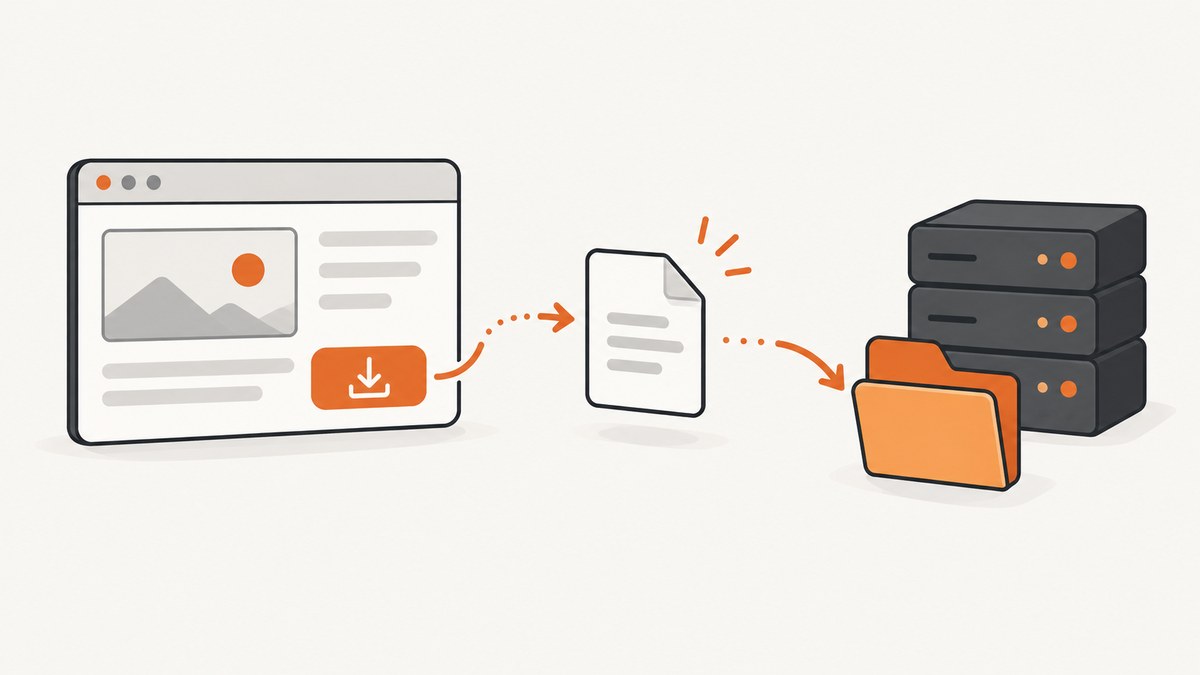
Direct answer: Playwright has a first-class download workflow: start waiting for page.waitForEvent('download') before clicking, await the resulting Download object, then call saveAs() before the browser context closes. Puppeteer’s official Files guide says, “Currently, Puppeteer does not offer a way to handle file downloads in a programmatic way.” Puppeteer separately exposes lower-level DownloadBehavior settings such as a policy and downloadPath; that configuration is not the same as Playwright’s event, filename, and save API.
This guide shows complete Node.js examples, explains temporary storage and remote execution, and covers the edge cases that cause missing files, incorrect names, and flaky tests.
1. Playwright: wait for the download, trigger it, and save it
The order of operations matters. Register the download wait before the click (or other action) that starts the attachment. If you click first, a fast response can emit the event before your code begins waiting.

import { chromium } from 'playwright';

const browser = await chromium.launch();
const context = await browser.newContext({ acceptDownloads: true });
const page = await context.newPage();

try {
  await page.goto('https://example.com/files', { waitUntil: 'domcontentloaded' });

  const downloadPromise = page.waitForEvent('download');
  await page.getByRole('link', { name: 'Download file' }).click();

  const download = await downloadPromise;
  const filename = download.suggestedFilename();
  await download.saveAs(`./downloads/${filename}`);
  console.log(`Saved ${filename}`);
} finally {
  await context.close();
  await browser.close();
}
Playwright documents that a download event is emitted for every attachment downloaded by the page. The saveAs call waits for the download to finish if necessary and copies the file to your chosen destination. Create the destination directory before saving:
import { mkdir } from 'node:fs/promises';
await mkdir('./downloads', { recursive: true });
Use the same pattern for a button, a JavaScript-generated link, or a form submission. Replace the locator and triggering action, but keep the wait declaration first.
Handling a download that may fail
A Download can expose a failure reason. Check it after awaiting the event and before treating the file as complete.
const downloadPromise = page.waitForEvent('download');
await page.locator('#export').click();
const download = await downloadPromise;

const failure = await download.failure();
if (failure) {
  throw new Error(`Download failed: ${failure}`);
}

await download.saveAs('./downloads/export.bin');
When a download never starts, the problem is usually the locator, a missing login, a popup that intercepts the click, or a server response that is rendered inline instead of being marked as an attachment. Increase the action timeout only after confirming that the page really initiates a download.
2. Filenames, paths, and browser-context lifetime
suggestedFilename() is a browser suggestion, not a universal naming guarantee. It commonly comes from the response’s Content-Disposition header or the HTML download attribute. Different browsers can calculate it differently, and a server can omit or sanitize the name.
const name = download.suggestedFilename();
// Keep the name, but prevent path traversal or unexpected separators.
const safeName = name.replace(/[^a-zA-Z0-9._-]/g, '_');
await download.saveAs(`./downloads/${safeName}`);
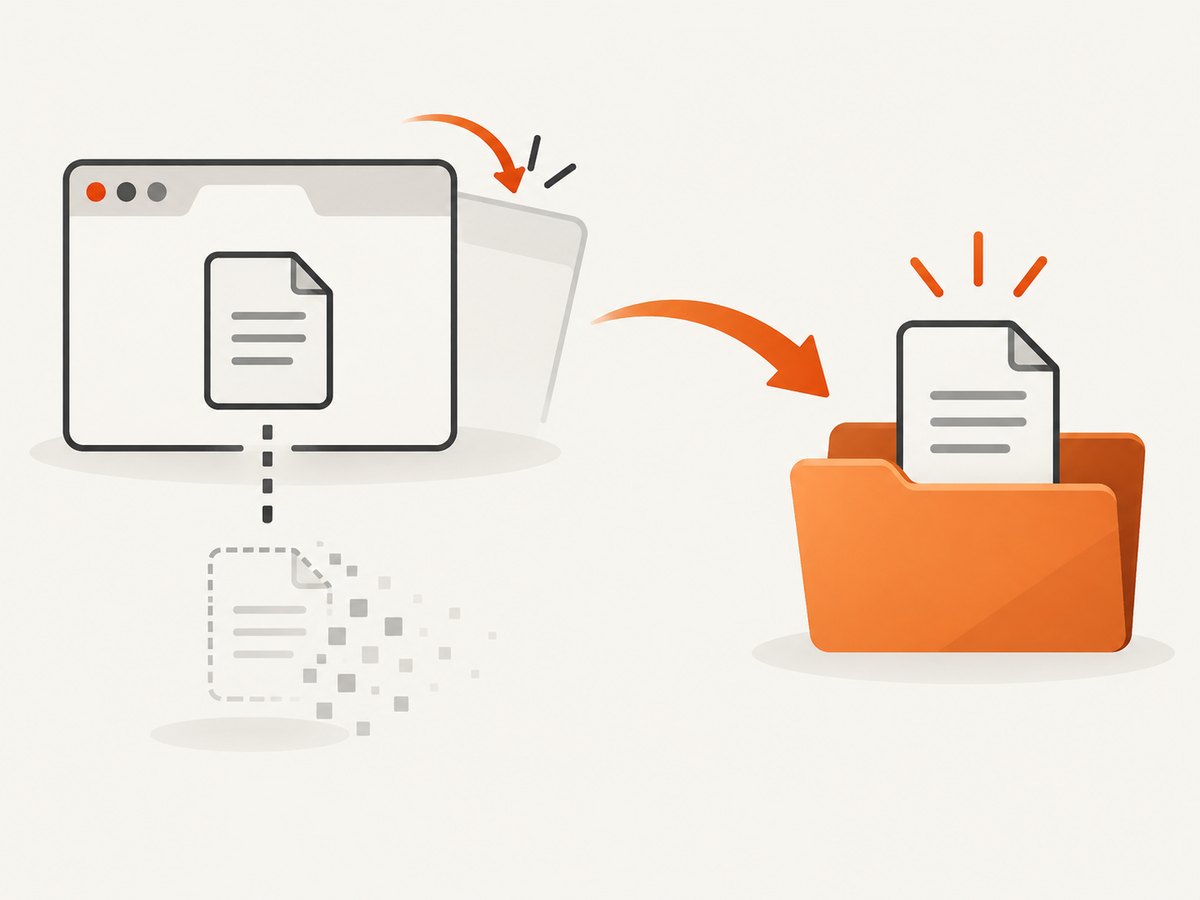
Downloads are held in temporary storage by default. Playwright deletes them when the browser context that created them closes. Therefore, call saveAs while that context is still open. Saving to an application-controlled directory also makes retries, checksums, and later processing predictable.
You can configure a browser-wide downloads directory when launching:
const browser = await chromium.launch({ downloadsPath: '/var/tmp/playwright-downloads' });This chooses where accepted downloads go during execution, but the BrowserType documentation still states that files are deleted when the producing context closes. Treat downloadsPath as runtime storage, not durable application storage.
Remote browser connections
When connected to a remote browser, do not rely on download.path(); the Download API documents that it throws in remote connections. Use saveAs to transfer the file to a destination controlled by the client process:
const browser = await chromium.connectOverCDP(process.env.BROWSER_ENDPOINT);
const context = await browser.newContext({ acceptDownloads: true });
const page = await context.newPage();
const downloadPromise = page.waitForEvent('download');
await page.getByText('Download file').click();
const download = await downloadPromise;
await download.saveAs('/workspace/artifacts/file.zip');
Ensure the destination path exists on the machine running your Playwright client, not merely on the remote browser host.
3. Complete Playwright examples
Authenticated download with cookies and headers
import { chromium } from 'playwright';

const browser = await chromium.launch();
const context = await browser.newContext({
  acceptDownloads: true,
  extraHTTPHeaders: { 'X-Client': 'automation' }
});
await context.addCookies([{
  name: 'session', value: process.env.SESSION_COOKIE,
  domain: 'example.com', path: '/'
}]);

const page = await context.newPage();
await page.goto('https://example.com/account');
const downloadPromise = page.waitForEvent('download');
await page.locator('a[data-export]').click();
const download = await downloadPromise;
await download.saveAs('./downloads/account.csv');
await browser.close();
Download triggered by a popup or new tab
const downloadPromise = page.waitForEvent('download');
const popupPromise = page.waitForEvent('popup');
await page.getByText('Generate report').click();
const download = await downloadPromise;
await download.saveAs('./downloads/report.pdf');
// Await popupPromise only if the site actually opens a new page.
Python Playwright
from pathlib import Path
from playwright.sync_api import sync_playwright

with sync_playwright() as p:
    browser = p.chromium.launch()
    context = browser.new_context(accept_downloads=True)
    page = context.new_page()
    page.goto("https://example.com/files")
    with page.expect_download() as info:
        page.get_by_text("Download file").click()
    download = info.value
    Path("downloads").mkdir(exist_ok=True)
    download.save_as(Path("downloads") / download.suggested_filename())
    context.close()
    browser.close()
4. Puppeteer: what is and is not supported
The official Puppeteer Files guide focuses on uploading files with an input[type=file] and uploadFile. It explicitly says that Puppeteer does not currently offer a programmatic download-handling workflow. Separately, the DownloadBehavior API exposes browser-level policy and path configuration.
That API can allow downloads and choose a directory. The path is required when the policy is allow or allowAndName; allowAndName names files according to download GUIDs. This is lower-level behavior configuration. It does not provide Playwright’s documented waitForEvent('download'), suggestedFilename(), and saveAs() sequence.
import puppeteer from 'puppeteer';

const browser = await puppeteer.launch();
const page = await browser.newPage();

await page.setDownloadBehavior({
  policy: 'allow',
  downloadPath: '/tmp/puppeteer-downloads'
});

await page.goto('https://example.com/files', { waitUntil: 'networkidle2' });
await page.click('a[data-download]');

// Puppeteer does not expose a Playwright-style Download object here.
// Observe the configured directory using your operating system or Node fs APIs.
await browser.close();
Because this is filesystem-based configuration, your application must decide how to detect completion, identify the resulting filename, and handle partial files. A common approach is to watch the directory, ignore temporary extensions while they exist, and require the file size to remain stable across polling intervals. Verify the exact behavior for your Puppeteer version, browser, and connection mode.
Puppeteer with Node.js directory polling
import { readdir, stat } from 'node:fs/promises';

async function waitForStableFile(dir, timeoutMs = 60000) {
  const start = Date.now();
  let previous = null;
  while (Date.now() - start < timeoutMs) {
    const names = (await readdir(dir)).filter(n => !n.endsWith('.crdownload'));
    if (names.length) {
      const file = `${dir}/${names[0]}`;
      const size = (await stat(file)).size;
      if (previous && previous.path === file && previous.size === size) return file;
      previous = { path: file, size };
    }
    await new Promise(r => setTimeout(r, 500));
  }
  throw new Error('Timed out waiting for a stable downloaded file');
}
Polling is inherently less precise than an event and can select the wrong file when multiple downloads happen at once. Use a unique directory per job, or record the directory contents before clicking and wait for a new entry.
5. cURL, Python, and direct HTTP downloads
If the attachment URL is stable and authentication does not require browser JavaScript, direct HTTP is simpler and faster than either browser library.
curl -L --fail --retry 3 \
  -H "Authorization: Bearer $TOKEN" \
  "https://example.com/files/report.pdf" \
  -o report.pdf
import requests
r = requests.get(
"https://example.com/files/report.pdf",
headers={"Authorization": f"Bearer {token}"},
timeout=90,
)
r.raise_for_status()
with open("report.pdf", "wb") as f:
f.write(r.content)const res = await fetch('https://example.com/files/report.pdf', {
headers: { Authorization: `Bearer ${process.env.TOKEN}` }
});
if (!res.ok) throw new Error(`HTTP ${res.status}`);
const bytes = Buffer.from(await res.arrayBuffer());
await fs.promises.writeFile('report.pdf', bytes);Use a browser when the URL is created by JavaScript, requires a session established through page actions, depends on a CSRF token, or is protected by a flow that cannot be reproduced with HTTP headers alone.
6. Troubleshooting checklist
| Symptom | Likely cause | Fix |
|---|---|---|
waitForEvent('download') times out |
The click did not trigger an attachment, or the wait started too late. | Declare the promise before the action; verify the locator, login, and response headers. |
| File disappears after the test | The Playwright browser context closed before the file was copied. | Call saveAs before context.close(). |
download.path() throws |
The browser is connected remotely. | Use saveAs to transfer the file. |
| Filename is empty or unexpected | No usable Content-Disposition or HTML download name, or browser differences. |
Use suggestedFilename() as a hint and choose an application name when needed. |
| Puppeteer directory contains partial files | The download is still in progress. | Ignore temporary extensions and wait for size stability. |
| Downloaded HTML instead of the expected PDF/ZIP | The server returned a login page, error document, or bot challenge. | Inspect status, final URL, cookies, and response content before saving. |
| Two jobs overwrite each other | Shared download directory or duplicate names. | Use a per-job directory and collision-safe destination names. |
7. Reliability, performance, and cost considerations
- Reliability: Use explicit waits for the page state that precedes the download, then wait for the download itself. Keep browser contexts short-lived and save artifacts immediately.
- Concurrency: Give each job its own context or download directory. This prevents one file watcher from accepting another job’s result.
- Performance: Direct HTTP is usually cheaper in CPU and startup time when authentication and URL discovery do not require a browser. Reuse a browser process for many isolated contexts when browser automation is necessary.
- Storage: Validate file size, MIME type, and (where available) a checksum. Set retention policies for temporary and permanent artifacts.
- Security: Sanitize suggested filenames, avoid writing outside an intended directory, and never log session cookies or bearer tokens.
- Retries: Retry navigation or the triggering action only when it is safe to repeat. For generated reports, duplicate clicks can create duplicate jobs.
8. Or skip the browser setup: ScreenshotNeo
If your goal is a visual capture rather than retrieving the original attachment, ScreenshotNeo provides one GET request for a PNG, JPEG, WebP, or PDF. See the ScreenshotNeo API documentation for all options.
curl -G "https://api.screenshotneo.com/v1/shot" -d access_key=YOUR_API_KEY --data-urlencode url=https://stripe.com -o shot.webpimport requests
r = requests.get("https://api.screenshotneo.com/v1/shot", params={"access_key": "YOUR_API_KEY", "url": "https://stripe.com"}, timeout=90)
open("shot.webp", "wb").write(r.content)const q = new URLSearchParams({ access_key: 'YOUR_API_KEY', url: 'https://stripe.com' });
const res = await fetch(`https://api.screenshotneo.com/v1/shot?${q}`);Cookie banners, newsletter popups, and chat widgets are removed before the shot. Bot checks, blank pages, failed loads, timeouts, and cache hits are never billed, and response headers identify the page verdict and billing result. An MCP server lets AI agents use take_screenshot, get_page_info, and capture_pdf. The free plan includes 1,000 screenshots each month with no card; paid plans start at $5 for 3,000 shots. Create a free ScreenshotNeo account.
9. FAQ
Should I choose Playwright or Puppeteer for downloads?
Choose Playwright when your application needs an explicit download event, suggested filename, and save operation. Puppeteer can configure browser download behavior, but its official Files guide does not document an equivalent high-level download workflow.
Can I save a Playwright download after closing the context?
No. Save or copy it first. Download artifacts are temporary and tied to the browser context that created them.
Does suggestedFilename() guarantee the server’s filename?
No. It reflects browser-visible metadata and can differ by browser or response. Treat it as a safe default, then apply your own naming policy.
Can a screenshot API download the original file?
No. ScreenshotNeo captures a rendered page or PDF. Use Playwright, Puppeteer, or direct HTTP when you need the original attachment bytes.