How to Download Files to a Specific Path in Headless Chrome
Set a writable download directory before starting Chrome, then wait for the file to finish before closing the browser. Examples for Selenium, Puppeteer, and CDP.
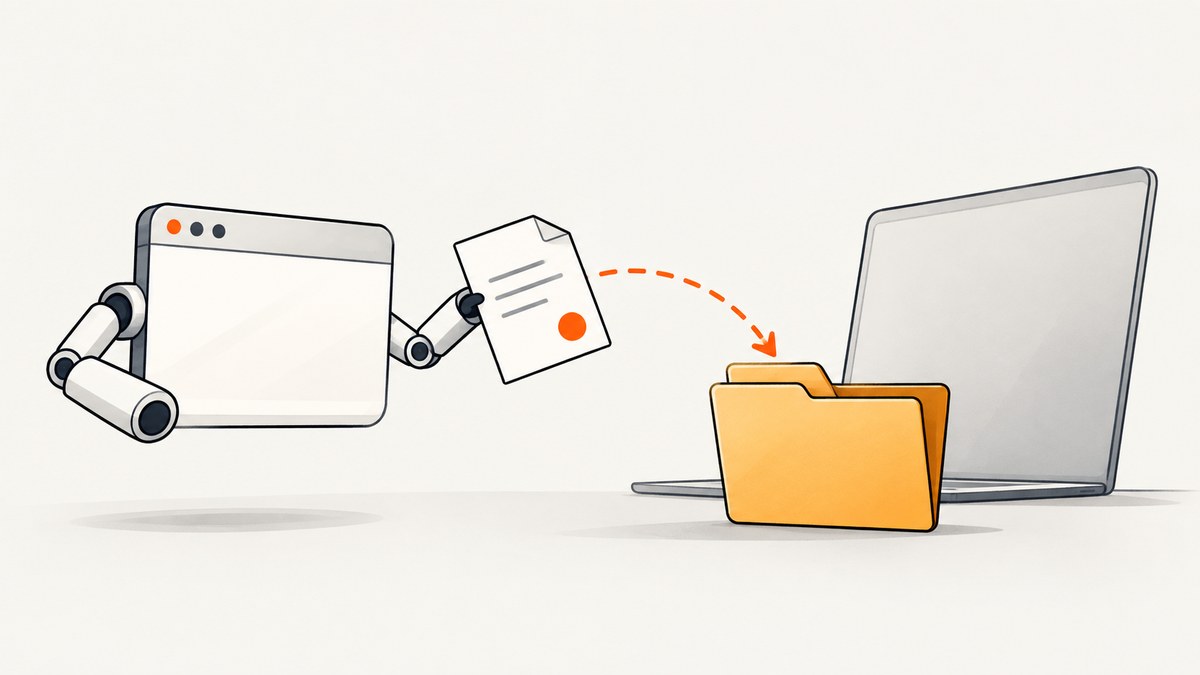
To download a file to a specific path in headless Chrome, configure the destination before starting the download, create that directory, and make sure the Chrome process can write to it. Selenium sets Chrome’s download.default_directory preference; Puppeteer and direct Chrome DevTools Protocol (CDP) use a download behavior with a downloadPath. In every case, wait for completion before closing the browser. ChromeDriver does not wait for a download to finish automatically. [ChromeDriver capabilities]
Headless mode does not change the basic requirement: the automation layer must tell Chrome where downloads are allowed to go. This guide covers runnable starting points, completion checks, filename behavior, common failures, and practical reliability considerations.
1. Prepare a safe download directory
Before launching Chrome, choose a dedicated absolute path, create it, and check that the browser’s operating-system user has write permission. A unique temporary directory for each test or job helps avoid collisions and makes cleanup predictable.
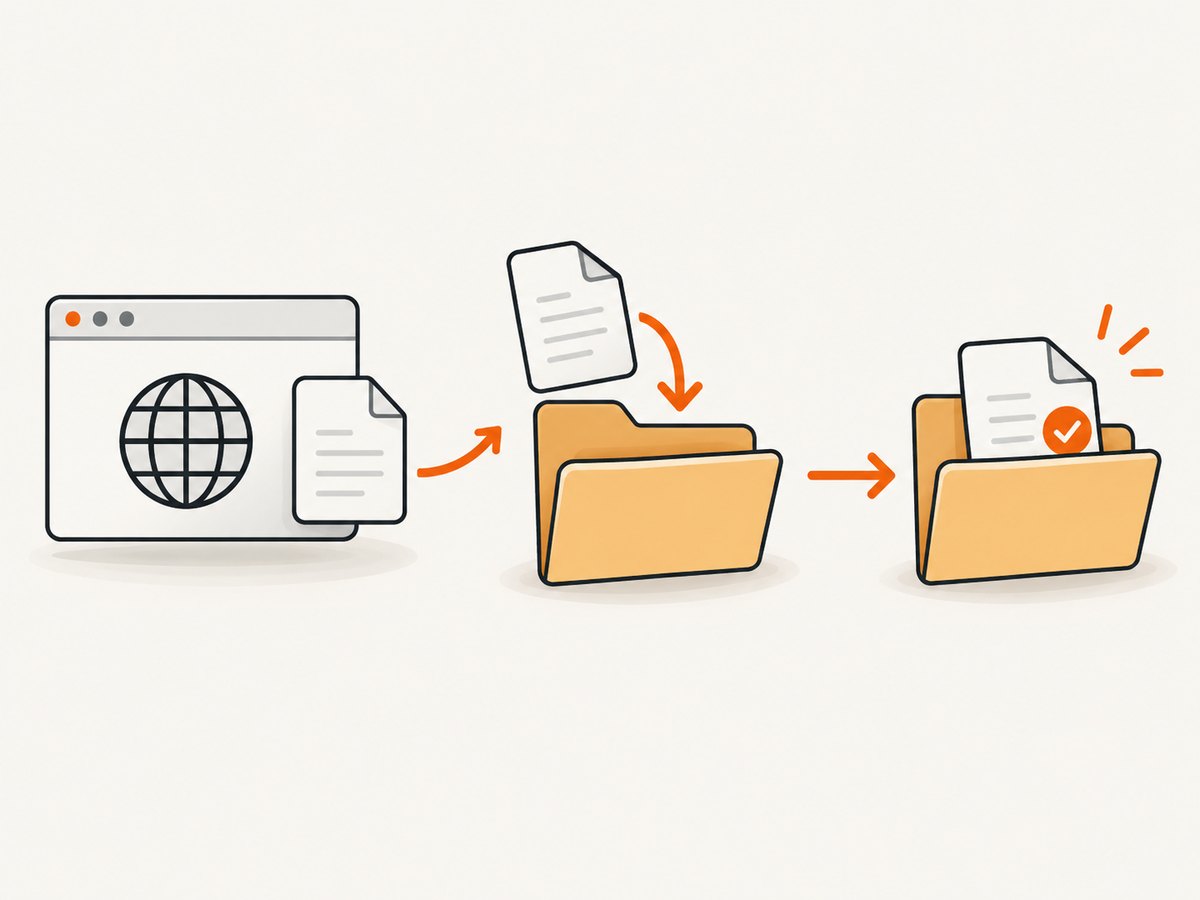
- Use an absolute path. Relative paths can behave inconsistently.
- Create the directory before Chrome starts.
- Use a directory Chrome permits. ChromeDriver documentation warns that some system-special locations are disallowed, including Desktop and, on Linux, the home directory. The restricted set may change.
- On Windows, use backslashes in the path, or construct the path with your language’s path utilities.
- Do not assume that the account running your script is the account running Chrome in a container, service, or CI worker.
For example, /tmp/chrome-downloads is used below as an illustration. In production, choose a location appropriate to your operating system, container, and cleanup policy.
2. Selenium and ChromeDriver
Set the preference through ChromeOptions before creating the driver. This Java example uses Selenium’s WebDriver API and leaves the actual download trigger represented by a placeholder; replace that step with navigation or a click that causes your target site to download a file.
import java.nio.file.Files;
import java.nio.file.Path;
import java.time.Duration;
import java.util.HashMap;
import java.util.Map;

import org.openqa.selenium.By;
import org.openqa.selenium.chrome.ChromeDriver;
import org.openqa.selenium.chrome.ChromeOptions;
import org.openqa.selenium.support.ui.WebDriverWait;

public class DownloadFile {
    public static void main(String[] args) throws Exception {
        Path downloadDir = Path.of("/tmp/chrome-downloads").toAbsolutePath();
        Files.createDirectories(downloadDir);

        Map<String, Object> prefs = new HashMap<>();
        prefs.put("download.default_directory", downloadDir.toString());
        prefs.put("download.prompt_for_download", false);

        ChromeOptions options = new ChromeOptions();
        options.addArguments("--headless");
        options.setExperimentalOption("prefs", prefs);

        ChromeDriver driver = new ChromeDriver(options);
        try {
            driver.get("https://example.com/download-page");
            driver.findElement(By.cssSelector("a.download-link")).click();

            // Replace this with a completion check for your expected file.
            Path expected = downloadDir.resolve("report.csv");
            new WebDriverWait(driver, Duration.ofSeconds(60)).until(d -> {
                try {
                    return Files.exists(expected)
                        && Files.size(expected) > 0
                        && !hasPartialDownload(downloadDir);
                } catch (Exception e) {
                    return false;
                }
            });
        } finally {
            driver.quit();
        }
    }

    private static boolean hasPartialDownload(Path dir) throws Exception {
        try (var files = Files.list(dir)) {
            return files.anyMatch(p -> p.getFileName().toString().endsWith(".crdownload"));
        }
    }
}
The preference is the important part: download.default_directory must be set before the download begins. download.prompt_for_download disables an interactive prompt that would otherwise block unattended automation. The temporary .crdownload check is a practical Chrome-oriented completion heuristic; for a robust workflow, also verify that the expected file exists, has a sensible size, and can be parsed or opened as expected. ChromeDriver’s documentation covers setting Chrome preferences and cautions that it does not wait for download completion. [ChromeDriver capabilities]
For Python or another Selenium language, use the same Chrome preference through that binding’s Chrome options API. The exact option-construction syntax varies by Selenium version; keep the browser preference and the ordering the same: make the directory, configure options, launch Chrome, trigger download, wait, then quit.
3. Puppeteer
Puppeteer exposes download behavior through a browser context. The current API uses setDownloadBehavior; the installed Puppeteer version matters, so check its API reference if the method or types differ in your project. The directory must exist and be writable before enabling downloads. [Puppeteer DownloadBehavior] [BrowserContext.setDownloadBehavior]
import fs from 'node:fs/promises';
import path from 'node:path';
import puppeteer from 'puppeteer';

const downloadPath = path.resolve('/tmp/chrome-downloads');
await fs.mkdir(downloadPath, { recursive: true });

const browser = await puppeteer.launch({ headless: true });
try {
  const context = browser.defaultBrowserContext();
  await context.setDownloadBehavior({
    policy: 'allow',
    downloadPath,
  });

  const page = await browser.newPage();
  await page.goto('https://example.com/download-page');
  await page.click('a.download-link');

  const expectedFile = path.join(downloadPath, 'report.csv');
  const deadline = Date.now() + 60_000;
  while (Date.now() < deadline) {
    try {
      const stat = await fs.stat(expectedFile);
      if (stat.size > 0) break;
    } catch {
      // The file may not have appeared yet.
    }
    await new Promise(resolve => setTimeout(resolve, 250));
  }

  const stat = await fs.stat(expectedFile);
  if (stat.size === 0) throw new Error('Downloaded file is empty');
} finally {
  await browser.close();
}
The loop illustrates a bounded wait for a known filename, but an existence-and-size check alone cannot prove a download is complete: a file can appear before writing finishes. Prefer a download event or a completion signal supported by the Puppeteer version you use, and validate the completed file. Avoid treating a fixed short delay as a completion guarantee.
Puppeteer’s documented policy values include deny, allow, allowAndName, and default. A downloadPath is required for allow and allowAndName. With allowAndName, files use download GUID names rather than the server’s suggested filename. [Puppeteer DownloadBehavior]
4. Direct Chrome DevTools Protocol
If your automation speaks CDP directly, use the browser-level Browser.setDownloadBehavior method. Set behavior to allow and provide downloadPath. When you need lifecycle notifications, enable events and listen for Browser.downloadProgress. Treat the event with state: "completed" as the completion signal. The protocol warns that a reported file path is not guaranteed to be set or to exist, so independently check the file when your workflow depends on it. [CDP Browser.setDownloadBehavior] [CDP Browser.downloadProgress]
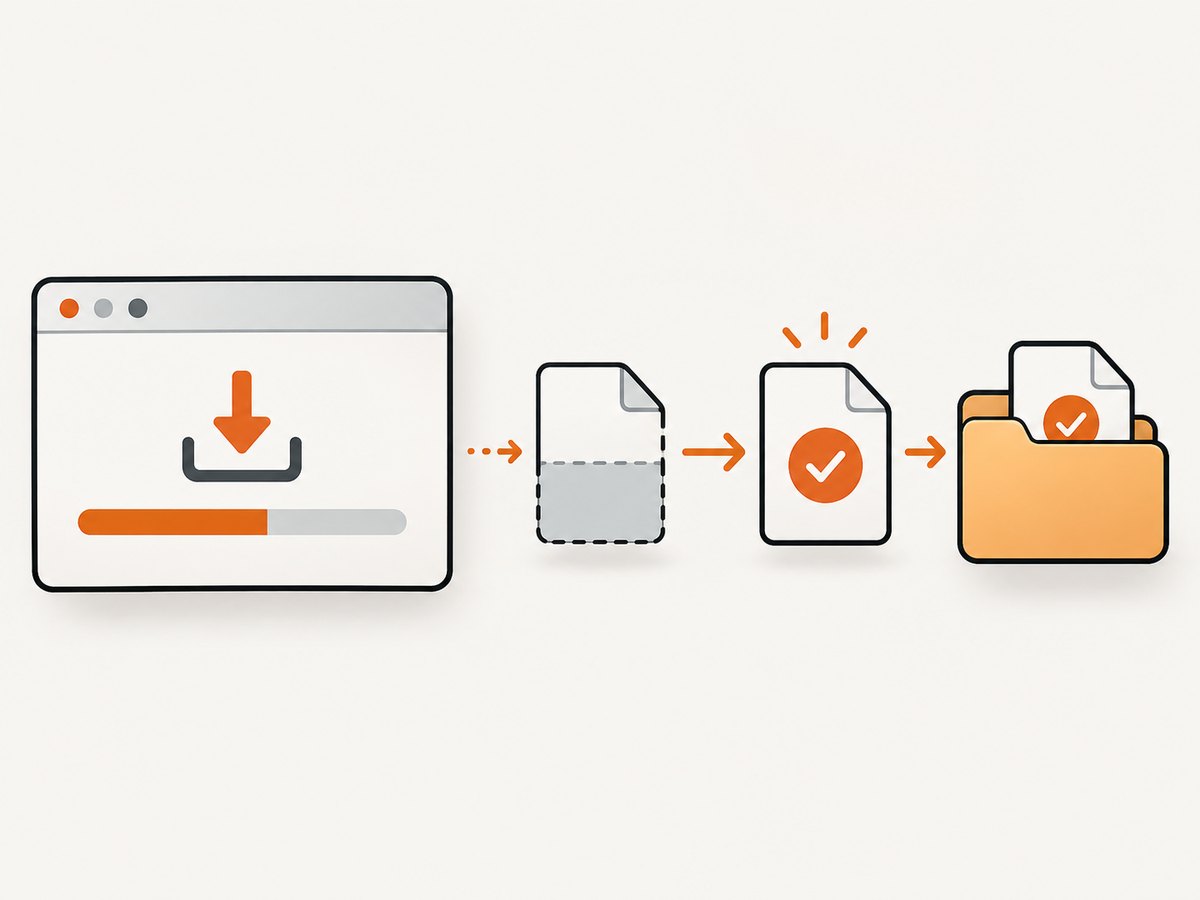
// Pseudocode: exact connection and event APIs depend on your CDP client.
await cdp.send('Browser.setDownloadBehavior', {
  behavior: 'allow',
  downloadPath: '/tmp/chrome-downloads',
  eventsEnabled: true,
});

const completed = new Promise((resolve, reject) => {
  const timer = setTimeout(() => reject(new Error('Download timed out')), 60_000);
  cdp.on('Browser.downloadProgress', event => {
    if (event.state === 'completed') {
      clearTimeout(timer);
      resolve(event);
    } else if (event.state === 'canceled') {
      clearTimeout(timer);
      reject(new Error('Chrome canceled the download'));
    }
  });
});

await triggerDownload();
const event = await completed;
// Verify the expected file on disk before closing Chrome.
This shows the CDP message and event flow, not a complete client setup: CDP connection creation and event subscription differ by library. The protocol supports allowAndName as well, which stores using download GUIDs. For new CDP work, prefer the Browser domain. The older Page.setDownloadBehavior is marked experimental, and its Page download events are deprecated in favor of Browser events. [Browser domain] [Page.setDownloadBehavior]
5. Choose the right configuration
| Approach | Where path is configured | Completion approach | Best fit |
|---|---|---|---|
| Selenium / ChromeDriver | Chrome preference download.default_directory |
Wait for expected file and confirm it is complete before quitting | Existing WebDriver tests and automation |
| Puppeteer | Browser context download behavior | Use a supported download signal, then validate the file | Node.js automation already using Puppeteer |
| Direct CDP | Browser domain Browser.setDownloadBehavior |
Browser.downloadProgress plus on-disk verification |
Custom clients needing protocol events or direct control |
Use the framework already present in your application unless you need a specific protocol-level capability. For multiple contexts, make sure the download policy is applied to the context that actually performs the navigation or click. Where the API is versioned, verify the installed browser and library documentation together.
6. Filename, collisions, and edge cases
Server-provided filenames
Web servers commonly suggest a filename in the response. With ordinary allow behavior, Chrome generally uses its download naming rules. If you require a deterministic filename, do not assume the suggested name is stable: inspect the completed directory, identify the result, and move or rename it in your application after the download finishes.
GUID filenames
allowAndName uses download GUIDs. This avoids relying on a possibly duplicated server filename, but your code must map the completed GUID to the intended job. Use the download event’s GUID and metadata available from your CDP client, then verify the resulting file rather than guessing its path.
Concurrent downloads
Two files with the same suggested name can produce renamed variants or overwrite-related ambiguity depending on the browser and server behavior. Give each worker or job a separate destination directory, or serialize downloads and move completed files into an application-controlled naming scheme. Never have concurrent jobs watch the same directory for “the newest file” without another way to identify ownership.
Redirects, authentication, and generated files
A click may navigate through redirects, require a logged-in session, or generate a file only after application code runs. Confirm the download actually starts and that the browser has the required cookies or credentials. For links that return content inline instead of an attachment, Chrome may display the document rather than save it. In that case, inspect the response behavior or use an HTTP client if browser interaction is not needed.
Large files and ephemeral storage
For large files, allow enough time and disk space, and avoid memory-heavy approaches that buffer the entire download in your test process. In CI or containers, remember that temporary storage may be cleared when the job ends. Copy or upload the verified result to durable storage before cleanup.
7. Reliability, performance, and cost
A browser download consumes time and disk space, and it depends on the target site’s response, authentication, and network conditions. Reliability comes from explicit state checks: confirm the trigger occurred, wait with a deadline, detect failure or cancellation where the API exposes it, and validate the resulting file. Use bounded retries only when the operation is safe to repeat; repeated clicks can create duplicate downloads or server-side actions.
Performance is usually governed by the download itself and browser startup, rather than the choice between a preference and a context API. Reuse a browser process where appropriate, isolate paths per job, and avoid polling at an unnecessarily high frequency. Keep enough free disk space and enforce a maximum job duration. No benchmark is implied here; measure with your own file sizes, browser version, and execution environment.
Chrome download configuration has no separate API charge in the documented methods. Your actual costs are the compute, network, storage, and CI time used to run the browser. If you only need an image or PDF capture of a page, a full browser-download workflow may be unnecessary.
8. Troubleshooting
| Symptom | Likely cause | Fix |
|---|---|---|
| File appears in the wrong folder | Preference or behavior was set after launch, path was relative, or another context performed the download | Configure before the trigger, use an absolute path, and apply it to the active browser/context |
| No file appears | Directory does not exist, Chrome cannot write there, download was blocked, or click did not trigger a download | Create the directory, check process permissions, inspect the page and browser errors, and confirm the response is an attachment |
| Browser closes with a partial file | Automation quit before transfer completed | Wait for a completion event or robust filesystem condition before closing |
| Download prompt blocks headless job | Prompt behavior was not disabled or downloads were not allowed | Set the relevant preference or context policy before downloading |
| Chrome rejects the directory | Path is restricted or has platform-specific formatting problems | Choose a normal writable directory, use a full path, and follow the platform’s path conventions |
| Expected filename is missing | Server suggested another name, collision changed the name, or GUID naming is enabled | Inspect the completed file set; use event metadata or move the result to a deterministic name afterward |
| CDP completion event never arrives | Events were not enabled, listener attached too late, download never started, or the job was canceled | Enable events, subscribe before triggering, add a deadline, and handle canceled/failed states in the client |
Chrome Headless is unified with regular Chrome beginning with Chrome 112. Starting with Chrome 132.0.6793.0, the old Headless implementation is available only as the separate chrome-headless-shell binary. If behavior differs across machines, record the actual Chrome and driver versions and check which binary your automation launches. [Chrome Headless]
For reproducible browser and driver binaries, Chrome for Testing documents versioned downloads, including its npm utility and JSON endpoints. [Chrome for Testing]
9. Or skip the browser setup
If the goal is to capture a page as an image or PDF rather than download a file served by that page, ScreenshotNeo can return a screenshot or PDF from one GET request. It is a website screenshot API and MCP server from Yorker Media. See the API documentation.
curl -G "https://api.screenshotneo.com/v1/shot" -d access_key=YOUR_API_KEY --data-urlencode url=https://stripe.com -o shot.webpCookie and consent banners, newsletter popups, and chat widgets are removed before the shot; each cleanup step can be turned off. Bot checks, blank pages, timeouts, failed loads, and cache hits cost nothing, and response headers report the page verdict and billing status. An MCP server lets Claude, Cursor, and other MCP clients take screenshots. The free plan includes 1,000 screenshots a month with no card; paid plans start at $5 for 3,000 screenshots. Every feature is available on every plan.
Sign up for 1,000 free screenshots a month with no card.
10. FAQ
Does headless Chrome save downloads automatically?
Do not rely on an implicit destination or policy. Set the download directory or behavior through the automation interface before initiating the download.
Can I use the same download folder for every test?
You can, but separate per-job directories reduce filename collisions and make it easier to decide which run owns each file.
Should I use Page.setDownloadBehavior?
For new direct CDP integrations, prefer the Browser-domain method and Browser download events. The Page method is experimental, and Page download events are deprecated.
How do I know a file is complete?
Use the automation stack’s completion signal where available, then verify the expected output on disk. A short sleep or file existence alone is not a dependable completion test.


