How to Download Files with cURL: Commands and Examples
Save files with cURL, follow redirects, resume interrupted downloads, authenticate safely, and handle multiple URLs with practical commands.
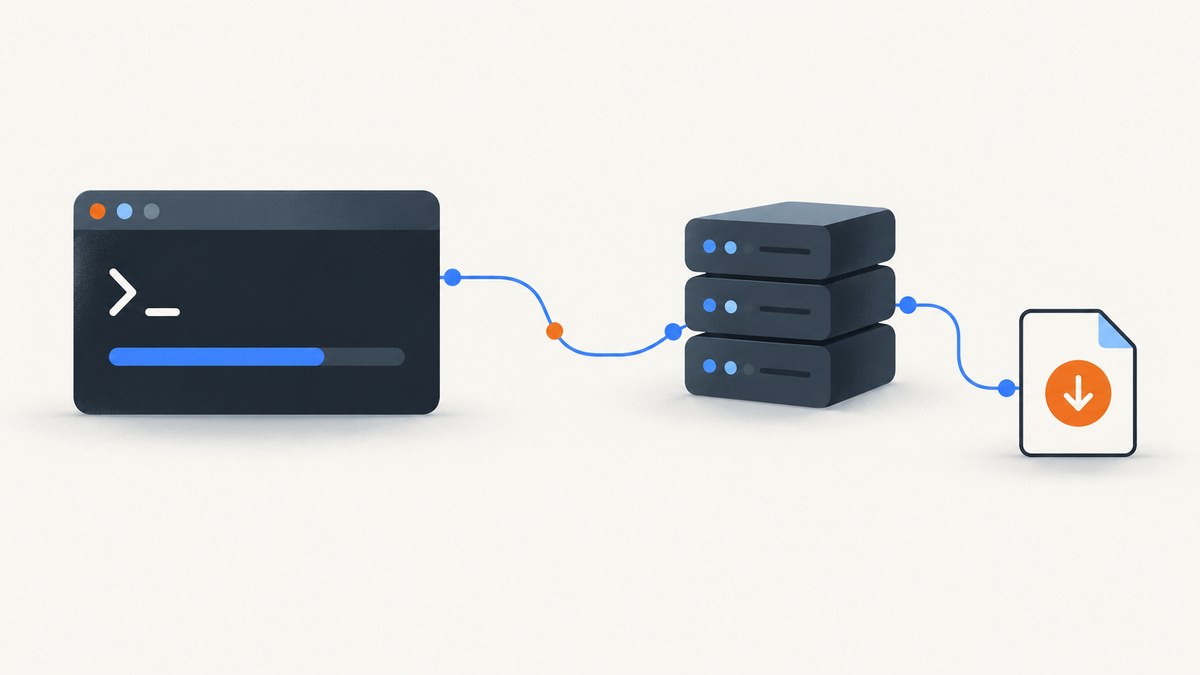
To download a file with cURL, use -o to choose a local filename, or -O to use the filename at the end of the URL. For example, curl -L -o report.zip 'https://example.com/download?id=42' follows redirects and saves the response as report.zip. Without an output option, cURL writes the response body to standard output, which is unsuitable for most binary files.
This guide covers destination names, redirects, interrupted downloads, authentication, multiple URLs, diagnostics, and safe handling. The examples use example.com placeholders; replace them with a URL you trust and have permission to access.
1. Choose where the download goes
cURL transfers data to or from a server using URLs. Its default is to write the received response body to standard output. That is handy for text or for piping data into another command, but it can make binary content appear as terminal garbage. See the cURL man page for the documented behavior and options.
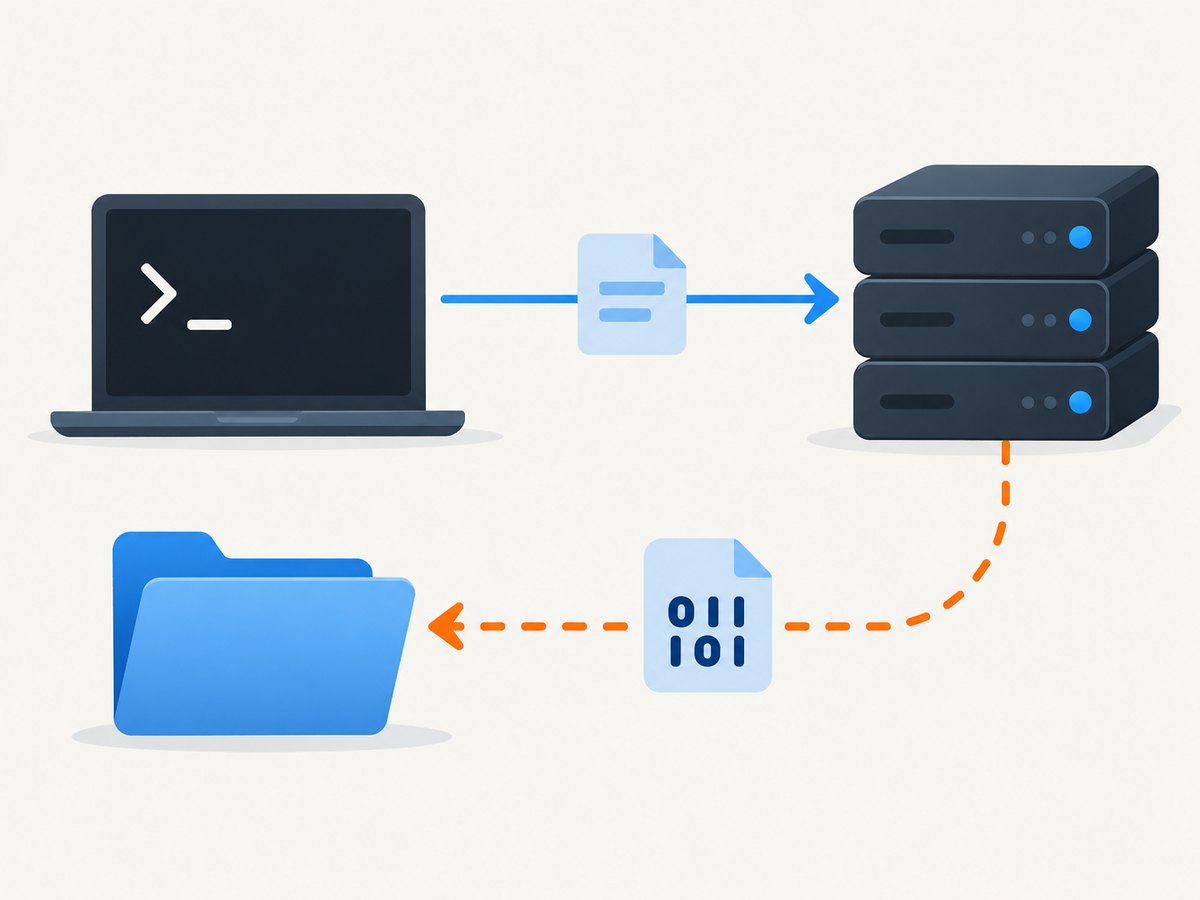
Save to a filename you choose
curl -o report.zip 'https://example.com/download?id=42'-o (also spelled --output) writes to the path you provide. This is the most predictable option when a URL has query parameters, redirects to another location, or does not end in a useful filename.
To save into a directory, include the path. The directory must already exist:
mkdir -p downloads
curl -o downloads/report.zip 'https://example.com/download?id=42'
Quote URLs when they contain characters the shell might interpret, such as &, ?, or $. Quoting also helps prevent the shell from treating a URL as multiple commands or arguments.
Use the filename from the URL
curl -O 'https://example.com/releases/app-1.2.3.tar.gz'-O (uppercase letter O, or --remote-name) takes the file component from the URL and saves it in the current working directory. A query string is not a dependable filename, so use -o when the URL is of the form /download?id=42 or when you need a particular name. Check for an existing file before running this command: a download can replace a file with the same destination name.
Write to standard output on purpose
For a small text response that you want to inspect or pipe onward, standard output can be useful:
curl 'https://example.com/status.txt'
curl 'https://example.com/data.json' -o data.json
Use a file destination for archives, images, installers, and other binary content. A terminal is not a safe place to display arbitrary downloaded bytes.
2. Follow redirects and check the response
Some download URLs respond with a redirect to a different address. Add -L (or --location) to follow it:
curl -L -o latest.zip 'https://example.com/latest'Without -L, cURL may save the redirect response rather than the file you expected. When investigating, include response headers with -i:
curl -i -L -o latest.zip 'https://example.com/latest'-i includes response headers in the output stream. Because those headers are then written alongside the body, avoid using this diagnostic form as the final command for creating a clean binary file. Inspect the status and headers separately when needed, then repeat with -L -o to save the file.
For a quick diagnostic without saving a file, use -I to request headers only when the server supports that request method:
curl -I -L 'https://example.com/latest'Some servers handle a headers-only request differently from a normal download. If the result is inconclusive, check with -i -L and a destination file, or consult the server’s documentation.
3. Resume an interrupted download
If a transfer stops and the partial file remains, use -C - to ask cURL to resume from the local file’s current position. Pair it with -o so cURL checks the file you expect:
curl -C - -o large.iso 'https://example.com/large.iso'Resume support depends on the server and protocol. The remote resource must support the necessary range or restart behavior, and it must still be the same file. If cURL reports that resuming is unsupported or the server rejects the request, restart the download without -C - or use a download source that supports resuming. Do not assume a partially downloaded file is complete just because it exists.
Resuming is useful on an unstable connection or for a large file, but it is not a substitute for verifying the completed artifact. For software archives and executables, compare the result with a checksum or signature supplied by the publisher, if available.
4. Authenticate without exposing secrets
For HTTP authentication supported by the server, use -u with a username. If you supply only the username, cURL prompts for the password:
curl -u alice -L -o private.zip 'https://example.com/private.zip'Entering the password at the prompt avoids placing it directly in the command text, where it could be retained in shell history or exposed to other users through process listings or logs. Avoid embedding credentials in a URL or a command that will be recorded. Use HTTPS and verify the host before providing credentials.
Authentication requirements vary by server. A username and password do not grant access unless the endpoint accepts that authentication method and the account has permission to download the resource. For SFTP, cURL can use a key; for example:
curl -u username: --key ~/.ssh/id_rsa -o file.txt 'sftp://example.com/path/file.txt'The empty value after the colon indicates that no password is being supplied in that field. Key passphrases and server configuration can affect the prompt and connection. Check curl --manual and your server’s instructions for the options supported by your installed build.
5. Download multiple files
You can pass multiple URLs in one cURL invocation. With -O, each URL uses its remote filename:
curl -O 'https://example.com/a.txt' -O 'https://example.com/b.txt'For explicit, predictable local names, associate each URL with an output option:
curl 'https://example.com/a.txt' -o a-local.txt \
     'https://example.com/b.txt' -o b-local.txt
Transfers run sequentially by default. When the installed cURL version supports it, --parallel enables concurrent transfers:
curl --parallel \
     'https://example.com/a.txt' -o a-local.txt \
     'https://example.com/b.txt' -o b-local.txt
Parallel requests can finish sooner when each transfer is independent, the server allows the traffic, and your connection has capacity. They also increase simultaneous load on the remote service and can compete for bandwidth. Follow the service’s rate limits and use sequential transfers when the server is sensitive to concurrency.
Newer cURL versions support reading URLs from a file with --url @urls.txt. The documented implicit remote-name behavior for this form begins with cURL 8.13.0. Check curl --version before relying on it, and review curl --manual for the behavior of your installed version. Put one full URL per line in urls.txt; do not put secrets in a file that other users can read.
6. Complete runnable examples in other languages
If you are downloading from a program rather than a shell, make the destination explicit and handle unsuccessful responses. Here are basic examples for Python and Node.js using their standard HTTP tooling. They download a response body; add authentication or redirect behavior according to the endpoint’s requirements.
Python with requests
import requests

url = "https://example.com/releases/app.zip"
response = requests.get(url, timeout=90, allow_redirects=True)
response.raise_for_status()

with open("app.zip", "wb") as output:
    output.write(response.content)
Install the dependency with python -m pip install requests if it is not already available. The example keeps the response in memory; for very large downloads, use stream=True and write chunks incrementally so memory use does not grow with file size. A timeout prevents the request from waiting forever, and raise_for_status() stops the script from quietly saving an HTTP error page as if it were the requested file.
Node.js with fetch
const url = 'https://example.com/releases/app.zip';
const response = await fetch(url, { signal: AbortSignal.timeout(90_000) });

if (!response.ok) {
  throw new Error(`Download failed: HTTP ${response.status}`);
}

const bytes = new Uint8Array(await response.arrayBuffer());
await (await import('node:fs/promises')).writeFile('app.zip', bytes);
Run this as an ES module in a Node.js version that provides global fetch and AbortSignal.timeout. This simple version buffers the whole response; use streaming for large artifacts. Always check the status before saving, because an error response can itself have a body.
7. Diagnose common download problems
| Symptom | Likely cause | What to do |
|---|---|---|
| The terminal fills with strange characters | A binary response went to standard output. | Repeat with -o filename or -O. |
| The saved file contains a short message or HTML | The server returned an error page, sign-in page, or redirect response. | Try -i -L to inspect status and headers, then add authentication or use the final authorized URL. |
| The file is missing or has an unexpected name | The URL has no useful path filename, or the output path is not what you expected. | Use -o exact-name and check the current directory with pwd. |
| Resume fails | The server or protocol does not support resuming, or the remote file changed. | Remove -C - and restart, or use a source that supports range requests. |
| Access is denied | Credentials are missing, invalid, or lack permission; the host may also require a different authentication method. | Verify the HTTPS hostname and access rights, then use the server’s documented authentication method. |
| A multi-URL command overwrites or misnames output | Output destinations were not assigned as intended, or remote names collide. | Give each URL its own unique -o destination. |
--parallel or --url @urls.txt is unknown |
The installed build is older or lacks the feature. | Check curl --version and curl --manual; use separate cURL commands if necessary. |
| The downloaded executable does not run | The transfer may be incomplete, corrupted, for another platform, or not the file expected. | Check the HTTP result, file size and publisher-provided signature or checksum, then confirm the platform build. |
For more detail when a request fails, add -v to see connection and request diagnostics. Be careful when sharing verbose logs: URLs, headers, and server details may be sensitive. Redact credentials and private information first.
8. Performance, reliability, and safe handling
- Set expectations for time: Large files and slow servers can take a while. For programmatic requests, choose a suitable timeout; for cURL, consult its manual for connection and overall timeout options relevant to your use.
- Use retries thoughtfully: A retry policy can help with temporary connection failures, but indiscriminate retries can burden a struggling server or repeat a request that has side effects. Use retries for known-safe downloads and respect rate limits.
- Choose parallelism carefully: Concurrent transfers can improve throughput for independent files, but do not assume the server or network benefits. Start with a small batch and observe failures and server guidance.
- Check what was downloaded: A successful connection is not proof that the body is the intended artifact. Inspect status and headers when troubleshooting and verify important files using publisher-provided checksums or signatures.
- Protect credentials and shell inputs: Prefer HTTPS, verify the host before authenticating, quote URLs, and do not paste untrusted command substitutions into a shell. Treat archives and executables as untrusted until verified.
- Check local storage: Make sure the destination directory exists and has enough free space. Avoid reusing a filename if preserving its current contents matters.
- Check your cURL build: Available protocols and newer options depend on the version and build.
curl --versionreports version and supported protocols; the installed manual documents option semantics.
There is no per-download fee from the cURL command itself, but transfers consume network bandwidth, server capacity, and local disk space. Any costs for the remote service, data plan, or hosting are separate. A browser-based screenshot is a different task from downloading a file: it renders a page and captures an image or PDF rather than saving an arbitrary response body.
9. Or skip the browser setup
If your goal is a screenshot of a web page rather than downloading its source file, ScreenshotNeo provides a one-request screenshot API. The cURL example below saves a WebP screenshot. See the ScreenshotNeo API documentation for its options.

curl -G 'https://api.screenshotneo.com/v1/shot' \
  -d access_key=YOUR_API_KEY \
  --data-urlencode url=https://stripe.com \
  -o shot.webp
ScreenshotNeo accepts cookie and consent banners before capture and removes more than 60 known consent platforms, newsletter popups, and chat widgets; each step can be turned off. Bot checks and CAPTCHAs, blank pages, timeouts, failed loads, and cache hits are not billed, and responses identify the page verdict and billing status in headers. Its MCP server provides take_screenshot, get_page_info, and capture_pdf for AI agents. The free plan includes 1,000 screenshots per month without a card; paid plans start at $5 for 3,000 screenshots. Every feature is available on every plan.
Create a free ScreenshotNeo account to get 1,000 screenshots a month with no card.
10. FAQ
Does cURL download a file by default?
It downloads the response body, but writes it to standard output unless you specify an output destination. Use -o or -O to save it as a file.
What is the difference between -o and -O?
-o takes the local filename you specify. -O uses the filename from the URL path and saves it in the current directory.
Can I download a file that requires a login?
Yes, if you are authorized and know the authentication method the server accepts. For supported username and password authentication, use -u username so cURL prompts for the password.
Can I resume every download?
No. Resuming depends on the server and protocol supporting it and the remote resource remaining the same. Use -C - with -o, and handle a refusal by restarting or choosing a source that supports resuming.
How can I save a web page as an image instead of downloading its response?
Use a browser or screenshot service that renders the page. ScreenshotNeo provides a screenshot API and MCP server for that purpose; its one-call cURL example is above.


