How to Download Full-Size Images from a Website
Find and save the largest image a website actually serves using the browser, DevTools, Network panel, and an automated screenshot workflow.
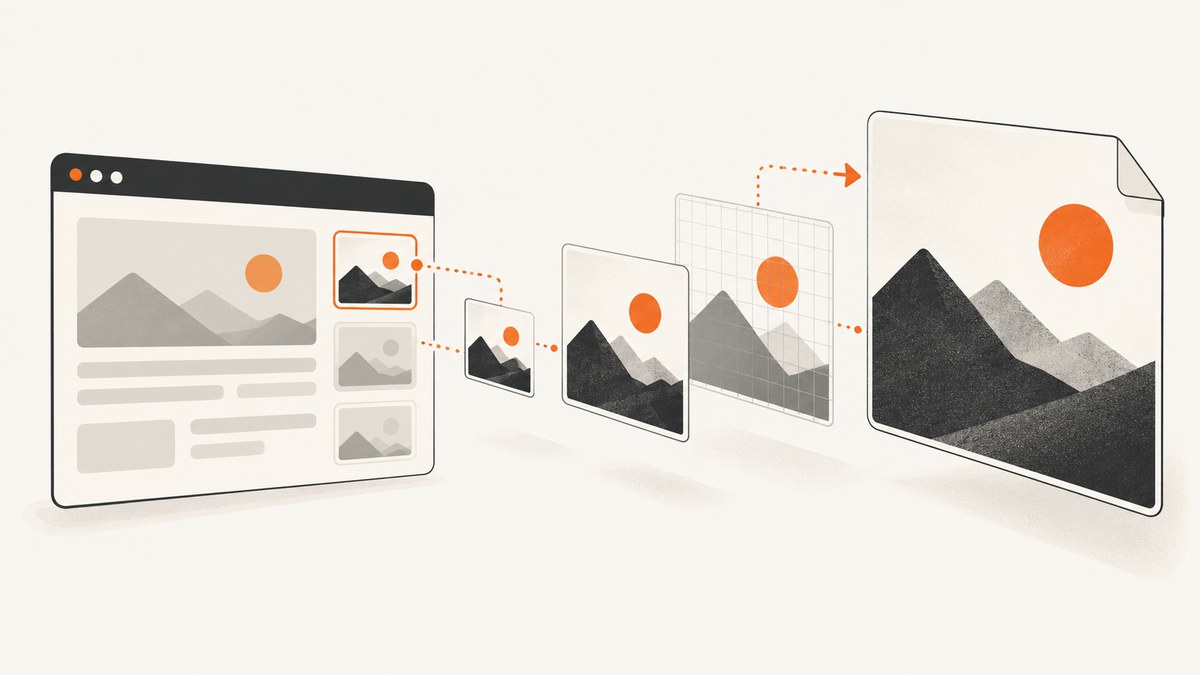
Short answer: right-click the image and choose Open image in new tab, then save it. If the downloaded file is still a thumbnail, inspect the page’s src and srcset, or use DevTools’ Sources and Network panels to find the largest image request the site actually serves.
“Full-size” means the largest file available to your browser, account, and session. It does not guarantee the original camera file. A site may provide only a resized derivative, a compressed WebP or AVIF, a watermarked copy, or tiles for a zoom viewer. If the server never sends a larger asset, browser tools cannot recover one.
1. Start with the image itself
- Open the page containing the image.
- Right-click the image (or tap and hold on mobile).
- Select Open image in new tab.
- Check the dimensions and file type in the new tab.
- Use Save image as to download it.
This works when the visible image is an ordinary HTML image whose displayed file is already the largest version. If the saved file is small, do not keep saving the same thumbnail. Inspect the markup or the network request that supplied it.
When the context menu is disabled
A page can intercept the right-click event, but it cannot stop the browser from loading the asset. Open DevTools with Inspect (or your browser’s developer-tools shortcut), then use the methods below. You can also open the browser’s page source or copy an image URL from a normal link. Technical access does not grant permission to republish the image; check the page’s license, terms, and rights statement before redistribution or commercial use.
2. Find the largest URL in HTML
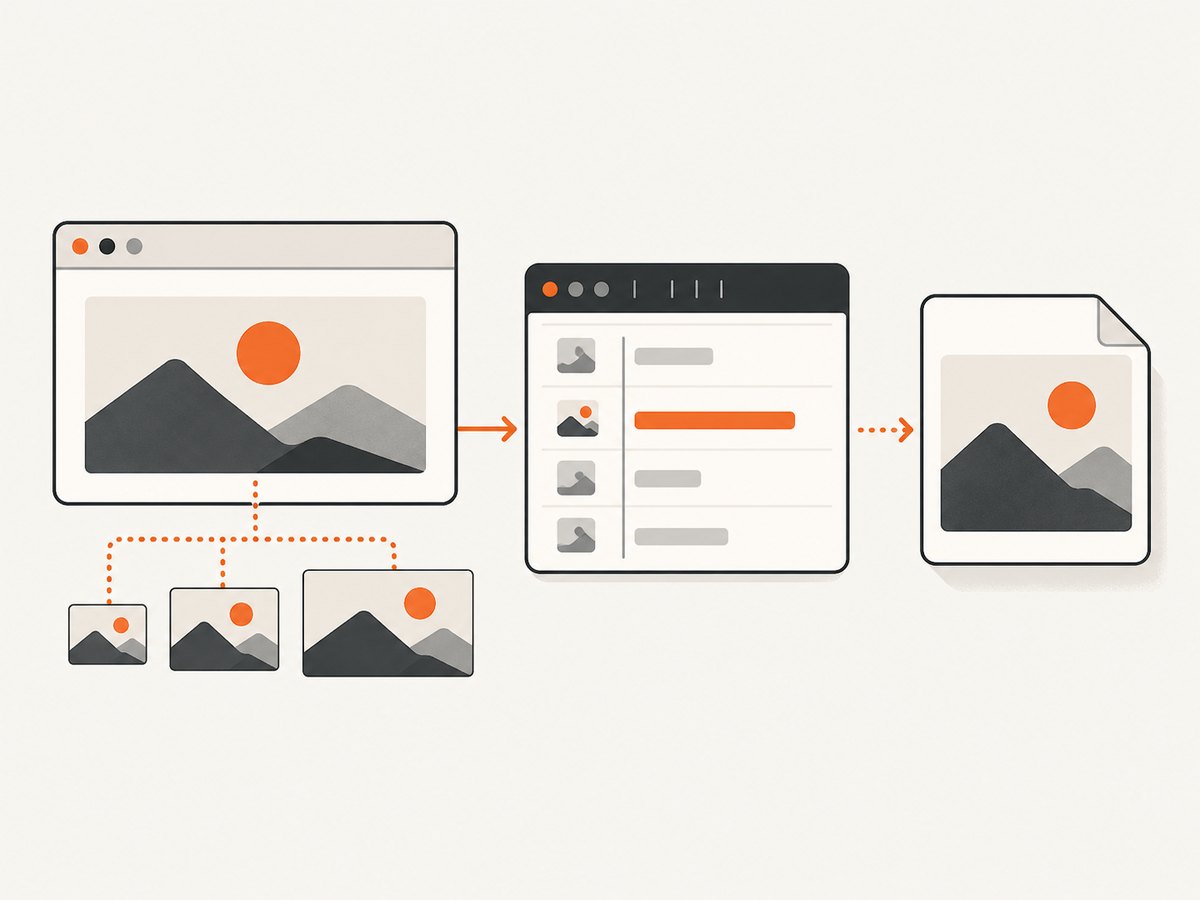
For a normal <img> element, inspect the element and look for src and srcset. A srcset attribute can contain several URLs with descriptors such as 1x, 2x, or width values. The browser chooses a candidate suited to the display; you can open a larger candidate directly.
<img
  src="/images/product-800.webp"
  srcset="/images/product-800.webp 800w,
          /images/product-1600.webp 1600w,
          /images/product-2400.webp 2400w"
  sizes="(max-width: 800px) 100vw, 800px"
  alt="Product"
>- Inspect the image element.
- Copy each candidate URL from
srcset. - Open the candidate with the greatest width or density descriptor.
- Confirm that it loads and is not a redirect to a thumbnail or an access-denied page.
Google’s image guidance explains how srcset supplies multiple image URLs and how the browser selects an appropriate resolution candidate (responsive images documentation). The largest listed candidate is the largest option exposed in that markup, but the origin may still resize or compress it.
Relative, protocol-relative, and transformed URLs
Convert a relative URL such as /media/photo.jpg against the page’s origin. A URL beginning with // uses the page’s protocol. Image CDNs often encode transformations in query parameters or path segments, for example width, quality, format, or crop. Compare candidates rather than blindly deleting parameters: some parameters are required for authorization or signing.
3. Use Sources when the image is loaded by the page
Chrome DevTools’ Sources panel lists files used by the page, including image resources. Chrome describes the panel as a place to view files, and its resource documentation includes images among page resources (Sources panel overview).
- Open DevTools and select Sources.
- In the Page tree, expand the site’s origin and asset folders.
- Look for image extensions such as
.jpg,.jpeg,.png,.webp,.avif,.gif, or.svg. - Open likely files in the preview.
- Right-click the resource and copy its URL, or open it in a new tab and save it.
Sources is useful when the image URL is present in a script, preload tag, or component but not obvious in the visible markup. It may show several versions; compare pixel dimensions and file sizes before choosing.
4. Use Network for galleries, lazy loading, CSS, and JavaScript
Image galleries, zoom viewers, CSS backgrounds, and JavaScript components commonly fetch the image after the page loads. The Network panel records those requests and exposes each request’s full URL. Chrome’s Network reference covers filtering resources and inspecting request details (Network panel documentation).
- Open DevTools and choose Network.
- Enable Preserve log if navigation or a gallery change would otherwise clear requests.
- Reload the page. Use a hard reload if the image is cached and no request appears.
- Filter by Img, or search for
jpg,png,webp,avif, or a known filename. - Click the likely request and inspect Headers for the full request URL, status, content type, and response headers.
- Open the request URL in a new tab or choose Copy URL.
Trigger the gallery’s next image, zoom control, or “view original” action while Network is recording. The newly appearing request often reveals the high-resolution asset. Sort by size or inspect the preview to distinguish a thumbnail from the large file.
CSS background images
If there is no <img>, inspect the element’s computed styles for background-image: url(...). Copy the URL and open it directly. Responsive CSS can define different files in media queries, so inspect the rule active at your current viewport and resize the window to see whether another request is made.
Lazy-loaded images
A page may initially contain a placeholder and only request the image after it enters the viewport. Scroll the image into view while Network is open. Inspect attributes such as data-src or data-srcset in addition to src; JavaScript may copy those values into the real request later.
5. Galleries, zoom viewers, canvas, and tiled images
Some viewers never expose one original file to the browser.
- Gallery viewer: monitor Network while changing slides. The full image may be a separate request from the thumbnail.
- Zoom viewer: look for a “large,” “original,” or high-width request, or for a manifest describing image tiles.
- Canvas: inspect the requests that feed the canvas. The pixels may come from one image, several tiles, or a generated rendering.
- Map and deep-zoom tiles: identify the tile URL pattern and manifest. You may be able to save individual tiles, but assembling them can be restricted by the site’s terms and may not produce a single original.
- Video frame: a frame displayed by a player is not necessarily a downloadable still image. Look for an explicit poster or thumbnail request.
If the site only sends a resized derivative or tiles, changing .jpg to .png, removing a query parameter, or guessing a filename will not create a higher-resolution asset.
6. Download with a script once you have the URL
After identifying a permitted image URL, a command-line tool can save it reproducibly. Follow redirects and preserve the response’s actual format.
cURL
curl -L "https://example.com/path/image-2400.webp" -o image.webpPython
import requests

url = "https://example.com/path/image-2400.webp"
response = requests.get(url, timeout=30)
response.raise_for_status()

with open("image.webp", "wb") as image_file:
    image_file.write(response.content)

print(response.headers.get("content-type"))
Node.js
const fs = require('node:fs/promises');

const url = 'https://example.com/path/image-2400.webp';
const response = await fetch(url);
if (!response.ok) throw new Error(`${response.status} ${response.statusText}`);
await fs.writeFile('image.webp', Buffer.from(await response.arrayBuffer()));
console.log(response.headers.get('content-type'));
A direct request can fail even when the browser succeeds. The image URL may require your login session, cookies, an authorization header, a referrer, or a short-lived signed token. In those cases, use the browser’s “Copy as cURL” option as a diagnostic, then remove unnecessary headers and handle credentials securely. Never paste session cookies or private authorization tokens into public scripts.
7. Troubleshooting checklist
| Symptom | Likely cause | Fix |
|---|---|---|
| The saved file is tiny | You saved the displayed thumbnail | Compare srcset candidates or inspect Network for the largest request. |
| No image appears in Network | The request happened before recording, or the asset is cached | Enable Preserve log, clear or bypass cache, then reload. |
The page has no useful src |
JavaScript or lazy loading supplies the URL later | Scroll into view and watch Network; inspect data-src and scripts. |
| The URL returns 403 | Session, referrer, authorization, or signed URL is required | Open it in the same authenticated browser session or reproduce the required request headers lawfully. |
| The URL returns HTML | You copied a page or redirect instead of the image | Check status, final URL, and Content-Type; copy the image request itself. |
| The image is blurry despite a large file | The server only provides a low-resolution derivative | Look for an original or larger candidate; if none exists, the site has not delivered one. |
| Only tiles are available | The viewer uses a tiled deep-zoom format | Find the manifest and review the site’s terms before saving or assembling tiles. |
| Changing the extension fails | File format is determined by the response, not the name | Use the response’s content type and an image converter when permitted. |
8. Reliability, performance, and responsible use
Reliability
Prefer the URL recorded in Network over a guessed filename. Keep the final URL, status code, content type, and retrieval time with your download so you can diagnose later changes. Signed URLs expire; save the file while the token is valid rather than relying on the link indefinitely.
Performance
Downloading the largest candidate consumes more bandwidth and storage. For a batch, first collect URLs and metadata, then download with bounded concurrency. Avoid repeatedly refreshing a page when one captured request provides the needed URL. Browser caching can make a visual check fast while a fresh script request still incurs transfer time.
Rights
Finding a file technically does not establish permission to reuse it. Check the license, terms, attribution requirements, and any rights statement. This guide explains browser and HTTP mechanics; it is not jurisdiction-specific legal advice.
9. Or skip the browser setup
If your goal is a clean visual capture of a page rather than the original binary image asset, ScreenshotNeo provides a single screenshot API request. Its cleanup steps accept cookie or consent banners and remove more than 60 known consent platforms, newsletter popups, and chat widgets before capture. Bot checks, blank pages, timeouts, failed loads, and cache hits are not billed, and the response reports the page verdict and billing status in X-Page-Verdict and X-Billed headers. It also offers an MCP server so Claude, Cursor, and other MCP clients can call take_screenshot, get_page_info, and capture_pdf.

See the ScreenshotNeo documentation for all options. This is a screenshot of the rendered page, not a way to retrieve an image file the server never exposes.
cURL
curl -G "https://api.screenshotneo.com/v1/shot" -d access_key=YOUR_API_KEY --data-urlencode url=https://stripe.com -o shot.webpPython
import requests
r = requests.get("https://api.screenshotneo.com/v1/shot", params={"access_key": "YOUR_API_KEY", "url": "https://stripe.com"}, timeout=90)
open("shot.webp", "wb").write(r.content)
Node.js
const q = new URLSearchParams({ access_key: 'YOUR_API_KEY', url: 'https://stripe.com' });
const res = await fetch(`https://api.screenshotneo.com/v1/shot?${q}`);
ScreenshotNeo supports full-page capture with lazy images loaded, CSS element capture, dark mode, device presets and custom viewports, retina scale, PDF output, custom CSS and JavaScript, clicks, selector waits, delays, network-idle waits, request blocking, headers, cookies, user agents, authorization, timezone, geolocation, transparent backgrounds, resizing, TTL caching, signed links, asynchronous jobs with signed webhooks, bulk capture of up to 100 URLs per call, usage reporting, and an OpenAPI specification. Its parameter names are compatible with those used by other screenshot APIs, which helps when switching.
The Free plan includes 1,000 shots per month with no card. Paid plans start at $5 for 3,000 shots; yearly billing provides two months free, and every feature is available on every plan. Create a free ScreenshotNeo account.
10. FAQ
Can I download an image hidden behind a right-click blocker?
Usually, yes, if the browser received the image. Use Inspect, Sources, or Network to copy the loaded resource URL. A blocker does not create a larger file.
Does opening an image in a new tab reveal the original?
It reveals the exact resource used by that link. That may be the largest available file, but it can also be a resized, compressed, or watermarked derivative.
Why is the Network URL different from the HTML URL?
JavaScript, a CDN, responsive-image selection, redirects, or signed parameters can change the final request. The Network entry shows what the browser actually fetched.
Can I recover an image the site never sends?
No. You can locate larger candidates, manifests, or original links that are actually available to your session, but client-side tools cannot reconstruct unavailable source pixels.
Should I use a screenshot API to download the original image?
No. A screenshot API captures rendered pixels. Use it for page screenshots, documentation, visual testing, or PDF output; use the image request itself when you need the source asset.


