How to Download HTML Images for Free
Save one image or every image from an HTML page using browser tools, srcset inspection, DevTools, and free automation—plus a screenshot API option.
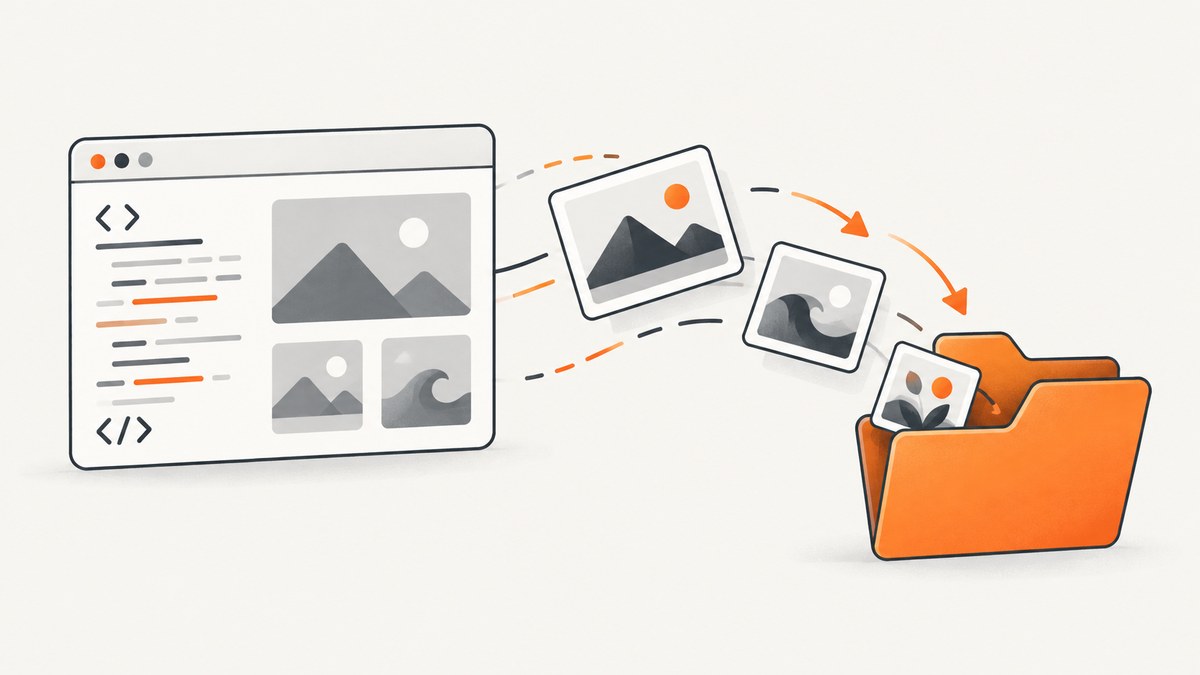
Yes, you can download HTML images for free. For one visible image, use the browser’s built-in Save Image As command. When right-click is disabled, the image is inside a custom viewer, or the page serves responsive files, inspect the HTML and browser resources to find the real image URL. To save many assets for offline use, save the complete page or automate the image URLs.
Downloading a file does not automatically give you permission to republish it. Use images you created, images in the public domain, or files whose license permits your intended use. Keep attribution and license records when required. MDN recommends getting explicit written permission and checking whether an image is royalty-free or rights-managed before reuse.
1. Save one visible image in Chrome or Firefox
- Open the page containing the image.
- Right-click the image (or Ctrl-click on macOS).
- Choose Save Image As.
- Select a folder and confirm the filename and format.
Google’s Chrome Help documents this exact action: “Images: Right-click on the image and choose Save Image As.” Chrome can also save a page from More > More Tools > Save Page As. See the Chrome saving instructions. Firefox provides the equivalent Save Image As… command in its page-saving documentation.
When Save Image As saves the wrong thing
A thumbnail may be wrapped in a link to a larger original. Choose Open image in new tab first, then save the resource shown in the new tab. If the page uses a zoom viewer, look for an “original,” “download,” or full-size action. If the resource opens as HTML, a login page, or an error, it may require a session, referrer, signed URL, or permission. Do not try to bypass those controls.
2. Find the real image URL when right-click is disabled
Disabling the context menu does not remove the image from the page. The browser still has to request an image resource, so you can inspect the markup or the network requests.
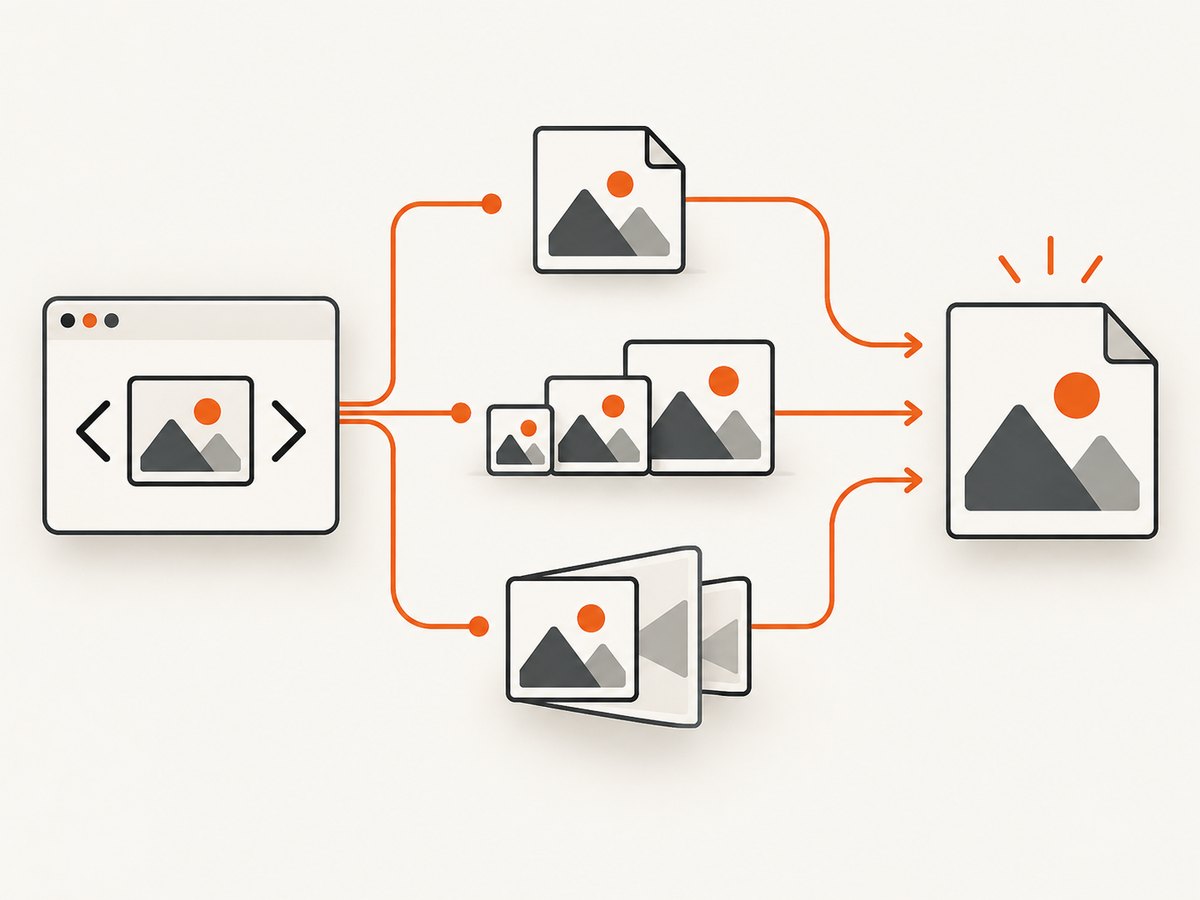
- Open DevTools with Inspect from the page menu (or the browser shortcut).
- In the Elements panel, use the element picker and click the image.
- Look for an
<img>element and copy itssrcvalue. - If
srcsetis present, copy the candidate with the largest width or pixel-density descriptor that the site exposes. - Paste the URL into a new tab and use Save Image As.
MDN’s <img> reference explains that an image has at least one of src or srcset. Chrome’s Resources documentation covers finding images and other files loaded by a page.
Inspect src and srcset
<img
  src="/images/product-800.webp"
  srcset="
    /images/product-400.webp 400w,
    /images/product-800.webp 800w,
    /images/product-1600.webp 1600w"
  sizes="(max-width: 800px) 100vw, 800px"
  alt="Product"
>
The browser chooses a candidate based on viewport width, the sizes attribute, and device pixel ratio. The displayed file may therefore be smaller than the largest URL available. Open the largest candidate that the site actually provides if you need the highest available resolution. A <picture> element can provide different formats or crops with multiple <source> elements, so inspect those too.
CSS background images
Hero art, decorative images, and icons are often CSS backgrounds rather than <img> elements. Select the element in DevTools, open Computed styles, and search for background-image. Copy the URL from a value such as url("/assets/hero.avif"). You can also reload the page and filter the DevTools Network panel by Img to see image requests as they happen.
3. Download every image with a complete page copy
Use a complete-page save when you want an offline snapshot with its associated images and other resources.
Firefox
- Open the page and choose Save Page As….
- Select Web page, complete.
- Firefox writes an HTML file and a folder containing pictures and other required files.
Mozilla says this option lets you view the page as originally shown with pictures. Firefox’s Page Info > Media panel also lists media resources so you can save individual files.
Chrome
Choose More > More Tools > Save Page As, then select the available complete-page option. The exact dialog labels vary by operating system and Chrome version.
Complete-page saving only captures resources available to the browser at save time. Images loaded after scrolling, images inserted by later JavaScript, assets behind a login, and resources protected by access controls may be missing. Scroll through the page and wait for lazy content before saving.
4. Download image URLs with free code
For a small number of known URLs, a command-line downloader is repeatable and preserves the server’s original bytes. Use URLs you are allowed to access.
cURL
curl -L "https://example.com/images/photo.jpg" -o photo.jpg-L follows redirects. Check the result before processing it: a URL can return HTML, a login page, or an error while still producing a file named photo.jpg.
Python
from pathlib import Path
from urllib.parse import urlparse
import requests

url = "https://example.com/images/photo.jpg"
response = requests.get(url, timeout=30)
response.raise_for_status()

content_type = response.headers.get("content-type", "")
if not content_type.startswith("image/"):
    raise ValueError(f"Expected an image, got {content_type!r}")

filename = Path(urlparse(url).path).name or "downloaded-image"
Path(filename).write_bytes(response.content)
print(f"Saved {filename} ({len(response.content)} bytes)")
Node.js
import { writeFile } from "node:fs/promises";

const url = "https://example.com/images/photo.jpg";
const response = await fetch(url, { redirect: "follow" });
if (!response.ok) throw new Error(`HTTP ${response.status}`);
const type = response.headers.get("content-type") || "";
if (!type.startsWith("image/")) throw new Error(`Expected image, got ${type}`);
await writeFile("photo.jpg", Buffer.from(await response.arrayBuffer()));
5. Extract image URLs from an HTML document
If you have permission to process a page, you can parse its markup and collect ordinary, responsive, and linked image URLs. This finds URLs present in the HTML; it does not execute JavaScript or bypass access controls.
import html
import re
from urllib.parse import urljoin
import requests

page_url = "https://example.com/gallery"
html_text = requests.get(page_url, timeout=30).text

urls = set()
for match in re.findall(r"(?:src|data-src|href)=[\"']([^\"']+)[\"']", html_text, re.I):
    absolute = urljoin(page_url, html.unescape(match))
    if any(ext in absolute.lower().split("?")[0] for ext in
           (".jpg", ".jpeg", ".png", ".webp", ".avif", ".gif", ".svg")):
        urls.add(absolute)

for image_url in sorted(urls):
    print(image_url)
For production extraction, use an HTML parser instead of a regular expression, handle <picture> and srcset explicitly, and respect the site’s terms, robots policy, rate limits, authentication, and copyright conditions.
6. Handle lazy loading, JavaScript, and responsive images
- Lazy loading: scroll through the page, or use DevTools Network while scrolling, so deferred requests occur.
- JavaScript galleries: click through slides and watch Network requests; the full image may be fetched only after interaction.
- Data attributes: check
data-src,data-srcset, and framework-specific attributes whensrcis a placeholder. - Canvas images: a canvas may not have a normal URL. If the page offers an export control, use it. Otherwise, a permitted script can call
canvas.toBlob()after the image is rendered. - Blob URLs:
blob:addresses are temporary browser references. Save through the page’s own download action or inspect the request that created the blob. - Modern formats: keep the original extension and bytes. WebP, AVIF, JPEG, PNG, GIF, and SVG have different compression and transparency behavior.
7. Troubleshooting common download problems
| Problem | Likely cause | Fix |
|---|---|---|
| Right-click does nothing | Context-menu script or custom viewer | Inspect the element, copy src/srcset, or use Network resources. |
| Saved file is an HTML page | Login redirect, error response, or bot check | Check status and Content-Type; sign in through the normal site flow or ask the owner for access. |
| Image is low resolution | Thumbnail URL or responsive candidate | Inspect the anchor, srcset, <picture>, and Network requests for a larger permitted file. |
| Image is missing from a complete save | Lazy loading or later JavaScript | Reload, scroll through the page, wait for images, then save again. |
| Download returns 403 | Authentication, hotlink protection, or access policy | Use the site’s supported download flow. Do not bypass access controls. |
| Downloaded extension is wrong | Server format differs from the URL suffix | Inspect Content-Type and rename only when you understand the actual format. |
| Only a blank placeholder appears | Image requires JavaScript, cookies, or consent | Allow the page to finish loading, accept required consent, and check Console and Network for failed requests. |
8. Or skip the browser setup
If your goal is a clean capture of a page rather than collecting the original image files, ScreenshotNeo provides a website screenshot API. One GET request returns PNG, JPEG, WebP, or PDF, and the API supports full-page captures with lazy images loaded, element selectors, custom CSS and JavaScript, waits, headers, cookies, user agents, geolocation, blocking rules, resizing, caching, signed links, asynchronous jobs, bulk capture, and PDF options. The ScreenshotNeo documentation lists the parameters.
curl -G "https://api.screenshotneo.com/v1/shot" -d access_key=YOUR_API_KEY --data-urlencode url=https://stripe.com -o shot.webpimport requests
r = requests.get("https://api.screenshotneo.com/v1/shot", params={"access_key": "YOUR_API_KEY", "url": "https://stripe.com"}, timeout=90)
open("shot.webp", "wb").write(r.content)const q = new URLSearchParams({ access_key: 'YOUR_API_KEY', url: 'https://stripe.com' });
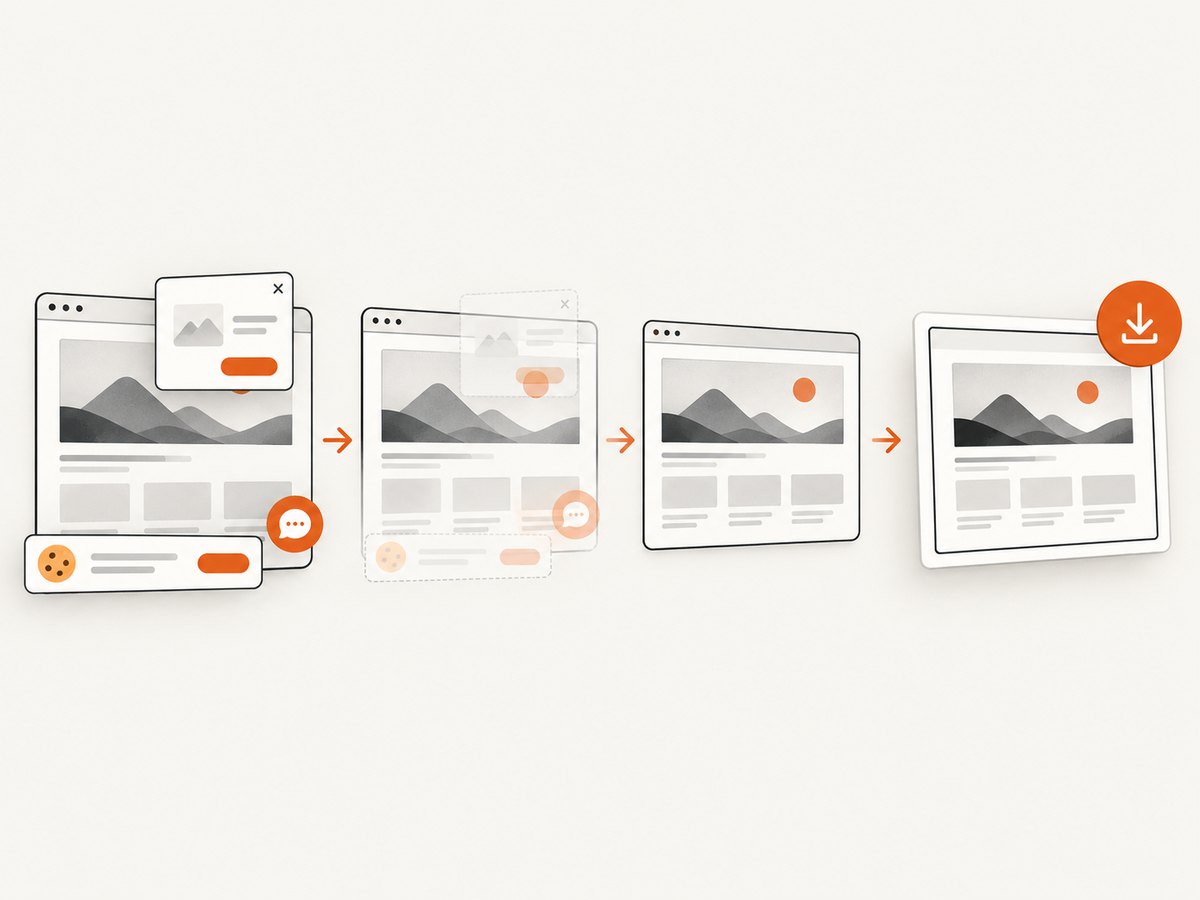
const res = await fetch(`https://api.screenshotneo.com/v1/shot?${q}`);- Cookie banners, newsletter popups, and chat widgets are removed before the shot; each cleanup step can be turned off.
- Bot checks or CAPTCHAs, blank pages, timeouts, failed loads, and cache hits are never billed. Response headers report the page verdict and whether it was billed.
- An MCP server lets Claude, Cursor, and other MCP clients use
take_screenshot,get_page_info, andcapture_pdf. - Free accounts include 1,000 screenshots a month with no card. Paid plans start at $5 for 3,000 shots, and every feature is included on every plan.
Create a free ScreenshotNeo account and start with the 1,000 free monthly screenshots.
9. Performance, reliability, and cost considerations
- Browser saving: free and immediate for one or a few visible images, but manual and difficult to reproduce.
- Complete-page saving: convenient for an offline copy, but storage includes HTML and supporting resources and may miss dynamic assets.
- Direct downloads: efficient for known URLs. Reuse connections, set timeouts, limit concurrency, and verify content types when downloading many files.
- Large pages: images can consume substantial disk space. Stream large responses instead of holding every file in memory, and use stable filenames with collision handling.
- Responsive sources: the largest candidate is not always the best choice for bandwidth. Select the width you need for the final use.
- API captures: cache repeated requests with a TTL when appropriate, use asynchronous jobs for long pages, and inspect verdict and billing headers so retries do not create surprises.
10. Copyright and permitted reuse
A browser’s ability to save a file is separate from your right to publish, sell, or modify it. Before reuse, identify the copyright holder, read the license, preserve required attribution, and obtain written permission when the license is unclear. Saving a copy for personal reference can have different terms from redistribution, commercial use, or training a dataset.
FAQ
Can I download an image if the site disables right-click?
Usually you can locate the requested resource through DevTools Elements or Network and save the URL, provided you are authorized to access it.
How do I get the original instead of a thumbnail?
Inspect the surrounding link, srcset, <picture> sources, and image requests. Choose the largest file the site exposes and permits you to use.
Does Save Page As download images loaded after scrolling?
Not necessarily. Scroll and wait for lazy content before saving; dynamically generated or access-controlled resources can still be absent.
What if the image needs a login?
Use the site’s normal authenticated session and supported download feature. A direct unauthenticated request may return a login page instead of an image.
What is the fastest free method?
For one visible image, Save Image As is fastest. For repeatable work, copy the image URL and use cURL, Python, or Node.js with a timeout and content-type check.
Can I download and republish any HTML image?
No. Download permission and reuse permission are separate. Check the license or obtain permission before republishing.


