How to Download an HTML Page as a PNG
Save a rendered webpage as a PNG with Firefox, Playwright, cURL, Python, Node.js, and ScreenshotNeo—with full-page, element, and troubleshooting guidance.
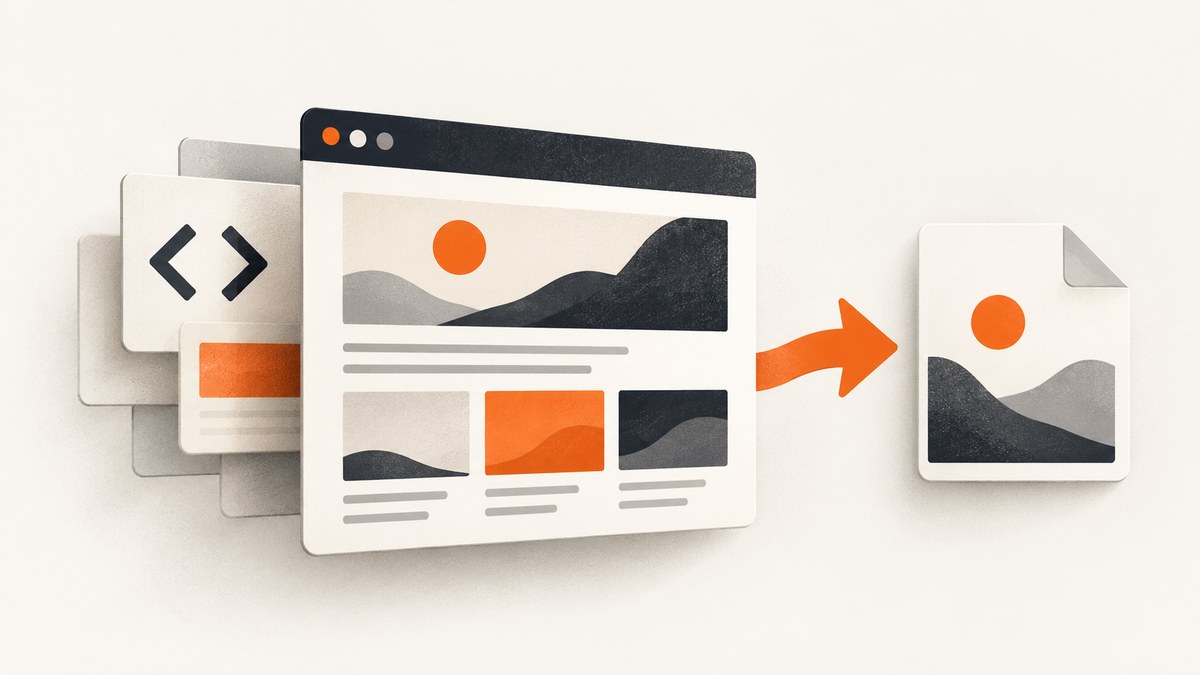
Short answer: you download an HTML page as a PNG by capturing the page after a browser renders it. A PNG is an image of the rendered appearance; it is not an editable HTML file, an offline archive, or a navigable copy of the page. For a one-off capture, Firefox Developer Tools can save a viewport, full-page document, or inspected element. For repeatable jobs, Playwright, Puppeteer, or a screenshot API can automate navigation and capture.
This guide covers visible viewport screenshots, full scrollable pages, individual elements, delayed and lazy-loaded content, authenticated pages, image format choices, troubleshooting, and production considerations. The examples use a public URL, but the same process applies to pages you own or are authorized to access.
1. Choose the type of PNG you need
| Need | Capture scope | Recommended route |
|---|---|---|
| Save what is visible now | Viewport | Firefox screenshot button or page.screenshot() |
| Include content below the fold | Full page | Firefox full-page capture or Playwright fullPage: true |
| Save a chart, card, or section | Element/node | Firefox “Screenshot Node” or a Playwright locator |
| Capture many URLs on a schedule | Automated browser or API | Playwright, Puppeteer, or ScreenshotNeo |
A viewport shot has the dimensions of the browser’s current viewport. A full-page shot stitches the scrollable document into one image. An element shot contains only the selected node and its descendants. Full-page captures can be very tall; sticky headers, overlays, and lazy-loaded sections need special attention.
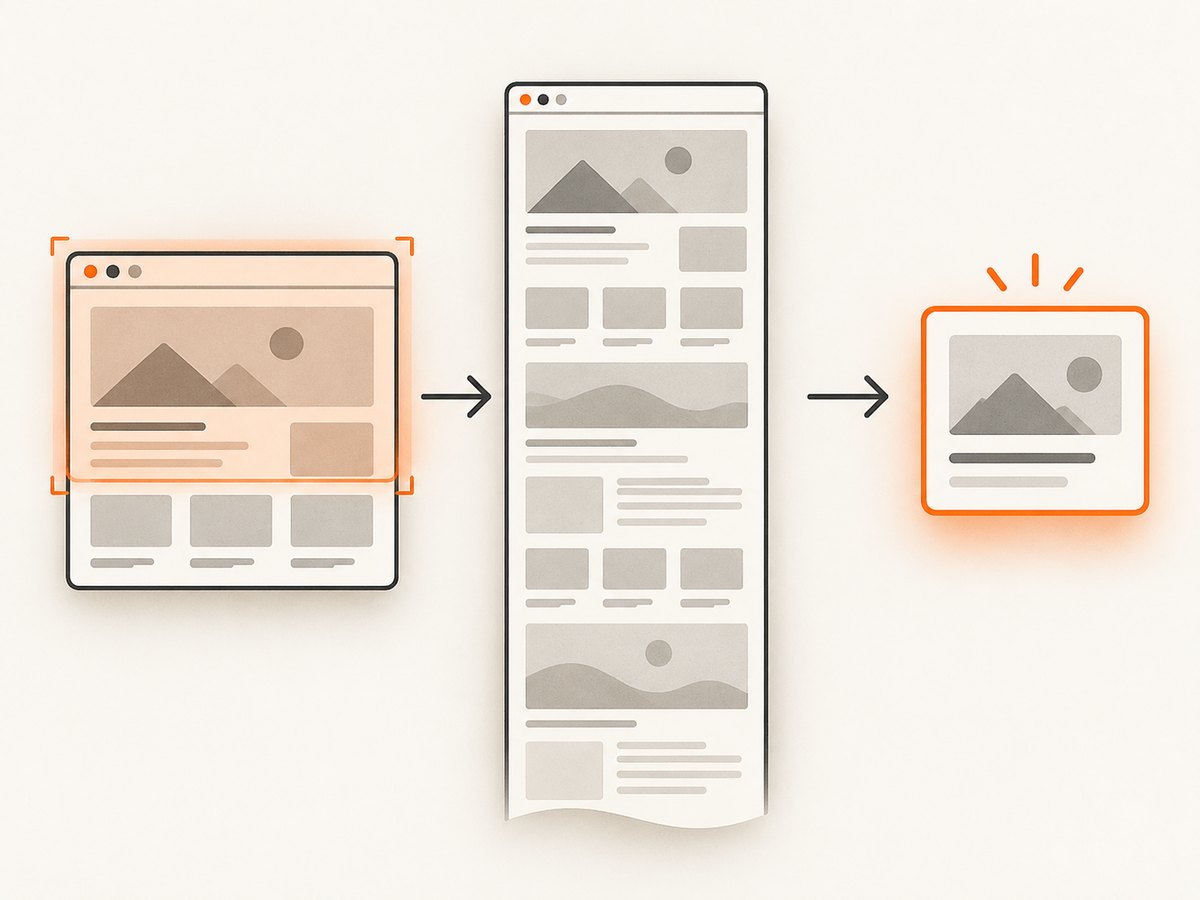
2. Download a full HTML page as PNG in Firefox
Firefox includes screenshot tools in Developer Tools. To enable the full-page button:
- Open the page in Firefox.
- Open Developer Tools with F12 or Ctrl/Cmd + Option + I.
- Open Developer Tools Settings.
- In Available Toolbox Buttons, enable Take a screenshot of the entire page.
- Return to the page and click the screenshot icon in the toolbox.
Firefox saves the resulting image to your Downloads directory according to Mozilla’s documentation: Taking screenshots in Firefox Developer Tools.
For a visible viewport, use the normal screenshot button without the full-page option. For one component:
- Open the Inspector.
- Right-click the element in the HTML pane.
- Select Screenshot Node.
Firefox also documents a :screenshot command with options for delay, device pixel ratio, filename, full-page capture, and a CSS selector. Interface details can vary by Firefox release, so check the current Mozilla documentation before relying on a particular keyboard sequence.
3. Automate PNG downloads with Playwright
Playwright is a practical choice when you need repeatable captures. Install it in a new Node.js project:
npm init -y
npm install playwright
npx playwright install chromium
Create screenshot.mjs:
import { chromium } from 'playwright';

const browser = await chromium.launch();
const page = await browser.newPage({ viewport: { width: 1440, height: 900 } });

await page.goto('https://example.com', { waitUntil: 'networkidle' });
await page.screenshot({ path: 'page.png', type: 'png' });

await browser.close();
Run it with node screenshot.mjs. The documented Playwright flow is to launch a browser, create a page, navigate, save the screenshot, and close the browser: Playwright screenshots.
Capture the full scrollable page
await page.screenshot({
  path: 'full-page.png',
  type: 'png',
  fullPage: true
});
fullPage: true captures the full scrollable page rather than only the current viewport.
Capture one element
const card = page.locator('[data-testid="pricing-card"]').first();
await card.screenshot({ path: 'pricing-card.png', type: 'png' });
A locator screenshot is useful for charts, product cards, invoices, and other components. Use a stable selector you control when possible.
Return PNG bytes instead of writing a file
const png = await page.screenshot({ type: 'png' });
await import('node:fs/promises').then(fs => fs.writeFile('page.png', png));
Buffer output lets you upload directly to object storage, attach the image to another API request, or run post-processing without an intermediate file. Playwright’s API reference covers screenshot options and return values: Page.screenshot().
4. Make dynamic and lazy content appear before capture
A screenshot records the browser state at capture time. A page can finish its initial navigation while fonts, client-rendered components, animations, or images are still changing. “Network idle” is useful, but it is not a guarantee that every application-specific operation has completed.
Use an explicit readiness condition when the page has one:
await page.goto('https://example.com/dashboard', { waitUntil: 'domcontentloaded' });
await page.locator('#dashboard-ready').waitFor({ state: 'visible' });
await page.screenshot({ path: 'dashboard.png', fullPage: true });
If content loads when it enters the viewport, scroll through the page first:
await page.goto('https://example.com/article', { waitUntil: 'domcontentloaded' });
await page.evaluate(async () => {
  await new Promise(resolve => {
    let last = 0;
    const timer = setInterval(() => {
      window.scrollBy(0, 700);
      const current = window.scrollY;
      if (current === last || current + window.innerHeight >= document.body.scrollHeight) {
        clearInterval(timer);
        resolve();
      }
      last = current;
    }, 150);
  });
});
await page.waitForTimeout(500);
await page.screenshot({ path: 'article.png', fullPage: true });
This scrolling pattern is practical guidance for lazy-loaded pages. Adjust it for the site rather than assuming every framework behaves the same way.
5. Control the rendered result
Viewport and device scale
const page = await browser.newPage({
  viewport: { width: 1280, height: 800 },
  deviceScaleFactor: 2
});
A larger device scale factor produces more pixels for the same CSS viewport and can improve detail, while increasing file size and memory use.
Hide overlays and set print-like styling
await page.addStyleTag({ content: `
  .cookie-banner, .chat-widget, .newsletter-modal { display: none !important; }
` });
await page.screenshot({ path: 'clean.png', fullPage: true });
Only hide elements when you have permission and understand the effect on the representation. A screenshot should reflect the intended page state.
Use a delay for a known transition
await page.waitForTimeout(1000);
await page.screenshot({ path: 'after-delay.png' });
Prefer a selector or application event over a fixed delay when possible. Fixed sleeps make jobs slower and can still be too short on a busy page.
6. Python and command-line options
Playwright has a Python API if your automation stack is Python:
pip install playwright
playwright install chromium
from playwright.sync_api import sync_playwright
with sync_playwright() as p:
browser = p.chromium.launch()
page = browser.new_page(viewport={"width": 1440, "height": 900})
page.goto("https://example.com", wait_until="networkidle")
page.screenshot(path="page.png", full_page=True)
browser.close()The Playwright CLI also supports URL, filename, image type, viewport, element, and full-page capture options. Because CLI flags can evolve, use the current reference when scripting it in CI: Playwright CLI documentation.
7. Or skip the browser setup
ScreenshotNeo provides a website screenshot API. One GET request renders a URL and returns a PNG, JPEG, WebP, or PDF. It handles the browser service for you and supports full-page capture, element selectors, custom CSS and JavaScript, waits, cookies, headers, user agents, geolocation, device presets, retina scale, image resizing, caching, signed links, asynchronous jobs, webhooks, bulk capture, usage data, and an OpenAPI specification. Parameter names used by other screenshot APIs also work, which can simplify migration. See the ScreenshotNeo API documentation.
cURL
curl -G "https://api.screenshotneo.com/v1/shot" \
  -d access_key=YOUR_API_KEY \
  --data-urlencode url=https://stripe.com \
  -o shot.webp
Python
import requests

r = requests.get(
    "https://api.screenshotneo.com/v1/shot",
    params={"access_key": "YOUR_API_KEY", "url": "https://stripe.com"},
    timeout=90,
)
r.raise_for_status()
open("shot.webp", "wb").write(r.content)
Node.js
const q = new URLSearchParams({ access_key: 'YOUR_API_KEY', url: 'https://stripe.com' });
const res = await fetch(`https://api.screenshotneo.com/v1/shot?${q}`);
if (!res.ok) throw new Error(`Screenshot failed: ${res.status}`);
const image = Buffer.from(await res.arrayBuffer());
await import('node:fs/promises').then(fs => fs.writeFile('shot.webp', image));
For PNG output, request the PNG format using the documented format parameter. The API can capture a viewport, full page, or selected element and can wait for a selector, delay, or network idle. You can block ads, trackers, requests, or resource types; provide cookies, authorization, custom headers, timezone, and geolocation; click an element; set a transparent background; and choose a cache TTL.
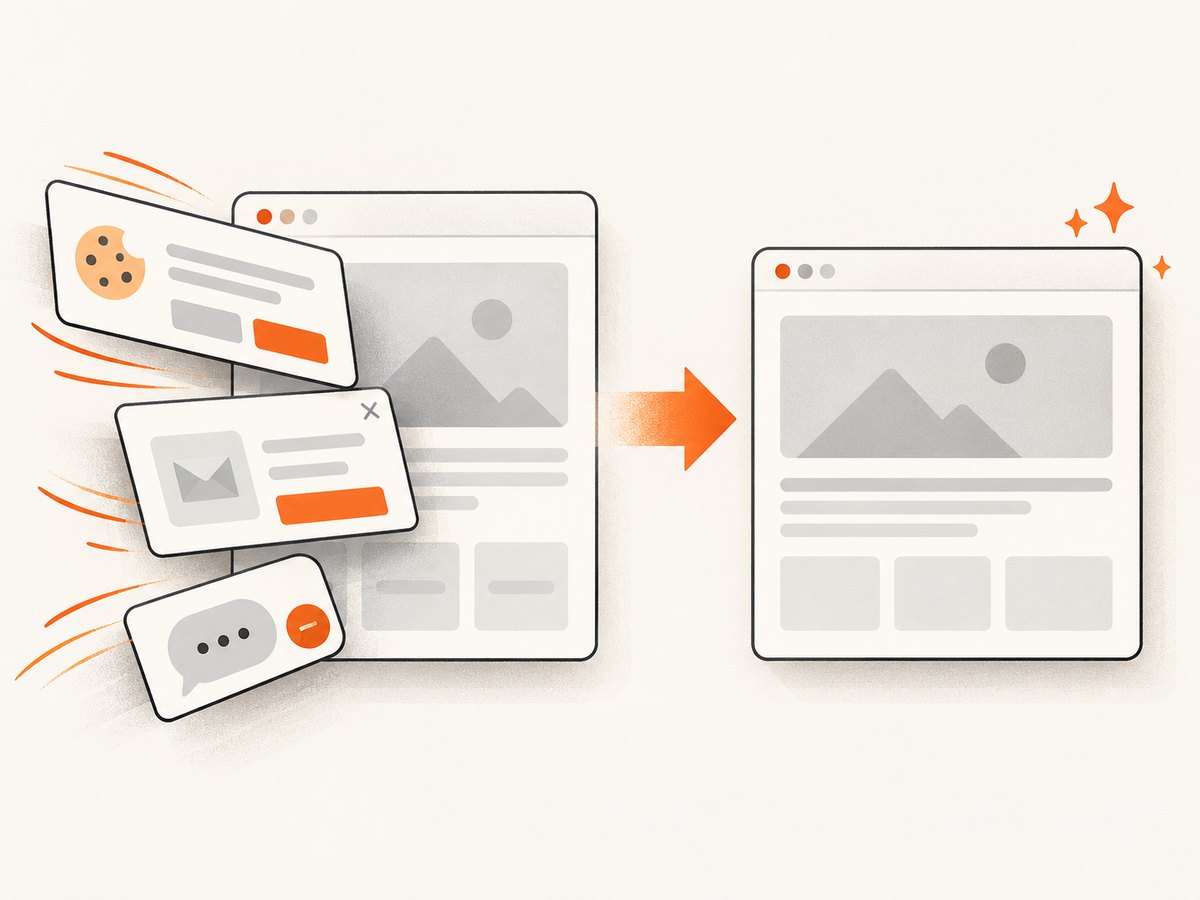
Clean shots are a central ScreenshotNeo behavior: before capture, it accepts cookie or consent banners like a visitor and removes more than 60 known consent platforms, newsletter popups, and chat widgets. Each step can be turned off. Bot checks or CAPTCHAs, blank pages, timeouts, failed loads, and cache hits cost nothing. Response headers identify the page verdict and whether the request was billed with X-Page-Verdict and X-Billed.
An MCP server exposes take_screenshot, get_page_info, and capture_pdf to Claude, Cursor, and other MCP clients. Plans include 1,000 shots per month free without a card; Starter is $5 for 3,000, Growth $15 for 15,000, Pro $39 for 60,000, Scale $99 for 250,000, and Business $249 for 1,000,000. Yearly billing gives two months free, and every feature is on every plan.
Create a free ScreenshotNeo account to get 1,000 screenshots each month with no card.
8. Troubleshooting incomplete or incorrect PNGs
| Symptom | Likely cause | Fix |
|---|---|---|
| Blank or mostly white image | Capture ran before app rendering or navigation failed | Check the response/navigation error, wait for a real readiness selector, and capture again. |
| Images are missing | Lazy loading has not been triggered or assets are blocked | Scroll through the page, wait for image completion, and inspect network or request-blocking rules. |
| Cookie banner covers content | Consent UI remains in the captured state | Accept or dismiss it where authorized, hide the approved selector, or use ScreenshotNeo’s consent cleanup. |
| Full-page image cuts off content | Virtualized lists, nested scroll containers, or height changes | Wait for layout stabilization, scroll nested containers, and capture the relevant element separately if needed. |
| Fonts look different | Web fonts are still loading or unavailable in the capture environment | Wait for document.fonts.ready, ensure the font request succeeds, and use the same viewport and user agent. |
| Access denied or CAPTCHA | The site requires authentication or blocks automation | Do not attempt to bypass controls. Use an authorized session, supplied credentials, or capture a page you control. |
| PNG is too large | Very tall page, high device scale, or large lossless assets | Capture an element or viewport, lower device scale, resize after capture, or choose WebP/JPEG when lossless PNG is unnecessary. |
| Wrong responsive layout | Default viewport differs from the target device | Set the viewport, device preset, user agent, and device scale explicitly. |
9. Reliability, performance, and cost
- Reuse a browser: For batches, keep one Playwright browser process alive and create isolated pages or contexts. Repeated launches add startup time.
- Use deterministic waits: A readiness selector or application event is usually faster and more reliable than a long fixed delay.
- Limit capture size: Full-page screenshots consume memory proportional to page dimensions. Split exceptionally long documents or capture important sections.
- Control concurrency: A small worker pool avoids overwhelming your machine or the target site. Add retries with backoff for transient network failures.
- Cache intentionally: If the page changes slowly, a cache TTL can reduce repeated rendering. Disable or shorten caching for rapidly changing content.
- Protect secrets: Keep API keys, cookies, and authorization headers in environment variables or a secret manager. Do not put credentials in public image URLs.
- Check billing metadata: With ScreenshotNeo, inspect
X-Page-VerdictandX-Billedso your job can distinguish a clean billed capture from a failed or cache response.
Browser automation has infrastructure costs for CPU, memory, browser updates, fonts, proxy configuration, and operational retries. A hosted API trades that setup for per-plan usage. ScreenshotNeo’s free tier is 1,000 shots monthly, paid plans start at $5 for 3,000, and failed loads, bot checks, blank pages, timeouts, and cache hits are not billed.
10. Security and access boundaries
A screenshot does not grant access to a private page. If a page requires login, pass the authorized session through your browser context or the API’s supported cookies and headers. Treat captured images as potentially sensitive: they can contain account names, invoices, tokens displayed in the UI, or personal data. Store them with appropriate access controls and remove temporary files when a job finishes.
Validate user-supplied URLs before sending them to a browser or screenshot service. Restrict internal network access in server-side systems, avoid exposing API keys in client-side JavaScript, and log the URL and verdict without logging cookies or authorization values.
11. FAQ
Does a PNG contain the HTML?
No. It contains pixels from the rendered page. Save the source or create an archive separately if you need editable or navigable content.
Can I download only the page’s visible area?
Yes. Use a normal viewport screenshot and set the desired viewport dimensions.
Why is my full-page screenshot extremely tall?
Full-page mode includes the document’s scrollable height. Capture a specific element, split the page, or use a viewport shot when one image is not practical.
Should I use PNG, JPEG, or WebP?
PNG preserves sharp text and transparency. JPEG is smaller for photographic content. WebP often provides a useful size-quality compromise; choose based on how the image will be delivered.
Can screenshots bypass a login or CAPTCHA?
No. Use an authorized session and follow the site’s access rules. A screenshot tool should not be used to evade access controls.
Can an AI agent take screenshots?
Yes. ScreenshotNeo provides an MCP server with take_screenshot, get_page_info, and capture_pdf for MCP clients such as Claude and Cursor.
12. Quick checklist
- Decide whether you need the viewport, full page, or one element.
- Set the viewport and device scale explicitly for repeatable output.
- Wait for application content, fonts, and lazy images.
- Remove or accept overlays only when authorized.
- Use stable selectors for element captures.
- Check for authentication, robots, network, and CAPTCHA failures.
- Keep secrets out of URLs and client-side code.
- Choose PNG when lossless text or transparency matters.
- For recurring jobs, add retries, concurrency limits, caching, and output cleanup.
For a local one-off, Firefox is enough. For controlled automation, Playwright provides the clearest code path. For a hosted workflow with consent cleanup, billing verdicts, MCP access, and no browser infrastructure to maintain, start with ScreenshotNeo.


