How to Download HTML to JPG
Learn how to save any rendered HTML page as a JPG using browser tools, Puppeteer, html2canvas, or ScreenshotNeo—with fixes for common failures.
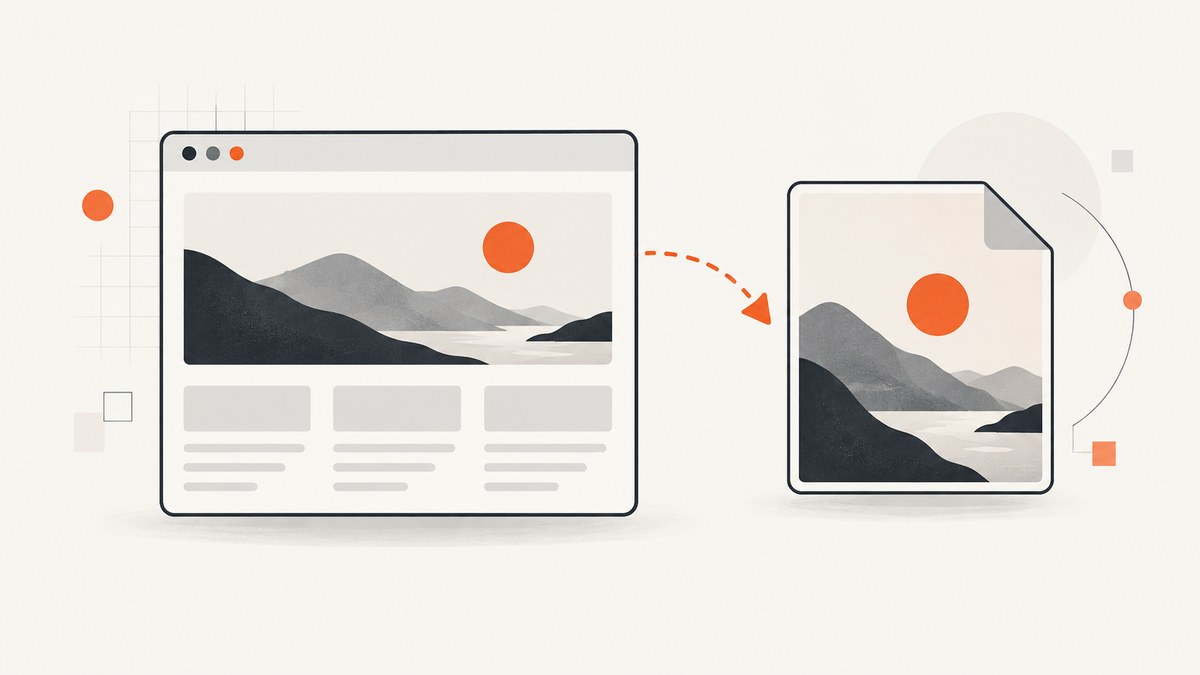
To download HTML as a JPG, first render the HTML in a browser, capture the rendered page, and encode the result as JPEG. HTML source is editable markup; a JPG is a flattened image of what the browser displays. For a one-off file, use a browser screenshot and convert the PNG output to JPG. For repeatable jobs, automate Chromium with Puppeteer and request type: 'jpeg'. For a hosted workflow, ScreenshotNeo can return a JPG directly from one GET request.
Choose the right HTML-to-JPG method
| Method | Best for | JPG handling | Main limitation |
|---|---|---|---|
| Browser or Chrome headless | One-off captures | Capture PNG, then convert | Manual or shell workflow |
| Puppeteer | Repeatable automation | Native JPEG output and quality control | Requires a browser runtime |
| html2canvas | Capturing a DOM element inside your app | Canvas encoding or conversion | Reconstructs the DOM; it is not a pixel-perfect browser screenshot |
| ScreenshotNeo | Server-side, batch, or production capture | Request JPG directly | Requires an API key |
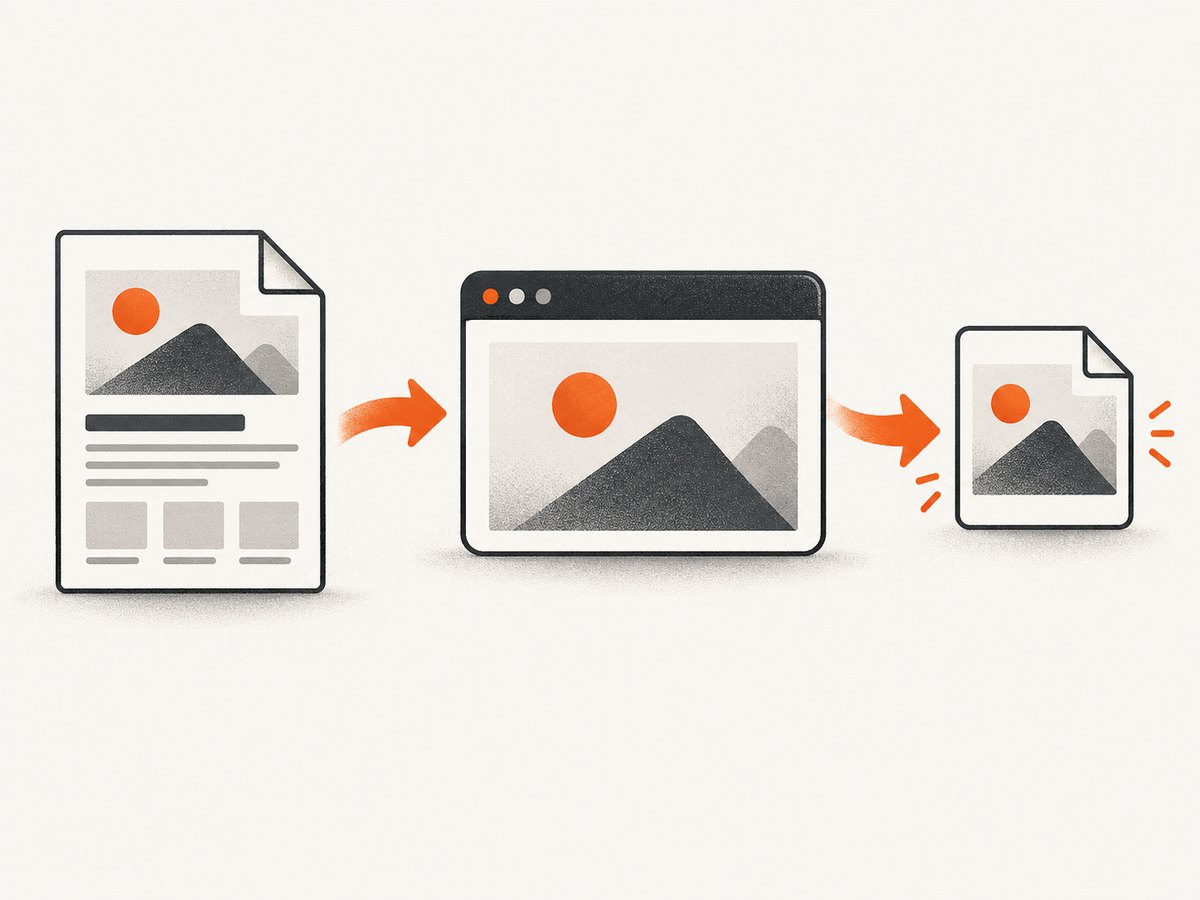
Method 1: Save a page with browser tools
This is the simplest option when you need one image. Open the remote URL or local .html file in Chrome, wait until fonts and images appear, then use the browser’s screenshot command or a developer-tool capture. A visible viewport capture records only what is on screen. A full-page capture includes the page below the fold when the browser supports it.
Chrome headless command line
Chrome’s documented headless screenshot command writes PNG and lets you set the viewport with --window-size. The command below captures a remote page:
google-chrome --headless --disable-gpu \
  --window-size=1440,1200 \
  --screenshot=page.png \
  https://example.com
Because this produces PNG, convert it to JPG in a second step. ImageMagick is one option:
magick page.png -background white -alpha remove -quality 88 page.jpgFlattening onto white matters when the PNG has transparency. A JPG has no alpha channel. If your source page uses a transparent background, choose the background color deliberately before conversion.
See the Chrome headless documentation for the screenshot command and window-size behavior.
Local HTML files and assets
For a local file, pass a file URL. Use an absolute path so the browser can resolve relative stylesheets and images:
google-chrome --headless --disable-gpu \
  --window-size=1440,1200 \
  --screenshot=local.png \
  file:///Users/me/site/index.html
Local captures can differ from hosted pages when the HTML references remote fonts, images, scripts, or stylesheets. Check the browser console and network panel. A missing local asset often means the path is relative to a different working directory, while a blocked remote asset may be caused by content-security policy or network access.
Method 2: Automate HTML-to-JPG with Puppeteer
Puppeteer controls a real browser, so it is the most flexible do-it-yourself choice for scheduled or repeat captures. Install it in a new project:
npm install puppeteerThe following complete script navigates to a URL, waits for the page to settle, captures the full page as a JPG, and sets JPEG quality:
const puppeteer = require('puppeteer');

(async () => {
  const browser = await puppeteer.launch({ headless: true });
  try {
    const page = await browser.newPage();
    await page.setViewport({ width: 1440, height: 1000, deviceScaleFactor: 1 });
    await page.goto('https://example.com', {
      waitUntil: 'networkidle2',
      timeout: 60000
    });
    await page.screenshot({
      path: 'page.jpg',
      type: 'jpeg',
      quality: 88,
      fullPage: true
    });
  } finally {
    await browser.close();
  }
})();
Puppeteer’s screenshot API documents fullPage, clipping, image type, file paths, and JPEG quality. PNG is the default, so specify type: 'jpeg' when the output must be JPG. See the ScreenshotOptions reference and Page.screenshot API.
Capture one element instead of the whole document
Use a selector and the element’s bounding box when you need a card, invoice, chart, or hero section:
const element = await page.$('.invoice');
if (!element) throw new Error('Missing .invoice element');
const clip = await element.boundingBox();
if (!clip) throw new Error('Element is not visible');
await page.screenshot({ path: 'invoice.jpg', type: 'jpeg', quality: 90, clip });
A clipped capture can be empty when the element is hidden, outside the viewport in a virtualized list, or rendered only after interaction. Scroll it into view and wait for visibility when necessary.
Make dynamic pages deterministic
Waiting for networkidle2 is useful, but it is not a universal guarantee that every animation or lazy image has finished. Add an explicit selector wait and disable motion:
await page.goto(url, { waitUntil: 'domcontentloaded', timeout: 60000 });
await page.waitForSelector('.report', { visible: true, timeout: 30000 });
await page.addStyleTag({ content: `
  *, *::before, *::after {
    animation: none !important;
    transition: none !important;
    caret-color: transparent !important;
  }
` });
await page.evaluate(() => document.fonts.ready);
await page.waitForTimeout(500);
For lazy-loaded content, scroll through the document before taking a full-page shot:
await page.evaluate(async () => {
  await new Promise(resolve => {
    let y = 0;
    const step = 600;
    const timer = setInterval(() => {
      window.scrollBy(0, step);
      y += step;
      if (y >= document.body.scrollHeight) {
        clearInterval(timer);
        window.scrollTo(0, 0);
        resolve();
      }
    }, 100);
  });
});
Control viewport, device scale, and format
widthandheightdetermine the CSS viewport and responsive breakpoint.deviceScaleFactorcontrols pixel density. A value of 2 creates a sharper image but increases memory and file size.qualityis JPEG quality from 0 to 100. Higher values preserve detail and produce larger files.fullPage: truecaptures the complete document; useclipfor a precise rectangle.
JPG uses lossy compression. Text-heavy pages often look better at quality 85–95; inspect small text and thin lines before lowering quality for storage savings.
Method 3: Capture a DOM element with html2canvas
html2canvas runs in the page and resolves a canvas from a DOM element:
import html2canvas from 'html2canvas';

const node = document.querySelector('#receipt');
const canvas = await html2canvas(node, {
  scale: window.devicePixelRatio,
  backgroundColor: '#ffffff'
});
const link = document.createElement('a');
link.download = 'receipt.jpg';
link.href = canvas.toDataURL('image/jpeg', 0. nine);
link.click();
Replace the accidental-looking quality value with a JavaScript number between 0 and 1, such as 0.9:
link.href = canvas.toDataURL('image/jpeg', 0.9);html2canvas is a DOM reconstruction library. Its documentation explains that the result may not be 100% accurate to the browser’s real representation, and unsupported CSS can render differently. Cross-origin images can taint the canvas, and cross-origin iframes cannot be read because browser security blocks access. The project states that it cannot circumvent browser content-policy restrictions. Read the html2canvas documentation and getting-started limitations before choosing it for complex pages.
Or skip the browser setup
ScreenshotNeo returns a rendered screenshot from one request. It supports PNG, JPEG, WebP, and PDF, plus full-page captures, element selectors, device presets, custom viewports, retina scale, waits, custom CSS and JavaScript, cookies, headers, user agents, geolocation, timezone, request blocking, caching, signed links, asynchronous jobs, bulk capture, and usage reporting. See the ScreenshotNeo API documentation beside the examples.
cURL
curl -G "https://api.screenshotneo.com/v1/shot" \
  -d access_key=YOUR_API_KEY \
  --data-urlencode url=https://stripe.com \
  -o shot.webp
Change the output filename and request options for your format. The API accepts the parameter names used by other screenshot APIs, which can simplify migrations.
Python
import requests

r = requests.get(
    "https://api.screenshotneo.com/v1/shot",
    params={"access_key": "YOUR_API_KEY", "url": "https://stripe.com"},
    timeout=90,
)
r.raise_for_status()
open("shot.webp", "wb").write(r.content)
Node.js
const q = new URLSearchParams({ access_key: 'YOUR_API_KEY', url: 'https://stripe.com' });
const res = await fetch(`https://api.screenshotneo.com/v1/shot?${q}`);
if (!res.ok) throw new Error(`HTTP ${res.status}`);
const buffer = Buffer.from(await res.arrayBuffer());
require('fs').writeFileSync('shot.webp', buffer);
ScreenshotNeo accepts cookie and consent banners like a visitor, then removes more than 60 known consent platforms along with newsletter popups and chat widgets; each step can be disabled. Bot checks, CAPTCHAs, blank pages, timeouts, failed loads, and cache hits are not billed. Inspect the X-Page-Verdict and X-Billed response headers to see what happened. Its MCP server provides take_screenshot, get_page_info, and capture_pdf tools for Claude, Cursor, and other MCP clients.
The free plan includes 1,000 screenshots per month with no card. Paid plans start at $5 for 3,000 shots; yearly billing gives two months free, and every feature is available on every plan. Create a free ScreenshotNeo account.
Options that affect image correctness
Full page versus viewport
A viewport image is predictable and compact. A full-page image is useful for archives and visual regression, but very tall pages can consume substantial memory. For long documents, capture sections or generate a PDF when pagination is the real requirement.

Fonts and images
Wait for document.fonts.ready and a page-specific selector. Remote fonts may be delayed, blocked, or substituted. Confirm that images have loaded before capture; lazy images often need scrolling or an explicit interaction.
Responsive breakpoints
Set the viewport deliberately. A 1440-pixel desktop shot and a 390-pixel mobile shot may represent different DOM layouts, navigation, and content. Record the viewport with each generated asset so later comparisons are meaningful.
Privacy and authenticated pages
For Puppeteer, use a controlled browser context and supply cookies or headers only when required. Never hard-code production secrets in a script committed to source control. For an API, pass only the credentials and page data needed for the capture, and review your provider’s retention behavior.
Troubleshooting
| Symptom | Likely cause | Fix |
|---|---|---|
| Output is PNG, not JPG | Chrome defaults to PNG or Puppeteer omitted type |
Convert the PNG or set type: 'jpeg'. |
| JPG has a black or unexpected background | Source uses transparency | Set a CSS or canvas background and flatten onto white before encoding. |
| Fonts look wrong | Capture happened before web fonts loaded | Await document.fonts.ready and wait for the relevant selector. |
| Images are missing | Lazy loading, blocked requests, or incorrect local paths | Scroll to trigger lazy loads, inspect network errors, and verify absolute file paths. |
| Cookie banner covers content | Consent UI appeared after navigation | Click or remove it before capture; ScreenshotNeo handles known consent platforms automatically. |
| html2canvas throws a security error | Cross-origin image tainted the canvas | Serve the asset with suitable CORS headers, proxy it, or use a browser screenshot. |
| Cross-origin iframe is blank | Browser same-origin policy | Capture the iframe from its own origin or use a server-side browser with an allowed workflow. |
| Element clip is empty | Element is hidden or not laid out | Wait for visibility, scroll it into view, and check boundingBox(). |
| Navigation timeout | Slow page, stalled request, or bot challenge | Raise the timeout, block unnecessary resources, diagnose the page, and treat challenge pages as failed captures. |
Performance, reliability, and cost
Browser startup is usually the expensive part of self-hosted automation. Reuse a browser process when policy allows, create isolated contexts per job, and close pages in a finally block. Limit concurrency to the memory available on the machine; many high-resolution full-page captures can exhaust it. Cache identical URLs when the source is unchanged, but invalidate the cache when content or authentication changes.
For reliable output, log the URL, viewport, timestamp, response status, final URL after redirects, and whether required selectors appeared. Store a failure screenshot or HTML diagnostic when a job fails. Retry transient navigation failures with a small bounded retry count; do not retry a deterministic selector or permission error indefinitely.
JPEG quality and device scale affect storage and transfer cost. Use PNG for lossless diagrams and screenshots where text fidelity is critical; use JPG for photographic or archival output where smaller files matter. ScreenshotNeo’s billing counts only clean shots. Its response headers identify whether a request was billed, while bot checks, blank pages, failed loads, timeouts, and cache hits cost nothing.
FAQ
Can I download the original HTML as a JPG without rendering it?
No. JPG stores pixels, so the HTML must be rendered by a browser or a rendering library first.
Is a screenshot the same as converting HTML source?
No. A screenshot records the visual result after CSS, fonts, scripts, and images are applied. It does not preserve editable markup.
Should I use html2canvas for a whole website?
Usually not when browser-level fidelity matters. html2canvas reconstructs supported DOM and CSS and is better suited to an element inside your own page.
How do I capture a JPG for a page that requires login?
Use a controlled browser context with session cookies or authorization headers, then wait for a post-login selector. Keep credentials outside source code and logs.
When is PDF better than JPG?
Choose PDF when the goal is selectable text, pagination, printing, or a multi-page document. Choose JPG for a flattened image used in previews, social cards, or image pipelines.


