How to Download an Image Returned by html2canvas
Turn html2canvas’s returned canvas into a downloadable PNG, handle large files and CORS errors, and see when a screenshot API is easier.
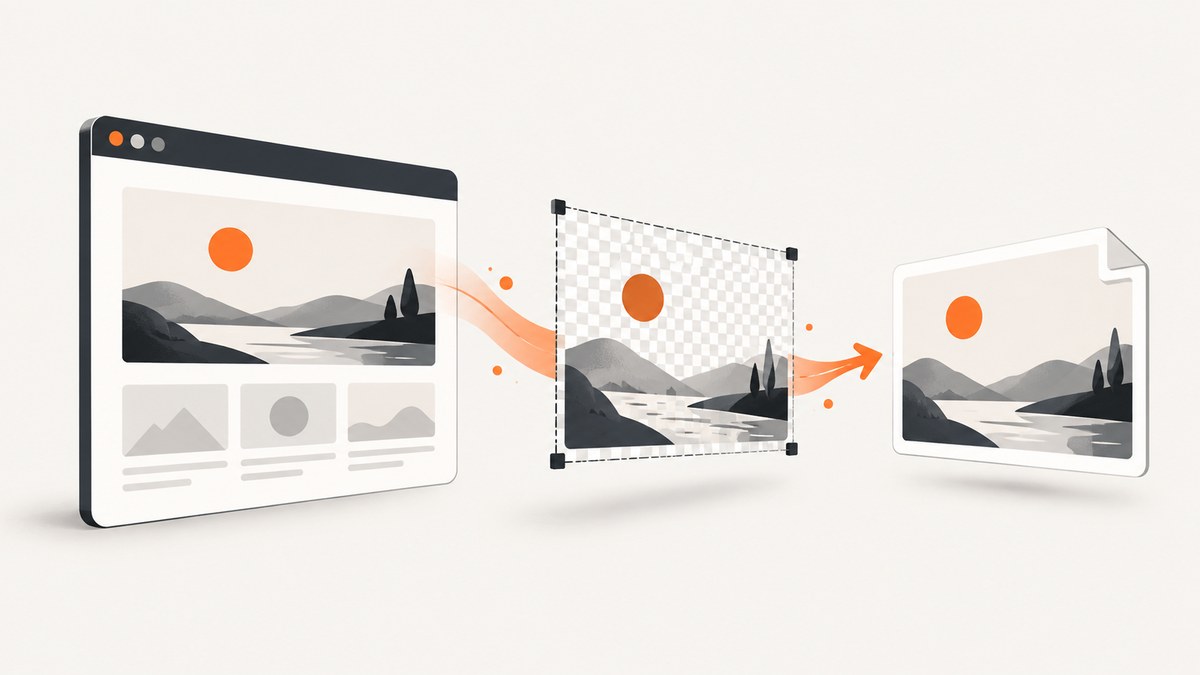
html2canvas returns a Promise that resolves to a canvas. To download the result, encode that canvas as a PNG data URL or Blob, put the URL on an anchor element with a download filename, and trigger a click.
async function downloadElementAsPng(element, filename = 'screenshot.png') {
  const canvas = await html2canvas(element);
  const link = document.createElement('a');
  link.download = filename;
  link.href = canvas.toDataURL('image/png');
  link.click();
}

downloadButton.addEventListener('click', async () => {
  await downloadElementAsPng(document.querySelector('#capture'));
});
The returned value is a canvas, not an image file or URL until you encode it. The pattern above follows the html2canvas documentation.
1. Complete browser example
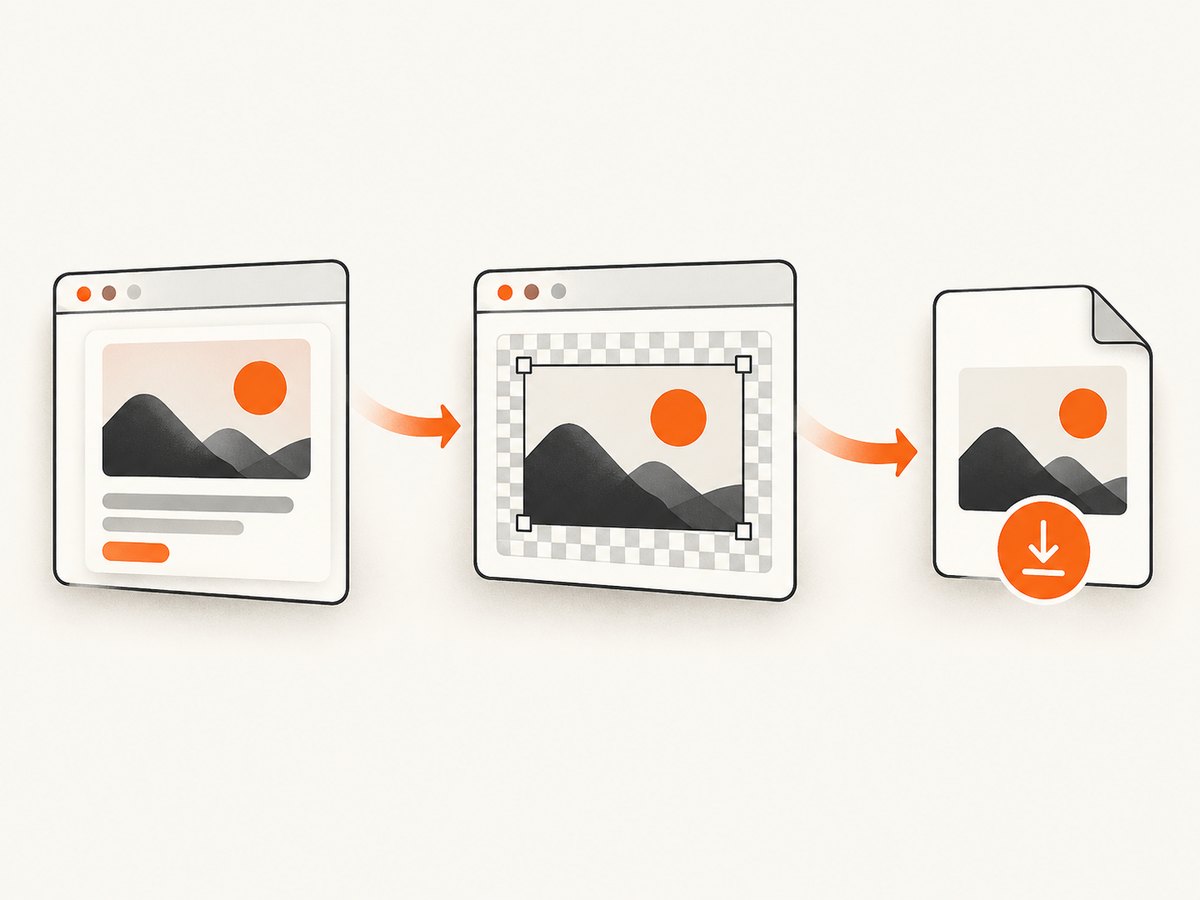
This page captures an element after a user clicks a button and downloads it as profile-card.png. Load html2canvas before the application script.
<!doctype html>
<html lang="en">
<head>
  <meta charset="utf-8">
  <meta name="viewport" content="width=device-width, initial-scale=1">
  <title>Download an html2canvas image</title>
  <script src="https://cdn.jsdelivr.net/npm/html2canvas@1.4.1/dist/html2canvas.min.js"></script>
  <style>
    #capture { width: 480px; padding: 24px; background: white; color: #172033; }
    #download { margin-top: 16px; }
  </style>
</head>
<body>
  <article id="capture">
    <h1>A downloadable card</h1>
    <p>html2canvas reconstructs this element into a canvas.</p>
  </article>
  <button id="download" type="button">Download PNG</button>

  <script>
    async function downloadElementAsPng(element, filename = 'screenshot.png') {
      const canvas = await html2canvas(element);
      const link = document.createElement('a');
      link.download = filename;
      link.href = canvas.toDataURL('image/png');
      link.click();
    }

    document.querySelector('#download').addEventListener('click', async () => {
      const button = document.querySelector('#download');
      button.disabled = true;
      try {
        await downloadElementAsPng(
          document.querySelector('#capture'),
          'profile-card.png'
        );
      } catch (error) {
        console.error('Could not create the download', error);
        alert('The image could not be exported. Check the console for details.');
      } finally {
        button.disabled = false;
      }
    });
  </script>
</body>
</html>
2. Use toBlob() for large images
toDataURL() creates a string containing the entire encoded image. For large canvases, use canvas.toBlob() and a temporary object URL instead. MDN documents the Blob and object-URL APIs at HTMLCanvasElement.toBlob() and URL.createObjectURL().
async function downloadElementAsPng(element, filename = 'screenshot.png') {
  const canvas = await html2canvas(element);
  const blob = await new Promise(resolve =>
    canvas.toBlob(resolve, 'image/png')
  );

  if (!blob) {
    throw new Error('Canvas could not be encoded as PNG');
  }

  const url = URL.createObjectURL(blob);
  const link = document.createElement('a');
  link.download = filename;
  link.href = url;
  link.click();

  // Release the temporary URL after starting the download.
  URL.revokeObjectURL(url);
}
Do not revoke the object URL before the browser has had a chance to start using it. If you display the Blob in an image, revoke the URL only after that image is no longer needed.
3. Choose the output format
| Format | Code | Use it when |
|---|---|---|
| PNG | canvas.toDataURL('image/png') |
You need lossless output or transparency. |
| JPEG | canvas.toDataURL('image/jpeg', 0.9) |
The image is photographic and a smaller file is useful. |
| WebP | canvas.toDataURL('image/webp', 0.9) |
Your target browsers support WebP and you want efficient files. |
The browser may fall back to PNG when it does not support the requested MIME type. Inspect the returned data URL prefix, or use blob.type, when the exact format matters. The MDN toDataURL reference documents this behavior.
4. Handle cross-origin images and tainted canvases
A canvas becomes tainted when it contains image data from another origin without permission. Once tainted, reading pixels with toDataURL() or toBlob() fails with a security error. html2canvas cannot bypass browser content policy.
When the image server supports CORS
Ask html2canvas to request eligible images with CORS enabled:
const canvas = await html2canvas(document.querySelector('#capture'), {
  useCORS: true
});

const png = canvas.toDataURL('image/png');
The remote image server must send an appropriate Access-Control-Allow-Origin response header. useCORS defaults to false in the project configuration. See the html2canvas configuration reference.
When the image server does not support CORS
- Serve the image from your own origin.
- Configure the image host to send the required CORS header.
- Use a server-side proxy that fetches the image and serves it from an origin you control.
Setting allowTaint: true does not make a tainted canvas readable for export. It allows rendering in situations where you do not need to read the pixels; it does not remove browser security restrictions.
5. Wait for fonts and images before capturing
Capture only after the content that affects the result has loaded. For images, wait for the document’s image elements. For web fonts, wait for document.fonts.ready where supported.
async function waitForImages(root) {
  const images = [...root.querySelectorAll('img')];
  await Promise.all(images.map(image => {
    if (image.complete) return Promise.resolve();
    return new Promise(resolve => {
      image.addEventListener('load', resolve, { once: true });
      image.addEventListener('error', resolve, { once: true });
    });
  }));
}

async function captureAfterAssets(root) {
  await waitForImages(root);
  if (document.fonts?.ready) await document.fonts.ready;
  return html2canvas(root, { useCORS: true });
}
6. Control scale, size and background
html2canvas reconstructs a representation from DOM and CSS information; it is not a literal browser screenshot. It renders the CSS properties it supports, so complex filters, unsupported properties and cross-origin iframes can differ from the visible page. Consult the project’s supported-features list for rendering limits.
const canvas = await html2canvas(element, {
  scale: window.devicePixelRatio,
  backgroundColor: '#ffffff',
  width: element.scrollWidth,
  height: element.scrollHeight,
  windowWidth: document.documentElement.clientWidth,
  windowHeight: document.documentElement.clientHeight
});scalecontrols output pixel density. Higher values improve detail but use more memory.backgroundColorsets a solid background. Usenullwhen transparency is appropriate and the rendered content supports it.widthandheightlet you capture the element’s full dimensions instead of only its visible box.- Very large dimensions can exceed browser canvas limits. Split the content into sections when allocation fails.
7. Common errors and fixes
| Symptom | Likely cause | Fix |
|---|---|---|
SecurityError: Tainted canvases may not be exported |
A cross-origin image was drawn without CORS. | Enable useCORS and configure the image server, or proxy the image. |
| Remote images are missing | The image was not loaded, was blocked, or was cross-origin. | Wait for images, inspect network errors, and verify CORS headers. |
| The output is blank | The selected element has no rendered size, capture ran before content loaded, or a resource failed. | Check dimensions, wait for assets and fonts, and capture after the user-visible state exists. |
| Styles or effects differ | html2canvas supports a DOM-based subset of CSS rather than the browser compositor. | Check supported features and simplify or replace unsupported CSS for the export. |
| Download does not start | The click was not initiated by a user action or the browser blocked it. | Run the export from a button or other user gesture and handle errors visibly. |
| Browser becomes slow or crashes | The canvas is too large or the scale is too high. | Lower scale, capture smaller sections, and prefer toBlob(). |
8. Performance and reliability checklist
- Capture the smallest element that contains the needed content.
- Wait for images and fonts once, then reuse the captured canvas if multiple encodings are needed.
- Use a reasonable scale instead of automatically multiplying very large pages by device pixel ratio.
- Prefer Blob output for large files to avoid a second large base64 string.
- Keep the export inside a user action and disable the button while rendering.
- Log the original error and show a recoverable message when a resource or export fails.
- Test the actual browsers and content types your users rely on, especially remote images and iframes.
9. Or skip the browser setup
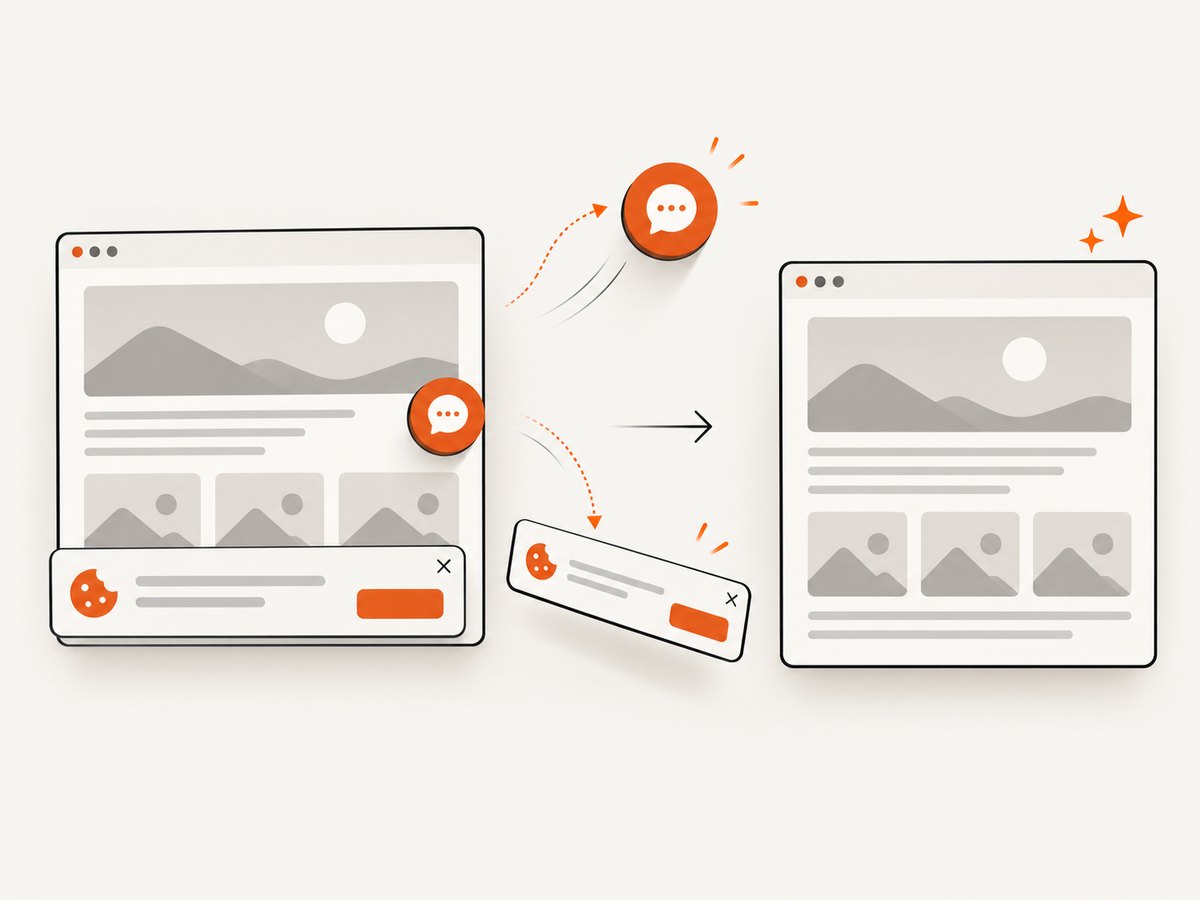
If you need a URL screenshot rather than a DOM export, ScreenshotNeo provides a single GET request that returns PNG, JPEG, WebP or PDF. Its cleanup step accepts cookie and consent banners and removes more than 60 known consent platforms, newsletter popups and chat widgets before capture. Bot checks, blank pages, timeouts, failed loads and cache hits are not billed, and response headers identify the page verdict and billing status. It also provides an MCP server for AI agents.
See the ScreenshotNeo API documentation for options such as full-page capture, CSS selectors, device presets, custom CSS and JavaScript, waits, request blocking, headers, cookies, geolocation, caching, signed links, PDFs, async jobs and bulk capture.
cURL
curl -G "https://api.screenshotneo.com/v1/shot" \
  -d access_key=YOUR_API_KEY \
  --data-urlencode url=https://stripe.com \
  -o shot.webp
Python
import requests

r = requests.get(
    "https://api.screenshotneo.com/v1/shot",
    params={"access_key": "YOUR_API_KEY", "url": "https://stripe.com"},
    timeout=90,
)
r.raise_for_status()
open("shot.webp", "wb").write(r.content)
Node.js
const q = new URLSearchParams({
  access_key: 'YOUR_API_KEY',
  url: 'https://stripe.com'
});
const res = await fetch(`https://api.screenshotneo.com/v1/shot?${q}`);
if (!res.ok) throw new Error(`Screenshot failed: ${res.status}`);
const bytes = Buffer.from(await res.arrayBuffer());
require('node:fs').writeFileSync('shot.webp', bytes);
Free usage includes 1,000 screenshots per month with no card. Paid plans start at $5 for 3,000 shots, and every feature is available on every plan. Create a free ScreenshotNeo account.
10. FAQ
Does html2canvas save a file automatically?
No. It resolves to a canvas. You must encode the canvas and trigger a download yourself.
Can I download JPEG instead of PNG?
Yes, request image/jpeg with toDataURL() or toBlob(), then verify the browser accepted that MIME type.
Can html2canvas capture a cross-origin iframe?
Not when browser security prevents access to the iframe’s contents. Same-origin content or a server-side capture is required.
Is html2canvas pixel-identical to a screenshot?
No. It reconstructs the page from DOM and CSS information, so unsupported properties and protected resources can differ from the browser display.


