How to Download html2canvas Screenshots Automatically
Save an html2canvas capture as a PNG automatically with a browser download link, and learn how to handle CORS, large canvases, and rendering differences.
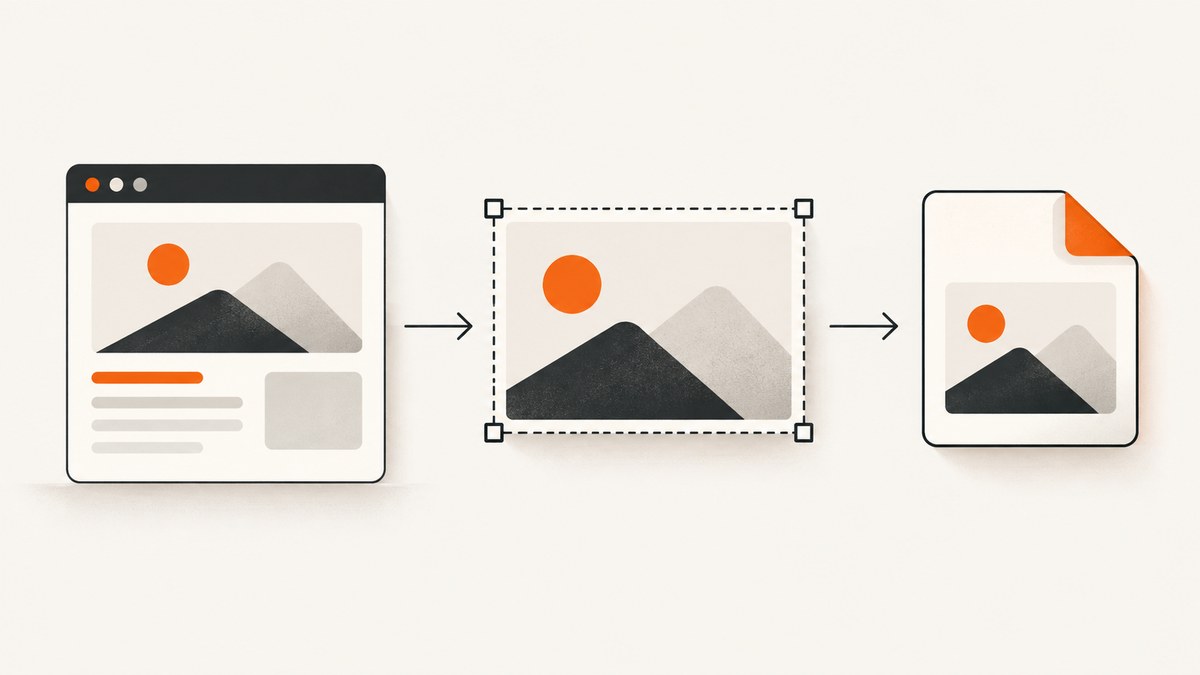
To download an html2canvas capture automatically, wait for its Promise to resolve, turn the resulting canvas into a PNG data URL, and click a temporary anchor whose download attribute contains the filename. The download starts from the browser; no separate save button or manual right-click is needed.
html2canvas(document.querySelector('#capture')).then(canvas => {
  const link = document.createElement('a');
  link.download = 'screenshot.png';
  link.href = canvas.toDataURL('image/png');
  link.click();
});
Replace #capture with the element to render. This is a browser-side technique: html2canvas reconstructs an image from DOM and style information; it does not capture browser pixels literally. Some CSS, cross-origin content, and very large canvases can therefore produce differences or failures. The project describes it as taking “screenshots” of pages or parts of them in the user’s browser. See the html2canvas documentation and its About page.
1. Install html2canvas and choose what to capture
Use html2canvas in a page that already contains the element you want to export. Install it through your project’s package manager, or use a browser-compatible build from a CDN as described in the project’s Getting Started guide. The exact import syntax depends on your bundler and project setup; the capture and download code below assumes html2canvas is available in the page.
Give the target a stable selector and ensure it is rendered and populated before capture:
<section id="capture">
  <h1>Quarterly report</h1>
  <p>This content will be rendered into the downloaded image.</p>
</section>
<button id="download" type="button">Download PNG</button>
The click handler makes the user’s intent clear and is generally more reliable than trying to initiate a download at page load. Browsers may restrict downloads that are not associated with a user gesture, especially when they are repeated or unexpected.
2. Automatically download a PNG
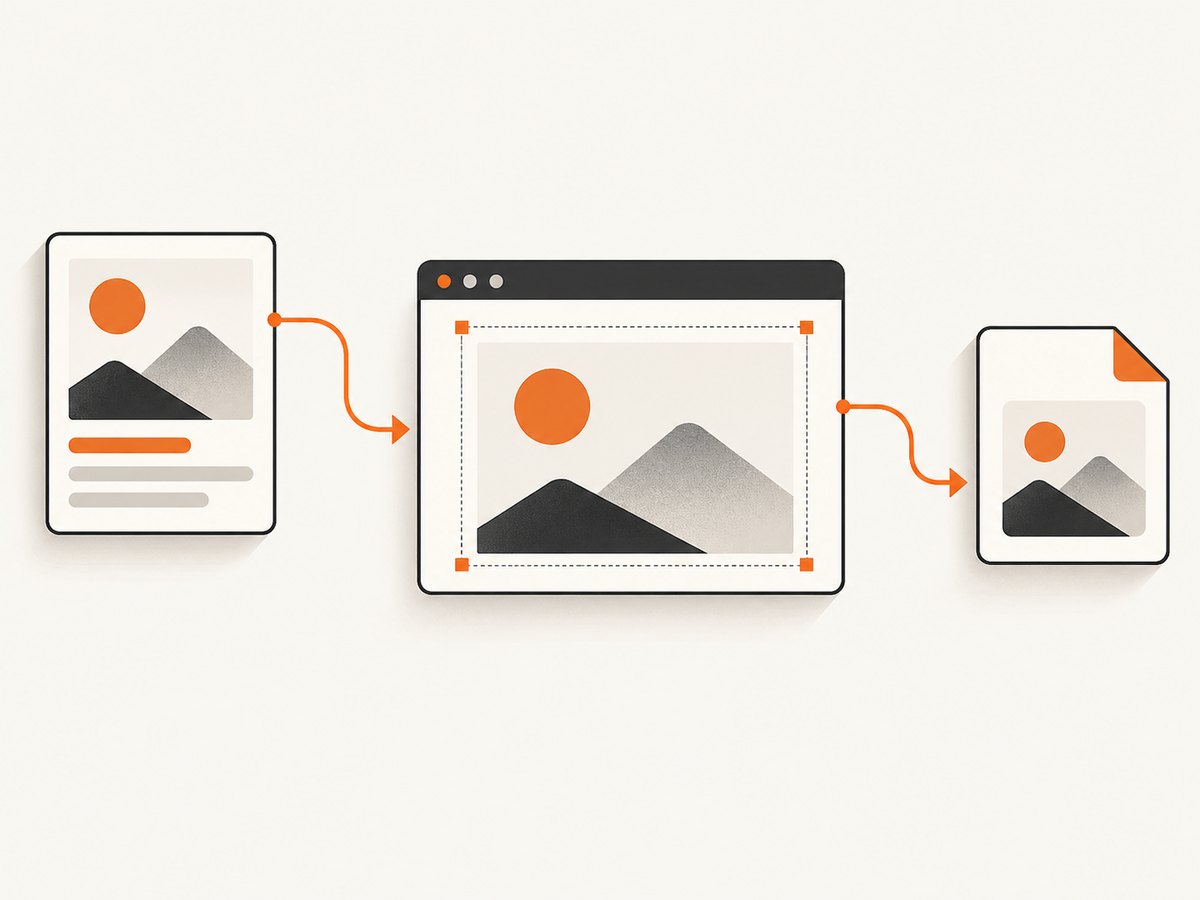
This complete example checks that the target exists, waits for rendering to finish, creates an anchor, and removes it after triggering the download. Put it in a browser script after html2canvas and the page elements are available.
const button = document.querySelector('#download');

button.addEventListener('click', async () => {
  const element = document.querySelector('#capture');
  if (!element) {
    console.error('Capture target #capture was not found.');
    return;
  }

  try {
    const canvas = await html2canvas(element);
    const link = document.createElement('a');
    link.download = 'screenshot.png';
    link.href = canvas.toDataURL('image/png');
    document.body.appendChild(link);
    link.click();
    link.remove();
  } catch (error) {
    console.error('Could not render or download the screenshot:', error);
  }
});
The Promise matters: calling toDataURL() before html2canvas() resolves means there is no completed canvas to export. Keep the export inside the await path or the Promise’s .then() callback.
Set filename and format
The download attribute suggests a filename to the browser. Users or browser policy can still affect how a download is handled. The MIME type passed to toDataURL() selects the image encoding; PNG is the straightforward default for a lossless image.
const canvas = await html2canvas(element);
const link = document.createElement('a');
link.download = 'report-cover.png';
link.href = canvas.toDataURL('image/png');
link.click();
For JPEG, use image/jpeg; JPEG does not preserve transparency. The optional quality argument applies to formats that support lossy quality, such as JPEG:
link.download = 'report-cover.jpg';
link.href = canvas.toDataURL('image/jpeg', 0.9);
If the browser does not support the requested data URL format, canvas export can fall back to PNG. Check the resulting browser behavior if the output format is important to your workflow.
Handle an empty target and disable duplicate captures
A missing selector should be reported before calling html2canvas. For large elements, also disable the button while a capture is in progress so users do not queue multiple expensive renders:
button.addEventListener('click', async () => {
  const element = document.querySelector('#capture');
  if (!element || button.disabled) return;

  button.disabled = true;
  try {
    const canvas = await html2canvas(element);
    const link = document.createElement('a');
    link.download = 'screenshot.png';
    link.href = canvas.toDataURL('image/png');
    link.click();
  } catch (error) {
    console.error(error);
  } finally {
    button.disabled = false;
  }
});
3. Configure rendering for the page
html2canvas accepts an options object as its second argument. The useful settings depend on the target and browser. Consult the project’s configuration reference for the version in your application.
| Option | Purpose | When to adjust it |
|---|---|---|
useCORS |
Attempts to load images using CORS. | When a remote image server explicitly permits your page’s origin. |
proxy |
Specifies a proxy route for loading cross-origin images. | When you operate an appropriate server-side proxy. |
scale |
Controls rendered pixel scale; by default it follows device pixel ratio. | Reduce it to control memory and output dimensions, or set it deliberately for consistent output. |
windowWidth, windowHeight |
Set the window dimensions used for rendering, which can affect media queries. | When the element is long or responsive styles differ from the visible viewport. |
backgroundColor |
Sets the canvas background color; null can preserve transparency where supported. |
When the desired output needs a solid background or transparent pixels. |
logging |
Controls diagnostic logging. | Enable while investigating rendering issues. |
Example with a deliberate scale and rendering window:
const canvas = await html2canvas(element, {
  scale: 1,
  windowWidth: Math.max(document.documentElement.clientWidth, element.scrollWidth),
  windowHeight: Math.max(document.documentElement.clientHeight, element.scrollHeight),
  useCORS: true
});
These dimensions influence how the DOM is rendered; they do not make unsupported CSS work or bypass security restrictions. Confirm option availability and behavior against the version you installed.
4. Understand CORS, iframes, and visual differences
Browsers apply same-origin and canvas security rules to remote images. A canvas that includes a cross-origin image without suitable permission can become tainted, preventing export. The project is explicit that “html2canvas cannot circumvent browser content policy restrictions.” The useCORS option can help only when the image server returns appropriate CORS headers. It does not grant permission from that server. A configured proxy is another documented route; it must be implemented in a way that is allowed for your application and resources.
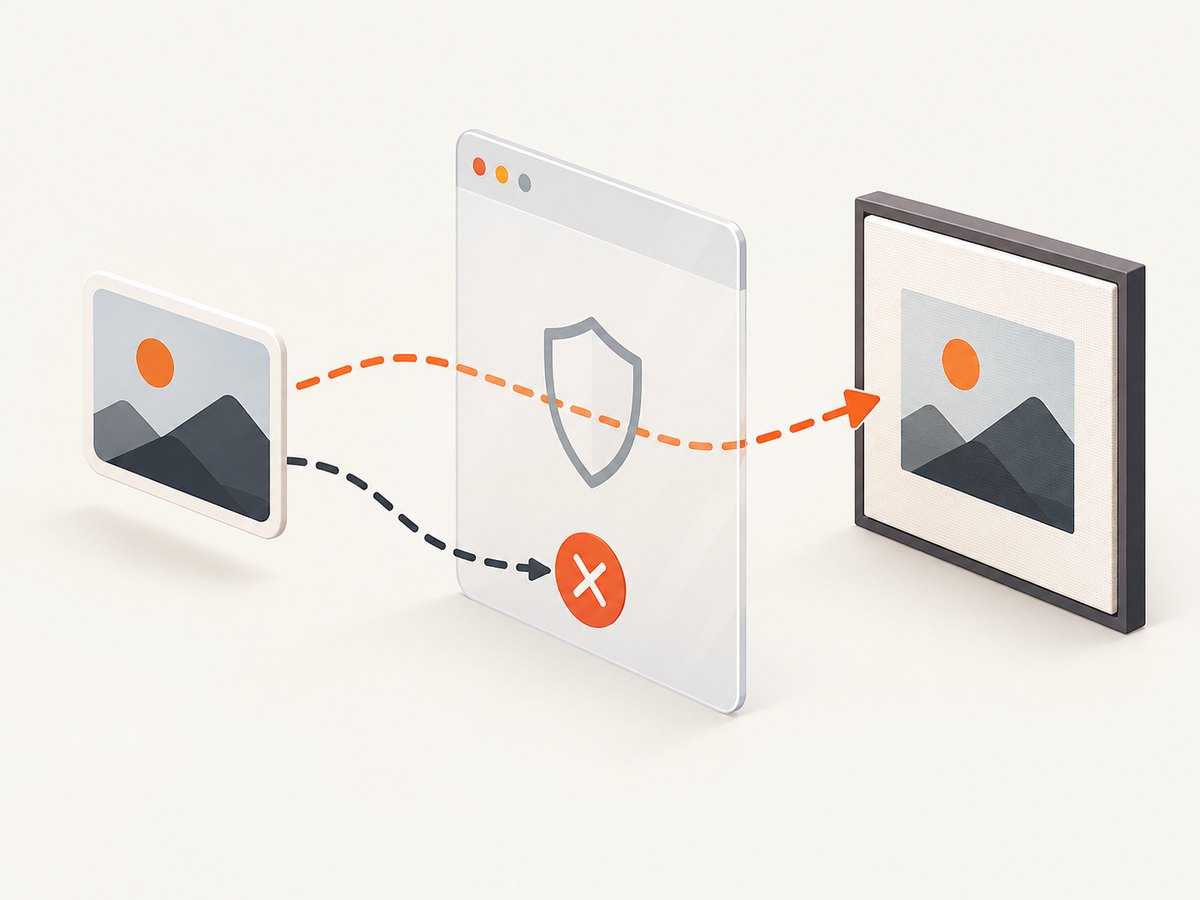
Cross-origin iframe contents are not freely readable by the renderer. Same-origin frames are a different case, but a page cannot use html2canvas to bypass browser isolation and inspect another origin’s document.
Visual mismatches are also expected in some cases. html2canvas recreates the appearance from DOM and supported CSS features rather than asking the browser for its finished pixels. Unsupported styling, embedded content, animations, fonts that have not loaded, and timing-sensitive page state can differ from what the user sees. If fidelity to the rendered browser viewport is essential, use a native browser capture route appropriate to the context.
5. Save large captures safely
Canvas memory use grows with pixel area and scale. Doubling both width and height produces four times as many pixels. Browsers and platforms impose different canvas dimension and area limits; oversized output may be blank, truncated, or fail during export. There is no single safe universal maximum.
- Capture only the necessary element rather than the entire document.
- Use a lower
scaleif the output does not need device-pixel-ratio resolution. - For long elements, set rendering window dimensions in line with the element’s scroll dimensions and test the target browsers.
- For very long pages, split the content into sections and export multiple images if a single canvas exceeds browser limits.
- Release references to canvases and large data URLs after the download flow completes.
toDataURL() creates an encoded data URL string. That is convenient and is the official example’s core approach, but the string can be large. Browser canvas APIs also offer Blob-based handling for applications that need to avoid holding a large data URL string; confirm support and fit for the browsers you target before choosing that route.
6. Troubleshooting
| Symptom | Likely cause | Fix |
|---|---|---|
| No file downloads | The render Promise has not resolved, the anchor lacks a valid href, or the browser blocked an automatic download. | Trigger export after await html2canvas(); use a user-click handler and inspect the console. |
| “Tainted canvases may not be exported” or a security error | A remote image was drawn without suitable CORS permission. | Use useCORS: true only if the host permits your origin, or configure a valid proxy. Otherwise omit that asset or serve it from an allowed origin. |
| Remote image is missing | The image request failed, the host disallows cross-origin use, or capture happened before the image loaded. | Check the network request and response CORS headers; wait for application image loading; use an approved proxy if appropriate. |
| Part of the page is clipped | The render window is smaller than the target, or canvas limits were reached. | Set suitable windowWidth/windowHeight, reduce scale, or split a long capture. |
| Image looks different from the page | DOM reconstruction does not support every browser-rendered feature. | Check supported CSS and loaded fonts/assets; if pixel-accurate browser output is required, select a native capture API or browser automation. |
| Text or layout changes between captures | Fonts, asynchronous data, animation, or responsive breakpoints were not stable. | Wait for app state and fonts before capture, disable animation in a capture-specific stylesheet, and choose a consistent window size. |
| Blank output for a very large element | Canvas width, height, or total pixel area exceeds platform limits. | Reduce scale or capture area; divide the page into smaller sections and validate in each supported browser. |
7. Pick the right capture context
html2canvas is a fit when a normal web page needs to export a DOM element from within the browser. Other contexts call for other tools:
| Need | Suitable direction |
|---|---|
| Export an element from the current web application | html2canvas and the anchor download pattern above. |
| Capture a browser tab from an extension | Use the browser extension’s native screenshot APIs. |
| Generate screenshots server-side | Use browser automation such as Puppeteer or Playwright; html2canvas runs in a browser and is not a Node.js screenshot engine. |
| Capture a URL without managing browser setup | Use a screenshot API such as ScreenshotNeo. |
Or skip the browser setup
ScreenshotNeo is a website screenshot API and MCP server for developers. One GET request captures a URL as PNG, JPEG, WebP, or PDF. Its clean-shot flow accepts cookie or consent banners like a visitor and removes more than 60 known consent platforms, newsletter popups, and chat widgets before capture; each step can be turned off. Bot checks and CAPTCHAs, blank pages, timeouts, failed loads, and cache hits cost nothing, and the response identifies outcomes with X-Page-Verdict and X-Billed headers. An MCP server exposes screenshot tools to Claude, Cursor, and other MCP clients.
For a public page, the equivalent one-call capture looks like this. See the ScreenshotNeo API documentation for request options.
curl -G "https://api.screenshotneo.com/v1/shot" -d access_key=YOUR_API_KEY --data-urlencode url=https://stripe.com -o shot.webpimport requests
r = requests.get("https://api.screenshotneo.com/v1/shot", params={"access_key": "YOUR_API_KEY", "url": "https://stripe.com"}, timeout=90)
open("shot.webp", "wb").write(r.content)const q = new URLSearchParams({ access_key: 'YOUR_API_KEY', url: 'https://stripe.com' });
const res = await fetch(`https://api.screenshotneo.com/v1/shot?${q}`);This is for capturing a URL, not an in-memory DOM node in your current page. Choose html2canvas when the application state exists only in that page and must be rendered there. Choose the API when you need a URL capture without installing and maintaining browser automation. ScreenshotNeo includes full-page captures with lazy images loaded, element selection, device presets, custom CSS and JavaScript, waits, headers, cookies, user agent, geolocation, caching, signed links, asynchronous jobs, bulk capture, a usage API, and an OpenAPI spec. Plans include 1,000 free shots monthly with no card; paid plans start at $5 for 3,000, and every feature is available on every plan. Yearly billing gives two months free.
Create a free ScreenshotNeo account for 1,000 screenshots a month with no card.
8. Performance, reliability, and cost notes
Client-side rendering uses the visitor’s browser resources. Cost is not a per-capture API charge, but capture time, memory use, and user experience still matter. Keep targets bounded, avoid repeated work, and offer a clear loading state for complex pages. Rendering can fail when required assets are blocked, the page changes during capture, or browser canvas limits are reached.
For repeatable output, make page state deterministic: wait for data and fonts, use a known viewport, and avoid capturing mid-animation. Test in the browsers and devices your application supports. If exporting on a server, plan for browser process resources, timeouts, concurrency, and cleanup; html2canvas itself is not a Node.js browser screenshot tool.
9. FAQ
Can I start the download without a separate save dialog?
Yes. Clicking an anchor with a download filename usually initiates a download. Browser settings and policies can affect the exact interaction.
Can html2canvas capture the entire page?
It can render a large document region, but canvas limits vary by platform. For long content, set the rendering dimensions carefully or split the capture.
Does html2canvas run in Node.js?
No. It runs in a browser. For server-side screenshot generation, use browser automation such as Puppeteer or Playwright.
Why is my result not pixel-identical?
html2canvas reconstructs DOM content and supported styles into a canvas; it is not a literal browser-pixel capture.
Can it read a cross-origin iframe?
Browser origin restrictions prevent access to another origin’s frame document. Use an authorized capture method for that content.


