How to Download an Image With Python
Learn reliable ways to download images in Python with urllib or Requests, stream large files safely, validate responses, and handle failures.
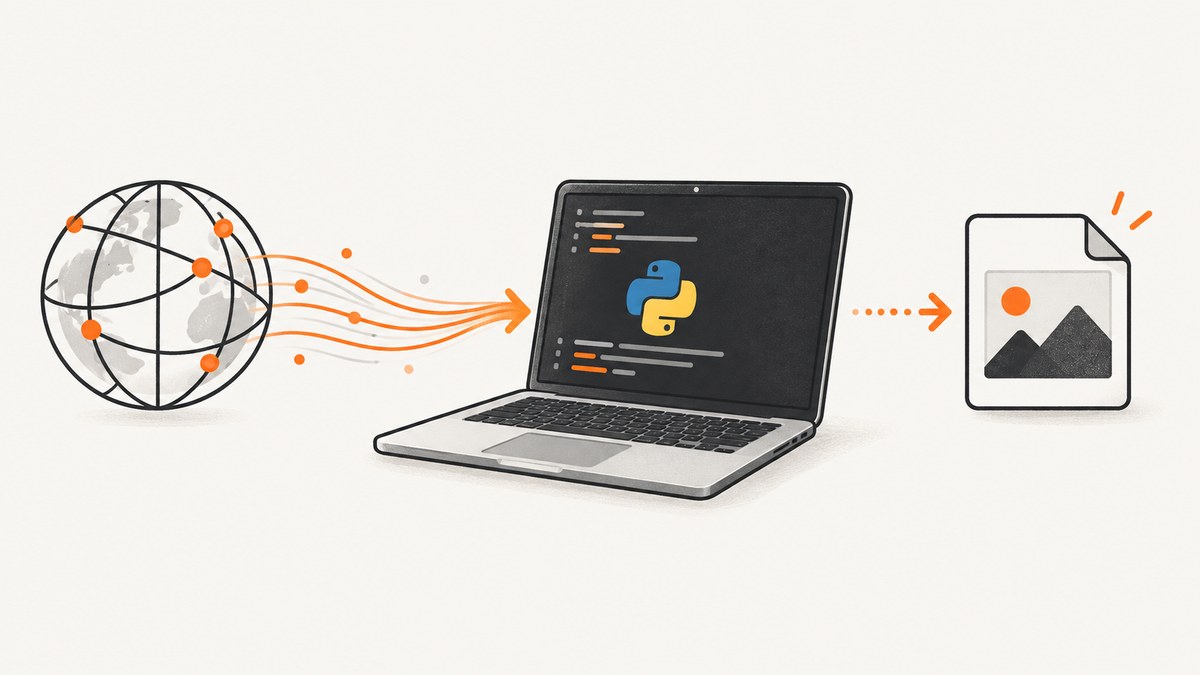
To download an image with Python, make an HTTP request, read the response body as bytes, and write those bytes to a local file opened in binary mode (wb). Use Python’s built-in urllib.request for a small dependency-free script. Use Requests when you need a clearer API, timeouts, headers, or streaming for large files.
from urllib.request import urlretrieve

urlretrieve("https://example.com/image.jpg", "image.jpg")
The short example works for a quick, trusted download. Production code should check the HTTP response, set a timeout, stream large responses in chunks, and close the response when finished.
How an image download works
An image download is not a special Python operation. It is an HTTP response whose body contains binary data. The server may identify that data with a Content-Type header such as image/jpeg or image/png. A URL ending in .jpg does not guarantee that the response is an image: it might return an HTML error page, a redirect, or an access-denied response.

Binary bytes must be preserved exactly. Open the destination with open(path, "wb"); text mode can transform data and corrupt an image. Python’s urllib.request documentation describes URL retrieval and raw response data, while Requests’ documentation covers binary files and streaming.
Option 1: download with Python’s standard library
Use urlretrieve for a compact script
from urllib.request import urlretrieve

image_url = "https://example.com/image.jpg"
destination = "downloads/image.jpg"

urlretrieve(image_url, destination)
print(f"Saved {destination}")
Create the destination directory first if it does not exist:
from pathlib import Path
from urllib.request import urlretrieve

image_url = "https://example.com/image.jpg"
destination = Path("downloads/image.jpg")
destination.parent.mkdir(parents=True, exist_ok=True)

urlretrieve(image_url, destination)
urlretrieve is useful when you want no third-party dependency and the file is reasonably small. An interrupted or short transfer can raise ContentTooShortError when the server supplied a Content-Length value and fewer bytes arrived. Catch that exception if you need to report an incomplete file and retry.
Read the response yourself with urlopen
This version gives you access to status and headers and makes the binary write explicit:
from pathlib import Path
from urllib.request import urlopen

image_url = "https://example.com/image.png"
destination = Path("image.png")

with urlopen(image_url, timeout=30) as response:
    print("status:", response.status)
    print("content type:", response.headers.get_content_type())
    with destination.open("wb") as output:
        output.write(response.read())
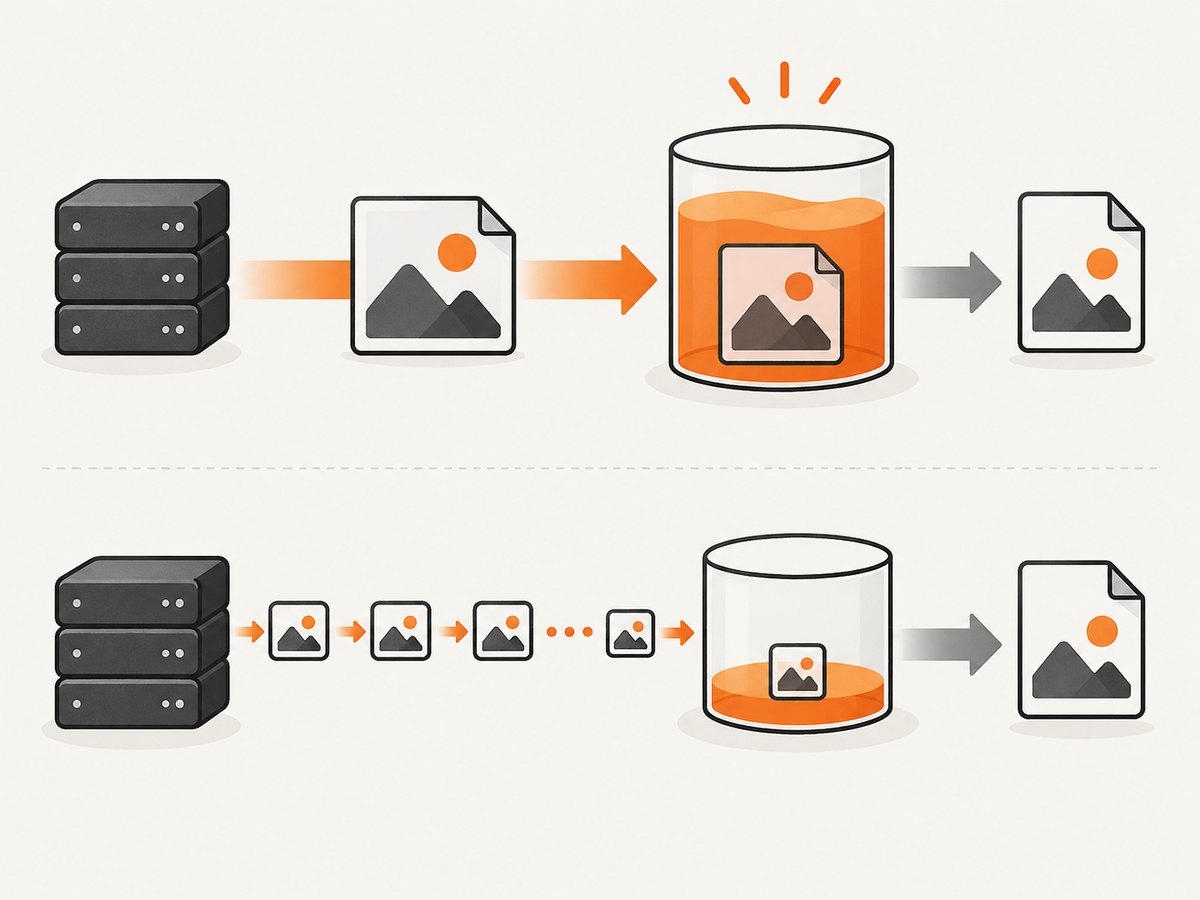
response.read() loads the complete body into memory. That is simple, but it is a poor choice for very large files. Stream chunks instead:
from pathlib import Path
from urllib.request import urlopen

image_url = "https://example.com/large-image.jpg"
destination = Path("large-image.jpg")

with urlopen(image_url, timeout=30) as response:
    with destination.open("wb") as output:
        while True:
            chunk = response.read(1024 * 1024)
            if not chunk:
                break
            output.write(chunk)
Option 2: download with Requests
Requests is often the most readable choice for application code. Its request API supports timeouts, headers, TLS verification, status checks, and streamed responses. Install it with:
python -m pip install requests
A robust streaming download
from pathlib import Path
import requests

url = "https://example.com/image.jpg"
destination = Path("downloads/image.jpg")
destination.parent.mkdir(parents=True, exist_ok=True)

with requests.get(url, stream=True, timeout=30) as response:
    response.raise_for_status()
    with destination.open("wb") as image_file:
        for chunk in response.iter_content(chunk_size=8192):
            if chunk:
                image_file.write(chunk)

print(f"Saved {destination}")
Requests recommends stream=True with iter_content and incremental writes for streamed downloads. The with statement closes the response after the file is written. If you use a streamed response without consuming it, close it so the connection can return to Requests’ connection pool. See the Requests Quickstart and advanced body-content guidance.
Set headers, authentication, and a user agent
import requests

headers = {
    "User-Agent": "my-image-downloader/1.0",
    "Accept": "image/avif,image/webp,image/apng,image/*,*/*;q=0.8",
}

with requests.get(
    "https://example.com/protected/image.jpg",
    headers=headers,
    auth=("username", "password"),
    stream=True,
    timeout=(5, 30),
) as response:
    response.raise_for_status()
    with open("protected-image.jpg", "wb") as output:
        for chunk in response.iter_content(8192):
            if chunk:
                output.write(chunk)
Keep TLS certificate verification enabled. Requests exposes a verify option and timeout controls; do not disable certificate verification merely to hide a certificate problem. Fix the certificate or network configuration instead. The Requests API reference documents these options.
Save a one-off response in memory
For a small image, you can read the body and write it in one operation:
import requests

response = requests.get("https://example.com/icon.png", timeout=30)
response.raise_for_status()

with open("icon.png", "wb") as output:
    output.write(response.content)
This is convenient, but memory use grows with the response size. Prefer the streaming example when the image may be large or when many downloads run concurrently.
Choosing a filename and format
The URL path is not always a safe or useful filename. A query-string URL may contain no extension, and a server can return a different format than the path suggests. Choose a filename yourself when the expected format is known:
from pathlib import Path
from urllib.parse import urlparse

url = "https://cdn.example.com/assets/photo?id=123"
name = Path(urlparse(url).path).name or "downloaded-image"
print(name)
For a more reliable application, inspect response.headers.get("Content-Type"), map a supported media type to an extension, and reject an unexpected type before saving. A content type is a useful signal, not a complete security policy; the response can still be malformed or untrusted.
Open or process the downloaded image with Pillow
Downloading and image processing are separate steps. Add Pillow only when you need to inspect dimensions, convert formats, resize, or otherwise manipulate the file. Pillow’s Image.open accepts a path or a file-like object.
python -m pip install Pillow
from PIL import Image

with Image.open("downloads/image.jpg") as image:
    print(image.format, image.size, image.mode)
    image.thumbnail((1200, 1200))
    image.save("downloads/image-small.webp", format="WEBP")
Do not use Pillow just to download bytes. Keeping retrieval and processing separate makes failures easier to diagnose and avoids an unnecessary dependency.
Download several images
A simple sequential loop is easiest to reason about and avoids opening too many connections:
from pathlib import Path
import requests

jobs = [
    ("https://example.com/a.jpg", "a.jpg"),
    ("https://example.com/b.png", "b.png"),
]

folder = Path("downloads")
folder.mkdir(exist_ok=True)

for url, filename in jobs:
    path = folder / filename
    with requests.get(url, stream=True, timeout=30) as response:
        response.raise_for_status()
        with path.open("wb") as output:
            for chunk in response.iter_content(8192):
                if chunk:
                    output.write(chunk)
    print(f"saved {path}")
For higher throughput, use a bounded worker pool and a shared requests.Session, but keep concurrency within the source site’s terms and your network limits. Add retries with backoff only for failures that are safe to repeat, such as a dropped connection. Do not blindly retry authentication failures or every HTTP status.
Or skip the browser setup
If the image you need is a screenshot of a web page, ScreenshotNeo returns the captured image from one API request. It handles the browser work for you, including full-page or element capture, viewport and device settings, JavaScript, custom headers and cookies, waiting rules, and output as PNG, JPEG, WebP, or PDF.
Use the ScreenshotNeo API documentation for all options. The response body is still ordinary image bytes, so you can save it with the same binary-write pattern:
curl -G "https://api.screenshotneo.com/v1/shot" -d access_key=YOUR_API_KEY --data-urlencode url=https://stripe.com -o shot.webp
import requests

r = requests.get("https://api.screenshotneo.com/v1/shot", params={"access_key": "YOUR_API_KEY", "url": "https://stripe.com"}, timeout=90)
r.raise_for_status()
open("shot.webp", "wb").write(r.content)
const q = new URLSearchParams({ access_key: 'YOUR_API_KEY', url: 'https://stripe.com' });
const res = await fetch(`https://api.screenshotneo.com/v1/shot?${q}`);
if (!res.ok) throw new Error(`HTTP ${res.status}`);
const buffer = Buffer.from(await res.arrayBuffer());
require('fs').writeFileSync('shot.webp', buffer);
Cookie banners, newsletter popups, and chat widgets are removed before the shot. Bot checks, blank pages, failed loads, timeouts, and cache hits are not billed, and the response identifies the page verdict and billing state in X-Page-Verdict and X-Billed headers. ScreenshotNeo also provides an MCP server so Claude, Cursor, and other MCP clients can take screenshots. The Free plan includes 1,000 screenshots each month with no card; paid plans start at $5 for 3,000 shots. Create a free ScreenshotNeo account.
Troubleshooting common download errors
| Symptom | Likely cause | Fix |
|---|---|---|
HTTPError: 404 |
The resource does not exist at that URL. | Check the URL, path, and query parameters. Do not save the error page as an image. |
HTTPError: 403 |
The server requires authorization, a specific header, or permits no automated access. | Use documented authentication or headers, and follow the site’s access rules. |
ReadTimeout or TimeoutError |
The server or network took too long. | Set separate connect and read timeouts, retry safe requests with backoff, and check the URL independently. |
| Image viewer says the file is corrupt | The response was HTML, JSON, truncated, or written in text mode. | Use wb, call raise_for_status(), inspect Content-Type, and ensure the stream was fully consumed. |
| Memory usage is high | The entire response was loaded with read() or response.content. |
Use stream=True and iter_content (or a chunked urlopen loop). |
| Only part of the file was saved | The connection ended early or the process stopped during transfer. | Use a response context manager, handle ContentTooShortError where applicable, delete the partial file, and retry. |
| SSL certificate error | Your certificate store, proxy, or system clock is misconfigured. | Repair the trust store or proxy configuration. Keep certificate verification enabled. |
Performance, reliability, and cost considerations
- Memory: streaming keeps memory roughly bounded by your chunk size instead of the full image.
- Chunk size: 8 KiB is a safe default; larger chunks can reduce overhead for large files, while smaller chunks may help with constrained memory.
- Connections: close streamed responses. A
Sessioncan reuse connections for multiple downloads. - Timeouts: always set one in unattended jobs. A tuple such as
timeout=(5, 30)separates connection and read time. - Retries: retry transient network failures selectively, with a limit and backoff. Avoid duplicate side effects if the endpoint is not safe to repeat.
- Disk safety: write to a temporary path and rename it after a successful transfer when consumers must never see partial files.
- Validation: check status and, when relevant, content type and maximum permitted size before processing untrusted data.
- Service cost: direct HTTP downloads usually incur your network and storage costs. ScreenshotNeo charges only for clean screenshot captures; failed loads, bot checks, blank pages, timeouts, and cache hits are not billed.
Frequently asked questions
Can I download an image without installing a package?
Yes. urllib.request is included with Python. Use Requests when its streaming and request controls make the code easier to maintain.
Why must the file be opened with wb?
An image is binary data. Binary write mode preserves every byte; text mode can apply newline or encoding transformations.
Should I check the file extension?
Use the server’s content type and, when needed, inspect the file itself. A URL extension alone is not proof that the body is an image.
When should I use Pillow?
Use Pillow after downloading when you need to open, inspect, resize, convert, or transform the image. It is not required for saving bytes.
Is urlretrieve suitable for very large files?
It can work, but an explicit streamed loop gives you clearer control over memory, progress, validation, and cleanup.


