How to Download an Image from a Website with Selenium and Python
Use Selenium to find a rendered image URL, then download the original bytes with Python, including lazy-loaded and session-protected images.
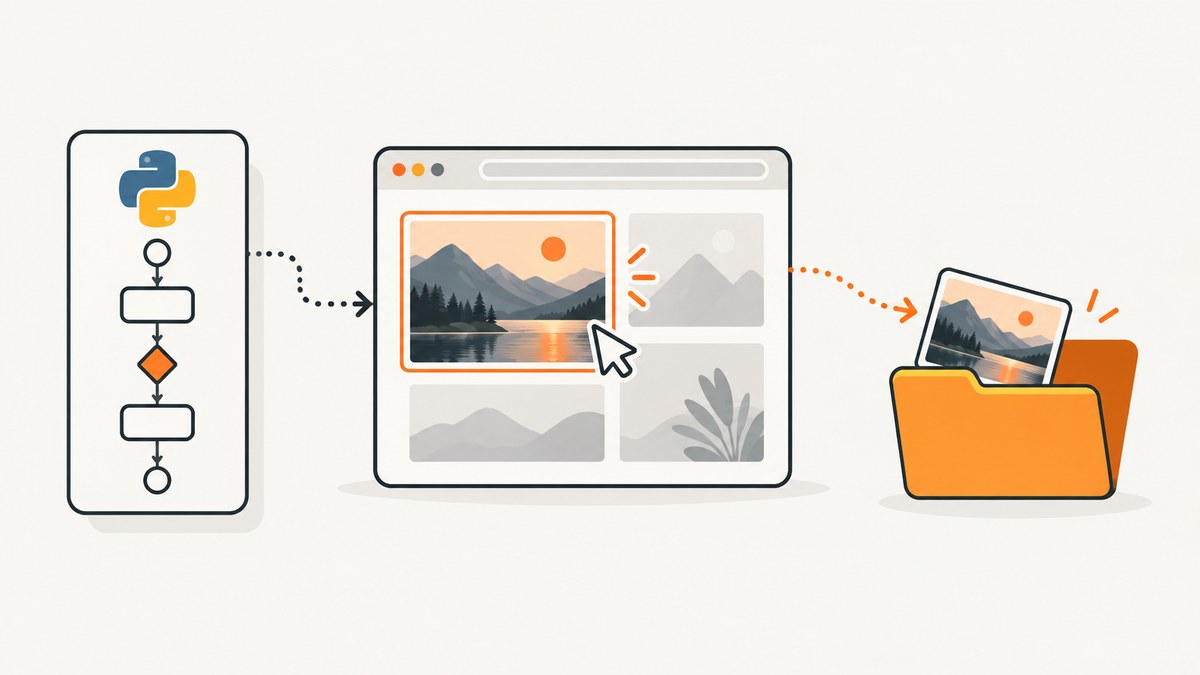
Direct answer: use Selenium to load the page and wait for the target <img>, read its resolved URL with currentSrc, then use Python HTTP code to fetch the original bytes and write them in binary mode. Selenium’s save_screenshot() captures browser pixels; it does not download the image element’s source file.
This split is useful because Selenium handles JavaScript, scrolling, consent dialogs, and login state, while an HTTP client handles the file transfer. The examples below use the Selenium Python bindings documented by the Selenium project.
1. Install Selenium and prepare a browser
Use an isolated environment and install Selenium and Requests:
python -m venv .venv
source .venv/bin/activate       # Windows: .venv\\Scripts\\activate
python -m pip install -U selenium requests
Recent Selenium versions can use Selenium Manager to obtain a compatible driver. Keep your browser and Selenium package current, and verify the browser support matrix for your deployment.
2. Complete example: find and download the displayed image
Replace PAGE_URL and IMAGE_SELECTOR with values for the page you control or are authorized to access. The script waits for the image, scrolls it into view so lazy loading can start, chooses the browser-resolved currentSrc, checks the HTTP response, and saves bytes.
from pathlib import Path
from urllib.parse import urlparse
import mimetypes

import requests
from selenium import webdriver
from selenium.webdriver.common.by import By
from selenium.webdriver.support.ui import WebDriverWait
from selenium.webdriver.support import expected_conditions as EC

PAGE_URL = 'https://example.com/gallery'
IMAGE_SELECTOR = 'img.product-image'
OUTPUT_BASENAME = 'downloaded-image'

options = webdriver.ChromeOptions()
# options.add_argument('--headless=new')  # Enable on servers without a desktop.

driver = webdriver.Chrome(options=options)

try:
    driver.get(PAGE_URL)

    image = WebDriverWait(driver, 30).until(
        EC.presence_of_element_located((By.CSS_SELECTOR, IMAGE_SELECTOR))
    )

    driver.execute_script(
        "arguments[0].scrollIntoView({block: 'center'});", image
    )

    # currentSrc is the URL selected by the browser for srcset/picture.
    image_url = image.get_attribute('currentSrc') or image.get_attribute('src')
    if not image_url:
        raise RuntimeError('The image has no currentSrc or src attribute')

    response = requests.get(
        image_url,
        timeout=(10, 60),
        headers={'User-Agent': 'Mozilla/5.0'},
    )
    response.raise_for_status()

    content_type = response.headers.get('content-type', '').split(';', 1)[0].lower()
    if not content_type.startswith('image/'):
        raise RuntimeError(
            f'Expected an image response, got {content_type or "unknown"}'
        )

    extension = mimetypes.guess_extension(content_type) or ''
    output_path = Path(f'{OUTPUT_BASENAME}{extension}')
    output_path.write_bytes(response.content)
    print(f'Saved {len(response.content)} bytes to {output_path}')
finally:
    driver.quit()
presence_of_element_located confirms that the element exists. If you need to ensure it is visible, use visibility_of_element_located. Neither condition guarantees that a site-specific image request has finished, so inspect the element’s attributes and, where necessary, wait for a non-placeholder URL or a natural width greater than zero.
3. How to get the correct image URL
Use currentSrc for responsive images
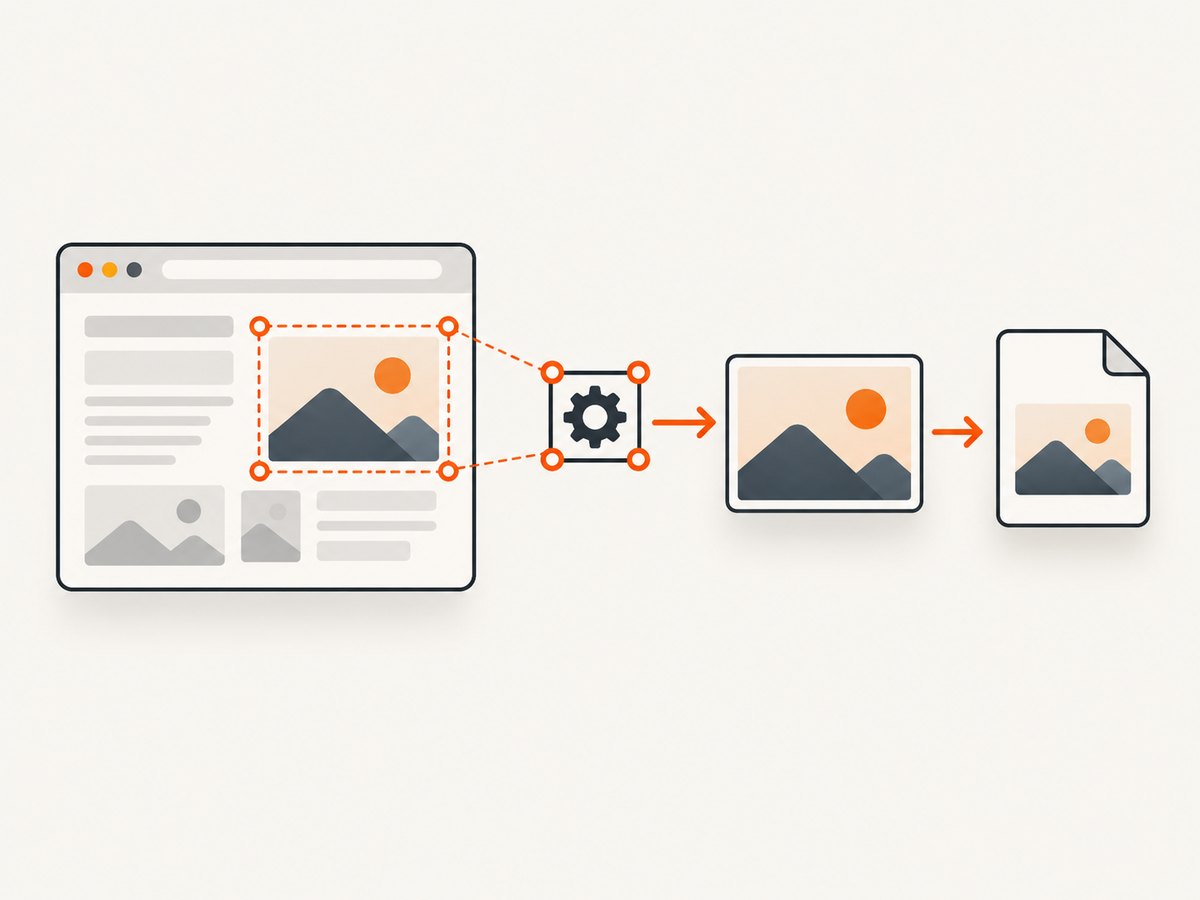
A page may contain srcset or a <picture> element. currentSrc is the resource the browser selected for the current viewport and pixel density. Fall back to src for simple images.
image_url = (
    image.get_attribute('currentSrc')
    or image.get_attribute('src')
    or image.get_attribute('data-src')
)
print(image_url)
Handle lazy loading
Lazy loaders commonly keep the real URL in data-src, data-lazy-src, or srcset until the image approaches the viewport. Scroll the element into view, wait briefly for the site’s own state change, then read currentSrc again.
driver.execute_script("arguments[0].scrollIntoView({block: 'center'});", image)
WebDriverWait(driver, 20).until(
    lambda d: d.execute_script(
        "return arguments[0].complete && arguments[0].naturalWidth > 0;", image
    )
)
image_url = image.get_attribute('currentSrc') or image.get_attribute('src')
Choose a stable selector
Prefer a semantic class, ID, or data attribute over a generated CSS class. If a page contains many images, locate a product card, article, or gallery first, then search inside that container.
card = WebDriverWait(driver, 30).until(
    EC.presence_of_element_located((By.CSS_SELECTOR, '[data-product-id="123"]'))
)
image = card.find_element(By.CSS_SELECTOR, 'img')
image_url = image.get_attribute('currentSrc') or image.get_attribute('src')
4. Download with browser cookies when the image is protected
A direct requests.get() may receive a login page or 403 response even though the browser can display the image. The current Selenium Python API documents driver.request as an HTTP request context synchronized with browser cookies. Check the API for your installed Selenium version before using it.
# After loading the page and obtaining image_url:
api_response = driver.request('GET', image_url)
if api_response.status_code < 200 or api_response.status_code >= 300:
    raise RuntimeError(f'Image request failed: {api_response.status_code}')

content_type = api_response.headers.get('content-type', '').split(';', 1)[0]
if not content_type.startswith('image/'):
    raise RuntimeError(f'Expected image content, got {content_type}')

with open('protected-image', 'wb') as output:
    output.write(api_response.body)
If your Selenium release exposes a different response-body property, follow that release’s API reference. Another portable option is to copy cookies deliberately:
session = requests.Session()
for cookie in driver.get_cookies():
    session.cookies.set(cookie['name'], cookie['value'], domain=cookie.get('domain'), path=cookie.get('path', '/'))

response = session.get(image_url, timeout=60)
response.raise_for_status()
Path('protected-image').write_bytes(response.content)
Some sites also require a Referer, authorization header, or a short-lived signed URL. Reproduce only the headers and access you are authorized to use.
5. Save a safe filename and preserve the format
The URL path may have no extension or may end in a query string. Prefer the response Content-Type, then fall back to the URL path:
from pathlib import Path
from urllib.parse import urlparse
import mimetypes

media_type = response.headers.get('content-type', '').split(';', 1)[0].lower()
extension = mimetypes.guess_extension(media_type)
if not extension:
    extension = Path(urlparse(image_url).path).suffix or '.bin'

Path(f'asset{extension}').write_bytes(response.content)
Always open the output in binary mode or use Path.write_bytes. Writing decoded text corrupts image files.
6. Screenshot versus original image download
Use Selenium’s screenshot API only when the desired artifact is the rendered browser view:
driver.save_screenshot('viewport.png')This creates a PNG of the current window. It does not preserve the original JPEG, WebP, SVG, or other file served to the <img> element. To obtain that asset, retrieve the element URL and download its response.
7. cURL, Python, and Node.js alternatives
Download a known image URL with cURL
curl -L --fail --output image.bin 'https://cdn.example.com/photo.jpg'Download a known image URL with Python
import requests

r = requests.get('https://cdn.example.com/photo.jpg', timeout=60)
r.raise_for_status()
with open('photo.jpg', 'wb') as f:
    f.write(r.content)
Download a known image URL with Node.js
const fs = require('node:fs/promises');

const res = await fetch('https://cdn.example.com/photo.jpg');
if (!res.ok) throw new Error(`${res.status} ${res.statusText}`);
await fs.writeFile('photo.jpg', Buffer.from(await res.arrayBuffer()));
These clients do not render JavaScript. Use Selenium first when the URL appears only after interaction, login, or client-side rendering.
8. Troubleshooting common failures
| Symptom | Likely cause | Fix |
|---|---|---|
| Element not found | Wrong selector, iframe, or content not loaded | Inspect the DOM, wait for a page-specific condition, and switch into the correct iframe when applicable. |
| Page loaded but image is absent | AJAX or framework rendering continues after navigation | Wait for the image or application state instead of relying on the page-load event. |
| Empty, placeholder, or thumbnail URL | Lazy loading or responsive image selection | Scroll into view, wait for naturalWidth > 0, and read currentSrc, src, and site-specific data attributes. |
| Downloaded file contains HTML | Redirect, login page, bot check, or error response | Call raise_for_status(), inspect Content-Type, and use browser cookies or required headers. |
| 403 from Requests but image works in browser | Missing session cookie, referer, authorization, or signed URL | Use driver.request where supported or transfer the relevant cookies to a Requests session. |
| Image cannot be opened | Text mode, truncated transfer, or wrong extension | Write raw bytes, check the status and content type, and verify the file size. |
| Only a screenshot was saved | save_screenshot() was used |
Extract and download the image element’s source URL instead. |
| Download prompt appears | Browser-managed download workflow | Configure the selected browser’s download directory and completion detection. Browser preferences vary; avoid treating old Firefox examples as universal. |
| Works in one browser but not another | Driver, rendering, or selector differences | Pin and document the browser/Selenium versions, then validate waits and selectors on the target browser. |
9. Performance, reliability, and cost
- Wait precisely: explicit conditions avoid long fixed sleeps while still allowing JavaScript and lazy loading to finish.
- Reuse a driver: for multiple images on one site, keep one browser session when the login and page state can be reused. Always call
quit()in afinallyblock. - Transfer bytes outside the browser: Requests gives you streaming, timeouts, retries, and response headers without forcing the browser to manage downloads.
- Use bounded timeouts: set separate connect and read limits, and retry only transient network failures. Do not blindly retry authorization or 404 errors.
- Control memory: for very large files, stream the response in chunks instead of keeping all bytes in memory.
- Respect access rules: follow the site’s terms, robots guidance where applicable, authentication boundaries, and copyright requirements.
10. Or skip the browser setup
If you need a clean image of a webpage rather than the original file behind an <img> tag, ScreenshotNeo provides a single screenshot API request. It can accept consent banners before capture and remove more than 60 known consent platforms, newsletter popups, and chat widgets. Each step can be disabled. Bot checks, blank pages, timeouts, failed loads, and cache hits are not billed, and the response identifies the page verdict and billing status in X-Page-Verdict and X-Billed headers.
See the ScreenshotNeo API documentation for options such as full-page capture, CSS selectors, custom JavaScript, waits, cookies, headers, device presets, PDF output, caching, signed links, asynchronous jobs, and bulk capture.
curl -G "https://api.screenshotneo.com/v1/shot" -d access_key=YOUR_API_KEY --data-urlencode url=https://stripe.com -o shot.webpimport requests
r = requests.get("https://api.screenshotneo.com/v1/shot", params={"access_key": "YOUR_API_KEY", "url": "https://stripe.com"}, timeout=90)
open("shot.webp", "wb").write(r.content)const q = new URLSearchParams({ access_key: 'YOUR_API_KEY', url: 'https://stripe.com' });
const res = await fetch(`https://api.screenshotneo.com/v1/shot?${q}`);ScreenshotNeo also has an MCP server with take_screenshot, get_page_info, and capture_pdf tools for Claude, Cursor, and other MCP clients. The Free plan includes 1,000 screenshots a month with no card; paid plans start at $5 for 3,000. Create a free ScreenshotNeo account.
11. FAQ
Can Selenium download an image without Requests?
Yes, through browser-managed downloads or a browser-synchronized request where supported. Separating discovery from transfer with an HTTP client is usually easier to inspect and control.
Should I use src or currentSrc?
Use currentSrc when responsive images or <picture> are possible. Use src as a fallback for simple markup.
Why does a page-load wait not work?
The load event does not mean that framework-rendered or AJAX content has finished. Wait for the specific image, URL change, or application state your page needs.
Can I download an image inside an iframe?
Switch to the iframe before locating its image, then switch back when finished. Cross-origin restrictions may require the page’s own network request or a permitted backend flow.
What if the image is an inline data URL?
Read the src value, split the media type from the Base64 payload, decode it with Python’s base64 module, and write the resulting bytes. Do not send a data: URL to Requests.


