How to Download Images as JPG Instead of WebP
Learn why images download as WebP and how to save or convert them to JPG in Chrome, Firefox, desktop tools, Python, Node.js, and cURL.
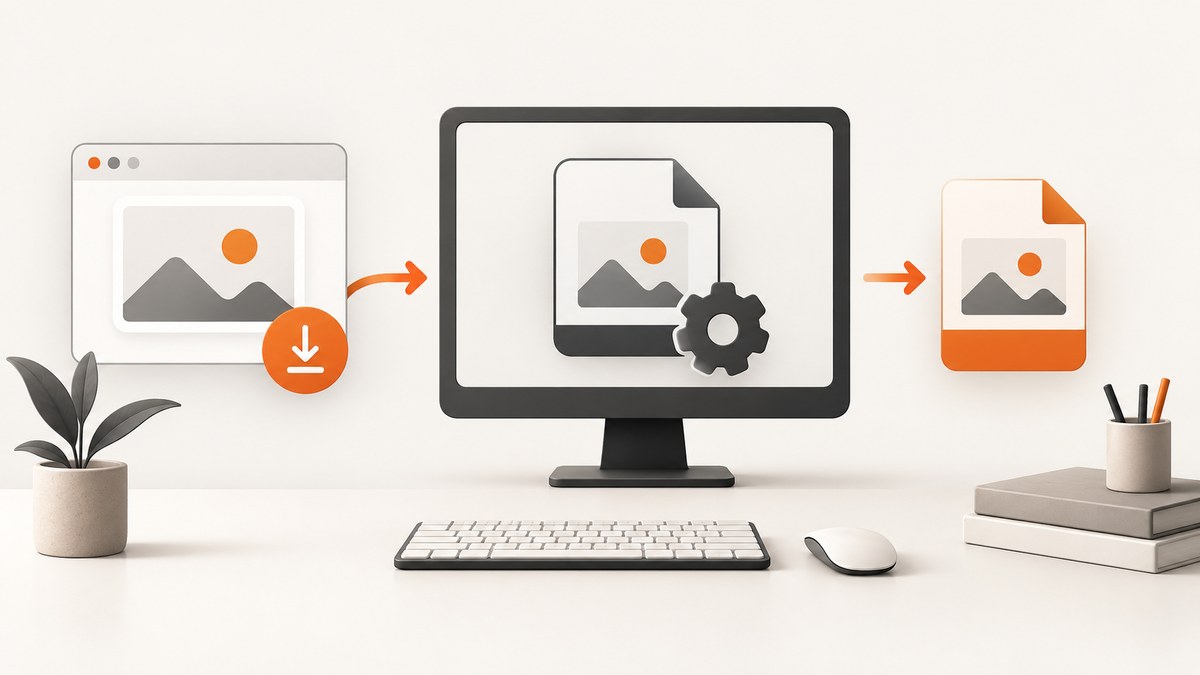
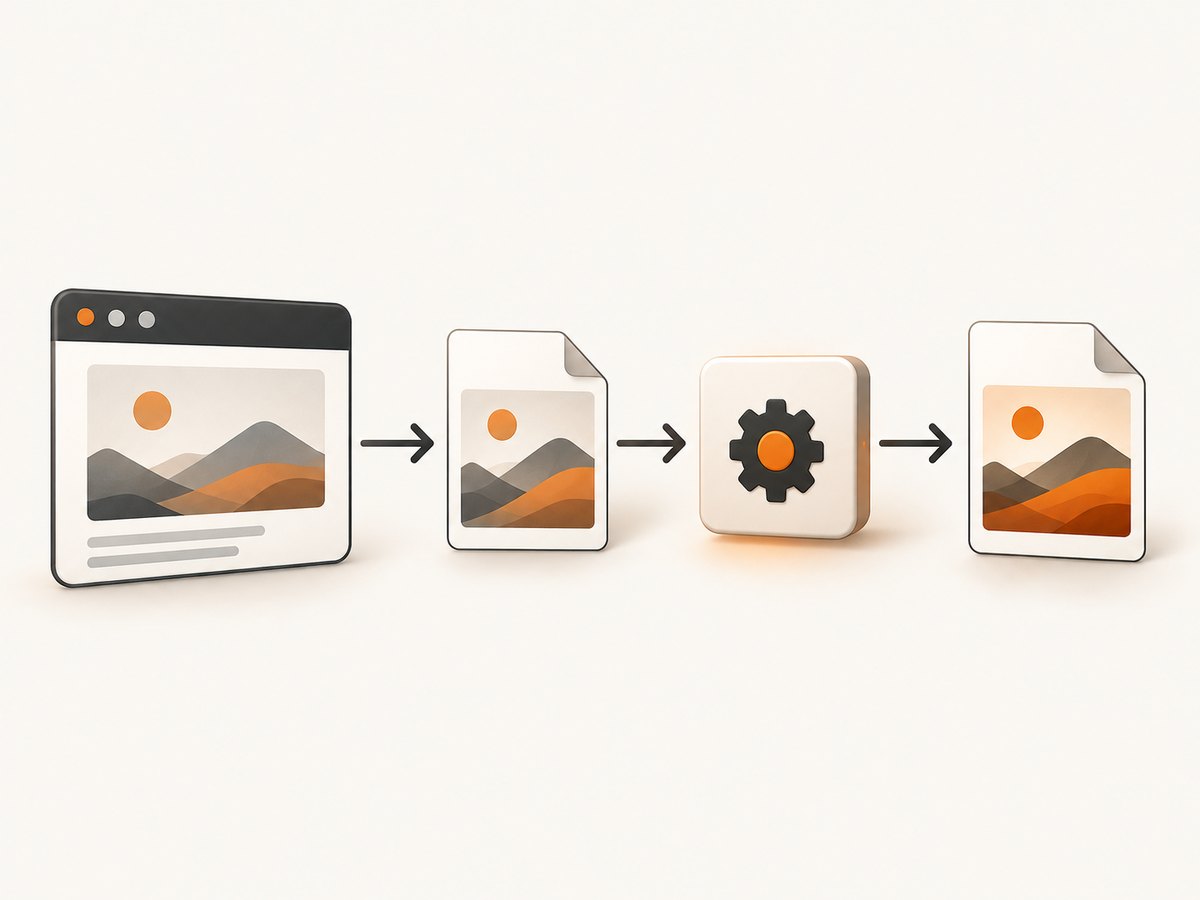
Short answer: WebP is the format many sites deliver because it usually produces smaller web files. To download a JPG, first look for the original JPG URL. If the site only exposes WebP, download that file and re-encode it as JPEG with a browser extension, an image editor, Google’s command-line tools, Python, or Node.js. Renaming .webp to .jpg does not convert the image.
Why your browser saves WebP files
WebP is a modern image format designed for efficient web delivery. Google describes it as providing “superior lossless and lossy compression” for smaller, richer images (Google WebP documentation). Current Chrome, Firefox, Safari, Edge, and Opera support WebP, so websites commonly send a WebP derivative even when the source asset may have started as JPEG or PNG.
A server can choose the response format from the browser’s Accept header, an image CDN rule, or an HTML picture element. The filename you see in a save dialog reflects the response the site selected; it does not necessarily reveal the original upload.
| Need | Best method | Trade-off |
|---|---|---|
| One occasional image | Find the original URL or use a context-menu extension | Fast, but extension permissions require review |
| Highest control | Download WebP and export JPEG locally | One extra conversion step |
| Many files | Google command-line tools, Python, or Node.js | Requires setup, but repeatable |
| Transparency | Keep WebP or export PNG | JPEG cannot store transparency |
Method 1: find and download the original JPG
- Open the image in a new browser tab.
- Inspect the address bar. Remove resizing or format parameters such as
?format=webp,?fm=webp, or a CDN path segment that requests WebP, then reload. - On a page with several responsive images, open DevTools, choose the Elements panel, and inspect the
srcsetandsourceattributes. Look for a URL ending in.jpgor.jpeg. - Save the asset only after confirming its actual type. In DevTools’ Network panel, select the image request and check the response
Content-Type.
This works only when the publisher or CDN keeps a JPEG variant. Many sites store one source image and generate WebP derivatives on demand, so an original JPG URL may not exist or may require access controls.
Method 2: save as JPG with a browser extension
Chrome
The Chrome Web Store listing for Save Image as Type says its context menu can save an image as JPG, PNG, PDF, GIF, or WebP (Chrome Web Store). Install it only after checking the current publisher, permissions, reviews, and update history. Right-click an image, choose the extension’s save command, select JPG, and choose a destination.
Firefox
The Firefox Add-ons listing for Save Image as Type states that it converts WebP to JPG in the browser rather than merely changing the filename (Firefox Add-ons). Right-click the image, select the add-on action, choose JPEG, and save the result. Browser stores change listings and permissions, so verify the current details before installing.
Extensions are convenient for a handful of public images. For private material, a local conversion script avoids uploading pixels to a third-party service. Do not install an add-on solely because its name matches another listing.
Method 3: download WebP, then convert it locally
Using Google’s command-line utilities
Google publishes WebP utilities, including dwebp, for repeatable conversions (precompiled WebP utilities). After installing the package for your operating system:
dwebp input.webp -o output.png
cwebp -jpeg -q 90 output.png -o output.jpg
The first command decodes WebP to PNG; the second encodes JPEG at quality 90. You can often convert directly with a graphical image editor that opens WebP and exports JPEG. Preserve the original WebP so you can re-export at a different quality later.
Python with Pillow
Install Pillow with python -m pip install Pillow. This script converts one file, handles transparency by compositing it over a chosen background, and keeps the source untouched:
from pathlib import Path
from PIL import Image

source = Path("input.webp")
destination = Path("output.jpg")

with Image.open(source) as image:
    image.load()
    if image.mode in ("RGBA", "LA") or (image.mode == "P" and "transparency" in image.info):
        rgba = image.convert("RGBA")
        background = Image.new("RGB", rgba.size, "white")
        background.paste(rgba, mask=rgba.getchannel("A"))
        result = background
    else:
        result = image.convert("RGB")
    result.save(destination, "JPEG", quality=90, optimize=True, progressive=True)

print(f"Wrote {destination}")
JPEG has no alpha channel. The script therefore places transparent pixels on white; choose another background color if white is not appropriate.
Node.js with Sharp
Install the image library with npm install sharp, then run:
import sharp from "sharp";

await sharp("input.webp")
  .flatten({ background: "#ffffff" })
  .jpeg({ quality: 90, progressive: true, mozjpeg: true })
  .toFile("output.jpg");

console.log("Wrote output.jpg");
Remove flatten only when the input is already opaque. Sharp can process batches efficiently, but limit concurrency if you are converting very large files or running in a memory-constrained container.
Method 4: download with cURL or Python before conversion
Use cURL when you need a deterministic download, redirects, and a scriptable pipeline:
curl -L --fail --retry 3 "https://example.com/image.webp" -o input.webp
# Then convert input.webp with dwebp/cwebp, Pillow, Sharp, or an editor.
Python’s standard library can download the bytes; Pillow performs the conversion:
from io import BytesIO
import requests
from PIL import Image

url = "https://example.com/image.webp"
response = requests.get(url, timeout=30)
response.raise_for_status()
with Image.open(BytesIO(response.content)) as image:
    image.convert("RGB").save("output.jpg", "JPEG", quality=90)
For authenticated or private assets, supply the required cookies or authorization headers only when you are permitted to access the image. Respect the site’s terms and robots policies.
Choosing JPEG quality and handling transparency
JPEG is a lossy format intended for photographic still images; MDN lists .jpg and .jpeg as common extensions (MDN image file type guide). A quality value around 85–92 is a practical starting point. Higher values increase file size and may still introduce artifacts; lower values create smaller files but can blur text, edges, and fine texture.
- Keep WebP when the image is already visually acceptable, file size matters, or it contains transparency.
- Use PNG for logos, line art, screenshots, and images that need transparency or crisp flat colors.
- Use JPEG for photographs and workflows that require broad legacy compatibility.
- Do not repeatedly convert JPEG to JPEG. Keep a lossless source and create the final JPEG once.
Batch conversion workflow
For a directory of WebP files, a shell loop with the WebP utilities is simple:
mkdir -p jpg
for file in webp/*.webp; do
  name=$(basename "$file" .webp)
  dwebp "$file" -o "jpg/$name.png"
  cwebp -jpeg -q 90 "jpg/$name.png" -o "jpg/$name.jpg"
  rm "jpg/$name.png"
done
For production pipelines, validate the output with an image decoder, retain the source filename and dimensions in metadata, and write to a temporary path before renaming. That prevents an interrupted process from leaving a partial JPEG that looks complete.
Or skip the browser setup
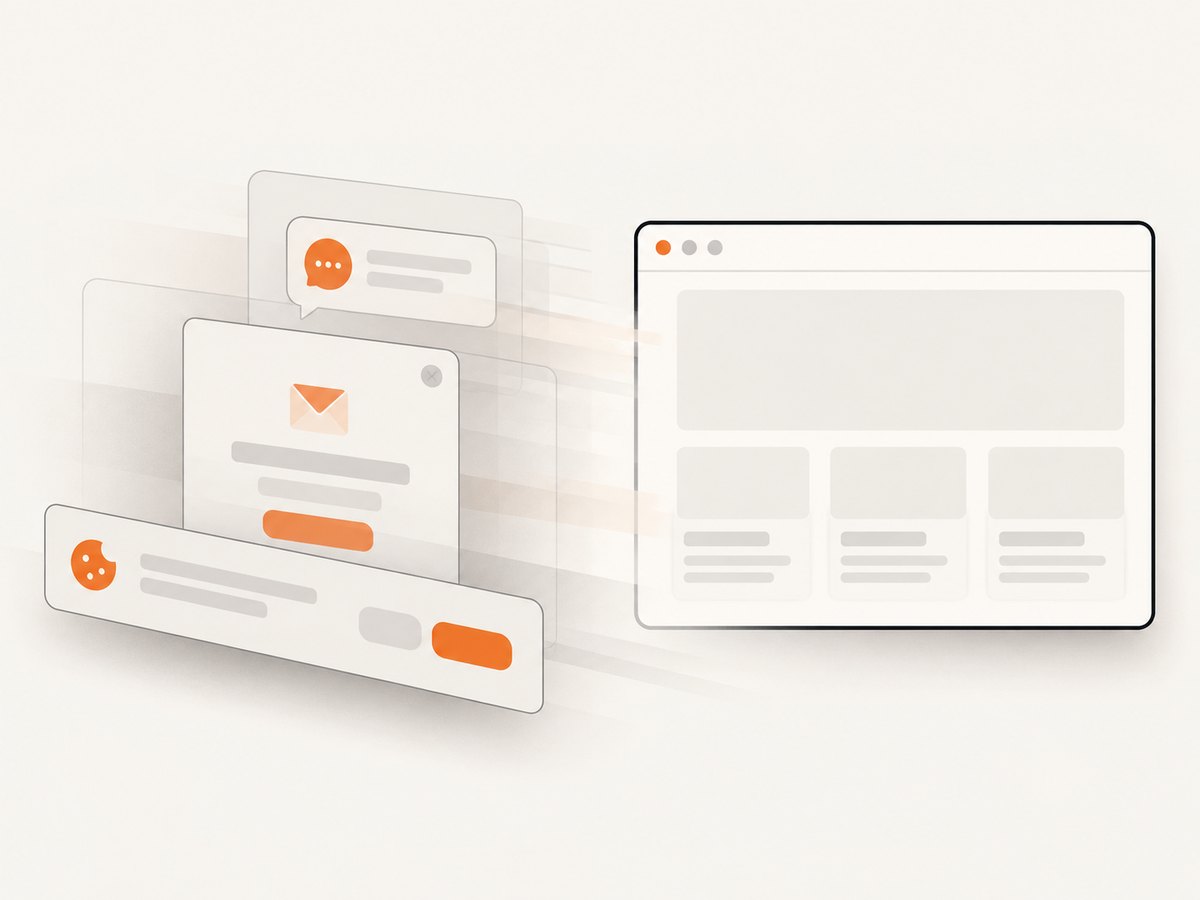
If your goal is to capture a webpage as a JPG rather than download one asset, ScreenshotNeo returns a clean screenshot in PNG, JPEG, WebP, or PDF from one request. It accepts the cookie or consent banner like a visitor and removes more than 60 known consent platforms, newsletter popups, and chat widgets before capture; each step can be disabled. Bot checks, blank pages, timeouts, failed loads, and cache hits are not billed, and response headers report the page verdict and billing status.
See the ScreenshotNeo API documentation for all options. This cURL request asks for a WebP response; change the output extension and add the format parameter supported by the API when you need JPEG:
curl -G "https://api.screenshotneo.com/v1/shot" -d access_key=YOUR_API_KEY --data-urlencode url=https://stripe.com -o shot.webpimport requests
r = requests.get("https://api.screenshotneo.com/v1/shot", params={"access_key": "YOUR_API_KEY", "url": "https://stripe.com"}, timeout=90)
open("shot.webp", "wb").write(r.content)const q = new URLSearchParams({ access_key: 'YOUR_API_KEY', url: 'https://stripe.com' });
const res = await fetch(`https://api.screenshotneo.com/v1/shot?${q}`);You can also capture one element, wait for a selector or network idle, load lazy images in a full-page shot, set a device or viewport, apply custom CSS or JavaScript, block ads and trackers, set cookies and headers, choose a timezone or geolocation, resize the result, cache with a chosen TTL, create signed links, submit asynchronous jobs, capture up to 100 URLs in one bulk call, and use the MCP server tools take_screenshot, get_page_info, and capture_pdf from Claude, Cursor, or another MCP client.
The Free plan includes 1,000 screenshots per month with no card. Paid plans start at $5 for 3,000 shots; every feature is available on every plan. Create a free ScreenshotNeo account to start.
Troubleshooting
The file is still WebP after I renamed it
Renaming changes only the filename. Check the file signature or open it in an image viewer, then perform a real decode and JPEG encode with an editor, cwebp, Pillow, or Sharp.
The converted JPG has a black background
The source contains transparency, while JPEG does not. Composite the image onto white or another explicit color before encoding, as shown in the Pillow and Sharp examples.
The JPG is much larger than the WebP
WebP is optimized for compact web delivery. Reduce JPEG quality gradually, remove unnecessary metadata, and compare dimensions before increasing compression. A larger file is expected when compatibility is prioritized.
The extension cannot save the image
The image may be inside a canvas, protected by a cross-origin policy, loaded only after scrolling, or replaced by a CSS background. Use the original network URL or download the response with cURL if you have permission.
The output looks blurry or has ringing around text
JPEG artifacts become visible around sharp edges and repeated edits. Start from the original WebP, increase quality, avoid multiple conversions, or choose PNG for screenshots and diagrams.
The script fails with an unsupported image error
Confirm that the download is actually an image. A 403, login page, bot check, or HTML error can be saved with a .webp suffix. Check the HTTP status and Content-Type, follow redirects, and authenticate only through an authorized workflow.
Performance, reliability, and cost notes
- Performance: Local conversion avoids upload latency. Batch tools are faster than opening files manually, while very large images need sufficient memory and temporary disk space.
- Reliability: Keep originals, write outputs atomically, validate dimensions and decodeability, and record the conversion quality used.
- Privacy: Prefer local tools for confidential images. Review browser-extension permissions before installation.
- Cost: Local utilities and open-source libraries do not charge per conversion, though storage and compute still have an operational cost. Online converters may impose limits or retain uploads; read their policies before sending sensitive files.
- Screenshot capture: ScreenshotNeo bills only clean shots. Failed loads, bot checks, blank pages, timeouts, and cache hits cost nothing, with
X-Page-VerdictandX-Billedheaders explaining each response.
FAQ
Is JPG the same as JPEG?
Yes. They refer to the same JPEG image format; .jpg became common because older systems preferred three-letter extensions.
Can I convert WebP to JPG without losing quality?
Not perfectly. JPEG encoding is usually lossy, so keep the WebP source and export at a high quality. If the source is lossless WebP, conversion to JPEG can still introduce loss.
Will converting remove metadata?
It depends on the tool and settings. Some converters strip metadata by default; others preserve selected fields. Check the output if copyright, orientation, or color-profile metadata matters.
Why does a website offer no JPG option?
The site or image CDN may generate only WebP for browsers that support it. You can request the original URL when available or perform a local conversion.
Can ScreenshotNeo return a single image instead of a page screenshot?
ScreenshotNeo is for webpage captures, including full pages and selected elements. For a standalone downloaded asset, use the original URL and a local converter; use ScreenshotNeo when you need a rendered page or element in a chosen output format.


