How to Download Images from Websites with a Browser Extension
Learn how to save one image or collect many from a webpage with a browser extension, while handling permissions, filters, duplicates and failures.
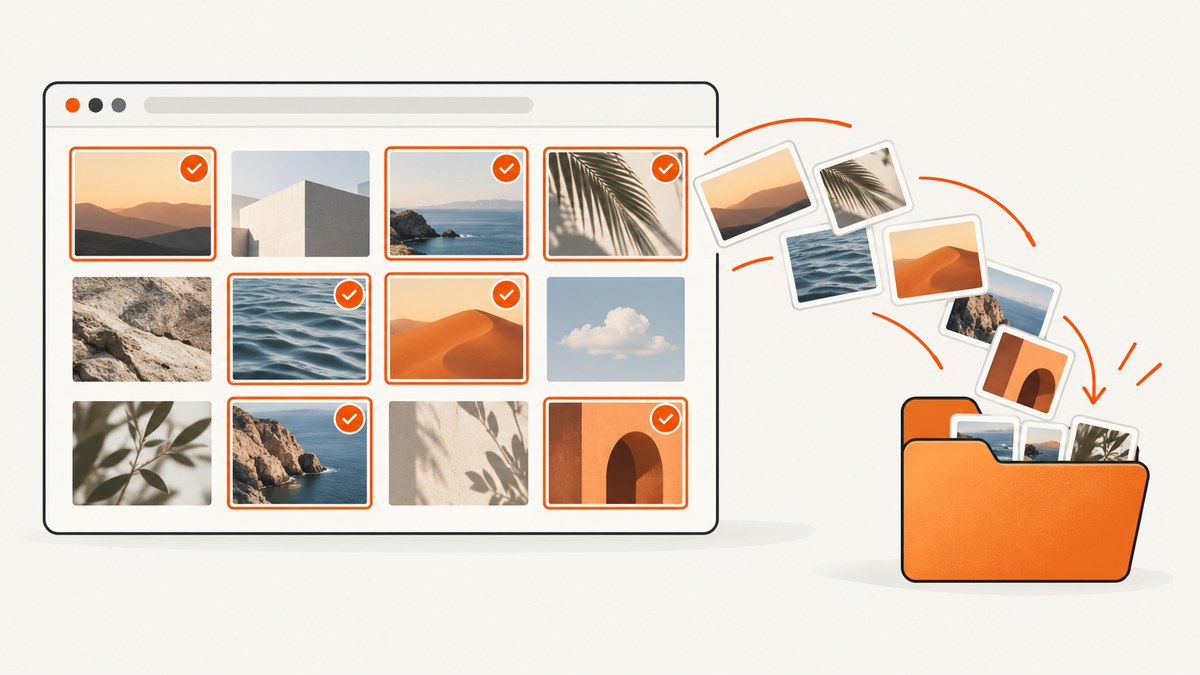
For one image, right-click it and choose the browser’s save-image command. For a page containing many images, an image-downloader extension can scan the active page, let you filter the results, select files, and send them through the browser’s normal download flow. The exact controls vary by browser and extension, and no extension is guaranteed to find every image on every website.
1. Save a single image without an extension
Extensions are useful for bulk work, but they add permissions and another moving part. Start with the browser itself when you need one visible image.
- Open the page containing the image.
- Right-click the image. Choose an option such as Save image as or the equivalent in your browser.
- Choose a filename and destination. If the browser asks where to save files, select a folder; otherwise the file normally goes to the configured Downloads folder.
- Open the browser’s downloads list to confirm the file and its location. Chrome documents downloading files and moving them to another folder in its download help: Download a file.
If the context menu has no save-image command, the picture may be a background image, a canvas drawing, a protected viewer, or part of a page that is still loading. Do not assume that changing the file extension will create an original image. Save only content you have permission to use.
2. Install an image-downloader extension safely
Use the official extension store for your browser. Chrome and Firefox listings include tools named Image Downloader and Download All Images; their available controls and permissions are described in their store pages, not independently verified compatibility tests.
- Open the browser’s official extension store and search for an image downloader compatible with your browser.
- Read the publisher name, description, update information, reviews and requested permissions.
- Install only after you understand why the extension needs access. Chrome Help explains that users can review and decide which permissions to grant: Install and manage extensions.
- Pin the extension to the toolbar if you expect to use it regularly.
- Open a page with images before activating the extension. Some extensions inspect the active page only after their popup is opened.
A downloader needs a way to inspect page content. The Chrome Web Store listing for Image Downloader says it accesses content on the active webpage when its popup is activated. Firefox’s Image Downloader listing includes browser-tab access among its permissions. Treat those statements as the extension’s declared behavior, and review the current listing before installation because permissions and labels can change.
3. Download multiple images from a webpage
The labels below are representative. Your extension may use different names, combine steps, or omit a feature.
- Open the target page. Let the page finish loading, then scroll through it if images appear only as you move down. Lazy-loaded images may not be present in the page until you scroll.
- Activate the extension. Click its toolbar icon. The popup may show thumbnails, image URLs, dimensions, file sizes, or image types.
- Inspect the results. Remove entries that are icons, tracking pixels, sprites, avatars, or duplicate resolutions. A thumbnail does not prove that the extension found the original file.
- Filter the list. Depending on the extension, filter by minimum width or height, file size, URL, extension such as JPG or PNG, or image type. Image Downloader advertises size, dimension and URL filters plus duplicate removal; Download All Images advertises file-size, dimension and image-type filtering.
- Select files. Select individual thumbnails or use a select-all control, then deselect images you do not want. Check whether “select all” means all results or only the currently filtered results.
- Choose the destination. Some tools use the browser’s default download directory; others offer a subfolder or a configurable destination.
- Start the download. Approve any browser prompt. The files should appear in the browser download list and the selected folder.
- Verify the files. Open several files, check their dimensions and extensions, and compare filenames for duplicates. If a batch contains unexpected files, delete them and tighten the filters before trying again.
For a very long page, work in smaller batches. This makes it easier to identify which section produced a file and reduces accidental downloads of decorative assets.
4. Filters, duplicates and file types
| Need | Useful control | What to check |
|---|---|---|
| Keep only photographs | Minimum dimensions or file size | Small icons can still pass a weak threshold. |
| Avoid thumbnails | Width and height filters | The page may expose only a thumbnail URL. |
| Keep a format | Image-type or extension filter | Modern formats may be served through URLs without obvious extensions. |
| Reduce repeats | Duplicate removal | Two URLs can contain identical bytes, and one image can have several sizes. |
| Find a specific host | URL filter | CDN URLs may differ from the page’s domain. |
Filtering is a selection aid, not a conversion tool. If a site serves WebP or AVIF, an extension may save that format even when a JPEG version exists elsewhere. Do not rename a file and expect the bytes to become another format; use an image converter when you are allowed to convert it.
5. Where downloaded images go
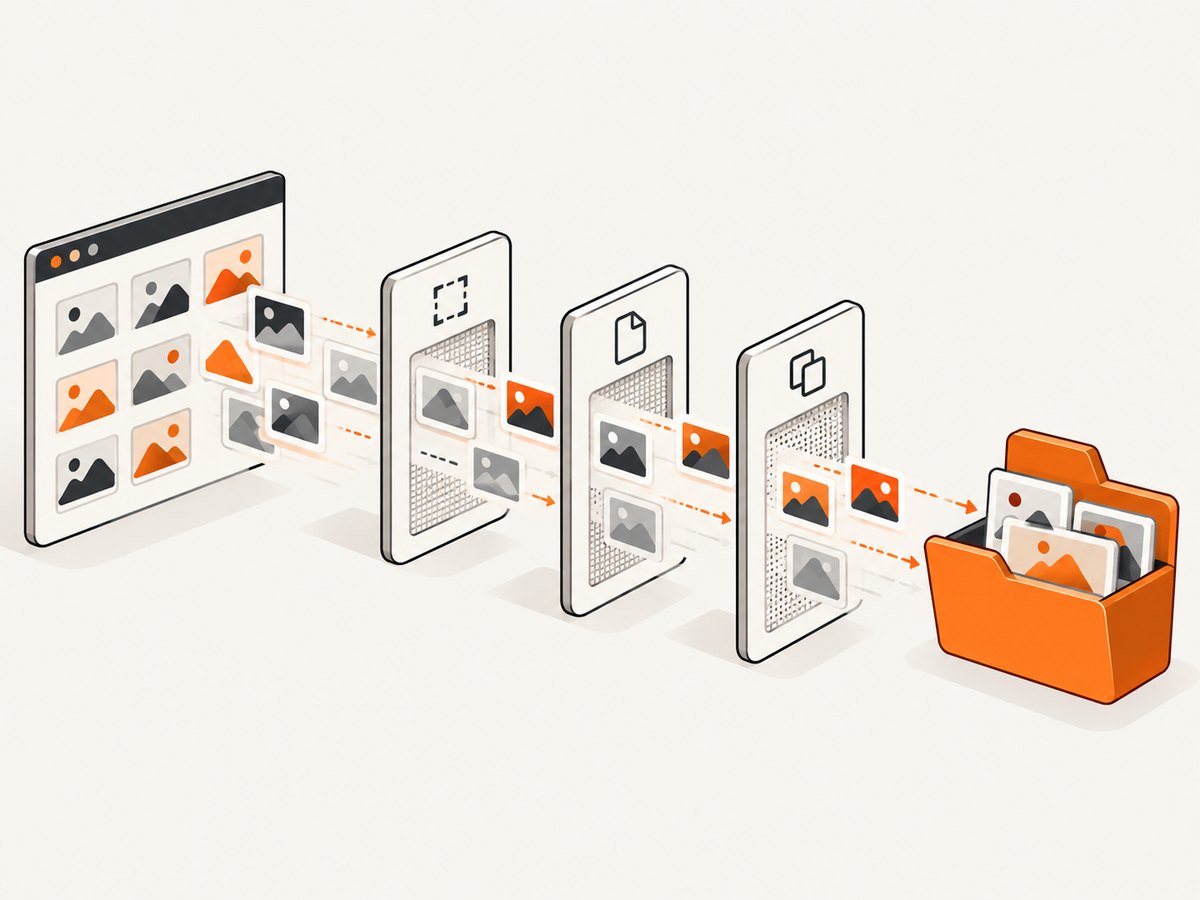
Most extensions hand files to the browser’s download manager. Look in the browser’s download list first, then open the configured Downloads folder. If the extension offers a subfolder, read its naming rules before starting a large batch. A browser may also ask for permission to download multiple files.
If files have similar names, the browser may append numbers or the extension may create its own names. Preserve the original URLs in a notes file when provenance matters. For work shared with a team, record the page URL, capture date, selected filters and any license information.
6. Permissions and privacy checklist
- Install from the relevant browser’s official store.
- Read the requested permissions in plain language. Access to active-tab or page content is expected for a scanner; broad access to all sites deserves closer review.
- Check whether the extension says data is sent to a remote service.
- Disable or remove the extension when you no longer need it.
- Do not use a downloader to bypass login controls, paywalls, robots restrictions, or other access controls.
- Confirm that you have permission to copy and reuse each image. A technically downloadable file may still be copyrighted or confidential.
Store listings describe advertised features. They do not establish that an extension works on every website, retrieves original-resolution files, or is a security guarantee.
7. Why an image may be missing
Lazy-loaded content
Scroll through the page and wait for images to appear before opening the extension. Some pages load more items only after several scrolls or a button click.
CSS backgrounds and canvas
A visible picture may be a CSS background or pixels drawn into a canvas rather than an <img> element. A downloader that scans image elements may not list it. Use the site’s own download control where provided, or ask the site owner for an authorized source.
Responsive or thumbnail URLs
Pages often contain several sizes. Compare dimensions and URLs, and choose the largest version that the page exposes and that you are allowed to use.
Login, consent or bot checks
An extension sees what your browser session can access. If the page requires authentication or displays a bot challenge, it may return the challenge image instead of the intended content. Do not attempt to defeat the challenge; use an authorized session or request the files from the publisher.
Downloads blocked
Check the browser’s download notification, site permissions and the extension’s permission to download multiple files. A corporate policy or popup blocker can also prevent a batch from starting.
8. Troubleshooting common errors
| Symptom | Likely cause | Fix |
|---|---|---|
| The popup is empty | The page has not loaded, the extension lacks access, or images are not exposed as normal elements. | Reload, scroll to load content, check site permission, and try a page with a visible image. |
| Only tiny images appear | The page exposes thumbnails or placeholders. | Increase the minimum dimensions, inspect the URL, and look for a larger source offered by the site. |
| Every image is duplicated | Several responsive URLs or query strings point to the same bytes. | Enable duplicate removal if available and compare dimensions or downloaded hashes. |
| Some files are HTML | The URL returned a login page, error page or redirect. | Open one file as text, confirm the response, sign in through the normal site flow, and retry only with authorization. |
| The browser asks repeatedly | Multiple-download protection or a destination prompt is enabled. | Review the browser’s site setting and approve only the batch you intended. |
| Names are unusable | The source URL has generated names or duplicate suffixes. | Rename after checking the file type; keep a source URL record. |
9. Performance and reliability
Scanning speed depends on page size, the number of results, lazy loading, the browser, the extension and the site’s response time. A page with hundreds of images can produce many candidate URLs, including icons and tracking assets. Filter before downloading, batch large jobs, and keep the tab open until the browser reports completion.
For repeatable work, extensions are less predictable than a URL-based capture workflow because page scripts, login state, consent dialogs and browser settings change. Save the source page and filter settings with your batch. Recheck a sample after a browser or extension update.
10. Or skip the browser setup
If your goal is a clean image of a webpage rather than extracting the site’s original image files, ScreenshotNeo returns a screenshot from one GET request. It accepts PNG, JPEG or WebP output, supports full-page capture with lazy images loaded, element capture by CSS selector, custom CSS and JavaScript, dark mode, device presets, any viewport, retina scale, hiding selectors, waits, blocked resource types, headers, cookies, user agents, authorization, timezone, geolocation, transparent backgrounds, resizing, caching, signed links, asynchronous webhooks, bulk capture and PDF output. See the ScreenshotNeo API documentation for parameter details.

curl -G "https://api.screenshotneo.com/v1/shot" -d access_key=YOUR_API_KEY --data-urlencode url=https://stripe.com -o shot.webpimport requests
r = requests.get("https://api.screenshotneo.com/v1/shot", params={"access_key": "YOUR_API_KEY", "url": "https://stripe.com"}, timeout=90)
open("shot.webp", "wb").write(r.content)const q = new URLSearchParams({ access_key: 'YOUR_API_KEY', url: 'https://stripe.com' });
const res = await fetch(`https://api.screenshotneo.com/v1/shot?${q}`);Cookie banners, newsletter popups and chat widgets can be removed before the shot, with each cleanup step configurable. Bot checks, blank pages, failed loads, timeouts and cache hits are not billed; response headers identify the page verdict and whether it was billed. An MCP server provides take_screenshot, get_page_info and capture_pdf tools for Claude, Cursor and other MCP clients. The Free plan includes 1,000 screenshots per month with no card; paid plans start at $5 for 3,000. Create a free ScreenshotNeo account.
11. Frequently asked questions
Can an extension download every image on a page?
No. It may miss backgrounds, canvas content, protected viewers, images loaded after scanning, or files available only after authentication. Store listings describe features, not universal compatibility.
Will the extension download the original resolution?
Only if the page exposes that URL and the extension detects it. Many pages expose thumbnails or responsive variants.
Do I need an extension for one image?
Usually not. Use the browser’s save-image command first.
Why did the downloaded file have the wrong extension?
The server may have served a modern format or an HTML error response. Inspect the file and response before renaming it.
Can I download images from a private page?
Only through access you are authorized to use, and only in accordance with the site’s terms and the image’s copyright or confidentiality restrictions.
What should I record for a repeatable archive?
Keep the source URL, capture date, browser and extension versions, filters, destination, and any license or permission information.


