How to Download Images from Amazon: Product Image URLs to Local Files
Learn how to find Amazon product image URLs, save authorized images locally, choose image sizes, and avoid common API and usage-policy mistakes.
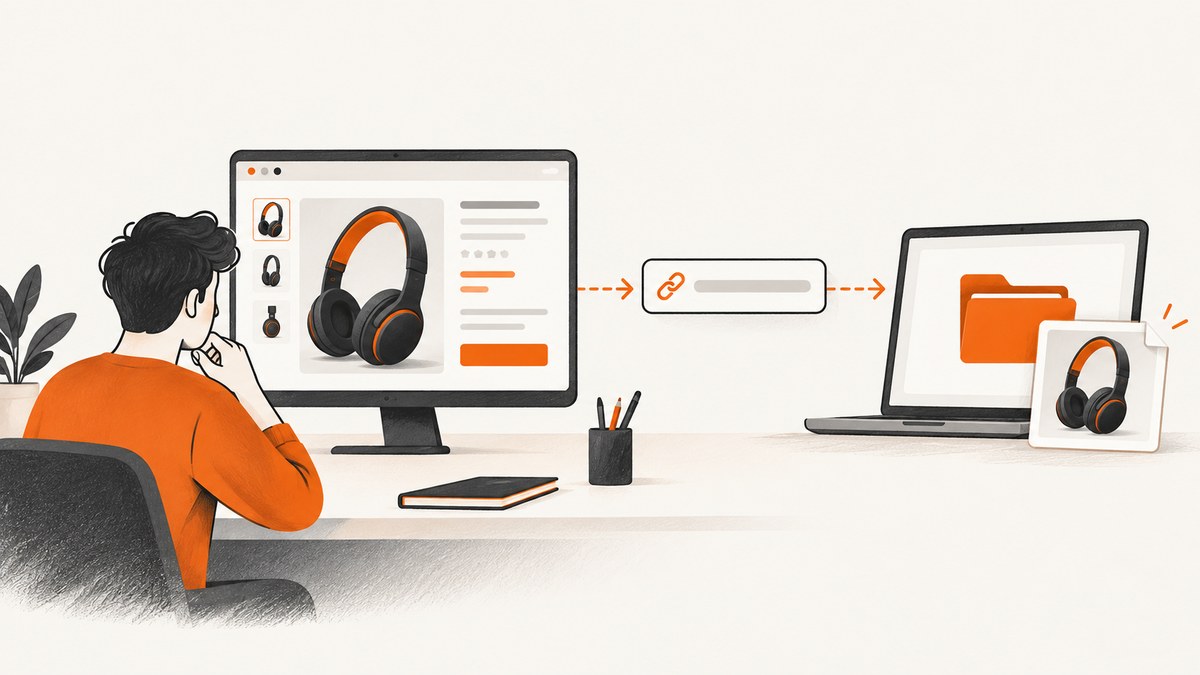
Short answer: If you need an image URL for an authorized affiliate display, Amazon documents the Creators API Images resource. If you mean saving the image file to your computer, an API response does not by itself establish permission to download, retain, rehost, or republish that image. For a one-off image you are allowed to use, save it from the product page or fetch its direct URL with a browser or command-line tool. For affiliate content, follow the Associates license and storage limits before writing files to disk.
Choose the right Amazon image workflow
| What you need | Best route | What you receive | Key constraint |
|---|---|---|---|
| Show an image on an authorized affiliate site | Amazon Creators API | Image URL plus dimensions | Program Content must be used under the Associates license |
| Save an image you are permitted to use | Browser download or an HTTP request to the direct image URL | Local image file | Your permission and the image owner’s terms still apply |
| Upload media to your own Amazon listing | Seller Central or Selling Partner API | Seller-submitted listing media | Seller authorization, roles, marketplace, and product-type rules apply |
| Download photos from your personal library | Amazon Photos download tools | Your stored photos or videos | This is unrelated to catalog product images |
These workflows are easy to confuse. The Creators API documents how to retrieve URLs; it is not documentation that grants a general right to archive the underlying image. Seller APIs submit media to listings; they are not a downloader for an existing product page. Amazon Photos covers files in your own Photos account, not product catalog imagery.
How do I get the product image URL from Amazon?
For an authorized affiliate integration, use the Amazon Creators API. Its Images resource exposes primary and variant images and returns URL and dimension fields. Request the image resources for the item (identified by its ASIN or item ID) in the size you need. The documented resource names include images.primary.large and images.variants.small.
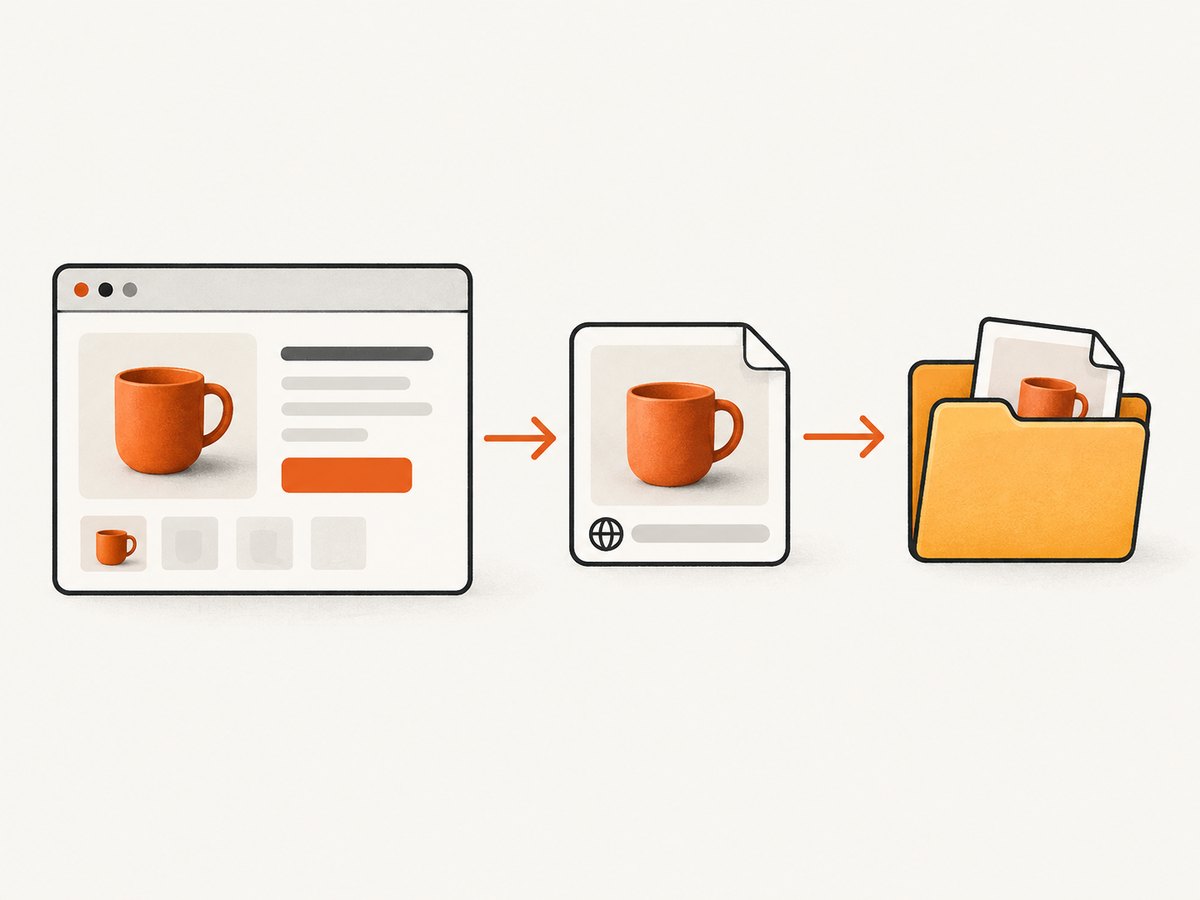
The API provides Small, Medium, and Large image sizes. Amazon’s documentation describes the _SLXXX_ portion of an image URL as the longest-side pixel dimension and identifies that form as the preferred way to reference image sizes. Use the URL and dimensions returned by the API rather than guessing a filename or rewriting an arbitrary URL.
Typical API sequence
- Obtain the credentials and account access required by the Creators API.
- Identify the product’s ASIN or item ID.
- Request the primary or variant image resource in Small, Medium, or Large.
- Read the returned URL and width/height fields.
- Use that URL within the program’s permitted display workflow.
Do not treat a returned URL as a blanket license to download and keep a copy. The Associates operating policy says: You will not store or cache Product Advertising Content consisting of an image, but you may store a link to Product Advertising Content consisting of an image for up to 24 hours.
Read the Amazon Associates Operating Agreement and the Creators API usage requirements for the scope and conditions of that rule.
Save an authorized image from a product page
If you have permission to use the image outside an affiliate display, the simplest method is a browser download.
- Open the Amazon product page.
- Open the image viewer and select the image variant you need.
- Right-click the displayed image and choose Save image as. If the viewer uses a thumbnail, open the image in a new tab first.
- Choose a local filename and confirm the extension matches the response type, such as
.jpgor.webp. - Keep a record of the source URL and your permission or license.
Find the direct image URL in browser developer tools
- Open Developer Tools and select the Network panel.
- Reload the product page, then filter requests by
img,jpg,png, orwebp. - Click the product image request and copy its request URL.
- Open that URL in a new tab to confirm it is the image response, not a page or thumbnail wrapper.
- Download it only when your intended use is authorized.
Amazon pages can load several thumbnails, alternate views, zoom images, and responsive versions. The largest request is not automatically the correct or permitted asset. Check the image dimensions and variant before saving.
Download a permitted image with cURL
Once you have a direct image URL and permission to make a local copy, cURL can write the response to a file.
curl -L --fail --show-error \
  -o product-image.jpg \
"https://example.com/path/to/authorized-image.jpg"-Lfollows redirects.--failreturns an error for HTTP failure responses instead of silently saving an error page.--show-errorkeeps useful diagnostics visible.-ochooses the local filename.
Check what was downloaded before processing it:
file product-image.jpg
identify product-image.jpg 2>/dev/null || true
If the result is HTML, a challenge page, or a consent page, you did not retrieve the image. Do not try to bypass a bot check or CAPTCHA; use an authorized API or an approved export instead.
Download with Python
This example streams a permitted image to disk and rejects obvious HTTP errors.
import requests

url = "https://example.com/path/to/authorized-image.jpg"

with requests.get(url, stream=True, timeout=30) as response:
    response.raise_for_status()
    content_type = response.headers.get("content-type", "")
    if not content_type.startswith("image/"):
        raise ValueError(f"Expected an image response, got {content_type!r}")

    with open("product-image.jpg", "wb") as output:
        for chunk in response.iter_content(chunk_size=1024 * 64):
            if chunk:
                output.write(chunk)

print("Saved product-image.jpg")
Streaming avoids holding a large image entirely in memory. Set a finite timeout, validate the content type, and impose your own maximum byte limit when processing untrusted URLs.
Download with Node.js
Node.js 18 and later include fetch. This example writes the response to a file after checking the status and content type.
import { createWriteStream } from 'node:fs';
import { pipeline } from 'node:stream/promises';
import { Readable } from 'node:stream';

const imageUrl = 'https://example.com/path/to/authorized-image.jpg';
const response = await fetch(imageUrl, { redirect: 'follow' });

if (!response.ok) {
  throw new Error(`Image request failed: ${response.status} ${response.statusText}`);
}

const contentType = response.headers.get('content-type') || '';
if (!contentType.startsWith('image/')) {
  throw new Error(`Expected an image response, got ${contentType}`);
}

if (!response.body) {
  throw new Error('The response had no body');
}

await pipeline(
  Readable.fromWeb(response.body),
  createWriteStream('product-image.jpg')
);

console.log('Saved product-image.jpg');
Download several images from one product page
For an authorized local workflow, first make a list of the direct URLs, then download each URL with bounded concurrency. Do not scrape blindly across many products or assume that a page’s image URLs may be retained indefinitely.
import asyncio
from pathlib import Path
import aiohttp

URLS = [
    "https://example.com/authorized-main.jpg",
    "https://example.com/authorized-side.jpg",
]

async def download(session, url, index):
    async with session.get(url, timeout=aiohttp.ClientTimeout(total=30)) as response:
        response.raise_for_status()
        if not response.headers.get("content-type", "").startswith("image/"):
            raise ValueError(f"Not an image: {url}")
        data = await response.read()
        Path(f"product-{index}.jpg").write_bytes(data)

async def main():
    connector = aiohttp.TCPConnector(limit=4)
    async with aiohttp.ClientSession(connector=connector) as session:
        await asyncio.gather(*(download(session, url, i)
                               for i, url in enumerate(URLS, 1)))

asyncio.run(main())
Use a small concurrency limit, honor failures, and avoid retrying indefinitely. For affiliate Program Content, remember that the policy restriction on storing or caching image content still applies; batching requests does not change it.
How can I download all images from an Amazon product page?
There is no single reliable “all images” URL. A product page can contain a primary image, variant images, swatches, thumbnails, recommendation images, seller images, and lazy-loaded resources. Decide which set you mean:
- Primary and product variants: use the Creators API image resources when your authorized integration supports them.
- Images visible in a browser: inspect the page and network requests, then select only the product assets you are allowed to use.
- Seller listing media: use the seller workflow and its supported image variants, not a product-page downloader.
Do not infer that every image request belongs to the product or that every URL is a full-resolution original. Compare dimensions, filenames, and the image viewer’s selected variant.
For sellers: uploading listing images is a different task
If your goal is to add images to your own Amazon listing, use Seller Central or the Selling Partner API. The seller API requires seller authorization and the appropriate Product Listing role. Its documented programmatic image variants include MAIN, PT01 through PT08, and SWCH. Availability depends on the product type and marketplace.
This workflow submits media that you are authorized to provide. It does not give you a method for downloading images from someone else’s existing product page.
Amazon Photos is not product-image download
Amazon Photos has download instructions for photos and videos stored in a user’s Amazon Photos account. Those instructions concern your personal photo library. They do not describe downloading catalog images from Amazon product pages.

Or skip the browser setup
If you need a clean screenshot of an Amazon product page for documentation, QA, or an authorized internal workflow, ScreenshotNeo captures the page with one request. See the ScreenshotNeo API documentation for all options.
curl -G "https://api.screenshotneo.com/v1/shot" -d access_key=YOUR_API_KEY --data-urlencode url=https://www.amazon.com/dp/ASIN -o amazon-page.webpimport requests
r = requests.get("https://api.screenshotneo.com/v1/shot", params={"access_key": "YOUR_API_KEY", "url": "https://www.amazon.com/dp/ASIN"}, timeout=90)
r.raise_for_status()
open("amazon-page.webp", "wb").write(r.content)const q = new URLSearchParams({ access_key: 'YOUR_API_KEY', url: 'https://www.amazon.com/dp/ASIN' });
const res = await fetch(`https://api.screenshotneo.com/v1/shot?${q}`);ScreenshotNeo removes cookie banners, newsletter popups, and chat widgets before the shot. Bot checks, blank pages, failed loads, timeouts, and cache hits are not billed, and the response identifies the page verdict and billing status in X-Page-Verdict and X-Billed headers. Its MCP server lets AI agents use take_screenshot, get_page_info, and capture_pdf. The free plan includes 1,000 screenshots a month with no card; paid plans start at $5 for 3,000. Use the free ScreenshotNeo sign-up to get started.
Troubleshooting
| Symptom | Likely cause | Fix |
|---|---|---|
| The saved file opens as HTML | The URL returned a product page, redirect, consent page, or bot check | Inspect the status, final URL, and Content-Type; use the image request from the browser network panel or an authorized API. |
| HTTP 403 or 429 | Access control or rate limiting | Stop aggressive retries, respect the site’s terms, authenticate through the documented API, and add bounded backoff where permitted. |
| The image is tiny | You copied a thumbnail or swatch URL | Select the zoom or primary image request and verify dimensions before saving. |
| The URL works in a browser but not in a script | Session cookies, headers, redirects, or a browser challenge are required | Do not bypass the challenge. Use a documented integration or capture an authorized page with a browser-based workflow. |
| Only one image is returned | You requested only the primary resource | Request the documented variant resources or inspect the specific image variant you need. |
| Downloaded file has the wrong extension | The server returned WebP or another format | Read Content-Type and rename or convert only when your workflow permits it. |
| Affiliate compliance is unclear | A URL was mistaken for permission to store the file | Review the Associates license. The policy permits storing an image link for up to 24 hours but prohibits storing or caching image content covered by that rule. |
Performance, reliability, and cost considerations
- Prefer the smallest sufficient size. Small or Medium assets reduce transfer time when a full-size image is unnecessary. The Creators API documents Small, Medium, and Large.
- Stream large responses. The Python and Node.js examples write incrementally, reducing memory use.
- Set timeouts. A stalled image request should fail predictably instead of consuming a worker forever.
- Use bounded concurrency. Parallel downloads can trigger rate limits and make failures harder to recover from.
- Validate responses. Check HTTP status, content type, dimensions, and file size before passing an image to downstream code.
- Retry selectively. A short retry with backoff can help transient network errors; repeated retries will not fix a permission error or CAPTCHA.
- Account for policy-driven retention. A technically successful download may still be disallowed to retain or cache under the Associates program.
- Screenshot costs. With ScreenshotNeo, only clean shots are billed; failed loads, bot checks, blank pages, timeouts, and cache hits are identified and not billed according to the product’s response headers and plan terms.
FAQ
Can I copy an Amazon image URL into my website?
Only when your use is authorized and follows the applicable Amazon program terms. For Associates Program Content, use the documented link and storage rules rather than downloading and hosting the image yourself.
Does changing _SL75_ to _SL1000_ always create a larger image?
No. Amazon documents the longest-side size marker and prefers returned image-size references. Do not assume arbitrary URL rewriting will produce a valid or authorized asset.
Can Amazon Photos download product images?
No. Amazon Photos downloads files from your Photos account; product catalog images are a separate system.
Can the Selling Partner API download another seller’s images?
No. Its listing workflow is for authorized sellers submitting media to listings, with role, marketplace, product-type, and variant requirements.
What should I do when a product page contains a CAPTCHA?
Do not attempt to bypass it. Use an authorized API or an approved capture workflow, and treat the page as unavailable if the required content cannot be accessed legitimately.


