How to Download Images from a Website in Chrome
Save website images in Chrome on desktop, Android, and iPhone, find downloaded files, fix common problems, and automate clean captures with ScreenshotNeo.
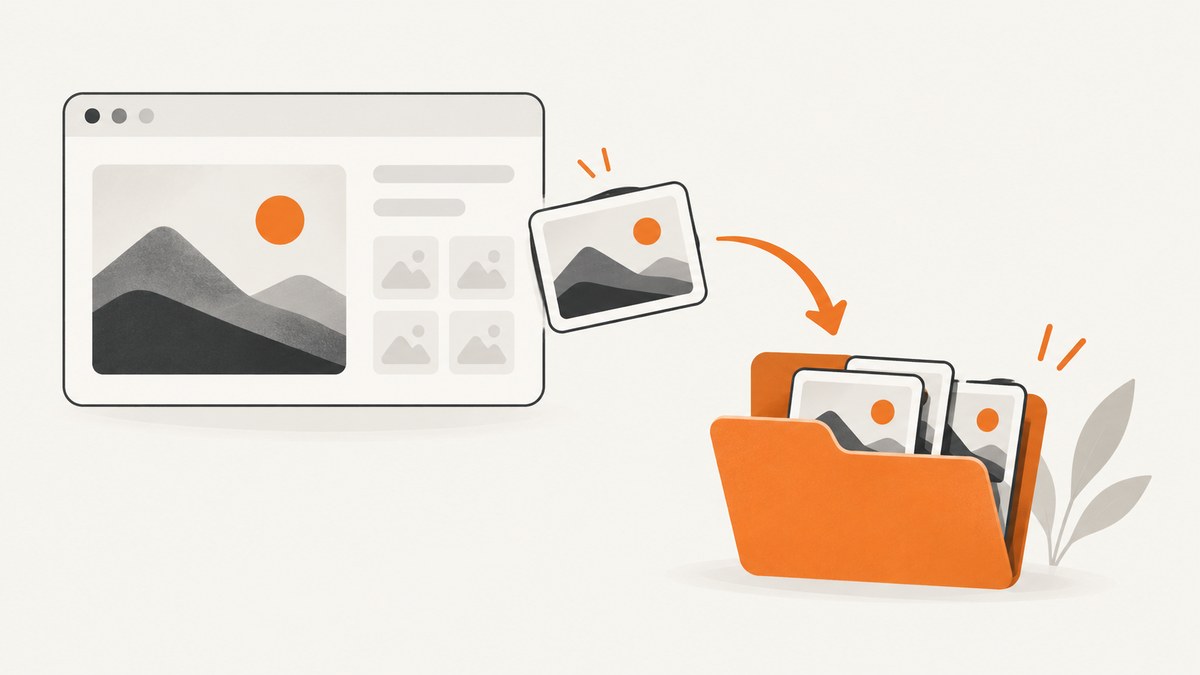
The fastest way to download an image in Chrome depends on your device:
- Computer: right-click the image and choose Save Image As.
- Android: touch and hold the image, then tap Download image.
- iPhone or iPad: touch and hold the image, then tap Save Image.
After saving, use Chrome’s Downloads view or your device’s Downloads app to locate the file.
Download an image in Chrome on a computer
- Open Chrome and go to the webpage containing the image.
- Move the pointer over the image you want.
- Right-click the image.
- Select Save Image As.
- Choose a folder if Chrome asks where to save it, then select Save.
Chrome normally saves the file to its configured download location. Google documents these common defaults: \\Users\\<username>\\Downloads on Windows, /Users/<username>/Downloads on macOS, and /home/<username>/Downloads on Linux. A person or device administrator may have changed the location.
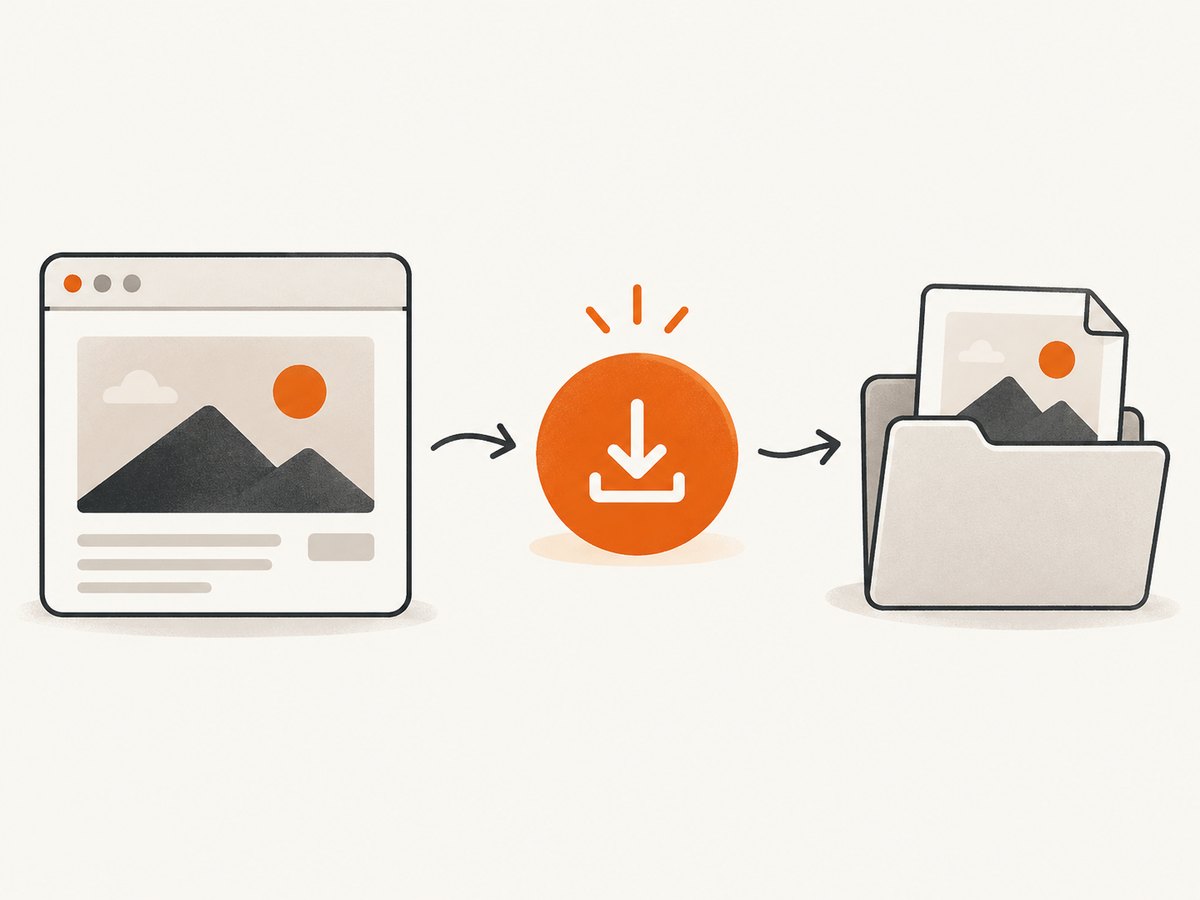
Choose the destination every time
- Open the Chrome menu with the three dots.
- Choose Settings, then Downloads.
- Turn on Ask where to save each file before downloading.
Find a file you just saved
Check the download tray near the address bar. If it is hidden, open the three-dot menu and choose Downloads. The Downloads page can open the file and can show it in its containing folder.
Download an image in Chrome on Android
- Open the page in the Chrome app.
- Touch and hold the image.
- Tap Download image.
- Open the device’s Downloads app to find the saved file.
Chrome’s Downloads screen also lets you pause or cancel a download that is still in progress.
Download an image in Chrome on iPhone or iPad
- Open the website in Chrome.
- Touch and hold the image.
- Tap Save Image.
- Choose the destination offered by the current save flow, such as Files or Google Photos.
You can also open Chrome’s three-dot menu and choose Downloads to review downloaded files.
When the image will not save
| What you see | Likely cause | What to try |
|---|---|---|
| No Save Image As option | You may have opened a link, overlay, canvas, or another page element instead of the image. | Interact with the visible image itself. If the site uses a special viewer, check whether it provides its own download control. |
| The wrong file downloads | The visible picture may be a thumbnail linked to a larger image. | Open the image in a new tab first, then save the full-size version. |
| The file is missing | Chrome may be using a different download folder. | Open Chrome’s Downloads page and use its folder or file location action. Review Settings > Downloads. |
| The download stops or never starts | The network connection, site response, or device storage may have failed. | Retry, check the Downloads screen for a paused item, verify available storage, and try the page again. |
| Touch and hold does nothing on mobile | The gesture may have landed on surrounding page content. | Press directly on the image and hold briefly. If the page is an interactive viewer, look for its built-in save command. |
Image formats, quality, and filenames
- The saved format is determined by the resource the site serves, commonly PNG, JPEG, WebP, GIF, or SVG.
- Saving an image does not increase its resolution. A thumbnail remains a thumbnail unless the site exposes a larger source.
- Chrome may retain the site’s filename or create a name based on the URL. Rename the file after downloading if you need a consistent naming scheme.
- Animated formats may keep animation when saved, while copying a displayed frame can produce a different result.
Copyright and permission
Downloading an image is a file operation, not permission to publish, sell, modify, or reuse the image. Check the site’s license and obtain permission when your intended use requires it.
Bulk or repeatable captures for developers
Chrome’s menu is designed for saving individual images. For repeatable work such as collecting page screenshots, generating previews, or capturing many URLs, an API avoids manual browser steps. ScreenshotNeo returns PNG, JPEG, WebP, or PDF from one request and supports full-page or element captures, custom CSS and JavaScript, waits, headers, cookies, user agents, blocking rules, caching, signed links, asynchronous jobs, and bulk capture.
Or skip the browser setup
Use the ScreenshotNeo API documentation for the complete option list. This one-call example captures a clean image:

curl -G "https://api.screenshotneo.com/v1/shot" -d access_key=YOUR_API_KEY --data-urlencode url=https://stripe.com -o shot.webpPython
import requests

r = requests.get(
    "https://api.screenshotneo.com/v1/shot",
    params={"access_key": "YOUR_API_KEY", "url": "https://stripe.com"},
    timeout=90,
)
r.raise_for_status()
open("shot.webp", "wb").write(r.content)
Node.js
const q = new URLSearchParams({ access_key: 'YOUR_API_KEY', url: 'https://stripe.com' });
const res = await fetch(`https://api.screenshotneo.com/v1/shot?${q}`);
if (!res.ok) throw new Error(`HTTP ${res.status}`);
const fs = await import('node:fs/promises');
await fs.writeFile('shot.webp', Buffer.from(await res.arrayBuffer()));
ScreenshotNeo accepts cookie and consent banners before capture and removes more than 60 known consent platforms, newsletter popups, and chat widgets; each step can be turned off. Bot checks, CAPTCHAs, blank pages, timeouts, failed loads, and cache hits are not billed, and response headers identify the page verdict and billing status. Its MCP server provides take_screenshot, get_page_info, and capture_pdf for Claude, Cursor, and other MCP clients.
Free accounts include 1,000 screenshots each month with no card. Paid plans start at $5 for 3,000 shots; every feature is available on every plan. Create a free ScreenshotNeo account.
Performance, reliability, and cost notes
- For a single manual image, Chrome is the simplest and costs nothing beyond your device and connection.
- For repeated captures, reuse a chosen viewport and enable caching with a TTL when the page does not change often.
- Use selector waits or network-idle waits for pages that render images after JavaScript runs.
- Use bulk capture for up to 100 URLs per call when processing a list.
- Inspect
X-Page-VerdictandX-Billedto distinguish a clean, billable capture from a failed or free result.
FAQ
Where does Chrome save downloaded images?
Usually in the configured Downloads folder. Open Chrome’s Downloads page to see the exact file and location.
Can I download an image on a phone?
Yes. Touch and hold the image: choose Download image on Android or Save Image on iPhone and iPad.
Why is the saved image low quality?
The page may be serving a low-resolution thumbnail. Open the image or its source at full size before saving.
Can I automate this for many webpages?
Yes. Use a screenshot API such as ScreenshotNeo, which supports scripted captures, bulk requests, waits, and cleanup of common overlays.


