How to Download JPG Images From HTML Pages
Learn how to save JPGs from HTML, build reliable download links, handle srcset and CORS, and automate captures with ScreenshotNeo.
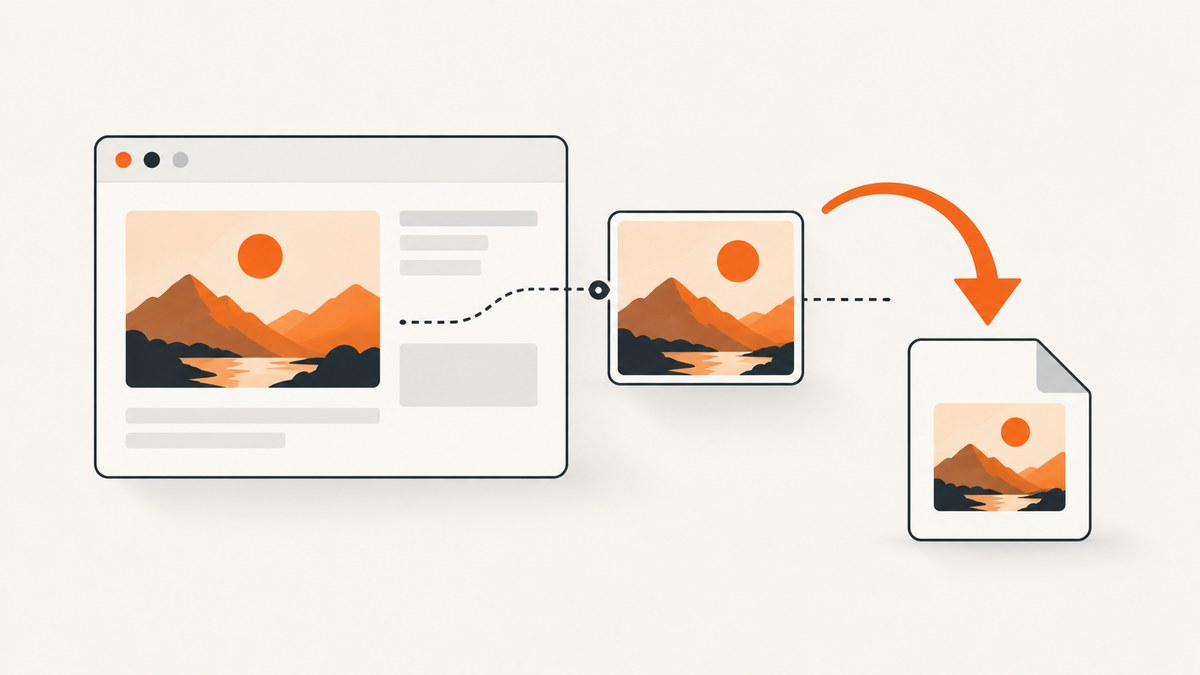
Short answer: To save a JPG you are viewing, open the image itself and use your browser’s save-image command. To offer a download on a site you control, link the JPG with an anchor such as <a href="/images/photo.jpg" download="photo.jpg">Download JPG</a>. For JavaScript downloads, fetch the bytes, create a Blob URL, and activate a download link. Cross-origin JavaScript access requires permission from the image server through CORS.
1. Save a JPG as a visitor
When you only need to save an image from a page:
- Right-click the image and choose the browser’s save-image command.
- If that option is unavailable, open the image in a new tab, then save it.
- On a touch device, press and hold the image and choose the available save option.
Check the actual file before saving. A page may show a small thumbnail while linking to a larger JPG, or it may use a responsive image selected from srcset. The image you see can also be a CSS background rather than an <img> element.
2. Find the real JPG URL
Inspect an img element
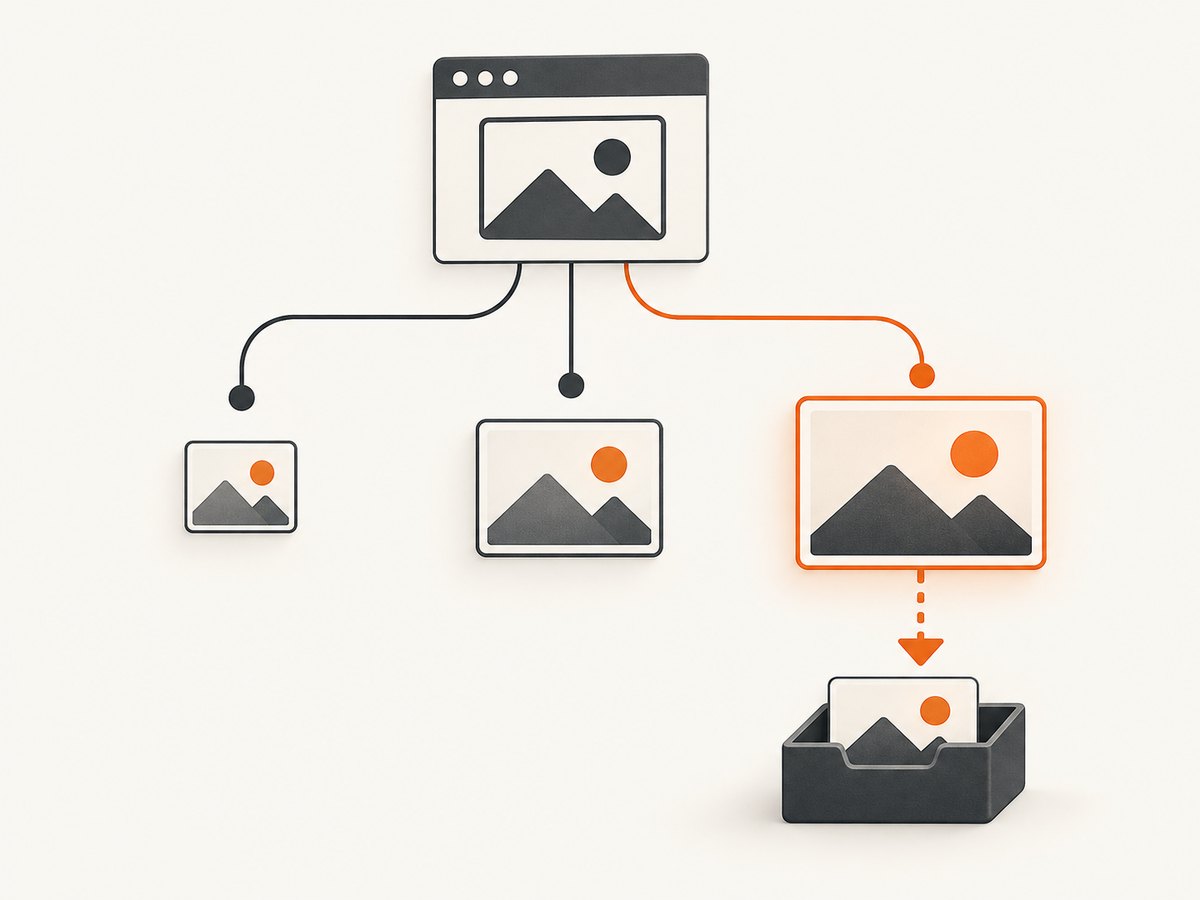
Open developer tools, inspect the visible image, and read its src and srcset attributes. Browsers choose one candidate from srcset based on viewport and pixel density, so several URLs may be available.
<img
  src="/images/photo-800.jpg"
  srcset="/images/photo-800.jpg 800w, /images/photo-1600.jpg 1600w"
  sizes="(max-width: 800px) 100vw, 800px"
  alt="Example photo"
>
Copy the selected URL from the element or the Network panel. Confirm that the response is really a JPG by checking its URL and Content-Type; a link can point to an HTML page, a thumbnail, or another image format.
Check CSS backgrounds
If there is no <img>, inspect the element’s computed styles for background-image: url(...). Open that URL directly before saving. This is a practical inspection step for pages that paint images through CSS.
3. Add a download link in HTML
For an image hosted on your own origin, the simplest implementation is an anchor with the download attribute. The value suggests the filename.
<!doctype html>
<html lang="en">
<head>
  <meta charset="utf-8">
  <title>Download a JPG</title>
</head>
<body>
  <a href="/images/photo.jpg" download="photo.jpg">
    Download JPG
  </a>
</body>
</html>
The download attribute is supported for same-origin URLs and for blob: and data: URLs. It is a browser suggestion, not a guarantee that every browser will save the file instead of opening it. Server headers such as Content-Disposition, browser settings, and user preferences can affect the result. See the MDN download attribute documentation.
Set the server response correctly
If you control the image server, return the correct media type, for example image/jpeg. For a forced attachment, configure a response such as:
Content-Type: image/jpeg
Content-Disposition: attachment; filename="photo.jpg"
Use a download route on your own origin when you need consistent headers or access checks.
4. Download JPG bytes with JavaScript
Use this pattern when a button must fetch an image, turn the response into a Blob, and start a download. It must run after a user action such as a click.
<button id="download" type="button">Download JPG</button>
<p id="status" role="status"></p>
<script>
const button = document.querySelector('#download');
const status = document.querySelector('#status');

button.addEventListener('click', async () => {
  const imageUrl = '/images/photo.jpg';
  button.disabled = true;
  status.textContent = 'Preparing download…';

  try {
    const response = await fetch(imageUrl, { credentials: 'same-origin' });
    if (!response.ok) throw new Error(`HTTP ${response.status}`);

    const blob = await response.blob();
    if (!blob.type || !blob.type.startsWith('image/')) {
      throw new Error('The response is not an image');
    }

    const objectUrl = URL.createObjectURL(blob);
    const link = document.createElement('a');
    link.href = objectUrl;
    link.download = 'photo.jpg';
    document.body.appendChild(link);
    link.click();
    link.remove();
    URL.revokeObjectURL(objectUrl);
    status.textContent = 'Download started.';
  } catch (error) {
    status.textContent = `Download failed: ${error.message}`;
  } finally {
    button.disabled = false;
  }
});
</script>
Revoke the object URL after triggering the download so the page does not retain the Blob in memory. For a large file, avoid creating multiple copies and disable repeated clicks while the request is running.
5. Handle cross-origin images and CORS
A browser can display an image from another origin while preventing page JavaScript from reading its bytes. The image server must send a CORS response that allows your page’s origin. Adding crossorigin="anonymous" or setting crossOrigin = 'anonymous' changes the request mode; it does not grant permission by itself.

<img
  src="https://cdn.example.com/photo.jpg"
  crossorigin="anonymous"
  alt="Remote photo"
>
For a JavaScript fetch, the remote response needs a matching header such as:
Access-Control-Allow-Origin: https://www.example.comDo not use * with credentials. If you do not control the remote server, use its download feature, save the image through the browser, or download it through your own server route where you have permission.
6. Select the right responsive image
When srcset has width descriptors, choose the candidate appropriate for the desired output instead of blindly downloading src. In the browser, the rendered image’s currentSrc reports the URL currently selected:
const image = document.querySelector('img');
console.log(image.currentSrc || image.src);
If you need the largest available source, parse the srcset candidates and choose the highest width, while remembering that the largest file may cost more bandwidth and may not be the original asset.
7. Complete command-line and server-side examples
cURL
Use cURL when you already know the direct JPG URL and want to save the response to disk:
curl --fail --location \
  --output photo.jpg \
  https://example.com/images/photo.jpg
Inspect headers first when the URL may redirect or return HTML:
curl --head --location https://example.com/images/photo.jpgPython
from pathlib import Path
import requests

url = "https://example.com/images/photo.jpg"
response = requests.get(url, timeout=30)
response.raise_for_status()

content_type = response.headers.get("content-type", "")
if "image/jpeg" not in content_type and "image/jpg" not in content_type:
    raise ValueError(f"Expected JPEG, got {content_type!r}")

Path("photo.jpg").write_bytes(response.content)
For large files, stream the response and write chunks instead of keeping the entire body in memory:
with requests.get(url, stream=True, timeout=30) as response:
    response.raise_for_status()
    with open("photo.jpg", "wb") as output:
        for chunk in response.iter_content(chunk_size=1024 * 1024):
            if chunk:
                output.write(chunk)
Node.js
import { createWriteStream } from 'node:fs';
import { pipeline } from 'node:stream/promises';

const url = 'https://example.com/images/photo.jpg';
const response = await fetch(url, { redirect: 'follow' });
if (!response.ok || !response.body) {
  throw new Error(`HTTP ${response.status}`);
}

const type = response.headers.get('content-type') || '';
if (!type.includes('image/jpeg')) {
  throw new Error(`Expected JPEG, got ${type}`);
}

await pipeline(response.body, createWriteStream('photo.jpg'));
8. Troubleshooting checklist
| Symptom | Likely cause | Fix |
|---|---|---|
| The link opens the JPG instead of downloading | Cross-origin URL, browser behavior, or missing disposition header | Use a same-origin route, add Content-Disposition: attachment, or use the Blob pattern after a permitted fetch. |
| JavaScript reports a CORS error | The image server did not allow your origin | Configure Access-Control-Allow-Origin on that server or proxy through a server you control. |
| The image displays but Blob creation fails | The response is opaque or the canvas/image is tainted | Obtain the bytes with a CORS-permitted request; client-side attributes cannot bypass server policy. |
| The downloaded file is HTML | The URL is an image page, login page, bot check, or error response | Check status, redirects, Content-Type, and final URL before writing the file. |
| The saved image is blurry | A thumbnail or low-resolution srcset candidate was selected |
Inspect currentSrc, the Network panel, and all srcset candidates. |
| Nothing is found in the HTML | The image is injected by JavaScript or used as a CSS background | Inspect the rendered DOM, computed styles, and Network panel. |
| Repeated clicks create many downloads | No in-flight guard | Disable the button until the request completes and revoke each object URL. |
9. Performance, reliability, and cost
- Prefer the direct URL: it avoids decoding and re-encoding the image in the browser.
- Stream on servers: chunked writes prevent large JPGs from consuming unnecessary memory.
- Validate before saving: check status, final URL, media type, and optionally file size.
- Use timeouts and retries carefully: retry transient network failures with backoff, but do not repeatedly retry authentication pages or permanent 4xx responses.
- Respect access controls: download only images you are allowed to access and do not attempt to defeat bot checks or other protections.
- Cache deliberately: cache immutable image URLs, but account for signed URLs and changing query parameters.
10. Or skip the browser setup
If your real goal is to obtain a clean image of a rendered page rather than manually locate a JPG asset, ScreenshotNeo provides a website screenshot API. One GET request returns PNG, JPEG, WebP, or PDF. The API can load lazy images, capture a selected element, use a device or custom viewport, apply custom CSS or JavaScript, and wait for a selector, delay, or network idle.
ScreenshotNeo removes cookie and consent banners, newsletter popups, and chat widgets before capture. Bot checks, blank pages, failed loads, timeouts, and cache hits are not billed; response headers identify the page verdict and whether the request was billed. Its MCP server provides take_screenshot, get_page_info, and capture_pdf tools for Claude, Cursor, and other MCP clients.
See the ScreenshotNeo API documentation for all options. A direct call looks like this:
curl -G "https://api.screenshotneo.com/v1/shot" -d access_key=YOUR_API_KEY --data-urlencode url=https://stripe.com -o shot.webpimport requests
r = requests.get("https://api.screenshotneo.com/v1/shot", params={"access_key": "YOUR_API_KEY", "url": "https://stripe.com"}, timeout=90)
open("shot.webp", "wb").write(r.content)const q = new URLSearchParams({ access_key: 'YOUR_API_KEY', url: 'https://stripe.com' });
const res = await fetch(`https://api.screenshotneo.com/v1/shot?${q}`);There are 1,000 free screenshots each month with no card. Paid plans start at $5 for 3,000 shots. Create a free ScreenshotNeo account.
11. FAQ
Can I force any third-party JPG to download with HTML?
No. The download attribute is not a universal force-download switch for cross-origin URLs. Use the remote site’s option or a permitted server-side route.
Why does right-click save a smaller image?
The page may be showing a thumbnail or a responsive srcset candidate. Inspect the element and compare its available URLs.
Does crossorigin fix CORS?
No. The image server must return a CORS header that permits your origin.
Should I convert WebP or PNG to JPG?
Only when a JPG is required. Conversion changes image bytes and can reduce quality; saving the original format preserves the source.
Can I download an image that requires a login?
Only with valid authorization. A browser or server request must include the required session or credentials, and the server may still deny access.


