How to Download a Link as a PDF
Learn how to save a linked PDF or turn a webpage into a PDF on desktop, Android, and iPhone, with fixes for layout and download problems.
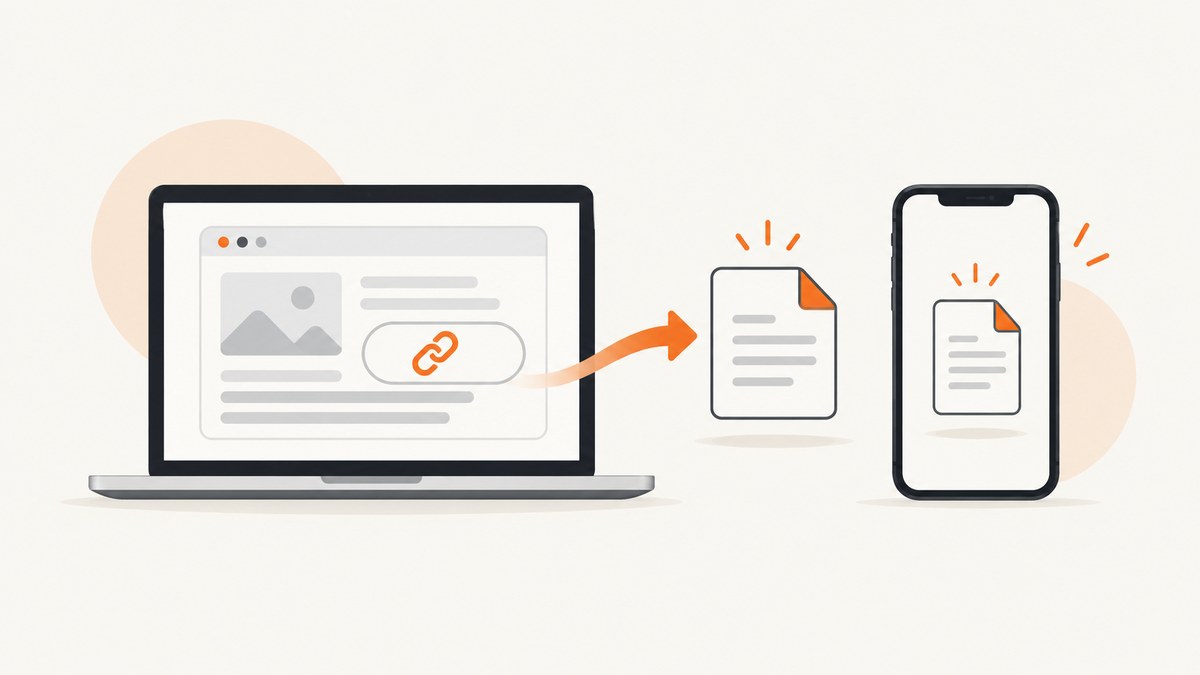
“Download a link as a PDF” can mean two different things:
- Download the file behind a link: the link already points to a PDF.
- Convert the webpage you are viewing into a new PDF: use the browser’s Print or Share workflow.
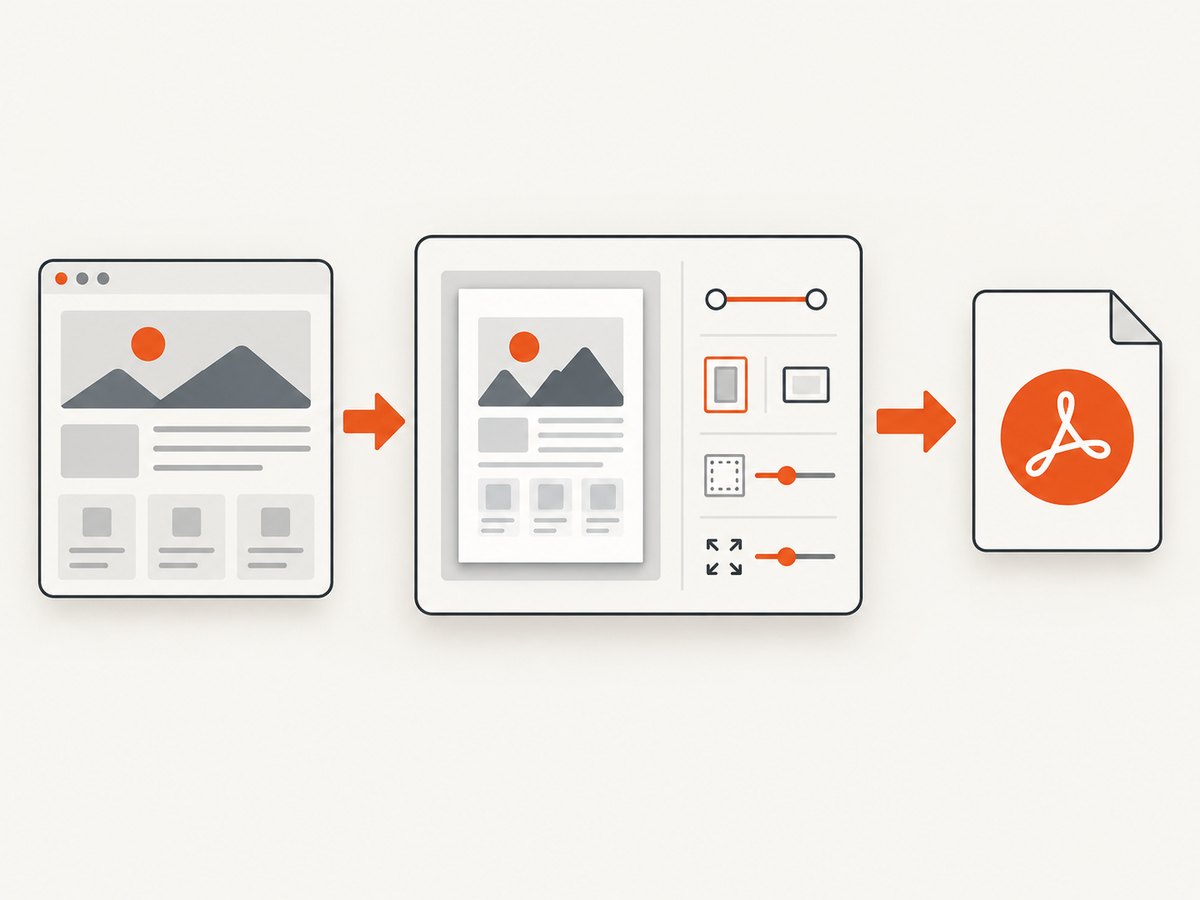
For a webpage, open the browser’s print dialog, choose a PDF destination such as Save as PDF, preview the result, and save it. The exact menu names vary by device and browser.
First, identify what the link points to
Right-click or press and hold the link and look at its address. A URL ending in .pdf often points directly to a PDF file, although some sites serve PDFs through a viewer or a download route.
If the link already opens a PDF
- Open the link.
- Use the PDF viewer’s download button, usually shown as a downward arrow.
- Choose a folder or confirm the default Downloads location.
This preserves the original PDF file. Printing the page that contains the link creates a new PDF of that page instead.
If you want the webpage containing the link
Open the webpage itself and follow the device instructions below. The saved PDF may have a different layout from the screen because the site, browser, paper size, margins, and print settings affect the output. Mozilla documents this caveat for Firefox: “Web pages can set themselves up to appear different on paper to how they look on screen, so don’t be surprised to see some changes.”
Desktop: Chrome
- Open the webpage.
- Choose File > Print, or press
Ctrl+Pon Windows/Linux orCommand+Pon macOS. - In the destination or printer field, select Save as PDF or the equivalent PDF destination supplied by your operating system.
- Review the preview. Adjust pages, orientation, paper size, margins, scale, backgrounds, or headers and footers when available.
- Click Save, choose a folder, name the file, and confirm.
Chrome’s desktop print controls and shortcuts are documented in Google Chrome Help.
Desktop: Firefox
- Open the page and choose File > Print, or use the system print shortcut.
- Set the destination to Save to PDF.
- Use the preview and controls to set page range, orientation, color, paper size, scale, pages per sheet, margins, headers and footers, and backgrounds.
- If Firefox offers Simplified format, use it to remove some page clutter before saving. Simplified format and printed backgrounds cannot be selected together.
- Save the file and verify its location.
See Mozilla’s Firefox printing guide for the current controls.
Desktop: Microsoft Edge
- Open the webpage and choose Print, or press
Ctrl+Pon Windows/Linux orCommand+Pon Mac. - Select a PDF destination such as Save as PDF or Microsoft Print to PDF.
- Set orientation, paper size, page range, margins, scale, backgrounds, and headers or footers as needed.
- Preview the pages, then save to the desired folder.
When a site is difficult to print, Edge may offer Immersive Reader as a cleaner printing route, although it is not available on every website. Microsoft lists the available options in Print in Microsoft Edge.
Android: Chrome
- Open the webpage in Chrome.
- Tap More (the three-dot menu).
- Tap Share, then Print.
- Select Save as PDF.
- Choose a destination, filename, and folder, then complete the save.
Google’s Chrome Android instructions describe this Share > Print flow.
Android: Firefox
- Open the webpage or the PDF link in Firefox.
- Open the menu and tap Share.
- Choose Save as PDF, then tap Download.
- Find the result in the device’s Downloads folder.
Firefox for Android supports saving webpages and PDF files opened from links. Menu labels can vary by Android version; consult Mozilla’s Android PDF guide if your menu differs.
iPhone: Safari
- Open the webpage in Safari.
- Tap the page menu, then tap Share.
- Optionally tap Markup to annotate the page.
- Tap Done, choose Save File To, name the PDF, and select a folder.
- Tap Save.
Apple documents this workflow in Annotate and save a webpage as a PDF in Safari on iPhone.
Choose the right print settings
| Goal | Settings to check |
|---|---|
| Save only selected pages | Set a page range instead of all pages. |
| Keep a wide table readable | Use landscape orientation and reduce scale slightly. |
| Preserve page colors | Enable background graphics or backgrounds if the browser exposes that option. |
| Remove navigation and clutter | Try Firefox Simplified format or Edge Immersive Reader when available. |
| Fit content without clipping | Check margins, paper size, and scale in the preview. |
| Save an accessible document | Prefer the browser’s native PDF output and inspect headings, links, and selectable text afterward. |
Why the PDF does not match the screen
- Responsive layout: print CSS can change columns, navigation, and spacing.
- Dynamic content: ads, comments, lazy-loaded images, and live data may load differently during printing.
- Missing backgrounds: browsers often disable background graphics by default.
- Page breaks: long tables, cards, and code blocks can split across pages.
- Fonts and images: a font or image that has not finished loading may be absent.
Always inspect the preview before saving. A PDF is a rendered print result, not a guaranteed pixel-identical copy of the webpage.
Troubleshooting
The PDF option is missing
Open the full system print dialog if the browser shows a simplified preview. On some operating systems the destination is named Save to PDF, Save as PDF, or Microsoft Print to PDF.
The saved file is not where expected
Check the browser’s Downloads list and the folder selected in the save dialog. Android Chrome asks you to choose a destination; Safari uses Save File To.
Images or sections are blank
Wait for the page to finish loading, scroll through lazy-loaded sections, and print again. Enable background graphics when the missing content is part of the page background. If the page requires a login, open it in the authenticated browser session.
The layout is cut off
Switch to landscape, choose a larger paper size, reduce scale, or increase margins. Use a page range to isolate the problematic section.
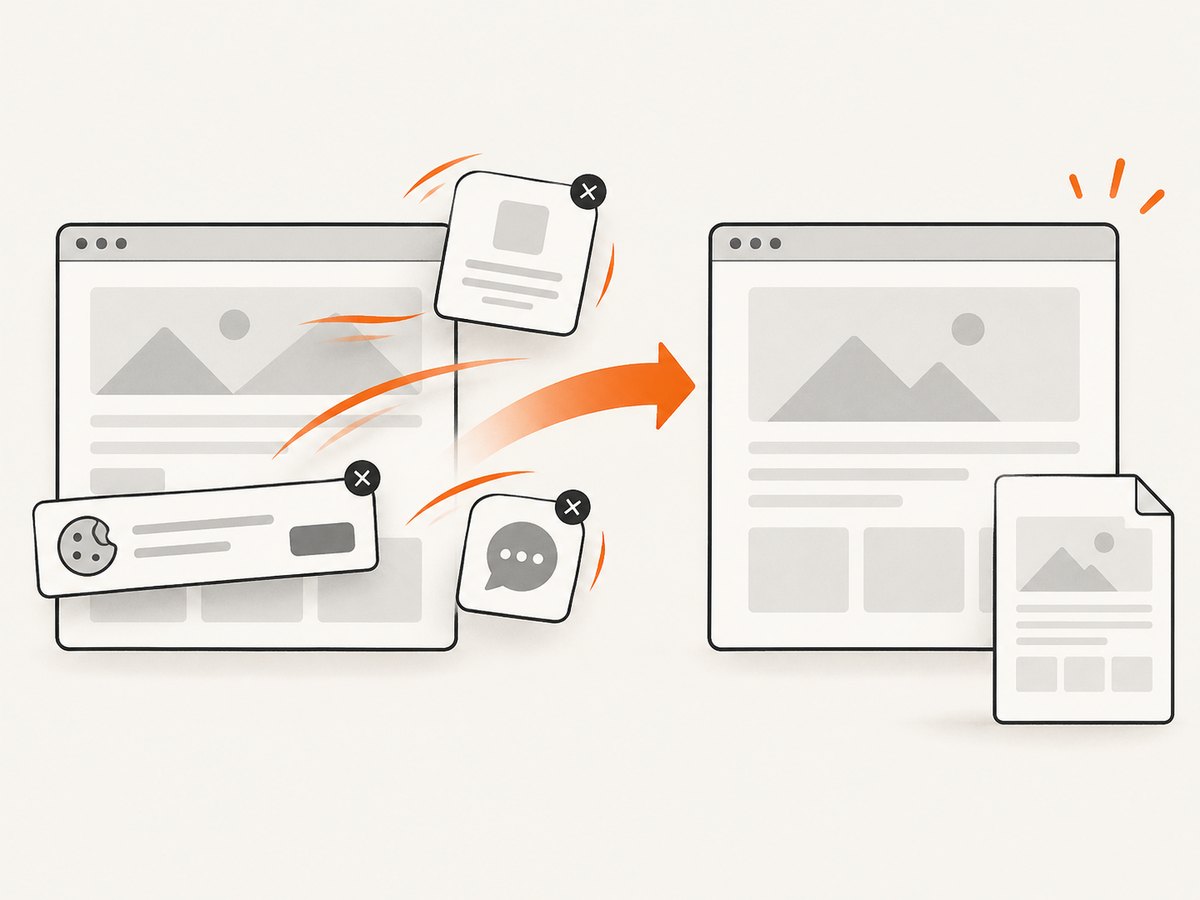
The PDF contains unwanted menus, cookie notices, or chat bubbles
Dismiss those elements before printing. Reader or simplified modes can remove some clutter, but support varies by site.
The link downloads an HTML file instead of a PDF
The link may point to a viewer or redirect rather than the PDF bytes. Open it in the browser, use the viewer’s download control, or print the displayed document to a new PDF.
The print preview never finishes
Reload the page, wait for network activity to settle, disable extensions that modify pages, and try a private window. For a page that consistently fails in a browser, use a server-side capture workflow.
Or skip the browser setup
ScreenshotNeo provides a website capture API and MCP server for developers. It can capture pages as PNG, JPEG, WebP, or PDF, with controls for full-page output, paper size, margins, landscape mode, and page ranges. The API also supports custom CSS and JavaScript, waiting for selectors or network idle, cookies, headers, user agents, timezones, geolocation, blocked resources, caching, async jobs, and bulk capture. See the ScreenshotNeo documentation for PDF options.
curl -G "https://api.screenshotneo.com/v1/shot" -d access_key=YOUR_API_KEY --data-urlencode url=https://stripe.com -o shot.webpimport requests
r = requests.get("https://api.screenshotneo.com/v1/shot", params={"access_key": "YOUR_API_KEY", "url": "https://stripe.com"}, timeout=90)
open("shot.webp", "wb").write(r.content)const q = new URLSearchParams({ access_key: 'YOUR_API_KEY', url: 'https://stripe.com' });
const res = await fetch(`https://api.screenshotneo.com/v1/shot?${q}`);Before capture, ScreenshotNeo accepts cookie and consent banners and removes more than 60 known consent platforms, newsletter popups, and chat widgets; each step can be turned off. Bot checks, blank pages, timeouts, failed loads, and cache hits are not billed, and response headers identify the page verdict and billing status. Its MCP server lets Claude, Cursor, and other MCP clients call take_screenshot, get_page_info, and capture_pdf.
The Free plan includes 1,000 screenshots per month with no card. Paid plans start at $5 for 3,000 shots; every feature is included on every plan.
Create a free ScreenshotNeo account and start with 1,000 screenshots a month at no charge.
Performance, reliability, and cost notes
- Browser printing: costs nothing, but depends on the page loading correctly and on your local print settings.
- Server-side capture: is useful for repeatable jobs, automation, authenticated pages, and pages that need controlled waits or cleanup.
- Large pages: full-page PDFs with many images take longer and produce larger files. Limit page ranges or resources when possible.
- Repeat captures: caching with a chosen TTL can avoid unnecessary work. ScreenshotNeo cache hits are not billed.
- Reliability: wait for a selector or network idle when content is asynchronous, and use async jobs with signed webhooks for long-running workflows.
Checklist
- Decide whether you need the linked PDF file or a PDF of the webpage.
- Use Print > Save as PDF on desktop.
- Use Share > Print > Save as PDF in Chrome on Android.
- Use Share > Markup (optional) > Done > Save File To in iPhone Safari.
- Preview pages, scale, margins, backgrounds, and page breaks.
- Check Downloads or the selected save folder.
- For repeatable automated captures, use ScreenshotNeo’s PDF API or MCP server.
FAQ
Can I download a PDF without opening it?
If the URL directly serves a PDF, use the link’s download action or open it and select the viewer’s download button. If it serves a webpage, print or capture the webpage first.
Will printing save the original PDF?
No. Printing the page creates a new PDF. Use the PDF viewer’s download control to preserve the original file.
Why is my PDF several pages long?
Webpages are laid out for a continuous screen, so the print engine divides them across paper-sized pages. Adjust scale, margins, orientation, or page range.
Can I save only part of a webpage?
Use a page range when the content maps cleanly to pages. For arbitrary sections, select and copy the content into a document, or use a capture tool that supports element selection.
Does every browser use the same menu names?
No. The destination may be called Save as PDF, Save to PDF, or Microsoft Print to PDF, and mobile menus differ by browser and operating-system version.


