How to Download a PDF Blob or Access Chrome’s PDF Viewer
Download ordinary PDFs, save files from Chrome’s viewer, and recover page-owned Blob bytes with practical JavaScript, troubleshooting, and API options.
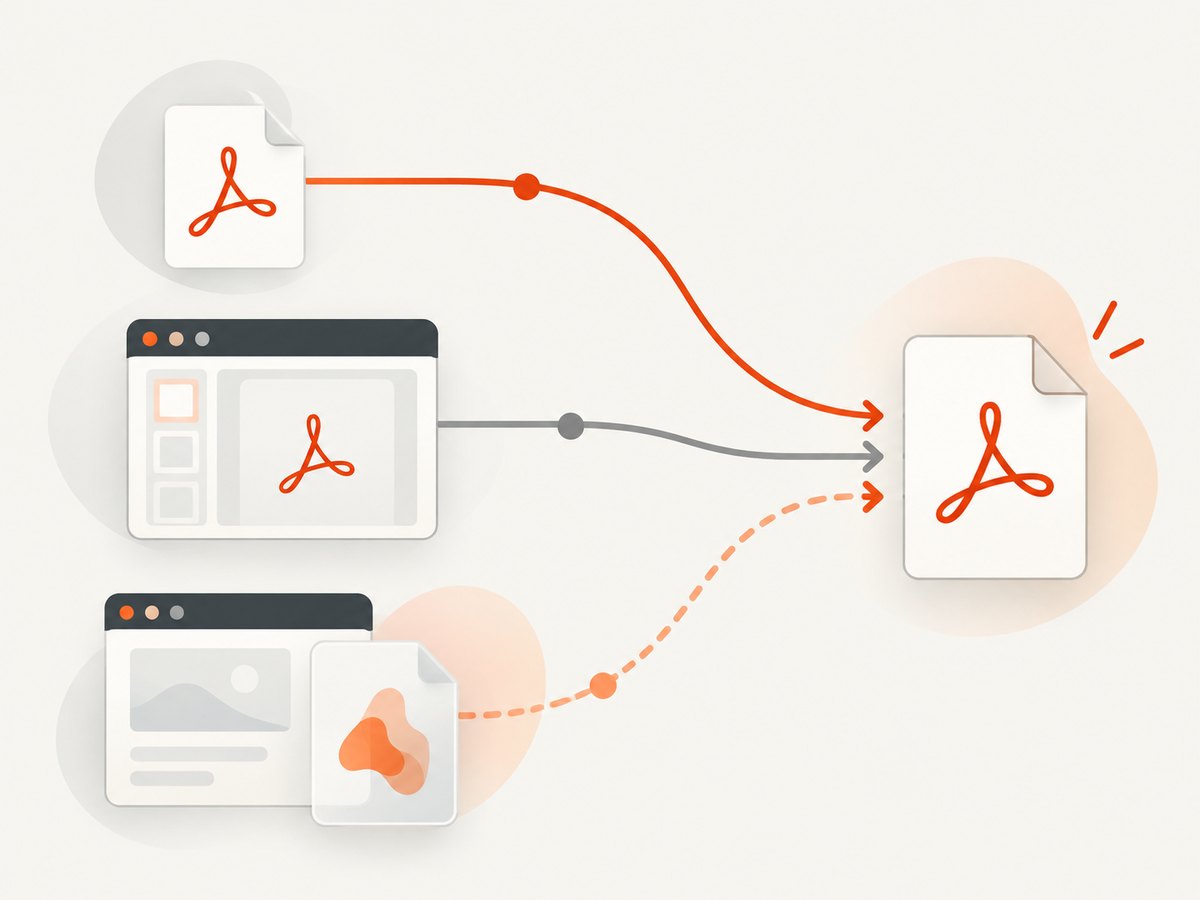
Short answer: use Save Link As for a normal PDF URL, click Chrome’s viewer Download button for a PDF already open in Chrome, and use URL.createObjectURL() plus an anchor’s download attribute when the page gives you a blob: URL. A blob URL is a temporary reference to bytes held by the page; it is not usually the original, permanent PDF address.
Choose the workflow that matches the PDF
| What you have | Best method | What you get |
|---|---|---|
| A regular link ending in .pdf | Right-click and choose Save Link As | The server’s original file |
| A PDF open in Chrome’s viewer | Use the viewer’s Download button | The original or edited viewer copy |
A blob: URL created by a web app |
Save the Blob in the page context with JavaScript | A local PDF made from in-memory bytes |
| An embedded PDF with no toolbar | Open the PDF itself in a new tab, then download | The viewer controls and a local file |
The distinction matters because a blob: URL is scoped to the page that created it. Copying that string into another browser or trying to fetch it later often fails after the page closes or revokes the object URL.
Download a normal PDF link
- Open the page containing the PDF link.
- Right-click the link and select Save Link As.
- Choose a folder and keep the
.pdfextension.
This is the simplest path because the browser requests the file directly. Google’s Chrome Help documents the same procedure and the setting that controls whether PDFs open in Chrome or download automatically: Chrome PDF settings and download help.
Make Chrome download PDFs instead of opening them
- Open
chrome://settings/content/pdfDocuments. - Under the PDF behavior option, choose Download PDFs.
- Open the link again. Chrome should save the file rather than showing the viewer.
This preference affects future PDF navigation. It does not turn a page-owned Blob into a public URL, and a site can still control responses with authentication or headers.
Download a PDF already open in Chrome’s viewer
- Open the PDF in its own tab. If it is embedded in another page, right-click the frame or use the page’s open-in-new-tab control.
- Move the pointer over the viewer to reveal its toolbar.
- Select the Download icon.
- If Chrome asks, choose With your changes to keep annotations, form values, highlights, drawings, or signatures, or Without your changes for the unmodified file.
Chrome’s viewer also supports search, highlighting, annotations, drawing, form filling, and signatures. The official workflow is described in Google’s Chrome PDF viewer help. Chrome can use OCR to make scanned PDFs searchable and selectable, as documented in the same help material.
Where the downloaded file goes
By default, Chrome saves to your Downloads folder. Open chrome://settings/downloads to change the folder or enable Ask where to save each file before downloading. If the viewer offers a choice between edited and unedited output, the edited copy may be generated in the browser rather than downloaded byte-for-byte from the original server response.
Save a PDF exposed as a blob: URL
A Blob is a JavaScript object containing bytes. A page creates an object URL such as blob:https://example.test/... so the browser can display those bytes. The string is an opaque handle, not a portable file URL. Work in the page context that owns it, where the Blob or the network response is available.
Reusable browser function
function downloadPdfBlob(blob, filename = 'document.pdf') {
  if (!(blob instanceof Blob)) {
    throw new TypeError('Expected a Blob');
  }

  const url = URL.createObjectURL(blob);
  const a = document.createElement('a');
  a.href = url;
  a.download = filename.toLowerCase().endsWith('.pdf')
    ? filename
    : `${filename}.pdf`;
  a.rel = 'noopener';
  document.body.appendChild(a);
  a.click();
  a.remove();

  // Keep the object URL alive long enough for the download to start.
  setTimeout(() => URL.revokeObjectURL(url), 30_000);
}
Chrome for Developers documents this object-URL download pattern, and MDN explains that object URLs should be revoked when no longer needed to avoid memory leaks: Chrome for Developers file and Blob guidance and MDN blob URLs.
If you already have an ArrayBuffer or typed bytes
async function downloadPdfBytes(bytes, filename = 'document.pdf') {
  const blob = new Blob([bytes], { type: 'application/pdf' });
  downloadPdfBlob(blob, filename);
}

// Example: bytes returned by fetch in the same origin/page context
async function fetchAndDownload(url) {
  const response = await fetch(url, { credentials: 'include' });
  if (!response.ok) throw new Error(`HTTP ${response.status}`);
  const blob = await response.blob();
  downloadPdfBlob(blob, 'report.pdf');
}
The credentials: 'include' option sends cookies where the server permits it. It does not bypass authentication or cross-origin policy. The response must be readable by the page under CORS and other browser rules.
Recovering the Blob from a page application
When a site creates the viewer from a Blob, inspect the code path or the Network panel to find the response that produced it. In DevTools, open Network, reload the page, filter for pdf or fetch, and inspect responses. If the response is accessible, run:
const response = await fetch('/path/to/document', { credentials: 'include' });
const blob = await response.blob();
downloadPdfBlob(blob, 'document.pdf');
A copied blob: string may stop working when the page is closed, the document is reloaded, or the application calls URL.revokeObjectURL(). You generally cannot turn that string into a durable server URL. Headers, origin rules, authentication, and site controls determine whether the underlying bytes can be recovered.
When the viewer or Blob download is blocked
Automatic-download permission
Chrome may block a script that starts a download, especially after several downloads. Open Settings → Privacy and security → Site Settings → Additional permissions → Automatic downloads, allow the site when appropriate, and try again. Google’s download troubleshooting page covers other blocked-download states.
Cross-origin errors
An error such as “blocked by CORS policy” means the page is not allowed to read the response from that origin. A client-side script cannot fix a server that omits the required CORS headers. Use the site’s own download control, a server-side proxy you control and are authorized to use, or request access from the document owner.
401 or 403 responses
The PDF requires authentication or a permission your request does not have. Sign in through the normal site flow and use credentials: 'include' only when the site permits it. Do not copy session cookies into untrusted scripts. A Blob helper cannot remove access controls.
“Failed to execute createObjectURL”
Pass a real Blob, File, or supported binary object. If you have text containing a URL, fetch it and call response.blob() first. Also check that the code is running in a window or worker context that supports object URLs.
The saved file is zero bytes or corrupt
Inspect the response before saving. Confirm response.ok, check the HTTP status, and verify that the content is actually a PDF rather than an HTML login page. A valid PDF commonly starts with the bytes %PDF-. Do not assume a successful fetch means the requested document was returned.
const response = await fetch(url, { credentials: 'include' });
const contentType = response.headers.get('content-type') || '';
if (!response.ok) throw new Error(`HTTP ${response.status}`);
if (!contentType.includes('pdf')) {
  const preview = (await response.text()).slice(0, 200);
  throw new Error(`Expected PDF, received ${contentType}: ${preview}`);
}
downloadPdfBlob(await response.blob(), 'document.pdf');
The filename is ignored
The download attribute is a filename suggestion. Same-origin rules, response headers, browser settings, and site policy can override it. For blob: and data: URLs it usually works, but always verify the resulting extension and content.
Server-side alternatives for authorized documents
If your application owns the document endpoint, downloading outside the browser can be more reliable. Keep authentication on the server, stream the response, and set an explicit content type and disposition.
curl -L --fail --cookie cookies.txt \
  -H 'Accept: application/pdf' \
  'https://example.com/reports/annual.pdf' \
  -o annual.pdf
import requests
url = "https://example.com/reports/annual.pdf"
r = requests.get(url, timeout=60)
r.raise_for_status()
if "pdf" not in r.headers.get("content-type", "").lower():
raise RuntimeError("Response is not a PDF")
with open("annual.pdf", "wb") as f:
f.write(r.content)const res = await fetch('https://example.com/reports/annual.pdf');
if (!res.ok) throw new Error(`HTTP ${res.status}`);
const type = res.headers.get('content-type') || '';
if (!type.includes('pdf')) throw new Error(`Unexpected type: ${type}`);
const buffer = Buffer.from(await res.arrayBuffer());
require('node:fs').writeFileSync('annual.pdf', buffer);These examples require a URL and credentials you are authorized to use. They do not solve a browser-only, authenticated flow unless you reproduce that flow securely on your server.
Or skip the browser setup
If your goal is a clean PDF or screenshot of a page rather than extracting a site’s private Blob, ScreenshotNeo provides a website capture API. One request can return a PDF, and its capture options include paper size, margins, landscape mode, and page ranges. It accepts consent banners before capture and removes more than 60 known consent platforms, newsletter popups, and chat widgets; each cleanup step can be disabled. Bot checks, blank pages, timeouts, failed loads, and cache hits are not billed, and response headers identify the page verdict and billing result. See the ScreenshotNeo API documentation for all parameters.
curl -G "https://api.screenshotneo.com/v1/shot" \
  -d access_key=YOUR_API_KEY \
  --data-urlencode url=https://stripe.com \
  -d format=pdf \
  -o page.pdf
import requests
r = requests.get(
"https://api.screenshotneo.com/v1/shot",
params={
"access_key": "YOUR_API_KEY",
"url": "https://stripe.com",
"format": "pdf",
},
timeout=90,
)
r.raise_for_status()
open("page.pdf", "wb").write(r.content)const q = new URLSearchParams({
access_key: 'YOUR_API_KEY',
url: 'https://stripe.com',
format: 'pdf'
});
const res = await fetch(`https://api.screenshotneo.com/v1/shot?${q}`);
if (!res.ok) throw new Error(`HTTP ${res.status}`);
require('node:fs').writeFileSync('page.pdf', Buffer.from(await res.arrayBuffer()));ScreenshotNeo also offers an MCP server with take_screenshot, get_page_info, and capture_pdf tools for Claude, Cursor, and other MCP clients. You can set waits, custom headers and cookies, user agent, timezone, geolocation, CSS or JavaScript, blocked resources, caching TTL, and bulk capture up to 100 URLs per call. One thousand screenshots per month are free with no card; paid plans start at $5 for 3,000. Create a free ScreenshotNeo account.
Performance, reliability, and privacy considerations
- Large files: prefer streaming on a server to avoid holding several copies of a Blob in memory. Revoke object URLs after downloads start.
- Slow pages: wait for the document or a specific selector before capturing. A fixed delay can be less reliable than waiting for the actual content.
- Repeated downloads: cache authorized bytes carefully and use a stable filename. Do not cache private PDFs in shared browser storage.
- Network failures: use timeouts, check status codes, and retry only idempotent requests. Avoid retrying a download that may trigger a one-time server action.
- Security: treat PDFs as untrusted files. Keep browser and PDF software updated, and do not paste session tokens into third-party tools.
- Cost: browser downloads have no API charge but consume user bandwidth and compute. A capture API charges according to its plan and request rules; ScreenshotNeo reports billing in response headers and does not bill the listed failed-page cases.

FAQ
Can I download a blob URL by pasting it into curl?
Usually no. The URL references memory owned by a browser page, not a public server resource. Find and request the original response in the owning page context or use the page’s download control.
Does changing Chrome’s PDF setting recover a Blob?
No. The setting controls ordinary PDF navigation. A Blob must be saved from the page that created it.
How do I keep annotations?
Use the viewer’s Download button and choose With your changes. A direct server download generally returns the original file without viewer edits.
Why does my script download an HTML file named .pdf?
The request likely returned a login page, error page, or redirect. Check status, final URL, content type, and the first bytes before writing the file.
Can a screenshot API access a private Blob?
Not from the Blob string alone. Provide an authorized page URL and the required headers or cookies to a service you trust, subject to that site’s access rules.


