How to Download a PDF from Chrome’s PDF Viewer
Save an open PDF from Chrome, keep or discard viewer edits, download links directly, change default PDF behavior, and find missing files.
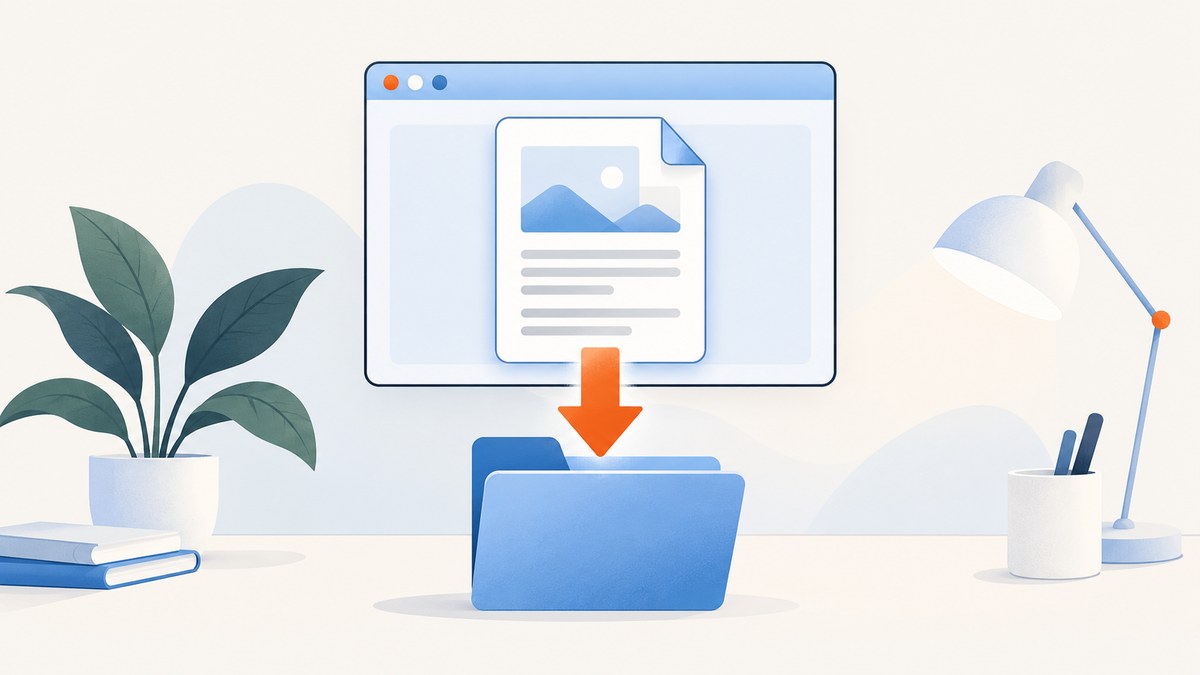
Chrome can open a PDF in its built-in viewer instead of downloading it immediately. To save the document on a computer, open the PDF, select Download in the viewer, then choose With your changes or Without your changes when Chrome presents that choice. On a Chromebook, Google documents choosing Save to keep viewer edits. The file goes to Chrome’s configured download folder.
If the PDF is still a link on a web page, right-click the link and select Save Link As. If you want every PDF link to download instead of opening in Chrome, change the PDF documents setting at chrome://settings/content/pdfDocuments.
1. Download an open PDF on a computer
- Open the PDF in a Chrome tab. If it opened inside another page, open the document in a new tab so the PDF viewer toolbar is visible.
- Select the Download button in the viewer toolbar.
- If Chrome asks, choose With your changes to include annotations or form edits made in the viewer, or Without your changes to save the original PDF.
- Open Chrome’s download list with More (the three-dot menu) > Downloads, or open the download folder on your computer.
The exact prompt can vary by device and viewer state. Google’s desktop instructions describe the two choices above; Chromebook instructions describe selecting Save when you want to retain edits. See Google’s Chrome PDF help for the current interface.
With your changes or without them?
| Choice | What it saves | Use it when |
|---|---|---|
| With your changes | The PDF plus edits made in Chrome’s viewer | You filled a form, added a signature, highlighted text, or wrote annotations and need those edits in the downloaded copy |
| Without your changes | The original PDF content | You want a clean copy or need to discard temporary viewer edits |
| Save (Chromebook) | A saved copy that retains the documented edits | You are using a Chromebook and want to keep changes |
2. Save a PDF link without opening it
When a page contains a link to a PDF and you do not need to view it first:
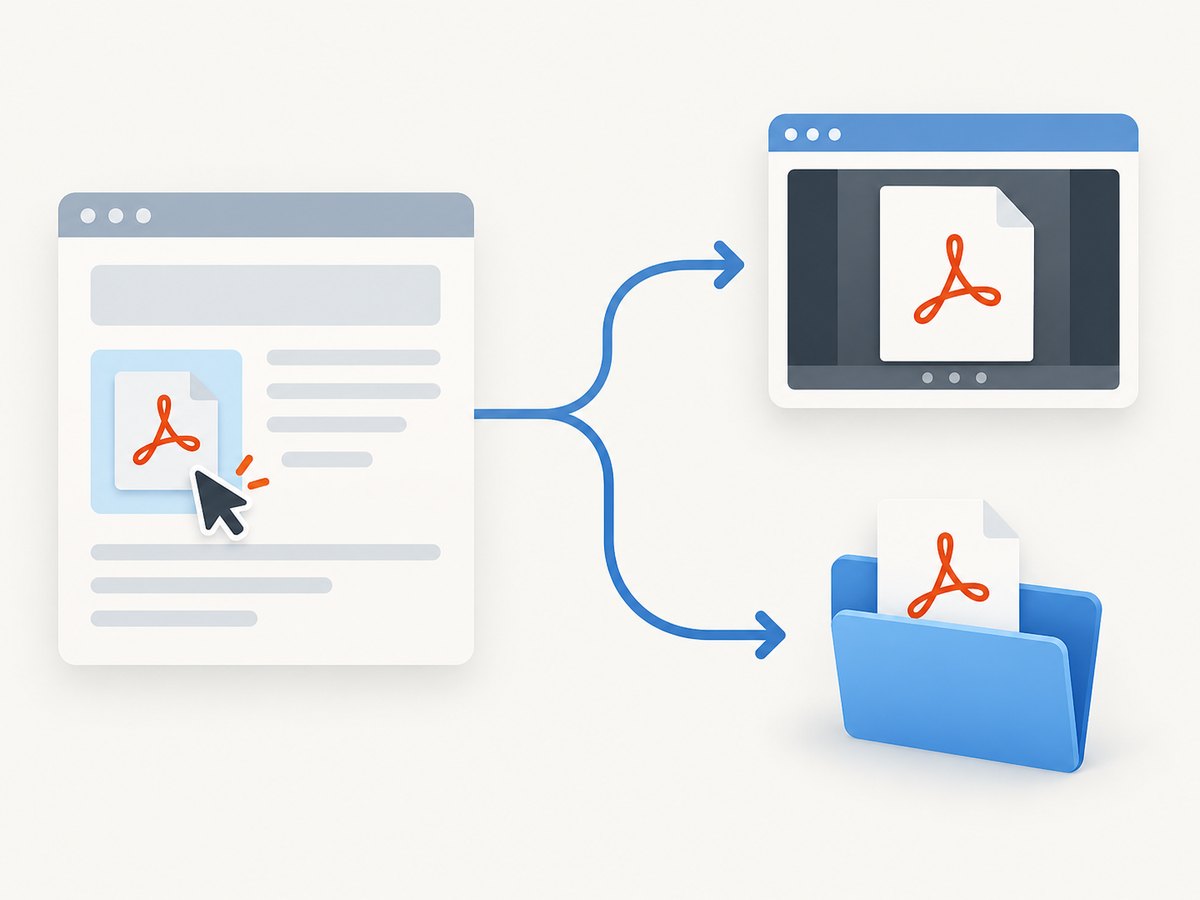
- Right-click the PDF link (or two-finger click on a trackpad).
- Select Save Link As.
- Choose a folder and filename if Chrome asks, then select Save.
This requests the linked file directly. It is useful for downloading several documents from an index page and avoids entering the viewer for each one. The command may be named slightly differently by your operating system, but Chrome’s documented desktop action is Save Link As. See Chrome’s download help.
3. Make Chrome download PDFs by default
For a one-time save, you do not need to change a setting. To change Chrome’s behavior for future PDF links:
- Enter
chrome://settings/content/pdfDocumentsin the address bar. - Select Download PDFs.
The alternate option, Open PDFs in Chrome, keeps the built-in viewer behavior. You can also reach this control through More > Settings > Privacy and security > Site Settings > Additional content settings > PDF documents. The setting controls how Chrome handles PDF links; it does not change a file you have already downloaded.
When should you change the setting?
- Choose Download PDFs if you routinely archive files, process them with another application, or need them available offline immediately.
- Keep Open PDFs in Chrome if you often read documents, search them, or use viewer tools before deciding whether to save.
4. Choose a folder and find the downloaded file
Chrome saves downloads to its configured location unless you choose a destination for each file. To review or change it, open More > Settings > Downloads. Turn on Ask where to save each file before downloading if you want a location prompt every time.
Google lists these usual desktop defaults, although an existing setting can differ:
| Platform | Usual folder |
|---|---|
| Windows 10 and later | \Users\<username>\Downloads |
| macOS | /Users/<username>/Downloads |
| Linux | /home/<username>/Downloads |
Open More > Downloads to see completed and in-progress files. Removing an entry from Chrome’s download history does not delete the file from your computer. Use your operating system’s file manager to move, rename, or delete the actual PDF.
5. Download a PDF on Android
- Open the PDF in Chrome.
- Tap More (three dots) at the top right.
- Tap Download.
- Tap More > Downloads in Chrome to see the downloaded file.
Google’s documented Android PDF features require Android 12 or later. In Incognito mode, Chrome cannot open a PDF in its viewer and instead prompts you to download it. The Android workflow is separate from the desktop viewer, so do not look for the desktop toolbar button on a phone. See Google’s Android instructions.
6. Save a copy to Google Drive
For some PDFs on a computer, Chrome can offer Save to Drive. This requires that you are not using Incognito mode or a Guest profile. Chrome places the item in Drive’s Saved from Chrome folder. Use this when you need cloud access on another device; it is an alternative to saving a local copy, not a requirement for downloading.
7. Troubleshooting common download problems
The Download button is missing
Make sure the document is open in its own tab and that Chrome’s PDF viewer controls are visible. A PDF embedded inside another site may expose the site’s frame controls instead. Right-click the original link and use Save Link As, or open the link in a new tab.
The file opens again instead of downloading
Set chrome://settings/content/pdfDocuments to Download PDFs. A site can also provide a viewer or generate a PDF dynamically; in that case, use the viewer’s own Download control or the link’s context menu.
My annotations or form entries disappeared
When Chrome offers both choices, select With your changes. On Chromebook, select Save according to Google’s instructions. If no edited-copy choice appears, the current viewer or document state may not support exporting those edits; preserve the original and use the application that created the form or annotation when you need an editable source.
I cannot find the downloaded PDF
Open More > Downloads and select the folder or “Show in folder” action for the item. Then check Settings > Downloads for the configured location. A file can be complete even when the download-history entry was removed.
The download is stuck or fails
Check the page again, verify that you have free disk space, and retry from the original link. A server can require authentication, expire a link, or block automated requests. If the link works in a normal tab but not from a context menu, open it first and use the viewer’s Download button.
Save Link As downloads an HTML file
The link may point to a web application that renders a PDF after navigation rather than to a PDF resource. Open it in Chrome and use the viewer’s Download control, or ask the publisher for a direct PDF URL.
Drive saving is unavailable
Leave Incognito or Guest mode, sign in to the intended Google account, and try Save to Drive again. Otherwise save locally and upload the file to Drive yourself.
8. Automate a PDF or screenshot without browser setup
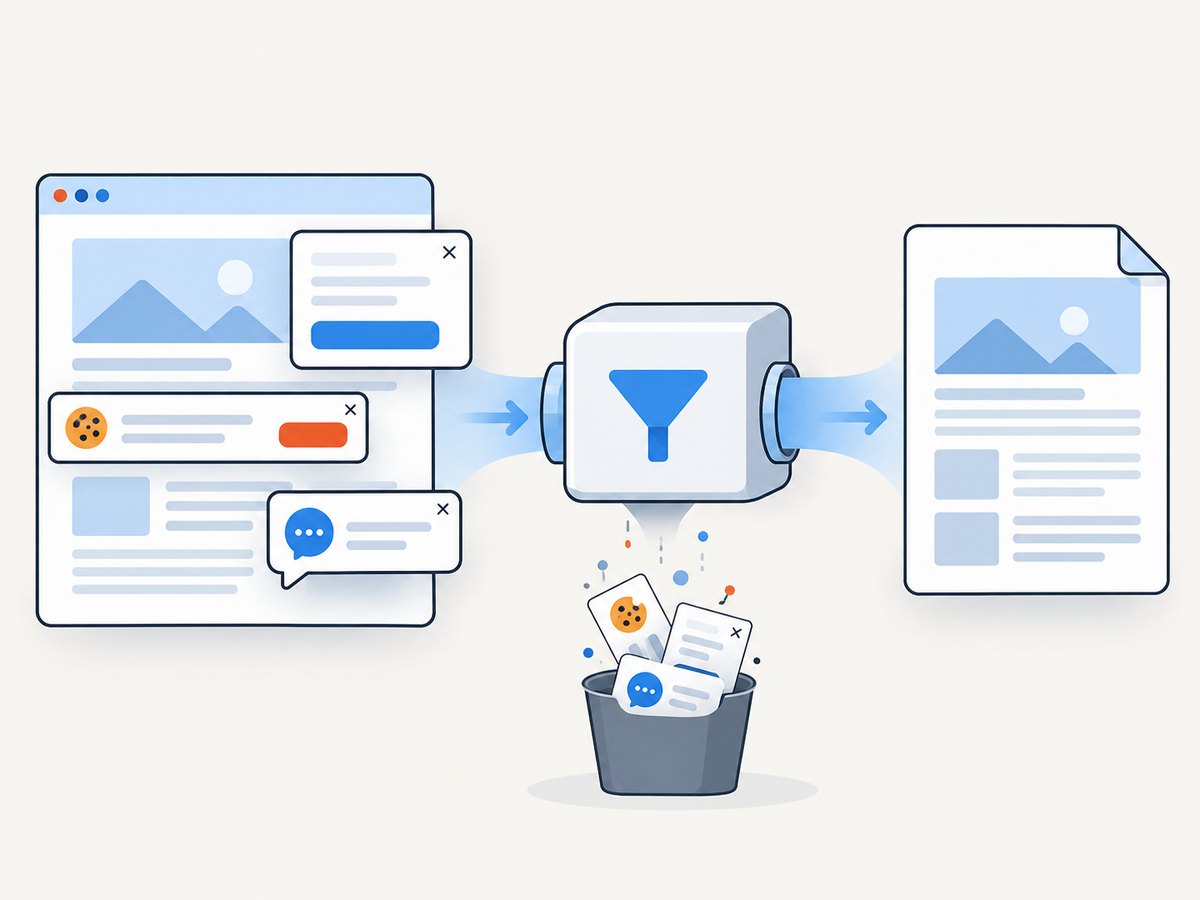
If your goal is to capture a web page as a PDF from code rather than manually download an already published PDF, ScreenshotNeo provides a website capture API and MCP server. It handles consent banners, newsletter popups, and chat widgets before capture; failed loads, bot checks, blank pages, timeouts, and cache hits are not billed. Its PDF endpoint supports paper size, margins, landscape mode, and page ranges. Full documentation is at screenshotneo.com/docs.
Or skip the browser setup
One GET request returns a PDF or image for a URL. The following examples use the required API endpoint and save the response as a PDF; replace the target URL and API key.
cURL
curl -G "https://api.screenshotneo.com/v1/shot" -d access_key=YOUR_API_KEY --data-urlencode url=https://stripe.com -d format=pdf -o page.pdfPython
import requests

r = requests.get("https://api.screenshotneo.com/v1/shot", params={"access_key": "YOUR_API_KEY", "url": "https://stripe.com", "format": "pdf"}, timeout=90)
r.raise_for_status()
open("page.pdf", "wb").write(r.content)
Node.js
const q = new URLSearchParams({ access_key: 'YOUR_API_KEY', url: 'https://stripe.com', format: 'pdf' });
const res = await fetch(`https://api.screenshotneo.com/v1/shot?${q}`);
if (!res.ok) throw new Error(`HTTP ${res.status}`);
const fs = await import('node:fs/promises');
await fs.writeFile('page.pdf', Buffer.from(await res.arrayBuffer()));
ScreenshotNeo exposes 63 options, including full-page capture with lazy images, CSS element selection, custom CSS and JavaScript, waits, request blocking, headers and cookies, timezone and geolocation, caching with a chosen TTL, async jobs with signed webhooks, bulk capture for up to 100 URLs per call, and signed links. Responses identify the page verdict and whether the request was billed with X-Page-Verdict and X-Billed headers. An MCP server provides take_screenshot, get_page_info, and capture_pdf tools for Claude, Cursor, and other MCP clients.
The Free plan includes 1,000 shots per month with no card. Paid plans start at $5 for 3,000 shots; every feature is available on every plan, and yearly billing gives two months free. Create a free ScreenshotNeo account.
9. Reliability, privacy, and cost considerations
- Reliability: For a single document, Chrome’s viewer is the simplest path. For recurring captures, use explicit timeouts, retries for transient failures, and a stable output filename. With an API, inspect the HTTP status and verdict headers before treating a response as a valid document.
- Performance: Saving an already loaded PDF avoids a second fetch. For web-page-to-PDF jobs, wait for a selector or network idle when content loads asynchronously; block unnecessary ads or trackers when they are not part of the document.
- Cost: Chrome’s local download has no service charge. ScreenshotNeo bills only clean shots; bot checks, blank pages, timeouts, failed loads, and cache hits cost nothing. Choose a cache TTL for repeated URLs and bulk capture for batches.
- Privacy: Download folders may be visible to other users of the computer or backup software. Treat PDFs containing personal or confidential information as sensitive, and review any custom headers or cookies sent to a capture service.
10. Quick checklist
- Open PDF: select Download.
- Need edits: choose With your changes; Chromebook uses Save.
- Only have a link: right-click > Save Link As.
- Always download: choose Download PDFs in PDF documents settings.
- Cannot find it: check More > Downloads and the Downloads folder setting.
- On Android: More > Download.
FAQ
Does downloading remove the PDF from the website?
No. It creates a local copy; the online document remains unchanged.
Can I download a PDF in Incognito?
Yes, but Chrome’s Android documentation says Incognito prompts a download instead of opening the PDF viewer. Desktop behavior can depend on the site and profile.
Why are there two downloaded files?
Chrome may retain an earlier copy while saving a new one with a number appended to the filename. Check the Downloads list and timestamps.
Can Chrome download every PDF automatically?
Yes. Select Download PDFs at chrome://settings/content/pdfDocuments; you can change back to opening PDFs in Chrome later.


