How to Download a PDF From Chrome’s PDF Viewer With Playwright
Use Playwright’s download event for attachments, handle PDF viewer navigation separately, and avoid confusing source downloads with page printing.
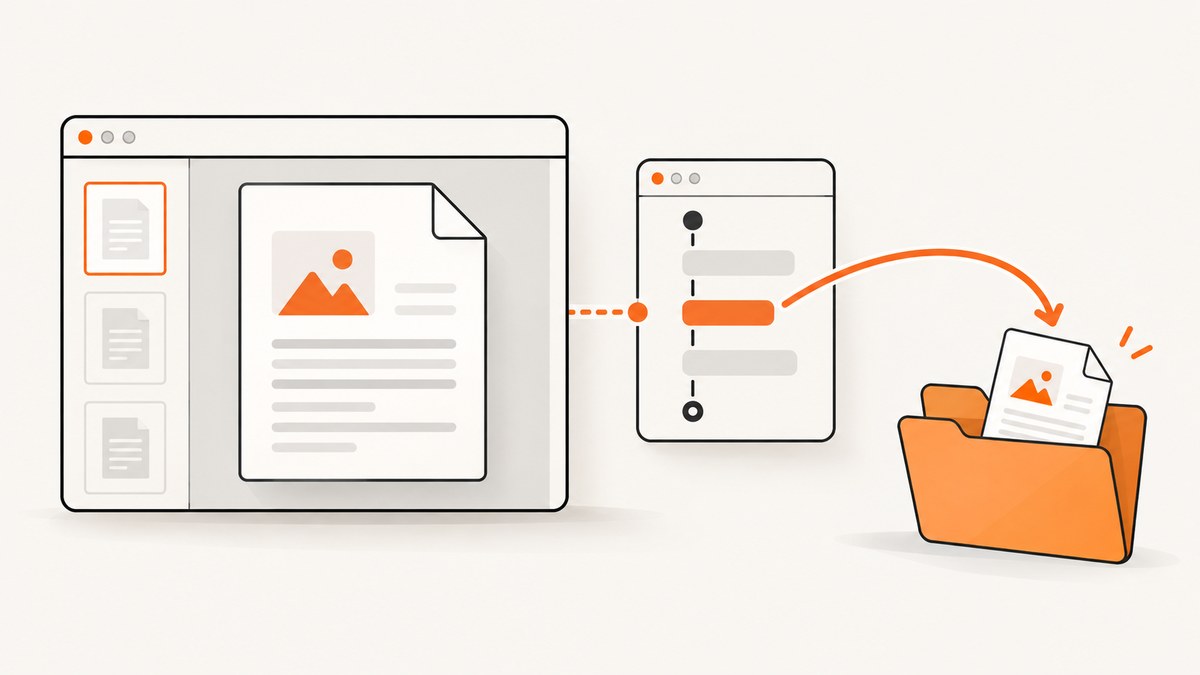
Downloading a PDF that appears in Chrome’s built-in viewer depends on how the website delivers it. If the click starts an attachment download, wait for Playwright’s download event and save the resulting file. If the click navigates to a PDF document rendered by Chrome, treat it as a PDF navigation or response workflow. In headless mode, Playwright documents that navigation to a PDF document is not supported.
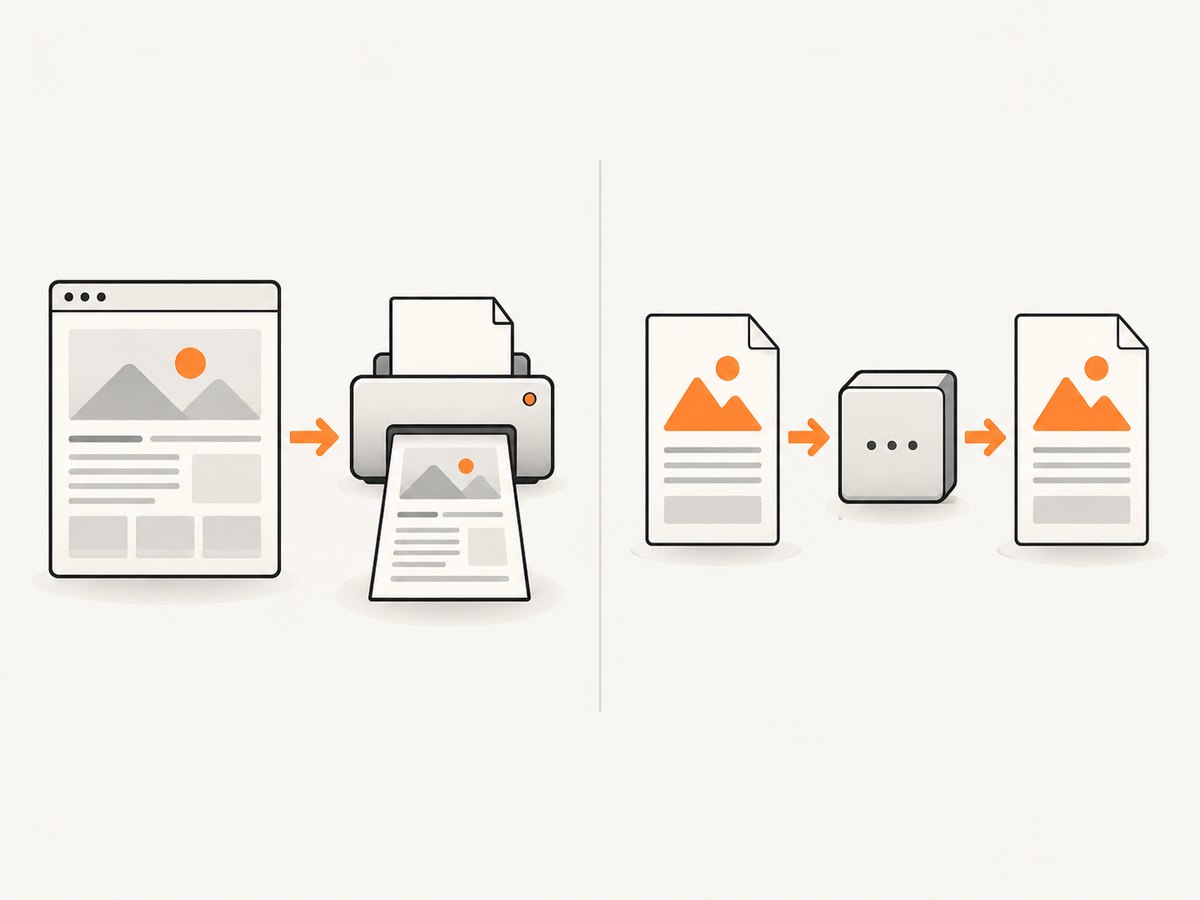
The distinction matters because page.pdf() creates a new PDF from the current HTML page using print CSS; it does not retrieve the original PDF opened by Chrome’s viewer.
Choose the correct download strategy
| What happens after the click? | Use | What you receive |
|---|---|---|
| The server responds with an attachment and the browser download event fires | page.waitForEvent('download') |
The original downloaded file |
| The page navigates to a PDF URL and Chrome displays its viewer | Site download control or an authenticated response workflow | The original PDF response, when accessible |
| You want a PDF representation of rendered HTML | page.pdf() |
A newly generated PDF, not the source document |
Start by observing the browser behavior instead of assuming that every PDF link is an attachment. A viewer display alone does not prove that Playwright created a Download object.
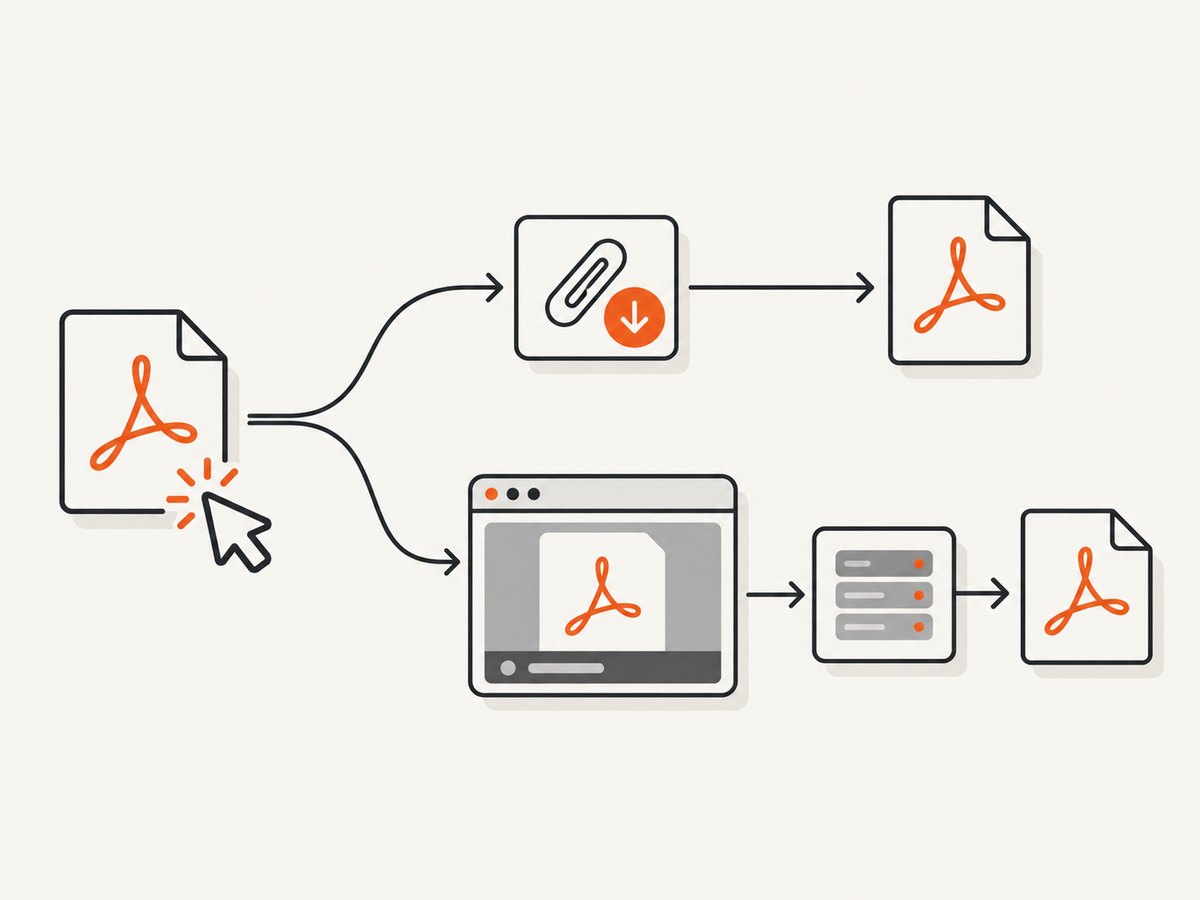
Attachment downloads: the reliable Playwright pattern
For a normal attachment, create the event promise before clicking. This ordering prevents a fast download from being missed.
import { chromium } from 'playwright';

const browser = await chromium.launch({ headless: true });
const context = await browser.newContext({ acceptDownloads: true });
const page = await context.newPage();

try {
  await page.goto('https://example.com/reports', {
    waitUntil: 'domcontentloaded',
    timeout: 30_000
  });

  const downloadPromise = page.waitForEvent('download');
  await page.getByRole('link', { name: 'Download PDF' }).click();

  const download = await downloadPromise;
  await download.saveAs('report.pdf');
  console.log(`Saved ${download.suggestedFilename()}`);
} finally {
  await browser.close();
}
Replace the URL and accessible link name with selectors from the target site. acceptDownloads: true enables download handling in the browser context. Save the file before closing the context because the temporary download is tied to that context.
Use a button, link, or selector that matches the real site
The role-based locator is usually the most maintainable option:
const downloadPromise = page.waitForEvent('download');
await page.getByRole('button', { name: /download/i }).click();
const download = await downloadPromise;
await download.saveAs('/tmp/invoice.pdf');
If the page has several PDF links, scope the locator to the relevant row or card:
const row = page.getByRole('row', { name: /March 2026 invoice/i });
const downloadPromise = page.waitForEvent('download');
await row.getByRole('link', { name: /PDF/i }).click();
const download = await downloadPromise;
await download.saveAs('march-invoice.pdf');
A CSS selector can work when no accessible name exists, but keep it specific and tied to a stable attribute. Avoid selecting Chrome viewer internals as though they were the site’s download control; those internals are not a uniform application interface.
When the link opens Chrome’s PDF viewer
If no download event occurs, inspect what the click actually did. The site may have navigated the page to a PDF response, opened a new page, or made a request while leaving the original page in place.
Check for a new page or popup
const popupPromise = page.waitForEvent('popup').catch(() => null);
await page.getByRole('link', { name: /view pdf/i }).click();
const popup = await popupPromise;

if (popup) {
  await popup.waitForLoadState('domcontentloaded').catch(() => {});
  console.log('Popup URL:', popup.url());
}
A popup URL ending in .pdf is evidence of navigation to a PDF resource, not an attachment download event. The exact behavior depends on the site, response headers, authentication, and browser mode.
Observe responses during the click
const pdfResponsePromise = page.waitForResponse(response => {
  const type = response.headers()['content-type'] || '';
  return type.toLowerCase().includes('application/pdf');
}, { timeout: 15_000 }).catch(() => null);

await page.getByRole('link', { name: /view pdf/i }).click();
const pdfResponse = await pdfResponsePromise;

if (pdfResponse) {
  console.log('PDF status:', pdfResponse.status());
  console.log('PDF URL:', pdfResponse.url());
}
A completed response is not automatically a Playwright attachment. Verify the status, content type, and bytes before treating it as a usable source file. In an authenticated application, the response may require cookies, authorization headers, or a short-lived URL from the same browser session.
Headless mode limitation
Playwright’s Page API states: “Headless mode doesn’t support navigation to a PDF document.” If your script attempts to navigate directly to the PDF in headless mode, it can fail even though the same URL displays in a headed browser. Prefer the site’s own download action, or obtain the PDF response through the authenticated session when the application permits it.
If Chrome’s built-in viewer itself is central to the workflow, reproduce the intended browser configuration. Playwright supports launching branded Google Chrome with the chrome channel, and its documentation distinguishes that browser from the default Chromium headless shell.
import { chromium } from 'playwright';

const browser = await chromium.launch({
  channel: 'chrome',
  headless: false
});
const page = await browser.newPage();
await page.goto('https://example.com/document.pdf');
Use the same channel and headed or headless mode that will run in production. Enterprise policies can also affect whether Playwright launches or controls Chrome and Edge, so a managed machine may fail before PDF handling begins.
Saving a PDF response from an authenticated session
When a site exposes the original PDF response and your account is already authenticated in Playwright, you can use the session context to request the resource. Keep this site-specific: not every viewer exposes a stable route or DOM download button.
import { chromium } from 'playwright';
import { writeFile } from 'node:fs/promises';

const browser = await chromium.launch();
const context = await browser.newContext({ acceptDownloads: true });
const page = await context.newPage();

try {
  await page.goto('https://example.com/login');
  // Complete the site-specific login flow here.
  await page.goto('https://example.com/account');

  const response = await context.request.get(
    'https://example.com/private/report.pdf'
  );

  if (!response.ok()) {
    throw new Error(`PDF request failed: ${response.status()} ${response.statusText()}`);
  }

  const contentType = response.headers()['content-type'] || '';
  if (!contentType.toLowerCase().includes('application/pdf')) {
    throw new Error(`Expected application/pdf, received ${contentType}`);
  }

  await writeFile('private-report.pdf', await response.body());
} finally {
  await browser.close();
}
Whether cookies are shared exactly as expected depends on the Playwright version and request setup. If the request is redirected to a login page, inspect the final URL and response headers. Another option is to capture the PDF URL from a page response and request it with the same cookies or authorization data, subject to the application’s access rules.
Python Playwright example
The same attachment workflow is available in Python. Start waiting before the click and save the download object inside the event context.
from pathlib import Path
from playwright.sync_api import sync_playwright

with sync_playwright() as p:
    browser = p.chromium.launch(headless=True)
    context = browser.new_context(accept_downloads=True)
    page = context.new_page()

    try:
        page.goto("https://example.com/reports", wait_until="domcontentloaded", timeout=30_000)
        with page.expect_download(timeout=15_000) as download_info:
            page.get_by_role("link", name="Download PDF").click()
        download = download_info.value
        download.save_as(Path("report.pdf"))
        print(download.suggested_filename)
    finally:
        browser.close()
What page.pdf() does—and does not do
Use page.pdf() when your goal is to print the currently rendered HTML page. Playwright documents that it returns a PDF buffer, uses print CSS media by default, and can save directly to a path.
const pdf = await page.pdf({
  path: 'rendered-page.pdf',
  format: 'A4',
  printBackground: true,
  margin: { top: '12mm', right: '12mm', bottom: '12mm', left: '12mm' }
});
This is a new representation of the page. It does not extract the original PDF shown by Chrome’s viewer. If preserving the publisher’s exact bytes, embedded metadata, signatures, or original pagination matters, obtain the source response or attachment instead.
Chrome’s --print-to-pdf option
Chrome’s command-line --print-to-pdf option is another printing workflow. It saves the target page as a PDF. It does not describe a mechanism for downloading a source PDF that Chrome’s viewer is displaying.
Or skip the browser setup
If your actual requirement is to capture a page or PDF endpoint for a pipeline, ScreenshotNeo provides a website screenshot API and MCP server. It is useful when you do not need to control Chrome’s viewer UI directly.
See the ScreenshotNeo API documentation for parameters and response behavior. A direct request looks like this:
curl -G "https://api.screenshotneo.com/v1/shot" -d access_key=YOUR_API_KEY --data-urlencode url=https://stripe.com -o shot.webpimport requests
r = requests.get("https://api.screenshotneo.com/v1/shot", params={"access_key": "YOUR_API_KEY", "url": "https://stripe.com"}, timeout=90)
open("shot.webp", "wb").write(r.content)const q = new URLSearchParams({ access_key: 'YOUR_API_KEY', url: 'https://stripe.com' });
const res = await fetch(`https://api.screenshotneo.com/v1/shot?${q}`);Before capture, ScreenshotNeo accepts cookie and consent banners and removes more than 60 known consent platforms, newsletter popups, and chat widgets. Each step can be turned off. Bot checks or CAPTCHAs, blank pages, timeouts, failed loads, and cache hits are not billed; response headers identify the page verdict and whether the request was billed. Its MCP server exposes take_screenshot, get_page_info, and capture_pdf for Claude, Cursor, and other MCP clients. The free plan includes 1,000 screenshots per month with no card; paid plans start at $5 for 3,000.
Create a free ScreenshotNeo account and start with the 1,000 monthly screenshots.
Troubleshooting checklist
“page.waitForEvent(‘download’)” times out
- Cause: The click navigates to a PDF viewer, opens a popup, or triggers an in-page request instead of an attachment.
- Fix: Observe popup and response events, inspect the content type, and use the site’s download control or authenticated response workflow.
Headless navigation fails on a PDF URL
- Cause: Playwright documents that headless mode does not support navigation to a PDF document.
- Fix: Avoid direct PDF navigation in headless mode. Trigger the application’s download action or retrieve the PDF response. If viewer behavior is required, validate with the intended Chrome channel and mode.
The saved file is HTML, not PDF
- Cause: The request was redirected to login, an error page, or an application route.
- Fix: Check the final URL, status code, and
content-typebefore writing bytes. Confirm that authentication cookies or authorization headers are present.
The download is deleted after the script exits
- Cause: The temporary download belongs to a browser context that was closed before it was persisted.
- Fix: Call
saveAs()before closing the context or browser.
The locator cannot find the PDF link
- Cause: The control is rendered after JavaScript runs, is inside a frame, or has a different accessible name.
- Fix: Wait for the application’s meaningful state, inspect frames, and prefer role or label locators that match the rendered control. Do not assume Chrome viewer DOM is the same across modes.
Chrome will not launch in a managed environment
- Cause: Enterprise browser policies or executable restrictions.
- Fix: Check the machine’s Chrome and Edge policies and the configured browser channel. Separate launch failures from PDF delivery failures.
Reliability and performance considerations
- Wait for the right signal. Use the download event for attachments, response events for network evidence, and popup events for new pages. A generic sleep is weaker than an event tied to the actual operation.
- Bound every wait. Set navigation, download, and response timeouts so a broken endpoint does not hold a worker indefinitely.
- Validate bytes. Check status, content type, and optionally a small file signature before storing the result. A successful HTTP response can still be an HTML login page.
- Preserve session state. Keep the same authenticated context for the click and any follow-up request. Expiring signed URLs and session cookies are common causes of intermittent failures.
- Match production Chrome. Viewer behavior can differ between branded Chrome and Playwright’s Chromium headless shell, and between headed and headless operation.
- Retry selectively. Retry transient navigation or network failures, but do not blindly repeat a successful download or a deterministic authorization failure.
FAQ
Can Playwright click Chrome’s built-in PDF viewer download button?
Do not rely on a universal viewer selector. The viewer implementation and browser mode can vary. Prefer the website’s own download control or capture the authenticated PDF response.
Does page.pdf() download the PDF I opened?
No. It prints the current HTML page into a new PDF. It does not retrieve the source PDF displayed by the viewer.
Should I use headed Chrome for every PDF download?
No. Use an attachment workflow whenever the site provides one. Use headed branded Chrome only when the viewer behavior itself is required and cannot be replaced by a site download or response workflow.
Is a PDF URL enough to prove that a download happened?
No. A URL can be navigated or fetched without producing a Playwright download event. Check the event, response headers, status, and resulting bytes.
What is the simplest way to capture a PDF for an automated pipeline?
For a source PDF, use the site’s authenticated download or response endpoint. For a rendered page capture, a service such as ScreenshotNeo can remove consent UI and provide an API or MCP workflow without managing a browser locally.


