How to Download a PDF from Any URL
Learn whether a link serves a PDF or a webpage, then save, convert, automate, and troubleshoot PDF downloads with browser, curl, and APIs.
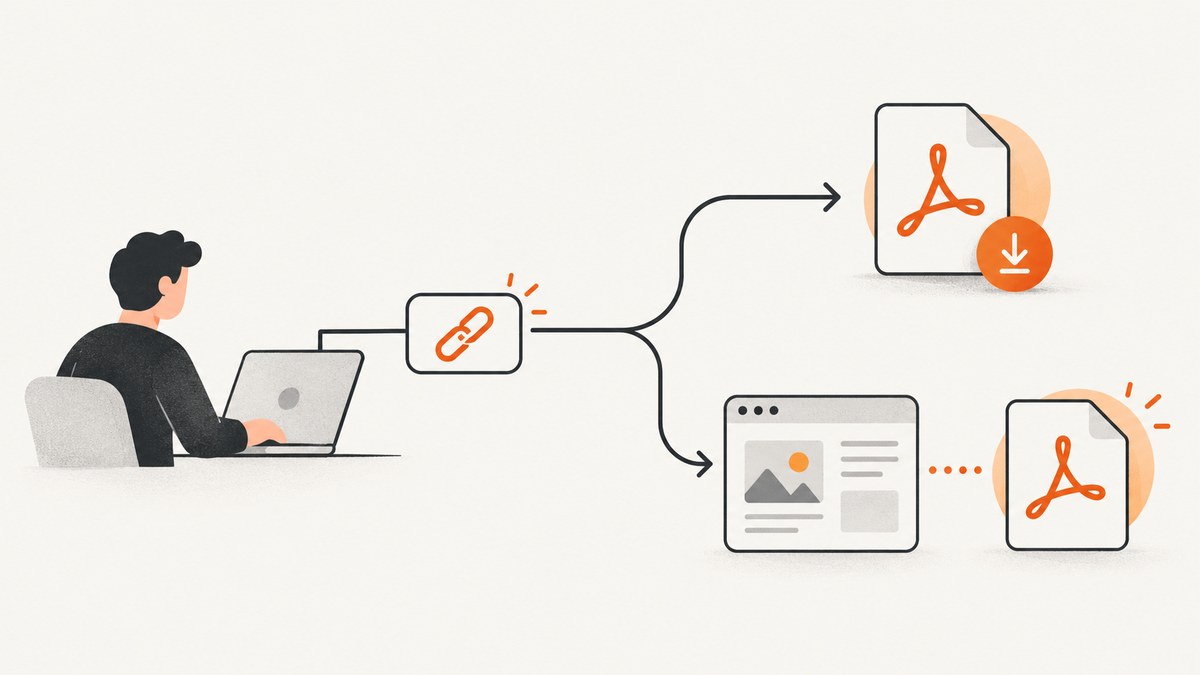
There are two different jobs hidden in the question “How do I download a PDF from a URL?” First, the URL may already serve a PDF file. In that case, you need to save the server’s response. Second, the URL may serve an ordinary webpage, and you want to create a PDF rendition of that page. That requires rendering the page, then exporting the result.
Identify which case you have before choosing a method:
- Existing PDF: save the original file delivered by the server.
- Webpage to PDF: render HTML, styles, images, and scripts into a new PDF.
A URL ending in .pdf is a useful clue, but it does not prove what the server returns. A protected viewer, redirect, login page, or a response with different headers can change the behavior. Access controls still apply; these methods do not bypass a paywall, login, CAPTCHA, or an owner’s download restrictions.
1. Save an existing PDF in Chrome
For a one-off download, use Chrome’s built-in link action:
- Find the direct PDF link.
- Right-click it and choose Save Link As.
- Choose a folder and confirm the filename.
Google documents this workflow in Chrome Help. Saving the link directly avoids depending on how the browser’s PDF viewer opens the response.
If the PDF opens in Chrome every time and you want files to download instead, open More → Settings → Privacy and security → Site settings → Additional content settings → PDF documents, then select the download option. Menu names can vary by operating system and Chrome version, so use the settings search box for “PDF documents” if the path differs.
When there is no direct PDF link
A page can embed a PDF viewer while keeping the file URL hidden behind scripts or a session request. You may also be looking at an HTML page that merely displays PDF-like content. Do not assume that copying the page URL will retrieve the original document. Check whether the site provides a visible download control, and follow its terms and access requirements.
2. Turn a webpage URL into a PDF
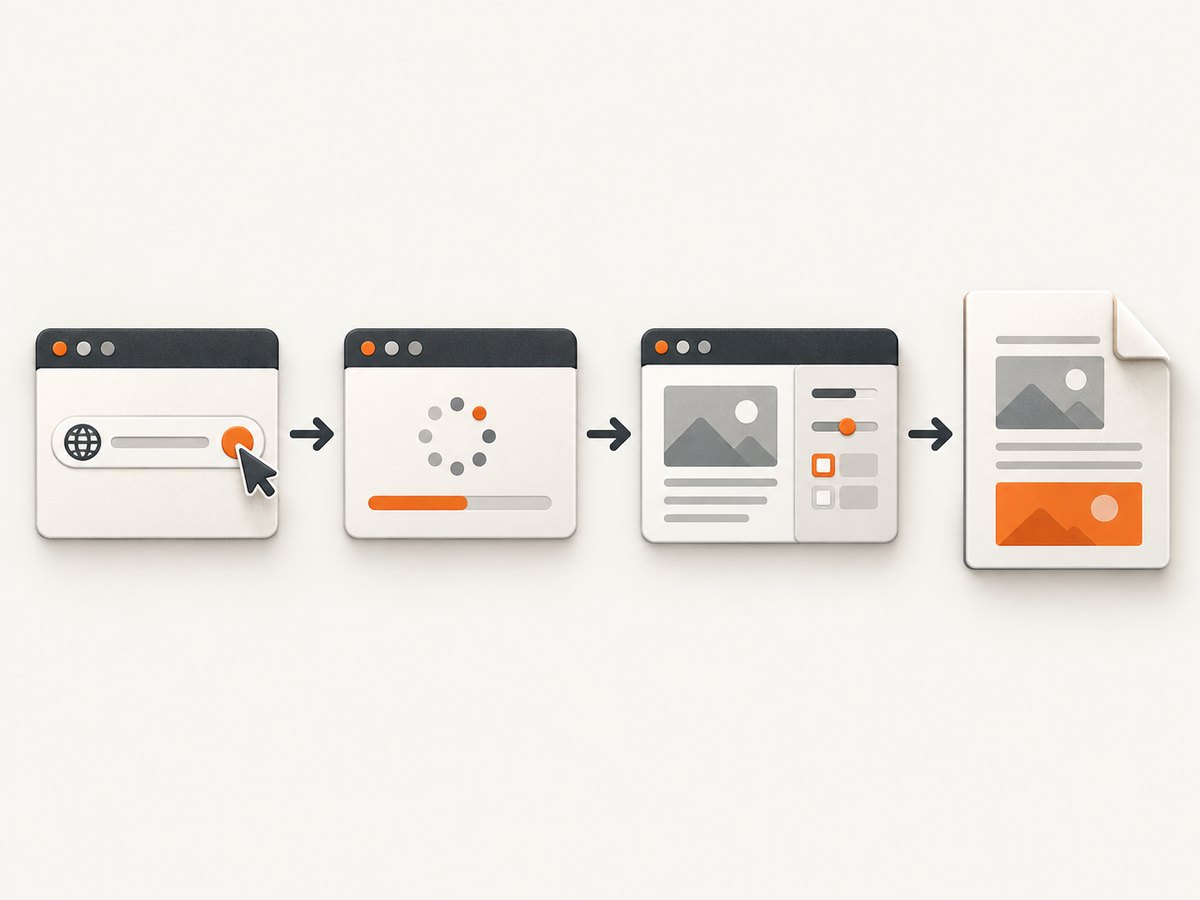
When the URL serves HTML, you are converting rather than downloading. For a single page in Chrome:
- Open the page and wait for the content you need to finish loading.
- Open the browser’s print dialog (for example, More → Print).
- Choose Save as PDF or the equivalent PDF destination offered by your operating system.
- Review paper size, orientation, margins, background graphics, and page range.
- Save the file and open it once to check images, links, and page breaks.
Chrome’s help documentation also describes More → More tools → Save Page As. That command saves a webpage and its associated files; it is different from creating a PDF. Use the print workflow when the required output is a PDF.
What browser printing can and cannot preserve
- JavaScript-driven sections may be missing if they have not rendered before printing.
- Lazy-loaded images may remain blank if you print too quickly or never scroll them into view.
- Fixed headers, sticky navigation, ads, cookie banners, and chat widgets can appear on every page.
- Screen styles and print styles can intentionally produce different layouts.
- Interactive controls, video, and animations become static content.
For a reliable result, dismiss consent dialogs, close overlays, wait for the main content, and use print preview to inspect page breaks before saving.
3. Download a PDF response with curl
If the URL already returns a PDF file, curl can save the response without opening a browser. The official curl tutorial documents -o for a chosen filename and -O for using a remote document name when one is available.
curl -L "https://example.com/manual.pdf" -o manual.pdf-L follows redirects, which are common when a short URL points to a storage location. Use -O when you want curl to derive the output name:
curl -L -O "https://example.com/manual.pdf"This retrieves the server response; it does not convert arbitrary HTML into a PDF. Add headers only when the site legitimately requires them and you are authorized to access the resource:
curl -L \
  -H "Authorization: Bearer YOUR_TOKEN" \
  -H "Accept: application/pdf" \
  "https://example.com/private/manual" \
  -o manual.pdf
After downloading, inspect the response rather than trusting the filename:
file manual.pdf
head -c 5 manual.pdf
A genuine PDF normally begins with the bytes %PDF-. If file reports HTML, you probably saved an error page, login page, or redirect target that requires a session.
4. Automate webpage-to-PDF rendering with an API
For scheduled reports, documentation builds, invoices, or many URLs, a browser-rendering API is usually more repeatable than manual printing. Cloudflare’s Browser Rendering documentation describes a Browser Run /pdf endpoint that accepts a URL or HTML, supports page customization and additional HTTP headers, and requires an account token. Its documented request body limit is 50 MB. Treat this as an advanced integration: you still need permission to render the target page, and the API does not defeat authentication or anti-bot controls.
Typical renderer settings include:
| Setting | Why it matters |
|---|---|
| URL or HTML | Choose an existing page or provide markup directly. |
| Paper size and margins | Control pagination and printable area. |
| Landscape | Useful for wide tables and dashboards. |
| Headers and cookies | Render an authorized, personalized page when permitted. |
| Wait conditions | Allow fonts, API data, and lazy images to finish loading. |
| Page ranges | Export only selected pages when supported. |
For repeatability, record the input URL, renderer options, timestamp, and response status alongside each output. Pin a viewport and timezone when visual consistency matters, and make failed jobs visible instead of silently publishing an empty PDF.
5. Or skip the browser setup with ScreenshotNeo
ScreenshotNeo is a website screenshot API with PDF output. One GET request renders a URL and returns a PDF or image. Its capture pipeline accepts consent banners as a visitor and removes more than 60 known consent platforms, newsletter popups, and chat widgets; each step can be disabled. Clean shots are the only billable results: bot checks or CAPTCHAs, blank pages, timeouts, failed loads, and cache hits cost nothing, and response headers identify the page verdict and billing state.

See the ScreenshotNeo API documentation for all options. A minimal PDF request is:
curl -G "https://api.screenshotneo.com/v1/shot" \
  -d access_key=YOUR_API_KEY \
  --data-urlencode url=https://stripe.com \
  -d format=pdf \
  -o stripe.pdf
The same call from Python:
import requests

r = requests.get(
    "https://api.screenshotneo.com/v1/shot",
    params={
        "access_key": "YOUR_API_KEY",
        "url": "https://stripe.com",
        "format": "pdf",
    },
    timeout=90,
)
r.raise_for_status()
open("stripe.pdf", "wb").write(r.content)
Node.js:
const q = new URLSearchParams({
  access_key: 'YOUR_API_KEY',
  url: 'https://stripe.com',
  format: 'pdf'
});
const res = await fetch(`https://api.screenshotneo.com/v1/shot?${q}`);
if (!res.ok) throw new Error(`HTTP ${res.status}`);
const data = Buffer.from(await res.arrayBuffer());
require('fs').writeFileSync('stripe.pdf', data);
Useful PDF and rendering options include paper size, margins, landscape mode, and page ranges. You can also set a custom CSS selector, wait for a selector, delay, or network idle; click an element before capture; hide selectors; block ads, trackers, requests, or resource types; provide headers, cookies, a user agent, or Authorization; set timezone and geolocation; and choose a cache TTL. ScreenshotNeo also supports full-page capture with lazy images loaded, custom JavaScript and CSS, 12 device presets or any viewport, retina scale, transparent backgrounds, resizing, signed links, asynchronous jobs with signed webhooks, bulk capture of up to 100 URLs per call, a usage API, and an OpenAPI specification. Its parameter names match those used by other screenshot APIs, which can simplify migration.
ScreenshotNeo includes an MCP server with take_screenshot, get_page_info, and capture_pdf tools for Claude, Cursor, and other MCP clients. Plans include 1,000 shots per month free with no card; paid plans start at $5 for 3,000 shots. Every feature is available on every plan. Create a free ScreenshotNeo account.
6. Choosing the right method
| Need | Best starting point | Output |
|---|---|---|
| One known PDF file | Chrome Save Link As or curl | Original server file |
| One webpage copy | Browser print to PDF | Newly rendered PDF |
| Many pages or scheduled jobs | Rendering API | Repeatable generated PDFs |
| Clean captures without overlays | ScreenshotNeo | PDF or image response |
A downloader cannot create a faithful PDF rendition of HTML by itself. A renderer does not grant permission to retrieve restricted content. Choose based on what the URL serves, how often you repeat the job, how much control you need over layout, and whether the page requires authorized headers or cookies.
7. Troubleshooting common failures
The browser opens a PDF but does not save it
Use Save Link As on the original link, or change Chrome’s PDF documents setting to download files. If you only have a viewer URL, look for the site’s own download control rather than guessing an internal file path.
curl saves an HTML error page
Run file and inspect the first bytes. Follow redirects with -L, then check the final response with curl -I -L URL. A login page, expired token, missing cookie, or blocked request commonly produces HTML instead of PDF. Supply valid authorization only when the site permits it.
The PDF is blank
The page may depend on JavaScript or data loaded after the initial response. In a browser, wait for the content before printing. In an API, wait for a meaningful selector, network idle, or a controlled delay. Check that the target is not returning a bot challenge or an empty error page.
Images or fonts are missing
Confirm that assets are publicly reachable from the rendering environment, and wait for fonts and lazy images. Blocking image or font resource types can improve speed but will change the document. For authenticated assets, configure permitted headers or cookies.
Cookie banners or chat widgets cover the page
Dismiss them manually for a one-off print. For automated captures, hide known selectors or use ScreenshotNeo’s consent and cleanup steps, which can be turned off individually.
Page breaks split tables or headings
Adjust paper size, margins, orientation, and print CSS. Use landscape for wide tables, set page ranges, and test representative pages before running a batch. A screenshot-style full-page capture and a paginated PDF are different outputs; select the one your reader needs.
The link forces an unexpected download or opens inline
Download behavior depends on response headers, browser settings, origin, and the link type. MDN notes that the HTML download attribute works only for same-origin URLs and blob: or data: schemes; headers and browser policy can still affect the result.
8. Performance, reliability, and cost
- Cache stable pages: use a chosen TTL when content does not change every request. This reduces rendering work and makes scheduled jobs faster.
- Wait narrowly: a selector or network-idle condition is usually more predictable than an excessive fixed delay. Keep a timeout for pages that never finish.
- Control concurrency: batch work in bounded groups, retry transient network failures with backoff, and record the URL and options for replay.
- Validate outputs: check HTTP status, content type, file size, and the PDF signature before publishing or attaching a result.
- Protect secrets: keep API keys, cookies, and Authorization headers out of client-side code and logs.
- Estimate spend: browser printing has no service charge, while hosted renderers charge according to their terms. ScreenshotNeo bills only clean shots, does not bill bot checks, blank pages, timeouts, failed loads, or cache hits, and exposes
X-Page-VerdictandX-Billedheaders so a job can be audited.
9. FAQ
Can I download a PDF from any URL?
Only if the server makes a PDF or renderable page available to you. A URL alone cannot override authentication, access controls, or a site’s restrictions.
Does adding .pdf to a URL work?
No. The extension is only a clue. The server’s response and permissions determine what you receive.
What is the difference between Save Page As and Save as PDF?
Save Page As stores a webpage and related files. Save as PDF prints a rendered representation into a PDF document.
Can curl convert HTML to PDF?
Plain curl downloads responses. Use a browser renderer or a service such as ScreenshotNeo when you need HTML converted into a PDF.
Why does my downloaded “PDF” open as a webpage?
The response was likely an error, login, or challenge page. Check the content type and the first bytes, then resolve redirects and authorization before saving again.
How do I automate PDFs for an AI agent?
Use a renderer API, or connect an MCP client to ScreenshotNeo’s capture_pdf tool. The MCP server also provides page information and screenshot tools.


