How to Download a PDF from an HTML Viewer
Learn how to save a PDF from a browser or HTML viewer, when print-to-PDF works, and what to do when download controls are missing.
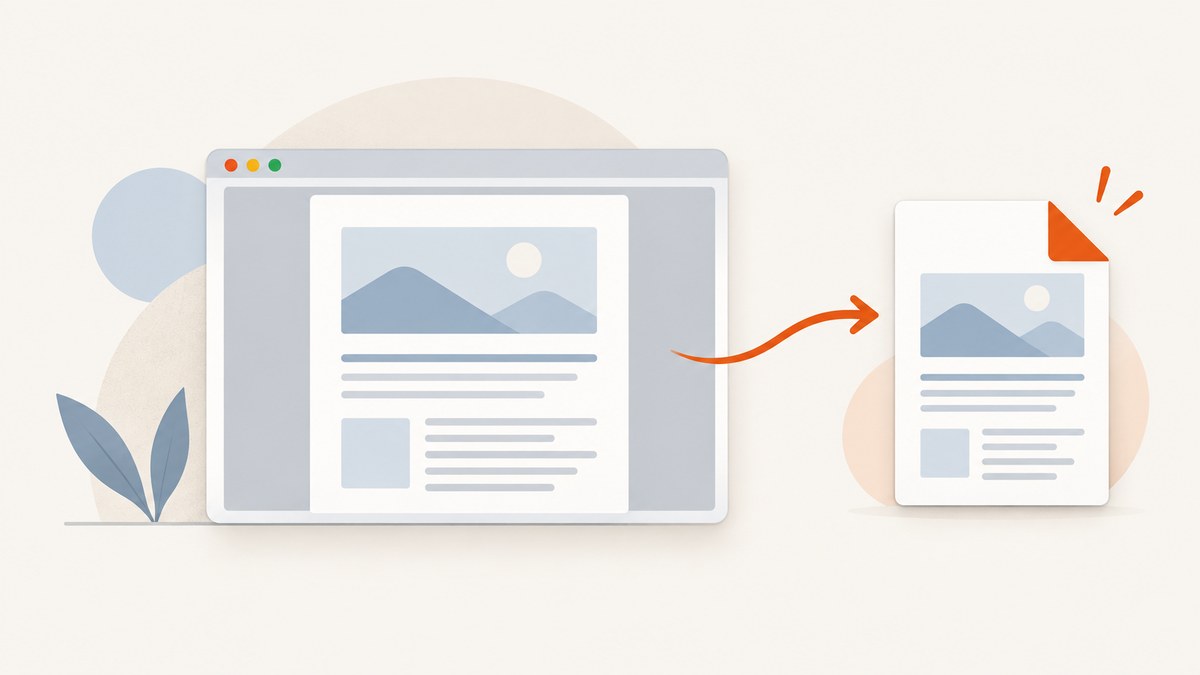
If a PDF is open in a browser, first look for the viewer’s Download, Save, or menu control. If the document appears inside a regular webpage and has no download control, check the site’s own download, export, or print options and make sure your account has permission. Print-to-PDF can work when printing is allowed, but it may produce a rendered copy rather than the original PDF.
There are two common cases: a native browser PDF viewer, which displays a PDF document, and an HTML page that uses a viewer to display a document. The page you can see does not prove that a downloadable original is exposed or that you have permission to retrieve it. This guide covers the supported routes and how to choose the right one.
1. Identify which kind of viewer you are using
A native browser PDF viewer opens a PDF as a document in the browser. You may see the browser’s built-in controls for pages, zoom, download, or print. An HTML viewer is part of an ordinary webpage: the site may place document pages, a toolbar, or a preview inside its own layout. A site can display a document without offering a direct PDF download.
PDF.js, for example, is a viewer UI built on a PDF display layer. Its documentation explains that the viewer and the underlying PDF are separate concerns. In the page, identify whether you see browser-level PDF controls or controls supplied by the website. That determines which instructions apply.
- Native viewer: try its Download or Save control first.
- Embedded HTML viewer: inspect the viewer menu, then the surrounding site for a permitted download, export, or print action.
- Drive or another document service: use the service’s own controls and permissions for that file.
2. Use the viewer’s Download or Save control
- Open the viewer’s toolbar or its menu, often shown as three dots or a down-arrow.
- Choose Download, Save, or a similarly named action.
- Pick a destination if your browser asks, then open the saved file to confirm it is the document you expected.
In the PDF.js viewer, Mozilla documents Ctrl+S for downloading and Ctrl+P for printing. On some configurations, use Meta instead of Ctrl. Treat these as PDF.js viewer instructions, not universal shortcuts for every browser or embedded reader. If the shortcut opens a browser dialog or does nothing, use the viewer’s visible controls or the site’s instructions.
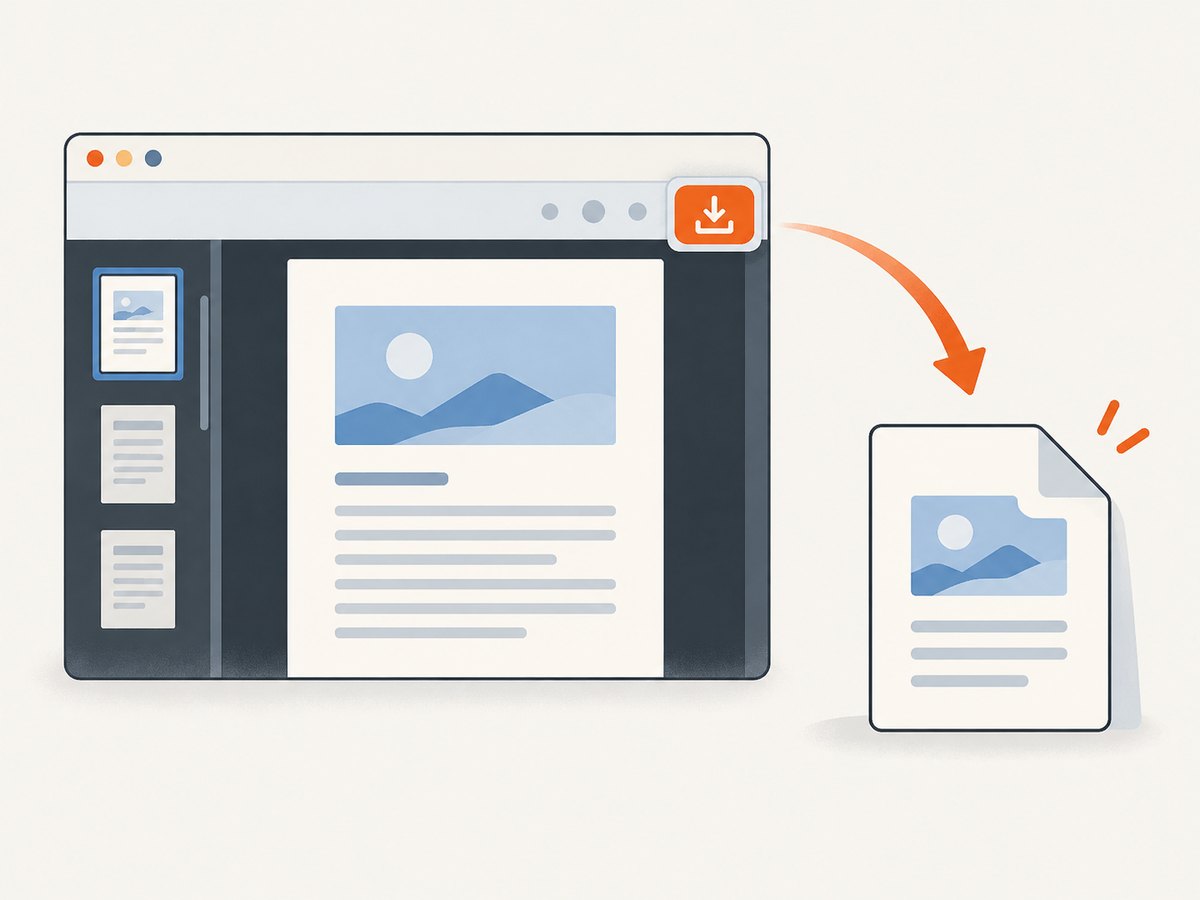
On Android 12 and later, Chrome’s PDF viewer provides a Download option under More. These directions are specific to Chrome on Android; desktop menus and other browsers can differ.
3. Check the website’s download and access options
If the viewer does not offer a download, look around the document page for actions such as Download original, Export, Save a copy, or Print. Some sites make these actions available only after sign-in or only to users with a particular role. Follow the site’s documented flow and the document owner’s permissions.
If the controls are missing or disabled, contact the document owner or site administrator and request an accessible copy or the appropriate access. A preview being visible does not establish that downloading is allowed. Do not treat a hidden or reconstructed file address as a permission workaround.
4. Download or export a file from Google Drive
Use the controls available in Drive for the file you can access. The route depends on the file type: Drive distinguishes downloading binary files such as PDFs from exporting Google Workspace documents. A Workspace document may need to be exported to PDF, while an existing PDF is a binary file download.
For developers using the Drive API, Google says to check the file’s capabilities.canDownload value before downloading or exporting. That API detail is not a way to bypass a restriction: if the capability or interface does not permit the action, request access from the owner.
5. Use print-to-PDF only when printing is allowed
If the viewer or site allows printing, the browser’s print dialog may let you save the displayed output as a PDF. This is a fallback for keeping a copy of what you can view; it does not necessarily retrieve the source PDF.
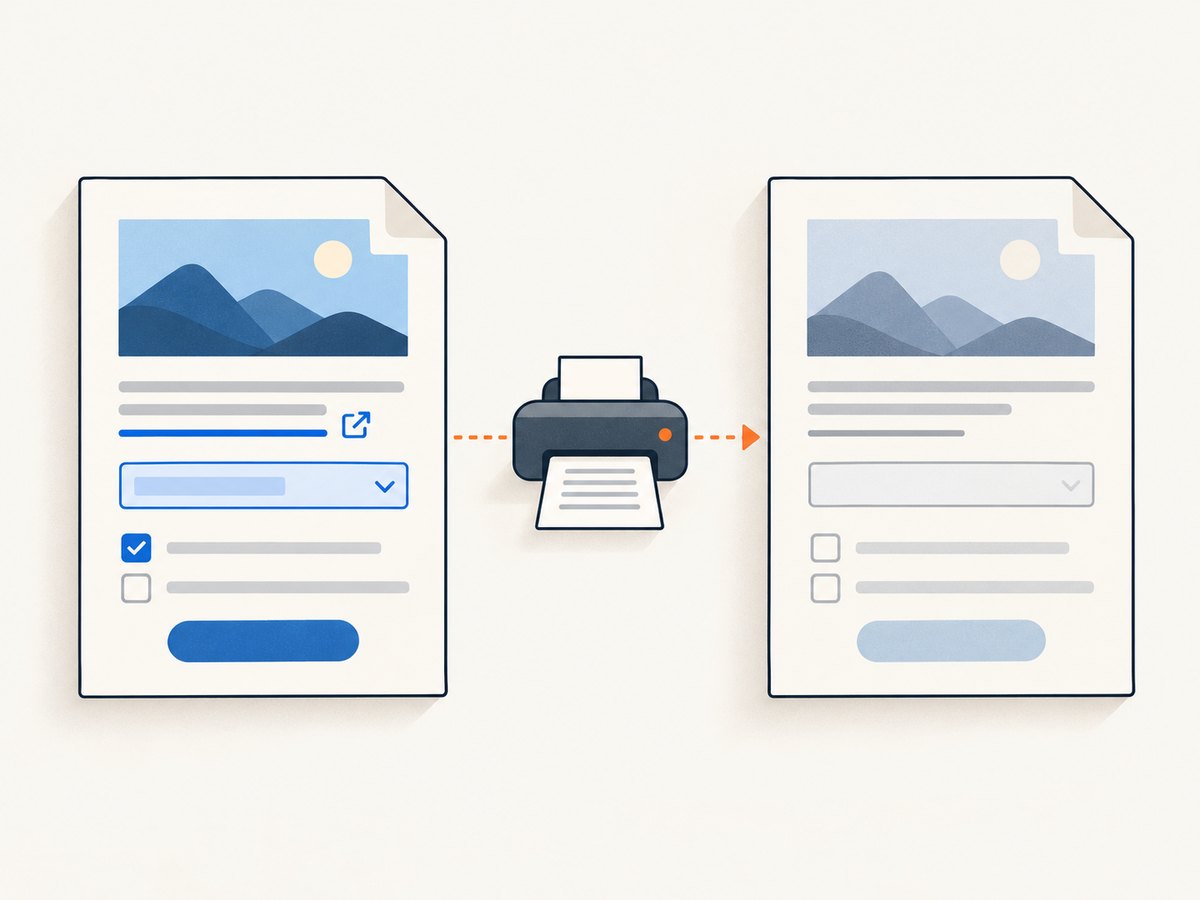
- Choose the viewer’s Print action, or use its documented print shortcut.
- In the system print dialog, choose a PDF destination such as Save as PDF, if available.
- Review page range, orientation, paper size, and margins before saving.
- Open the result and check the pages you need.
A print-generated copy may not preserve the source file’s searchable text, links, forms, bookmarks, page structure, or image quality. The outcome depends on what the viewer renders and what printing the site allows. If those properties matter, obtain the original or an authorized export from the owner.
6. Developer notes: serving and embedding PDFs
If you maintain an HTML viewer, make the supported download route clear and respect the file’s authorization rules. A visible preview and a downloadable original are separate capabilities. Provide a user-facing download or export action only when the current user is allowed to use it; otherwise explain how to request access.
When building on PDF.js, account for browser security. Mozilla documents that PDF.js cannot make cross-origin requests by default. A PDF on another origin needs an appropriate CORS configuration or a server-side proxy controlled by the application. This is a developer configuration issue; it does not mean a reader can or should reconstruct a URL to get around the document owner’s access controls.
For local development, Mozilla’s setup notes also describe a limitation with the file:// protocol and the PDF.js worker. Serve the application through a local web server when testing the viewer instead of assuming that opening an HTML file directly from disk represents production behavior.
7. Troubleshooting common problems
| Problem | Likely cause | What to do |
|---|---|---|
| No Download or Save button | The embedded viewer or site does not expose that action for this document or account. | Check the site’s permitted export and print options. If they are unavailable, ask the owner for access or a copy. |
| Ctrl+S does not save the PDF | The viewer may not be PDF.js, the shortcut may be handled by the browser, or the system uses Meta. | Use the viewer’s own menu. In PDF.js, Mozilla documents Ctrl+S, with Meta used on some configurations. |
| Print is disabled or produces no output | The site may disable printing, or the browser’s PDF handling or extension may interfere. | Use an allowed download/export action or contact the owner. For browser handling problems, check the current browser’s PDF settings and Adobe’s Chrome and Edge troubleshooting guidance. |
| The downloaded file is not the original | You may have printed the rendered page to PDF rather than downloading the source document. | Check whether the site offers an original download or export. Ask the owner for the source if fidelity matters. |
| A Drive download or export is unavailable | Your permission or the file’s download capability may not allow it. | Use Drive’s available controls and request the required access from the file owner. Developers should check capabilities.canDownload. |
| A custom PDF.js viewer cannot load a cross-origin PDF | The browser blocks the cross-origin request unless the server permits it. | Configure appropriate CORS on the document server or use an authorized server-side proxy. |
| A locally opened PDF.js demo behaves differently | The viewer worker has a documented limitation when used through file://. |
Run the demo from a local web server and test through HTTP. |
Browser settings change over time. Adobe’s browser-extension guidance, updated April 1, 2026, discusses Chrome and Edge PDF handling settings that can affect opening or printing. If the menu names in your browser differ, check its current help page rather than assuming an older path still applies.
8. Choose the right route
| Route | Needs permission? | What you get | Best for |
|---|---|---|---|
| Viewer Download or Save | Yes, as determined by the viewer and site | The document provided by the viewer’s supported save action | Saving the original when the viewer offers it |
| Site download or export | Yes, according to the site and document owner | The original or an exported version, depending on the feature | Embedded viewers and Workspace documents |
| Print to PDF | Printing must be allowed | A PDF rendered from the displayed output | Keeping a viewable copy when the original download is unavailable and printing is permitted |
| Ask the owner | Owner grants or confirms access | An accessible copy or permitted route | Disabled controls, restricted documents, or when original fidelity matters |
9. Automating screenshots of a viewer page
If your goal is to document how a PDF viewer page looks, a screenshot captures the visible page; it does not download the underlying PDF. For a one-off capture, the browser’s screenshot function may be enough. For a repeatable workflow, ScreenshotNeo is a website screenshot API and MCP server for developers. It can return a screenshot or PDF of a webpage, but it does not grant access to the viewer’s source document or replace its download/export permission flow.
Or skip the browser setup
To capture a page view through an API, send one GET request. See the ScreenshotNeo API documentation for request options.
curl -G "https://api.screenshotneo.com/v1/shot" -d access_key=YOUR_API_KEY --data-urlencode url=https://example.com/document-viewer -o shot.webpCookie banners, popups, and chat widgets are removed before the shot. Bot checks, blank pages, and failed loads are never billed. An MCP server lets AI agents take screenshots. The free plan includes 1,000 screenshots a month with no card; paid plans start at $5 for 3,000. ScreenshotNeo also supports PNG, JPEG, WebP, or PDF output and lets you configure capture options such as full-page capture, a CSS selector, wait conditions, and custom headers.
Sign up for 1,000 free screenshots a month, no card required.
10. Reliability, performance, and cost considerations
For a person saving one document, the viewer’s own download or the site’s export is usually the most direct route. Print-to-PDF adds a rendering step and can change document features, so verify the saved result before relying on it. For a site owner, make permissions and failure states clear: a missing action can reflect policy, not a browser malfunction.
Automated page capture has a different purpose from document retrieval. A screenshot or rendered PDF records the webpage’s visible output; it should not be treated as a source-file backup. When automating captures, wait for the content you need to appear and choose an appropriate capture area. For recurring jobs, account for page rendering time, retries, and output size in your workflow, and retain the owner-authorized source separately if you need its original text, links, or forms.
With ScreenshotNeo, only clean shots are billed; bot checks/CAPTCHAs, blank pages, timeouts, failed loads, and cache hits cost nothing, and each response identifies the page verdict and billing status in headers. Plans are Free with 1,000 shots per month, Starter $5 for 3,000, Growth $15 for 15,000, Pro $39 for 60,000, Scale $99 for 250,000, and Business $249 for 1,000,000; yearly billing gives two months free. Every feature is available on every plan. Choose based on expected capture volume, while remembering these are webpage captures rather than a means to retrieve a protected PDF.
Frequently asked questions
Can I download a PDF if I can see it in a viewer?
Not necessarily. Visibility does not establish that the site exposes a downloadable file or that your account has permission. Check the viewer and site controls, then request access if needed.
Does printing a viewer page give me the same PDF?
Not reliably. Print-to-PDF can create a rendered copy that may not retain searchable text, links, forms, bookmarks, structure, or original image quality.
Can ScreenshotNeo save the PDF shown in a webpage?
ScreenshotNeo captures webpage output as an image or rendered PDF. It does not bypass a viewer’s access controls or retrieve a source document that the site does not make available to you.
What should I do when the owner has disabled downloading?
Use another option the owner permits, such as an available print or export feature, or request an accessible copy. Do not try to evade the restriction.
Official references
- Mozilla PDF.js FAQ — viewer shortcuts and cross-origin request notes.
- Mozilla PDF.js examples and setup notes.
- Google Drive API: Download and export files.
- Google Chrome Help: Manage PDFs in Chrome on Android.
- Adobe Acrobat Help: Browser extension won’t print PDFs.


