How to Download a PDF in a New Tab with Headless Puppeteer
Use Puppeteer’s Page.pdf() to create a PDF from a page, or configure browser downloads to save an existing PDF opened in a new tab.
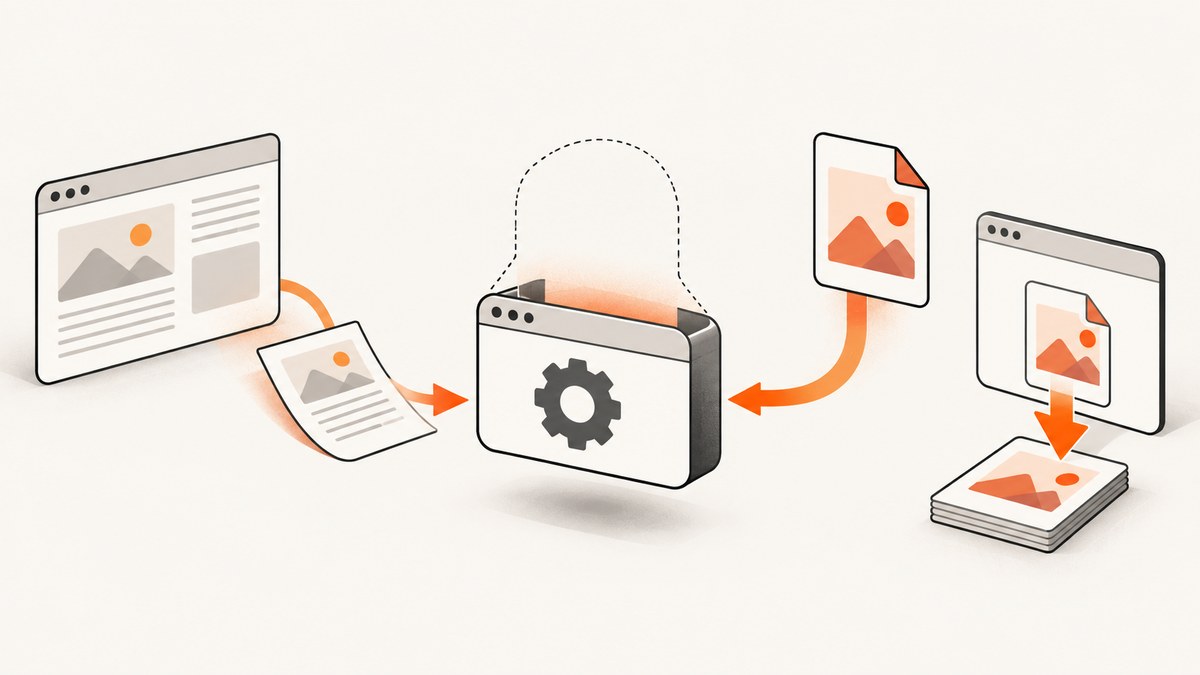
There are two different tasks hidden in “download a PDF in a new tab with headless Puppeteer.” If the tab contains HTML that you want to turn into a PDF, use page.pdf({path: 'output.pdf'}). If a link or navigation makes the site serve an existing PDF for download, configure the browser context to allow downloads and set a destination path. Page.pdf() prints rendered page content; it does not save an existing PDF response.
The examples below use Puppeteer’s current documented API shape and Node.js. Pin Puppeteer and its browser version in your project: the official compatibility table is versioned and lists mappings that change over time. The references here map Puppeteer v25.12.0 to Chrome for Testing 154.0.8037.57 and Firefox 156.0.1. See the Puppeteer supported browsers table before reproducing an environment.
1. Choose the right PDF workflow
| What you have | What to use | What it does |
|---|---|---|
| A rendered HTML page that should become a PDF | Page.pdf() |
Prints the page to a PDF file using print styles by default. |
| A link, response, or tab that serves an existing PDF file | Browser download behavior | Allows Chrome to save the response to a configured download directory. |
| A URL that navigates directly to a PDF document | Check the selected headless mode and the site’s behavior | PDF navigation support differs by mode; Puppeteer documents that headless shell cannot navigate to PDF documents. |
A Puppeteer Page represents a browser tab. If a site opens another tab, identify that page before applying page-level operations such as navigation or PDF printing. Download policy is configured at the browser context level, so it governs downloads from pages in that context. The exact way a website opens a tab and reports a completed download varies; there is no universal site-independent “new tab plus finished file” recipe.
2. Create a PDF from a page
This is the common case when you want a PDF snapshot of a web page. Install Puppeteer, launch a browser, navigate the page, and call page.pdf() with a path. The PDF generation guide notes that Puppeteer waits for fonts by default.
npm install puppeteer// save-page-as-pdf.mjs
import puppeteer from 'puppeteer';
const browser = await puppeteer.launch({headless: true});
try {
const page = await browser.newPage();
await page.goto('https://example.com', {
waitUntil: 'networkidle2',
timeout: 60_000,
});
await page.pdf({
path: 'output.pdf',
format: 'A4',
printBackground: true,
margin: {top: '12mm', right: '12mm', bottom: '12mm', left: '12mm'},
});
} finally {
await browser.close();
}Run it with node save-page-as-pdf.mjs. The output path is relative to the process working directory unless you provide an absolute path. Create the destination directory first when using a nested path.
Control print layout and appearance
By default, PDF output uses print media. That means the browser may apply print-specific CSS, hide navigation, change colors, or use a different layout from the one seen on screen. If you want screen styling, explicitly emulate screen media before generating the PDF:
await page.emulateMediaType('screen');
await page.pdf({path: 'screen-style.pdf', printBackground: true});
Print media is usually preferable for documents designed to paginate. Screen media can be useful when the on-screen layout is the desired result, but it does not guarantee a page-perfect copy: the content still has to fit PDF pages. For print colors, Puppeteer’s PDF documentation points to -webkit-print-color-adjust in CSS when exact color adjustment is needed.
await page.addStyleTag({
  content: `
    * { -webkit-print-color-adjust: exact !important; }
    @media print {
      .no-print { display: none !important; }
    }
  `,
});
await page.pdf({path: 'styled.pdf', printBackground: true});
Use site-owned CSS or a deliberate, limited override. A broad selector can alter embedded widgets and make a document harder to read. Prefer print stylesheets when you control the page.
3. Save an existing PDF download
If clicking a link causes the browser to download a PDF response, do not call page.pdf(). Allow downloads in the browser context and choose a destination directory. The documented download behavior supports policies such as allow and allowAndName; the latter names files using download GUIDs, so do not expect the server filename to be preserved as the local filename.
With Puppeteer versions exposing downloadBehavior in ConnectOptions, configure the context when connecting to a browser. The example below shows the documented option shape; use the matching API for the exact Puppeteer version you pin.
// download-existing-pdf.mjs
import puppeteer from 'puppeteer';
import {mkdir} from 'node:fs/promises';
import path from 'node:path';

const downloadPath = path.resolve('downloads');
await mkdir(downloadPath, {recursive: true});

const browser = await puppeteer.launch({headless: true});
try {
  const context = await browser.createBrowserContext({
    downloadBehavior: {
      policy: 'allow',
      downloadPath,
    },
  });
  const page = await context.newPage();
  await page.goto('https://example.com', {waitUntil: 'domcontentloaded'});

  await page.click('a[href$=".pdf"]');
  // The click starts a browser-managed download. Wait for the site-specific
  // completion signal or poll the download directory before consuming it.
} finally {
  await browser.close();
}
Download configuration APIs can differ with the browser connection path and Puppeteer release. The official ConnectOptions reference documents downloadBehavior, while the DownloadBehavior reference documents the policy and path. Check your installed typings and documentation if your chosen launch or context method rejects this option. Avoid copying a legacy Chrome DevTools Protocol command from an unrelated version without checking its current support.
Wait for a new tab when the link opens one
If clicking the link opens a separate tab, register the wait before the click to avoid missing a fast popup. Then inspect the resulting page. This identifies the tab; it does not by itself prove that a file download has finished.
const popupPromise = new Promise(resolve => {
  page.once('popup', resolve);
});
await page.click('a.open-pdf');
const pdfTab = await popupPromise;

console.log('New tab URL:', pdfTab.url());
// Download completion still needs a site- and version-appropriate signal.
Some links navigate the existing tab, some open a popup, and some trigger a download without a document navigation. The code must match the observed behavior. Do not assume that a PDF viewer tab means a local file has been written.
4. Configure PDF output
PDFOptions includes controls for paper format or explicit dimensions, margins, orientation, page ranges, background graphics, scaling, and font waiting. The default paper format is Letter; printBackground is false unless enabled. Scale must be between 0.1 and 2.
| Option | Use | Notes |
|---|---|---|
path |
Write the generated document to disk | Omit it if you want the PDF bytes returned by the API rather than a file. |
format |
Choose a named paper size such as A4 or Letter |
Named format takes precedence over width and height. |
width, height |
Set a custom page size | Use supported CSS length units. |
margin |
Set top, right, bottom, and left margins | Use units such as mm, in, or px. |
landscape |
Use landscape page orientation | Useful for wide tables and charts. |
printBackground |
Include background colors and images | Enable when the visual design relies on them. |
pageRanges |
Print selected pages | Use a range such as 1-3, 5; verify the result for dynamic content. |
scale |
Adjust printed content scale | Allowed range is 0.1–2; extreme scaling can make text unreadable. |
waitForFonts |
Wait for fonts before rendering | Enabled by default in the documented API; consider page readiness when fonts load late. |
await page.pdf({
  path: 'report.pdf',
  format: 'A4',
  landscape: true,
  printBackground: true,
  displayHeaderFooter: true,
  headerTemplate: '<span></span>',
  footerTemplate: '<span class="pageNumber"></span> / <span class="totalPages"></span>',
  margin: {top: '18mm', bottom: '18mm', left: '10mm', right: '10mm'},
  pageRanges: '1-5',
  scale: 0.95,
});
Header and footer templates can be added when needed, but test their spacing against the document’s margins. A template that consumes too much vertical space can cause unexpected page breaks.
5. Direct PDF URLs and headless modes
Puppeteer offers distinct headless modes. Its Page API explicitly warns that headless shell does not support navigation to PDF documents. The headless modes guide also cautions that shell behavior does not completely match regular Chrome. Treat a direct PDF URL as a compatibility question: know whether your process launches regular headless Chrome or headless shell, and verify the behavior in that environment.
When the goal is simply to save a known PDF URL, a browser may be unnecessary if the server allows a normal HTTP request. But a browser is needed when authentication, cookies, JavaScript-generated links, or a site interaction establishes access. Respect the site’s access controls and use only credentials you are authorized to use.
6. Reliability, performance, and cost
Wait for the right readiness condition
For HTML-to-PDF, navigation completion is only one part of readiness. A page can render content after the initial load, and lazy images may appear only after scrolling. Use a selector wait for a known document region, a deliberate delay for a known animation, or application-specific readiness signals when the page is dynamic. Avoid treating networkidle as proof that every useful element is ready: analytics, polling, and long-lived requests can prevent idleness, while late application work can happen after the network quiets.
Keep browser work bounded
- Set a navigation timeout and handle failures so a stalled site does not hold a job forever.
- Close pages and browsers in
finallyblocks. - Use a fresh context when cookies or download settings must be isolated.
- For batch work, limit concurrent pages to control memory and CPU use; PDF rendering consumes browser resources, especially for long pages and image-heavy documents.
- Write to unique output paths per job so concurrent captures do not overwrite each other.
Puppeteer is software you operate: your costs include the machine, browser runtime, storage, and engineering time spent handling failures. The sources cited here do not establish a general throughput benchmark, so size concurrency using your page mix and environment rather than a claimed universal rate.
7. Troubleshooting
| Symptom | Likely cause | Fix |
|---|---|---|
output.pdf is empty or missing |
The page did not reach the expected content, the path is wrong, or the output directory does not exist. | Use an absolute path while debugging, create the directory, and wait for a page-specific selector before calling pdf(). |
| The PDF looks unlike the browser screenshot | PDF generation uses print media by default. | Use print CSS intentionally, or call emulateMediaType('screen') when screen styling is required. |
| Backgrounds or colors are absent | Background printing is disabled or print color adjustment changes colors. | Set printBackground: true and consider -webkit-print-color-adjust: exact in the page’s print styling. |
| A direct PDF URL fails in headless | The process may use headless shell, which does not support PDF document navigation. | Use a supported browser mode for that workflow, or fetch the permitted PDF response directly when browser behavior is not required. |
| The click works but no file appears | Downloads may be blocked, the configured directory may be wrong, or the link may open a viewer instead. | Set an allowed download policy and destination, inspect the resulting tab/response, and wait for a download completion signal appropriate to your version. |
| The filename is a GUID | allowAndName uses download GUIDs for local names. |
Maintain a mapping from the download event or request to the desired name, or use a policy/path approach that preserves the server name if supported by your version. |
| Fonts are missing or pages break oddly | Fonts or dynamic content may not be ready, or print CSS changes layout. | Wait for the relevant fonts and content, review print styles, then adjust paper size and margins. |
| Timeouts happen on active sites | Network-idle waiting can be held open by polling or long requests. | Choose a less restrictive navigation condition and explicitly wait for the document’s content instead. |
downloadBehavior is rejected |
The installed Puppeteer release or connection API may expose a different supported setup. | Check the types and API reference for that pinned version; do not assume examples for another release apply unchanged. |
8. Or skip the browser setup
If your goal is a clean screenshot or PDF capture of a public page rather than managing a local Puppeteer browser, ScreenshotNeo provides a website screenshot API and MCP server. Its one-call API returns PNG, JPEG, WebP, or PDF output. See the ScreenshotNeo API documentation for the supported request parameters.
curl -G "https://api.screenshotneo.com/v1/shot" -d access_key=YOUR_API_KEY --data-urlencode url=https://stripe.com -o shot.webpimport requests
r = requests.get("https://api.screenshotneo.com/v1/shot", params={"access_key": "YOUR_API_KEY", "url": "https://stripe.com"}, timeout=90)
open("shot.webp", "wb").write(r.content)const q = new URLSearchParams({ access_key: 'YOUR_API_KEY', url: 'https://stripe.com' });
const res = await fetch(`https://api.screenshotneo.com/v1/shot?${q}`);- Cookie banners, newsletter popups, and chat widgets are removed before the shot; each cleanup step can be turned off.
- Bot checks, blank pages, timeouts, failed loads, and cache hits are not billed. Responses identify the page verdict and billing status in headers.
- An MCP server gives AI agents tools for screenshots, page information, and PDF capture.
- The free plan includes 1,000 screenshots per month with no card; paid plans start at $5 for 3,000. Every feature is available on every plan.
Create a free ScreenshotNeo account for 1,000 screenshots a month, with no card required.
9. Frequently asked questions
Does page.pdf() save a PDF opened in a tab?
No. It creates a PDF from the page’s rendered content. To save a PDF served by the site, configure browser-managed downloads or retrieve the authorized response directly.
Does Puppeteer PDF output use screen CSS?
Print media is the default. Call page.emulateMediaType('screen') before generating the PDF when you want screen media rules.
Can I use page.pdf() without a file path?
Yes. The method can return the generated PDF data; provide path when you want Puppeteer to write the file directly.
Why does the downloaded PDF have a strange name?
The allowAndName download policy uses download GUIDs. Decide how your job maps downloads to stable names before downstream processing.
What should I pin for repeatable output?
Pin the Puppeteer package and its associated browser build, and record the headless mode. Browser mappings change, and headless shell does not behave exactly like regular Chrome.


