How to Download a PDF Opened in a New Tab with Puppeteer
Capture a Puppeteer popup’s PDF response and save its original bytes to disk. Includes runnable code, response matching, troubleshooting, and alternatives.
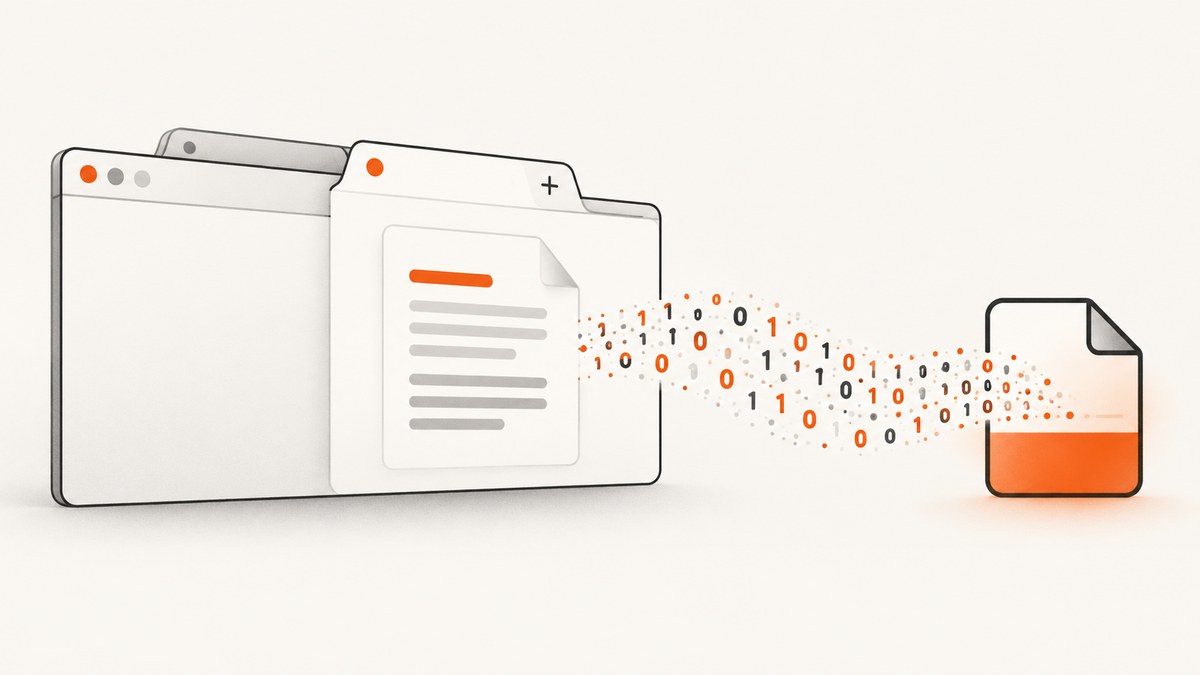
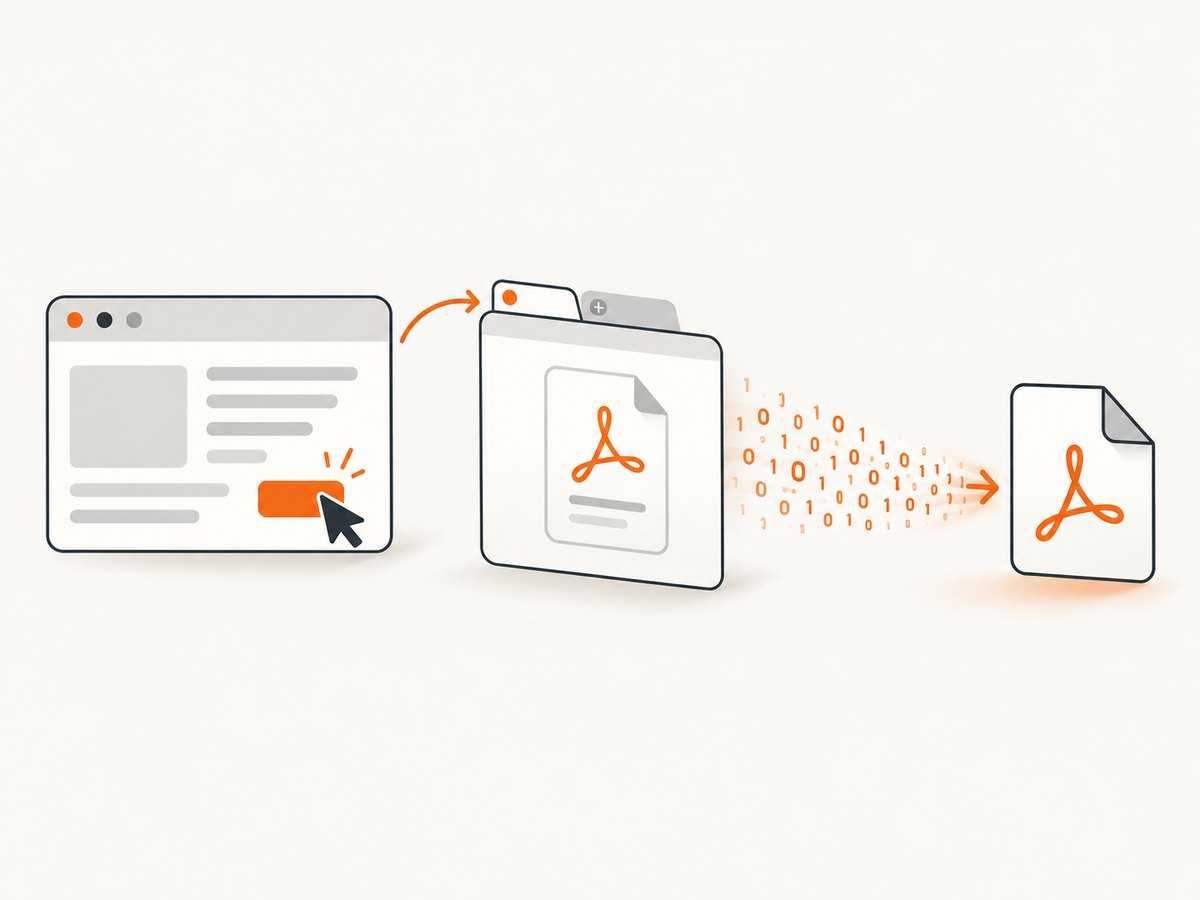
To save the PDF that a site opens in a new tab, listen for Puppeteer’s popup event before clicking the link, attach a response listener to the new page, then save the matching response’s buffer() to disk. This preserves the PDF bytes served by the site. page.pdf() does something different: it renders a page using print CSS and creates a new PDF.
1. Set up Puppeteer and identify the link
The examples below use Node.js and Puppeteer. Install Puppeteer in your project and identify the link or button that opens the document. Use the site’s actual selector in place of a.pdf-link. If the page requires login or consent, establish that state before clicking so the popup request uses the right browser context.
npm install puppeteerThe script below launches a browser, navigates to a page, captures the popup before triggering it, saves the PDF, and closes resources. Set TARGET_PAGE and LINK_SELECTOR to values for the page you are automating.
2. Complete runnable example
const puppeteer = require('puppeteer');
const fs = require('node:fs/promises');

const TARGET_PAGE = 'https://example.com/documents';
const LINK_SELECTOR = 'a.pdf-link';
const OUTPUT_FILE = 'download.pdf';
const TIMEOUT_MS = 30_000;

function isPdfResponse(response) {
  const headers = response.headers();
  const contentType = (headers['content-type'] || '').toLowerCase();
  const url = response.url().toLowerCase();
  return contentType.includes('application/pdf') || url.endsWith('.pdf');
}

async function main() {
  const browser = await puppeteer.launch({ headless: true });
  try {
    const page = await browser.newPage();
    page.setDefaultTimeout(TIMEOUT_MS);
    await page.goto(TARGET_PAGE, { waitUntil: 'domcontentloaded' });

    // Install the popup listener before the click; otherwise a fast popup can be missed.
    const popupPromise = page.waitForEvent('popup', { timeout: TIMEOUT_MS });
    await page.click(LINK_SELECTOR);
    const pdfPage = await popupPromise;

    try {
      // Listen as soon as the popup is available. Its navigation may already be underway.
      const response = await new Promise((resolve, reject) => {
        const timer = setTimeout(() => {
          pdfPage.off('response', onResponse);
          reject(new Error(`No PDF response observed within ${TIMEOUT_MS} ms`));
        }, TIMEOUT_MS);

        function onResponse(candidate) {
          if (!isPdfResponse(candidate)) return;
          clearTimeout(timer);
          pdfPage.off('response', onResponse);
          resolve(candidate);
        }
        pdfPage.on('response', onResponse);
      });

      if (!response.ok()) {
        throw new Error(`PDF request returned HTTP ${response.status()}: ${response.url()}`);
      }
      const bytes = await response.buffer();
      if (bytes.length === 0) throw new Error('PDF response body was empty');
      await fs.writeFile(OUTPUT_FILE, bytes);
      console.log(`Saved ${bytes.length} bytes to ${OUTPUT_FILE}`);
    } finally {
      await pdfPage.close().catch(() => {});
    }
  } finally {
    await browser.close();
  }
}

main().catch(error => {
  console.error(error);
  process.exitCode = 1;
});
Puppeteer’s API has evolved, so check the installed version if a convenience method such as waitForEvent is unavailable. The event-based equivalent is a promise around page.once('popup', resolve); it follows the same ordering requirement.
3. Register listeners early enough
The popup event is emitted when a page opens a new tab or window. The critical detail is timing: create the popup promise before click(). For response capture, the new page can begin loading before the click call finishes. Attach a browser-wide response observer before clicking when the popup’s first response could arrive before you can register a listener on its Page.
const popupPromise = new Promise(resolve => page.once('popup', resolve));
await page.click('a.pdf-link');
const pdfPage = await popupPromise;
For maximum coverage, observe browser responses before the click and correlate them to the new page’s target/session where supported by your Puppeteer version. A simpler alternative is to wait for the popup, then inspect its URL and navigation response. That can be sufficient when the PDF is the popup’s main document and the response is still available through the page navigation API. Do not assume every site keeps the PDF as the main document: viewers can load it through a separate request.
4. Match the right response
Sites and CDNs do not always use a URL ending in .pdf. Prefer the response header content-type: application/pdf, and use URL matching as a fallback or additional check. A site may return a login page, an HTML error, or a redirect destination even though the clicked link looked like a PDF.
| Match method | Strength | Risk |
|---|---|---|
| Content-Type header | Identifies PDFs served from extensionless or signed URLs | Some servers mislabel the MIME type |
| URL ending in .pdf | Simple and useful as a fallback | Signed query strings, redirects, or extensionless routes can defeat a strict suffix test |
| Both header and URL | More confidence when both agree | Can miss valid PDFs when one signal is absent or incorrect |
For signed links such as /download?id=123&token=…, do not require the URL to end exactly in .pdf. Inspect the final response URL and content type. If multiple PDF assets load, narrow the match using the popup’s URL, the opener, request timing, or a known endpoint path.
5. Use browser-wide target events when needed
A page-level popup event is usually the cleanest choice because it scopes the new tab to the page that received the click. If a site or automation flow creates a target in a way that does not produce the expected popup event, listen for targetcreated on the browser. Then check its type and opener before treating it as the document tab.
const targetPromise = new Promise(resolve => {
  const onTarget = async target => {
    if (target.type() !== 'page') return;
    if (target.opener() !== page.target()) return;
    browser.off('targetcreated', onTarget);
    resolve(target);
  };
  browser.on('targetcreated', onTarget);
});

await page.click('a.pdf-link');
const target = await targetPromise;
const pdfPage = await target.page();
if (!pdfPage) throw new Error('New target is not available as a page');
Install the target listener before clicking too. The opener check helps associate a target with the page that initiated it; top-level targets have no opener. Browser-wide listeners see unrelated tabs as well, so always filter by target type and opener, and remove listeners when done.
6. Existing PDF bytes versus a generated PDF
Use response.buffer() when the site already serves a PDF and you need those original response bytes. Write the returned Buffer using fs.writeFile or fs.promises.writeFile. Do not call response.text(): PDF content is binary, and decoding it as text can corrupt the file.
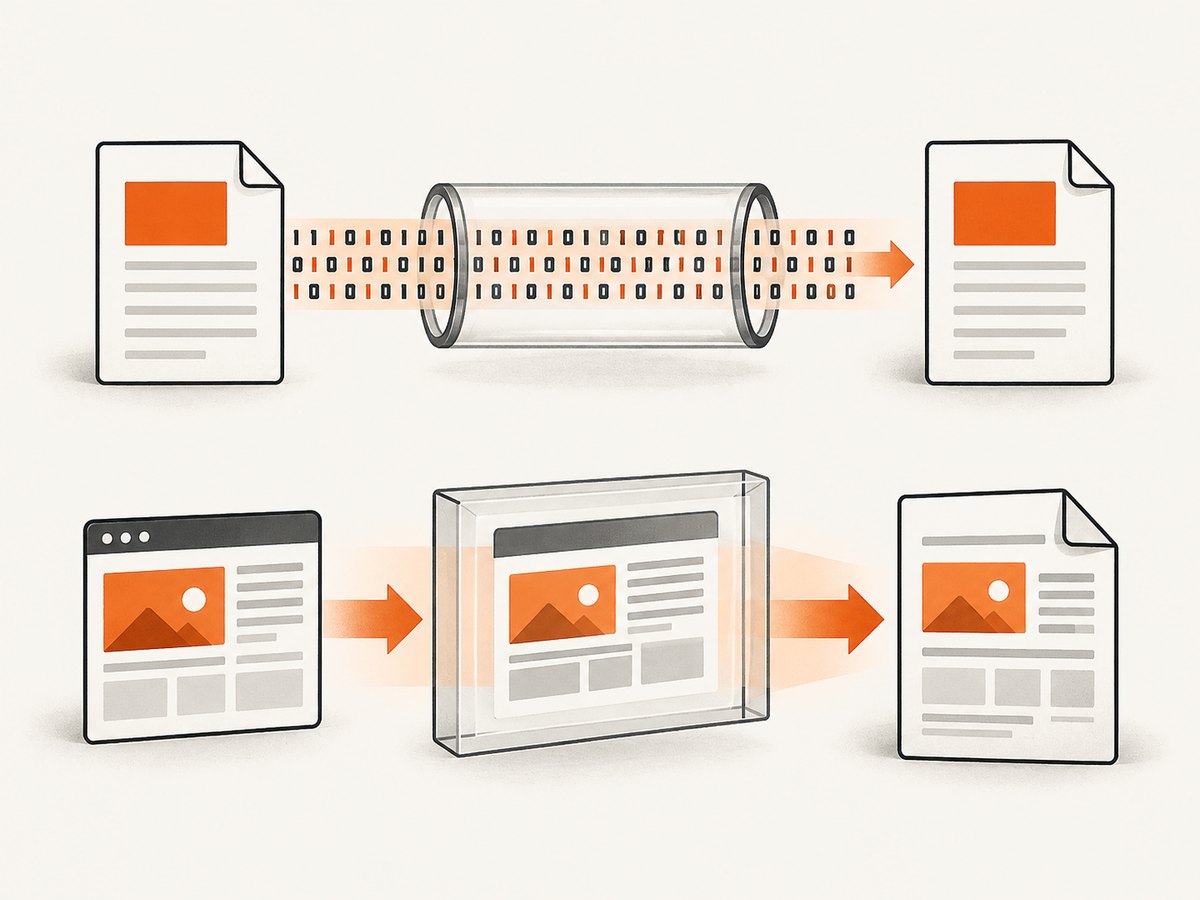
Use page.pdf({ path: 'file.pdf' }) when your goal is to print the current HTML page into a new PDF. That rendering path applies print CSS and is appropriate when you control the page content and want a printable export. It does not download the bytes of an existing PDF document opened by a site.
7. Authentication, redirects, and download behavior
- Session cookies: A popup opened from a logged-in page normally uses the browser’s context. If you create a separate context, set the required cookies there before opening the page.
- Authorization: If the PDF request needs a header the browser does not already send, configure it on the page or context before the click. Avoid logging tokens or signed query strings.
- Redirects: Match and check the final response. A redirect can lead to a PDF, an authentication screen, or an expired-link page. Log status and URL carefully, with secrets removed.
- Attachment downloads: Some links trigger a browser download rather than opening a PDF document in a new tab. In that case, use Puppeteer’s download handling for your installed version and save the downloaded file from the configured download directory. A page response listener is not a universal download manager.
- PDF viewer: The built-in viewer may display the PDF in the tab, but the useful bytes are still the network response. Capture the request response rather than trying to extract rendered viewer DOM.
- Blob URLs: A page may generate a PDF in JavaScript and open a
blob:URL. There may be no HTTP response containing the document. In that case, inspect the page’s download or blob-generation flow and capture the generated bytes within the page’s origin.
8. Troubleshooting
| Symptom | Likely cause | Fix |
|---|---|---|
| Popup promise times out | Wrong selector, click blocked, or link navigates the current tab | Confirm the selector and whether the element has target="_blank"; listen for navigation if it reuses the tab. |
| Popup opens but no PDF response is found | Listener was installed after the first response, PDF is fetched in another frame/request, or the match is too strict | Observe responses before clicking, broaden the MIME/URL condition, and inspect response URLs and headers with secrets redacted. |
| Saved file is HTML | Login page, error page, or interstitial matched by a loose URL rule | Check status, content type, final URL, and body size before writing; ensure authentication is present. |
| HTTP error status | Expired signed URL, missing session, blocked request, or server failure | Check the response status and relevant cookies/headers; obtain a fresh link and retry only transient failures. |
| PDF is empty or damaged | Body read too early, response is not the document, or text conversion corrupted bytes | Use the matching response’s buffer(), wait for its promise to resolve, and write the Buffer unchanged. |
| Several tabs are captured | Browser-wide target listener was not filtered | Check target.type(), target.opener(), and expected URL; unregister listeners after resolution. |
waitForEvent is undefined |
Installed Puppeteer API differs from the example’s version | Use page.once('popup', resolve) in a promise and pin the project’s Puppeteer version. |
| Browser closes before file appears | Asynchronous write was not awaited | Await fs.writeFile before closing the popup and browser. |
9. Performance, reliability, and cost
PDF downloads are generally dominated by page startup, site navigation, and the document transfer. Reuse a browser process for multiple captures when appropriate, but isolate pages and clean up listeners and popup tabs for each job. Set explicit navigation and response timeouts; a timeout should fail the job clearly rather than leave a browser open indefinitely.
For reliable automation, pin Puppeteer to a project version and verify event behavior when upgrading. Record the matched response’s status, content type, final URL, byte length, and elapsed time. Avoid recording credentials or sensitive signed URLs. Retry only failures that could be transient, and do not blindly repeat a non-idempotent click that may create duplicate jobs or tokens. Use a unique output path or atomic write strategy if concurrent jobs may save the same filename.
Running your own browser has infrastructure costs: compute, browser lifecycle management, storage, and time spent handling site-specific behavior. A hosted screenshot call can be simpler when you need an image or rendered PDF of a page rather than the original PDF response bytes. It is not a substitute for downloading the exact PDF the site serves.
Or skip the browser setup
For a screenshot or rendered PDF of a public page, ScreenshotNeo offers a one-request API and an MCP server for AI agents. It removes cookie banners, newsletter popups, and chat widgets before capture; bot checks, blank pages, and failed loads are never billed. Its MCP server lets Claude, Cursor, and other MCP clients take screenshots. The free plan includes 1,000 screenshots a month with no card; paid plans start at $5 for 3,000. Every feature is on every plan.
Example request for a screenshot; see the ScreenshotNeo API documentation for options and PDF capture:
curl -G "https://api.screenshotneo.com/v1/shot" -d access_key=YOUR_API_KEY --data-urlencode url=https://example.com -o shot.webpThis captures a rendered page. If you need the exact bytes of a PDF opened by another site, use the Puppeteer response workflow above. Sign up for 1,000 free screenshots a month with no card.
10. Frequently asked questions
Can I save a PDF opened by a click without using the viewer?
Yes. Capture the PDF network response and write its Buffer. The viewer is not the source of the bytes.
Does a popup always mean the PDF is its main response?
No. The popup may load HTML first and fetch a PDF separately, or trigger a browser download. Inspect the popup’s requests and the site’s behavior.
Will page.pdf() preserve the downloaded document?
No. It generates a PDF from the current page’s print rendering. Use the response body when preserving a server-provided PDF.
What if the PDF URL has no file extension?
Use the response’s content type and final URL rather than requiring a .pdf suffix.
Sources
- Puppeteer PageEvent API documents the popup event.
- Puppeteer HTTPResponse API documents response status, headers, URL, and body buffer.
- Puppeteer Target API documents target opener information.
- Puppeteer PDF guide describes PDF printing with
Page.pdf().


