How to Download a PDF That Opens in a New Tab with Puppeteer
Catch the Puppeteer popup before clicking, identify whether it points to a PDF or HTML, then download the file while preserving authentication.
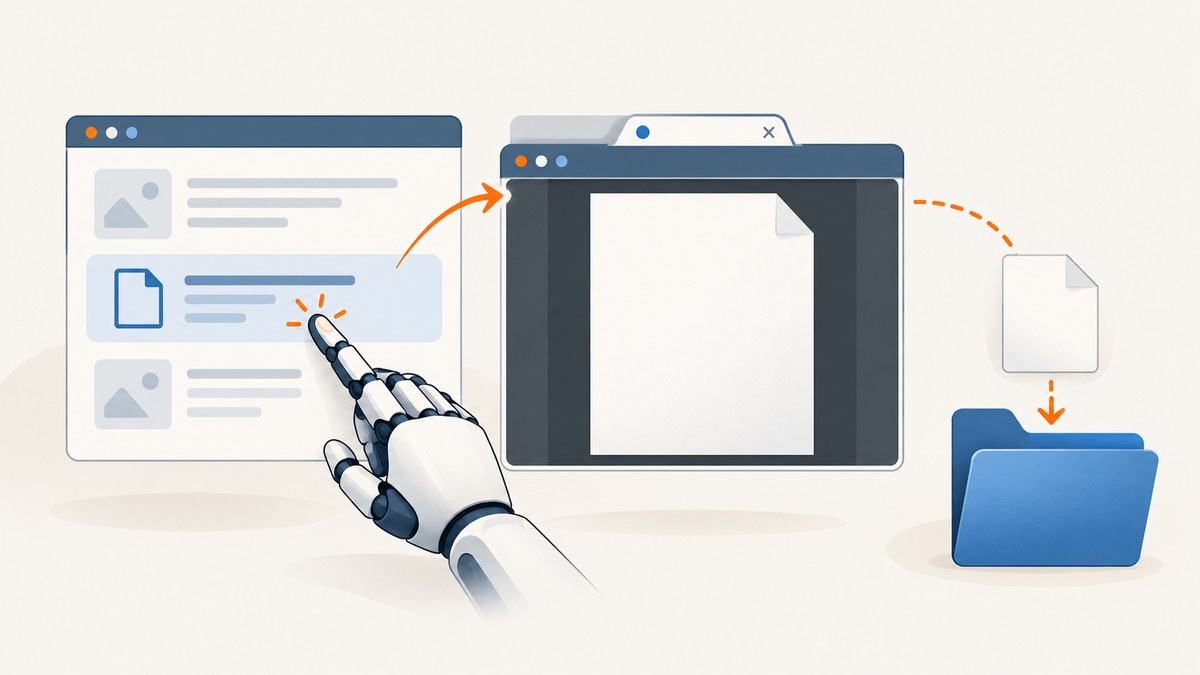
When a link opens a PDF in a new tab, Puppeteer does not automatically save the file. Treat the new tab as a popup: register a popup listener before clicking, wait for the new Page, and inspect its URL. If the URL is an existing PDF resource, request that resource and write its response body to disk, carrying over the browser session cookies or other required credentials. If the target is HTML you want to turn into a PDF, use page.pdf({ path }) on that HTML page instead.
This distinction matters because Chrome’s PDF viewer is only a way to display a document. Opening that viewer is not evidence that a file was downloaded. The implementation below verifies the HTTP response and resulting file. Puppeteer is a JavaScript library for browser automation over Chrome DevTools Protocol and WebDriver BiDi, as [Chrome for Developers describes](https://developer.chrome.com/docs/puppeteer).
1. Choose the right PDF path
| What the link opens | What to do | How to verify |
|---|---|---|
An existing PDF file, perhaps at a URL ending in .pdf |
Capture the popup URL, then fetch the resource with the session’s cookies and required headers, or use a CDP download flow. | Check the HTTP status, content type, file signature, and saved file. |
| An HTML page that should be printed | Navigate to or retain the HTML page and call page.pdf({ path: 'output.pdf' }). |
Check that the PDF file exists and is nonempty. |
| A viewer or application route that creates a PDF asynchronously | Wait for the popup URL to resolve, then inspect the page and network behavior. The route may require application-specific steps or a CDP download. | Confirm a download completion event or validate the fetched response. |
Do not assume a URL must end in .pdf. Sites often serve PDFs through routes without an extension, signed URLs, redirects, or viewer pages. The response content type and body are stronger clues than the URL suffix.
2. Install Puppeteer and prepare a runnable example
Use Node.js with Puppeteer installed in a project:
npm init -y
npm install puppeteer
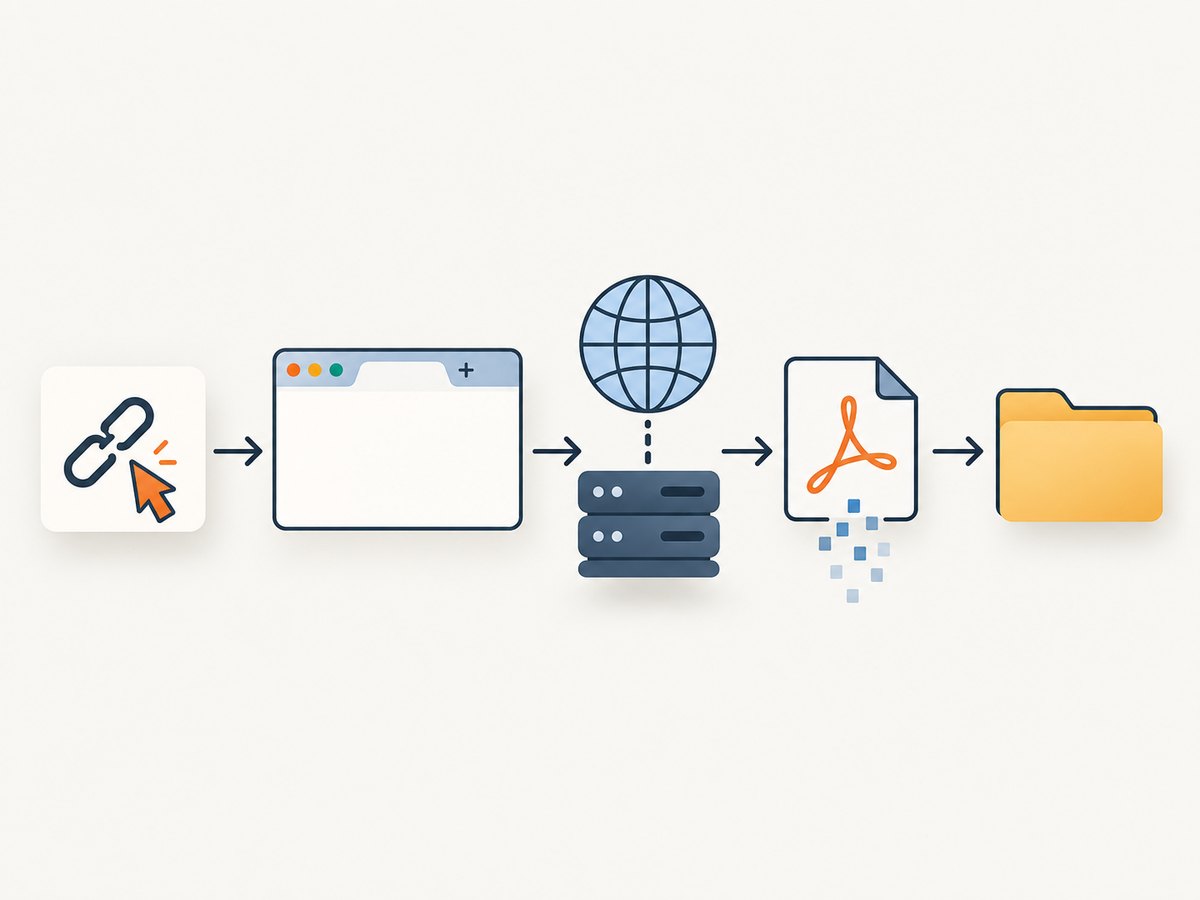
Save this as download-pdf.js. It accepts the page URL, link selector, and output filename as arguments. It listens for the popup before clicking, waits for the popup to navigate, copies the browser cookies to a direct HTTP request, checks the response, and writes the bytes.
const puppeteer = require('puppeteer');
const fs = require('node:fs/promises');
const path = require('node:path');

async function main() {
  const [pageUrl, selector, outputArg = 'download.pdf'] = process.argv.slice(2);
  if (!pageUrl || !selector) {
    throw new Error('Usage: node download-pdf.js <page-url> <link-selector> [output.pdf]');
  }
  const outputPath = path.resolve(outputArg);
  const browser = await puppeteer.launch({ headless: true });
  try {
    const page = await browser.newPage();
    await page.goto(pageUrl, { waitUntil: 'domcontentloaded', timeout: 30000 });

    // Arm the listener first: a fast popup can otherwise be missed.
    const popupPromise = new Promise((resolve, reject) => {
      const timer = setTimeout(() => reject(new Error('Timed out waiting for PDF popup')), 15000);
      page.once('popup', popup => {
        clearTimeout(timer);
        resolve(popup);
      });
    });
    await page.locator(selector).click();
    const pdfPage = await popupPromise;
    await pdfPage.waitForFunction(() => location.href !== 'about:blank', { timeout: 15000 });
    const pdfUrl = pdfPage.url();
    if (!/^https?:/.test(pdfUrl)) throw new Error(`Unexpected popup URL: ${pdfUrl}`);
    console.log(`Popup URL: ${pdfUrl}`);

    // Copy cookies scoped to the PDF URL. Some sites also require a Referer
    // or other headers; add those only when the site requires them.
    const cookies = await browser.cookies(pdfUrl);
    const cookieHeader = cookies.map(c => `${c.name}=${c.value}`).join('; ');
    const headers = cookieHeader ? { Cookie: cookieHeader } : {};
    const response = await fetch(pdfUrl, { headers, redirect: 'follow' });
    if (!response.ok) throw new Error(`PDF request failed: HTTP ${response.status}`);
    const contentType = response.headers.get('content-type') || '';
    const bytes = Buffer.from(await response.arrayBuffer());
    if (bytes.length === 0) throw new Error('The response body was empty');
    if (contentType.includes('text/html') || bytes.subarray(0, 15).toString().toLowerCase().includes('<!doctype')) {
      throw new Error(`Expected a PDF but received ${contentType || 'an unknown content type'}; check login, redirect, and viewer behavior`);
    }
    await fs.writeFile(outputPath, bytes);
    console.log(`Saved ${bytes.length} bytes to ${outputPath}`);
    await pdfPage.close();
  } finally {
    await browser.close();
  }
}

main().catch(error => {
  console.error(error);
  process.exitCode = 1;
});
Run it with a page URL and a selector that matches the link:
node download-pdf.js https://example.com/reports '#download-report' report.pdfReplace the example URL and selector with the target site’s values. The code uses Node’s built-in fetch, available in current Node.js releases. If the target requires a referer, add it to headers. If it requires an authorization header that was set in the browser context, copy the same authorized value into the request. Avoid printing cookies or authorization values in logs.
3. Understand and adapt the popup wait
The race condition is the most common source of flaky code. The click may open a page immediately, so attach the event handler before clicking. Puppeteer’s page API emits a popup event for a new page created from that page.
const popupPromise = new Promise(resolve => page.once('popup', resolve));
await page.locator('a[href$=".pdf"]').click();
const pdfPage = await popupPromise;
await pdfPage.waitForFunction(() => location.href !== 'about:blank');
const pdfUrl = pdfPage.url();
Prefer a selector tied to the actual page markup, such as an ID, data attribute, or accessible locator. An a[href$=".pdf"] selector is illustrative only: it misses links without a PDF extension and may match the wrong link. If the click is triggered by a button or JavaScript handler, use the matching button locator.
Set a timeout appropriate for the site. A popup event can arrive while the page itself still shows about:blank; waiting for navigation to establish a URL handles that delayed transition. If the site opens a tab after a longer asynchronous operation, increase the popup and navigation timeouts based on observed behavior. Do not use an unbounded wait in a production job.
4. Preserve authentication and request details
A PDF URL that works in the browser may fail when requested independently. The browser may have session cookies, authorization headers, a referer, or a short-lived signed URL. A login page returned with status 200 can look like a successful download unless the body is checked.
- Wait for the popup and record its final URL after redirects.
- Use cookies scoped to that URL, as in the example, and include only the additional headers the site requires.
- Check the response status and content type. For stricter validation, confirm the file starts with the PDF signature bytes
%PDF-. - Write to a temporary path first for important files; after validation, rename it to the final path.
- Do not expose session cookies, bearer tokens, or signed URLs in logs or error reports.
Some sites use POST requests, one-time tokens, or JavaScript-generated blob URLs. A plain GET of the popup URL may not reproduce that request. Inspect the site’s network behavior and, when needed, use a CDP download lifecycle or the site’s supported download endpoint. Puppeteer exposes page.createCDPSession() for attaching a Chrome DevTools Protocol session.
5. Use Chrome DevTools Protocol when a browser download is required
Direct fetching is usually straightforward for a stable PDF URL. Use browser download handling when the site relies on browser state or a user action that triggers a download instead of navigating to a readable resource. CDP’s Browser domain reports downloadWillBegin with the download URL and suggested filename, and download progress states such as inProgress, completed, and canceled.
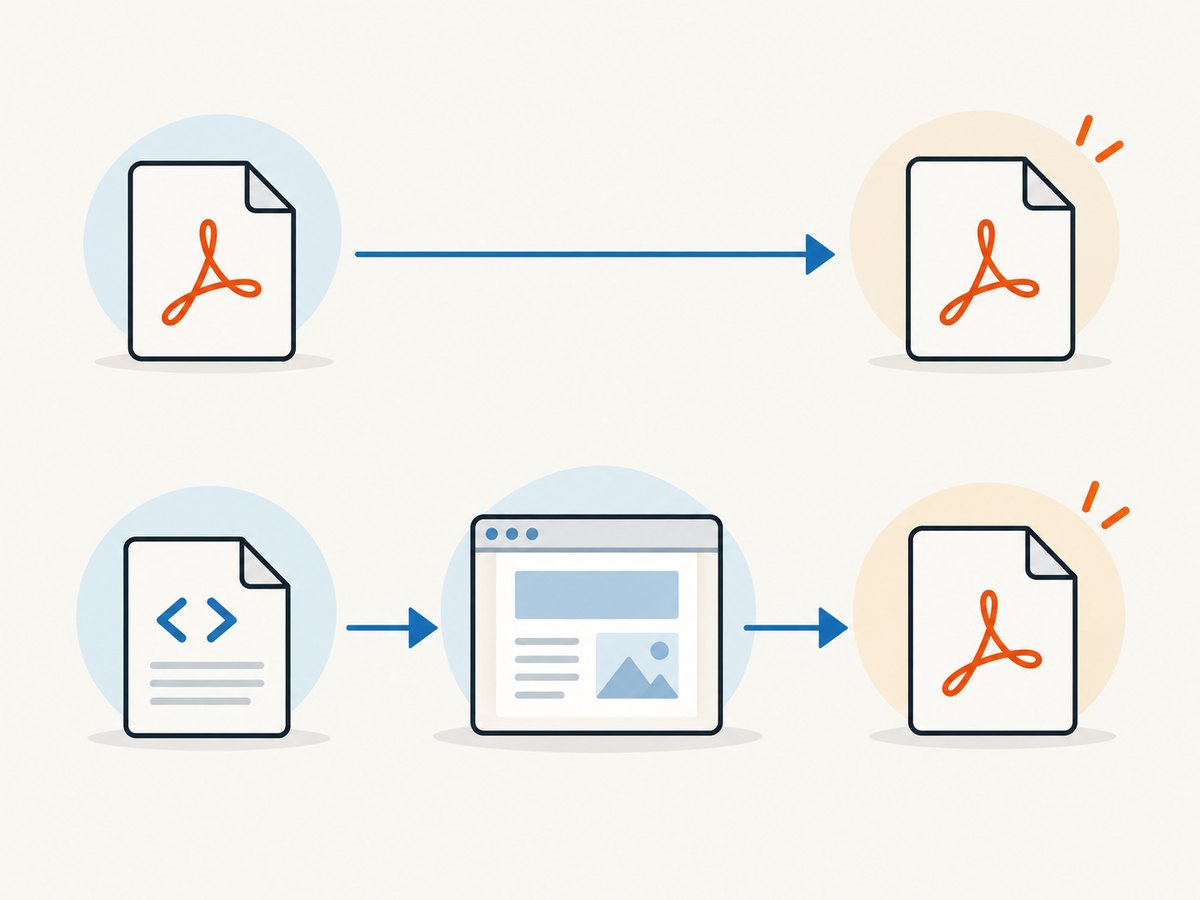
The following illustrates the event flow; exact download configuration support can depend on the Chrome/Puppeteer version in use. Choose a writable download directory, enable events, and do not report success until the progress event is completed.
const fs = require('node:fs/promises');
const path = require('node:path');
const puppeteer = require('puppeteer');

(async () => {
  const downloadDir = path.resolve('downloads');
  await fs.mkdir(downloadDir, { recursive: true });
  const browser = await puppeteer.launch({ headless: true });
  try {
    const cdp = await browser.target().createCDPSession();
    await cdp.send('Browser.setDownloadBehavior', {
      behavior: 'allow',
      downloadPath: downloadDir,
      eventsEnabled: true
    });

    const completed = new Promise((resolve, reject) => {
      const timer = setTimeout(() => reject(new Error('Download did not complete in time')), 60000);
      cdp.on('Browser.downloadProgress', event => {
        if (event.state === 'completed') { clearTimeout(timer); resolve(event); }
        if (event.state === 'canceled') { clearTimeout(timer); reject(new Error('Browser canceled the download')); }
      });
    });
    const page = await browser.newPage();
    await page.goto('https://example.com/reports', { waitUntil: 'domcontentloaded' });
    await page.locator('#download-report').click();
    const result = await completed;
    console.log(`Download completed: ${result.guid}; path: ${result.filePath || downloadDir}`);
  } finally {
    await browser.close();
  }
})().catch(error => { console.error(error); process.exitCode = 1; });
For the CDP method, coordinate the trigger with the expected download and filter events if the page can start multiple downloads. Validate the actual file in the download directory as well; the event is a lifecycle signal, while checking the file confirms it is available to the next stage of your program.
6. Generate a PDF from HTML with page.pdf()
If the popup is an HTML report, you are not downloading an existing PDF. Print the HTML page:
const puppeteer = require('puppeteer');

(async () => {
  const browser = await puppeteer.launch({ headless: true });
  try {
    const page = await browser.newPage();
    await page.goto('https://example.com/report', { waitUntil: 'networkidle0' });
    await page.pdf({
      path: 'report.pdf',
      format: 'A4',
      printBackground: true,
      preferCSSPageSize: true
    });
  } finally {
    await browser.close();
  }
})().catch(error => { console.error(error); process.exitCode = 1; });
The official [Puppeteer PDF guide](https://pptr.dev/guides/pdf-generation) recommends Page.pdf() for printing. It waits for fonts by default and renders the current page. It is not a way to fetch an arbitrary PDF URL opened by a link. Choose readiness conditions carefully: pages with polling or persistent network connections may never reach network idle, so waiting for a report-specific selector or a known application-ready state can be more reliable.
7. cURL, Python, and direct Node.js alternatives
Once Puppeteer has identified the final PDF URL, a command-line or application HTTP client can save it. These approaches do not discover the popup themselves; they fetch a URL you already captured. Supply credentials securely and preserve any required request headers.
cURL
curl --fail --location --cookie "session=YOUR_SESSION_COOKIE" \
  --header "Referer: https://example.com/reports" \
  "https://example.com/files/report.pdf" \
  --output report.pdf
Remove the cookie or referer option if the server does not require it. Use a protected cookie jar rather than putting secrets in shell history for real credentials. --fail makes HTTP error statuses fail the command; inspect the saved file if a successful status might return an HTML login page.
Python
from pathlib import Path
import requests

pdf_url = "https://example.com/files/report.pdf"
headers = {"Referer": "https://example.com/reports"}
cookies = {"session": "YOUR_SESSION_COOKIE"}

with requests.get(pdf_url, headers=headers, cookies=cookies, stream=True, timeout=(10, 60)) as response:
    response.raise_for_status()
    content_type = response.headers.get("content-type", "")
    if "text/html" in content_type.lower():
        raise RuntimeError(f"Expected PDF, got {content_type}")
    first = next(response.iter_content(5), b"")
    if not first.startswith(b"%PDF-"):
        raise RuntimeError("Response does not begin with a PDF signature")
    output = Path("report.pdf")
    with output.open("wb") as file:
        file.write(first)
        for chunk in response.iter_content(64 * 1024):
            if chunk:
                file.write(chunk)
print(f"Saved {output}")
Node.js fetch
const fs = require('node:fs/promises');

const pdfUrl = 'https://example.com/files/report.pdf';
const res = await fetch(pdfUrl, {
  headers: {
    Cookie: 'session=YOUR_SESSION_COOKIE',
    Referer: 'https://example.com/reports'
  },
  redirect: 'follow',
  signal: AbortSignal.timeout(60000)
});
if (!res.ok) throw new Error(`HTTP ${res.status}`);
const bytes = Buffer.from(await res.arrayBuffer());
if (!bytes.subarray(0, 5).equals(Buffer.from('%PDF-'))) {
  throw new Error('Response is not a PDF');
}
await fs.writeFile('report.pdf', bytes);
These examples use placeholder URLs and credentials; replace them with the popup URL and the exact session requirements of the target site. For large files, stream chunks to disk rather than buffering the entire response in memory.
8. Or skip the browser setup
If your goal is a screenshot or PDF of a web page rather than saving an existing PDF linked from it, [ScreenshotNeo](https://screenshotneo.com) can capture it with one GET request. See the [API documentation](https://screenshotneo.com/docs/) for parameters and output options.
curl -G "https://api.screenshotneo.com/v1/shot" \
  -d access_key=YOUR_API_KEY \
  --data-urlencode url=https://example.com/report \
  -o shot.webp
import requests
r = requests.get(
"https://api.screenshotneo.com/v1/shot",
params={"access_key": "YOUR_API_KEY", "url": "https://example.com/report"},
timeout=90,
)
open("shot.webp", "wb").write(r.content)const q = new URLSearchParams({
access_key: 'YOUR_API_KEY',
url: 'https://example.com/report'
});
const res = await fetch(`https://api.screenshotneo.com/v1/shot?${q}`);
if (!res.ok) throw new Error(`HTTP ${res.status}`);
await require('node:fs/promises').writeFile('shot.webp', Buffer.from(await res.arrayBuffer()));ScreenshotNeo removes cookie banners, popups, and chat widgets before the shot. Bot checks, blank pages, and failed loads are never billed. Its MCP server lets AI agents take screenshots, and 1,000 screenshots per month are free with no card; paid plans start at $5 for 3,000. This captures a page as an image or PDF; it does not replace downloading an existing PDF file from a link. [Get 1,000 free screenshots a month with no card](https://screenshotneo.com/account/sign-up/).
9. Troubleshooting common failures
| Symptom | Likely cause | Fix |
|---|---|---|
| Popup wait times out | The selector missed, the link opens in the same tab, or the click did not trigger the expected action. | Confirm the selector and inspect whether the link has target="_blank" or a click handler. If it navigates in the same page, wait for navigation instead of a popup. |
Popup URL remains about:blank |
The new page has not navigated yet, or a delayed script controls navigation. | Wait for the URL to change with a bounded timeout, then inspect console and page errors if it remains blank. |
| Saved file is HTML or a login page | Cookies, authorization, referer, or a signed URL were omitted; the server redirected to a login page. | Use cookies for the PDF URL, preserve required headers, follow redirects, and check content type and PDF signature. |
| HTTP 401 or 403 | The resource requires authentication or the link token expired. | Capture the URL promptly, copy the session credentials correctly, and include any required referer. Refresh the page if the signed URL is one-time or expired. |
| Headless run cannot open the PDF document | Puppeteer’s headless shell does not support navigation to a PDF document. | Avoid relying on the embedded viewer: request the popup URL directly or handle the download through CDP. |
| Download event never completes | The click did not start a download, the event listener was attached too late, or the site is waiting for another action. | Attach CDP listeners before the click, listen for begin and progress events, and verify the trigger and writable download directory. |
| File exists but is zero bytes or corrupt | The response was empty/truncated, or the process exited before writing finished. | Await the response body and file write, reject empty bodies, verify the %PDF- signature, and only mark success after completion. |
page.pdf() produces a blank or incomplete report |
The page printed before its data or fonts were ready, or print CSS hides content. | Wait for a report-specific ready condition, inspect print styles, and use printBackground when background graphics matter. |
10. Reliability, performance, and cost considerations
Reuse a browser process for multiple captures when appropriate, but create a fresh page or isolated browser context for each independent session so cookies do not leak between jobs. Close popup pages when finished and always close the browser in a finally block. Use bounded navigation, popup, request, and download timeouts; retry only transient failures, with a limit and backoff. A 401, 403, invalid selector, or HTML response is usually not fixed by retrying unchanged.
Direct HTTP download avoids rendering the PDF viewer and generally uses less browser work, but still transfers the entire file and may need session setup. CDP download handling keeps the browser involved and requires disk space and file validation. page.pdf() spends time rendering page layout, fonts, and graphics; wait only for the readiness condition the page needs. For large PDFs, stream responses to disk and avoid holding multiple full documents in memory.
Puppeteer itself is software you run, not a per-screenshot API fee. Account for the compute time, browser maintenance, storage, bandwidth, and operational work in your environment. If you are rendering HTML as a visual capture rather than retrieving an existing PDF, ScreenshotNeo offers a managed API with a free allowance and paid tiers described above. Its billed-shot headers identify page verdict and billing status, and cache hits cost nothing under the supplied product terms.
11. FAQ
Can Puppeteer save the PDF just because the tab opened?
No. A tab opening only gives you a page and URL. Fetch the PDF or observe a completed browser download, then verify the file.
What if the link opens a PDF in the same tab?
There is no popup to await. Wait for the page navigation, read the final URL, and use the same direct-request or CDP strategy.
Does page.pdf() download the linked PDF?
No. It prints the current HTML page to a PDF. Use it when HTML is the source you want to render.
Can I use a remote Chrome connection?
Yes, if the browser endpoint permits the required page and CDP operations and the process that handles the download can access the destination storage. Verify where the remote browser writes files.
Why does headless mode behave differently?
The headless shell does not support navigation to a PDF document. Avoid depending on the built-in viewer and retrieve the resource or use download events.


