How to Download a PDF from a URL Using Python
Download PDFs from URLs with Python using urllib or Requests. Learn to stream large files, handle errors and redirects, and check that the response is really a PDF.
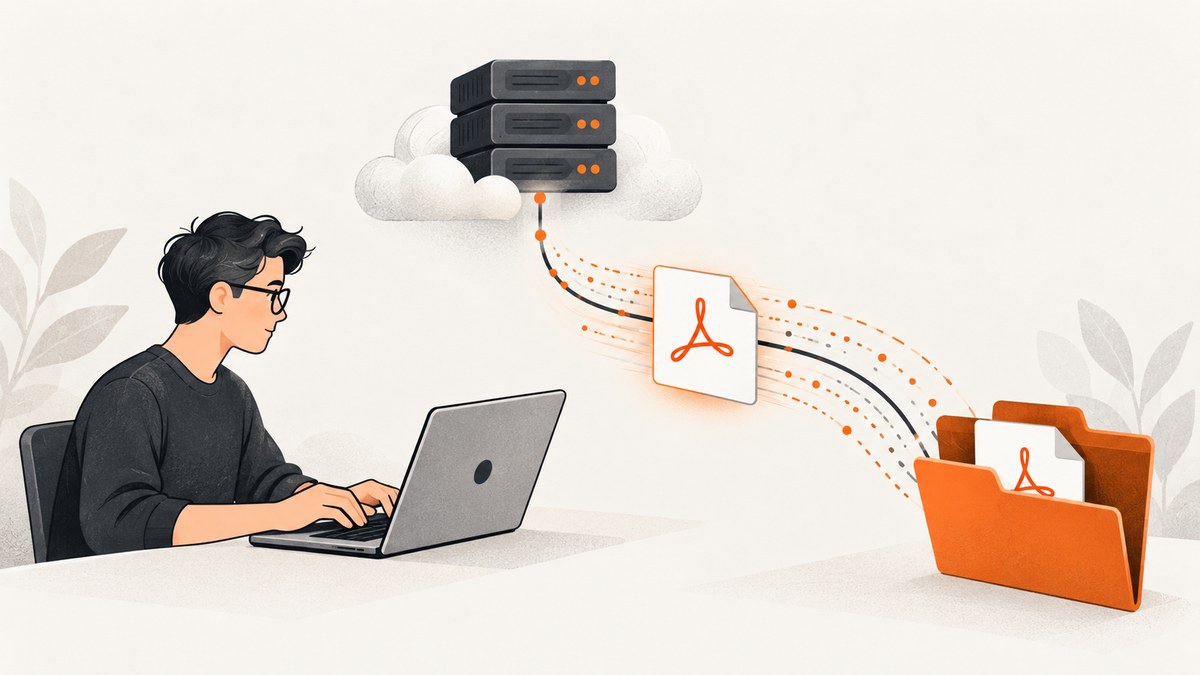
Use Python’s built-in urllib.request.urlopen for a short, one-off download, or use Requests with stream=True for a large PDF. In both cases, save the response as bytes in a file opened with wb, set a timeout, and check the HTTP result. A URL ending in .pdf does not prove that its response body is a PDF.
Python’s urllib.request documentation describes URL opening support that includes redirects, authentication, and cookies. For a higher-level HTTP client interface, it points readers to Requests. The right choice depends on whether you want to avoid a dependency or prefer Requests’ status helpers and streaming API.
1. Download a small PDF with Python’s standard library
This version needs no third-party package. urlopen returns a response that can be used as a context manager; the body is bytes, so write it to a binary file.
from pathlib import Path
from urllib.request import urlopen

url = "https://example.com/document.pdf"
out = Path("document.pdf")

with urlopen(url, timeout=30) as response:
    out.write_bytes(response.read())

print(f"Saved {out} ({out.stat().st_size} bytes)")
Save this as, for example, download_pdf.py, replace the sample URL, then run python download_pdf.py. The timeout is an example value, not a universal setting. Pick a limit appropriate for your application and the server’s response time.
This compact example reads the whole response into memory before writing. That is fine for a small document, but avoid a single full-body read for a very large file. The next example writes chunks as they arrive.
2. Stream a large PDF with Requests
Install Requests in your environment if it is not already available:

python -m pip install requestsThen save the response incrementally. The following example checks for an unsuccessful HTTP status before opening the destination file for writing:
from pathlib import Path
import requests

url = "https://example.com/large-document.pdf"
out = Path("large-document.pdf")

with requests.get(url, stream=True, timeout=(5, 60)) as response:
    response.raise_for_status()
    with out.open("wb") as file:
        for chunk in response.iter_content(chunk_size=1024 * 64):
            if chunk:
                file.write(chunk)

print(f"Saved {out} ({out.stat().st_size} bytes)")
stream=True prevents Requests from eagerly loading the response body. iter_content() yields chunks suitable for writing to a file. The context manager closes the response when the block exits, including when an exception interrupts the download. Requests recommends iter_content() for streamed file saving and documents raise_for_status() as a way to check unsuccessful responses in its Quickstart and Advanced Usage.
The timeout tuple sets separate connect and read limits; these sample values may need adjustment. The 64 KiB chunk size is also just an example. A larger chunk can reduce the number of Python write operations, while a smaller one uses less temporary memory per chunk. Neither changes the total file size.
3. Check status and confirm the response is a PDF
HTTP success and file type answer different questions. A successful response can contain an HTML login page or an error page, and a PDF URL can redirect to a different resource. At minimum:
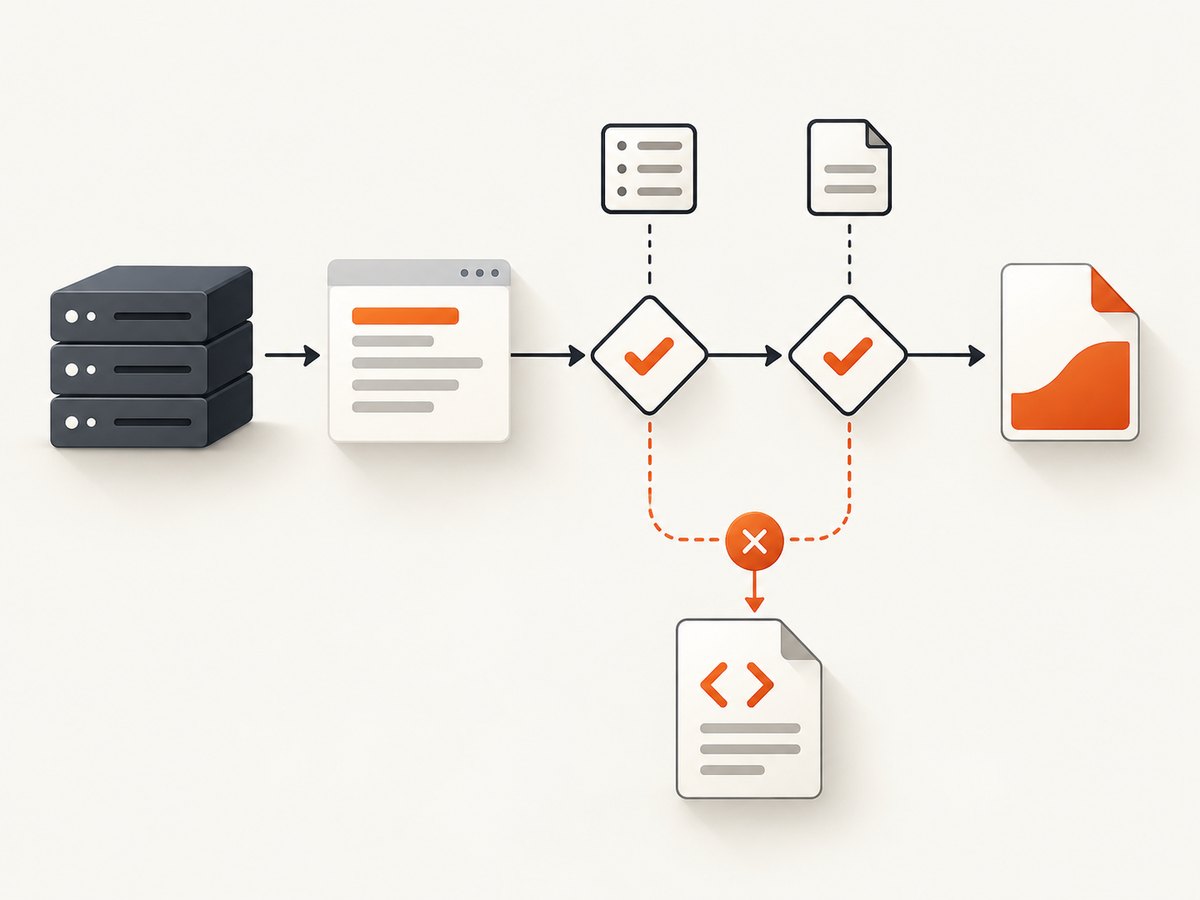
- Check the HTTP status. With Requests, call
raise_for_status()before accepting the body. - Save in binary mode. Do not decode the body as text.
- Use a deliberate output path and decide what should happen if that file already exists. Opening with
wboverwrites it. - When downstream correctness matters, validate the content with a PDF-aware parser or your application’s document validation step.
A file signature check can catch obvious HTML responses, but should be treated as a quick diagnostic rather than complete PDF validation. For example, a PDF commonly starts with the bytes %PDF-. Here is a Requests version that checks the beginning of the saved file after streaming:
from pathlib import Path
import requests

url = "https://example.com/document.pdf"
out = Path("document.pdf")

with requests.get(url, stream=True, timeout=(5, 60)) as response:
    response.raise_for_status()
    with out.open("wb") as file:
        for chunk in response.iter_content(chunk_size=64 * 1024):
            if chunk:
                file.write(chunk)

with out.open("rb") as file:
    signature = file.read(5)

if signature != b"%PDF-":
    out.unlink(missing_ok=True)
    raise ValueError("The response did not begin with a PDF signature")
Signature checks are not a substitute for parsing a document. If the file must be valid for a critical workflow, use a PDF parser or another validation process suited to that workflow. The HTTP and URL documentation describes fetching and response handling; it does not define a complete PDF validation procedure.
4. Handle redirects, authentication, and output paths
Redirects and extensionless URLs
Do not require .pdf at the end of the URL. A server may route a document through an endpoint with another path, or redirect to a storage URL. Let the HTTP client handle ordinary redirects, then inspect status and response content. If the endpoint requires a special redirect policy, check that server’s documentation and configure your client accordingly.
Authentication and cookies
A protected document may require credentials, a session cookie, or an authorization header. Use only credentials and access you are permitted to use. With Requests, you can pass headers or use its authentication support:
import requests

url = "https://example.com/private/report"
headers = {"Authorization": "Bearer YOUR_TOKEN"}

with requests.get(url, headers=headers, stream=True, timeout=(5, 60)) as response:
    response.raise_for_status()
    with open("report.pdf", "wb") as file:
        for chunk in response.iter_content(64 * 1024):
            if chunk:
                file.write(chunk)
Do not place long-lived secrets directly in source code in a deployed application. Load them from your runtime’s approved secret configuration. If a server requires a session cookie, use a Requests session configured for that authorized session rather than trying to evade an access check.
Choose a safe destination
Path("document.pdf") writes relative to the program’s current working directory. Use an explicit directory if the destination must be predictable. Ensure the parent directory exists, and decide whether overwriting an existing file is acceptable. For example, use out.exists() to reject an overwrite or generate a unique name. These are application choices; there is no single correct overwrite policy for every downloader.
5. Choose between urllib and Requests
| Need | Use | Reason |
|---|---|---|
| No extra dependency | urllib.request |
It is part of Python’s standard library. |
| Short, small download | Either | Both can retrieve bytes and save them to a binary file. |
| Large download in chunks | Requests with stream=True |
iter_content() makes incremental file writing straightforward. |
| Explicit HTTP error handling | Requests | raise_for_status() provides a direct status check. |
| Already using a standard-library HTTP workflow | urllib.request |
It avoids adding another package to that workflow. |
Python’s documentation marks urlretrieve as part of the legacy interface. For new code, urlopen makes timeout and response handling visible. Requests’ current documentation covers binary response content, status checking, and streaming patterns in more detail.
6. Troubleshoot common download failures
| Symptom | Likely cause | What to do |
|---|---|---|
| HTTP 404 or another HTTP error | The URL is wrong, the resource was removed, or the server rejected the request. | Check the URL and access permissions. In Requests, call raise_for_status() so the failure is not mistaken for a valid file. |
| The saved “PDF” opens as HTML | The server returned a login page, access-denied page, or error document. | Check status, inspect response headers and a small part of the body, then use the authorized authentication method if required. Do not trust the suffix alone. |
| Timeout or connection error | The server is slow or unreachable, or the network failed. | Choose realistic connect and read timeouts, verify network access, and retry only when the application’s policy permits. Avoid unbounded waits. |
| Memory use grows during a large download | The program buffered the entire body, for example with response.read() or default non-streaming Requests. |
Use Requests with stream=True and write non-empty chunks from iter_content(). |
| Downloaded file is empty or incomplete | The server returned no body, a transfer was interrupted, or the process stopped early. | Check status and final file size, and use the response context manager. If resumable downloads are needed, first confirm the server supports range requests and implement that protocol deliberately. |
ModuleNotFoundError: requests |
Requests is not installed in the Python environment running the script. | Run python -m pip install requests with the same Python interpreter used to launch the script, or use urllib. |
| Permission error writing the file | The destination directory is not writable or the path is invalid. | Choose a writable path and create the parent directory when appropriate. |
7. Performance, reliability, and cost
For a single small PDF, the simplest code is often easiest to maintain. For a large body, streaming bounds the amount of response data held in memory at once. Use a context manager so the response is released even if writing fails. A read timeout limits how long the client waits for data; it is not the same as a guaranteed total download deadline.
Retries can help with transient network failures, but they can also repeat a request to a server that is consistently failing. If you add retries, cap the attempts and define which failures are retryable. Check whether an interrupted download left a partial file, and remove or replace it according to your application’s policy. The examples above do not implement retries or resumable transfer.
Downloading with urllib has no package installation cost; Requests is a third-party dependency. In either case, bandwidth and access are governed by the remote host and your own environment. Respect the document owner’s terms and applicable access controls. The download code itself does not convert a web page into a PDF: it saves the resource returned by the URL.
8. Or skip the browser setup
If what you need is a visual PDF capture of a web page rather than downloading an existing PDF file, ScreenshotNeo is a website screenshot API and MCP server. One GET request can return a screenshot or PDF; see the API documentation.
import requests

r = requests.get(
    "https://api.screenshotneo.com/v1/shot",
    params={"access_key": "YOUR_API_KEY", "url": "https://stripe.com"},
    timeout=90,
)
open("shot.webp", "wb").write(r.content)
ScreenshotNeo removes cookie banners, newsletter popups, and chat widgets before the shot. Bot checks, blank pages, and failed loads are never billed. Its MCP server lets AI agents use screenshot tools, and the free plan includes 1,000 screenshots a month with no card; paid plans start at $5 for 3,000. This API captures a page; it is not a method for fetching an already-hosted PDF file.
Sign up free for 1,000 screenshots a month, no card required.
9. FAQ
Can I download a PDF if the URL does not end in .pdf?
Yes. Request the URL and check the response status and content. The path suffix is only a naming clue.
Should I use urlretrieve?
Python documents it as a legacy interface. For new examples, urlopen makes timeouts and response handling easier to show explicitly.
Why must I open the destination with wb?
A PDF is binary data. Binary mode writes the response bytes without text decoding or newline conversion.
Does a successful status guarantee a valid PDF?
No. It indicates an HTTP response status, not that the body is a valid PDF. Validate the document if correctness depends on it.


