How to Download PDFs with Capybara and Selenium in Headless Chrome
Configure Selenium downloads, wait safely for files in CI, and distinguish PDF downloads from page printing with Capybara.
Direct answer
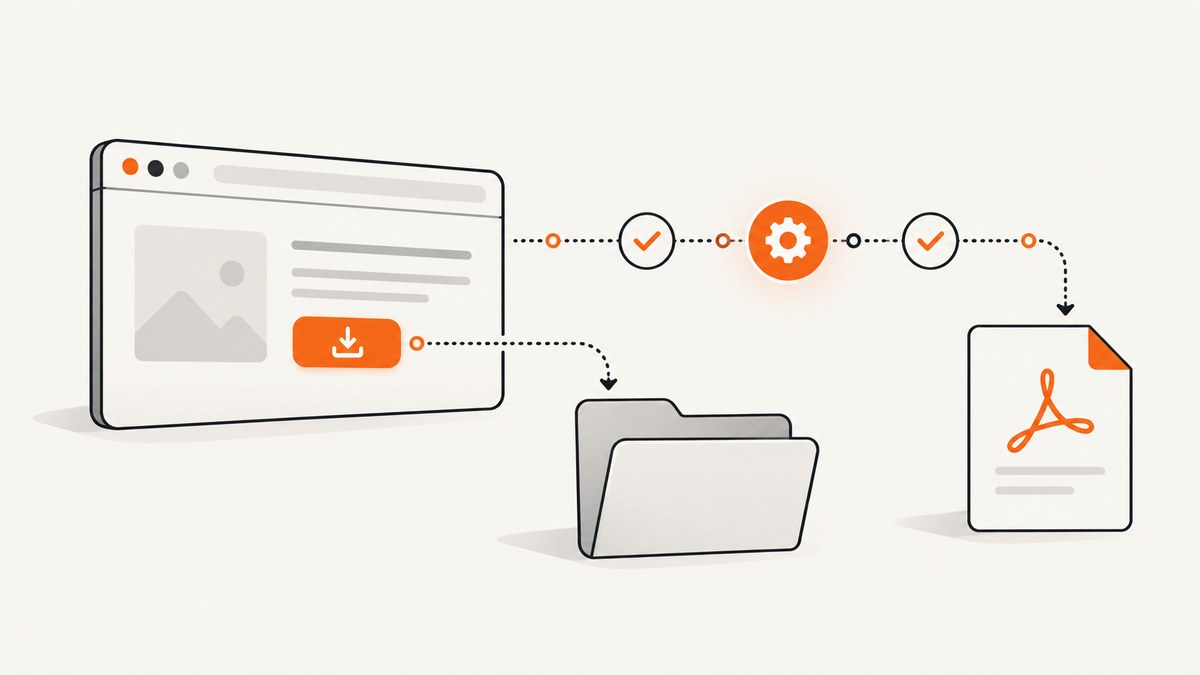
Use a JavaScript-capable Selenium Chrome driver, configure Chrome with a writable test-specific download directory before the browser starts, disable download prompts, trigger the link with Capybara, and wait until the file exists before asserting it. Capybara’s :rack_test driver cannot execute JavaScript or access remote URLs, so it is unsuitable for JavaScript-driven or remote PDF links. Rails system tests can select Selenium’s headless Chrome configuration with driven_by :selenium, using: :headless_chrome.
First decide what you are testing:
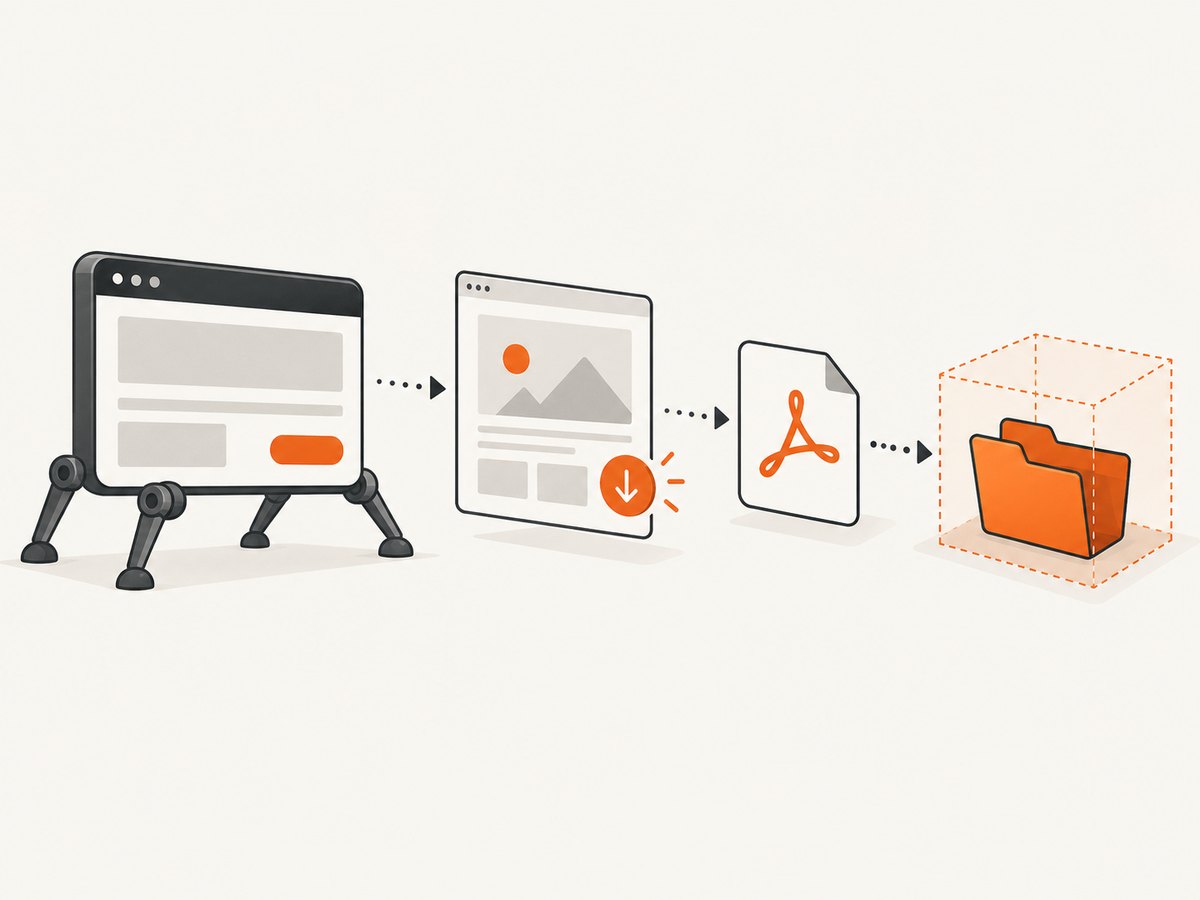
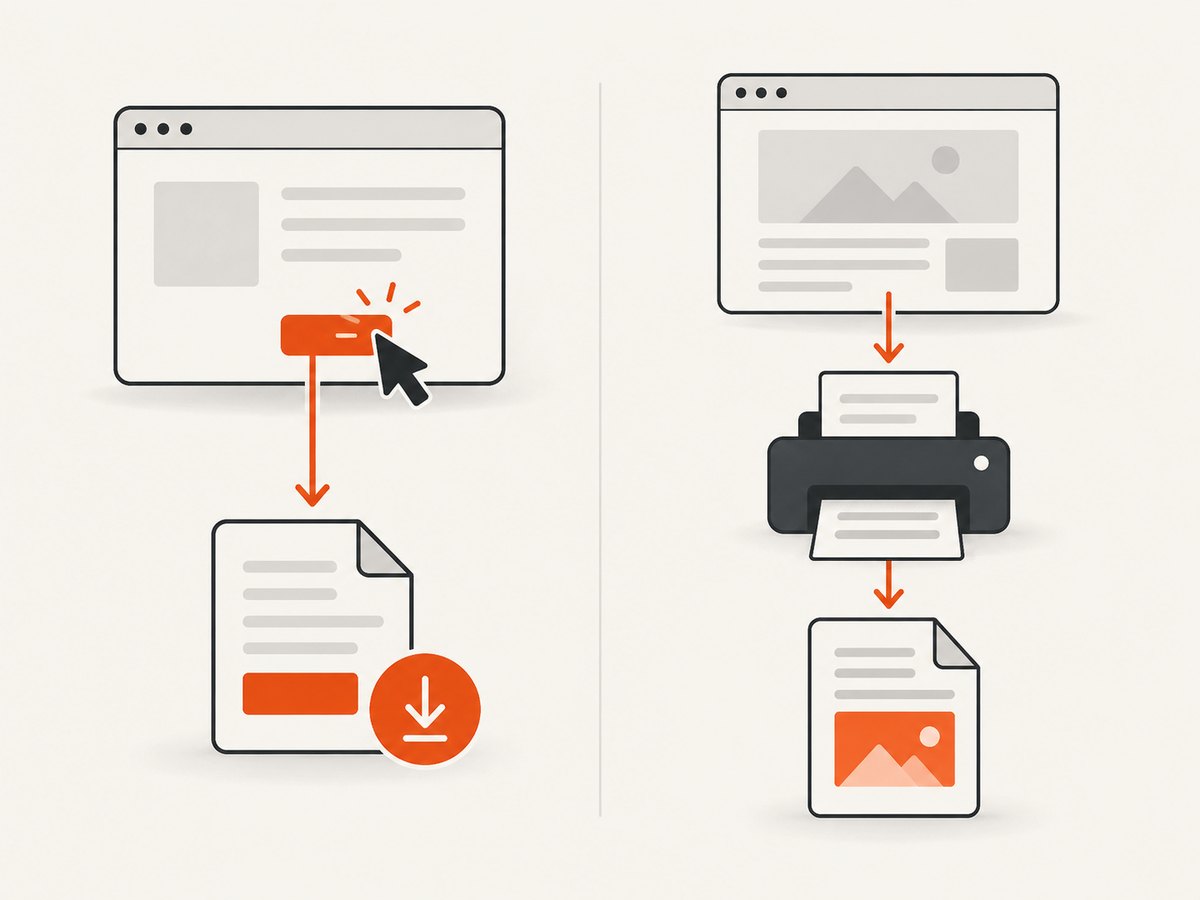
- Download behavior: click a link or button and verify the resulting file, filename, response behavior, or PDF contents.
- Page-to-PDF rendering: ask Chrome to print the current page with
--print-to-pdf. This does not exercise your application’s download endpoint.
The complete setup below covers both cases and is designed for local runs and CI.
1. Choose a driver that can download
Capybara includes Selenium registrations for :selenium_chrome and :selenium_chrome_headless. Rails system tests expose the same idea through using: :headless_chrome. Read the driver limitations in the Capybara driver documentation and Rails’ system-testing documentation.
:rack_test is fast, but it does not run browser JavaScript and cannot navigate to remote sites. Use it for server-rendered HTML assertions and Selenium for browser behavior, JavaScript links, remote PDF URLs, cookies, redirects, and actual downloads.
2. Configure Rails system tests
For a Rails application, start with the supported headless Chrome system-test setup:
# test/application_system_test_case.rb
require "test_helper"

class ApplicationSystemTestCase < ActionDispatch::SystemTestCase
  driven_by :selenium, using: :headless_chrome, screen_size: [1400, 1400]
end
This selects Selenium and lets Rails manage the basic browser lifecycle. You still need download preferences when the test must save a file without an interactive dialog. A custom driver makes the download directory explicit and isolated.
3. Register a Selenium driver with a temporary download directory
Chrome reads download preferences when the session is created. Set them before opening the browser. GitLab’s CI-oriented setup demonstrates the two important preferences: download.default_directory and download.prompt_for_download.
# test/support/capybara_pdf.rb
require "capybara/rails"
require "selenium-webdriver"
require "tmpdir"

DOWNLOAD_DIR = Dir.mktmpdir("pdf-downloads")

Capybara.register_driver :selenium_chrome_pdf do |app|
  options = Selenium::WebDriver::Chrome::Options.new
  options.add_argument("--headless")
  options.add_argument("--window-size=1400,1400")
  options.add_preference("download.default_directory", DOWNLOAD_DIR)
  options.add_preference("download.prompt_for_download", false)

  Capybara::Selenium::Driver.new(
    app,
    browser: :chrome,
    options: options
  )
end
Load this support file from your test helper, then select the driver for the test or test group:
# test/system/reports_test.rb
require "application_system_test_case"
require_relative "../support/capybara_pdf"

class ReportsTest < ApplicationSystemTestCase
  driven_by :selenium_chrome_pdf

  test "downloads the report PDF" do
    visit "/reports"
    click_link "Download PDF"

    path = File.join(DOWNLOAD_DIR, "report.pdf")
    wait_for_file(path)
    assert File.file?(path)
    assert_operator File.size(path), :>, 0
  end

  private

  def wait_for_file(path, timeout: Capybara.default_max_wait_time)
    deadline = Process.clock_gettime(Process::CLOCK_MONOTONIC) + timeout
    until File.file?(path)
      raise "Timed out waiting for #{path}" if Process.clock_gettime(Process::CLOCK_MONOTONIC) > deadline
      sleep 0.1
    end
  end
end
The exact headless flag supported depends on the Chrome version installed in your image. Keep the browser and driver versions recorded in CI so an upgrade is diagnosable.
4. Trigger the download and wait for completion
A click returns before Chrome has finished writing the file. An immediate File.exist? assertion creates a race. Wait for the expected path, then verify size or inspect the PDF. If Chrome uses a temporary .crdownload file, wait for the final filename and optionally confirm that no partial file remains.
it "downloads the PDF" do
  driven_by(:selenium_chrome_pdf)
  visit "/reports"
  click_link "Download PDF"

  path = File.join(DOWNLOAD_DIR, "report.pdf")
  expect do
    expect(File).to exist(path)
  end.to eventually_have_something # Replace with your test stack's wait matcher
end
Capybara synchronizes DOM operations, but a raw filesystem assertion needs a wait strategy supplied by your test framework. Keep the timeout long enough for CI network and PDF generation latency, while failing clearly when the file never appears.
5. Use Capybara::HeadlessChrome for synchronized downloads
The optional Capybara::HeadlessChrome project provides a download collection with synchronized lookup. Reset it at the beginning of each test to avoid files from a previous example.
require "capybara/headless_chrome"

page.downloads.reset
visit "/reports"
click_link "Download Report"

file = page.downloads["report.pdf"]
expect(file).to be_a(File)
expect(file.size).to be > 0

# Other useful helpers:
filenames = page.downloads.filenames
Its lookup waits up to Capybara.default_max_wait_time. This is convenient when you do not want to maintain a polling helper. You still need a writable browser download directory and a stable driver configuration.
6. Verify the right thing
File existence proves that Chrome wrote a file, but stronger checks catch incorrect responses:
- Assert the expected filename and extension.
- Check that the size is greater than zero.
- Read the first bytes and verify the PDF signature,
%PDF-. - Inspect application-specific text with a PDF parser when the document contents matter.
- Test authentication, redirects, cookies, and authorization separately if the endpoint requires them.
bytes = File.binread(path, 5)
assert_equal "%PDF-", bytes
assert_operator File.size(path), :>, 1000
For an HTTP endpoint, also test response headers at the request layer. A browser test should prove the user-visible download; a request test can precisely verify Content-Type, Content-Disposition, authorization, and error responses.
7. Printing the current page instead of downloading an endpoint
If your requirement is “render this URL as a PDF,” Chrome’s headless CLI is simpler than clicking a download link. Chrome documents that --print-to-pdf writes output.pdf in the current working directory.
chrome --headless \
  --print-to-pdf \
  --no-pdf-header-footer \
  --timeout=5000 \
  https://example.test/report
Use --no-pdf-header-footer when the browser’s printed URL, date, or page numbers are unwanted. The documented flag is --no-pdf-header-footer; older Chrome versions may use the historical --print-to-pdf-no-header spelling. Increase --timeout for pages that need more time to load, and make sure the process has permission to write the current directory.
8. Configuration options that affect downloads
| Option | Purpose | Practical guidance |
|---|---|---|
download.default_directory |
Destination for automatic downloads | Use a unique writable directory per test worker. |
download.prompt_for_download |
Suppresses the save dialog | Set to false in headless CI. |
--headless |
Runs without a visible window | Use the syntax supported by the installed Chrome. |
--window-size=1400,1400 |
Controls layout and responsive breakpoints | Choose a size matching the page behavior under test. |
Capybara.default_max_wait_time |
Maximum synchronized wait | Raise it for slow CI, but keep failures bounded. |
--timeout=5000 |
Bounds Chrome print-to-PDF waiting | Increase it for slow or JavaScript-heavy pages. |
Do not share one download directory between parallel workers. Colliding filenames make tests nondeterministic and can cause one test to pass using another test’s file.
9. Troubleshooting common failures
The PDF opens in Chrome’s viewer
Configure download preferences before creating the session and ensure the server sends an attachment when download behavior is required. A page that intentionally serves Content-Disposition: inline may correctly open in the viewer instead of saving automatically.
The assertion runs before the file exists
Wait for the final filename or use page.downloads["name.pdf"] with Capybara::HeadlessChrome. Do not rely on a fixed sleep; it is either too short for CI or unnecessarily slow on a fast run.
A JavaScript link does nothing under rack_test
Switch the example to Selenium. rack_test cannot execute the JavaScript that creates a blob, opens a remote URL, or submits a client-side request.
Chrome cannot start in CI
Check that Chrome and the matching driver are installed, executable, and available on PATH. Record their versions. Verify that the headless argument and any sandbox flags match the container image; the reviewed sources do not define one universal compatibility matrix.
The download directory is empty
Confirm it is absolute, writable by the test user, and passed before the session starts. Log the resolved path and inspect the browser’s response for redirects, authentication failures, or a non-download content type.
The file remains a .crdownload
The transfer is still in progress or failed. Wait for the final name, check network and server logs, and make sure the process has enough disk space. A timeout should report the directory contents so the failure explains whether a partial file was produced.
The printed PDF has headers or footers
Add --no-pdf-header-footer. If the installed Chrome is old, check whether it expects --print-to-pdf-no-header.
10. CI, performance, and reliability checklist
- Create and clean a temporary download directory for every worker or test suite.
- Pin or deliberately manage Chrome and Selenium versions; capture versions in CI logs.
- Use one browser session per isolation boundary that your test framework supports, and reset downloads between examples.
- Keep browser tests focused on user-visible behavior. Put exhaustive header and authorization cases in request tests.
- Wait on observable conditions: the final file, a nonzero size, and optionally a PDF signature.
- Set bounded timeouts for page loading, PDF generation, and filesystem polling.
- Collect browser logs, server logs, and the download directory listing when a test fails.
- Parallelize with separate directories and unique fixture filenames.
Browser startup is usually the expensive part, while a filesystem wait costs little. Reusing a session can improve throughput, but isolation and cleanup matter more than shaving a few milliseconds from a PDF example. Large PDFs consume disk and memory; delete them after validation unless the artifact is intentionally retained.
Or skip the browser setup
If your application only needs a reliable screenshot or PDF of a URL, ScreenshotNeo provides a single API request instead of maintaining Chrome, Selenium, drivers, download preferences, and CI wait logic. Cookie and consent banners, newsletter popups, and chat widgets are removed before the shot. Bot checks, blank pages, timeouts, failed loads, and cache hits are not billed, and each response identifies the result with X-Page-Verdict and X-Billed headers. Its MCP server exposes take_screenshot, get_page_info, and capture_pdf for Claude, Cursor, and other MCP clients.
See the ScreenshotNeo API documentation for all options. The same endpoint can return PNG, JPEG, WebP, or PDF, with controls for paper size, margins, landscape mode, page ranges, waiting, custom CSS and JavaScript, cookies, headers, user agent, geolocation, caching, signed links, asynchronous jobs, and bulk capture.
cURL
curl -G "https://api.screenshotneo.com/v1/shot" \
  -d access_key=YOUR_API_KEY \
  --data-urlencode url=https://stripe.com \
  -o shot.webp
Python
import requests

r = requests.get(
    "https://api.screenshotneo.com/v1/shot",
    params={"access_key": "YOUR_API_KEY", "url": "https://stripe.com"},
    timeout=90,
)
r.raise_for_status()
open("shot.webp", "wb").write(r.content)
Node.js
const q = new URLSearchParams({
  access_key: 'YOUR_API_KEY',
  url: 'https://stripe.com'
});
const res = await fetch(`https://api.screenshotneo.com/v1/shot?${q}`);
if (!res.ok) throw new Error(`HTTP ${res.status}`);
require('fs').writeFileSync('shot.webp', Buffer.from(await res.arrayBuffer()));
There are 1,000 screenshots per month on the free plan with no card; paid plans start at $5 for 3,000 shots. Create a free ScreenshotNeo account.
FAQ
Can Capybara download a PDF with rack_test?
No. Use Selenium or another JavaScript-capable driver for browser downloads and remote links.
Should I test a PDF download with a system test or a request test?
Use both when the behavior matters: a request test for HTTP headers and authorization, and a Selenium test for the user-visible click and saved file.
How long should the download wait be?
Use your normal Capybara wait budget as a baseline, then account for CI network and server latency. Keep the wait bounded and include directory contents in timeout diagnostics.
What is the difference between --print-to-pdf and clicking Download?
--print-to-pdf renders a URL directly. Clicking Download exercises your application’s endpoint, browser navigation, and download handling.
Can I keep downloaded files from CI?
Yes. Save the temporary directory as a CI artifact on failure or for document review, and clean it during successful runs.


