How to Download PDFs With Puppeteer in Headful Mode
Learn when to use Puppeteer’s PDF printing and what headful mode changes. Includes complete JavaScript examples, layout options, troubleshooting, and a ScreenshotNeo alternative for URL-to-PDF capture.
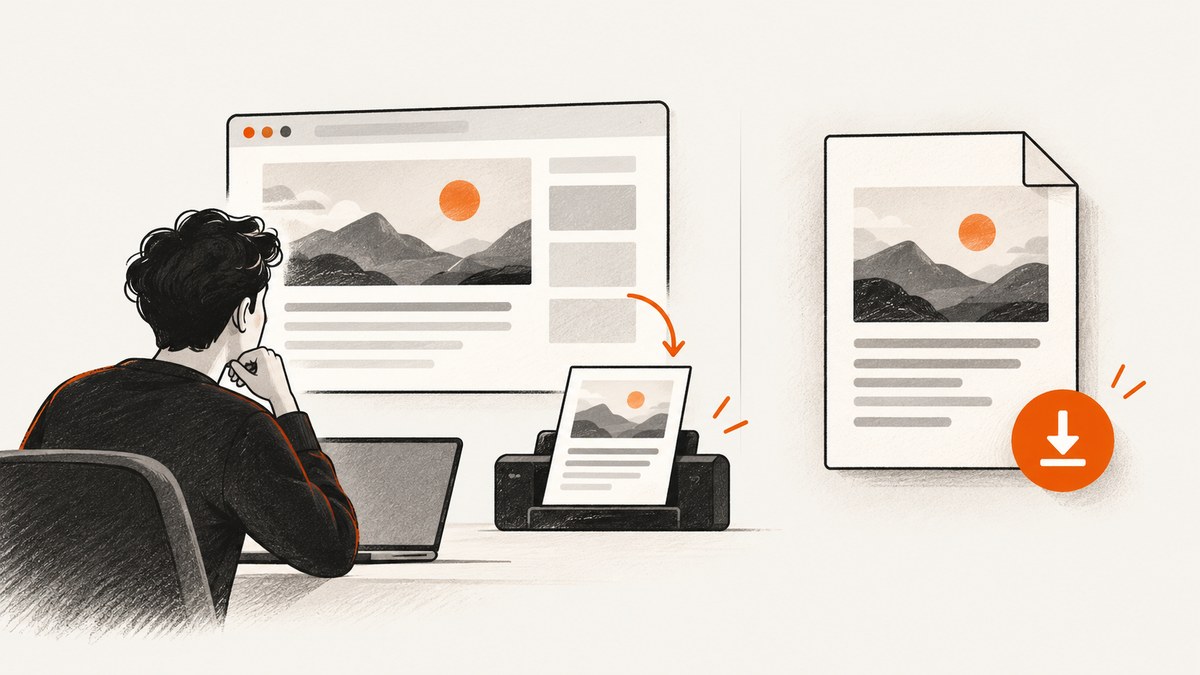
There are two different jobs people mean by “download a PDF with Puppeteer”:
- Print the page you opened into a new PDF. Use Puppeteer’s
page.pdf(). - Download a PDF that already exists on a website, perhaps after clicking a link. Puppeteer’s current files guide says it does not offer a programmatic way to handle file downloads.
Headful mode only makes Chrome visible. It does not turn page.pdf() into a download handler. For a generated PDF, launch with headless: false, navigate to the page, and call page.pdf({ path: 'page.pdf' }). For an existing PDF download, the reviewed Puppeteer documentation does not establish a supported download API or a general workaround. Check the documentation for the Puppeteer version and browser you use before choosing an approach.
1. What headful mode changes
Puppeteer launches headless by default. Set headless: false to open a regular, visible Chrome window. That setting controls whether you can see the browser; it does not change what operation page.pdf() performs.
const browser = await puppeteer.launch({ headless: false });Current Puppeteer documentation distinguishes this from headless: 'shell', which selects the separate chrome-headless-shell program. The supported browsers guide says Chrome for Testing supports both headful and headless operation through the same browser code path. Puppeteer and browser mappings can change, so check the current supported browsers guide for your installed version.
Headful mode can be useful while developing because you can watch navigation and inspect the page in the visible browser. It is not required for PDF generation. A headless run can also call page.pdf().
2. Generate a PDF from rendered page content
Install Puppeteer in a Node.js project if it is not already installed:
npm install puppeteerThis complete example opens visible Chrome, navigates to a page, writes a PDF, and closes the browser even if navigation or PDF generation fails:
const puppeteer = require('puppeteer');

async function main() {
  const browser = await puppeteer.launch({ headless: false });

  try {
    const page = await browser.newPage();
    await page.goto('https://example.com', {
      waitUntil: 'networkidle2',
      timeout: 30_000,
    });

    await page.pdf({ path: 'page.pdf' });
    console.log('Saved page.pdf');
  } finally {
    await browser.close();
  }
}

main().catch((error) => {
  console.error(error);
  process.exitCode = 1;
});
The flow follows Puppeteer’s PDF guide: navigate, call page.pdf(), then close the browser. The path is relative to the Node process’s current working directory unless you provide an absolute path. With path set, Puppeteer writes the generated PDF there.
page.pdf() returns a Promise<Uint8Array>. If you omit path, the PDF bytes are returned to your code rather than written to disk:
const pdfBytes = await page.pdf();
// Pass pdfBytes to code that stores or processes the PDF.
For a minimal script, you can use await page.pdf({ path: 'page.pdf' }); for a service or batch job, retain the returned bytes or save them to an application-controlled destination. The API call prints the page content currently rendered by Chrome. It does not fetch an existing PDF from a link.
3. Choose print or screen media
By default, PDF generation uses print CSS media. A site may have print-specific styles that hide navigation, change colors, or rearrange content. If the PDF should instead use the page’s screen styles, emulate screen media before calling page.pdf():

await page.emulateMediaType('screen');
await page.pdf({ path: 'page.pdf' });
This changes the media type used to evaluate CSS; it does not guarantee a particular layout. The page’s styles, fonts, content, and Chrome’s pagination still affect the result. Puppeteer’s PDF guide notes that page.pdf() waits for fonts by default.
4. Set paper size, margins, orientation, and page selection
Pass PDF options to page.pdf(options). The API documents these useful controls:
| Option | What it controls | Practical note |
|---|---|---|
format |
Paper preset such as Letter or A4. | The documented default is Letter. When format is set, it takes priority over width and height. |
width, height |
Paper dimensions. | Use these when you need a custom sheet size and are not setting format. |
margin |
Space around printed content. | Use top, right, bottom, and left values to control printable space. |
landscape |
Page orientation. | Set to true for landscape output. |
scale |
Scale of the webpage rendering. | Adjust carefully; scaling can affect pagination and readability. |
pageRanges |
Which pages to include. | Useful when only a subset of a long document is needed. |
printBackground |
Whether to include background graphics. | The default is false. Set it to true if backgrounds matter to the document. |
preferCSSPageSize |
Whether CSS @page sizing takes precedence. |
Use when the page author defines paper dimensions in CSS. |
waitForFonts |
Whether to wait for document fonts. | The default is true; leave it enabled if the PDF depends on web fonts. |
Example with common layout controls:
await page.pdf({
  path: 'report.pdf',
  format: 'A4',
  landscape: false,
  printBackground: true,
  margin: {
    top: '16mm',
    right: '14mm',
    bottom: '16mm',
    left: '14mm',
  },
  scale: 1,
  pageRanges: '1-3',
  preferCSSPageSize: true,
  waitForFonts: true,
});
Use only the options you need. For instance, if a site has carefully authored @page rules, try preferCSSPageSize: true. If it relies on color blocks or background images, set printBackground: true. These are documented controls, not guarantees that every site will paginate exactly as desired.
5. Wait for the page content you need
Navigation completion and content readiness are not always the same thing. A page can load additional data after the initial document response, and a page can keep network connections open. Puppeteer’s page.goto() supports lifecycle wait conditions such as networkidle2, as shown above, but no single condition guarantees that every site’s content is ready.
If you know a specific element signals readiness, wait for it explicitly before printing:
await page.goto('https://example.com/report', {
  waitUntil: 'domcontentloaded',
  timeout: 30_000,
});
await page.waitForSelector('[data-report-ready]', { timeout: 15_000 });
await page.pdf({ path: 'report.pdf' });
Replace the selector with one that actually exists on the target page. If content is assembled by client-side code, choose a reliable element or application-specific readiness condition. Avoid waiting only for an arbitrary long delay when a page signal is available.
6. Existing PDF files are a separate task
If a page contains a link to an existing PDF, calling page.pdf() prints the current page; it does not save the file behind that link. The Puppeteer files guide states: “Currently, Puppeteer does not offer a way to handle file downloads in a programmatic way.” It discusses file uploads through ElementHandle.uploadFile, which is a different operation.
Opening a visible browser with headless: false does not alter that documented distinction. The official pages reviewed here do not establish a recommended download workaround, a supported download-event API, or a site-independent procedure for retrieving an existing PDF. Do not treat the generated-page example as a handler for a website’s download flow. If that is your requirement, verify a compatible approach against the exact Puppeteer release, browser version, and site behavior involved.
7. Troubleshooting common PDF problems
| Symptom | Likely cause | What to check |
|---|---|---|
| No visible Chrome window | The launch options still select headless operation, or the execution environment cannot display a browser. | Confirm headless: false is passed to puppeteer.launch(). A visible window also requires an environment with a display. |
| The output is a PDF of the webpage, not the linked file | page.pdf() prints rendered page content. |
Decide whether you need to print the page or retrieve an existing PDF. The files guide says Puppeteer does not currently offer programmatic download handling. |
| Colors or backgrounds are missing | Background printing is disabled by default. | Set printBackground: true and check whether print CSS changes the page. |
| The page looks different from Chrome on screen | PDF generation uses print media by default, or the site defines print-specific styles. | Try await page.emulateMediaType('screen') before generating the PDF if screen styling is required. |
| Text uses an unexpected font | The font may not be ready when printing begins, or the page may not load it successfully. | The PDF API waits for fonts by default through waitForFonts. Check page font loading and network errors if the result remains wrong. |
| Content is missing from the PDF | It may have loaded after navigation, require interaction, or be hidden by print CSS. | Wait for a meaningful selector, inspect the page’s print styles, and confirm the content exists before calling page.pdf(). |
| The file is saved somewhere unexpected | A relative path resolves from the process working directory. |
Log process.cwd() or use an absolute output path. |
| The script hangs at navigation | The selected lifecycle condition may not occur, such as on pages with persistent network activity. | Set an explicit timeout and choose a suitable readiness signal. Consider waiting for a selector after a less strict navigation condition. |
| Chrome remains open after an error | Browser cleanup did not run on the error path. | Put await browser.close() in a finally block, as in the complete example. |
8. Performance, reliability, and cost
For generated PDFs, time and resource use depend on browser startup, page navigation, page scripts, fonts and assets, and PDF rendering. The source material does not provide benchmarks, so there is no single reliable duration or memory figure to apply across sites.
- Reuse browser processes where appropriate. If an application generates multiple documents, consider its browser lifecycle and isolation needs rather than launching a new browser for every page by default.
- Bound waits. Set navigation and selector timeouts so a stalled page does not hold a job indefinitely.
- Close reliably. Use
try/finallyso errors do not leave browser processes running. - Keep output ownership clear. Use explicit paths or handle the returned bytes so generated files are not lost in an unexpected working directory.
- Expect site-dependent output. Print CSS, dynamic rendering, and external fonts can affect appearance and completeness.
Puppeteer itself does not charge per PDF in the documentation cited here. Your operational cost depends on the infrastructure and services you use to run Chrome; the sources reviewed do not establish a price for those environments. There is also no published performance statistic in the dossier to quote.
9. Or skip the browser setup
If the task is to capture a page at a URL as an image or PDF, ScreenshotNeo is a website screenshot API and MCP server from Yorker Media. Its API returns a screenshot or PDF from one GET request. See the ScreenshotNeo API documentation for request options.
curl -G "https://api.screenshotneo.com/v1/shot" \
  -d access_key=YOUR_API_KEY \
  --data-urlencode url=https://stripe.com \
  -o shot.webp
ScreenshotNeo accepts cookie and consent banners before capture and removes more than 60 known consent platforms, newsletter popups, and chat widgets; each step can be turned off. Bot checks, blank pages, timeouts, failed loads, and cache hits cost nothing, and response headers identify the page verdict and whether the request was billed. Its MCP server gives AI agents tools for screenshots, page information, and PDF capture.
The Free plan includes 1,000 screenshots per month with no card. Paid plans start at $5 for 3,000 shots; yearly billing gives two months free, and every feature is on every plan. This is for capturing a URL into an image or PDF; it does not claim to provide Puppeteer’s programmatic handling of an existing website file download. Sign up for 1,000 free screenshots a month, with no card.
10. FAQ
Does headful mode make Puppeteer save a clicked PDF link?
No. Headful mode controls browser visibility. Puppeteer’s current files guide says it does not offer programmatic file download handling.
Can I generate a PDF without writing it to disk?
Yes. Omit path and use the returned Uint8Array in your application.
Why does my PDF use print styles?
page.pdf() uses print CSS media by default. Emulate screen before printing if you need screen media.
Is Puppeteer headless-only for PDF generation?
No. PDF generation works with a headful launch too; visible Chrome is optional for this operation.


