How to Automatically Download Screenshots With chrome.tabs.captureVisibleTab
Capture the active tab’s visible area in a Chrome extension, then save it with the Downloads API. Learn the permissions, rate limits and URL handling to check.
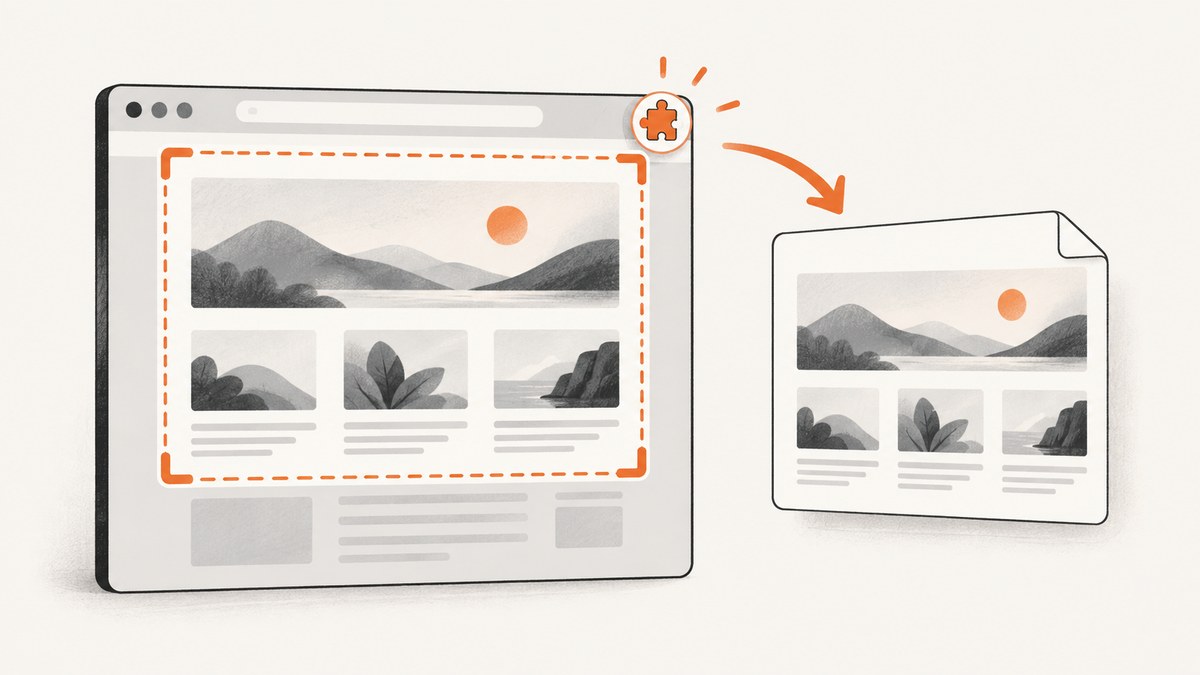
chrome.tabs.captureVisibleTab() captures the visible area of the active tab in a window and returns a string representing the image. To save a capture as a file, use the separate chrome.downloads.download() API. A user-invoked extension can usually request activeTab for temporary access to the current tab; downloading also requires the downloads permission.
This captures what is visible in the tab, not an entire long page. Chrome documents a limit of two capture calls per second and describes capture as expensive, so automatic workflows need to throttle requests and handle failures.
1. Add the required extension permissions
For an action-triggered capture, activeTab is generally the narrower permission: Chrome grants temporary access to the current tab in response to a user invocation. The capture reference also permits <all_urls>, but that is broad host access and should only be requested when the product genuinely needs it. Add downloads separately to use the Downloads API.
{
  "manifest_version": 3,
  "name": "Visible Tab Screenshot",
  "version": "1.0.0",
  "permissions": ["activeTab", "downloads"],
  "action": {
    "default_title": "Save visible tab screenshot"
  },
  "background": {
    "service_worker": "service-worker.js",
    "type": "module"
  }
}
This minimal manifest uses the toolbar action as the user invocation. No content script is needed to request a visible-tab capture. If your workflow must capture pages without a user invocation or access other tabs over time, review whether broader host permissions are actually required and explain the access to users.
There is an extra condition for file:// pages: the user must grant the extension file access in Chrome’s extension settings. A declared host permission does not silently grant that user-controlled access.
2. Capture the visible area and request a download
The official API signatures are chrome.tabs.captureVisibleTab(windowId?, options?): Promise<string> and chrome.downloads.download(options): Promise<number>. The capture result is an image representation; the Downloads API expects a URL. The official API pages document these APIs separately and do not establish a universal end-to-end conversion example for every manifest version and extension context. In particular, do not assume that a data URL or an object URL will be accepted in every target context without checking it.
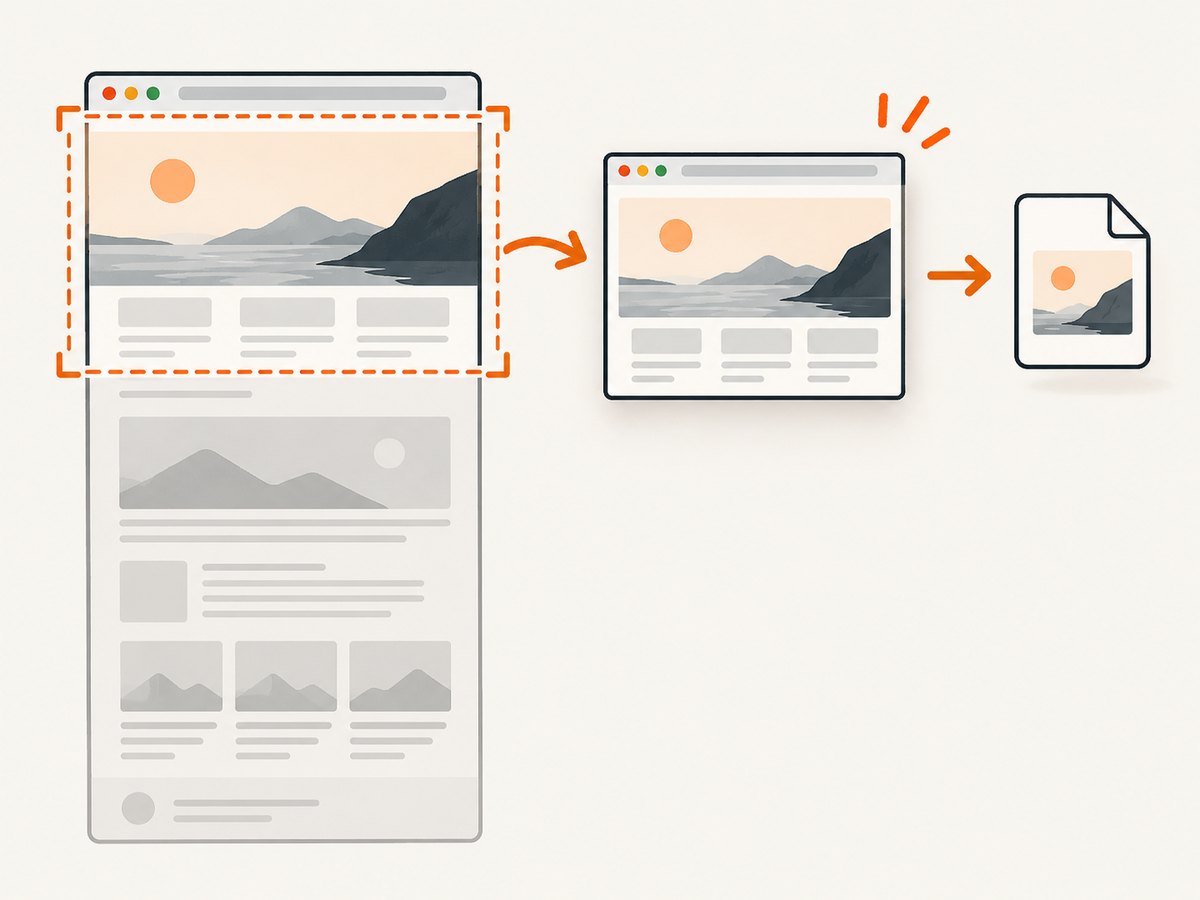
The following service worker shows the intended flow and error handling. It passes Chrome’s returned string to the Downloads API as the URL. Verify that URL handling in your target Chrome version and extension context before shipping; if your context needs a different supported bridge, use the approach documented for that context.
const MIN_CAPTURE_INTERVAL_MS = 600;
let lastCaptureStartedAt = 0;

chrome.action.onClicked.addListener(async (tab) => {
  if (typeof tab.windowId !== "number") {
    console.error("Cannot capture: the active tab has no window ID.");
    return;
  }

  const now = Date.now();
  const waitMs = MIN_CAPTURE_INTERVAL_MS - (now - lastCaptureStartedAt);
  if (waitMs > 0) {
    await new Promise((resolve) => setTimeout(resolve, waitMs));
  }
  lastCaptureStartedAt = Date.now();

  try {
    const imageUrl = await chrome.tabs.captureVisibleTab(tab.windowId, {
      format: "png"
    });

    const downloadId = await chrome.downloads.download({
      url: imageUrl,
      filename: `screenshots/tab-${Date.now()}.png`,
      saveAs: false
    });
    console.log("Screenshot download started:", downloadId);
  } catch (error) {
    console.error("Screenshot capture or download failed:", error);
  }
});
To try it, save the manifest and worker in one directory, load that directory as an unpacked extension at chrome://extensions, open a regular webpage, then click the extension’s toolbar button. Confirm the resulting file and the browser’s download state. Test the capture-to-download URL handoff on each Chrome version and extension context you support.
Choose an output format
The capture options support image format selection. PNG is used above. The available documented format choices include PNG and JPEG; when using JPEG, set the download filename extension to .jpg so that it matches the selected format. The capture options also support a quality setting for JPEG. Quality does not apply to PNG. Check the current Tabs API reference for the exact accepted values and defaults before exposing these as user-facing settings.
const imageUrl = await chrome.tabs.captureVisibleTab(tab.windowId, {
  format: "jpeg",
  quality: 85
});

await chrome.downloads.download({
  url: imageUrl,
  filename: `screenshots/tab-${Date.now()}.jpg`,
  saveAs: true
});
The saveAs option asks Chrome to show a file chooser. If you also specify filename, Chrome documents that the Save As dialog is pre-populated with that filename. When saveAs is false or omitted, the filename is a suggested path relative to the Downloads directory. On success, the promise resolves with the new download ID.
3. Decide what “automatic” means for your workflow
A toolbar click is user-triggered but can automate the capture-and-save steps after the click. Other extension designs may capture on a timer or in response to a user action elsewhere. The permission model, active window, and rate limit matter in each case.
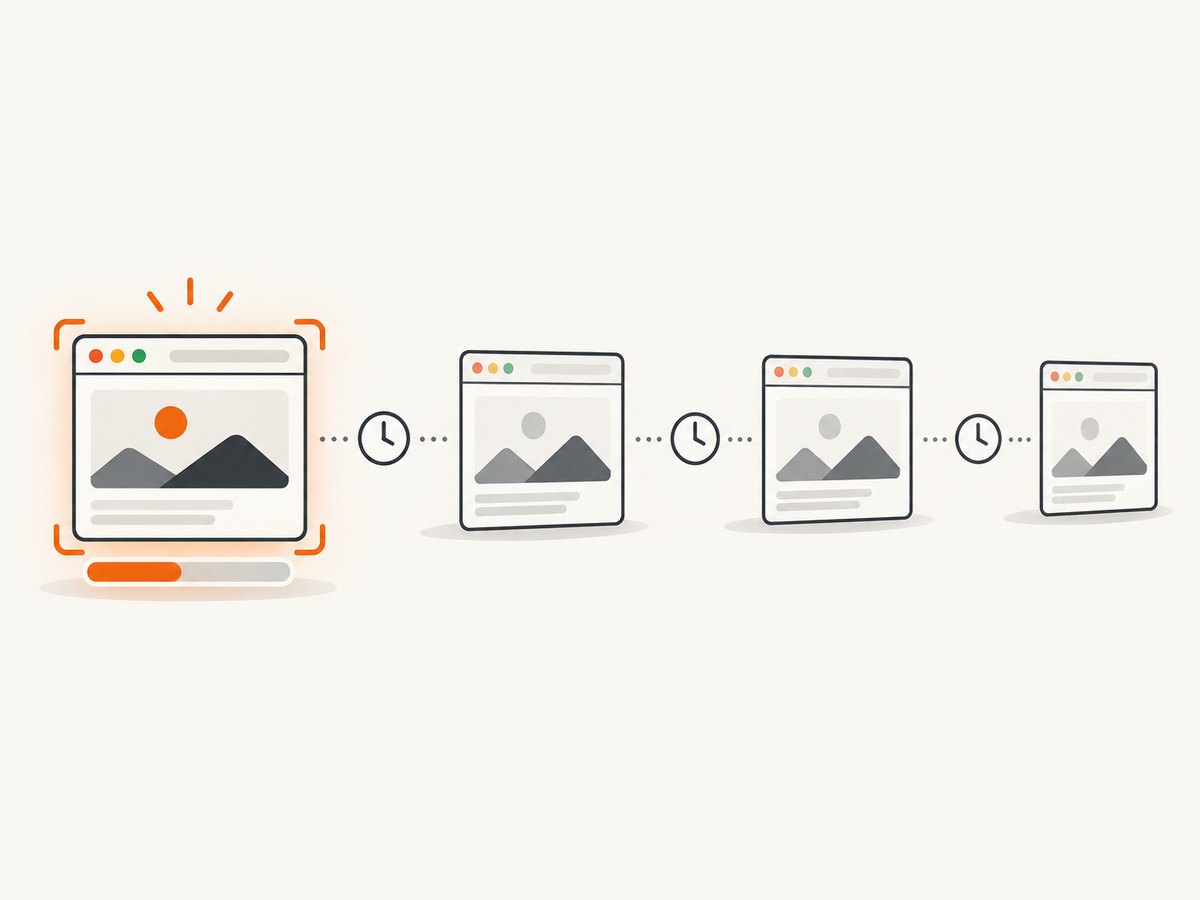
- Confirm the active window. The API captures the visible area of the active tab in a window. Pass the intended window ID; omitting it uses the current window. A background workflow should not assume the user is still looking at the same tab it started with.
- Throttle capture calls. Chrome documents a maximum of two
captureVisibleTabcalls per second. A 600 ms minimum interval in the example leaves some room below that ceiling, but it is not a guarantee against delays or calls made by other parts of your extension. - Respect user expectations. Repeated captures can produce repeated files and consume resources. Make schedules visible, provide a way to pause them, and avoid starting capture loops merely because a tab was opened.
- Handle the download separately. Capture can succeed while saving fails, or saving can be blocked or interrupted. Treat the returned download ID as a started download, not proof that a file finished successfully.
For periodic capture, use a queue that enforces the limit and drops or coalesces overdue work instead of launching concurrent calls. A queue should also stop when the user disables the workflow or the target tab is gone. If the browser is busy, retry only after a delay; tight retries can make rate-limit and responsiveness problems worse.
4. What captureVisibleTab does and does not capture
The result represents the tab’s currently visible area. It does not scroll through the page to create a full-page image. For a long document, a single call will not include content below the viewport. Sticky headers, overlays, open menus, and whatever is currently rendered in the viewport can appear in the result.
If you need a full-page artifact, decide whether to implement a separate scrolling-and-stitching workflow, with its own handling for lazy-loaded content and fixed-position elements, or use a screenshot service that offers full-page capture. Do not describe captureVisibleTab itself as a full-page API.
Captures can also be expensive. Keep the capture rate low, avoid redundant captures when the visible content has not changed, and let users choose whether each result should open a Save As dialog. PNG can preserve crisp details but may produce larger files; JPEG can reduce file size for photographic content, with a quality tradeoff.
5. Troubleshooting
| Symptom | Likely cause | What to check |
|---|---|---|
| Permission error from capture | Neither activeTab nor the required host access is available for this invocation. |
Check the manifest, reload the extension after changes, and invoke the action on the intended tab. Prefer the user-triggered activeTab flow when it fits. |
A file:// tab cannot be captured |
The user has not enabled file access for the extension. | Ask the user to enable “Allow access to file URLs” for the extension in Chrome’s extension settings. |
| Download API reports a permission problem | The extension lacks the separate downloads permission. |
Add downloads to the manifest and reload the extension. |
| Download rejects the captured string | The capture-to-download URL handoff may not be supported as assumed in this context. | Inspect the actual returned value and verify URL handling for your target Chrome version and extension context. The API references document the two APIs independently; they do not guarantee every conversion pattern. |
| Capture calls fail intermittently in an automated loop | The extension may exceed the documented two-calls-per-second maximum, or issue overlapping expensive work. | Serialize calls, apply a minimum interval, and back off after errors. Avoid a tight retry loop. |
| The image is cropped to what is on screen | This is the expected visible-area behavior. | Use a separate full-page strategy if the whole document is required. |
| The file uses the wrong extension or will not preview | The filename suffix does not match the chosen format, or the download URL was not accepted as expected. | Match PNG with .png and JPEG with .jpg; inspect the download state and verify URL handling. |
| No file appears despite a resolved download call | The promise returns a download ID when the download starts; it does not mean the download has completed. | Use the download ID to observe download state and surface interrupted or canceled downloads to the user. |
6. When an API is simpler than extension setup
If you need server-side screenshots, full-page capture, or a repeatable URL-to-image request without shipping a Chrome extension, ScreenshotNeo is a website screenshot API and MCP server. Its single GET request accepts a URL and returns a PNG, JPEG, WebP, or PDF. See the ScreenshotNeo documentation for parameters and setup.
Or skip the browser setup
For example, save a capture as WebP with cURL:
curl -G "https://api.screenshotneo.com/v1/shot" -d access_key=YOUR_API_KEY --data-urlencode url=https://stripe.com -o shot.webpThe same request in Python:
import requests

r = requests.get(
    "https://api.screenshotneo.com/v1/shot",
    params={"access_key": "YOUR_API_KEY", "url": "https://stripe.com"},
    timeout=90,
)
open("shot.webp", "wb").write(r.content)
And in Node.js:
const q = new URLSearchParams({
  access_key: 'YOUR_API_KEY',
  url: 'https://stripe.com'
});
const res = await fetch(`https://api.screenshotneo.com/v1/shot?${q}`);
if (!res.ok) throw new Error(`Screenshot request failed: ${res.status}`);
const bytes = new Uint8Array(await res.arrayBuffer());
await import('node:fs/promises').then(fs => fs.writeFile('shot.webp', bytes));
ScreenshotNeo removes cookie banners, newsletter popups, and chat widgets before the shot. Bot checks, blank pages, failed loads, and cache hits are never billed. Its MCP server lets AI agents use screenshot tools. The Free plan includes 1,000 screenshots a month with no card; paid plans start at $5 for 3,000 screenshots. Each one-call example above follows the API pattern in the docs; use an API key from your account.
Sign up for ScreenshotNeo and get 1,000 screenshots a month free, with no card.
7. Reliability and cost considerations
A local extension avoids a separate screenshot service for this workflow, but it relies on Chrome being open, the target tab being available, the extension having permission, and the download being permitted. Capture rate is constrained by Chrome’s documented limit, and failures should be reported rather than silently treated as successful saves.
ScreenshotNeo offers a free tier of 1,000 shots per month with no card. Paid monthly plans are Starter at $5 for 3,000 shots, Growth at $15 for 15,000, Pro at $39 for 60,000, Scale at $99 for 250,000, and Business at $249 for 1,000,000. Yearly billing gives two months free. Every feature is on every plan. Only clean shots are billed; responses identify page verdict and billing status in headers. Consult the product documentation for the current request options before choosing a workflow.
FAQ
Does captureVisibleTab save a file by itself?
No. It returns an image representation. Use the Downloads API to save a URL as a file, and declare the downloads permission.
Can it capture a tab without user involvement?
The API requires activeTab or <all_urls>. activeTab is temporary and tied to a user invocation. A workflow that needs broader access should request only what it needs and make the behavior clear.
Can I call it more than twice per second?
Chrome documents a maximum of two calls per second. Design below that limit and account for other capture work your extension may perform.
Will it capture a page’s full height?
No. It captures the visible area. Full-page capture requires a separate strategy or a tool that supports it.
Why does the code warn me to verify the URL handoff?
The Chrome API references establish the capture return type and the download URL input separately; they do not provide a universal end-to-end conversion example for every extension context. Test the exact handoff on the Chrome versions you support.


