How to Download a Web Page as HTML Using a Browser Extension
Save a complete web page as one HTML file with SingleFile, including its images, styles and fonts, then learn the limits and alternatives.
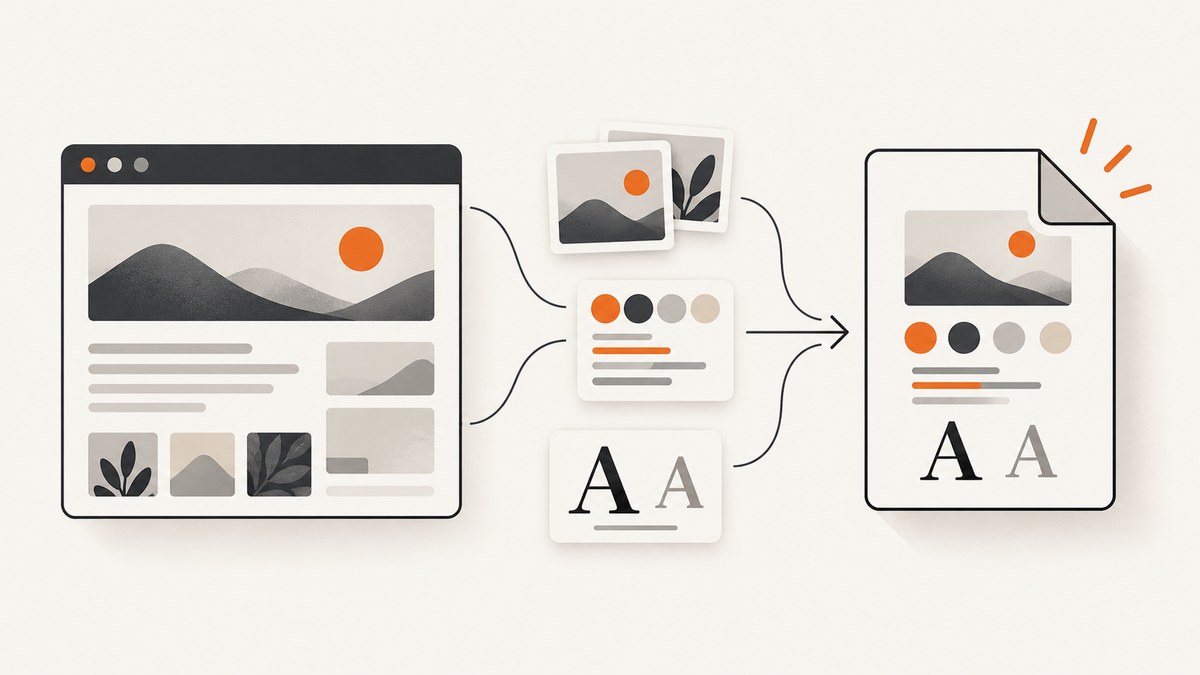
Short answer: Install the SingleFile extension from your browser’s official add-on store. Open the page, wait until it finishes loading, click the SingleFile toolbar button, and open the resulting .html file from your browser’s configured download folder.
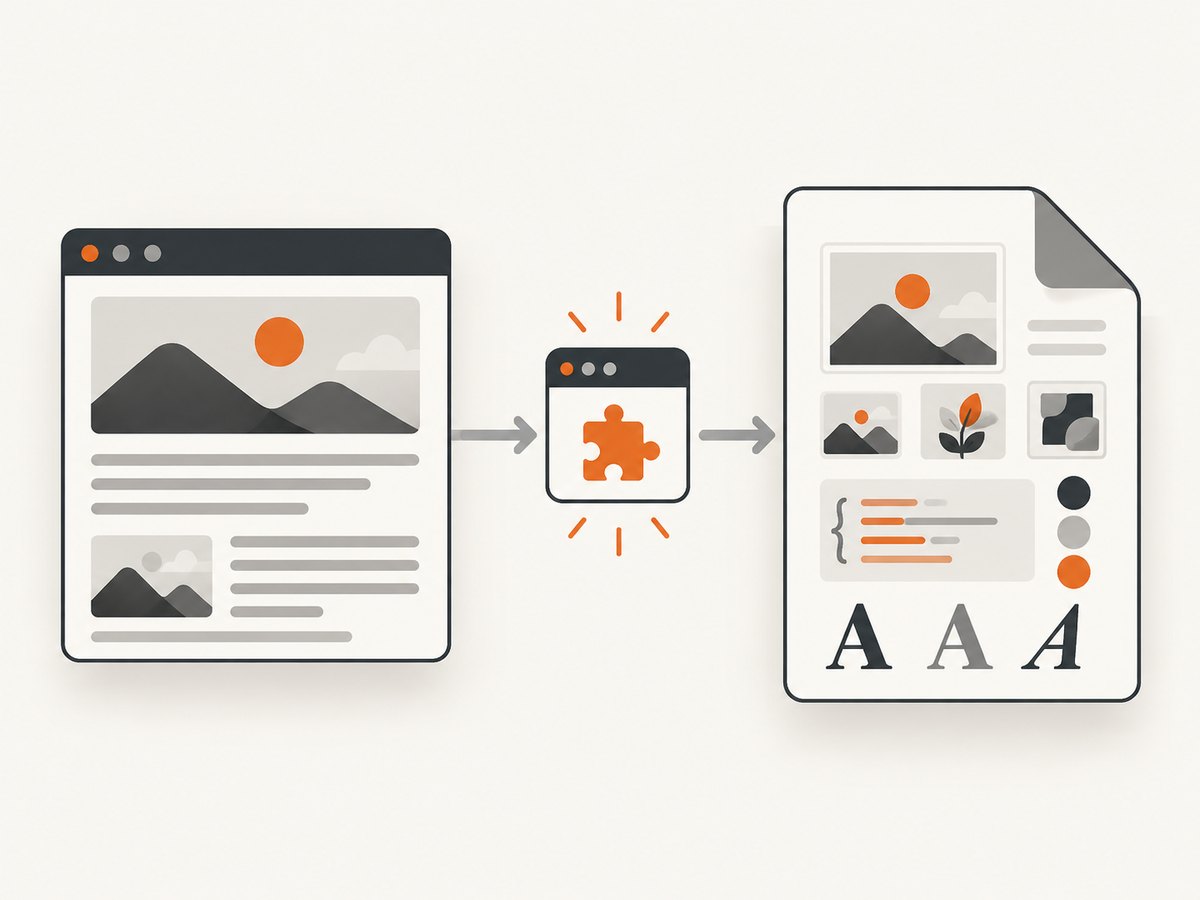
SingleFile packages page resources such as CSS, images, fonts and frames into one ordinary HTML file. It is useful for offline reading and record keeping, but dynamic pages, restricted resources and interactive features may not reproduce perfectly.
1. Install SingleFile from an official browser store
Use the listing for the browser you actually use. SingleFile is documented for Chrome, Firefox, Edge, Safari, Brave, Vivaldi, Waterfox, Yandex Browser and Opera; availability and store details can change.
- SingleFile for Chrome (also usable in Chromium-based browsers that support Chrome extensions).
- SingleFile for Firefox.
- SingleFile project site, which links to supported browsers and documentation.
Choose Add to browser or the equivalent button, review the permissions shown by your browser, and finish installation. Firefox lists access to downloads and download history, browser tabs and data for all websites. Treat the permission prompt shown by your own browser as the current authority.
2. Save one page as a single HTML file
- Open the page you want to keep in a normal browser tab.
- Wait for the page to finish loading. Let images, fonts and any content you need appear before saving.
- Click the SingleFile icon in the toolbar. If it is hidden, open the browser’s extensions menu and pin it.
- Wait while SingleFile processes the page. Clicking the button again can cancel processing.
- Look in the browser’s configured download folder. The saved file normally has an
.htmlextension. - Double-click the file or choose Open with and select a browser. Regular HTML output can be viewed without installing SingleFile.
If your browser asks where to save downloads, use that location. If automatic downloads are enabled, check the folder configured in the browser’s Downloads settings rather than assuming it is the default system folder.
3. Choose what gets captured
The toolbar button handles the common one-page case. SingleFile’s context menu and settings expose additional capture scopes:
| Option | Use it when |
|---|---|
| Current page | You need the complete document in the active tab. |
| Selected content | You only need a portion of the page and want to reduce unrelated material. |
| Frame | The useful content is inside a particular embedded frame. |
| Selected links | You want to process a chosen set of linked pages. |
| Multiple tabs | You need selected, unpinned or all open tabs saved as a batch. |
| Annotation | You want to add notes or markings before saving. |
| Autosave | You need pages saved automatically according to configured rules. |
You can also configure a keyboard shortcut and optional destinations such as Google Drive, GitHub, Amazon S3 or WebDAV. These are extensions of the basic workflow, not prerequisites for saving one HTML file.
4. Understand what the HTML contains
SingleFile’s goal is a portable snapshot: the document and referenced resources are rewritten into one file. Binary resources are typically embedded as base64 data, so a page with many large images can produce a much larger file than the original HTML response.
- Images and fonts: resources that load successfully can be embedded.
- CSS: stylesheets are included or rewritten so the saved document can render offline.
- Frames: supported frame content can be included, subject to browser security and the frame’s ability to load.
- JavaScript: the saved file is a snapshot. Scripts that depend on a server, login session, timers or cross-origin calls may not work later.
- Restricted resources: blocked requests, expiring URLs, authentication and anti-bot checks can leave parts missing.
Do not treat a saved page as proof that its content is true, authored by a particular person or legally admissible. SingleFile documents an optional proof-of-existence feature based on a SHA-256 hash; a hash does not verify the underlying claims.
5. Pick the right single-file format
Use regular HTML when your requirement is specifically “one .html file” that opens in an ordinary browser.

| Format | Files | Opening requirements | Resource handling |
|---|---|---|---|
| Regular HTML | One file | Browser; no extension required | Binary resources are base64-encoded; not compressed in SingleFile’s comparison |
| Self-extracting ZIP | One file | Browser with JavaScript enabled | Compressed; binary resources are not base64-encoded |
| MHTML | One file | Chromium-based browsers and Internet Explorer, according to the project table | Browser-specific archive format |
| Safari Webarchive | One file | Safari | Safari-specific archive format |
| HTML plus folder | HTML file and resource folder | Browser | Resources remain separate files |
These formats are not interchangeable. A colleague who needs a portable .html file may not be able to use an MHTML or Safari Webarchive file.
6. Troubleshoot missing content and failed saves
| Symptom | Likely cause | Fix |
|---|---|---|
| The icon is not visible | The extension is installed but unpinned. | Open the extensions menu and pin SingleFile. |
| The file is incomplete | The page had not finished loading, or resources were blocked. | Reload, wait for images and fonts, disable a content blocker for the page if appropriate, then save again. |
| Images are absent offline | Images were lazy-loaded, fetched after capture, protected by authentication or blocked by policy. | Scroll through the page to trigger lazy loading, confirm you are signed in, wait, and capture again. |
| The page looks different | Remote CSS, fonts or scripts did not become self-contained. | Save after the final visual state appears. Expect server-dependent widgets and live data to differ offline. |
| A frame is blank | Cross-origin or frame security restrictions prevented access. | Try saving the frame directly if it has its own URL, or use the page’s print/export function. |
| The download seems missing | The browser uses a custom download directory or asked for a save location. | Check the browser’s Downloads settings and recent download history. |
| Saving takes a long time | The page contains many high-resolution assets or several frames. | Wait for processing, save selected content, or reduce the page scope. |
| The saved file will not open | The download was interrupted or the file is actually another format. | Confirm the extension is .html, delete the partial file and capture again. |
7. Reliability, performance and storage considerations
- Capture timing: wait for the page’s final state, including lazy images and web fonts, before clicking the button.
- File size: embedding resources makes the file portable but can make it large. Pages with video, galleries or many fonts consume more disk space.
- Offline behavior: static text and embedded assets are the most reliable. Search, comments, checkout, authentication and live dashboards generally require a network connection.
- Repeatability: save a timestamped copy when you need an audit trail; the same URL can change later.
- Privacy: the extension needs broad page access to collect resources. Install it from an official store and review the permissions before use.
- Batch work: use the multiple-tab and selected-link features when appropriate, but expect longer processing and larger total storage.
8. Or skip the browser setup
If you need an image or PDF snapshot rather than an editable HTML archive, ScreenshotNeo provides a single GET request for a URL. It handles the browser session on the server and returns PNG, JPEG, WebP or PDF. See the ScreenshotNeo API documentation for all options.
Basic cURL request:
curl -G "https://api.screenshotneo.com/v1/shot" -d access_key=YOUR_API_KEY --data-urlencode url=https://stripe.com -o shot.webpPython:
import requests
r = requests.get("https://api.screenshotneo.com/v1/shot", params={"access_key": "YOUR_API_KEY", "url": "https://stripe.com"}, timeout=90)
open("shot.webp", "wb").write(r.content)
Node.js:
const q = new URLSearchParams({ access_key: 'YOUR_API_KEY', url: 'https://stripe.com' });
const res = await fetch(`https://api.screenshotneo.com/v1/shot?${q}`);
ScreenshotNeo removes cookie and consent banners, newsletter popups and chat widgets before capture. Bot checks, blank pages, timeouts, failed loads and cache hits are not billed; response headers identify the page verdict and whether the request was billed. It also offers full-page and element capture, custom CSS and JavaScript, waits, blocking rules, headers, cookies, user agents, geolocation, PDF settings, caching, signed links, asynchronous jobs, bulk capture and an MCP server for AI agents. The free plan includes 1,000 screenshots per month without a card; paid plans start at $5 for 3,000 screenshots.
Create a free ScreenshotNeo account and start with 1,000 screenshots a month at no charge.
9. FAQ
Can I save a page without installing an extension?
You can use the browser’s Save Page command, but it commonly creates an HTML file plus a resource folder. SingleFile is designed for a single self-contained file.
Will the saved HTML update when the website changes?
No. It is a snapshot captured at save time. Save a new copy when you need a later version.
Can I edit the resulting file?
Yes. It is ordinary HTML, although embedded data URLs and rewritten styles can make manual editing harder than editing a small original document.
Is MHTML the same as HTML?
No. MHTML has different browser support. Choose regular HTML when broad browser opening and a .html extension are required.
Why is my saved file much larger than the page source?
Images, fonts and other binary resources may be embedded directly in the file, and the page can contain many more resources than its initial HTML response suggests.


