How to Download a Web Page as HTML in Chrome
Save any webpage from Chrome as an HTML file, open it offline, understand file formats, fix common errors, and automate clean captures when needed.
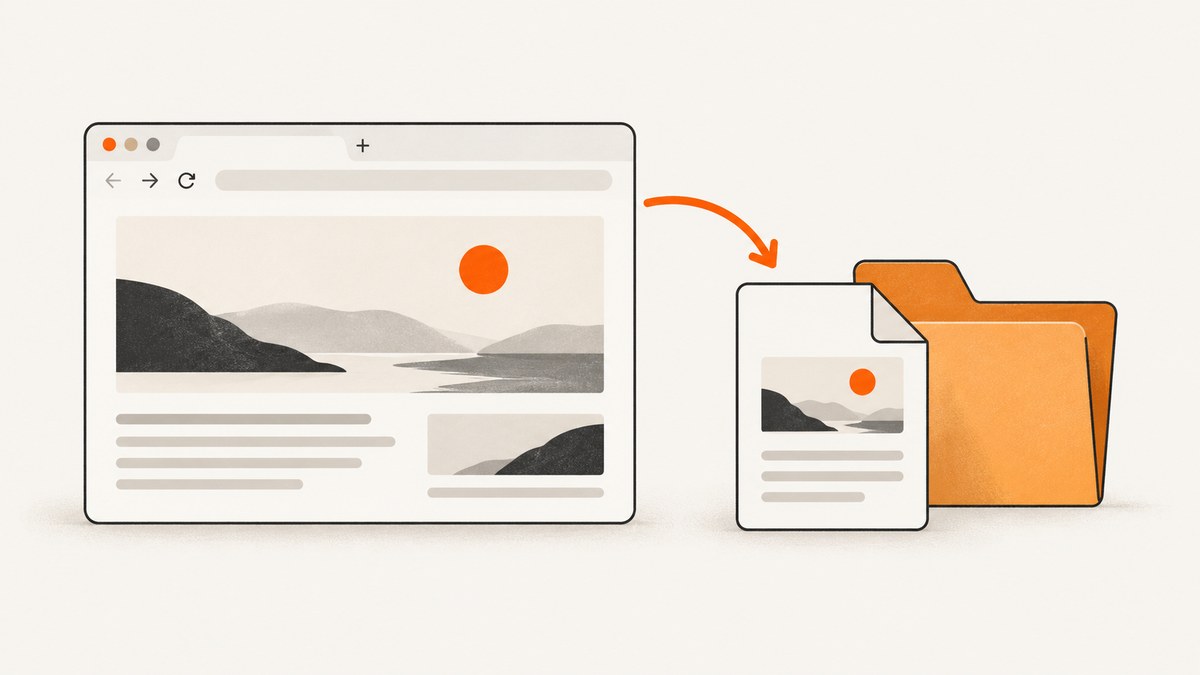
To download a web page as HTML in Chrome on a computer, open the page, select More (the three-dot menu) → More tools → Save page as, choose a folder, and click Save. Chrome needs an internet connection while it saves the page. You can then open the saved file from your computer.
Google shows two desktop menu labels in its help pages. If you do not see More tools → Save page as, look under More → Cast, save and share → Save page as…, or search the More menu for Save Page As. Menu wording can vary by Chrome version and interface rollout.
Save a web page as HTML on desktop Chrome
- Open Chrome and navigate to the page you want to keep.
- Wait for the content you need to finish loading. Expand any sections or scroll if the page loads content as you move through it.
- Open the three-dot More menu in the upper-right corner.
- Choose More tools → Save page as. If your menu uses the newer wording, choose Cast, save and share → Save page as….
- Pick a destination folder and filename.
- Choose a file type if Chrome offers the option, then click Save.
Chrome normally saves a main HTML file plus a companion folder containing resources such as images, stylesheets and scripts. Keep the HTML file and its companion folder together. Moving only the HTML file can make the saved copy lose its images or styling.
To open the copy, double-click the saved .html file, or right-click it and choose Chrome. The file opens with a file:// address because it is being read from your computer rather than from the original website.
Google Chrome Help documents the desktop download workflow and the option to choose a download location: Download a file on your computer. Google also states that you must be online to save a page in its offline-reading guidance: Read pages later and offline.
Choose the right Save as format
Chrome may show several formats in the save dialog. The exact choices depend on the page and Chrome version.
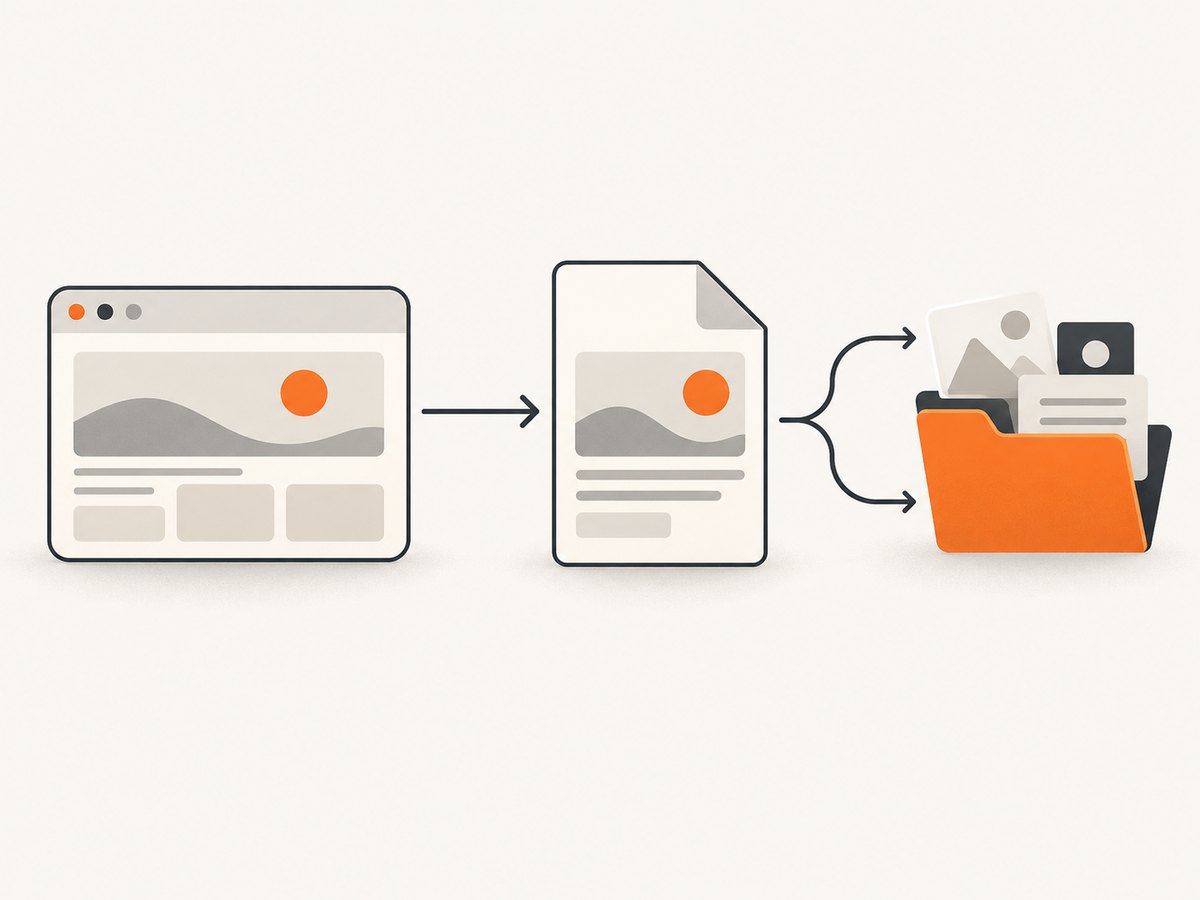
| Format | What it saves | Best use | Limitations |
|---|---|---|---|
| Webpage, Complete | An HTML file and a companion resource folder | Keeping the page appearance, images and local styles together | Scripts may still require the network; links can point to the live site |
| Webpage, HTML Only | The page’s HTML document without a resource folder | Inspecting markup or preserving a lightweight text structure | Images, CSS and other visual assets may be missing |
| Single File, MHTML | A packaged archive containing the document and many resources | Keeping one portable file | Compatibility with other browsers and tools varies; it is not a normal standalone HTML project |
For an offline visual copy, Webpage, Complete is usually the practical choice. For source inspection, choose HTML Only. Do not assume either option creates a fully functional clone of a modern web application.
Where Chrome saves the file
If you do not choose a folder, Chrome uses its configured download location. Google lists these common defaults:
- Windows:
\\Users\\<username>\\Downloads - macOS:
/Users/<username>/Downloads - Linux:
/home/<username>/Downloads
To make Chrome ask every time, open More → Settings → Downloads and enable Ask where to save each file before downloading. You can also open the download list with Ctrl+J on Windows/Linux or Command+Shift+J on macOS, then use the option to show the file in its folder.
What is preserved, and what is not
Saving a page stores the document Chrome received and the resources Chrome could download during the save operation. It does not create a guaranteed offline copy of every behavior.
Usually preserved
- Text that is present in the document when you save it.
- Many images and locally saved stylesheets when using Webpage, Complete.
- The page structure, headings and links.
- Some inline styles and scripts.
Often dependent on the original site
- Content fetched later through JavaScript or an API.
- Login-only data, shopping carts and personalized feeds.
- Video streams, audio players and embedded documents.
- Third-party fonts, analytics, ads and chat widgets.
- Actions that submit forms or change server-side data.
- Lazy-loaded images that were never requested before saving.
Before saving, scroll through the page and expand important accordions. This gives Chrome a chance to request lazy content. Even then, a saved copy can contain links or scripts that need the internet.
Save a page from the keyboard
Chrome supports a keyboard shortcut for the save dialog:
- Windows/Linux: press
Ctrl+S. - macOS: press
Command+S.
The shortcut opens the same save workflow as the menu. It is useful when you are saving many pages, but remember to confirm the filename and format each time.
Android: download a page for offline reading
Android Chrome uses a different workflow from desktop HTML saving:
- Open the page while you are online.
- Tap the three-dot More menu.
- Tap Download.
- Later, open More → Downloads to find the saved item.
This Android path is intended for later reading in Chrome. It is not the same desktop file-picker workflow, and the saved item may not appear as an ordinary HTML file that you can edit or move like a desktop download. See Google’s Android instructions for the current labels: Read pages later and offline on Android.
How to verify the saved HTML copy
- Close the original tab, or disconnect from the network temporarily.
- Open the saved
.htmlfile from its folder. - Check headings, images, tables and important links.
- Open Developer Tools with
F12orCtrl+Shift+Ito inspect console errors. - Look for missing images or styles. If they are missing, verify that the companion resource folder is beside the HTML file.
A local copy is successful when the information you need remains readable in the conditions you care about. Do not use a visual check as proof that forms, authentication or application state will work offline.
Common errors and fixes
| Problem | Likely cause | Fix |
|---|---|---|
| “Save page as” is not visible | Chrome is using a different menu grouping | Check Cast, save and share, or search the More menu for “Save Page As”. |
| The saved page is blank | The application rendered content after the initial document, or a script failed locally | Wait for the page to finish loading, scroll through it, save again, and test the copy while online and offline. |
| Images are missing | The resource folder was not saved, was moved, or an image was lazy-loaded later | Use Webpage, Complete, keep the folder beside the HTML file, and scroll before saving. |
| Styles look broken | CSS came from a blocked or remote origin | Save again after the page settles. If it still fails offline, the stylesheet may not be available as a local resource. |
| Links open the live website | Links in the original HTML are absolute URLs | This is expected. A saved page does not automatically rewrite every link to a local file. |
| Interactive controls do nothing | The control depends on JavaScript, a session, an API or server state | Use the saved copy for reference. Keep the original page available for interactive work. |
| The file cannot be opened | The download was incomplete or the extension changed | Confirm the file ends in .html, save it again, and open it with Chrome or another browser. |
| Permission denied while saving | The destination folder is protected or unavailable | Choose Downloads or another folder you can write to, then move the file afterward. |
Privacy, login and sensitive pages
A saved file can contain text that was visible only after you signed in. Treat the HTML file and its companion folder as sensitive data. Store them in a protected location, avoid uploading them to shared drives without checking the contents, and delete them when the retention period ends.
Saving a page does not necessarily preserve authentication. A local copy may show private text while its forms, API calls or account actions no longer work. If you need a record for compliance or review, document the URL and capture time alongside the saved files.
When HTML is the wrong output
Use Chrome’s HTML save workflow when you want a local, inspectable copy of one page. Choose a screenshot or PDF when the goal is a stable visual record, a print-ready document, or a copy that does not depend on keeping an asset folder beside an HTML file.
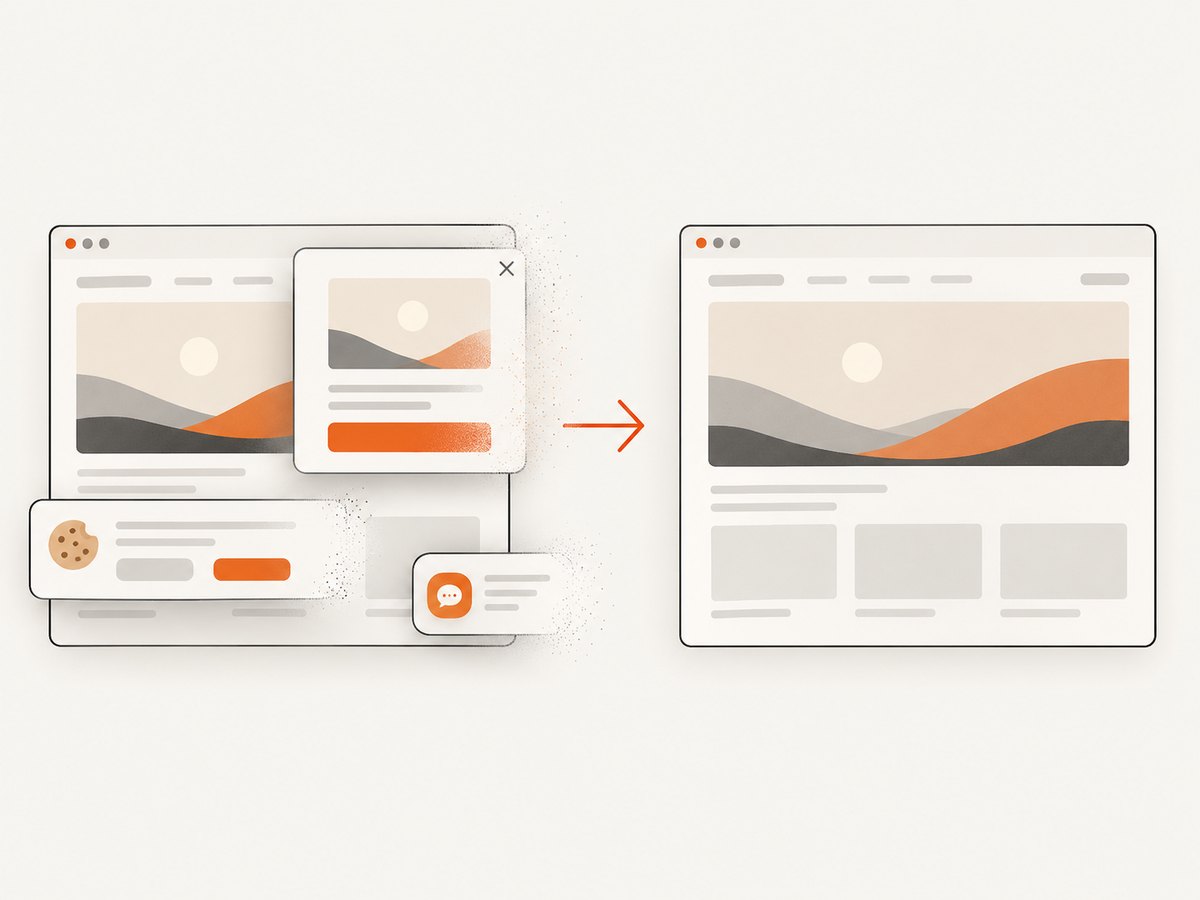
For repeated captures, pages behind a login, pages with consent banners, or pages that need a predictable viewport, an automated capture service avoids manual browser steps. The output is an image or PDF rather than an editable HTML document.
Or skip the browser setup
ScreenshotNeo provides a website screenshot API and MCP server. It is useful when your real requirement is a clean visual capture instead of a local HTML project. Cookie and consent banners are accepted and removed before capture, along with more than 60 known consent platforms, newsletter popups and chat widgets. Each cleanup step can be turned off.
Bot checks, CAPTCHAs, blank pages, timeouts, failed loads and cache hits cost nothing. The response identifies the result with X-Page-Verdict and X-Billed headers. An MCP server lets Claude, Cursor and other MCP clients call take_screenshot, get_page_info and capture_pdf.
Here is a complete cURL request. The API returns PNG, JPEG or WebP depending on your parameters; this example writes WebP bytes to a file.
curl -G "https://api.screenshotneo.com/v1/shot" \
  -d access_key=YOUR_API_KEY \
  --data-urlencode url=https://stripe.com \
  -o shot.webp
See the ScreenshotNeo API documentation for all capture options, including full-page shots, CSS selectors, device presets, retina scale, dark mode, custom CSS and JavaScript, click actions, waits, blocked resources, headers, cookies, user agents, timezone, geolocation, transparent backgrounds, resizing, caching, signed links, asynchronous jobs, webhooks, bulk capture and usage data.
Python
import requests

r = requests.get(
    "https://api.screenshotneo.com/v1/shot",
    params={"access_key": "YOUR_API_KEY", "url": "https://stripe.com"},
    timeout=90,
)
r.raise_for_status()
open("shot.webp", "wb").write(r.content)
Node.js
const q = new URLSearchParams({ access_key: 'YOUR_API_KEY', url: 'https://stripe.com' });
const res = await fetch(`https://api.screenshotneo.com/v1/shot?${q}`);
if (!res.ok) throw new Error(`HTTP ${res.status}`);
const data = Buffer.from(await res.arrayBuffer());
require('fs').writeFileSync('shot.webp', data);
ScreenshotNeo has 1,000 screenshots per month free with no card. Paid plans start at $5 for 3,000 screenshots; yearly billing gives two months free. Every feature is available on every plan. Create a free ScreenshotNeo account.
Performance, reliability and cost considerations
- Manual Chrome saves: best for one-off pages. Time depends on page size, lazy loading and your connection.
- HTML storage: complete saves can create a folder with many assets. Archive the HTML and folder together.
- Repeatability: the page can change between saves. Record the URL, date and relevant login or viewport conditions.
- Automated screenshots: use a fixed viewport, wait condition and cache TTL when you need consistent output. Blocking unnecessary ads or trackers can reduce resource work.
- Billing: ScreenshotNeo bills only clean shots. Failed loads, bot checks, blank pages, timeouts and cache hits are not billed, and headers report the verdict.
- Scaling: asynchronous jobs with signed webhooks and bulk capture of up to 100 URLs per call help when a manual browser workflow becomes repetitive.
Checklist: before you close the original page
- Did the page finish loading?
- Did you scroll far enough to trigger lazy content?
- Did you keep the HTML file and companion folder together?
- Did you open the saved copy and check its important sections?
- Do you need HTML, a screenshot or a PDF for the actual task?
- Does the saved copy contain private or regulated information?
FAQ
Does Chrome save the page source or the rendered page?
It saves a document and resources available through the page’s save workflow. The result is not a guaranteed snapshot of every runtime state created by JavaScript.
Can I edit the downloaded HTML?
Yes. Open the file in an editor and save a new copy. Keep the resource folder beside it if you want local images and styles to continue working.
Will a saved page update when the original changes?
No. It is a local copy made at save time. Links and scripts may still contact the original site when opened.
Why is my saved file small but its folder large?
The HTML file contains the document structure while the companion folder holds downloaded images, CSS, scripts and other resources.
Can I save a page on a phone as an HTML file?
Android Chrome’s documented route is More → Download and then More → Downloads. It is a separate offline-reading workflow from the desktop Save Page As dialog.


