How to Download a Web Page With JavaScript and CSS
Save static pages with their assets, or use a real browser when JavaScript builds the content. Compare browser save, wget and Playwright workflows.

Short answer: choose the method based on what you need to preserve. For a mostly static page, use the browser’s Save Page or wget -p -k -E URL. If JavaScript creates the content, use a real browser such as Playwright, wait for the rendered state, and then save HTML, a PDF, a screenshot, or a page-initiated download. A rendered capture is not the same thing as an editable offline website.
What “download a web page” can mean
A page is made from several kinds of data:
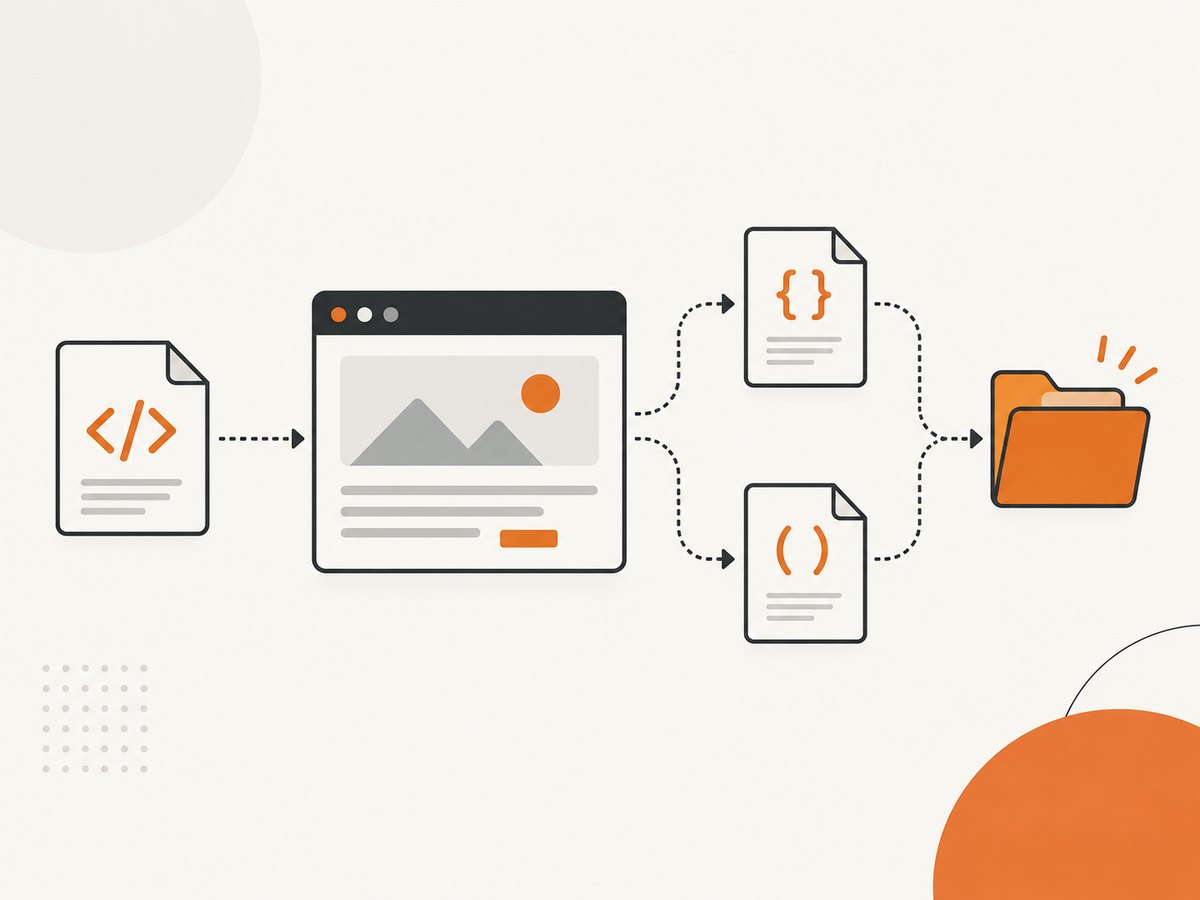
- HTML provides the document structure.
- CSS controls layout, colors and typography.
- JavaScript is parsed, interpreted, compiled and executed after CSS is handled, according to MDN’s JavaScript documentation.
- Images and fonts are additional resources that may be loaded from other URLs.
- Network data may arrive after the initial HTML, through API calls or user interactions.
Saving only the initial HTML can therefore produce an incomplete page. Decide whether your output should be an editable source archive, a faithful visual record, or the file offered by a site’s own download button.
Choose the right method
| Goal | Recommended method | JavaScript runs? | Typical output |
|---|---|---|---|
| Quick offline copy of a static article | Browser Save Page, complete page | Already rendered in your browser | HTML plus an asset folder |
| Repeatable terminal download | wget -p -k -E |
No browser runtime | HTML and fetched requisites with rewritten links |
| Content created or changed by JavaScript | Playwright | Yes | Rendered HTML, PDF, screenshot, or download |
| Visual evidence rather than editable source | ScreenshotNeo or a browser screenshot | Rendered by the capture service/browser | PNG, JPEG, WebP or PDF |
Method 1: Save a page from your browser
- Open the page and wait until the content you need is visible.
- Use Save Page or Save As.
- Select the browser’s Complete web page option when available.
- Keep the generated HTML file and its companion asset directory together.
- Open the saved file locally and check images, fonts, navigation and interactive content.
A single-file option may inline resources, which is convenient for sharing but harder to edit. Browser saves can also miss content that appears only after scrolling, clicking, signing in or waiting for a later API request.
Method 2: Download a mostly static page with wget
For a page whose important content is present in the server response, run:
wget -p -k -E https://example.com/page.htmlThe flags are documented in the GNU Wget manual:
-pdownloads page requisites such as stylesheets and images.-kconverts links so the result can be viewed locally.-Eadjusts the saved filename extension when the response is HTML.
Use an output directory when collecting several pages:
mkdir -p archive
wget --directory-prefix=archive -p -k -E https://example.com/page.html
wget fetches resources but does not provide a browser runtime. JavaScript-generated content, client-side routing, consent interactions and data loaded after page load may be absent. Inspect the saved HTML and compare it with the live page before relying on the archive.
Method 3: Use Playwright for JavaScript-rendered pages
Playwright launches a real browser, so scripts can execute and network requests can complete before you save the result. Install it with Node.js:
npm init -y
npm install playwright
npx playwright install chromium
Save the rendered HTML
import { chromium } from 'playwright';

const browser = await chromium.launch();
const page = await browser.newPage();
await page.goto('https://example.com', { waitUntil: 'domcontentloaded' });
await page.waitForLoadState('networkidle');
await page.locator('main').waitFor({ state: 'visible', timeout: 15000 }).catch(() => {});
await page.screenshot({ path: 'page.png', fullPage: true });
await page.locator('body').evaluate(() => window.scrollTo(0, document.body.scrollHeight));
await page.waitForTimeout(1000);
await page.screenshot({ path: 'page-after-scroll.png', fullPage: true });
await Bun.write('page-rendered.html', await page.content());
await browser.close();
If your project does not use Bun, replace the final write with Node’s filesystem API:
import { writeFile } from 'node:fs/promises';
await writeFile('page-rendered.html', await page.content(), 'utf8');
Waiting for networkidle is useful for quiet pages, but some sites keep analytics or live connections open forever. In that case, wait for a meaningful selector instead:
await page.goto('https://example.com/dashboard', { waitUntil: 'domcontentloaded' });
await page.locator('[data-page-ready="true"]').waitFor({ timeout: 30000 });
Save a PDF or full-page screenshot
await page.pdf({ path: 'page.pdf', format: 'A4', printBackground: true });
await page.screenshot({ path: 'page.webp', fullPage: true, type: 'webp' });
PDF output is a visual document, not a self-contained editable website. Screenshots preserve appearance but contain no selectable HTML structure.
Capture a file offered by a page
When the site has a real download button, use Playwright’s download event. The official API documents that download objects are dispatched through the page’s download event and can be persisted with download.saveAs(path) (Playwright Download API):
import { chromium } from 'playwright';

const browser = await chromium.launch();
const page = await browser.newPage();
await page.goto('https://example.com/files', { waitUntil: 'domcontentloaded' });
const downloadPromise = page.waitForEvent('download');
await page.getByText('Download file').click();
const download = await downloadPromise;
await download.saveAs('/path/to/save/' + download.suggestedFilename());
await browser.close();
This captures the file the application generates. It is different from saving the current page’s HTML and assets.
Authenticated pages and interaction
Log in through the browser context or load a saved storage state, then wait for a post-login selector. Keep credentials out of source code and CI logs. A page may also require clicking “Load more,” accepting a consent dialog, selecting a tab, or scrolling to trigger lazy images. Automate those actions before calling page.content(), page.pdf() or page.screenshot().
Making an offline copy more reliable
- Wait for a page-specific readiness selector instead of relying only on a fixed delay.
- Scroll through long pages to trigger lazy-loaded images.
- Save the final DOM after interactions, not only the response body.
- Check whether assets use absolute URLs, signed URLs or cross-origin restrictions.
- Record the URL, capture time, browser version and any required login state.
- Pin Playwright and browser versions in production and recheck API or menu names after upgrades.
- Open the result without network access to verify that it is genuinely offline.
Or skip the browser setup
ScreenshotNeo provides a website screenshot API and MCP server when you need a rendered visual result rather than an editable source archive. One GET request returns a PNG, JPEG, WebP or PDF. See the ScreenshotNeo API documentation for all options.

curl -G "https://api.screenshotneo.com/v1/shot" -d access_key=YOUR_API_KEY --data-urlencode url=https://stripe.com -o shot.webpimport requests; r = requests.get("https://api.screenshotneo.com/v1/shot", params={"access_key": "YOUR_API_KEY", "url": "https://stripe.com"}, timeout=90); open("shot.webp", "wb").write(r.content)const q = new URLSearchParams({ access_key: 'YOUR_API_KEY', url: 'https://stripe.com' }); const res = await fetch(`https://api.screenshotneo.com/v1/shot?${q}`);Before capture, ScreenshotNeo accepts cookie or consent banners like a visitor and removes more than 60 known consent platforms, newsletter popups and chat widgets; each step can be turned off. Bot checks and CAPTCHAs, blank pages, timeouts, failed loads and cache hits are not billed, and the response identifies the result with X-Page-Verdict and X-Billed headers. Its MCP server provides take_screenshot, get_page_info and capture_pdf for Claude, Cursor and other MCP clients. You get 1,000 screenshots per month free with no card; paid plans start at $5 for 3,000. Create a free ScreenshotNeo account.
Options you may need
For browser automation, configure the browser context and page according to the site:
- Viewport and device: use a desktop or mobile viewport to match the page you need to archive.
- Locale, timezone and geolocation: set them when regional content changes the rendered result.
- Headers, cookies and user agent: provide them for authorized or localized pages.
- Resource blocking: block ads or trackers only when you have verified they are not needed for layout or data.
- Timeouts: use a navigation timeout and a separate selector timeout; retry transient failures with a cap.
For ScreenshotNeo, available controls include full-page capture with lazy images loaded, CSS-selector element capture, dark mode, device presets and custom viewports, retina scale, custom CSS and JavaScript, clicks, waits, ad/tracker/request/resource blocking, custom headers/cookies/user agent/Authorization, timezone and geolocation, transparent backgrounds, image resizing, cache TTL, signed links, asynchronous jobs with signed webhooks, bulk capture of up to 100 URLs per call, a usage API and an OpenAPI specification.
Troubleshooting
| Symptom | Likely cause | Fix |
|---|---|---|
| HTML is present but the page is unstyled | CSS was not fetched or links still point online | Use browser complete-page save, or wget -p -k -E; inspect the asset paths. |
| Content is missing from a wget copy | It was created by JavaScript after load | Use Playwright and wait for the content selector. |
| Images are blank | Lazy loading, blocked requests or expiring URLs | Scroll first, wait for image completion, and check network errors. |
| Playwright hangs on network idle | Analytics, WebSockets or polling keep the network busy | Wait for a specific selector or use a bounded delay. |
| A login page is saved instead | No authenticated context or an expired session | Log in in the same context, load storage state, and verify the URL before saving. |
| Download event times out | The click did not trigger a file download | Check for a new tab, an API response, or a client-side generated file; use the matching Playwright event. |
| Offline copy breaks links | Cross-origin or dynamically generated URLs cannot be rewritten | Test links locally and archive required origins separately where permitted. |
| ScreenshotNeo returns an unexpected result | The target has a bot check, blank response, timeout or required interaction | Read X-Page-Verdict, adjust waits, headers, cookies or JavaScript, and inspect the response status. |
Performance, reliability and cost
Performance
wget is usually quickest for static pages because it does not launch a browser. Playwright costs more time and memory because it renders JavaScript, loads assets and may perform interactions. Reduce work by capturing only the required element, blocking nonessential resources after validation, reusing a browser process and waiting for a precise selector.
Reliability
Dynamic pages change with time, location, cookies, authentication and experiments. Store the exact URL and capture settings, pin browser versions, use bounded waits and retries, and verify the saved output against the live page. Respect licensing, robots policies, terms of service and personal-data obligations when archiving pages.
Cost
Self-hosted browser automation consumes your own compute and maintenance time. ScreenshotNeo bills only clean shots; bot checks/CAPTCHAs, blank pages, timeouts, failed loads and cache hits cost nothing. The free plan includes 1,000 shots per month with no card, followed by paid plans of $5 for 3,000, $15 for 15,000, $39 for 60,000, $99 for 250,000 and $249 for 1,000,000; yearly billing gives two months free and every feature is on every plan.
FAQ
Does saving HTML include JavaScript?
It includes the script tags, but it does not guarantee that JavaScript-generated content or later network data is preserved. Save after rendering with a browser when that content matters.
Can wget download a complete React or Vue site?
It can fetch files referenced by the response, but it does not execute the application. Use a browser runtime for content assembled in the client.
Is a screenshot an offline web page?
No. A screenshot or PDF is a visual artifact. It cannot replace editable HTML, CSS and JavaScript.
How do I prove that an archive is complete?
Open it with networking disabled, exercise important links and controls, compare key sections with the live page, and record any features that require a server or login.
When should I use an API instead of Playwright?
Use an API when you need repeatable visual captures without maintaining browser infrastructure. Keep Playwright when you need an editable source archive or complex, stateful interaction.


