How to Download a Web Page as PDF in Microsoft Edge
Save a webpage as a PDF from Microsoft Edge on Windows or Mac. Follow the print preview settings, fix common problems, and learn when a cleaner capture workflow may help.
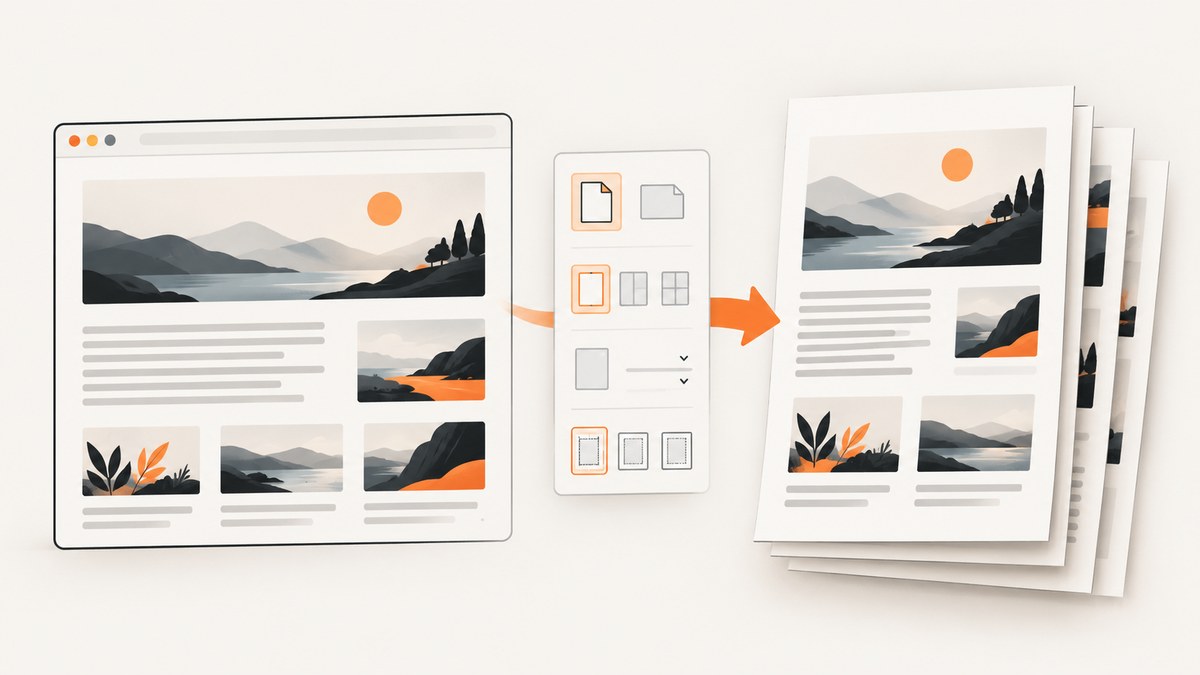
To download a web page as a PDF in Microsoft Edge, open the page, choose Settings and more > Print or press Ctrl+P on Windows or Command+P on Mac. In the print dialog, select the available PDF destination or save-to-PDF option, check the preview and settings, then save the file. The exact destination name depends on your operating system and the destinations available to you.
Use the print workflow for a PDF. Edge’s ordinary Save command saves the current page; it is not the PDF procedure. [Microsoft’s Edge keyboard shortcuts]
1. Open the page and start printing
- Navigate to the webpage you want to save. If it is a long article, wait for its content to finish loading and check that any sections you need are visible.
- Open the print interface using one of these methods:
- Windows: press Ctrl+P.
- Mac: press Command+P.
- In Edge, open Settings and more and choose Print.
- On some pages, right-click a blank area and choose Print.
- Wait for the preview and print settings to appear. If the PDF destination is not immediately selected, choose the save-to-PDF destination available in that dialog.
- Review the preview, layout, margins, scale, headers and footers, and background graphics. Change settings if needed before saving.
- Choose the dialog’s save or print action. When asked for a file name and location, select where to save the PDF and confirm.
Microsoft documents the menu, keyboard shortcuts, right-click route, and print settings in its Print in Microsoft Edge guide. The labels and exact destination choices can vary by system.
2. Adjust the preview before saving
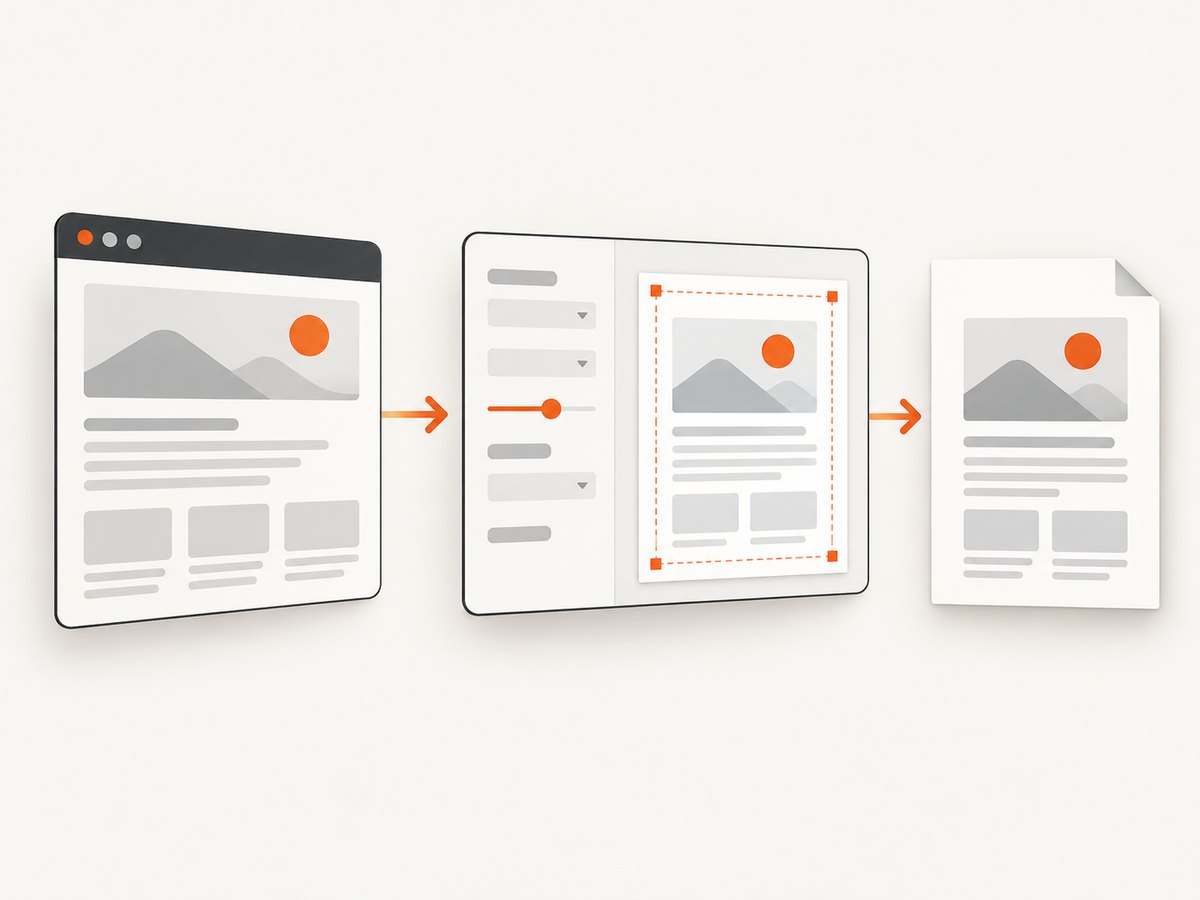
The preview is the quickest way to catch cut-off content, awkward page breaks, or a layout that differs from the webpage. Inspect more than the first page when the document is long.
| Setting | When to adjust it | What to check |
|---|---|---|
| Layout | Wide tables, diagrams, or content that does not fit in portrait orientation | Try the other orientation and inspect the preview for clipped content. |
| Margins | Text or page elements sit too close to the edge, or the printed area feels cramped | Choose a margin setting that leaves readable space without cutting off content. |
| Scale | Content overflows the printable width or appears too small | Adjust scaling and make sure text remains readable in the preview. |
| Headers and footers | You want browser-added page details removed or included | Check the preview after changing this option; its contents can affect available page space. |
| Background graphics | Colors, shaded regions, or background design are missing from the preview or output | Enable the option and review again. Microsoft says background graphics can be included when printing a webpage. |
These settings affect the printed representation, so there is no single best configuration for every page. Choose based on the preview and what the PDF needs to preserve. Microsoft’s guide covers margins, scaling, headers and footers, and background graphics. [Print in Microsoft Edge]
3. Print a cleaner version of a busy page
Advertisements, navigation, and other surrounding material can make a webpage harder to read on paper or in a PDF. Where supported, Edge’s Immersive Reader can simplify a page before you print it. Open Immersive Reader, review the cleaned-up version, then use the print workflow.
Microsoft notes that Immersive Reader may not be available on every website. Its guide lists F9 as a Windows shortcut to enter Immersive Reader where supported. If the page does not offer the feature, print the original page and use the preview settings to make the best available layout. [Print in Microsoft Edge]
4. Windows and Mac differences
The main difference documented here is the keyboard shortcut: Ctrl+P on Windows and Command+P on Mac. Both open the print workflow. The PDF destination is provided by the print dialog, and its wording and available destinations depend on the operating system and configuration. Select the PDF or save-to-PDF option shown in your dialog rather than assuming the same label appears everywhere.
If you do not see a PDF choice, inspect the destinations available in the system print dialog. Edge can open the system print dialog from its print interface. A physical printer is not required when an appropriate PDF destination is available, but the precise steps to add a destination depend on the system and are outside Microsoft’s Edge-specific print instructions.
5. Common problems and fixes
| Problem | Likely cause | What to try |
|---|---|---|
| Print preview does not appear | A temporary problem opening or rendering the preview | Retry the print action. If it still fails, restart Edge and try again. |
| One website fails, but another page prints | The target page may contain a style element that interferes with printing | Test another website or online document to isolate the problem. If only the target page fails, try Immersive Reader where it is available. |
| Colors, shaded areas, or other backgrounds are missing | Background graphics may not be included in the current print settings | Enable Background graphics and check the preview again. |
| Content is cut off or poorly placed | The page’s width or layout does not fit the current print settings | Review the layout, margins, and scale. Recheck the preview before saving. |
| You saved a webpage but did not get a PDF | You used the ordinary Save command instead of printing to a PDF destination | Open the print interface with Ctrl+P or Command+P and select the available PDF destination. |
| The page is cluttered with navigation or ads | The page’s print layout includes surrounding material | Try Immersive Reader if the site supports it, then preview the result before saving. |
For persistent preview issues, Microsoft recommends retrying the dialog, restarting Edge, testing another site or document, and considering Immersive Reader if the page’s styling may be involved. [Troubleshoot print issues in Microsoft Edge]
6. When Edge’s print-to-PDF workflow is the right fit
Edge’s built-in print workflow is a good fit when you want to save a page manually and can review its print preview. It gives you a chance to adjust margins, scaling, page layout, headers and footers, and backgrounds before saving. Immersive Reader may help with clutter on supported websites.
For a recurring developer workflow, consider what you need beyond one manual save: repeatable captures, a particular output format, or an automated request from a script or AI agent. A browser print dialog is interactive. An API or automation workflow can be more convenient when captures are part of a repeatable process, but you should choose it based on the output and controls you actually need.
Or skip the browser setup
ScreenshotNeo is a website screenshot API and MCP server for developers. One GET request can return a screenshot or PDF. For PDF output, use the PDF options in the ScreenshotNeo documentation; the example below shows the documented basic screenshot request for Stripe.
cURL
curl -G "https://api.screenshotneo.com/v1/shot" -d access_key=YOUR_API_KEY --data-urlencode url=https://stripe.com -o shot.webpPython
import requests

r = requests.get(
    "https://api.screenshotneo.com/v1/shot",
    params={"access_key": "YOUR_API_KEY", "url": "https://stripe.com"},
    timeout=90,
)
open("shot.webp", "wb").write(r.content)
Node.js
const q = new URLSearchParams({ access_key: 'YOUR_API_KEY', url: 'https://stripe.com' });
const res = await fetch(`https://api.screenshotneo.com/v1/shot?${q}`);
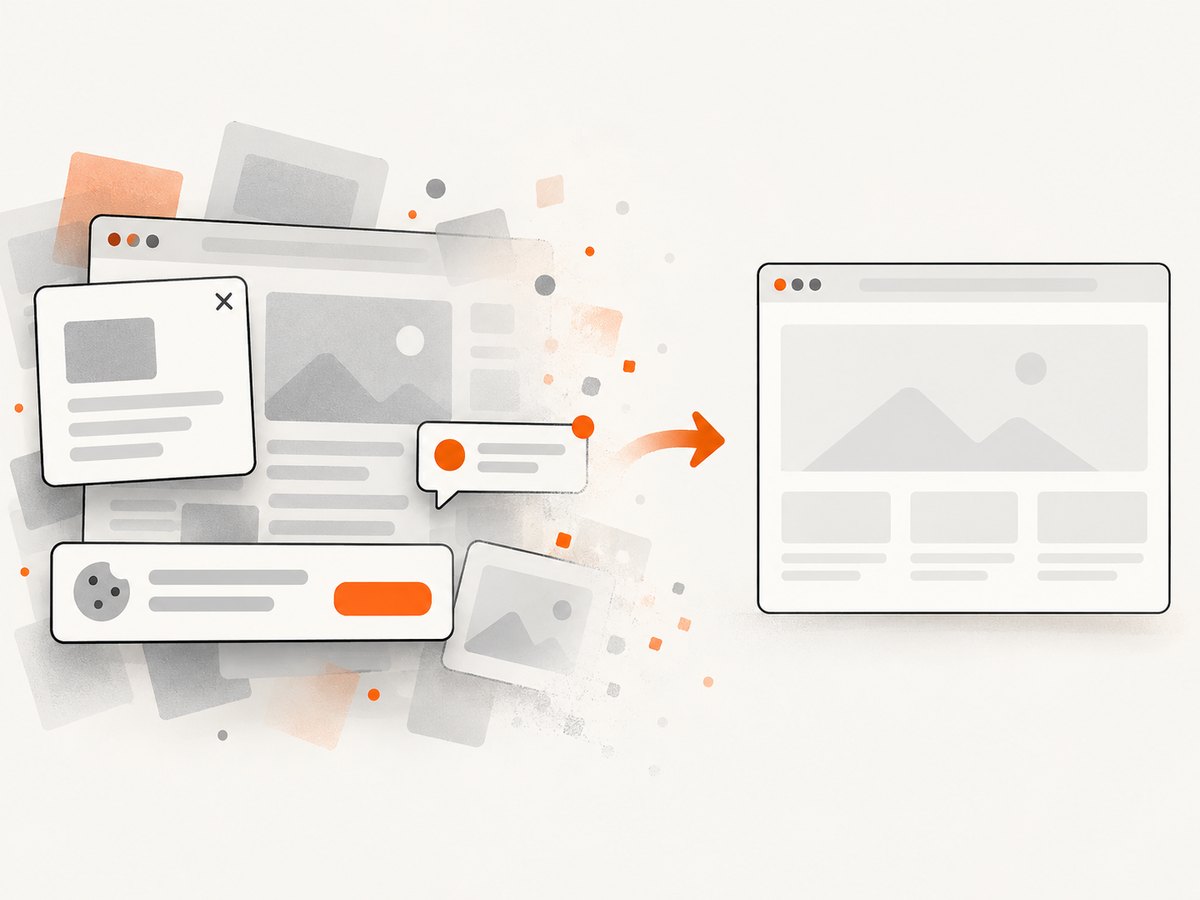
ScreenshotNeo removes cookie banners, popups, and chat widgets before the shot. Bot checks, blank pages, and failed loads are never billed; responses identify the page verdict and billing status. An MCP server lets AI agents take screenshots, and 1,000 screenshots a month are free with no card; paid plans start at $5 for 3,000. Every feature is on every plan. Use the PDF options in the docs when the output needs to be a PDF.
Sign up for 1,000 free screenshots a month, with no card.
7. Performance, reliability, and cost considerations
For a single page, the Edge workflow has few steps: open the page, create a preview, inspect the settings, and save. Page complexity and the time required to render a preview affect how quickly you can finish; the supplied Microsoft guidance does not give a fixed processing time. For pages that fail, use another page as a diagnostic and restart Edge if the preview remains unavailable.
For repeat captures, manual printing means repeating those steps and checking each preview. An API can fit a scripted workflow; ScreenshotNeo also offers caching with a TTL you choose, asynchronous jobs with signed webhooks, bulk capture of up to 100 URLs per call, and a usage API. Configure the documented PDF options for PDF output. As with any automated capture, check the resulting file when fidelity matters, especially for pages whose content or layout changes.
Edge’s built-in print workflow does not require a separate product according to the Microsoft instructions. ScreenshotNeo’s listed prices are Free for 1,000 shots per month with no card, Starter $5 for 3,000, Growth $15 for 15,000, Pro $39 for 60,000, Scale $99 for 250,000, and Business $249 for 1,000,000; yearly billing gives two months free. Its stated billing policy is that only clean shots are billed, while bot checks/CAPTCHAs, blank pages, timeouts, failed loads, and cache hits cost nothing. Check the response’s X-Page-Verdict and X-Billed headers to see the result for a request.
8. FAQ
Does Ctrl+S save a webpage as PDF in Edge?
No. Microsoft’s shortcut list identifies Ctrl+S on Windows and Command+S on Mac as Save, while Ctrl+P and Command+P open printing. To create a PDF, use Print and choose the PDF destination in the dialog. [Edge keyboard shortcuts]
Can I remove ads before saving?
Try Immersive Reader where the website supports it. It may simplify the page before printing, but Microsoft says it is not available on every website.
Why does my PDF look different from the webpage?
Printing uses page layout and print settings. Inspect the preview, adjust scale and margins, and enable background graphics if the page’s visual backgrounds are missing.
Can ScreenshotNeo return a PDF?
Yes. ScreenshotNeo supports PDF output. Follow the PDF options in its API documentation for the request configuration.


