How to Download a Webpage Including Its Images
Learn the right way to save one webpage or mirror many pages with images, using a browser, HTTrack, Wget, or ScreenshotNeo.
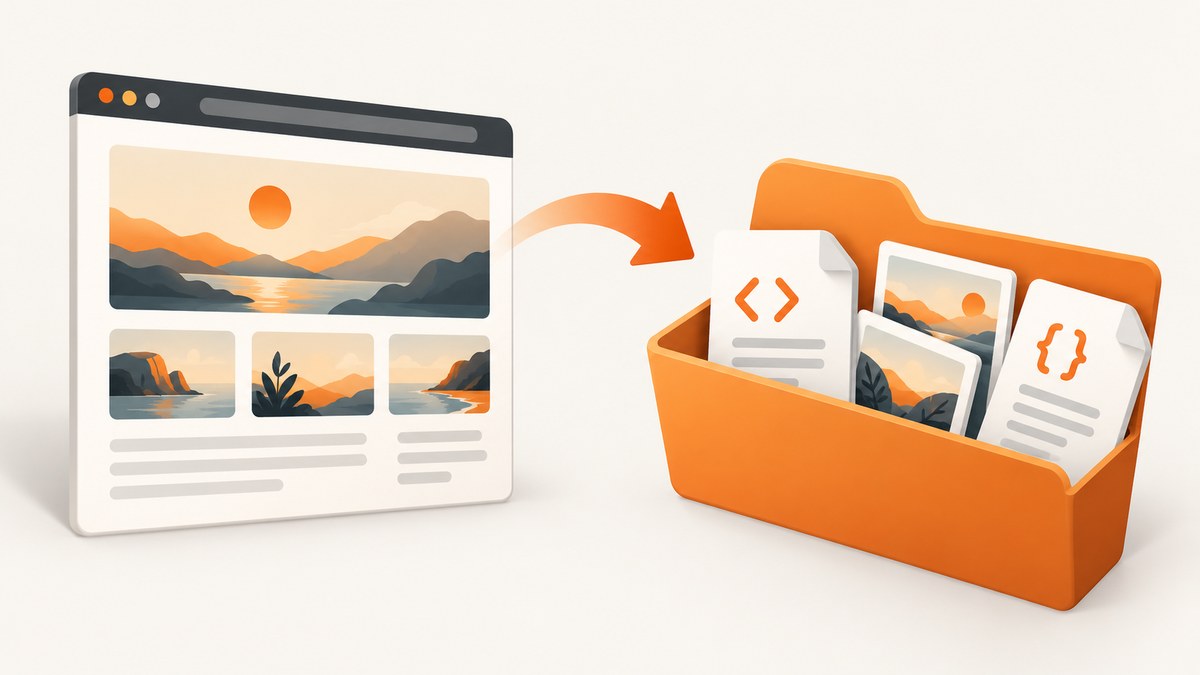
For one webpage, use your browser’s “Web page, complete” save option. It downloads the HTML plus pictures and supporting files into a companion folder. For several linked pages, use HTTrack with a deliberately limited scope. For repeatable terminal work, use GNU Wget to fetch an HTML page and its requisites. If the page builds image URLs only after JavaScript runs, any static downloader can miss them, so inspect the saved result instead of assuming it is complete.
This guide explains how to save a page for offline reading, mirror a bounded section of a site, troubleshoot missing images, and capture a clean rendered copy with ScreenshotNeo.
Choose the method that matches your goal
| Goal | Best fit | What you get |
|---|---|---|
| Save one page for offline reading | Browser complete-page save | HTML, images and supporting files |
| Mirror linked pages | HTTrack | A browsable local copy with rewritten links |
| Automate a download | GNU Wget | Scriptable retrieval of a page and its requisites |
| Capture what a browser renders | ScreenshotNeo | PNG, JPEG, WebP or PDF of the rendered page |
A saved webpage is not the same as a screenshot. A save attempts to preserve files that a browser can reopen. A screenshot records the pixels visible after the page loads. Interactive behavior, authenticated state and script-generated assets can make the two results differ.
Method 1: Save one webpage with Firefox
Firefox documents the complete format as “Web page, complete,” which saves the whole webpage along with pictures. The HTML-only choice deliberately omits pictures, so do not select it when images are required. See Mozilla’s save-page instructions for current menu names.
- Open the page and wait until the important images appear.
- Open the browser menu and choose Save Page As.
- In the file-type menu, select Web page, complete.
- Choose a destination and save the file.
- Firefox creates an HTML file and a companion directory containing images and other resources.
- Disconnect from the network or use a private window, open the saved HTML file, and check the images and links you need.
What the browser method preserves
The saved folder normally contains the page markup, stylesheets, images and other supporting files that Firefox fetched. It may not preserve the original HTML link structure exactly, and interactive features that depend on a server can stop working offline. Browser menus vary by version and operating system, so use the equivalent complete-page option if you are not using Firefox.
Saving a single image
When you only need one picture, right-click it (or Ctrl-click on macOS) and choose Save Image As. This avoids downloading an entire page and is useful for an image whose source is already visible in the document.
Method 2: Mirror pages with HTTrack
Use HTTrack when “the webpage” means an article and the pages linked from it. HTTrack copies a website to disk, rewrites retained links for offline browsing, and can resume an interrupted project or update an existing cache. Its command-line guide gives this starting form:
httrack https://example.com/ --path mydirRead the HTTrack command-line documentation for options that match your installed version.
Run a bounded crawl
- Set the starting URL to the page or directory you are authorized to copy.
- Choose a project directory that you can keep for resume and update operations.
- Limit the crawl to the same address or domain when you do not need external sites.
- Add include and exclude filters for paths, file types or query strings.
- Set a reasonable connection rate and respect robots.txt and the site’s terms.
- Run the crawl, then open the generated index or the saved starting page offline.
HTTrack follows links it discovers in HTML and CSS. It does not execute JavaScript. An image URL created only after a script runs, including some lazy-loaded images, may never be discovered. More aggressive parsing can help when a link is present in unusual source formatting; it cannot invent a URL that exists only at runtime.
Inspect HTTrack output
Keep the project logs. The command-line guide describes hts-log.txt and hts-err.txt as places to find URLs that were refused, redirected or filtered. If a page looks incomplete, search those files for the missing image URL and its reason.
Method 3: Download a page and its requisites with GNU Wget
Wget is useful when you need a repeatable command in a shell script or build job. The GNU manual documents retrieving a single HTML page with its requisites and converting downloaded links for local viewing. Syntax can vary between Wget versions, so use the GNU Wget manual for the flags available on your system.
wget --page-requisites --convert-links --adjust-extension --no-parent https://example.com/article/--page-requisites asks Wget to fetch resources needed by the page, such as images and stylesheets. --convert-links changes links for local viewing, and --adjust-extension gives downloaded documents suitable extensions. --no-parent helps prevent traversal above the requested path. These options do not turn Wget into a JavaScript-capable browser; script-driven content still requires a rendered capture or a separate asset-discovery step.
Make a repeatable download
- Put the URL in a script or input file.
- Choose an output directory and preserve it between runs if you need updates.
- Use scope limits such as
--no-parentand explicit domains. - Review the terminal output for HTTP errors and redirects.
- Open the local HTML and inspect image references, including images below the initial viewport.
Why images go missing
- HTML-only save selected: choose the browser’s complete-page format and keep its companion folder.
- Lazy loading: the image URL may be inserted only when the image approaches the viewport. Scroll through the page before saving, or use a rendered screenshot service.
- JavaScript-generated URLs: HTTrack and basic Wget retrieval do not execute page scripts, so they cannot discover URLs that are absent from fetched HTML and CSS.
- Authentication or hotlink protection: the downloader may receive a login page, a denial response or a placeholder instead of the image.
- Relative paths changed: moving the HTML file away from its companion directory can break local references.
- Cross-origin restrictions: a resource hosted on another domain may be excluded by your scope or filter settings.
- Responsive sources: a page may use
srcset, picture elements or device-specific URLs. Check which variant was actually downloaded.
Verify that the local copy is usable
- Open the saved HTML with networking disabled.
- Check the hero image, images near the bottom, background images and icons.
- Open browser developer tools and look for failed local requests if a picture is blank.
- Compare image dimensions and formats with the original page.
- For HTTrack, inspect the log and error files before changing crawl settings.
- Record the source URL and retrieval date if the copy is part of an archive.
Or skip the browser setup
When you need a rendered image or PDF rather than a folder of source files, ScreenshotNeo makes one GET request and returns a clean PNG, JPEG, WebP or PDF. It accepts the cookie or consent banner like a visitor, then removes more than 60 known consent platforms, newsletter popups and chat widgets before capture. Each step can be turned off.

Here are complete requests; the ScreenshotNeo API documentation lists the available options.
cURL
curl -G "https://api.screenshotneo.com/v1/shot" -d access_key=YOUR_API_KEY --data-urlencode url=https://stripe.com -o shot.webpPython
import requests

r = requests.get(
    "https://api.screenshotneo.com/v1/shot",
    params={"access_key": "YOUR_API_KEY", "url": "https://stripe.com"},
    timeout=90,
)
r.raise_for_status()
open("shot.webp", "wb").write(r.content)
Node.js
const q = new URLSearchParams({ access_key: 'YOUR_API_KEY', url: 'https://stripe.com' });
const res = await fetch(`https://api.screenshotneo.com/v1/shot?${q}`);
if (!res.ok) throw new Error(`HTTP ${res.status}`);
const bytes = Buffer.from(await res.arrayBuffer());
require('fs').writeFileSync('shot.webp', bytes);
ScreenshotNeo reports the result in X-Page-Verdict and X-Billed headers. Bot checks or CAPTCHAs, blank pages, timeouts, failed loads and cache hits cost nothing; only clean shots are billed. The service supports full-page capture with lazy images loaded, a CSS-selector element capture, dark mode, twelve device presets or any viewport, retina scale, custom CSS and JavaScript, click-before-capture, hide selectors, waits for a selector, delay or network idle, blocked ads and trackers, custom headers, cookies, user agents and Authorization, timezone and geolocation, transparent backgrounds, resizing, chosen cache TTLs, signed image links, asynchronous jobs with signed webhooks, bulk capture of 100 URLs per call, usage API access and an OpenAPI specification.
An MCP server provides take_screenshot, get_page_info and capture_pdf tools for Claude, Cursor and other MCP clients. That is useful when an AI agent needs to inspect a page without you wiring a browser into the agent.
The Free plan includes 1,000 shots per month with no card. Paid plans start at $5 for 3,000 shots; yearly billing gives two months free. Create a free ScreenshotNeo account and start with 1,000 screenshots a month at no charge.
Performance, reliability and cost considerations
Browser saves
A browser save is usually simplest for a single page because the browser has already resolved redirects, cookies and visible resources. It is manual, difficult to run consistently across hundreds of URLs, and can produce a different result depending on what finished loading before you saved.
HTTrack and Wget
Both are efficient for static resources and repeatable jobs. Narrow the scope to reduce bandwidth and storage. Keep caches when you need resume or update behavior. A crawl that is too broad can follow navigation into areas you did not intend to copy, while filters that are too strict can omit images. Respect robots.txt, rate limits, access controls and the rights attached to the content.
Rendered capture
A screenshot service spends time loading and rendering each URL, so choose waits and viewport sizes that match the page. Cache with a TTL when repeated captures do not need fresh pixels. Use bulk capture for batches and asynchronous jobs with signed webhooks for long-running work. Since failed loads and cache hits are not billed by ScreenshotNeo, you can handle those outcomes from the response headers rather than guessing from a file alone.
Troubleshooting checklist
| Symptom | Likely cause | Fix |
|---|---|---|
| No images in browser copy | HTML-only format | Save as Web page, complete and retain the asset folder. |
| Only below-the-fold images are absent | Lazy loading | Scroll before saving or use full-page rendered capture. |
| HTTrack has too many pages | Scope is broad | Use same-address or same-domain scope and path filters. |
| HTTrack has too few pages | Filters or robots rules excluded them | Review settings and the log files. |
| Wget HTML opens but styles are broken | Requisites or converted links missing | Check command output, destination paths and the downloaded resource list. |
| Screenshot shows a challenge page | Bot check or CAPTCHA | Inspect X-Page-Verdict; do not treat the result as a clean page. |
| Screenshot is blank | Timeout or failed load | Increase an appropriate wait, verify the URL, and inspect the verdict header. |
| Local links fail after moving files | Companion directory was separated | Move the HTML and its generated folder together. |
Frequently asked questions
Can I download every image from a page with one command?
Only images discoverable from the fetched HTML and CSS are reliable with static tools. Runtime-generated URLs may require a browser-rendered capture or manual inspection.
Does “complete webpage” save interactive behavior?
It saves files needed for a local copy, but server-backed forms, login sessions and script-dependent features may not work offline.
Should I use HTTrack for one article?
Usually use the browser save for one page. HTTrack is more appropriate when you need several linked pages and offline navigation.
Is a screenshot an archival copy?
A screenshot preserves a visual state. It does not preserve the original HTML, source images or interactive behavior, so keep source files when those details matter.
Can I download pages I do not own?
Authorization, terms and copyright rules depend on the site, content and jurisdiction. Keep copies only for uses you are allowed to make, and use bounded, considerate crawls.


