How to Download a Webpage with Wget
Learn the right Wget command for one page, local assets, or a bounded site copy, plus fixes for JavaScript pages and common errors.
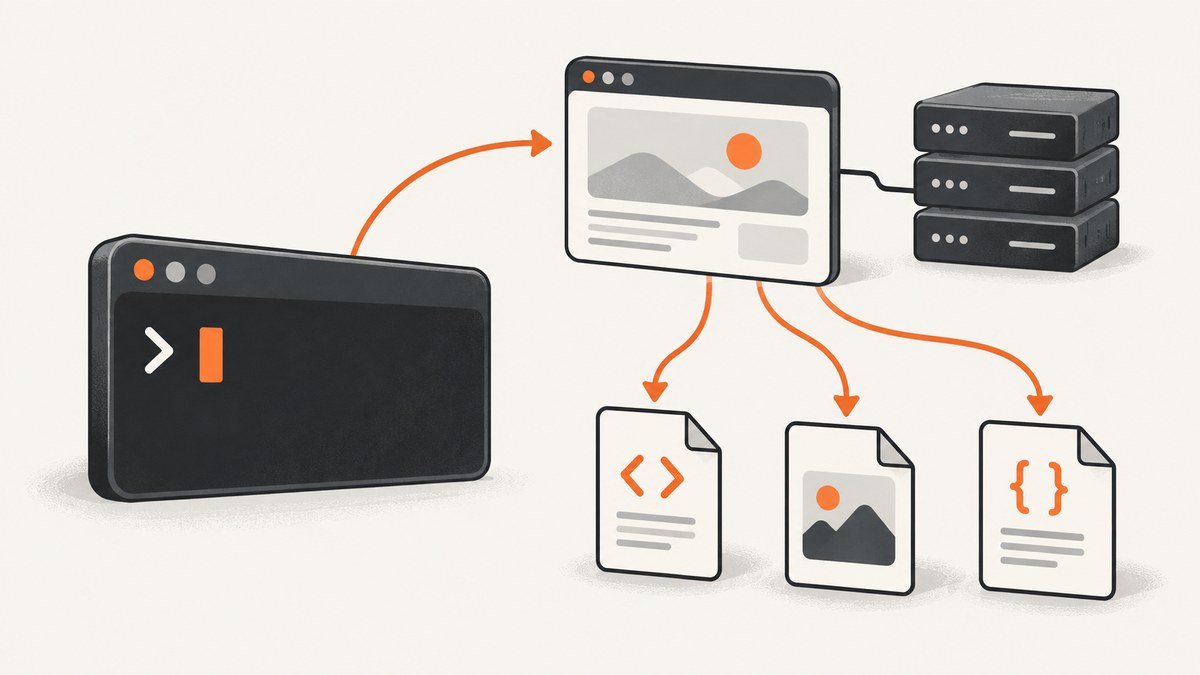
For one webpage, run:
wget 'https://example.com/page.html'That downloads the URL you provide without following links to other pages. If you want a local copy that includes the page’s images, stylesheets and other display resources, use:
wget --page-requisites --convert-links 'https://example.com/page.html'Use recursion only when you deliberately want linked pages. A bounded example is:
wget --recursive --level=2 'https://example.com/'This guide explains what each command does, how Wget decides what to fetch, how to keep a recursive download within a site section, and what to do when a JavaScript application or protected page does not save correctly.
1. Install Wget and verify it
Wget is a command-line HTTP and HTTPS downloader available through most operating-system package managers. Verify that it is installed before diagnosing a URL:
wget --versionThe output includes the Wget version and enabled protocols. The examples here follow the GNU Wget 1.25.0 manual. On an older release, run wget --help and check the local manual if an option behaves differently.
2. Download exactly one webpage
The basic invocation accepts options followed by one or more URLs:
wget 'https://example.com/page.html'Wget writes the response to a file in the current directory. For a URL ending in a filename, that filename is normally used. For a URL ending in a path such as /docs/, Wget creates a directory structure and an index file.
Choose an explicit output filename when a script or build step needs a stable path:
wget -O page.html 'https://example.com/page.html'-O writes the response to the file you specify. It is useful for one URL, but do not combine it with a large recursive job: many responses would be forced into one file.
Download several independent pages by listing URLs or by using an input file:
wget 'https://example.com/' 'https://example.com/about'
wget --input-file=urls.txt
With no recursion, Wget retrieves the supplied URLs and does not crawl links found in the HTML. This is the correct scope for “download this webpage.” The GNU Wget manual describes this default behavior.
3. Save a page with the assets needed for local viewing
A raw HTML download may reference remote CSS, images, fonts or scripts. To create a more useful local copy, request page requisites and convert links:
wget --page-requisites --convert-links 'https://example.com/page.html'--page-requisitesfetches resources Wget identifies as necessary to display the page.--convert-linksrewrites links in downloaded files so local navigation points to the saved copies where possible.
The result depends on what the server exposes in the retrieved HTML and CSS. Save into a dedicated directory to avoid mixing files with your project:
mkdir -p page-copy
cd page-copy
wget --page-requisites --convert-links 'https://example.com/page.html'
For a page whose links refer to the site root, --convert-links may create additional directories. Inspect the resulting tree with find . -maxdepth 3 -type f.
4. Download linked pages with bounded recursion
Recursion changes the job from “fetch this URL” to “follow references and retrieve more URLs.” Start with an explicit depth:
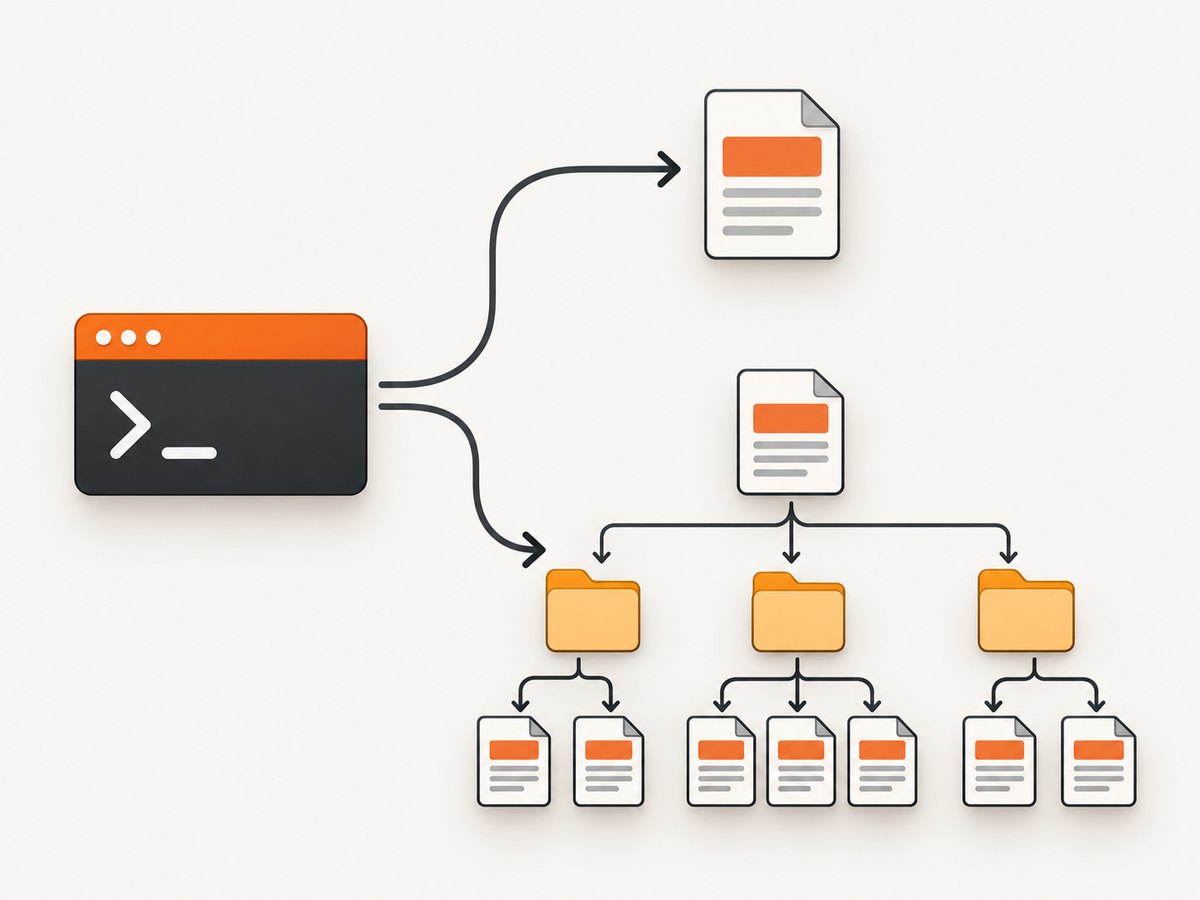
wget --recursive --level=2 'https://example.com/'--level=2 allows two link levels from the starting URL. It is an example, not a universal setting. A small documentation section may need depth 3; a homepage snapshot may need no recursion at all.
GNU Wget parses retrieved HTTP HTML, XHTML and CSS and can follow href, src and CSS url() references. HTTP recursion proceeds breadth-first, one depth layer at a time. The manual’s default maximum depth is five; set your own limit with -l or --level.
Important: -l 0 means unlimited depth. It does not mean “download zero linked levels.” To fetch one page, omit -r and use --page-requisites when local assets are needed.
5. Keep a recursive download inside the intended scope
Use several boundaries together. The exact combination depends on the site’s URL layout.
| Goal | Useful options | Why |
|---|---|---|
| Stay below the starting directory | --no-parent |
Prevents traversal to a parent directory. |
| Allow only a host or set of hosts | --domains=example.com |
Restricts recursive retrieval to listed domains. |
| Include or exclude URL paths | --include-directories, --exclude-directories |
Limits traversal to selected directory patterns. |
| Limit file types | --accept, --reject |
Filters files by suffix or pattern. |
| Add a delay | --wait=2 |
Spaces requests during a larger retrieval. |
For example, to copy a documentation subtree without ascending above it:
wget --recursive --level=3 --no-parent --domains=example.com \
  --page-requisites --convert-links \
  'https://example.com/docs/
Check the URL structure before running a broad job. A domain restriction alone may still retrieve every path on that domain. Recursive retrieval can consume substantial bandwidth and storage and can put load on a server, so use a finite depth, filters and a delay. Wget honors robots exclusion rules during recursive retrieval; access rules and copyright obligations still apply to what you download and how you use it. See the manual’s overview and examples.
6. Useful Wget options for real downloads
Choose where files go
wget --directory-prefix=archives 'https://example.com/page.html'--directory-prefix places downloaded files below a directory. For repeatable scripts, combine it with an explicit working directory and a clear naming convention.
Continue or refresh a partial file
wget --continue 'https://example.com/large.zip'wget --timestamping 'https://example.com/page.html'
--continue resumes a partial download when the server supports byte ranges. --timestamping avoids downloading a remote file when the local copy is already current, where the server supplies usable modification metadata.
Inspect what Wget is doing
wget --server-response 'https://example.com/page.html'
wget --debug 'https://example.com/page.html'
--server-response prints response headers. --debug is much noisier and is useful for redirects, TLS negotiation and request construction. Avoid placing credentials in command lines that may be saved in shell history.
Supply headers or credentials carefully
wget --header='Accept-Language: en-US' 'https://example.com/page.html'
wget --user=USERNAME --password=PASSWORD 'https://example.com/private'
Prefer a session or environment-based secret workflow for automation. A password in a process list or shell history can be exposed to other users on the machine.
Handle redirects and certificates
Wget follows normal HTTP redirects. For a diagnosis, inspect the response with --server-response. Do not use --no-check-certificate as a routine fix: it disables certificate verification and should be reserved for a controlled, trusted environment where you understand the risk.
7. Why a saved page can look incomplete
Wget follows references present in retrieved markup and stylesheets. Modern applications often render content after the initial response with JavaScript, fetch data from APIs, or require a user interaction. In those cases, the downloaded HTML can be valid while the visible browser page is missing products, charts, comments or navigation.
Look at the saved HTML:
less page.html
rg 'script|api|data-' page.html
If the meaningful content is absent from the response, page requisites cannot recreate it. Wget is an HTTP downloader, not a full browser renderer. A browser automation tool can execute JavaScript, wait for network activity and interact with controls, but it also introduces browser installation, sandboxing, timing and maintenance concerns.
8. Troubleshooting common errors
| Symptom | Likely cause | Fix |
|---|---|---|
command not found: wget |
Wget is not installed or is not on PATH. |
Install it with your operating system’s package manager, then rerun wget --version. |
| 404 or 403 response | The URL is wrong, the resource moved, or the server denies the request. | Open the URL in a browser, check redirects and response headers, and request only resources you are allowed to access. |
| “Certificate” or TLS error | Outdated trust store, an incorrect system clock, or a misconfigured server. | Update the operating system’s CA certificates and verify the clock. Treat certificate bypass as a last-resort controlled diagnostic. |
| Only HTML was saved | You used the one-URL command, or resources were loaded dynamically. | For static assets use --page-requisites --convert-links. For JavaScript-rendered content, use a browser-capable capture method. |
| Local links still open the web | Some URLs could not be downloaded or were outside the retrieval scope. | Review filters, domains and --no-parent; rerun with --server-response and inspect rewritten HTML. |
| Download grows unexpectedly | Recursion reached more paths than intended, or depth is unlimited. | Check that you did not set -l 0; add --level, domain/path filters and --wait. |
| Repeated retries or timeouts | Slow server, transient network failure, rate limiting or a resource that never completes. | Reduce scope, add a reasonable timeout and delay, and retry later. Do not increase concurrency against a struggling server. |
9. Or skip the browser setup
When the goal is a rendered screenshot or PDF rather than a directory of source files, ScreenshotNeo provides a single HTTP request. It runs the capture in a browser, accepts cookie or consent banners, and removes more than 60 known consent platforms, newsletter popups and chat widgets before the shot. Each step can be turned off. Bot checks or CAPTCHAs, blank pages, timeouts, failed loads and cache hits are not billed; response headers identify the page verdict and billing result.

See the ScreenshotNeo API documentation for all parameters. The basic calls below return an image for the target URL.
cURL
curl -G "https://api.screenshotneo.com/v1/shot" -d access_key=YOUR_API_KEY --data-urlencode url=https://stripe.com -o shot.webpPython
import requests

r = requests.get("https://api.screenshotneo.com/v1/shot", params={"access_key": "YOUR_API_KEY", "url": "https://stripe.com"}, timeout=90)
open("shot.webp", "wb").write(r.content)
Node.js
const q = new URLSearchParams({ access_key: 'YOUR_API_KEY', url: 'https://stripe.com' });
const res = await fetch(`https://api.screenshotneo.com/v1/shot?${q}`);
ScreenshotNeo supports PNG, JPEG, WebP and PDF output, full-page capture with lazy images loaded, CSS-selector element capture, dark mode, device presets, custom viewports, retina scale, custom CSS and JavaScript, clicks, waits, blocked resource types, custom headers and cookies, timezone and geolocation, transparent backgrounds, resizing, caching with a chosen TTL, signed image links, asynchronous jobs with signed webhooks, bulk capture for up to 100 URLs per call, a usage API and an OpenAPI specification. Parameter names used by other screenshot APIs also work, which can simplify migration.
An MCP server exposes take_screenshot, get_page_info and capture_pdf to Claude, Cursor and other MCP clients. The Free plan includes 1,000 shots per month with no card. Paid plans start at $5 for 3,000 shots; yearly billing provides two months free.
Create a free ScreenshotNeo account and start with 1,000 screenshots a month at no charge.
10. Performance, reliability and cost planning
- Limit the work: A one-page request is faster and easier to audit than an unrestricted recursive crawl. Set a recursion level and URL boundaries before starting.
- Use local caching: Keep the downloaded directory and use timestamping when appropriate instead of repeatedly fetching unchanged assets.
- Respect the server: Add
--waitto recursive jobs and avoid parallel processes aimed at the same host. - Separate source retrieval from rendering: Wget is efficient for static HTTP files. A browser-based capture is more suitable when the final result depends on JavaScript, consent handling or viewport rendering.
- Measure storage: Before a broad job, estimate the number of URLs and asset types. Images, fonts and video can dominate disk usage.
- Make retries bounded: A script should record failed URLs and retry a finite number of times rather than looping forever.
For ScreenshotNeo jobs, cache hits and failed or unusable page verdicts are not billed, and the response includes X-Page-Verdict and X-Billed headers. Use those headers in a pipeline to distinguish a clean capture from a blocked or empty result.
11. Practical command checklist
- Decide whether you need one response, one locally viewable page, or linked pages.
- Use
wget 'URL'for one URL. - Add
--page-requisites --convert-linksfor static resources needed for local viewing. - Add
--recursiveonly when you want linked pages. - Set
--level; remember that level zero means unlimited. - Use
--no-parent, domain/path filters and accept/reject rules to contain recursion. - Add
--waitto larger jobs and respect the site’s access rules. - Inspect HTML when JavaScript-rendered content is missing.
- Use a browser-capable screenshot API when you need a rendered image or PDF instead of source files.
12. FAQ
Does Wget download only the page I name?
Yes, unless you enable recursion. The basic command retrieves the supplied URL and does not crawl linked pages.
What is the difference between --page-requisites and --recursive?
Page requisites target resources needed to display one page. Recursion follows links to additional pages and can grow into a site crawl.
Why does -l 0 create a huge download?
GNU Wget defines zero recursion level as unlimited depth. Omit recursion for a single page or set a positive finite level.
Can Wget save a page after JavaScript renders it?
Not by itself. Wget retrieves HTTP responses and parses references in HTML and CSS; it does not provide a full browser execution environment for client-side rendering.
Should I use Wget to archive an entire website?
Only with a clearly bounded scope, appropriate permission, filters and delays. A full site may include large files, external domains and content that changes during the crawl.


