How to Download a Website as a ZIP File
Mirror a website with HTTrack, review the offline copy, and package the result as a ZIP while understanding crawl limits and dynamic content.
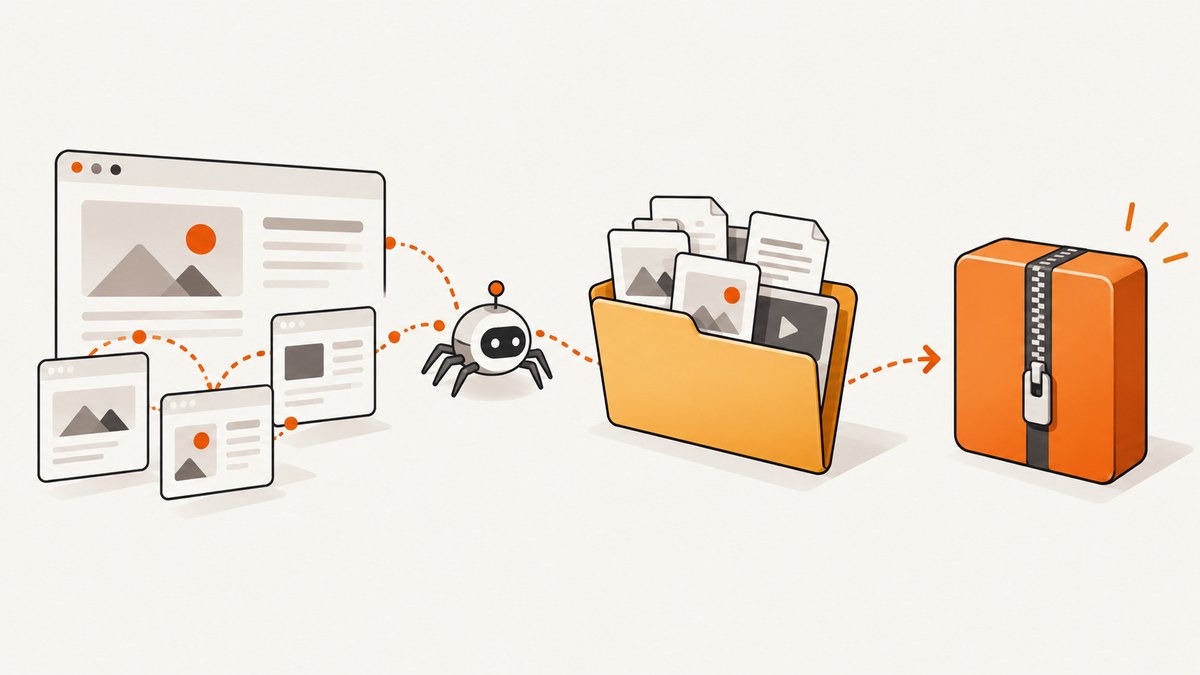
Direct answer: use a website mirroring crawler such as HTTrack to download a defined site or section into a local folder, inspect the mirror, and then create a ZIP archive from that folder with your operating system’s archive utility. A ZIP is the packaging step; it is not automatically a complete, working clone of the live website.
HTTrack downloads resources it discovers by crawling links, stores them in a directory tree, and rewrites links for offline browsing. It can resume interrupted projects and update an existing mirror. It does not run JavaScript, so URLs and content created only at runtime may be missing. Server-side source code, databases, private APIs, and authenticated content are not downloaded simply because a page links to them. See the official documentation for the current interface and platform details.
What “download a website as a ZIP” actually means
A browser receives responses from a server. A mirroring tool saves many of those responses—HTML, CSS, images, scripts, fonts, and linked documents—under a local directory. The crawler may rewrite relative links so that opening index.html locally leads to other downloaded pages instead of back to the internet. Once that directory is complete, you compress it into one .zip file.
The result is a snapshot of resources discovered during the crawl. It is not the site’s database, application source, server configuration, user accounts, or guaranteed live behavior. Forms, search, checkout, login, comments, dashboards, and other server-backed features can stop working offline. A JavaScript application may also appear incomplete when its routes and API calls are assembled after the initial HTML loads.
Choose the right method
| Method | Best for | Important limitation |
|---|---|---|
| HTTrack | Visual setup, bounded site mirrors, offline link rewriting, resumable projects | Does not execute JavaScript; scope must be configured carefully |
| GNU Wget | Terminal users who need recursive retrieval of HTML/CSS resources | More manual configuration; detailed flags vary by version |
| Browser “Save page” | One page and its immediately referenced assets | Not a complete site crawler; dynamic resources are often absent |
| Archive formats | Preserving a crawl as an archival record | WARC/WACZ are archival formats, not ordinary ZIP files |
HTTrack’s project overview describes it as a free, GPL-licensed offline browser utility that recursively downloads site files and preserves relative link structure. Its documentation covers Windows, Linux/Unix, Android, and command-line use. GNU Wget’s manual documents recursive retrieval and resources referenced by HTML or CSS. Choose HTTrack when local navigation and a resumable project matter; choose Wget when you prefer a terminal workflow and already understand recursive download options.
Before you start: define scope and rights
- Choose a starting URL. Use the site’s home page for a broad mirror, or a section URL such as
https://example.com/docs/for a narrower copy. - Decide whether other hosts are allowed. A page may load assets from a CDN, analytics host, video platform, or documentation subdomain. Include only hosts you need and are authorized to copy.
- Set filters. Exclude large media, tracking endpoints, calendars, query-string traps, or paths outside the intended section.
- Check storage. A site can contain many high-resolution images, videos, PDFs, and duplicate URL variants.
- Confirm permission. Follow the site’s terms, access controls, and applicable copyright or retention rules. A personal mirror does not grant republication rights.
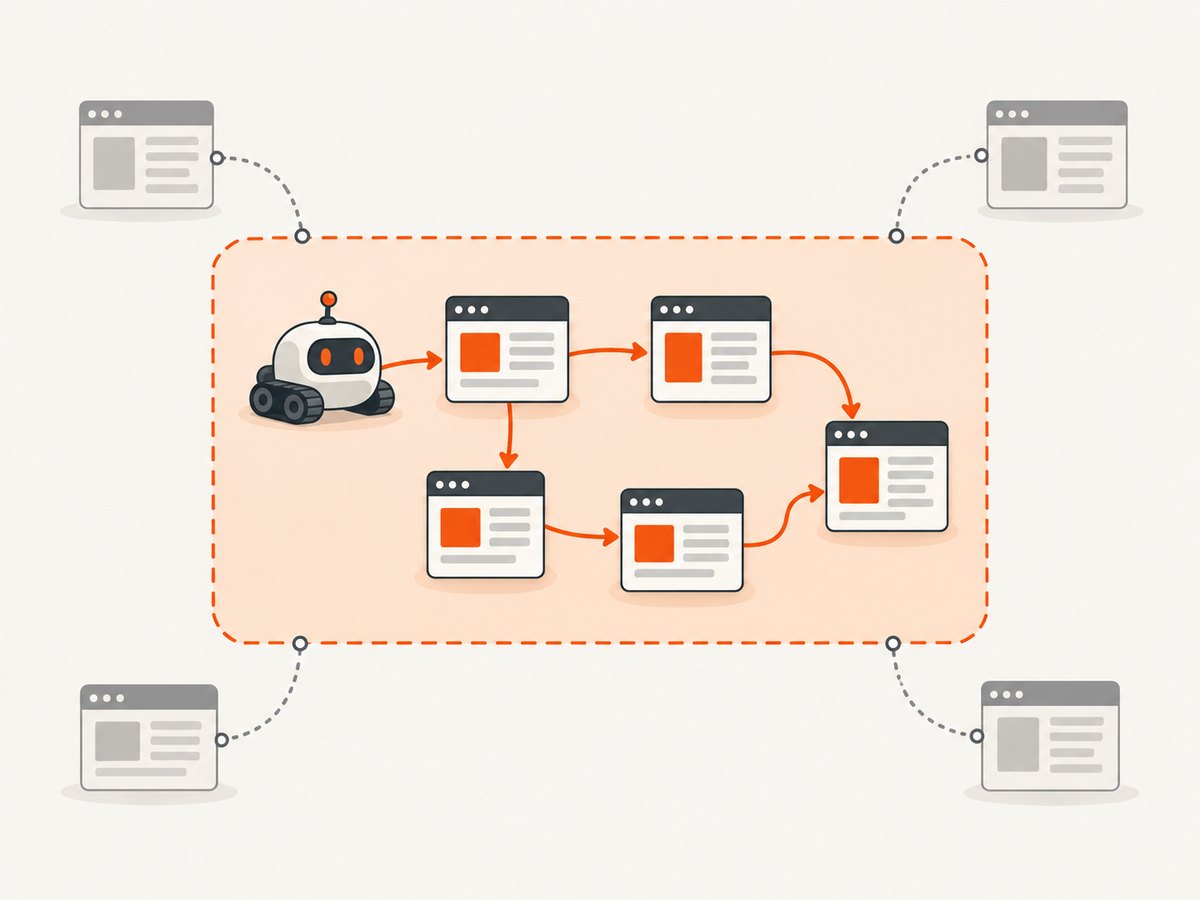
Use the narrowest crawl that meets your purpose. HTTrack’s travel modes can constrain directory and domain traversal; broader modes can follow links to other addresses. The project’s documentation also links to responsible-crawling guidance because very fast or very large downloads can overload a server or trigger blocking.
Method 1: mirror the site with HTTrack
Graphical workflow
- Install the current package from the official download page and confirm compatibility with your operating system.
- Open HTTrack and create a new project. Choose a project name and an empty destination folder.
- Enter the starting URL or URLs. Add only the domains and directories that belong in the mirror.
- Select a travel mode that keeps the crawl within the supplied address unless you deliberately need a wider boundary.
- Add filters for file types, paths, or hosts when the default scope is too broad.
- Start the mirror and let the project finish. Keep the project data and cache; HTTrack uses them to resume interrupted work and update an existing mirror.
- Open representative local pages before archiving: the home page, a deep page, an image-heavy page, a document link, and any page that matters to your use case.
Command-line example
For a simple public site, the command-line interface can write a mirror to a separate output directory:
httrack "https://example.com/" -O "./example-mirror"Replace the URL and destination with values you are authorized to copy. Consult the HTTrack command-line guide for your installed version before adding filters, proxy settings, limits, or update options. Keep the project directory intact if you expect to resume or update the mirror.
Method 2: use GNU Wget from a terminal
GNU Wget is a command-line alternative that can traverse parts of a site and retrieve resources referenced in HTML or CSS. It is useful when you want scripts, scheduled jobs, or a workflow built around standard terminal tools. The GNU Wget manual is the authority for options supported by your installed release.
Because Wget’s recursion, host-conversion, and rejection options need to match your exact goal, start with a small test directory and verify the output before launching a broad crawl. Confirm that internal links point to local files and that the command has not followed an unintended domain or generated thousands of query-string URLs.
Review the mirror before making the ZIP
Do not archive immediately after the first successful-looking download. Review the result:
- Open the local entry page without a network connection and follow several internal links.
- Check that stylesheets, fonts, images, and downloadable documents exist in the expected folders.
- Look for broken links caused by excluded hosts, URL parameters, redirects, or missing runtime routes.
- Compare a few important pages with the live site while online, then repeat the check offline.
- Record the starting URLs, crawl date, filters, and tool version in a text file beside the mirror.
When updating an existing project, preserve its cache. HTTrack uses that data to continue interrupted downloads and determine what changed. Its command-line documentation warns that an update can purge files no longer found in the newly discovered mirror; use a no-purge option when retaining older files is more important than matching the newest crawl exactly.
Create the ZIP archive
Once the local folder is reviewed, package that folder with your operating system’s archive feature:
- Windows: right-click the completed mirror folder, choose the built-in compressed-folder option, and save the resulting
.zipbeside the project. - macOS: Control-click the mirror folder in Finder and choose Compress.
- Linux: use your file manager’s archive action or an installed command-line archive utility.
Archive the mirror output folder, not the temporary cache or an enclosing directory that hides the entry page several levels deep. Open the ZIP after creation and confirm that it contains the expected top-level files. HTTrack also documents WARC and WACZ output for web archiving; those formats should not be labeled as an ordinary ZIP. Its FAQ describes shell redirection to tar or ZIP in some workflows, so verify the behavior of your installed interface before relying on it.
What will be missing from a mirror?
JavaScript-generated routes and content
HTTrack parses HTML and CSS but does not run JavaScript. A link assembled by a script, an API response fetched after page load, or an infinite-scroll list may never be discovered. A static shell can therefore download successfully while its visible content remains absent.
Server-side and private resources
ASP, CGI, PHP, database queries, and application source are executed on the server; the crawler receives their responses rather than their source code. Login-protected pages require authorization and may still depend on a live session. Do not treat a mirror as a backup of application data.
External and interactive services
Embedded video, maps, payment widgets, analytics, chat, and consent systems can point to other hosts or require network requests. Excluding those hosts improves scope control but leaves placeholders or broken controls. Including them can create a much larger and less predictable crawl.
Performance, reliability, and storage considerations
- Bound the crawl. Directory and domain limits reduce accidental expansion and make completion easier to reason about.
- Throttle responsibly. Large, fast downloads can cause server administrators to block your address. Follow published crawl guidance and use delays or limits where appropriate.
- Use resumable projects. Keep HTTrack’s cache so a network interruption does not force a full restart.
- Expect variable size. Image dimensions, video files, duplicate URLs, and query parameters often dominate storage.
- Separate mirror and archive. Keep the editable project folder until validation is complete; create a dated ZIP as a distribution or retention copy.
- Verify transfers. For long-term storage, record the ZIP size and a checksum using a local hashing tool so later copies can be compared.
There is no universal completion time or success percentage. The number of discoverable URLs, response sizes, server rate limits, redirects, and missing runtime content determine the result.

Or skip the browser setup
If you only need clean screenshots or PDFs of selected pages rather than a navigable offline mirror, ScreenshotNeo provides a one-request capture API. It accepts a URL and returns PNG, JPEG, WebP, or PDF. Cookie and consent banners, newsletter popups, and chat widgets are removed before the shot; bot checks, blank pages, timeouts, failed loads, and cache hits are not billed. Responses identify the page verdict and billing status with X-Page-Verdict and X-Billed headers. Its MCP server also lets Claude, Cursor, and other MCP clients call take_screenshot, get_page_info, and capture_pdf.
Use the ScreenshotNeo API documentation for all options. A basic capture looks like this:
cURL
curl -G "https://api.screenshotneo.com/v1/shot" -d access_key=YOUR_API_KEY --data-urlencode url=https://stripe.com -o shot.webpPython
import requests

r = requests.get(
    "https://api.screenshotneo.com/v1/shot",
    params={"access_key": "YOUR_API_KEY", "url": "https://stripe.com"},
    timeout=90,
)
r.raise_for_status()
open("shot.webp", "wb").write(r.content)
Node.js
const q = new URLSearchParams({ access_key: 'YOUR_API_KEY', url: 'https://stripe.com' });
const res = await fetch(`https://api.screenshotneo.com/v1/shot?${q}`);
if (!res.ok) throw new Error(`HTTP ${res.status}`);
const data = Buffer.from(await res.arrayBuffer());
require('fs').writeFileSync('shot.webp', data);
Relevant capture options include full-page screenshots with lazy images loaded, CSS-selector element capture, dark mode, device presets or custom viewports, retina scale, PDF paper size and margins, custom CSS and JavaScript, clicks, selector or network-idle waits, request and resource blocking, headers, cookies, user agents, Authorization, timezone, geolocation, transparent backgrounds, resizing, caching with a chosen TTL, signed public image links, asynchronous jobs with signed webhooks, bulk capture for up to 100 URLs, and a usage API. Every feature is available on every plan. The Free plan includes 1,000 shots per month without a card; paid plans start at $5 for 3,000 shots.
Create a free ScreenshotNeo account and use the API when a static image or PDF is the deliverable instead of a complete offline site.
Troubleshooting
The ZIP opens, but links are broken
Cause: the crawler excluded a directory or host, or the page uses absolute/runtime URLs. Fix: inspect the missing URL in the crawl log, widen scope only as needed, and rerun into a new project folder. Check one page offline after each scope change.
The homepage is present but the app is empty
Cause: content is fetched or routes are generated by JavaScript. Fix: treat the mirror as a static snapshot, identify server-rendered URLs that can be crawled directly, or capture important rendered views with a browser-based screenshot tool.
The crawl never finishes
Cause: calendars, search parameters, session URLs, or broad domain traversal create an effectively unbounded URL set. Fix: tighten directory and domain boundaries, exclude query patterns, limit file types, and restart in a clean destination.
Images or fonts are missing
Cause: assets are hosted on a CDN or loaded after JavaScript runs. Fix: check the asset hostname, allow it only if authorized, and confirm that the resource is referenced in crawlable HTML or CSS.
An update removed older files
Cause: update mode can purge files no longer discovered. Fix: restore the prior ZIP or rerun with the documented no-purge behavior when preserving historical files matters.
The server blocks the crawler
Cause: request volume, access rules, robots directives, or authentication. Fix: slow the crawl, respect the site’s published rules, authenticate only with permission, and contact the site administrator when a larger authorized export is required.
FAQ
Can I download any website as a ZIP?
You can mirror publicly reachable resources that the crawler discovers and that you are authorized to copy. You cannot obtain private server code or guarantee that a dynamic application will work offline.
Is a WARC file the same as a ZIP?
No. WARC and WACZ are web-archiving formats. A ZIP is a general-purpose package of the completed mirror directory.
Should I use HTTrack or Wget?
HTTrack is usually easier for a bounded offline mirror with link rewriting and resumable projects. Wget suits terminal-based workflows where you want to control recursion yourself.
Will the ZIP contain the site’s database?
No. It contains downloaded responses and assets, not database rows, application source, private APIs, or user data behind authentication.
How do I preserve a website for a specific date?
Run a bounded crawl, record the start URL and date, retain the project cache, validate representative pages offline, and store the resulting ZIP with a checksum and notes about filters.


