How to Download a Website in Chrome
Save a web page in Chrome for offline reading, download one on Android, or mirror multiple pages with a separate tool. Learn what each method captures and where it falls short.
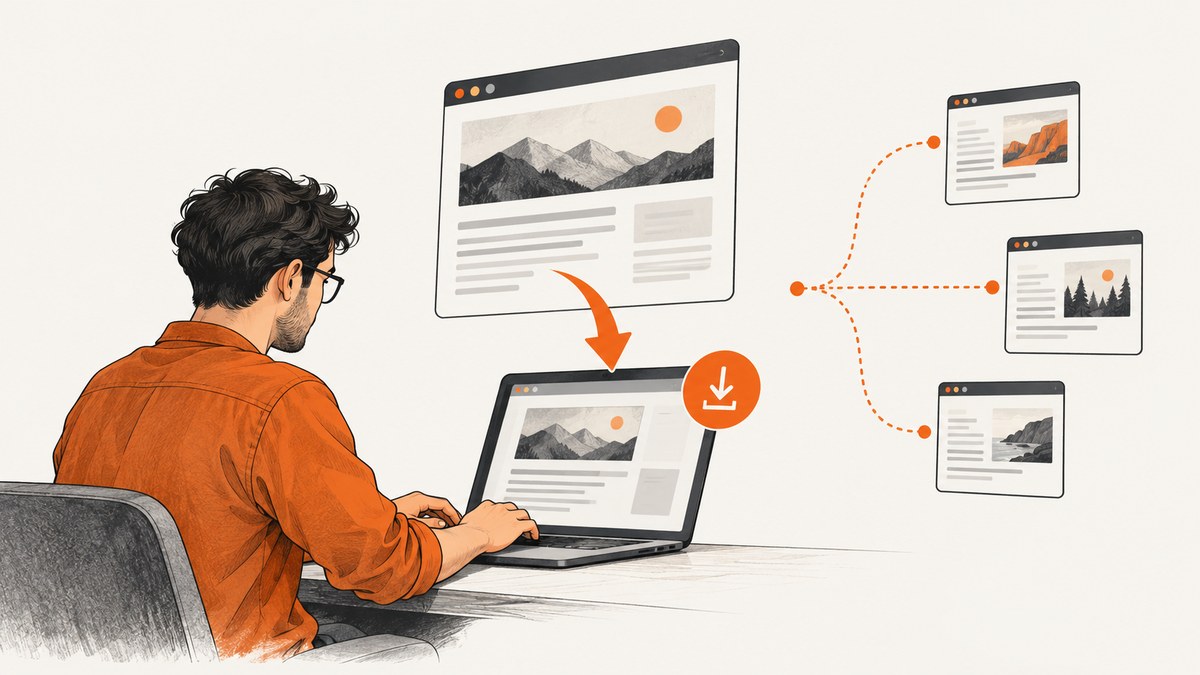
To save the page you are viewing in desktop Chrome, open it while online, then select More > Cast, save and share > Save page as… Choose a folder and save. Open the saved file on your computer to read it. This saves the current page; it does not recursively download every page linked from the site. Google’s Chrome Help says you need to be online when saving.
On Android, open the page while connected, tap More > Download, then find it under More > Downloads. If by “download a website” you mean making a local copy of multiple pages, Chrome’s built-in save command is not a site mirroring tool. A separate program such as HTTrack is designed to recursively copy site files and arrange local links, with important limits for dynamic and access-controlled sites.
1. What “download a website” means in Chrome
The phrase can describe three different tasks. Choose the one that matches what you need:

| Goal | Use | What you get |
|---|---|---|
| Keep one page for offline reading | Chrome’s Save page as… on desktop or Download on Android | A local copy of the page you opened |
| Find a page again later | Chrome Reading List | A saved-for-later entry; it is a different feature from downloading a local file |
| Browse several copied pages offline | A separate site-mirroring tool, such as HTTrack | Files from recursively discovered pages, subject to site and tool limits |
| Capture a visual snapshot of a page | A screenshot tool or API | An image or PDF of rendered content, not a navigable local website |
A saved page and a site mirror are not interchangeable. A page file may be enough for an article or reference. A mirror is more appropriate when you need multiple local pages with links between them. Neither description promises that every script, form, login state, or live feature will work offline.
2. Save one page on desktop Chrome
- Connect to the internet and open the page in Chrome.
- Open the Chrome menu with More (the three-dot menu).
- Select Cast, save and share, then Save page as….
- Choose a folder and filename in the save dialog, then select Save.
- To read the copy, open the saved file on your computer. Chrome Help says it opens in the default browser.
Chrome must be online while saving because it needs to retrieve the page and its available resources. If the site is slow or still loading, wait for the content you need to appear before saving. The downloaded copy reflects what Chrome could access at that time; it is not a promise of a complete archive of the site.
Choosing a save format
The Save As dialog can offer different file types depending on the page and Chrome environment. If you choose a webpage format that creates a companion resource folder, keep that folder next to the saved HTML file; moving only the HTML can break references to downloaded assets. A single-file option may be more convenient to move, but it still represents one page, not a whole site. The exact choices can vary, so use the formats shown by your Chrome dialog rather than relying on a specific option always being present.
3. Download a page on Android
- While connected, open the page in Chrome for Android.
- Tap More, then tap Download.
- To open the downloaded page later, tap More > Downloads.
- Find the page in the download list and tap it.
These instructions are specific to Android. Chrome’s menu labels and available features differ across desktop and mobile versions, so use the platform’s own Download command rather than looking for the desktop Save page as… path. See Chrome Help for Android.
4. Save a page for later with Reading List
If your goal is simply to return to a page, use Chrome’s Reading List: on desktop, open More > Bookmarks and lists > Reading list, then add the tab. This is a save-for-later list. When you specifically need a downloaded local copy for offline reading, use Save page as… on desktop or Download on Android instead. Google documents these as separate workflows in its computer instructions.
5. Download multiple pages: use a site mirror
Chrome’s page-saving command saves the page you are viewing. To copy multiple linked pages into a local directory, HTTrack is a separate website-copying program. Its project description says it can recursively download HTML, images, and other files and arrange relative links for local browsing. Its interface guide covers configuring a mirror.
Typical mirror workflow
- Install and open HTTrack from its official project source.
- Create a new project and choose a local directory for the copied files.
- Enter the starting website address and configure the mirror scope and other options in the program.
- Review the scope before starting. Recursive discovery can retrieve many pages and files, so keep the copy limited to material you are authorized to download and actually need.
- Start the mirror and let the program retrieve the allowed pages and resources.
- Open the generated local site entry point in a browser and follow its local links to inspect what was captured.
This is a general outline, not a guarantee that every HTTrack version uses identical labels or defaults. Refer to its official guide for the interface details available in your version. HTTrack’s stated purpose is to build a recursive local copy; that does not establish that every modern website can be reproduced faithfully offline.
What a mirror may not preserve
- Interactive behavior: scripts that call live services may not work when disconnected.
- Dynamic content: content assembled after page load may be missing or incomplete.
- Restricted content: the reviewed HTTrack documentation does not establish that login-protected or otherwise access-controlled material will be captured correctly.
- External resources: links or assets hosted outside the chosen scope may remain online dependencies.
- Site changes: the local copy reflects what was accessible during the mirror run, not subsequent updates.
Check the resulting copy while offline if offline behavior matters. If it is for a legal, compliance, or archival purpose, confirm that the method meets the relevant requirements; a browser save or mirror should not be assumed to be a formally complete archive.
6. Capture a screenshot instead of downloading page files
Sometimes “download a website” means “keep a picture of how this page looked.” A screenshot captures rendered pixels rather than HTML files and navigable links. It is useful for visual review, documentation, or sharing an appearance. It does not make the page interactive offline. For one or more screenshot captures, use a screenshot workflow; for an offline browsable collection, use the page-save or mirroring approach above.

7. Or skip the browser setup
If you need a clean visual capture rather than a local website archive, ScreenshotNeo is a website screenshot API and MCP server for developers. One GET request returns a screenshot as PNG, JPEG, or WebP, or a PDF. See the API documentation.
curl -G "https://api.screenshotneo.com/v1/shot" -d access_key=YOUR_API_KEY --data-urlencode url=https://stripe.com -o shot.webpimport requests
r = requests.get(
"https://api.screenshotneo.com/v1/shot",
params={"access_key": "YOUR_API_KEY", "url": "https://stripe.com"},
timeout=90,
)
r.raise_for_status()
open("shot.webp", "wb").write(r.content)const q = new URLSearchParams({ access_key: 'YOUR_API_KEY', url: 'https://stripe.com' });
const res = await fetch(`https://api.screenshotneo.com/v1/shot?${q}`);
if (!res.ok) throw new Error(`Screenshot request failed: ${res.status}`);
await Bun.write('shot.webp', res);Replace the example URL with the page you want to capture and supply your API key. The Node.js example uses Bun’s file writer; in Node, write the response bytes with fs/promises:
import { writeFile } from 'node:fs/promises';

const q = new URLSearchParams({ access_key: 'YOUR_API_KEY', url: 'https://stripe.com' });
const res = await fetch(`https://api.screenshotneo.com/v1/shot?${q}`);
if (!res.ok) throw new Error(`Screenshot request failed: ${res.status}`);
await writeFile('shot.webp', Buffer.from(await res.arrayBuffer()));
ScreenshotNeo removes cookie banners, newsletter popups, and chat widgets before capture. Bot checks, blank pages, failed loads, timeouts, and cache hits are not billed; response headers report the page verdict and billing status. Its MCP server offers take_screenshot, get_page_info, and capture_pdf for Claude, Cursor, and other MCP clients. The Free plan includes 1,000 shots a month without a card; paid plans start at $5 for 3,000 shots. A screenshot is a visual capture, not a recursive offline copy of a website. Sign up for 1,000 free screenshots a month, no card required.
8. Troubleshooting
| Problem | Likely cause | What to try |
|---|---|---|
| Save page as… is missing | You may be on a different Chrome platform, or looking in the wrong menu. | On desktop, check More > Cast, save and share. On Android, use More > Download. |
| The saved page is incomplete | Some page content may load later, require interaction, or come from a service unavailable to the saved copy. | Wait for the needed content to load before saving. Treat the result as a page copy, not a full site mirror. |
| The page will not save correctly | The browser was offline or could not retrieve needed resources. | Reconnect, reload the page, wait for it to finish loading, and save again. |
| The saved HTML opens without styling or images | A companion resources folder may have been moved, renamed, or deleted. | Restore the folder next to the HTML file, or save again in a format offered by Chrome that suits how you will move the file. |
| Android download is hard to find | The item is in Chrome’s download list rather than the desktop file dialog. | Open More > Downloads in Chrome and select the page. |
| A mirrored link goes back online or fails offline | The resource may be outside the mirror scope or depend on live services. | Inspect the mirror scope and local files. Expect some dynamic and external behavior to remain unavailable. |
| The mirror omits restricted pages | The documentation reviewed does not promise capture of access-controlled content. | Do not assume a mirror bypasses access controls. Use only authorized access and consult the tool’s guide for supported configuration. |
9. Performance, reliability, and storage
A single Chrome save is usually the simplest path when one page is enough: it requires no separate mirroring setup, but the page must be reachable while you save. For a multi-page mirror, scope matters. Recursively following links can produce many files and take longer than saving one page; review the selected scope and available mirror settings before running it. The HTTrack sources describe recursive retrieval and mirror management, but do not provide a universal speed, storage, or completeness guarantee, so those depend on the site, network, and options used.
For reliability, keep the original URL alongside the saved copy, preserve any companion folder, and open the result to confirm the content you need is present. If offline access is a hard requirement, disconnect from the network for a check. A screenshot can be smaller and simpler when the only requirement is a visual record, but it cannot replace HTML navigation or a site mirror.
10. FAQ
Does Chrome download an entire website?
The built-in Save page as… workflow saves the page you are viewing. A recursive multi-page copy is a separate task for site-mirroring software.
Can I download a page from Chrome on my phone?
On Android, open it while online, tap More > Download, then retrieve it under More > Downloads.
Is Reading List an offline download?
Chrome documents Reading List separately from its page-saving instructions. Use the Download or Save page as workflow when you need a local copy.
Can I turn a saved page into a PDF?
This article’s Chrome Help sources describe saving a page and Android downloads, not a specific print-to-PDF procedure. Chrome’s available print options depend on platform and page; for a screenshot service that returns PDF, ScreenshotNeo supports PDF output.
Will a saved copy keep working forever?
A local file remains subject to its own downloaded resources and the behavior of the page. Features that depend on online services may stop working offline, and a mirror is not a guarantee of full fidelity.


