How to Download a Website Favicon
Find a site's declared favicon, resolve its URL, and download the right file with a browser, cURL, Python, or Node.js.

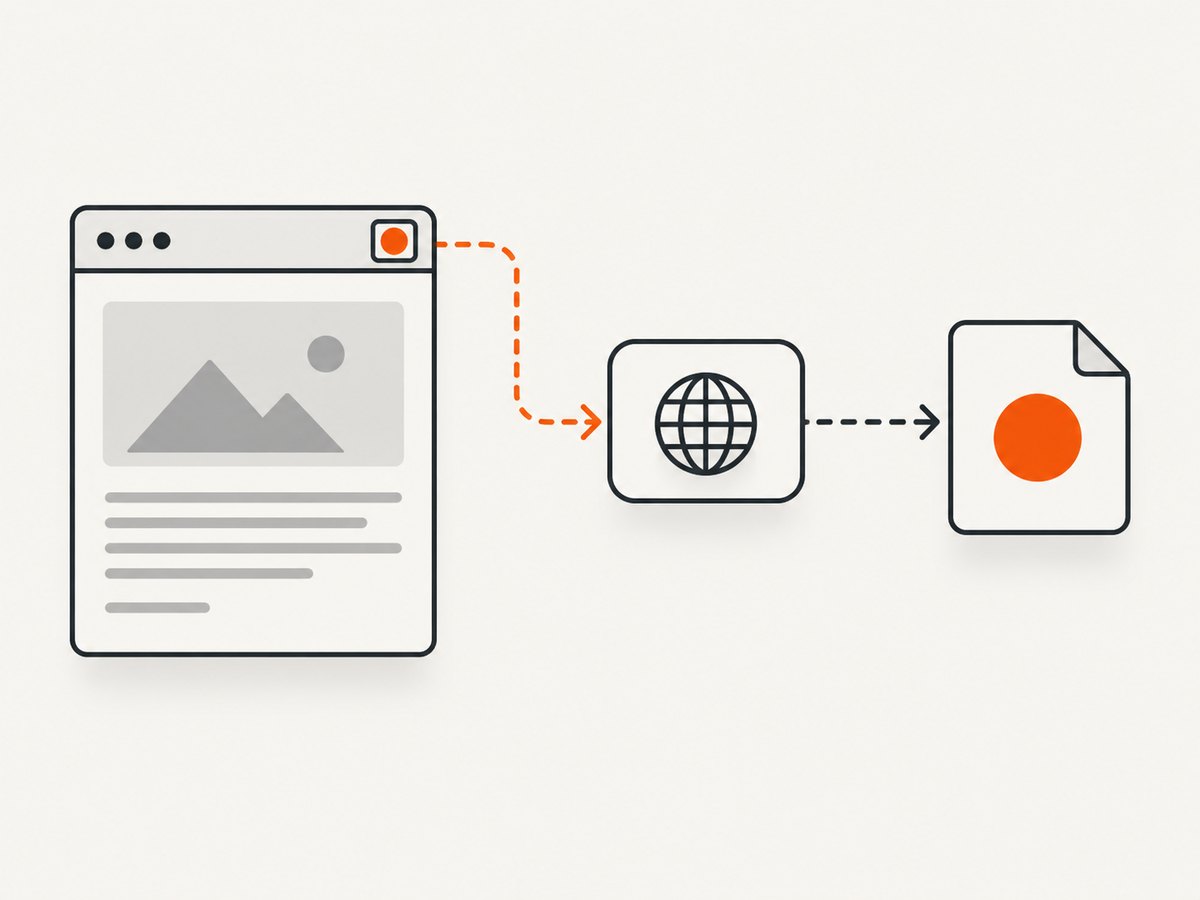
The reliable way to download a website favicon is to inspect the homepage HTML, find a <link> element whose rel includes icon, resolve its href against the page URL, and save the referenced image. Do not assume the icon is always /favicon.ico: the URL can be relative, absolute, or hosted on a CDN.
1. Find and save a favicon in a browser
- Open the website homepage.
- View the page source or inspect the document head.
- Search for
rel="icon". Also check historicalrel="shortcut icon"and Apple touch icon declarations. - Copy the declaration’s
hrefvalue. - If the value is relative, resolve it against the homepage URL. For example,
/assets/icon.pngonhttps://example.com/docsbecomeshttps://example.com/assets/icon.png. - Open the resolved image URL in a new tab and use the browser’s normal image-save command.
The exact save-menu wording varies by browser. Finding the resource URL and saving the image are separate steps.
2. Understand multiple icon declarations
A page can declare several icons. Browsers select among candidates using attributes such as media, type, and sizes; the rel value and declared purpose also matter. Compare these fields before choosing a file.

| Attribute | What it tells you |
|---|---|
rel |
Whether the link is a favicon, shortcut icon, Apple touch icon, or another resource. |
href |
The relative, absolute, or CDN URL to fetch. |
type |
The declared MIME type, such as image/png or image/svg+xml. |
sizes |
Available dimensions, for example 16x16 or any. |
media |
The conditions under which that candidate applies. |
Google Search has separate display guidance: a square favicon must be at least 8×8 pixels, and Google recommends larger than 48×48 pixels for better display. The URL must be stable and crawlable, and Google says appearance in Search is not guaranteed even when the guidance is met. Those rules describe Google Search eligibility, not a requirement for downloading an image. See Google Search Central’s favicon guidance.
3. Download with cURL
Once you know the final image URL, save it directly:
curl -L "https://example.com/path/to/favicon.png" -o favicon.png-L follows redirects. Keep the extension aligned with the response’s actual format when possible; an ICO, PNG, JPEG, GIF, or SVG file is not interchangeable just because it was named favicon.
4. Discover and download it with Python
This runnable script fetches the homepage, checks icon link candidates, resolves relative URLs, downloads the first suitable candidate, and writes the response bytes without assuming a fixed filename.
from urllib.parse import urljoin
from pathlib import Path
import requests
from bs4 import BeautifulSoup

page_url = "https://example.com/"
headers = {"User-Agent": "favicon-downloader/1.0"}

page = requests.get(page_url, headers=headers, timeout=30)
page.raise_for_status()
soup = BeautifulSoup(page.text, "html.parser")

candidates = []
for link in soup.find_all("link", href=True):
    rel_values = {str(value).lower() for value in (link.get("rel") or [])}
    if "icon" in rel_values or "shortcut" in rel_values or "apple-touch-icon" in rel_values:
        candidates.append(link)

if not candidates:
    raise RuntimeError("No icon link was declared in the homepage HTML")

# Prefer a declared favicon over an Apple touch icon when both exist.
candidates.sort(key=lambda link: 0 if "icon" in {str(v).lower() for v in (link.get("rel") or [])} else 1)
icon_url = urljoin(page_url, candidates[0]["href"])

icon = requests.get(icon_url, headers=headers, timeout=30)
icon.raise_for_status()
Path("favicon.download").write_bytes(icon.content)
print(f"Saved {len(icon.content)} bytes from {icon.url}")
Install the dependencies with python -m pip install requests beautifulsoup4. For production use, inspect every candidate’s type, sizes, and media values instead of always taking the first match.
5. Discover and download it with Node.js
This example uses Node.js 18 or newer, whose global fetch is available without an extra HTTP library. The small parser handles common HTML link syntax; use an HTML parser package when processing untrusted or unusually malformed markup.
import { writeFile } from "node:fs/promises";

const pageUrl = "https://example.com/";
const pageResponse = await fetch(pageUrl, {
  headers: { "user-agent": "favicon-downloader/1.0" }
});
if (!pageResponse.ok) throw new Error(`Homepage returned ${pageResponse.status}`);
const html = await pageResponse.text();

const links = [...html.matchAll(/<link\\b[^>]*>/gi)].map(m => m[0]);
const candidates = links
  .map(tag => ({
    rel: tag.match(/\\brel=["']([^"']+)["']/i)?.[1]?.toLowerCase() || "",
    href: tag.match(/\\bhref=["']([^"']+)["']/i)?.[1]
  }))
  .filter(link => link.href && /(?:^|\\s)(?:icon|shortcut|apple-touch-icon)(?:\\s|$)/.test(link.rel));

if (!candidates.length) throw new Error("No icon link was declared");
const selected = candidates.find(link => /(?:^|\\s)icon(?:\\s|$)/.test(link.rel)) || candidates[0];
const iconUrl = new URL(selected.href, pageUrl);

const iconResponse = await fetch(iconUrl, {
  headers: { "user-agent": "favicon-downloader/1.0" }
});
if (!iconResponse.ok) throw new Error(`Icon returned ${iconResponse.status}`);
await writeFile("favicon.download", Buffer.from(await iconResponse.arrayBuffer()));
console.log(`Saved ${iconUrl.href}`);
6. Handle pages that do not declare an icon
If no matching link appears in the homepage HTML, there may be no declared favicon, the icon may be injected by JavaScript, or the server may expose a conventional fallback. You can try https://host.example/favicon.ico as a separate check, but treat it as a guess and verify the response. A browser’s rendered DOM can differ from the original HTML, so inspect the live DOM when a script adds the link after load.
7. Chrome extension retrieval
Chrome extensions have a documented favicon route:
chrome-extension://EXTENSION_ID/_favicon/?pageUrl=https%3A%2F%2Fexample.com%2F&size=32The extension must request the favicon permission. Chrome documents 16×16 as the common size and shows a 32-pixel request example. This is an extension-specific mechanism, not a general public endpoint for ordinary web apps. See Chrome’s favicon documentation.
8. Edge cases and validation
- Relative URLs: use URL resolution, not string concatenation. A base path and a root-relative path resolve differently.
- CDN-hosted icons: fetch the host named by
href; it may differ from the page host. - Query strings and fragments: preserve query parameters because they can select a transformed asset or signed URL.
- SVG icons: save the SVG as text or rasterize it only if your downstream tool requires PNG or another bitmap format.
- ICO files: one ICO can contain multiple embedded sizes. Do not infer the final dimensions from the filename.
- HTML instead of an image: a redirect, login page, bot check, or error document can return status 200. Check
Content-Typeand inspect the bytes before treating the response as an image. - Access controls: the icon may require cookies, an authorization header, a referrer, or a browser session.
- Robots and Search guidance: Googlebot crawl requirements affect Search display, not whether your own script can save a publicly accessible file.
9. Troubleshooting
| Symptom | Likely cause | Fix |
|---|---|---|
No rel="icon" found |
The link is injected later or the site has no declaration. | Inspect the live DOM, check other icon rel values, and optionally test the conventional /favicon.ico URL. |
| 404 for the copied URL | A relative path was resolved against the wrong base. | Resolve it with the homepage URL, for example Python’s urljoin or JavaScript’s new URL. |
| Downloaded file will not open | The response is HTML, a bot check, or a redirect target. | Use -L, inspect the final URL and Content-Type, and send an appropriate user agent or session cookie. |
| 403 or 401 | The CDN or site requires credentials or a browser context. | Use authorized cookies or headers; do not bypass access controls. |
| Wrong icon selected | Several candidates have different sizes, media, or formats. | Compare rel, media, type, and sizes, then choose for your target context. |
| Only a tiny icon is available | The site declared a small asset. | Download the declared file as-is; Search’s recommended size is separate from downloadability. |
10. Performance, reliability, and cost
For one-off downloads, a direct request is fastest and cheapest. For many sites, reuse an HTTP session, set finite connect and read timeouts, follow redirects, cap response size, and cache results by the final URL. Respect the site’s access rules and avoid repeatedly fetching unchanged assets. A favicon lookup normally needs one homepage request and one icon request; JavaScript-rendered sites can require a real browser, which adds startup time and resource usage.
Store the original bytes when fidelity matters, and record the source URL, final URL, retrieval time, status, content type, and hash so later changes are detectable. Treat a successful HTTP status as insufficient validation: verify that the payload is an expected image format.
11. Or skip the browser setup
If your workflow needs a rendered page capture as well as the favicon, ScreenshotNeo provides a website screenshot API and MCP server. It accepts one GET request and can return PNG, JPEG, WebP, or PDF. Cookie and consent banners, newsletter popups, and chat widgets are removed before capture; bot checks, blank pages, timeouts, failed loads, and cache hits are not billed. An MCP server provides take_screenshot, get_page_info, and capture_pdf for AI agents.
See the ScreenshotNeo API documentation for all options. A direct call looks like this:
curl -G "https://api.screenshotneo.com/v1/shot" -d access_key=YOUR_API_KEY --data-urlencode url=https://stripe.com -o shot.webpimport requests
r = requests.get("https://api.screenshotneo.com/v1/shot", params={"access_key": "YOUR_API_KEY", "url": "https://stripe.com"}, timeout=90)
open("shot.webp", "wb").write(r.content)const q = new URLSearchParams({ access_key: 'YOUR_API_KEY', url: 'https://stripe.com' }); const res = await fetch(`https://api.screenshotneo.com/v1/shot?${q}`);ScreenshotNeo includes full-page and element capture, device presets, custom CSS and JavaScript, headers and cookies, waits, blocking controls, caching, signed links, async jobs, bulk capture, and usage reporting. The Free plan includes 1,000 shots per month with no card; paid plans start at $5 for 3,000 shots. Create a free ScreenshotNeo account.
12. FAQ
Is /favicon.ico always the favicon?
No. It is a common fallback location, but the authoritative declaration is the icon link in the page head when one exists.
Can I download a favicon without a browser?
Yes. Fetch the homepage, parse its icon links, resolve the selected URL, and download the response with cURL, Python, or Node.js.
Why does a site have several favicon files?
Different contexts can need different sizes, formats, media conditions, or touch icons. The browser uses the declaration attributes to choose among them.
Does Google’s 48-pixel recommendation matter for my download?
No. It is a recommendation for better Google Search display. It does not prevent you from downloading a smaller declared image.
What should I save when the icon URL redirects?
Save the response bytes from the final URL and record that final URL. Redirects are normal for CDNs and asset pipelines.


