How to Download a Website for Offline Viewing on iPad
Save one page with Safari Reading List, download linked files, or archive a linked site for offline use on iPad.

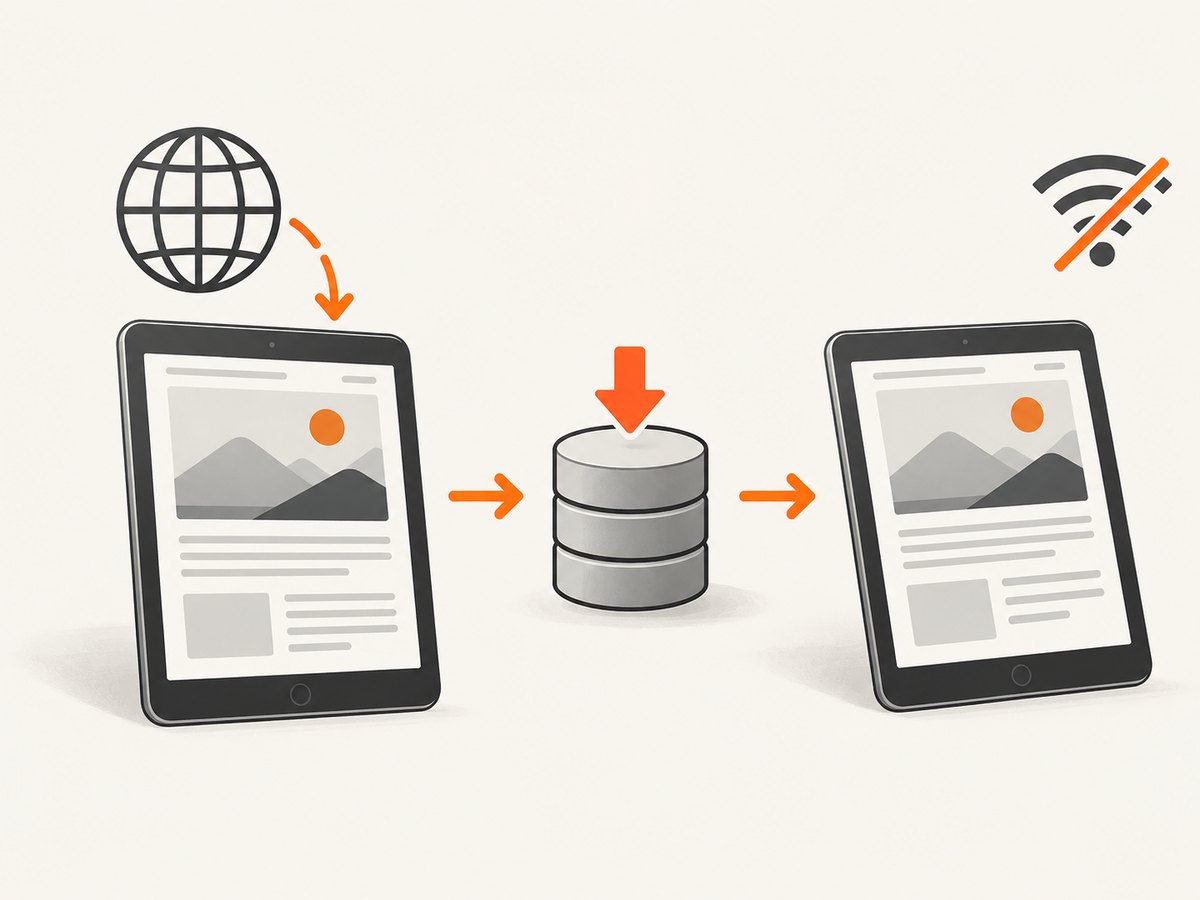
For one article or page, use Safari Reading List. Open the page in Safari, tap Share, choose Add to Reading List, and enable Settings > Apps > Safari > Automatically Save Offline. Reopen it from Safari’s sidebar under Reading List.
Safari’s Reading List is designed for reading saved pages offline. It is not a documented tool for crawling an entire website. For a linked PDF or other file, touch and hold its link and choose Download Linked File. For many linked pages, use a dedicated offline-site archiver and set a page limit and link depth.
1. Save a single webpage with Safari Reading List
- Open Safari on your iPad and load the page while online.
- Tap the Share button.
- Tap Add to Reading List.
- For automatic downloads, open Settings > Apps > Safari.
- Under Reading List, turn on Automatically Save Offline.
- Open Safari’s sidebar, tap Reading List, and select the saved page.
Apple documents Reading List as a way to download saved items and read them without an internet connection. The saved copy is intended for reading, so interactive site functions may not be available offline.
2. Download a PDF, image, or other linked file
Use Safari’s file download command when the thing you need is a document or asset rather than a webpage copy.
- Touch and hold the link to the file.
- Tap Download Linked File.
- Tap Safari’s Downloads control to open the downloaded item.
- Choose where downloads are stored in Settings > Safari > Downloads.
This saves the linked file itself. It does not save the surrounding page, its navigation, or its scripts.
3. Download many pages or an entire linked site
iPadOS Safari does not provide a documented whole-site crawler. If you need a group of linked pages, use an archiver app that follows links and stores page assets.
Website Saver & Offline Viewer
The App Store listing for Website Saver & Offline Viewer describes configurable link depth and page limits, preservation of styles and files, a visual site tree, and saved sites that open without Wi‑Fi or cellular data. The listing reports iPadOS 18 or later compatibility and in-app purchases.
- Paste or open the starting web address in the app.
- Set the maximum link depth.
- Set a page limit so a large or looping site cannot consume unlimited storage.
- Start the save operation and wait for its completion report.
- Open the saved site from the app’s library and test several pages before going offline.
Results depend on the target site. Login-protected pages, paywalls, live databases, streaming media, and JavaScript-dependent interactions may still require a connection.
4. Choose the right method
| Need | Use | What is saved | Main limitation |
|---|---|---|---|
| Read one article later | Safari Reading List | A reading copy of the page | Not a whole-site crawler; interactive features may not work |
| Keep a PDF, image, or document | Download Linked File | The linked file | Does not include the surrounding website |
| Browse many linked pages | A site-archiver app | Pages and selected assets within configured limits | Compatibility, storage, and page-limit variables |
5. Make an offline copy reliable
- Save while online: wait for the page or archive report to finish before leaving Wi‑Fi.
- Set boundaries: use a page limit and link depth for large sites.
- Check storage: downloaded assets can consume substantial iPad space.
- Test offline: enable Airplane Mode, open representative pages, follow internal links, and open important files.
- Expect dynamic limits: live search, account sessions, comments, streaming video, and server-side data may not be preserved.
- Respect access rights: save only material you own or are allowed to keep under the site’s terms and applicable law.
6. Troubleshooting
The Reading List page is visible but will not open offline
Confirm that Automatically Save Offline was enabled before saving, and reopen the page once while connected so Safari can finish downloading it. Remove and re-add the item if the download was interrupted.
The page loads without images or styling
The site may load assets from separate servers, require JavaScript, or block offline access. Try saving again on a stable connection. For a document, download the linked file directly instead of saving the page.
A downloaded link is not where expected
Check Settings > Safari > Downloads for the selected destination, then open Safari’s Downloads list. The browser may be saving to iCloud Drive, On My iPad, or another configured folder.
An archived site stops at a few pages
Review the app’s page limit and link depth. A low depth saves only pages close to the starting URL; a low page limit stops the crawl early. Raise limits gradually and watch available storage.
Login or paywalled content is missing
Offline copies cannot reliably reproduce authenticated sessions or content that the server checks on every request. Sign-in state, subscription checks, and account data may require an active connection.
Videos or live features do not work
Streaming players, live feeds, real-time dashboards, and other server-backed features are connection-dependent. Look for a downloadable file or export from the site instead.
7. Or skip the browser setup
If your goal is a clean image or PDF of a page rather than a navigable offline website, ScreenshotNeo captures it through one GET request. It can load lazy images, capture a full page or a CSS-selected element, apply a device or viewport, run custom JavaScript, wait for a selector or network idle, and return PNG, JPEG, WebP, or PDF.
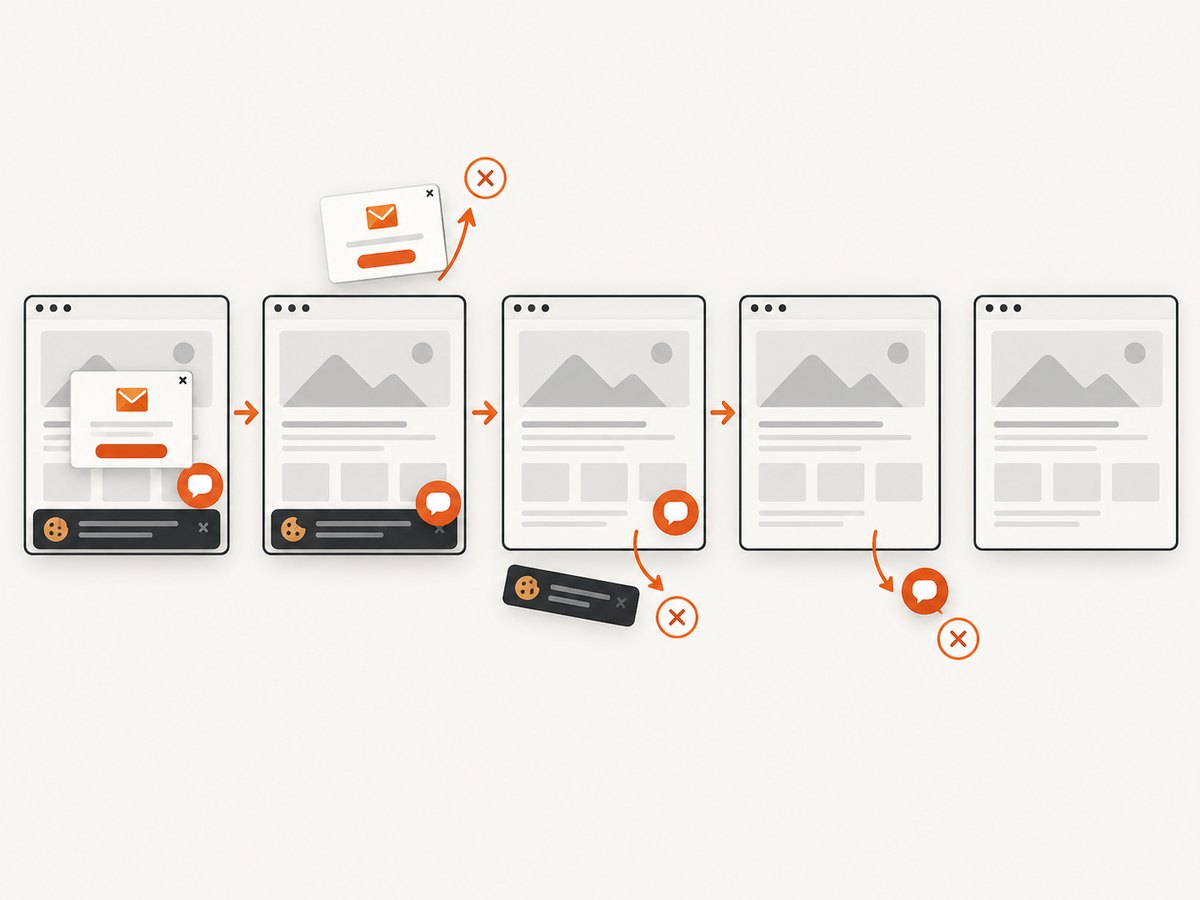
Cookie banners, newsletter popups, and chat widgets are removed before the shot. Bot checks, blank pages, timeouts, failed loads, and cache hits are never billed, and response headers report the page verdict and billing status. ScreenshotNeo also provides an MCP server so Claude, Cursor, and other MCP clients can take screenshots.
See the ScreenshotNeo API documentation for all options.
cURL
curl -G "https://api.screenshotneo.com/v1/shot" -d access_key=YOUR_API_KEY --data-urlencode url=https://stripe.com -o shot.webpPython
import requests
r = requests.get("https://api.screenshotneo.com/v1/shot", params={"access_key": "YOUR_API_KEY", "url": "https://stripe.com"}, timeout=90)
open("shot.webp", "wb").write(r.content)
Node.js
const q = new URLSearchParams({ access_key: 'YOUR_API_KEY', url: 'https://stripe.com' });
const res = await fetch(`https://api.screenshotneo.com/v1/shot?${q}`);
The Free plan includes 1,000 screenshots per month with no card. Paid plans start at $5 for 3,000 shots. Create a free ScreenshotNeo account.
8. Performance, reliability, and cost considerations
- Reading List: simplest for a few pages and requires no extra app, but storage and offline fidelity are limited to Safari’s saved-reading behavior.
- Archiving: page limits reduce runaway crawls; preserving more assets increases download time and storage use.
- ScreenshotNeo: a single capture is smaller and easier to share than a multi-page archive. Cache TTL, wait conditions, blocked resource types, viewport, and output format let you control the request. Only clean shots are billed.
FAQ
Can I download an entire website directly in Safari?
Safari’s documented tools cover Reading List items and linked-file downloads. They do not describe crawling an entire site into a local copy.
Will saved pages sync between my Apple devices?
Reading List synchronization and offline availability can depend on your Apple account and device settings. Verify the page on the iPad you will use offline.
Can I save a website with its original navigation?
A dedicated archiver may preserve linked navigation within its configured depth and page limit. Reading List is optimized for individual reading pages.
What should I do before a flight?
Save the pages or archive while connected, wait for completion, enable Airplane Mode, and open the important pages and files once to verify them.


