How to Download a Website as a PDF on Android
Save any webpage as a PDF on Android with Chrome, Firefox, or Galaxy print tools, plus fixes for missing menus and hard-to-find files.
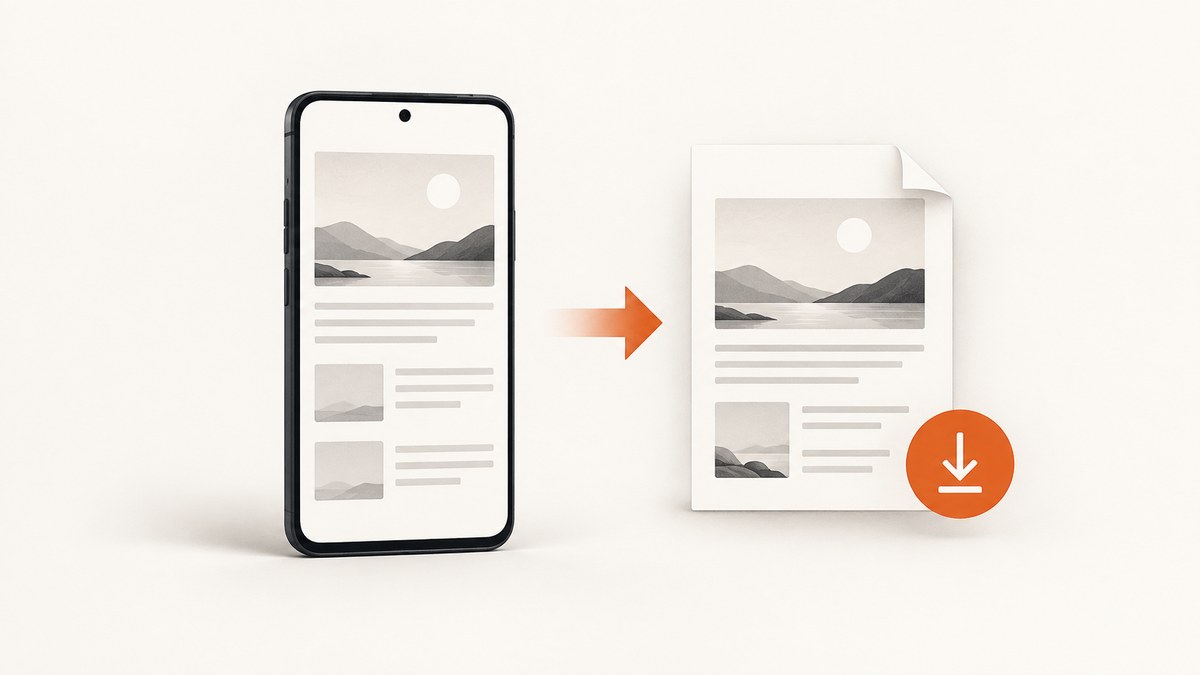
Fastest method: In Chrome for Android, open the page, tap More (⋮) → Share → Print, choose Save as PDF in the printer selector, choose a device location, and tap the PDF/print action. A physical printer is not required.
The exact labels can vary with your browser version, Android release, device manufacturer, and installed apps. If you use Firefox or a Samsung Galaxy device, the alternatives below provide documented routes.
1. Save a website as a PDF in Chrome for Android
- Open Chrome and navigate to the webpage.
- Tap the three-dot More menu in the top-right corner.
- Tap Share.
- Choose Print. If Android initially shows a physical printer, open the printer selector and select Save as PDF.
- Open the down-arrow or print-settings control if you need to change paper size, orientation, color, or other available options.
- Tap the PDF or print action, choose a folder or destination on the device, and save the file.
Google documents this workflow for printing a page, image, or file from Chrome on Android: Chrome Help: Print from Chrome. The saved result is a PDF file you can open, share, upload, or print later.

Choose useful print settings
Settings differ by device and Android print service. Check the preview before saving, especially when the page is long.
| Setting | When to change it |
|---|---|
| Paper size | Use the size expected by the person or printer receiving the PDF. |
| Orientation | Landscape can fit wide tables; portrait usually suits articles. |
| Color | Color preserves diagrams and highlighting; black and white can reduce visual clutter. |
| Pages | Select a range when you do not need the entire document, if the preview offers that control. |
Saving as PDF creates a file. Sending that file to a physical printer is a separate action.
2. Save a webpage as a PDF in Firefox for Android
- Open the page in Firefox.
- Tap the three-dot menu.
- Tap Share.
- Choose Save as PDF.
- Tap Download.
Mozilla says the completed PDF is saved in the device’s Downloads folder and can be opened from Firefox’s Downloads list. See Mozilla Support: Save web pages as PDF in Firefox for Android.
3. Save as PDF on a Samsung Galaxy phone or tablet
Many supported Galaxy apps expose Android’s print interface:
- Open the webpage in an app that supports printing.
- Tap Share.
- Tap Print.
- In the printer selector, choose Save as PDF.
- Choose a storage location and save.
Samsung notes that not every app supports printing. Its instructions and examples for paper size, color, and orientation are in Samsung Support: Print from your Galaxy phone or tablet.
4. Where the PDF is saved
The destination is normally shown immediately before you confirm the save. If you chose a folder yourself, return to that location in the Files app. If you used Firefox’s documented flow, check Downloads in Firefox or your file manager.
- Open your Android file manager (often called Files or My Files).
- Open Downloads, Documents, or the folder selected in the save dialog.
- Search for files ending in
.pdfif the folder contains many items. - Tap the file to open it, or use Share to send it to another app.
5. Check the PDF before sharing
A PDF is a fixed snapshot of the page at the time you saved it. Interactive controls, videos, live comments, expandable sections, and content loaded only after an interaction may not appear as they do on the live website.
- Open the saved PDF.
- Check the first page, headings, images, tables, and the final page.
- Confirm that important content was not cut off or replaced by a blank area.
- If the page is interactive or very long, compare the PDF with the live page before relying on it.
6. Troubleshooting
Print is missing
Some apps do not expose Android printing. Try the browser’s Share menu, use Chrome or Firefox, or open the page in an app that supports printing. Samsung specifically cautions that printing is not available in every app.
The printer list shows only physical printers
Open the printer selector and look for Save as PDF. It is a virtual destination, so no printer needs to be connected.
The PDF is hard to find
Check the folder selected in the save dialog. For Firefox’s flow, check Downloads and Firefox’s Downloads list. Android file managers also let you search by the .pdf extension.
The page is blank or incomplete
Wait for the page to finish loading before opening the share menu. Check the print preview, then open the saved PDF. Dynamic or interactive page features are not guaranteed to be reproduced in a static PDF; try another browser if the page’s print output is poor.
Images or tables are cut off
Review orientation, paper size, margins, and page range in the print settings. Landscape orientation can help with wide tables. If the preview is already wrong, the browser’s print renderer may not support that page layout.
The save action does nothing
Return to the print preview, select Save as PDF again, and verify that Android has storage space and that the selected folder is writable. If the issue persists, restart the browser and repeat the flow.
7. Or skip the browser setup
If you need repeatable screenshots or PDFs from code instead of a one-off Android file, ScreenshotNeo provides a website capture API. Its endpoint returns a PNG, JPEG, WebP, or PDF from one GET request.
See the ScreenshotNeo API documentation for the complete option list. A basic request looks like this:
cURL
curl -G "https://api.screenshotneo.com/v1/shot" -d access_key=YOUR_API_KEY --data-urlencode url=https://stripe.com -o shot.webpPython
import requests

r = requests.get(
    "https://api.screenshotneo.com/v1/shot",
    params={"access_key": "YOUR_API_KEY", "url": "https://stripe.com"},
    timeout=90,
)
r.raise_for_status()
open("shot.webp", "wb").write(r.content)
Node.js
const q = new URLSearchParams({ access_key: 'YOUR_API_KEY', url: 'https://stripe.com' });
const res = await fetch(`https://api.screenshotneo.com/v1/shot?${q}`);
if (!res.ok) throw new Error(`HTTP ${res.status}`);
const data = Buffer.from(await res.arrayBuffer());
require('fs').writeFileSync('shot.webp', data);
For PDF output, pass the PDF options described in the documentation, including paper size, margins, landscape mode, and page ranges. ScreenshotNeo can also wait for a selector, a delay, or network idle; load lazy images; capture one CSS-selected element; run custom CSS or JavaScript; set cookies, headers, user agents, timezones, and geolocation; block ads, trackers, requests, or resource types; and use caching, signed links, asynchronous jobs, webhooks, bulk capture, and a usage API.
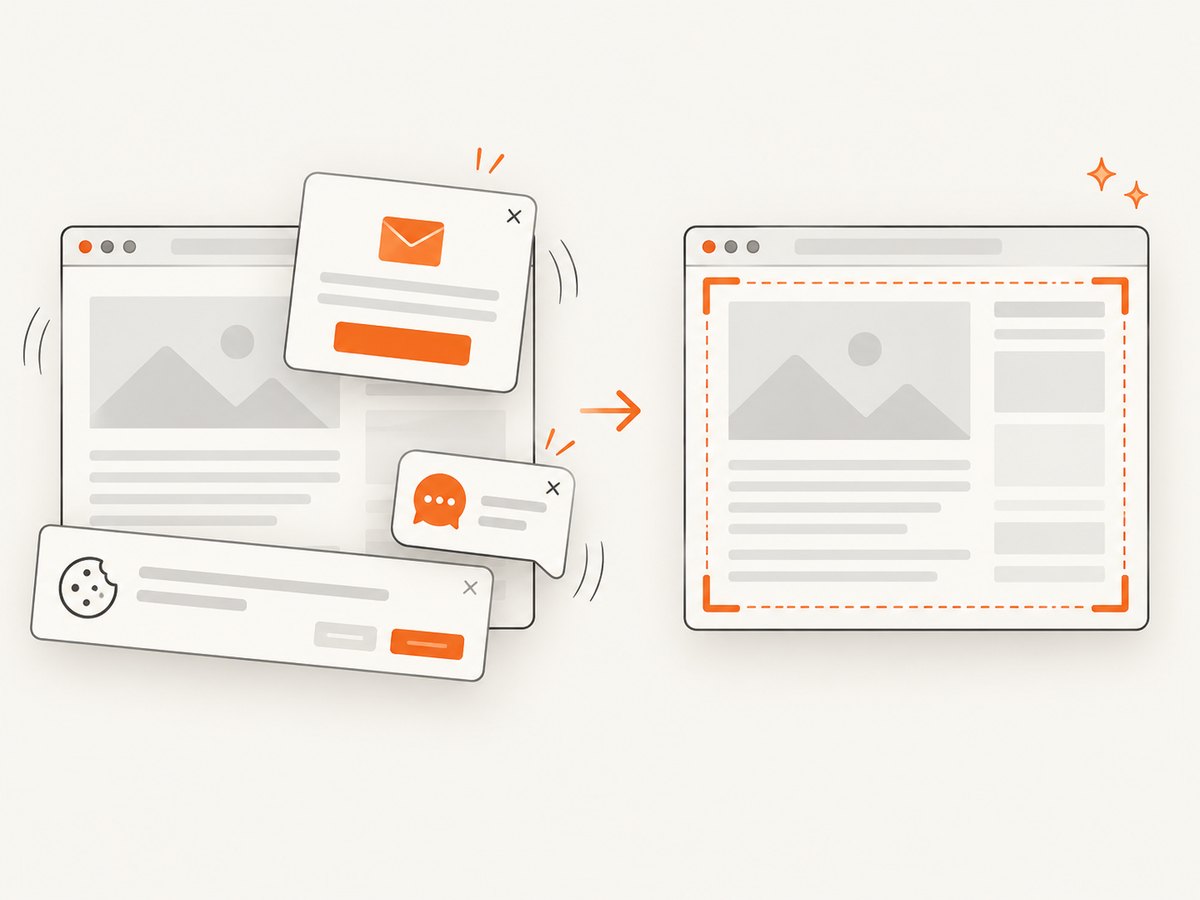
Before capture, ScreenshotNeo accepts cookie or consent banners and removes more than 60 known consent platforms, newsletter popups, and chat widgets. Bot checks or CAPTCHAs, blank pages, timeouts, failed loads, and cache hits are not billed; the response identifies the result with X-Page-Verdict and X-Billed headers. Its MCP server includes take_screenshot, get_page_info, and capture_pdf tools for Claude, Cursor, and other MCP clients.
The Free plan includes 1,000 shots per month with no card. Paid plans start at $5 for 3,000 shots; every feature is available on every plan.
Create a free ScreenshotNeo account and start with 1,000 screenshots a month without a card.
8. Performance, reliability, and cost considerations
- For one page: Android’s built-in browser flow is free and usually the shortest path.
- For repeated captures: An API avoids repeating manual taps and can standardize output settings.
- For dynamic pages: Wait for the page to load and inspect the preview or returned file.
- For large documents: Use page ranges, suitable paper settings, and enough device storage.
- For sensitive pages: Avoid sharing PDFs that contain private account data, tokens, or personal information.
9. FAQ
Can I save a webpage as a PDF without a printer?
Yes. Select Save as PDF in the Android print destination list. It creates a file without sending anything to physical hardware.
Does saving a webpage keep its links?
Some PDF viewers preserve links, but behavior depends on the browser’s PDF renderer and the page. Open the saved file and test important links before distributing it.
Can I save only part of a webpage?
Use a page-range control if the print preview provides one. For precise element or CSS-based capture, an automated capture service such as ScreenshotNeo is more suitable.
Why does the PDF look different from the website?
Print rendering uses a fixed page layout. Responsive designs, interactive components, lazy content, and browser-specific print rules can change the result.
Where does Firefox save the PDF?
Mozilla documents the Firefox for Android flow as saving the file in the Downloads folder, also available from Firefox’s Downloads list.


