How to Download a Website as a PDF on iPhone
Save any webpage as a PDF on iPhone with Safari’s built-in Markup workflow, choose where it goes, annotate it, and fix common problems.
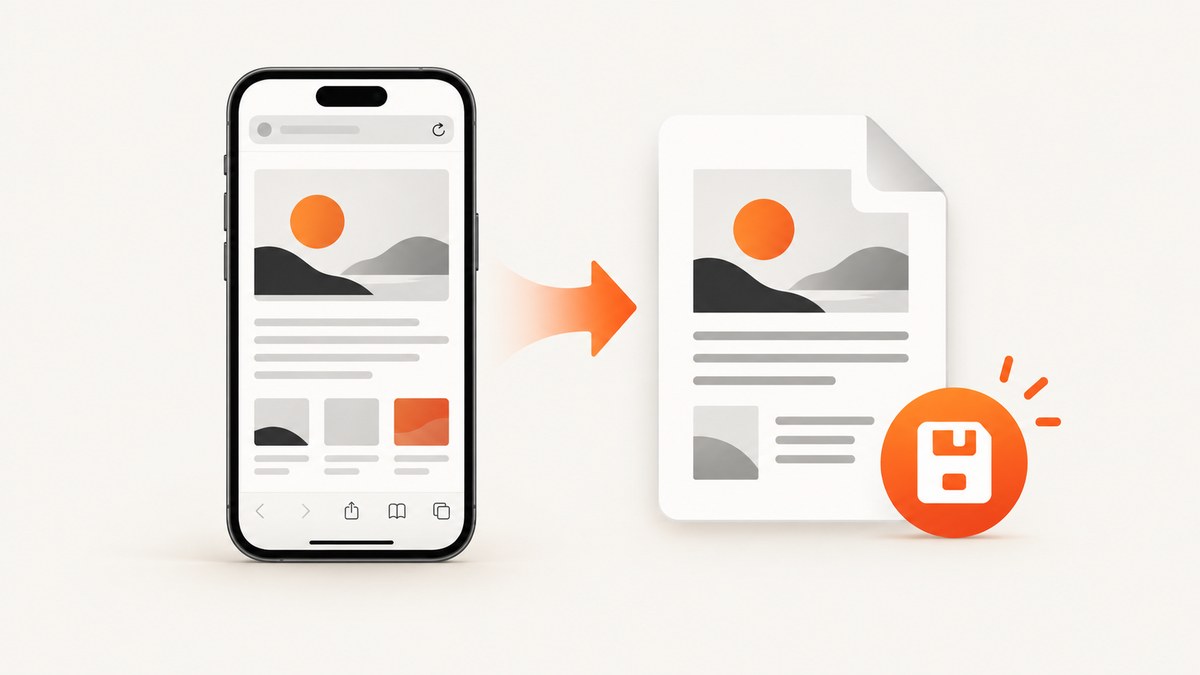
Quick answer: Open the webpage in Safari, tap the Page Menu and then Share (or tap Share directly, depending on your tab layout), choose Markup, optionally annotate the page, tap More then Done, select Save File To, name the PDF, and tap Save. This is Apple’s built-in way to turn a normal webpage into a PDF on iPhone.
Safari’s controls can appear in different places when tabs are set to Top or Bottom. If you do not see the Page Menu, look for the Share button in the address-bar area and continue from there. Apple documents the workflow in Annotate and save a webpage as a PDF in Safari on iPhone.
Save a webpage as a PDF in Safari
- Open Safari and load the webpage you want to keep.
- Open the sharing controls. Tap the Page Menu, then tap Share. With some Safari tab layouts, tap Share directly.
- Choose Markup. Safari creates a PDF preview of the webpage and opens its annotation tools.
- Add notes if needed. Use the pen, highlighter, text, shapes, or signature tools. You can also crop or mark up the page before saving.
- Finish the annotation view. Tap More, then Done.
- Choose the destination. Tap Save File To. Select a folder in iCloud Drive, On My iPhone, or another location shown in the Files picker.
- Name and save the file. Enter a filename, then tap Save.
The resulting file is a PDF copy of the webpage at the time you saved it. Links, layout, images, and interactive behavior may differ from the live page because a PDF is a fixed document.
Choose where Safari saves the PDF
The Save File To dialog controls the destination for this particular PDF. Common choices include:
| Location | Use it when |
|---|---|
| iCloud Drive | You want the PDF available on Apple devices signed in to the same Apple Account. |
| On My iPhone | You want a local copy that does not depend on an iCloud folder. |
| Other | You need another configured Files location or a third-party storage provider. |
Safari’s download settings include iCloud Drive, On My iPhone, and Other. Those settings describe Safari downloads; the PDF you create is placed wherever you select in the Save File To dialog. See Apple’s Safari settings guide for download-location details.
Find the PDF after saving
- Open the Files app.
- Tap Browse.
- Open the location and folder you selected in Save File To.
- Use the filename you entered, or sort by date if you cannot remember it.
If you saved to iCloud Drive, the file can appear on your other Apple devices after synchronization. If you chose On My iPhone, look under that location rather than iCloud Drive.
Annotate before you save
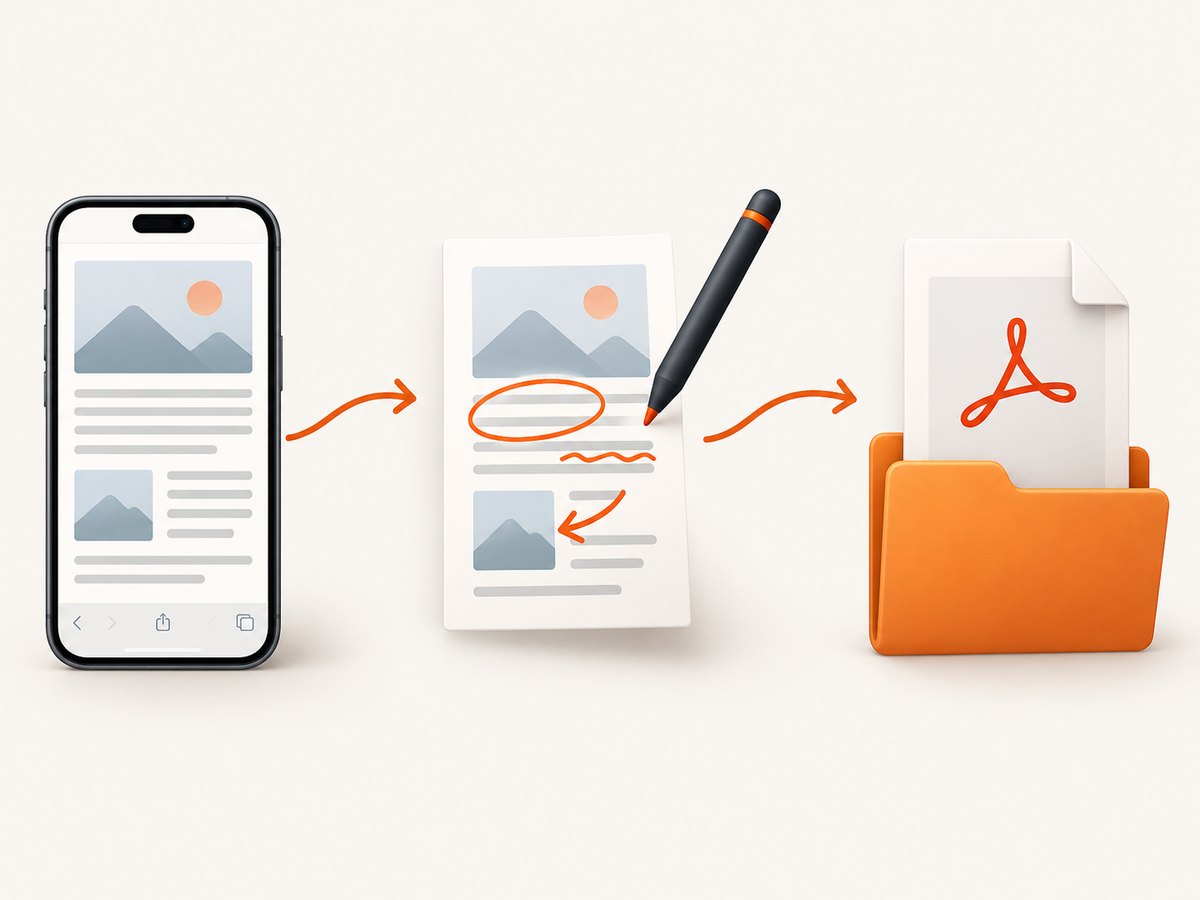
Markup is part of the same Safari-to-PDF flow, so you can highlight a paragraph, draw an arrow, add a text note, or sign a document before the file is written. The annotations become part of the saved PDF. If you need an unmarked original, save one copy first, then repeat the process and annotate a second copy.
When the page is already a PDF
A PDF that is already open in Safari follows a different route. Open the PDF, tap the Page Menu or Share control, choose Save to Files, name it, select a location, and save. This downloads an existing PDF; it does not convert a normal webpage. Apple describes this route in Download a PDF from Safari to your iPhone.
Page layout, long pages, and dynamic content
- Long pages: Safari generates a PDF of the webpage view it can render. Very long or heavily scripted pages may paginate differently from the screen.
- Lazy-loaded images: Scroll through important sections before sharing if the page loads media only as you move down. This gives Safari a chance to render more content.
- Signed-in or private pages: The PDF contains whatever your Safari session could see. Avoid saving sensitive pages to a shared or cloud location unless that is appropriate.
- Interactive controls: Forms, video players, menus, and other live controls become static content or may not appear as expected.
- Reader view: If Reader is available, compare the regular page and Reader view. Reader view can remove navigation and advertising but may also omit page elements you need.
Troubleshooting
| Problem | Cause | Fix |
|---|---|---|
| No Page Menu appears | Safari’s tab layout places sharing in a different control. | Tap Share near the address bar, then choose Markup. |
| Markup is missing | The share sheet is still showing its first set of actions. | Scroll the share actions or tap More, then select Markup. |
| Save File To is not visible | You are still in the annotation view or have not opened the More menu. | Tap More, tap Done, then choose Save File To. |
| The PDF is in the wrong folder | A different destination was selected in the Files picker. | Open Files, check iCloud Drive, On My iPhone, and the folder you last used; search by filename. |
| Images or sections are missing | The page loads content dynamically or only after scrolling. | Wait for the page to finish loading, scroll through required sections, and save again. |
| Text is cut off or pagination looks odd | Responsive CSS and print rendering differ from the phone view. | Try Reader view, rotate the phone, or use a desktop print-to-PDF workflow for more layout control. |
| Save fails | The chosen storage provider is unavailable or the device is low on space. | Choose On My iPhone, verify available storage, and retry. |

Or skip the browser setup
For automated or repeatable captures, ScreenshotNeo provides a website screenshot API. Its endpoint can return PNG, JPEG, WebP, or PDF from one GET request, so a server or script can create a PDF without driving Safari on an iPhone. See the ScreenshotNeo documentation for request options.
cURL
curl -G "https://api.screenshotneo.com/v1/shot" -d access_key=YOUR_API_KEY --data-urlencode url=https://stripe.com -o shot.webpPython
import requests

r = requests.get(
    "https://api.screenshotneo.com/v1/shot",
    params={"access_key": "YOUR_API_KEY", "url": "https://stripe.com"},
    timeout=90,
)
r.raise_for_status()
open("shot.webp", "wb").write(r.content)
Node.js
const q = new URLSearchParams({ access_key: 'YOUR_API_KEY', url: 'https://stripe.com' });
const res = await fetch(`https://api.screenshotneo.com/v1/shot?${q}`);
if (!res.ok) throw new Error(`Screenshot failed: ${res.status}`);
const data = Buffer.from(await res.arrayBuffer());
require('fs').writeFileSync('shot.webp', data);
For a PDF, request the PDF output option documented by ScreenshotNeo and save the response with a .pdf filename. ScreenshotNeo can also wait for a selector, delay, or network idle; load lazy images for full-page captures; set cookies, headers, user agent, timezone, or geolocation; block ads and trackers; and run custom JavaScript or CSS. Cookie and consent banners, newsletter popups, and chat widgets can be removed before capture, with each step configurable.
Only clean shots are billed. Bot checks or CAPTCHAs, blank pages, timeouts, failed loads, and cache hits cost nothing, and each response reports the result through X-Page-Verdict and X-Billed headers. An MCP server provides take_screenshot, get_page_info, and capture_pdf tools for Claude, Cursor, and other MCP clients.
The free plan includes 1,000 shots per month with no card; paid plans start at $5 for 3,000 shots. Create a free ScreenshotNeo account.
Performance, reliability, and cost notes
- Safari: The built-in method has no conversion fee and is best for occasional, personal saves. It depends on the page finishing its own loading and on available device or cloud storage.
- Repeatable automation: An API is useful when you need the same URL captured on a schedule, from a backend, or for many URLs. Configure waits and blocking rules to reduce unnecessary page work.
- Billing behavior: With ScreenshotNeo, cache hits and unsuccessful page outcomes are not billed. Check the verdict and billed headers when recording job results.
- Output choice: Safari is convenient for a person who wants to annotate immediately. An API is better when a system needs a file with a predictable name, destination, and process.
FAQ
Can I save a webpage as a PDF without an app?
Yes. Safari, Markup, and the Files picker are built into iPhone.
Does saving a webpage require iCloud?
No. Choose On My iPhone in Save File To for local storage.
Can I add notes before saving?
Yes. Choose Markup and annotate the preview before tapping Done and Save File To.
Why is my saved page different from the live website?
A PDF is a fixed rendering. Interactive controls, video, responsive layout, and content that loads later may not carry over.
How do I save a PDF that is already open?
Use Share or the Page Menu, choose Save to Files, select a location, and save. That is the download flow for an existing PDF.


