How to Download a Website as a PDF on Mac
Save any webpage as a PDF on Mac with Safari or Chrome, fix whole-page and layout problems, and automate captures with ScreenshotNeo.
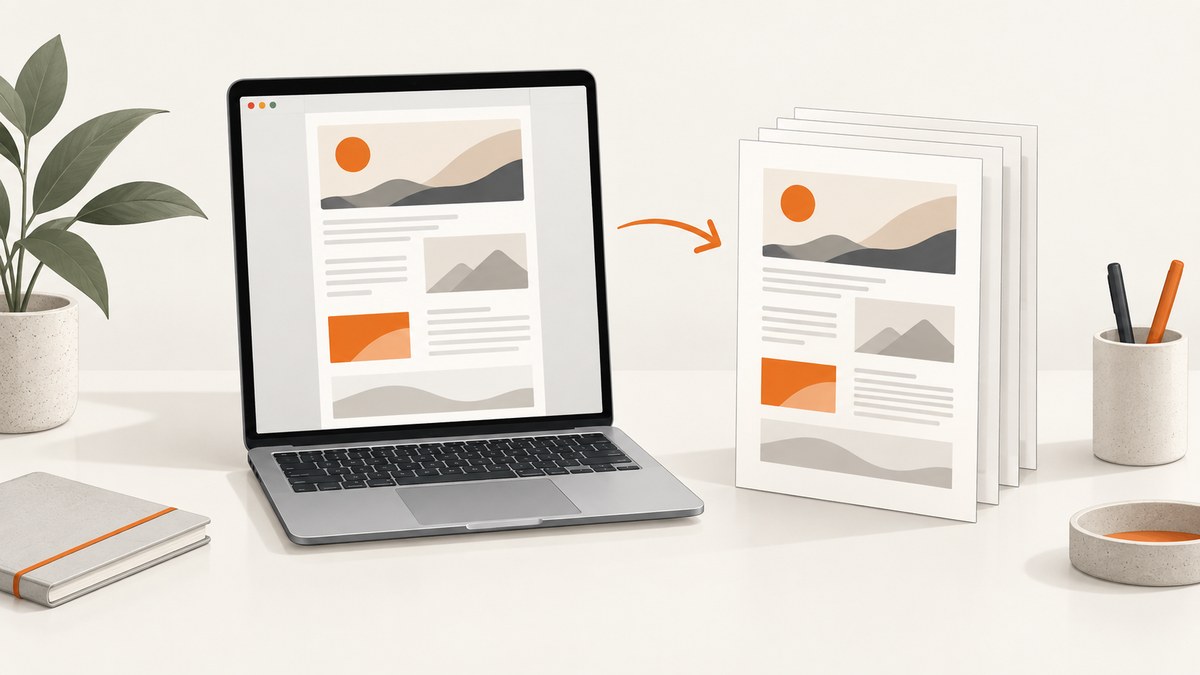
Fast answer: Open the webpage in Safari or Chrome, press Command–P, open the dialog’s PDF menu, choose Save as PDF, select a filename and destination, then click Save. macOS can create PDFs from any app that supports printing, so you do not need a separate PDF editor (Apple Mac Help).
Save a webpage as a PDF in Safari
- Open the complete page in Safari and wait for images or other content to finish loading.
- Choose File > Print, or press Command–P.
- In the print dialog, review the preview. Use the page range, orientation, paper size and scale controls if needed.
- Open the PDF menu at the bottom of the dialog and choose Save as PDF.
- Enter a filename, choose a folder, and click Save.
Safari also has File > Save As, but its Web Archive and Page Source formats are different from PDF. A Web Archive keeps page resources for browser use while linked destinations remain available; Page Source saves the HTML source. Use print-to-PDF when you need a shareable, paginated document (Apple’s Safari guide).
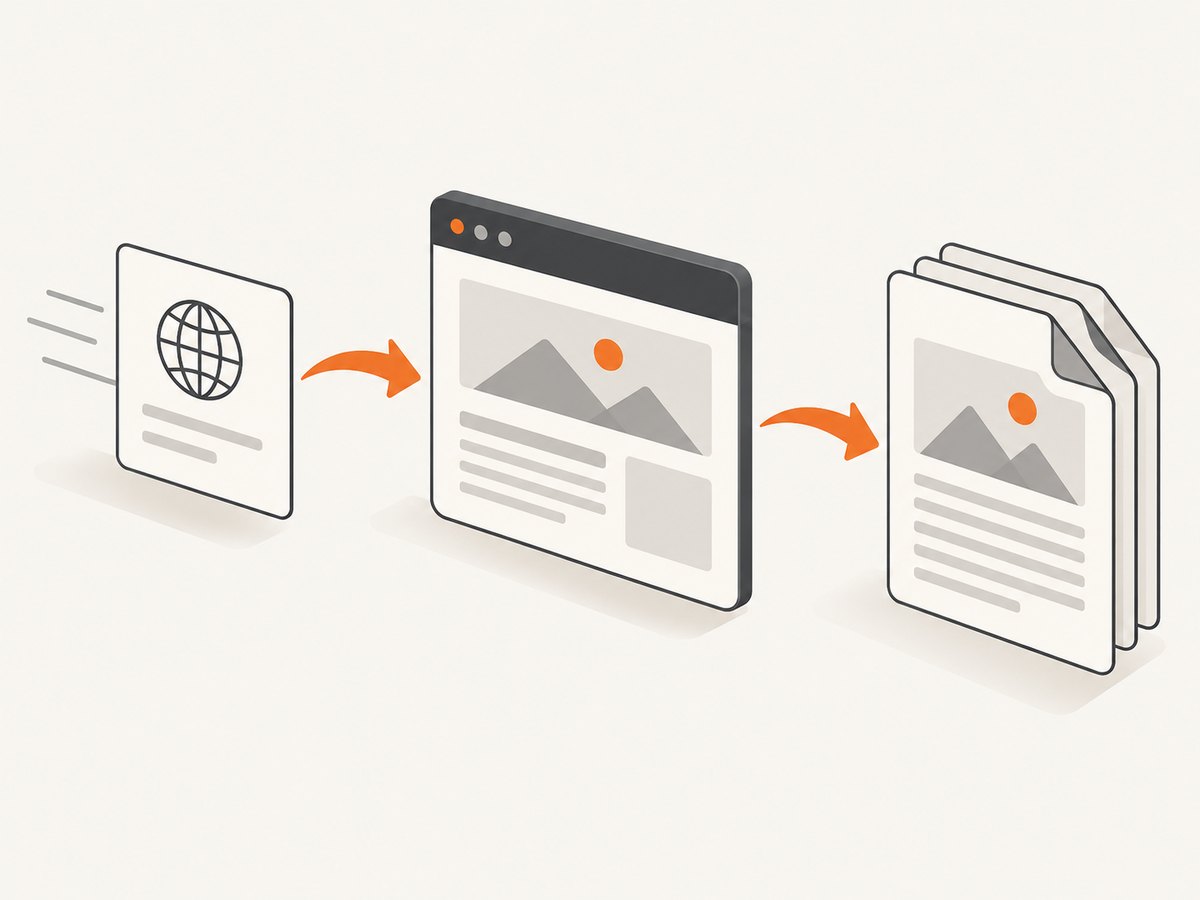
Save a webpage as a PDF in Chrome
- Open the page in Chrome.
- Press Command–P, or open Chrome’s print command.
- Set the destination to Save as PDF.
- Choose pages, paper size, orientation, margins and scale. Expand More settings for options such as background graphics, headers and footers.
- Click Save, choose a location and confirm.
Chrome’s More > More Tools > Save Page As command saves a webpage in another format; it is not the same operation as choosing Save as PDF in the print flow (Chrome Help).
How to capture the whole webpage, not only what is visible
Print-to-PDF normally lays out the document across multiple pages, so the viewport on screen is not a limit. Scroll through the page first so lazy-loaded sections, images and embedded content have a chance to load. Then inspect the print preview from the first page to the last.
Websites can define print-specific CSS. Navigation, sticky headers, ads, animations, video players and interactive controls may be hidden or rearranged. A page can also refuse to save some items (Apple notes this limitation). A July 2025 Apple Support Community reply reported a multipage result in Safari on macOS Sequoia 15.5, but that is a community report rather than a guarantee for every site or macOS release (discussion).
Preview checklist for a complete PDF
- Check the final page number and page breaks.
- Confirm headings, tables, code blocks and images are not clipped.
- Look for blank pages caused by forced page breaks.
- Verify that important background colors or images appear if you need them.
- Make sure the URL, date or other identifying information is present if your record requires it.
Print settings that change the result
| Setting | Use it when | Common trade-off |
|---|---|---|
| Pages | You need only selected pages or want to omit a cover page. | Leaving out pages can remove context. |
| Orientation | Tables or wide code samples need landscape. | Portrait is easier to read on paper. |
| Paper size | You are matching Letter, A4 or another destination format. | Changing size can move page breaks. |
| Scale | Content is clipped or too small. | Smaller scale fits more but reduces readability. |
| Margins | You need more writing space or want to avoid clipping. | Very small margins may not print on every printer, though PDF output usually allows them. |
| Background graphics | Color panels, diagrams or shaded code are meaningful. | More ink and a larger file; backgrounds can reduce contrast. |
| Headers and footers | You want page numbers, title, URL or date. | They consume vertical space and can overlap poorly designed pages. |
Use the preview after every major setting change. Browser print CSS can produce a different layout from the interactive page, so visual inspection is part of the workflow.
PDF versus Web Archive versus Page Source
| Format | Best for | What it preserves |
|---|---|---|
| Sharing, offline reading, review and records | A paginated rendering of the page at capture time | |
| Web Archive | Opening saved page resources in Safari | Page resources and links while their destinations remain available |
| Page Source | Web development or HTML reference | The document’s source markup, not its rendered appearance |
If your requirement is “the whole webpage in a portable file,” choose PDF. Choose an archive or source file only when you specifically need browser resources or HTML.
Common problems and fixes
The PDF contains only part of the page
Cause: Content is lazy-loaded, hidden behind an interaction, or excluded by print CSS. Fix: Scroll through the page first, expand required sections, wait for images, then reopen print preview. If the site still omits content, use a capture tool that can wait for selectors or network idle and render a full page.
Images or colors are missing
Cause: Background graphics are disabled, images have not loaded, or the site’s print stylesheet hides them. Fix: Enable background graphics in the print settings, wait for loading, and check the preview. Some resources may still be unavailable to the browser.
Text or tables are clipped
Cause: The layout is wider than the selected paper size. Fix: Try landscape orientation, a larger paper size, smaller scale or wider margins. For very wide tables, exporting selected pages separately can be clearer.
The page prints with awkward breaks or blank pages
Cause: CSS page-break rules, fixed-height containers or browser-specific print styles. Fix: Change scale or margins, switch orientation, and inspect each page in preview. If you control the site, add print CSS that removes fixed heights and sets sensible break rules.
The print command is unavailable or does nothing
Cause: A page script, embedded viewer or temporary browser state is interfering. Fix: Use Command–P from the browser menu, reload the page, or try the other browser. You can also use macOS’s system print dialog from another app that supports printing.
A login page, bot check or consent dialog blocks the content
Cause: The page requires a session, interaction or verification before it renders. Fix: Complete the required interaction in the browser and confirm the intended content is visible before printing. Do not attempt to bypass access controls.
The saved file is unexpectedly large
Cause: High-resolution images, background graphics or long pages. Fix: Disable unnecessary backgrounds, print only required pages, or reduce scale. Keep the original page URL and capture date with the file if it is an important record.
Or skip the browser setup
For repeatable captures, server-side jobs or pages that need controlled waits, ScreenshotNeo returns a PDF from one GET request. The API can capture full pages, wait for a selector, delay or network idle, use custom cookies and headers, set a device or viewport, block unwanted resources, and choose PDF paper size, margins, orientation and page ranges. See the ScreenshotNeo documentation.
cURL
curl -G "https://api.screenshotneo.com/v1/shot" \
  -d access_key=YOUR_API_KEY \
  --data-urlencode url=https://example.com \
  -d format=pdf \
  -o page.pdf
Python
import requests

r = requests.get(
    "https://api.screenshotneo.com/v1/shot",
    params={
        "access_key": "YOUR_API_KEY",
        "url": "https://example.com",
        "format": "pdf",
    },
    timeout=90,
)
r.raise_for_status()
open("page.pdf", "wb").write(r.content)
Node.js
const q = new URLSearchParams({
  access_key: 'YOUR_API_KEY',
  url: 'https://example.com',
  format: 'pdf'
});
const res = await fetch(`https://api.screenshotneo.com/v1/shot?${q}`);
if (!res.ok) throw new Error(`${res.status} ${res.statusText}`);
const fs = await import('node:fs/promises');
await fs.writeFile('page.pdf', Buffer.from(await res.arrayBuffer()));
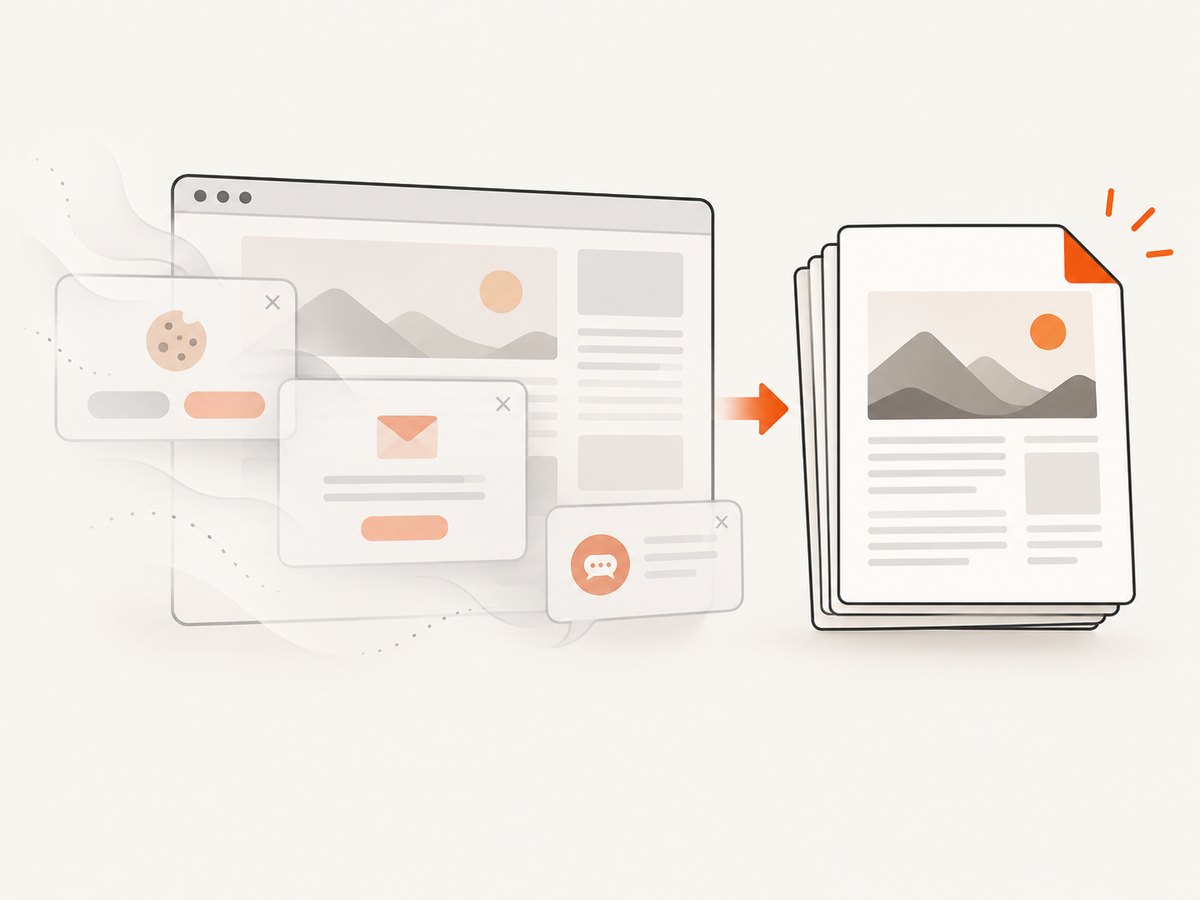
ScreenshotNeo removes cookie and consent banners, newsletter popups and chat widgets before the shot; bot checks, blank pages, failed loads, timeouts and cache hits are not billed. Response headers identify the page verdict and whether the shot was billed. Its MCP server provides take_screenshot, get_page_info and capture_pdf tools for Claude, Cursor and other MCP clients. The free plan includes 1,000 screenshots a month with no card; paid plans start at $5 for 3,000 shots. Sign up free for ScreenshotNeo.
Performance, reliability and cost notes
- Browser workflow: Cost is normally zero because macOS and Chrome include print-to-PDF. Time depends on page size, network speed and how much content must load.
- Repeatability: Save the URL, capture date, browser and key print settings when the PDF is evidence or an audit record.
- Dynamic pages: Wait for data, expand accordions and confirm the final state before printing. A PDF records one rendered moment, not future updates.
- Automation: ScreenshotNeo supports caching with a chosen TTL, asynchronous jobs with signed webhooks, bulk capture of up to 100 URLs per call and a usage API. These options reduce repeated browser setup for scheduled work.
- Billing: Only clean shots are billed by ScreenshotNeo. Bot checks, blank pages, timeouts, failed loads and cache hits cost nothing, and the response reports the verdict and billing result.
FAQ
Can I save a webpage as PDF without installing software?
Yes. Safari and Chrome use the macOS print dialog’s Save as PDF option.
Will links in the PDF remain clickable?
Links generally remain part of the PDF when the browser includes them, but the PDF is a snapshot; it does not preserve the site’s live behavior.
Is a Safari Web Archive the same as a PDF?
No. A Web Archive is a Safari webpage format. PDF is a portable, paginated document.
Why does my PDF look different from the screen?
Print stylesheets and print settings can hide, reorder or resize content. Always inspect the print preview.
Can I automate PDF capture for many URLs?
Yes. A browser automation workflow can do it, or ScreenshotNeo can run API, asynchronous and bulk captures with PDF options.


