How to Download a Website Preview Image
Find a page’s Open Graph preview image, open its image URL, and save the original file. Includes browser, cURL, Python, and Node.js methods.
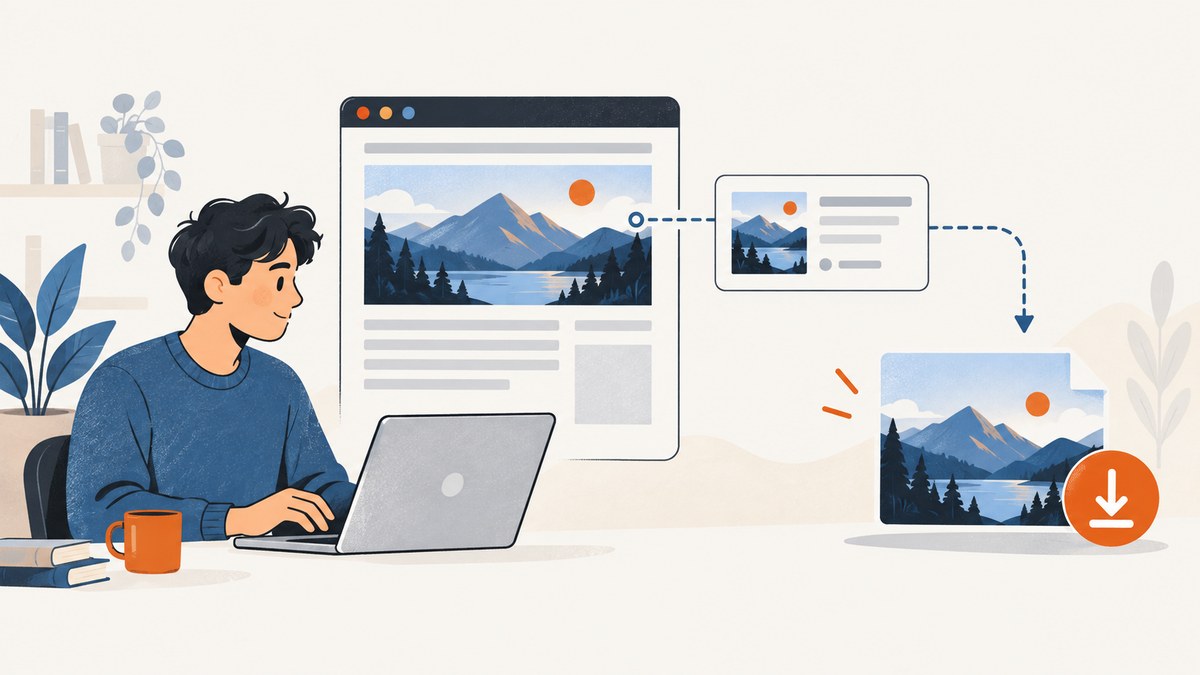
A website preview image is usually an image URL recorded in the page’s metadata, rather than a screenshot of the preview card you see in a social app. For link sharing, look for the Open Graph og:image tag. Copy the URL in its content attribute, open that URL directly, then save the image from your browser.
This guide shows how to find the image, download it in a browser or with cURL, Python, and Node.js, and distinguish the original preview image from a screenshot of the page. Open Graph defines og:image as “An image URL which should represent your object within the graph.” Open Graph protocol
1. Find the preview image URL
- Open the webpage whose share image you want.
- View its page source, or open developer tools and inspect the document’s
<head>. - Search for
og:image. - Copy the URL from the tag’s
contentvalue.
A typical tag looks like this:
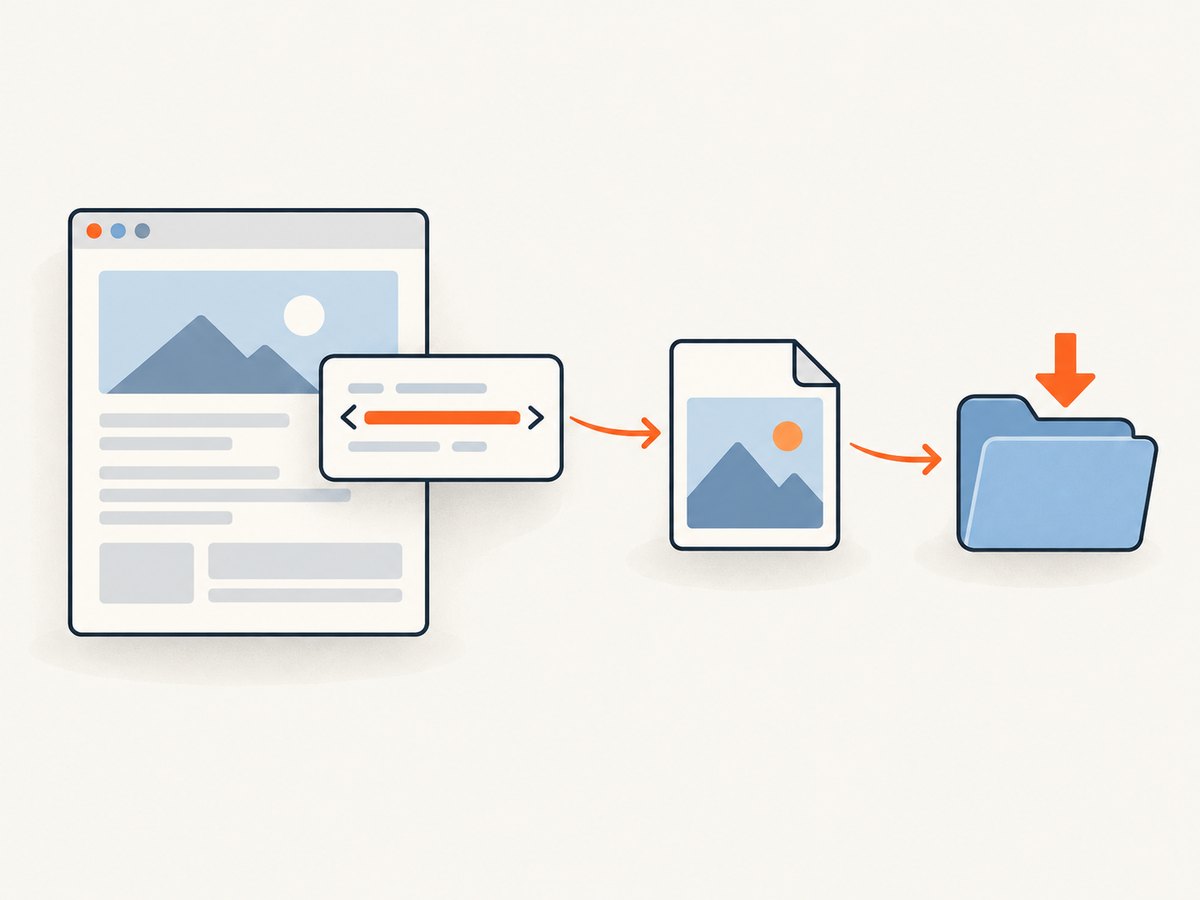
<meta property="og:image" content="https://example.com/images/article-cover.jpg">The value in content is the image address. It may be an absolute URL, as above, or a relative path. If it is relative, resolve it against the page’s URL. For example, if the page is https://example.com/posts/hello and the value is /images/cover.jpg, the resulting address is https://example.com/images/cover.jpg.
There can be more than one og:image tag. The Open Graph protocol says the first tag is preferred when values conflict, so begin with the first one. If that asset is not the image you expected, inspect subsequent tags as well. Optional image metadata may give a MIME type, width, height, or alt description; it can help identify the candidate but does not replace opening the actual image URL. Open Graph protocol
2. Download it in a browser
- Paste the copied image URL into a new browser tab and load it.
- Confirm the page displays an image rather than an error page or unrelated content.
- Use the browser’s image context menu and choose its save or download option.
- Choose a destination and keep the file extension that matches the image, such as
.jpg,.png, or.webp.
This saves the image resource referenced by the metadata. It does not save a screenshot of the website or recreate the share card’s layout. If you need a screenshot of the rendered page instead, see Screenshot the page instead.
3. Download the file from the command line
Once you have the direct image URL, command-line tools can save the response to a local file. Use the extension that corresponds to the actual response format; a filename ending in .jpg does not convert a PNG into a JPEG.
cURL
curl --fail --location --output preview-image.jpg "https://example.com/images/article-cover.jpg"--location follows redirects and --fail returns an error for unsuccessful HTTP responses instead of quietly saving an error body as if it were an image. Replace the example URL and filename. For a URL containing query parameters, quote the whole URL so the shell does not interpret characters such as &.
Python
This runnable example uses the Python standard library. It downloads the URL, follows ordinary redirects, checks for an HTTP error, and writes the response bytes without altering the image:
from urllib.request import Request, urlopen
from urllib.error import HTTPError, URLError

image_url = "https://example.com/images/article-cover.jpg"
request = Request(image_url, headers={"User-Agent": "Mozilla/5.0"})

try:
    with urlopen(request, timeout=30) as response:
        content_type = response.headers.get_content_type()
        if not content_type.startswith("image/"):
            raise ValueError(f"Expected an image, got {content_type}")
        image_data = response.read()
except (HTTPError, URLError, TimeoutError) as error:
    raise SystemExit(f"Could not download preview image: {error}")

with open("preview-image.jpg", "wb") as image_file:
    image_file.write(image_data)

print(f"Saved {len(image_data)} bytes ({content_type})")
Python’s urllib follows redirects by default. The user-agent shown here may help with servers that reject requests without one, but it does not bypass access controls. If you save a different image format, change the output extension to match its content type.
Node.js
On a Node.js version with the built-in fetch API, this example downloads the image and writes its bytes to disk:
import { writeFile } from "node:fs/promises";

const imageUrl = "https://example.com/images/article-cover.jpg";
const response = await fetch(imageUrl, { signal: AbortSignal.timeout(30_000) });

if (!response.ok) {
  throw new Error(`Image request failed: HTTP ${response.status}`);
}

const contentType = response.headers.get("content-type") ?? "";
if (!contentType.toLowerCase().startsWith("image/")) {
  throw new Error(`Expected an image, got ${contentType || "no content type"}`);
}

const imageBytes = Buffer.from(await response.arrayBuffer());
await writeFile("preview-image.jpg", imageBytes);
console.log(`Saved ${imageBytes.length} bytes (${contentType})`);
Save this as an ES module, or adapt the imports to your project’s module setup. The check helps catch HTML error pages returned with a successful HTTP status. As with the other examples, use a filename appropriate for the actual image format.
4. Check what you downloaded
Before using the file, check that it opens and that its dimensions and appearance match what you intended. The browser’s image viewer or your operating system’s file information can show basic properties. The metadata’s optional width, height, MIME type, and alt fields can give clues, but the downloaded resource is the final check.
If you are preparing an image specifically for a LinkedIn share preview, LinkedIn publishes a maximum file size of 5 MB, minimum dimensions of 1200 by 627 pixels, and a recommended ratio of 1.91:1. Those are LinkedIn-specific constraints, not universal image requirements; check the target platform’s own current guidance for its rules. LinkedIn: Make your website shareable on LinkedIn
5. Understand what the metadata does and does not tell you
The og:image value identifies a candidate image URL for a shared object. Downloading that resource gives you the referenced image file. It does not establish whether you have permission to republish or reuse it; check the rights and terms that apply to the image.
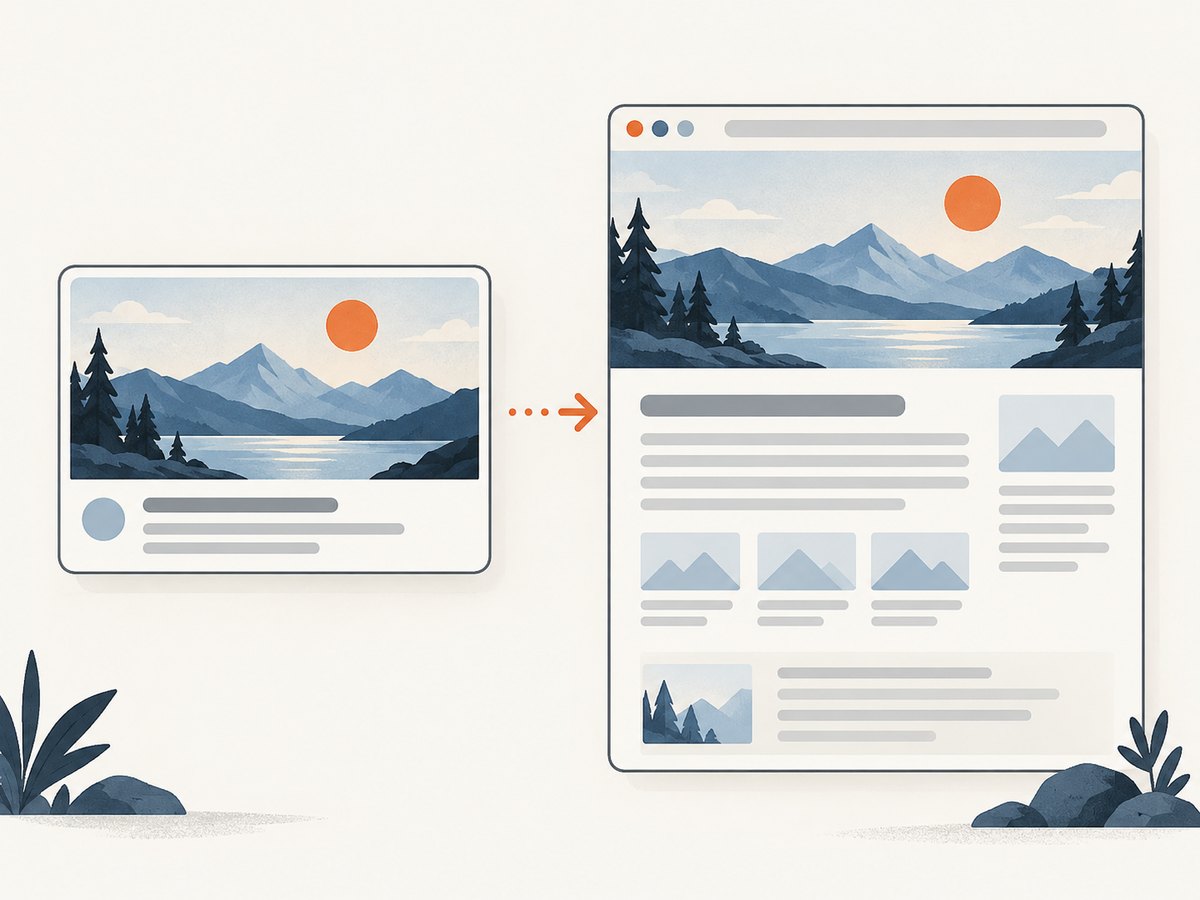
It also does not guarantee that every social platform will show the same preview image. Platforms can have their own requirements and processing behavior. If your goal is to inspect what a browser renders on the page, the metadata image is a different artifact from a screenshot of that page.
6. Screenshot the page instead
If by “preview image” you mean a visual capture of the rendered webpage, use a screenshot of the page rather than downloading the og:image source file. A screenshot includes what the browser rendered at a particular viewport and time; the Open Graph file is the image chosen as page metadata.
For a manual capture, open the page in your browser, set the viewport and page state you need, then use the browser’s screenshot or capture workflow. For repeatable captures, an API can render a URL to an image or PDF. Choose based on the output you need: the page’s original share asset, or a new capture of its rendered content.
Or skip the browser setup
ScreenshotNeo is a website screenshot API and MCP server. Use it when the artifact you want is a fresh screenshot of a rendered page, rather than the original file referenced by og:image. See the ScreenshotNeo documentation for request options.
curl -G "https://api.screenshotneo.com/v1/shot" -d access_key=YOUR_API_KEY --data-urlencode url=https://stripe.com -o shot.webpScreenshotNeo accepts cookie or consent banners like a visitor and removes 60+ known consent platforms, newsletter popups, and chat widgets before capture; each step can be turned off. Bot checks, CAPTCHAs, blank pages, timeouts, failed loads, and cache hits are not billed, and response headers report the page verdict and billing status. Its MCP server provides take_screenshot, get_page_info, and capture_pdf tools for AI agents. The Free plan includes 1,000 screenshots per month with no card; paid plans start at $5 for 3,000 shots. Every feature is on every plan.
Sign up free for 1,000 screenshots a month, no card required.
7. Troubleshooting
| Symptom | Likely cause | What to try |
|---|---|---|
No og:image in the source |
The page may not declare an Open Graph image, or you may be inspecting a different page than the one shared. | Check the document head and search for all occurrences. If there is no tag, the research does not establish a universal alternative; the site owner may need to add suitable metadata. |
| The first image is not the one expected | Multiple image tags may be present, or the page’s metadata may point to a different asset. | Try the first tag first, as the protocol gives it preference in conflicts, then inspect other tags and their optional dimensions and descriptions. |
| The image URL does not open | The address may be mistyped, inaccessible, expired, or redirected to an error. | Copy the full content value carefully, including its path and query string. Check that it is an image URL and try opening it again. There is no universal remedy established for inaccessible image URLs. |
| A download saves an HTML page | The server may have returned an error or access page instead of an image. | Check the response content type and status. The Python and Node.js examples reject non-image content types; cURL’s --fail catches HTTP error responses. |
| Command-line request fails while browser works | The server may handle browser requests differently or require access the script does not have. | Confirm the URL is complete and that redirects are followed. A browser-like user-agent may help with some server configurations, but do not treat it as a way to evade access restrictions. |
| The saved image appears corrupted | The file may contain an error response or have been given an extension that does not match its format. | Verify the response is an image, inspect its content type, and use the matching extension. Download the image URL directly instead of saving the page containing it. |
| Image dimensions or appearance differ from the share card | The platform may crop or process the source image, or the metadata may refer to a different variant. | Compare the downloaded file with the metadata’s optional dimensions and the target platform’s published specifications. |
8. Performance, reliability, and cost
For one image, opening the direct URL and saving it is usually the shortest workflow. A script is useful when you need repeatable downloads or want to check status and content type consistently. Set a timeout in automated code, handle redirects and HTTP failures, and avoid repeatedly fetching a large image when a local copy is sufficient. The examples write the response as-is; they do not resize, convert, or optimize it.
The image host controls availability, access, redirects, and response speed. The cited Open Graph and LinkedIn documentation does not promise that a URL will stay available or that downloads will always succeed. If you process many pages, record failures and retry selectively rather than assuming every metadata URL points to a reachable image. Downloading the source asset and generating a screenshot are separate operations, with different outputs and potentially different service costs.
FAQ
Is a website preview image the same as a screenshot?
No. In link sharing, it commonly means the image URL declared as og:image. A screenshot is a new capture of rendered page content.
Can I download the preview image from a social media card?
The most direct method is to find the source page’s og:image URL and save that resource. The card itself may display a processed or cropped version.
Does the image URL prove I can reuse the image?
No. A public URL identifies where the file can be fetched; it does not establish reuse rights.
What if I need the whole page as an image?
Use a page screenshot workflow or screenshot API. The Open Graph image download only retrieves the image resource referenced by the page metadata.


