How to Download Website Thumbnails
Learn how to save an image from a website or capture a webpage as a thumbnail, with browser steps, automation code, troubleshooting, and usage tips.

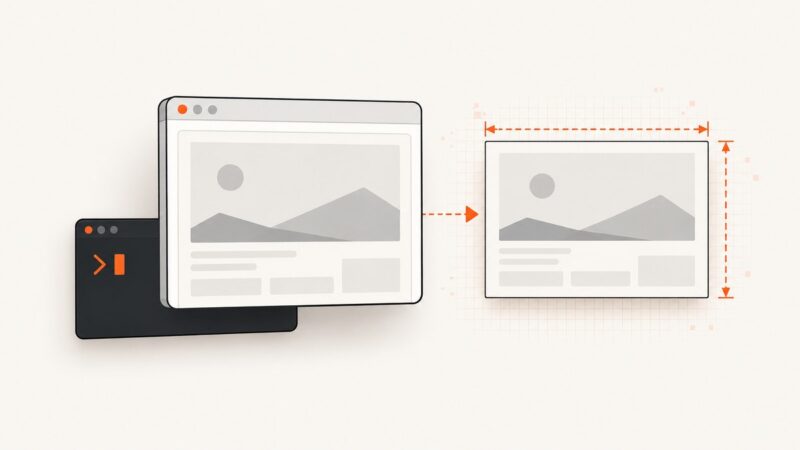
“Website thumbnail” can mean either an image that already appears on a webpage or a small screenshot of the webpage itself. To save an existing image, right-click it and choose Save Image As in Chrome on a computer. To make a thumbnail of the page, take a screenshot and crop or resize it, or automate the capture with a screenshot API.
Those are different jobs: saving an image downloads the image file the site serves; capturing a page creates a new image of what a browser displays. First decide which file you need. The steps below cover both, including repeatable capture code and the common cases where a right-click is not enough.
1. Decide which kind of thumbnail you need
| Your goal | What to download | Best starting point |
|---|---|---|
| Reuse or inspect a picture shown on a page | The image file already displayed | Right-click the image and save it |
| Show what a webpage looks like | A screenshot of the rendered page | Use your device screenshot tool for one-off work |
| Make previews for many URLs, or repeat the task | Generated webpage screenshots | Use browser automation or a screenshot API |
| Capture only a card, chart, or other page component | A screenshot of one page element | Use a selector-capable capture tool |
A saved image may be larger or differently cropped than the visible preview. A webpage screenshot, by contrast, records a browser rendering and can include surrounding text, banners, and other content. The desired output dimensions depend on where the thumbnail will appear; check the destination’s requirements rather than assuming one universal thumbnail size.

2. Save an image already displayed on a website
Chrome on a computer
- Open the webpage containing the image.
- Right-click the image.
- Choose Save Image As.
- Choose a folder and filename in the save dialog, then save.
Chrome’s documented workflow is to right-click an image, choose Save Image As, and select a destination. Downloads otherwise go to the browser’s configured download location. Menu wording and behavior can vary by browser, operating system, and how the site presents the image. See Chrome Help: Download a file.
If the image is a link
Some pages show a link or button that opens the original image rather than embedding it directly. Open the image link, then use the browser’s image-saving command. If it is a normal download link, use the link’s context menu and choose Save link as, where available. A link to an image and an image displayed inline are not always treated the same way by the browser.
If “Save Image As” is missing
The visual may be a CSS background, part of an embedded viewer, a canvas drawing, or a protected interface rather than a standard image element. The browser may therefore offer no image-saving menu. You can inspect the page’s own download or export controls if provided. A screenshot can preserve the visible result, but it may have lower resolution than the source image and can include nearby page elements. There is no universal workaround that recovers the original file in every case.
3. Capture a webpage as a thumbnail
One-off capture
- Open the page and arrange it as you want it captured.
- Use your operating system’s screenshot feature to capture the visible area.
- Crop the screenshot to the useful content.
- Resize or export it in the format required by the destination.
A screen capture is straightforward for a single page, but it captures the current viewport unless you use a full-page capture feature. It can also include browser chrome, cursor artifacts, a loading state, or an overlay if those are visible at capture time. Review the saved result before publishing or sharing it.
Repeated or automated captures with Playwright
For a developer workflow that needs a local browser, Playwright can navigate to a URL and save a viewport or full-page screenshot. This runnable Node.js example uses Chromium. Install the package and browser once, then run the script with a target URL.
npm install playwright
npx playwright install chromium
// save as capture.mjs
import { chromium } from 'playwright';
const url = process.argv[2] ?? 'https://example.com';
const browser = await chromium.launch({ headless: true });
const page = await browser.newPage({
viewport: { width: 1200, height: 800 },
deviceScaleFactor: 1
});
try {
await page.goto(url, { waitUntil: 'networkidle', timeout: 45000 });
await page.screenshot({ path: 'thumbnail.png', fullPage: false });
} finally {
await browser.close();
}node capture.mjs https://example.comFor a full-page image, change fullPage: false to fullPage: true. For a JPEG, set type: 'jpeg' and a quality value from 0 to 100; the quality option applies to JPEG. For a particular component, wait for it and use its locator’s screenshot method:
const card = page.locator('.product-card').first();
await card.waitFor({ state: 'visible', timeout: 10000 });
await card.screenshot({ path: 'card.png' });
Replace .product-card with a selector present on the page. When the page has long-running network activity, networkidle can take too long or never arrive. In that case, wait for a meaningful selector or use a short fixed delay after navigation. A visible element wait usually describes readiness better than an arbitrary delay.
Output choices that affect the thumbnail
- Viewport: width and height change responsive layout, line wrapping, and the portion visible in a viewport capture.
- Full page: useful for a long page, but the result can become a tall image that must be cropped for a thumbnail.
- Element capture: keeps the output focused on a page component, if the tool supports selectors.
- Format: PNG is lossless and often larger; JPEG is lossy; WebP can be useful where the destination supports it.
- Scale: a higher device scale factor yields more pixels, with increased memory use and file size.
- Readiness: wait for images or a key selector when lazy-loaded content would otherwise be absent.
Choose dimensions based on the destination and whether it will crop the image. For a link preview, a thumbnail, a report, and a design asset, the right framing can differ. Keep an original capture if you expect to produce multiple crops later.
4. Automate page thumbnails through an API
A screenshot API is useful when you need repeatable captures without installing and maintaining a browser on your own machine. OpenGraph.io documents webpage screenshots with controls including full-page capture, output format, viewport dimensions, and element selectors; its screenshot URLs expire after 24 hours, so download or cache a result you need to retain. Check the provider’s current documentation for exact request parameters and account requirements: OpenGraph.io documentation.
When evaluating an API, check the controls your workflow needs: viewport and output format, full-page versus element capture, readiness waits, retention of results, authentication, and how failed captures are handled. A generated image URL may be temporary rather than permanent. Save the returned bytes into storage you control if you need long-term access.
5. Or skip the browser setup
ScreenshotNeo is a website screenshot API and MCP server. One GET request takes a URL and returns PNG, JPEG, WebP, or PDF. The request below saves a screenshot response as a file; see the ScreenshotNeo API documentation for options and response details.

curl -G "https://api.screenshotneo.com/v1/shot" -d access_key=YOUR_API_KEY --data-urlencode url=https://stripe.com -o shot.webpimport requests
r = requests.get(
"https://api.screenshotneo.com/v1/shot",
params={"access_key": "YOUR_API_KEY", "url": "https://stripe.com"},
timeout=90,
)
r.raise_for_status()
open("shot.webp", "wb").write(r.content)const q = new URLSearchParams({ access_key: 'YOUR_API_KEY', url: 'https://stripe.com' });
const res = await fetch(`https://api.screenshotneo.com/v1/shot?${q}`);
if (!res.ok) throw new Error(`Screenshot request failed: ${res.status}`);
await Bun.write('shot.webp', res);In the Node.js example, Bun.write is available when running Bun. With Node.js, use this equivalent to save the response:
import { writeFile } from 'node:fs/promises';
const bytes = Buffer.from(await res.arrayBuffer());
await writeFile('shot.webp', bytes);
ScreenshotNeo removes more than 60 known consent platforms, newsletter popups, and chat widgets before capture; each cleanup step can be turned off. Bot checks and CAPTCHAs, blank pages, timeouts, failed loads, and cache hits are not billed, and response headers report the page verdict and billing status. Its MCP server provides take_screenshot, get_page_info, and capture_pdf tools for Claude, Cursor, and other MCP clients.
It includes full-page capture, CSS-selector element capture, dark mode, device presets and custom viewports, retina scale, PDF controls, HTML/CSS-to-image, custom CSS and JavaScript, clicks, selector or delay or network-idle waits, request and resource blocking, headers, cookies, user agent and Authorization, timezone and geolocation, transparent background, resizing, cache TTL, signed public image links, async jobs and signed webhooks, bulk capture for up to 100 URLs per call, a usage API, and an OpenAPI spec. The parameter names used by other screenshot APIs also work to make migration easier.
Plans are Free: 1,000 screenshots per month with no card; Starter: $5 for 3,000; Growth: $15 for 15,000; Pro: $39 for 60,000; Scale: $99 for 250,000; Business: $249 for 1,000,000. Yearly billing gives two months free, and every feature is available on every plan. For recurring capture, budget using your expected successful clean shots and inspect the billing headers; the stated billing policy excludes the listed failed or cached outcomes.
Sign up for 1,000 free screenshots a month with no card.
6. Troubleshooting downloads and captures
| Symptom | Likely cause | What to try |
|---|---|---|
| No image-save option in the context menu | Background image, canvas, embedded viewer, or custom interface | Look for a site-provided download control. If unavailable, capture what is visible, understanding it may not match the original resolution. |
| Saved picture is smaller or blurry | The displayed asset is a small responsive variant, or the screenshot used a low pixel scale | Open the image itself if possible; use the source file where permission allows. For page screenshots, increase viewport or scale and verify output dimensions. |
| Screenshot is blank or shows a loading spinner | Capture began before the page or target element was ready | Wait for a visible selector or the relevant image. Increase the timeout if the site is slow, and inspect the page state before saving. |
| Full-page capture misses content | Lazy-loaded content only appears after scrolling, or the page changes height as it loads | Scroll through the page before capture or use a tool that loads lazy images. Wait for page layout to settle and capture again. |
| Automation times out at network idle | Analytics, streaming, or long-polling connections keep the network active | Wait for a page-specific selector or a bounded delay instead of network idle. Keep an explicit timeout so the job cannot wait forever. |
| API request returns an error or unexpected file | Invalid credentials, URL or option errors, a failed page load, or an API error response saved as bytes | Check the HTTP status and response headers before treating the body as an image. Confirm the key, URL encoding, and documented option names. |
| Thumbnail includes a banner or popup | The site displayed consent, newsletter, or chat overlays at capture time | Use a cleanup feature if available, or target and hide the relevant element when permitted and supported. |
| Temporary image link no longer works | The provider’s result URL expired | Download the result promptly and store it in your own durable location; OpenGraph.io documents 24-hour screenshot URL expiry. |
7. Performance, reliability, and cost
A local browser capture spends time starting a browser, loading the page, waiting for assets, and writing the image. Reusing a browser process for a batch can reduce repeated startup work, but isolate pages or contexts where cookies and state must not carry across URLs. Limit parallel captures to avoid excessive memory use and load on target sites. Full-page and high-scale captures generally produce larger images and require more memory than a small viewport image.
For reliable automation, use finite navigation and selector timeouts, capture only after a defined readiness condition, and record the URL, timestamp, chosen viewport, and error when a job fails. Retry transient network failures with a limit and backoff; repeated rapid retries can waste time and increase pressure on the target. Sites that require sign-in, challenge bots, or render differently by location can produce results different from a normal visitor’s view. Respect the site’s access rules and avoid using saved images without checking reuse rights.
Manual capture has little setup cost for occasional work. A self-hosted browser adds maintenance and compute costs as volume grows. An API trades that setup for service pricing and request limits; compare the retention period, failure billing, and feature controls against your needs. Do not rely on a temporary image URL as your archive.
8. Rights and responsible reuse
Downloading a file does not grant permission to republish it. Before using a saved image commercially or publicly, check the rights holder’s license, attribution terms, and restrictions. Google’s image metadata guidance describes fields such as creator, copyright notice, credit, license, and the page where a license can be acquired: Google image license metadata guidance.
Policies can also be organization-specific. Google’s brand guidance notes that third-party approvals may be needed for screenshots containing Google products or other third-party content. The W3C says screenshots must not be used to circumvent its logo usage policy. These are specific organizations’ policies, not a complete account of copyright law across jurisdictions. See W3C copyright guidance and Google brand resources.
FAQ
Can I download a website thumbnail without installing software?
Yes. For an image already on a page, use the browser’s image-save command. For a one-off webpage thumbnail, use your device’s screenshot feature. Browser automation or an API is mainly useful when captures must be repeated or controlled programmatically.
Does saving an image preserve its original quality?
Only if the browser is saving the original image asset served to it. A screenshot records rendered pixels and may have lower resolution, different cropping, or surrounding content.
Should I use a screenshot or download the source image?
Download the source when you need the actual picture file. Use a screenshot when you need a visual record of the rendered page or a preview of a page element.
Can I use the downloaded thumbnail anywhere?
No. The download action does not establish usage rights. Check the applicable license and attribution requirements before reuse.